概述
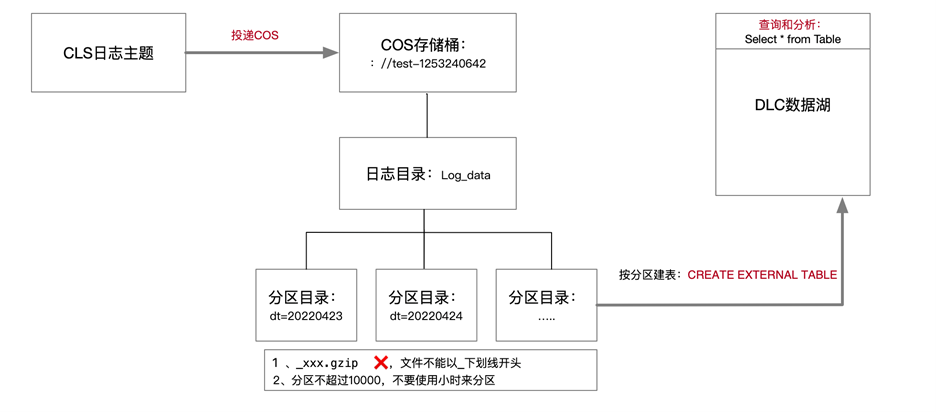
当您需要将日志服务 CLS 中的日志投递到 DLC 进行 OLAP 计算时,可以参见本文进行实践。您可以通过腾讯云数据湖计算 DLC(Data Lake Compute,DLC)提供的数据分析与计算服务,完成对日志的离线计算和分析。示意图如下所示:
操作步骤
CLS 日志投递至 COS
创建投递任务
1. 登录 日志服务控制台,选择左侧导航栏中的投递任务 > 投递至 COS。
2. 在“投递至 COS” 页面中,单击添加投递配置,在弹出的“投递至 COS”窗口中,配置并创建投递任务。
如下配置项需要注意:
配置项 | 注意事项 |
COS 存储桶 | 日志文件会投递到对象存储桶的该目录下。在数据仓库模型中,一般对应为 Table Location 的地址。 |
COS 路径 | 按照分区表格式指定。例如,按天分区可以设置为 /dt=%Y%m%d/test,其中 dt= 代表分区字段,%Y%m%d 代表年月日,test 代表日志文件前缀。 |
文件命名 | 投递时间命名 |
投递间隔时间 | 可在5 - 15分钟范围内选择,建议选择15分钟,250MB,这样文件数量会比较少,查询性能更佳。 |
投递格式 | JSON 格式。 |
单击下一步,进入高级配置,选择 JSON 和您需要处理的字段。
查看投递任务结果
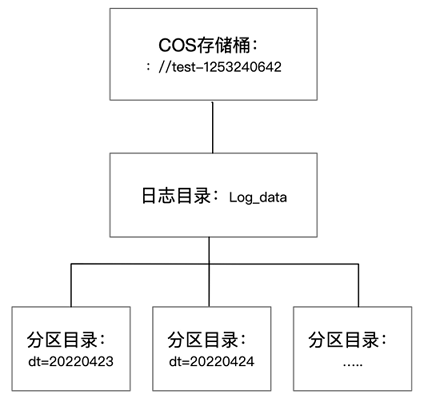
通常在启动投递任务15分钟后,可以在 COS(对象存储)控制台查看到日志数据,目录结构类似下图,分区目录下包含具体的日志文件。
DLC 分析
DLC 创建外部表并映射到对象存储日志目录
日志数据投递至对象存储后,即可通过 DLC 控制台 > 数据探索功能创建外部表,建表语句可参见如下 SQL 示例,需特别注意分区字段以及 Location 字段要与目录结构保持一致。
DLC 创建外表向导提供高级选项,可以帮助您推断数据文件表结构自动快捷生成 SQL,因为是采样推断所以需要您进一步根据 SQL 判断表字段是否合理,例如以下案例,TIMESTAMP 字段推断出为 int,但可能 bigint 才够用。
CREATE EXTERNAL TABLE IF NOT EXISTS `DataLakeCatalog`.`test`.`log_data` (`__FILENAME__` string,`__SOURCE__` string,`__TIMESTAMP__` bigint,`appId` string,`caller` string,`consumeTime` string,`data` string,`datacontenttype` string,`deliveryStatus` string,`errorResponse` string,`eventRuleId` string,`eventbusId` string,`eventbusType` string,`id` string,`logTime` string,`region` string,`requestId` string,`retryNum` string,`source` string,`sourceType` string,`specversion` string,`status` string,`subject` string,`tags` string,`targetId` string,`targetSource` string,`time` string,`type` string,`uin` string) PARTITIONED BY (`dt` string) ROW FORMAT SERDE 'org.apache.hive.hcatalog.data.JsonSerDe' STORED AS TEXTFILE LOCATION 'cosn://coreywei-1253240642/log_data/'
如果是按分区投递,Location 需要指向
cosn://coreywei-1253240642/log_data/ 目录,而不是 cosn://coreywei-1253240642/log_data/20220423/ 目录。使用推断功能,需要将目录指向数据文件所在的子目录即:
cosn://coreywei-1253240642/log_data/20220423/ 目录,推断完成后在 SQL 中 Location 修改回 cosn://coreywei-1253240642/log_data/ 目录即可。适当分区会提升性能,但分区总数建议不超过1万。
添加分区
分区表需要在添加分区数据后,才能通过 select 语句获取数据。您可以通过如下两种方式添加分区:
该方案可一次性加载所有分区数据,运行较慢,适用首次加载较多分区场景。
msck repair table DataLakeCatalog.test.log_data;
在加载完历史分区之后,增量分区还会定期增加。例如,每天新增一个分区,则可以通过该方案进行增量添加。
alter table DataLakeCatalog.test.log_data add partition(dt='20220424')
分析数据
添加完分区后,即可通过 DLC 进行数据开发或分析。
select dt,count(1) from `DataLakeCatalog`.`test`.`log_data` group by dt;


