Help & Documentation>Tencent Cloud EdgeOne

Ownership Verification

Last updated: 2023-09-07 15:01:35

Scenarios to Verify the Site or Domain Name Ownership

Upon the initial integration of your site or domain name with EdgeOne, it is imperative to authenticate the ownership of the said site or domain name. This is to circumvent any potential misconnections or conflicts with the configurations of other users.
Note:
This feature is available only when your site is connected via CNAME.

Distinguishing Between Site and Domain Name Ownership Verification

Assume that your business domain names are a.example.com, b.example.com, c.example.com, and the site you have connected is example.com.
Site Ownership Verification: If you have the operational authority over the root domain name DNS resolution or the root domain name source server, it is recommended to use site ownership verification to effectively reduce operational costs.
Once the site ownership is authenticated by EdgeOne, it is acknowledged that you possess the ownership of all subdomains under this domain name. Consequently, there is no need for further verification when adding a.example.com, b.example.com, c.example.com and other subdomains.
Domain Name Ownership Verification: In instances where your organization has a multi-tier structure or operates on behalf of a domain name, and you only have the DNS resolution operation rights or the operation rights of the subdomain source server, EdgeOne permits you to bypass the site ownership verification during site integration. However, subsequent individual verification of domain name ownership may increase the operational cost of integration.
Using domain ownership verification, each domain such as a.example.com, b.example.com, and c.example.com requires individual verification of ownership.
Once the ownership of a subdomain is verified, there is no need for further verification of other domains under it. For instance, once a.example.com is verified, test.a.example.com can be added directly without additional verification.

Steps to Verify the Site or Domain Name Ownership

The verification steps of site ownership are the same as those of domain name ownership. The following example describes how to verify the site ownership.
DNS Verification
File Verification
1. On the site verification page, select DNS Resolution Verification. On this page, you can obtain the host record, record type, and record value required for DNS resolution verification.

2. Log in to the console of the DNS service provider of the domain name and add a TXT record for the verification of the site ownership. The following examples describe how to add the TXT record in the console of different DNS service providers.
Tencent Cloud DNSPod
Alibaba Cloud DNS
Godaddy
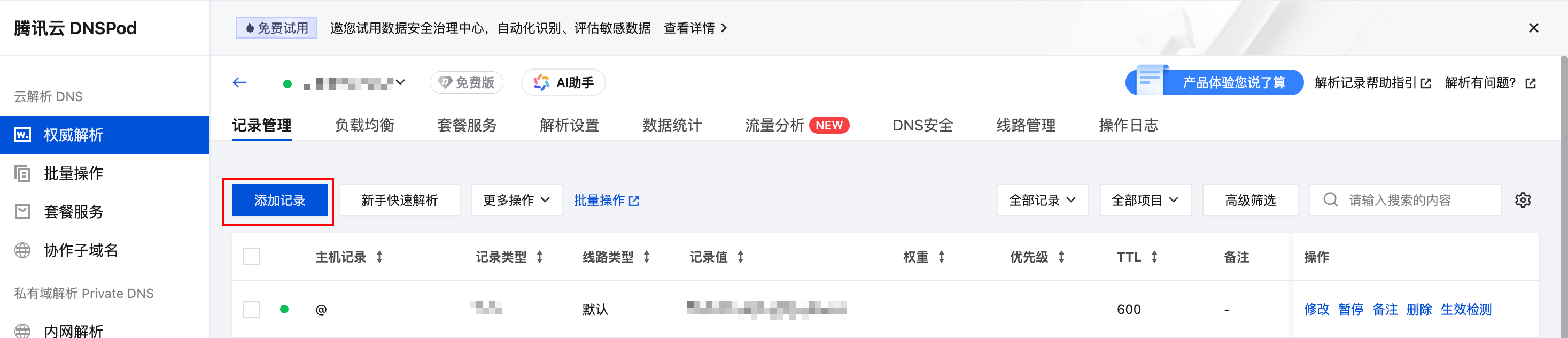
a. Log in to the DNSPod console, locate the domain name awaiting verification under My Domains, and click on the domain name to access the domain configuration page.

b. On the domain configuration page, click Add Record to add a new DNS record for the current domain for ownership verification.

c. Fill in the record type, host record, and record value from step 1.

Parameter name
Description
Type
TXT
Host Record
edgeonereclaim
Line type
Default Value
Text Content
Enter the record value provided by EdgeOne.
TTL
600
d. Click Confirm to complete the addition.
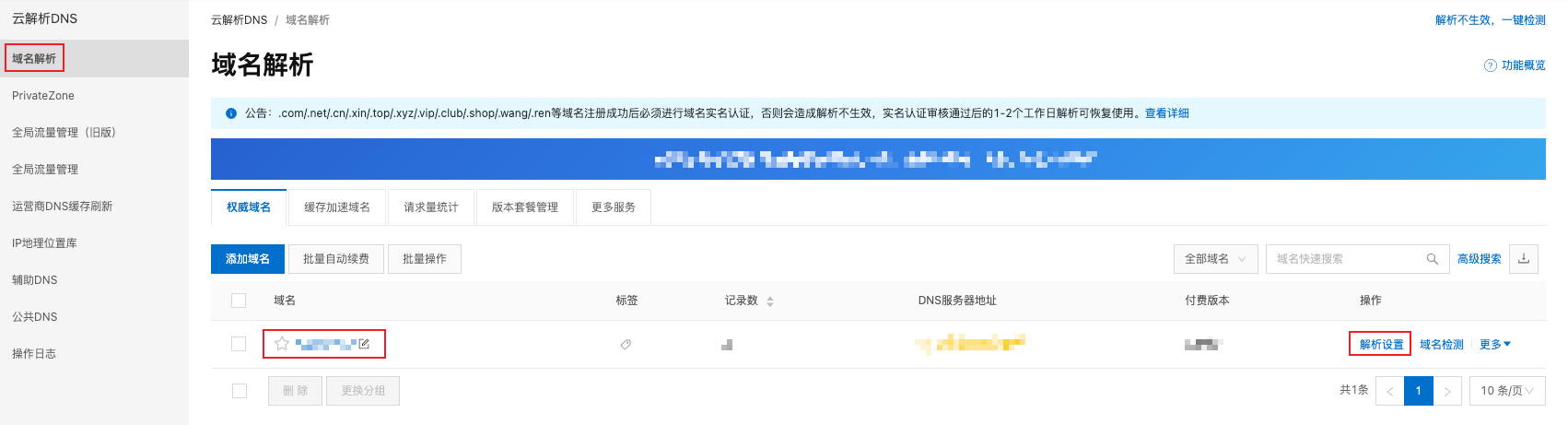
a. Log in to the Alibaba Cloud DNS console.
b. On the Domain Name Resolution page, locate the domain name awaiting verification. Click Resolution Settings on the right side of the domain name to access the resolution settings page.


c. Click Add Record to create a new resolution record for the current domain name for ownership verification.


d. Enter the record type, host record, and record value obtained in Step 1.


Parameter name
Description
Type
TXT
Host Record
edgeonereclaim
Line type
Default Value
Value
Enter the record value provided by EdgeOne.
TTL
10 min
e. Click Confirm to complete the addition.
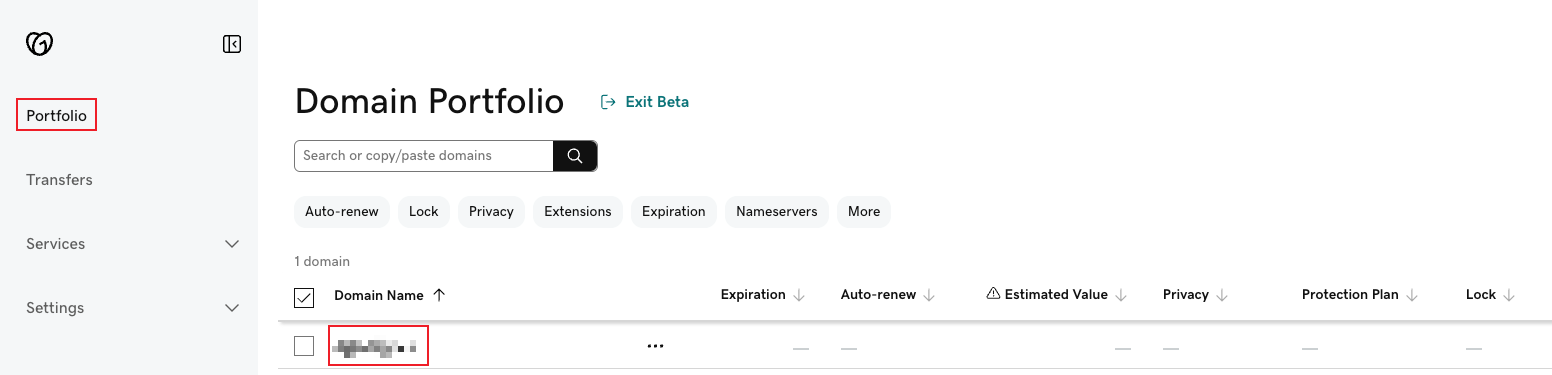
a. Log in to the Godaddy Domain Portfolio console.
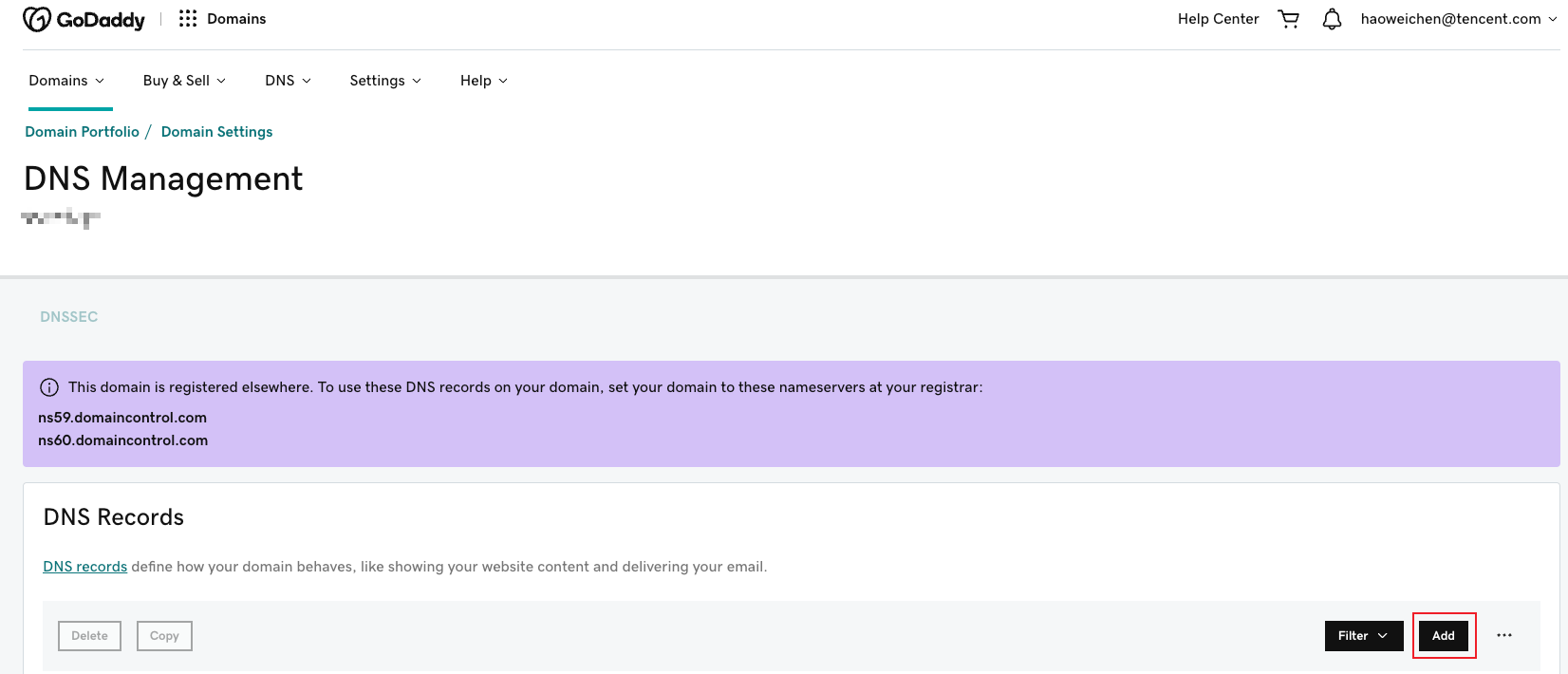
b. On the Portfolio page, locate the domain name awaiting verification and click on the domain name to navigate to the DNS settings page.

c. Click Add to create a new DNS record for the current domain name for ownership verification.

d. Enter the record type, host record, and record value obtained in Step 1.

Parameter name
Description
Type
TXT
Name
edgeonereclaim
Value
Enter the record value provided by EdgeOne.
TTL
Default
e. Click Add Record to finalize the addition.
3. Verify whether the current TXT record is effective by the following methods:
Windows
Mac/Linux
In the Windows operating system, open the cmd run program. For instance, if the site to be connected is www.example.com, you can run the following command in cmd: nslookup -qt=txt edgeonereclaim.example.com. Based on the parsing result, you can view the TXT parsing record information of this domain. If the TXT parsing record value is the same as the record value provided in step 1, the current TXT record parsing is effective.

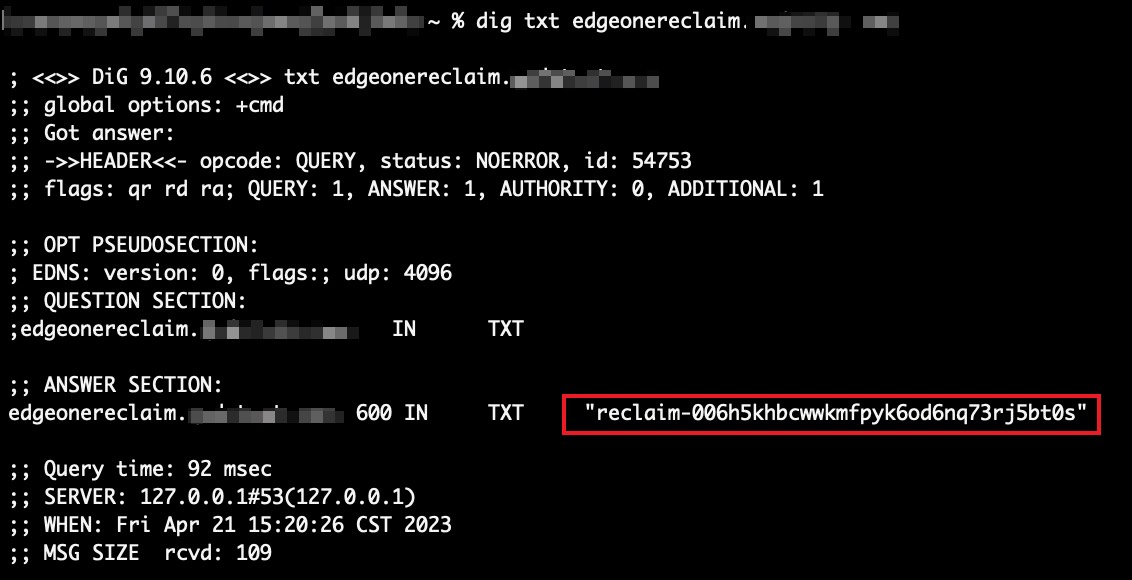
In Mac/Linux systems, the 'dig' command can be utilized for verification. For instance, if the site being integrated is example.com, you can execute the command dig txt edgeonereclaim.example.com in the terminal. The TXT record information for the domain can be viewed in the results of the command execution. If the TXT record information matches the record value provided in step 1, it indicates that the current TXT record parsing is effective.

4. After the TXT record takes effect, click Verify to complete the site ownership verification.
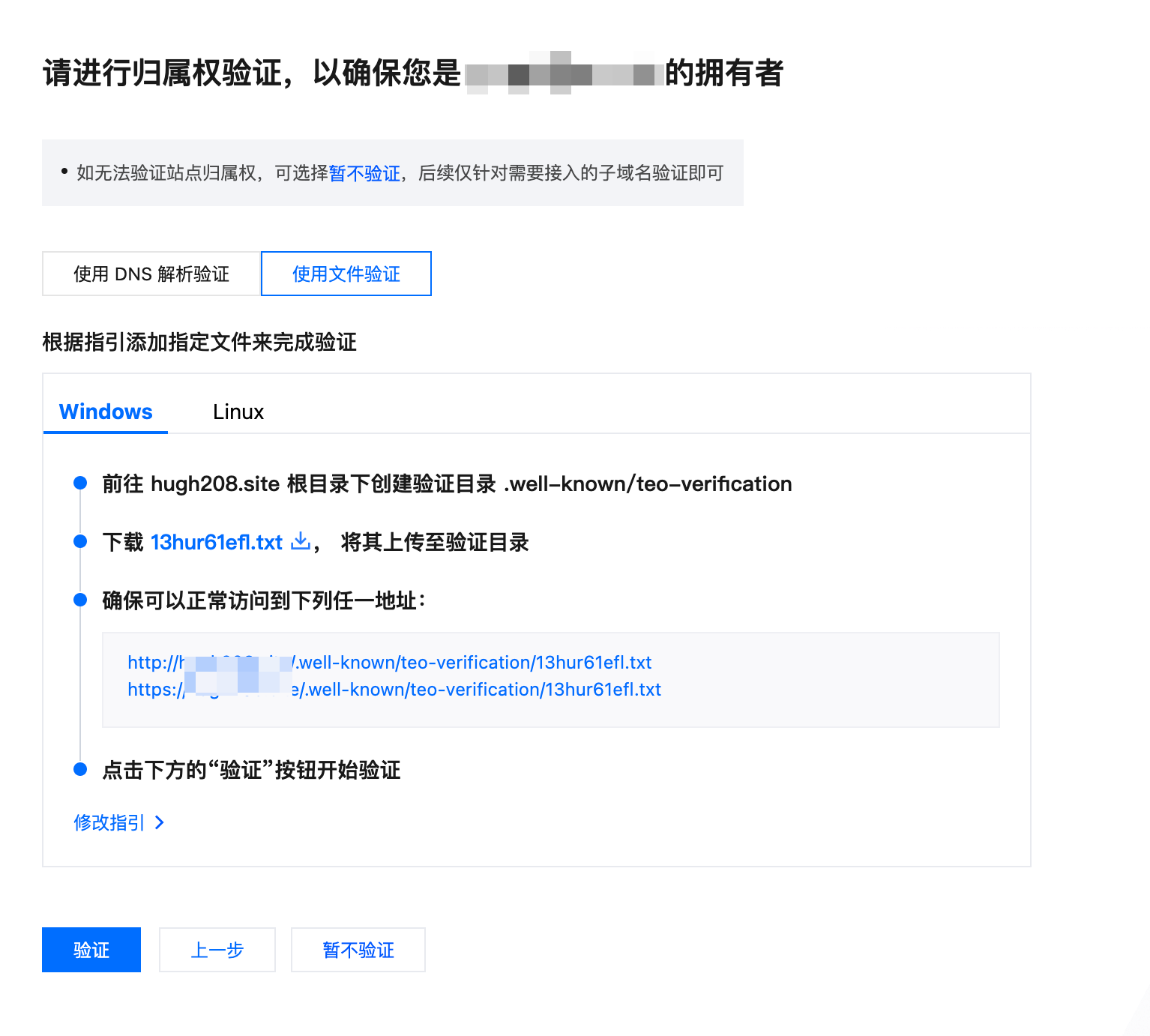
1. On the site verification page, select File Verification.

2. The following examples describe how to perform file verification on Windows and Linux.
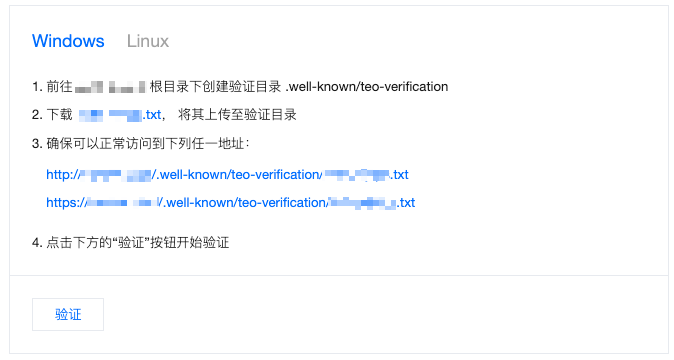
Windows Server
Linux Server
1. Navigate to the root directory of the server and establish the verification directory .well-known/teo-verification.
2. Click the file URL in step 2 to get the verification file and upload it to the verification directory.

3. Copy the URL in step 3 to your browser and make sure that the resource is accessible.
4. Click Verify below. Once verified, you're all set.
1. Run the command to enter the root directory of the web server.
2. Copy the code in step 2 to the command window and run it.

3. Copy the URL in step 3 to your browser and make sure that the resource is accessible.
4. Click Verify below. Once verified, you're all set.