Traffic mirror is a traffic collection feature that enables you to filter traffic from the specified ENI by using quintuple and other rules. Then you can copy and forward the filtered traffic to CVM instances in the same VPC. This feature is applicable to use cases including security auditing, risk monitoring, troubleshooting, and business analysis. This document describes how to create a traffic mirror.
Note
The traffic mirror feature is currently in beta test. To try it out, submit a ticket for application. Save the link to the Traffic Mirror console for later login; otherwise, you may need to apply again.
Preparations
Make sure that the source IP and target IP are in the same VPC and that the source IP has a route table pointing to the target IP.
2. Click Diagnostic Tools > Traffic Mirror on the left sidebar and select the target region.
3. Click Create.
Note
Up to five traffic mirrors can be created in a VPC.
4. In the pop-up window, configure as follows:
Enter a name for the traffic mirror (up to 60 characters).
Select a network.
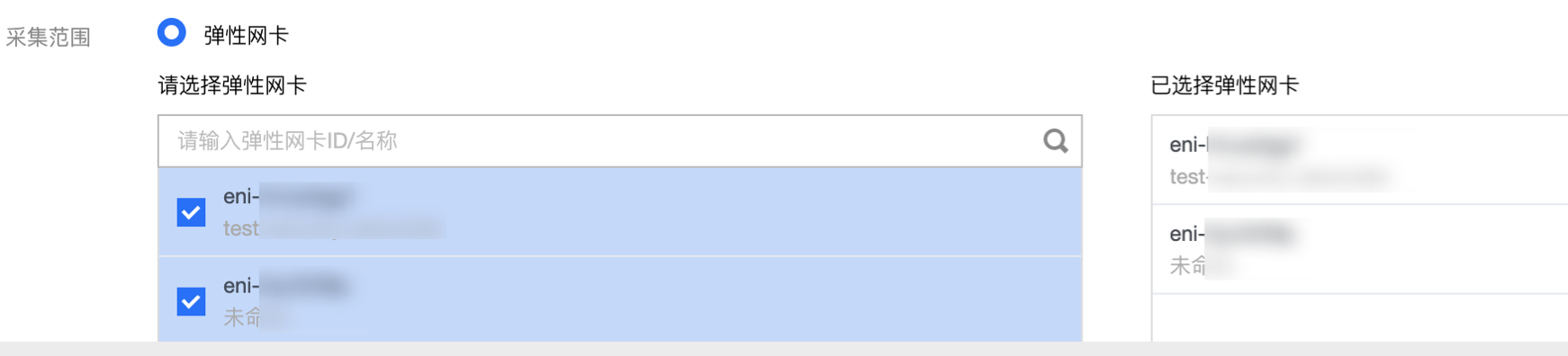
Select ENI for Collection range. That means to collect all traffic in the VPC, excluding the traffic of the ENI that is bound to the receiving IPs. If you select this option, you need to select a specific ENI.
Set Collection type: Select a traffic direction as needed. There are three options: All traffic, Traffic out, and Traffic in.
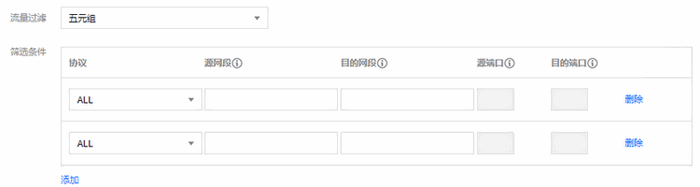
Set Traffic filtering: Select a method to filter out unnecessary traffic and keep the mirror small and lightweight.
N/A: All traffic configured will be collected.
Five-tuple: Collect traffic that meets the five-tuple conditions. After selecting "Five-tuple", you need to set the "Protocol", "Source IP range", "Destination IP range", "Source port", and "Destination port". To add more filtering conditions, click "Add". Multiple filtering conditions are related by an "AND" relationship.
The next hop is the NAT gateway: Collect traffic whose next hop address is the NAT gateway. After selecting this option, select a specific NAT gateway next to Condition.
5. After completing the configuration, click Next.
Step 2. Create a traffic mirror target
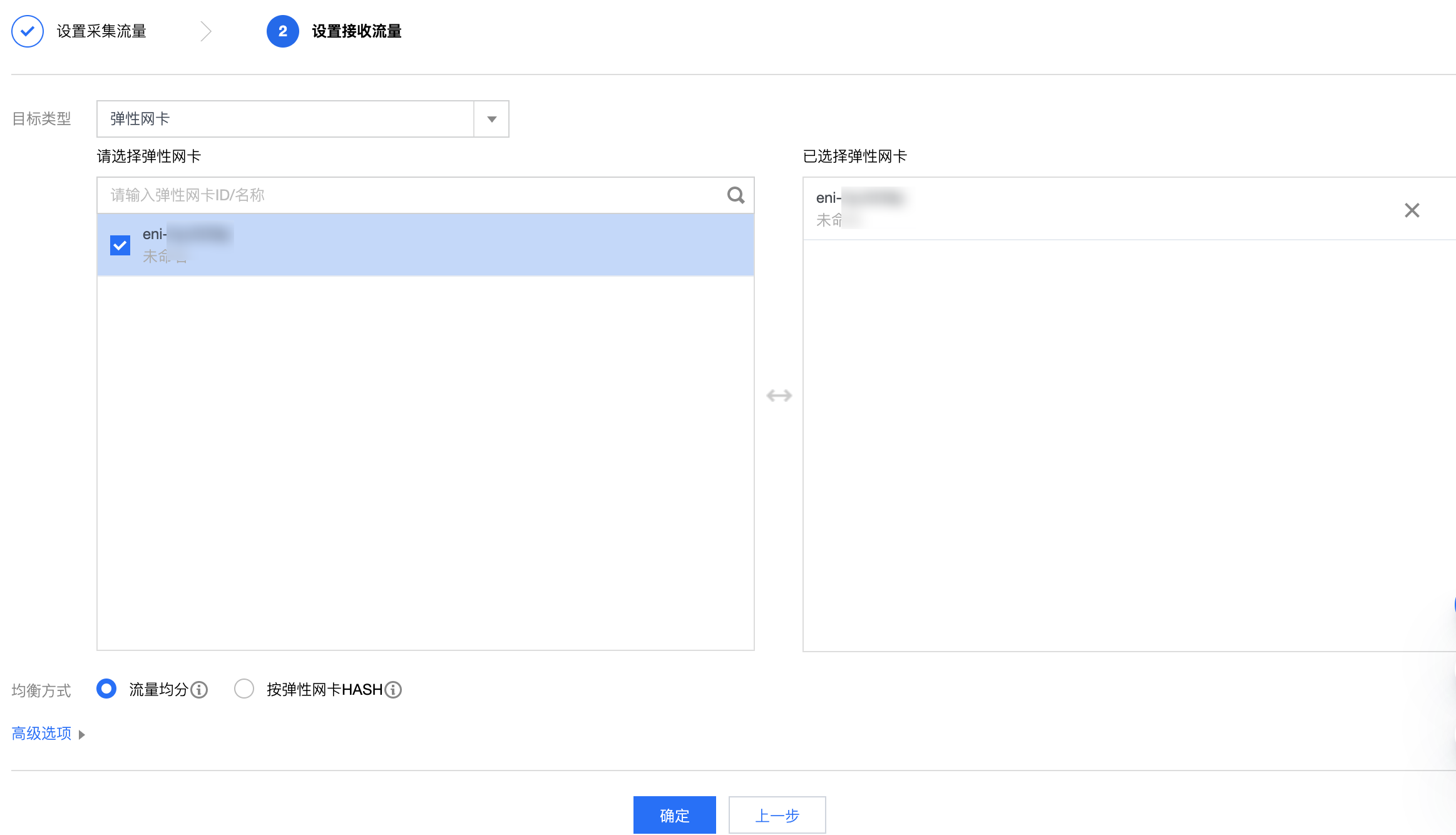
1. Set the following fields of traffic receiving configurations:
Target type: Select the target ENI to receive the forwarded traffic.
Note
At least one target ENI needs to be selected.
Traffic to the target ENI from inside the VPC will not be collected.
Balancing method: Select one of the following method.
Evenly distribute traffic: All traffic is distributed among all target ENIs evenly.
Hash by ENI: Traffic from the same ENI is always forwarded to a fixed target ENI.
2. Click OK.
Result validation
Note
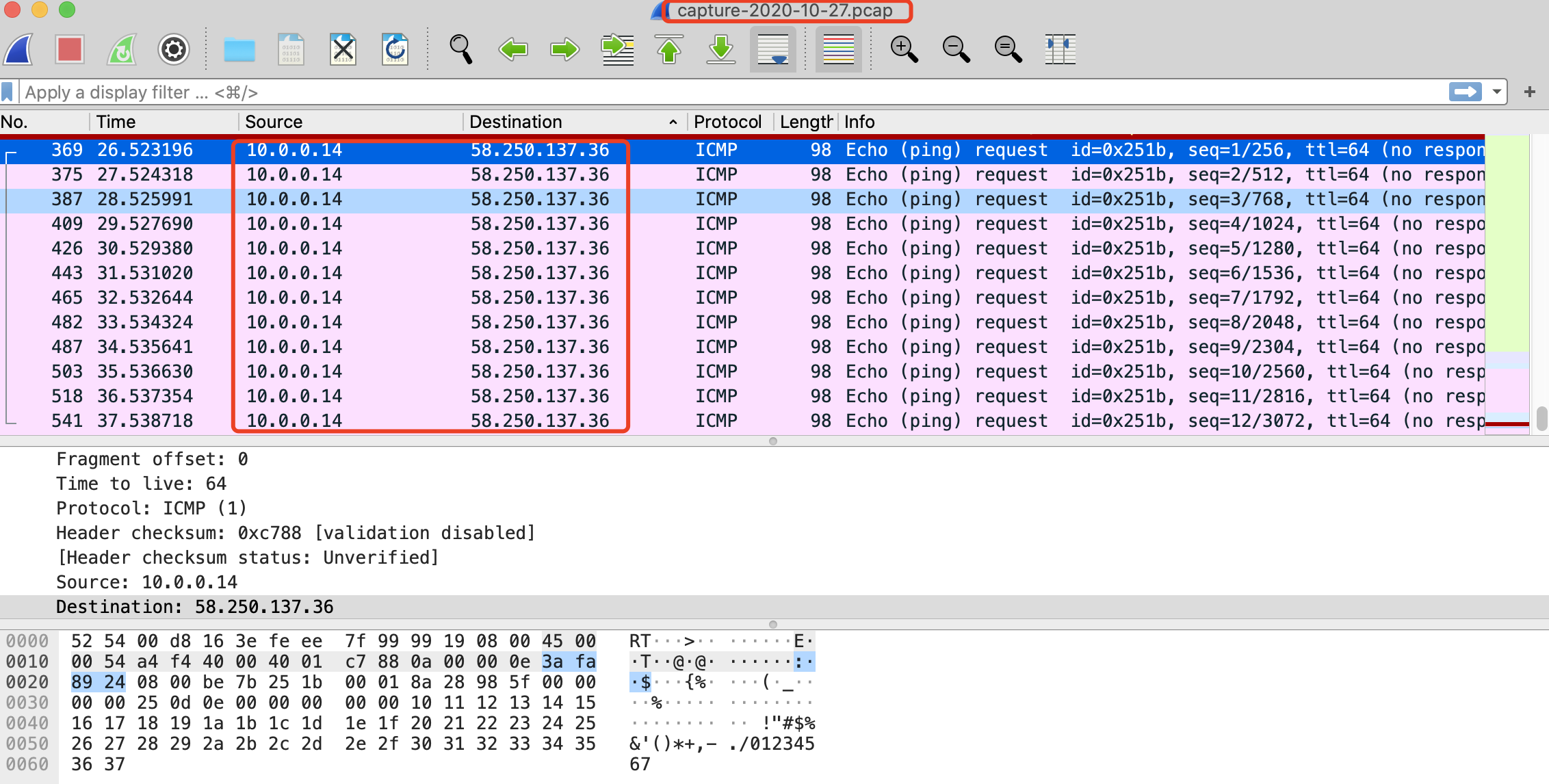
This document takes creating a traffic mirror that collects the outbound traffic of the 10.0.0.14 ENI accessing the www.qq.com website as an example.
1. Return to the Traffic mirroring page. If the created traffic mirror is displayed in the list with Collect traffic enabled, it has been created successfully.
2. Perform the following steps to verify whether the collected traffic is mirrored to the receiving IP.
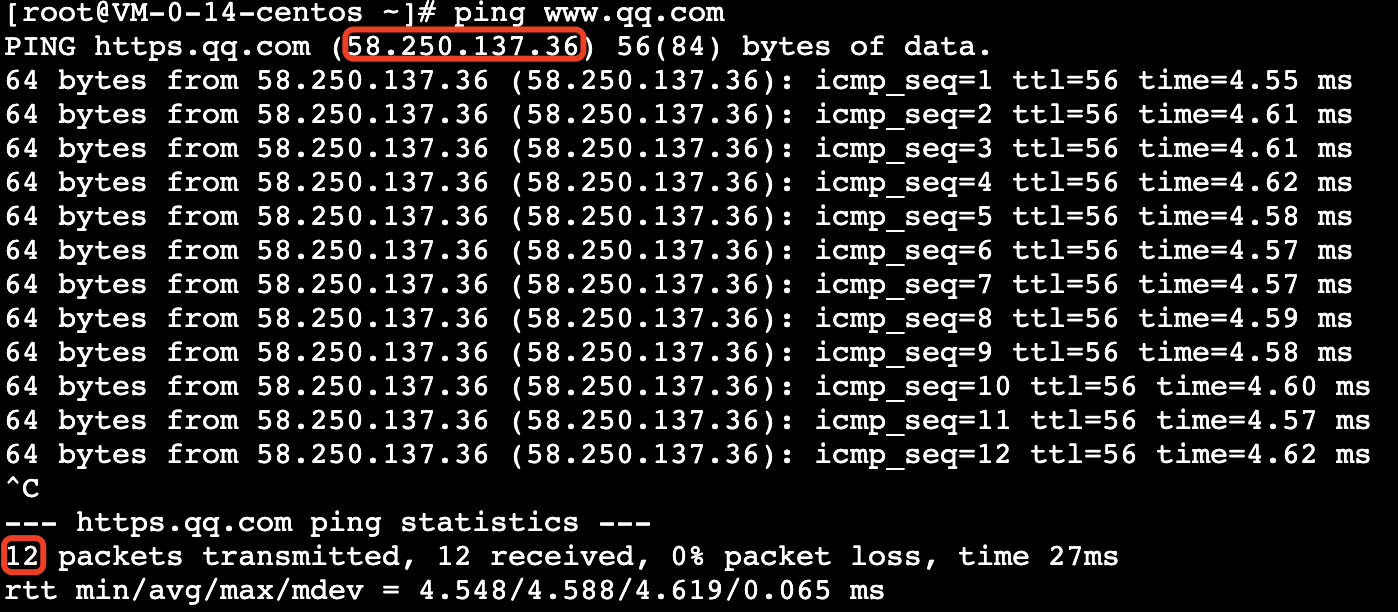
2.1 Generate the ENI traffic. For example, you can log in to the source CVM and run the "ping public IP" command.
Source data:
2.2
Log in
to the receiving Cloud Virtual Machine and execute the following command to capture data and save it as a ".cap" or ".pcap" file. In this example, we will use ".pcap".
tcpdump -i eth0 -w capture-2020-10-27.pcap #Enter the actual filename.
Destination packets:
2.3 Use a terminal simulator (such as SecureCRT) to log in to the destination CVM and export the file saved in Step ii.
sz -bye capture-2020-10-27.pcap
2.4 Use a packet parser (such as Wireshark) to get the data from the downloaded "capture-2020-10-27.pcap" file. In this sample, 12 mirrored packets of the source CVM instance are obtained from the destination CVM instance.
Packet verification: