Operation scenarios
Security group is a stateful virtual firewall with filtering feature for configuring network access control for one or more cloud database instances. It's an important network security isolation tool provided by Tencent Cloud. Security group is a logical grouping, allowing you to add cloud database instances with the same network security isolation requirements in one region into the same group. Cloud databases and CVM share the security group list, and within the group, rules are matched. For specific rules and limitations, please refer to Security Group Description.
Note:
TencentDB for SQL Server security group currently only supports network access control for VPCs and public network but not the classic network.
As TencentDB does not have active outbound traffic, outbound rules are not applicable to TencentDB.
TencentDB for SQL Server security group supports primary and read-only instances.
Configuring Security Groups for TencentDB
Step 1. Create a security group
1. log in to Console.
2. Select Security Group on the left sidebar, select a region, click New.
3. In the pop-up dialog box, configure the following items and then click OK.
Template: select a template based on the service to be deployed on the TencentDB instance in the security group, which simplifies the security group rule configuration, as shown below:
Template | Description | Scenario |
Open all ports | All ports are open. May present security issues. | - |
Open ports 22, 80, 443, and 3389 and the ICMP protocol | Ports 22, 80, 443, and 3389 and the ICMP protocol are opened to the internet. All ports are opened to the private network. | This template does not take effect for TencentDB. |
Custom | You can create a security group and then add custom rules. For detailed directions, please see "Step 2. Add a security group rule" below. | - |
Name: name of the security group.
Project: The default selection is "Default Project", but you can specify another project for easier future management.
Remarks: a short description of the security group for easier management.
Step 2. Add a security group rule
1. On the Security Group page, in the row of the security group to configure, click Operation and select Modify Rule.
2. On the security group rule page, select Inbound Rules > Add Rule.
3. In the pop-up dialog box, set the rule.
Type: The default selection is "Self Definition", but you can also choose other system rule templates. It is recommended to select the SQL Server (1433) template.
Source/Destination: the source (inbound rules) or destination (outbound rules) of traffic. Choose one of the following options:
Source or Target | Description |
A single IPv4 address or an IPv4 range | In CIDR notation, such as 203.0.113.0, 203.0.113.0/24 or 0.0.0.0/0, where 0.0.0.0/0 indicates all IPv4 addresses will be matched. |
A single IPv6 address or an IPv6 range | In CIDR notation, such as FF05::B5, FF05:B5::/60, ::/0 or 0::0/0, where ::/0 or 0::0/0 indicates all IPv6 addresses will be matched. |
ID of referenced security group. You can reference the ID of: Current security group Other security group | To reference the current security group, please enter the ID of security group associated with the CVM. You can also reference another security group in the same region and belongs to the same project by entering the security group ID. |
Reference an IP address object or IP address group object in the Parameter Template | - |
Protocol Port: Fill in the protocol type and port range, or reference the protocol port or protocol port group in the Parameter Template.
Note:
To connect to TencentDB for SQL Server, port 1433 must be opened.
Policy: the default value is "Permit".
Allow: Access requests of this port are allowed.
Reject: Data packets will be discarded without any response.
Notes: A short description of the rule for easier management.
4. Click Done to complete adding the inbound rule to the security group.
Case
Scenario:You have created a TencentDB for SQL Server and wish to access TencentDB for SQL Server through CVM.
Solution:When adding a security group rule, select SQL Server (1433) in "Type" to open the port for protocol 1433.
Based on your actual needs, you can also allow access for all IPs or specific IPs (IP ranges). The configuration can be done through CVM to specify the IP sources allowed to access TencentDB for SQL Server.
Direction | Type | Source | Protocol and Port | Policies |
Inbound Direction | SQL Server(1433) | All IP addresses: 0.0.0.0/0 Specified IP address: a specified IP address or IP address range | TCP:1433 | Allow |
Step 3. Configure a security group
The security group is an instance-level firewall provided by Tencent Cloud, allowing for control of inbound traffic to cloud databases. You can bind a security group when purchasing instances or after purchase via the console. The following introduces the operation of configuring the security group in both scenarios.
Note:
Currently, TencentDB for SQL Server security groups only support VPC cloud database configuration.
Scenario 1: Associate a security group with an instance when purchasing it
After the security group is created, you can associate a security group with an instance when purchasing it, and also you can quickly locate the target group by multiple selection and fuzzy search.
1. log in to SQL Server purchase page.
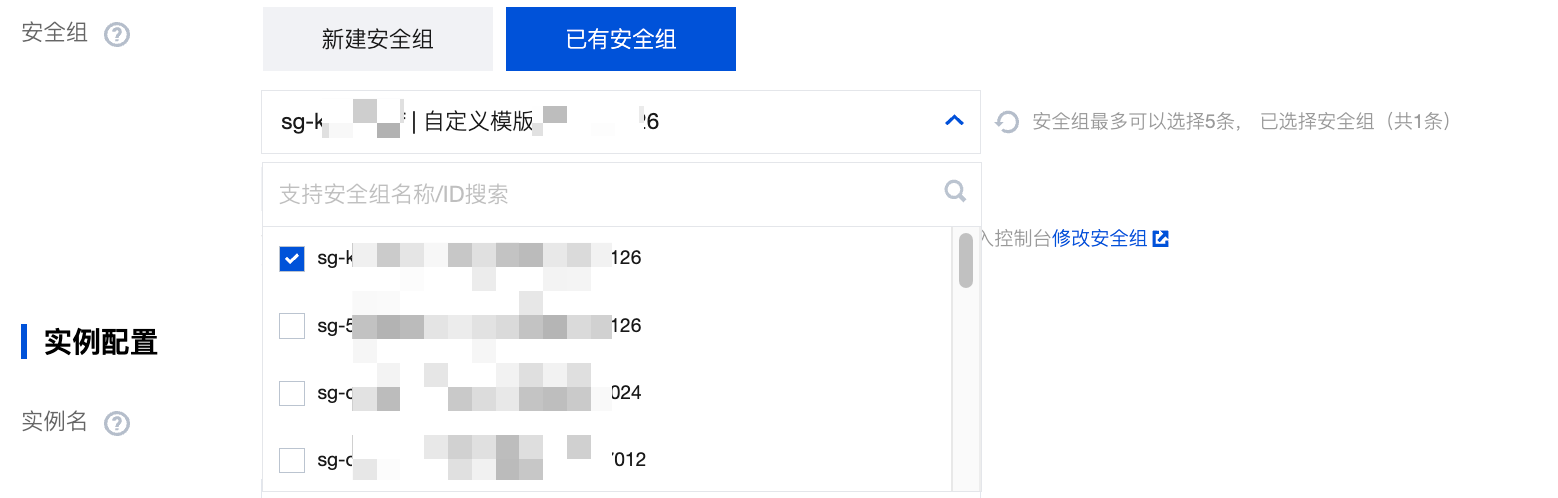
2. click Security Group > Select Existing Security Group below, in the box, check the target security group, supporting multiple selections and fast locating of the target security group through fuzzy search of the security group name.

3. After completing the other parameters configuration on the purchase page, click Buy Now.
Note:
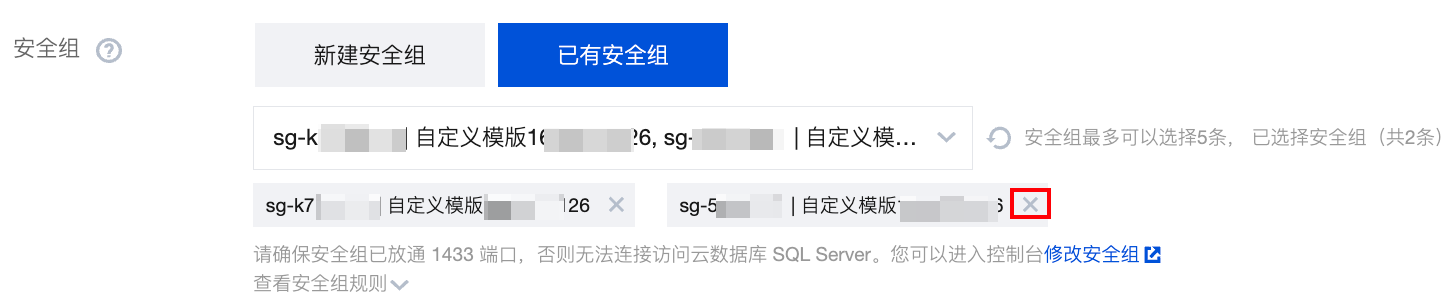
You can delete the redundant associated security groups after selecting multiple of them. At least one security group is reserved by default.

Scenario 2: Associate a security group with an instance after purchasing it in the console
1. log in to SQL Server console, in the instance list, select the instance to configure security group for, click Operation column's Manage, to enter the instance management page.
2. Select Security Group tab, click Configure Security Group.
3. In the dialog that pops up, select the security group to bind and click OK to complete the binding of the security group to the cloud database.
Importing Security Group Rules
1. On the Security Group page, select the needed security group, click Security Group ID/Name.
2. On the Inbound/Outbound Rules tab, click Import Rule.
3. In the dialog that pops up, select the prepared inbound/outbound rule template file, click Start Import.
Note:
As existing rules will be overwritten after importing, we recommend that you export the existing rules before importing new ones.
Cloning Security Groups
1. On the Security Group page, in the list's operation column select More > Clone.
2. In the dialog that pops up, select the target region, the target project, then click OK. If the new security group needs to be associated with CVM, please manage the security group's CVM again.
Deleting Security Groups
1. On the Security Group page, select the security group to delete, in the operation column select More > Delete.
2. In the dialog that pops up, click OK. If the current security group has associated CVMs, you'll need to disassociate the security group before it can be deleted.
Related APIs
API | Description |
The interface (DescribeDBSecurityGroups) is used for querying the security group details of an instance. | |
The interface (DescribeProjectSecurityGroups) is used for querying the security group details of a project. | |
The interface (ModifyDBInstanceSecurityGroups) is used to modify the security groups bound to an instance. | |
The interface (AssociateSecurityGroups) is used for batch binding security groups to instances. | |
The interface (DisassociateSecurityGroups) is used for batch unbinding security groups from instances. |