通过本文,您将了解如何将 TUILiveKit 的主播开播页组件进行集成。接入该组件后,您将获得:
完整的 UI 界面:开箱即用的标准主播开播页。
极高的灵活度:支持原子化拆解以及丰富的 UI 属性定制。
集成提示:
快速接入
前提条件
集成主播开播页面
新建
live-pusher.vue,作为开播页面的入口,负责整体布局、开播 / 停播、登录初始化,并按需引入底部控制栏的各功能模块。将以下代码复制到该文件即可:<template><UIKitProvider language="zh-CN" theme="dark"><div class="custom-live-pusher"><!-- 主要内容区 --><div class="main-content"><!-- 左侧:视频源和工具 --><div class="left-panel"><div class="scene-section"><div class="panel-title">画面源</div><LiveScenePanel /></div></div><!-- 中央:直播画面 --><div class="center-panel"><div class="stream-section"><div class="stream-header"><div class="stream-title"><span>{{ liveName }}</span></div><div class="stream-audience">{{ audienceCount }} 人在观看</div></div><StreamMixer /></div><div class="live-controls"><div class="bottom-panel"><!-- <MediaDeviceSetting />// 媒体设置能力请参考本文功能模块集成部分<CoGuestButton /> // 连麦观众能力请参考本文功能模块集成部分<OrientationSwitch /> // 布局设置请参考本文功能模块集成部分<LayoutSwitch /> // 横竖屏推流能力请参考本文功能模块集成部分 --></div><TUIButton type="primary" v-if="!currentLive?.liveId" @click="handleStartLive">开始直播</TUIButton><TUIButton color="red" v-else @click="handleStopLive">停止直播</TUIButton></div></div><!-- 右侧:观众互动 --><div class="right-panel"><div class="audience-section"><div class="panel-title">在线观众({{ audienceCount }})</div><LiveAudienceList /></div><div class="message-section"><div class="panel-title">消息列表</div><BarrageList /><BarrageInput /></div></div></div></div></UIKitProvider></template><script setup lang="ts">import { onMounted } from 'vue';import { UIKitProvider, TUIButton } from '@tencentcloud/uikit-base-component-vue3';import { LiveScenePanel, StreamMixer, LiveAudienceList, BarrageList, BarrageInput, useLiveListState, useLiveAudienceState, useLoginState } from 'tuikit-atomicx-vue3';const { login, setSelfInfo } = useLoginState();const { startLive, currentLive, endLive } = useLiveListState();const { audienceCount } = useLiveAudienceState();const liveName = '我的直播间';const handleStartLive = async () => {// 开始直播await startLive({liveId: 'my-live-room', // 直播间 IDliveName: liveName, // 直播间名称coverUrl: '', // 直播间封面 URLisPublicVisible: true, // 是否公开可见seatLayoutTemplateId: 600, // 麦位布局模板 ID});// 设置个人信息await setSelfInfo({userName: '我的名字/昵称', // 用户名avatarUrl: '', // 头像 URL 地址});};// 结束直播const handleStopLive = async () => {await endLive();};async function initLogin() {try {await login({sdkAppId: 0, // SDKAppID, 可以参考准备工作进行获取userId: '', // UserID, 可以参考准备工作进行获取userSig: '', // userSig, 可以参考准备工作进行获取});} catch (error) {console.error('登录失败:', error);}}onMounted(async () => {await initLogin();});</script><style>html,body,#app{height:100%;width:100%;margin:0;padding:0}</style><style scoped>.custom-live-pusher,.left-panel{flex-direction:column;display:flex}.custom-live-pusher,.live-title{color:var(--text-color-primary)}.live-controls,.tools-section,.top-controls{backdrop-filter:blur(10px)}*{box-sizing:border-box;margin:0;padding:0}:global(::before){box-sizing:border-box;margin:0;padding:0}.layout-label,.template-options{margin-bottom:16px}:global(body){line-height:1.6;color:var(--text-color-primary);background:var(--bg-color-default)}.custom-live-pusher{height:100vh;width:100vw;background:linear-gradient(135deg,var(--bg-color-default) 0,var(--bg-color-function) 100%);overflow:hidden}.top-controls{display:flex;justify-content:space-between;align-items:center;padding:12px 20px;background:var(--bg-color-operate);border-bottom:1px solid var(--stroke-color-primary);z-index:100;min-height:60px}.live-title{font-size:18px;font-weight:600;text-shadow:0 2px 4px var(--shadow-color)}.audience-count{font-size:14px;color:var(--text-color-error);background:var(--uikit-color-red-1);padding:6px 12px;border-radius:20px;border:1px solid var(--uikit-color-red-3)}.live-controls,.tools-section{background:var(--bg-color-operate)}.main-content{display:flex;flex:1;height:calc(100vh - 60px);gap:16px;padding:16px;overflow:hidden}.left-panel{width:320px;gap:16px;flex-shrink:0}.panel-title{font-size:16px;font-weight:600;color:var(--text-color-primary);margin-bottom:12px;text-align:left}.audience-section,.message-section,.scene-section{display:flex;flex-direction:column;background:var(--bg-color-operate);border-radius:12px;border:1px solid var(--stroke-color-primary);padding:16px;overflow:hidden}.scene-section{flex:1;min-height:0}.message-section{flex:1;min-height:0}.message-section :deep(input),.message-section :deep(textarea){text-align:left}.tools-section{border-radius:12px;padding:16px;border:1px solid var(--stroke-color-primary)}.center-panel{display:flex;flex-direction:column;flex:1;gap:16px;min-width:0}.stream-section{display:flex;flex-direction:column;flex:1;min-height:0;background:var(--bg-color-operate);border-radius:12px;border:1px solid var(--stroke-color-primary);overflow:hidden}.stream-header{display:flex;justify-content:space-between;align-items:center;padding:22px;border-bottom:1px solid var(--stroke-color-primary)}.stream-title{display:flex;align-items:center;gap:8px;font-size:18px;font-weight:500;color:var(--text-color-primary)}.stream-audience{font-size:14px;color:var(--text-color-primary)}.live-controls{display:flex;justify-content:space-between;align-items:center;padding:16px;border-radius:12px;border:1px solid var(--stroke-color-primary);gap:16px}.live-controls button{padding:18px 20px}.right-panel{display:flex;flex-direction:column;width:320px;gap:16px;flex-shrink:0}.center-panel>.live-controls,.left-panel>*,.right-panel>*{background:var(--bg-color-operate);border-radius:12px;border:1px solid var(--stroke-color-primary);overflow:hidden}.left-panel>*{padding:16px}.left-panel>.panel-title,.scene-section>.panel-title,.audience-section>.panel-title,.message-section>.panel-title{padding:0;background:transparent;border:none;border-radius:0}.custom-icon-container,.device-setting{padding:8px 12px;background:var(--bg-color-function)}.stream-section :deep(>*:last-child){flex:1;min-height:300px}.bottom-panel,.device-setting{align-items:center;display:flex}.custom-icon-container:hover,.option-card:hover{border-color:var(--stroke-color-primary);background:var(--list-color-hover)}.bottom-panel{gap:16px;flex:1}.device-setting{gap:8px;border-radius:8px;border:1px solid var(--stroke-color-secondary)}.device-icon{cursor:pointer;color:var(--text-color-primary);transition:color .2s}.device-icon:hover{color:var(--text-color-link)}.device-slider{width:80px}.custom-icon-container{display:flex;align-items:center;gap:6px;border-radius:8px;border:1px solid var(--stroke-color-secondary);cursor:pointer;transition:.2s;position:relative}.custom-icon-container.disabled{opacity:.5;cursor:not-allowed}.custom-icon-container.disabled:hover{background:var(--bg-color-function);border-color:var(--stroke-color-secondary)}.custom-icon{width:16px;height:16px;display:inline-block;background-size:contain;background-repeat:no-repeat;background-position:center}.custom-text{font-size:12px;color:var(--text-color-secondary);white-space:nowrap}.unread-count{position:absolute;top:-4px;right:-4px;background:var(--text-color-error);color:var(--text-color-button);border-radius:10px;padding:2px 6px;font-size:10px;font-weight:600;min-width:16px;text-align:center;line-height:1}.layout-label,.option-info h4{color:var(--text-color-primary)}.layout-dialog{max-width:600px}.layout-label{font-size:16px;font-weight:600}.options-grid{display:grid;grid-template-columns:repeat(auto-fit,minmax(120px,1fr));gap:12px}.option-card{padding:16px;background:var(--bg-color-function);border:2px solid var(--stroke-color-secondary);border-radius:8px;cursor:pointer;transition:.2s;text-align:center}.option-card.active{border-color:var(--text-color-link);background:var(--bg-color-operate)}.option-info h4{margin:8px 0 0;font-size:12px}.option-icon{width:32px;height:32px;margin:0 auto;color:var(--text-color-secondary)}.co-guest-dialog{max-width:500px}.co-guest-panel{min-height:300px}</style>
启动并运行示例
执行
npm run dev 成功后,在浏览器地址栏输入本地访问地址(例如 https://localhost:5173/live-pusher,具体端口号可能因项目配置不同而有所差异),即可看到开播页面,添加媒体源素材点击开始直播即可开启您的直播。npm run dev
观看直播的两种方式:
开播成功后,可通过以下任一方式观看直播间效果:
在线观看网站:打开在线观看网站,输入对应 sdkAppId 等信息,在直播列表中找到并进入你的直播间。
集成观看页面:在您的项目中接入 观众观看(Web 桌面浏览器)或者 观众观看(H5 移动端浏览器)组件观看。
注意:
观看请使用与开播端不同的用户 ID,否则先登录的设备会被强制下线。
开播 | 观看 |
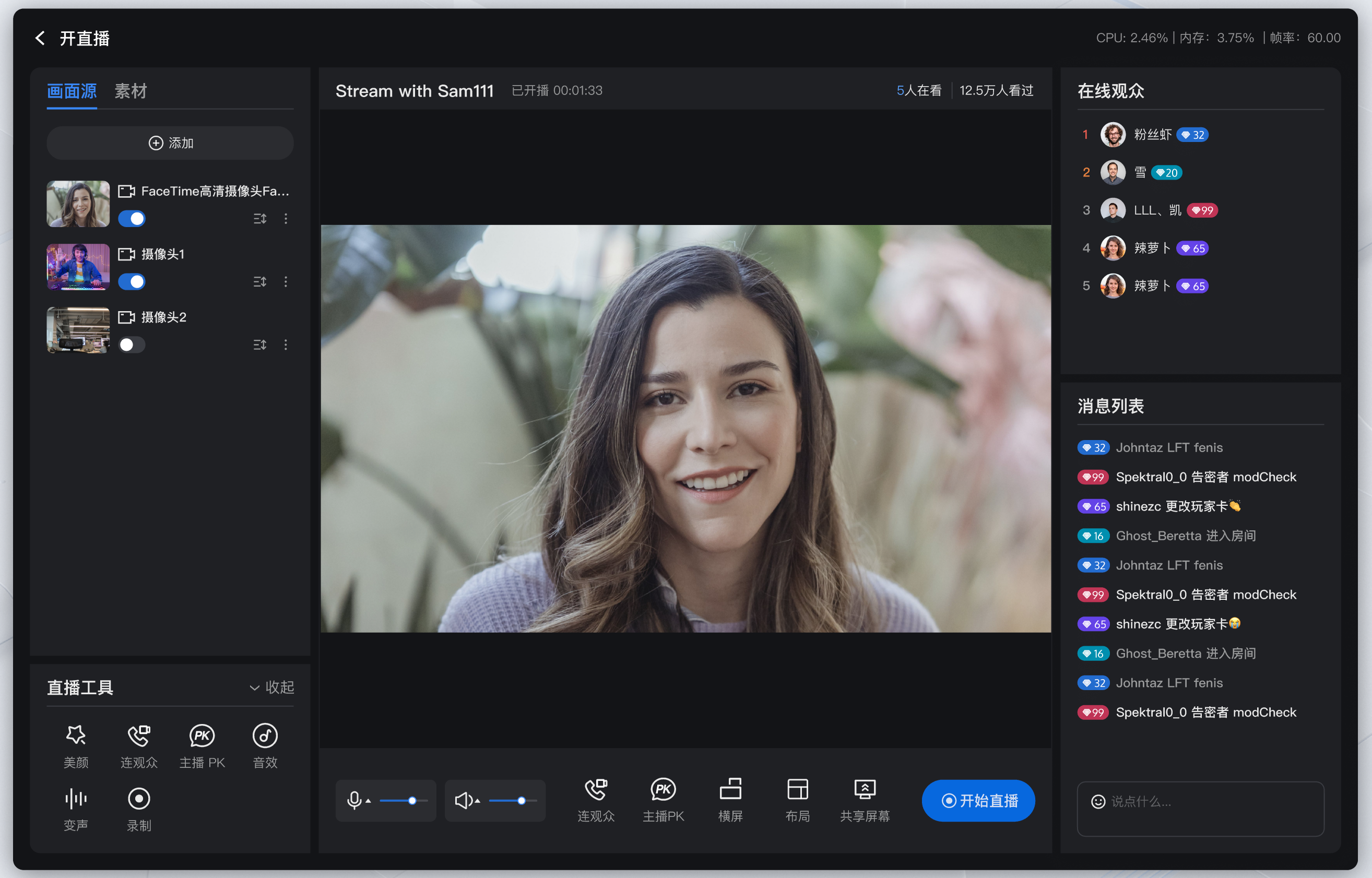 | 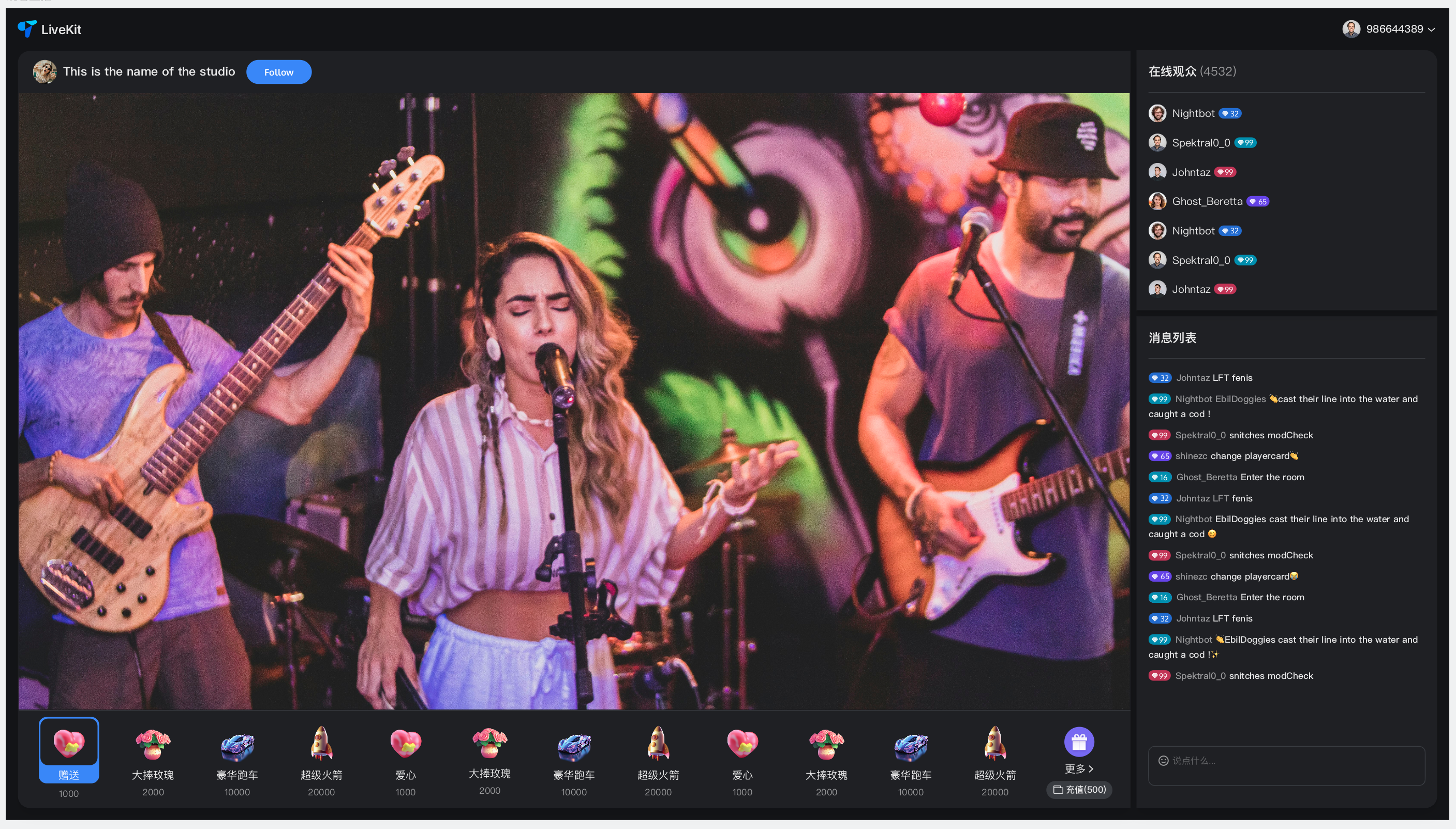 |
AI 助手:知识咨询与代码集成
您在接入直播与语聊 SDK 过程中,可以通过 MCP 使用 AI 助手,快速完成知识咨询、报错排查和集成代码生成。支持 Web/Android/iOS/Flutter/uni-app/HarmonyOS 等平台,答案基于官方文档。适用于查询 AtomicXCore SDK、UI 组件用法、集成文档等场景,立即体验,提出您的第一个问题。
功能模块
以下模块均为可独立复制的组件,需要先通过 集成主播开播页面,然后根据您的业务需求将下列各个模块的代码直接粘贴进对应的注释部分去即可。
支持媒体设置能力
若您需要支持媒体设置能力,包括设置扬声器、麦克风音量大小等内容,请参考如下代码示例复制到
live-pusher.vue 文件中即可。MediaDeviceSetting 媒体设备设置
<template><div class="media-device-container"><!-- MicVolumeSetting 麦克风设置 --><div class="device-setting"><TUIIcon class="device-icon" :icon="microphoneIsOn ? IconAudioOpen : IconAudioClose" :size="20" @click="switchMicrophoneStatus" /><TUISlider v-model="microphoneVolume" class="device-slider" :min="0" :max="100" :disabled="!microphoneIsOn" @change="handleMicrophoneVolumeChange" /></div><!-- SpeakerVolumeSetting 扬声器设置 --><div class="device-setting"><TUIIcon class="device-icon" :icon="speakerIsOn ? IconSpeakerOn : IconSpeakerOff" :size="20" @click="switchSpeaker(!speakerIsOn)" /><TUISlider v-model="speakerVolume" class="device-slider" :min="0" :max="100" :disabled="!speakerIsOn" @change="handleSpeakerVolumeChange" /></div></div></template><script lang="ts" setup>import { ref, watch } from 'vue';import { TUIIcon, TUISlider, IconSpeakerOn, IconSpeakerOff, IconAudioOpen, IconAudioClose } from '@tencentcloud/uikit-base-component-vue3';import { useDeviceState } from 'tuikit-atomicx-vue3';const {captureVolume,setCaptureVolume,openLocalMicrophone,closeLocalMicrophone,} = useDeviceState();const { outputVolume, setOutputVolume } = useDeviceState();const microphoneVolume = ref(captureVolume.value);const speakerVolume = ref(outputVolume.value);const microphoneIsOn = ref(true);const speakerIsOn = ref(true);const templateSpeakerVolume = ref(outputVolume.value);const templateMicrophoneVolume = ref(captureVolume.value);const handleMicrophoneVolumeChange = (value: number) => {if (value !== captureVolume.value) {setCaptureVolume(value);}};const switchMicrophoneStatus = () => {microphoneIsOn.value = !microphoneIsOn.value;if (!microphoneIsOn.value) {templateMicrophoneVolume.value = captureVolume.value;closeLocalMicrophone();} else {openLocalMicrophone();setCaptureVolume(templateMicrophoneVolume.value);}};const switchSpeaker = (open: boolean) => {speakerIsOn.value = open;if (!open) {templateSpeakerVolume.value = outputVolume.value;setOutputVolume(0);} else {setOutputVolume(templateSpeakerVolume.value);}};const handleSpeakerVolumeChange = (value: number) => {if (value !== outputVolume.value) {setOutputVolume(value);}};watch(captureVolume, (newVal) => {microphoneVolume.value = newVal;});watch(outputVolume, (newVal) => {speakerVolume.value = newVal;});</script><style scoped>.media-device-container{display:flex;align-items:center;gap:12px}.device-setting{display:flex;align-items:center;gap:8px;padding:12px 16px;background:var(--bg-color-function);border-radius:8px;border:1px solid var(--stroke-color-secondary)}.device-slider{width:100px}.device-icon{cursor:pointer;color:var(--text-color-primary);transition:color .2s}.device-icon:hover{color:var(--text-color-link)}</style>
支持横竖屏推流能力
若您需要支持观众连麦能力,包括设置连麦申请、连麦管理等内容,请参考如下代码示例复制到
live-pusher.vue 文件中即可。LayoutSwitch 横竖屏推流设置
<template><divclass="custom-icon-container":class="{ disabled: currentLive?.liveId }"@click="handleOrientationSwitch"><IconHorizontalModev-if="currentOrientation === LiveOrientation.Landscape"class="custom-icon"/><IconPortraitv-elseclass="custom-icon"/><span class="custom-text co-guest-text">{{currentOrientation === LiveOrientation.Portrait ? t('Portrait') : t('Landscape')}}</span></div></template><script setup lang="ts">import { ref, watch } from 'vue';import { useUIKit, TUIToast, TOAST_TYPE, IconPortrait, IconHorizontalMode } from '@tencentcloud/uikit-base-component-vue3';import { useLiveListState, LiveOrientation } from 'tuikit-atomicx-vue3';const { t } = useUIKit();enum TUISeatLayoutTemplate {LandscapeDynamic_1v3 = 200,PortraitDynamic_Grid9 = 600,PortraitDynamic_1v6 = 601,PortraitFixed_Grid9 = 800,PortraitFixed_1v6 = 801,PortraitFixed_6v6 = 802,}const { currentLive, updateLiveInfo } = useLiveListState();const currentOrientation = ref(LiveOrientation.Portrait);watch(() => currentLive.value?.layoutTemplate,newVal => {if (newVal === TUISeatLayoutTemplate.LandscapeDynamic_1v3) {currentOrientation.value = LiveOrientation.Landscape;} else {currentOrientation.value = LiveOrientation.Portrait;}},{ immediate: true });const handleOrientationSwitch = () => {if (currentLive.value?.liveId) {TUIToast({message: t('Cannot switch orientation during live streaming'),type: TOAST_TYPE.ERROR,});return;}if (currentOrientation.value === LiveOrientation.Portrait) {updateLiveInfo({ layoutTemplate: TUISeatLayoutTemplate.LandscapeDynamic_1v3 });} else {updateLiveInfo({ layoutTemplate: TUISeatLayoutTemplate.PortraitDynamic_Grid9 });}};</script><style scoped>.custom-icon-container{display:flex;flex-direction:column;align-items:center;justify-content:center;gap:4px;width:56px;height:56px;cursor:pointer;color:var(--text-color-primary);border-radius:12px;position:relative}.custom-icon{width:24px;height:24px;background:transparent}.custom-text{font-size:12px}.custom-icon-container:not(.disabled):hover{box-shadow:0 0 10px 0 var(--bg-color-mask)}.custom-icon-container:not(.disabled):hover .custom-icon,.custom-icon-container:not(.disabled):hover .custom-text{color:var(--text-color-link)}.custom-icon-container.disabled{cursor:not-allowed;opacity:.5;color:var(--text-color-secondary)}.custom-icon-container.disabled .custom-icon,.custom-icon-container.disabled .custom-text{color:var(--text-color-secondary);cursor:not-allowed}</style>
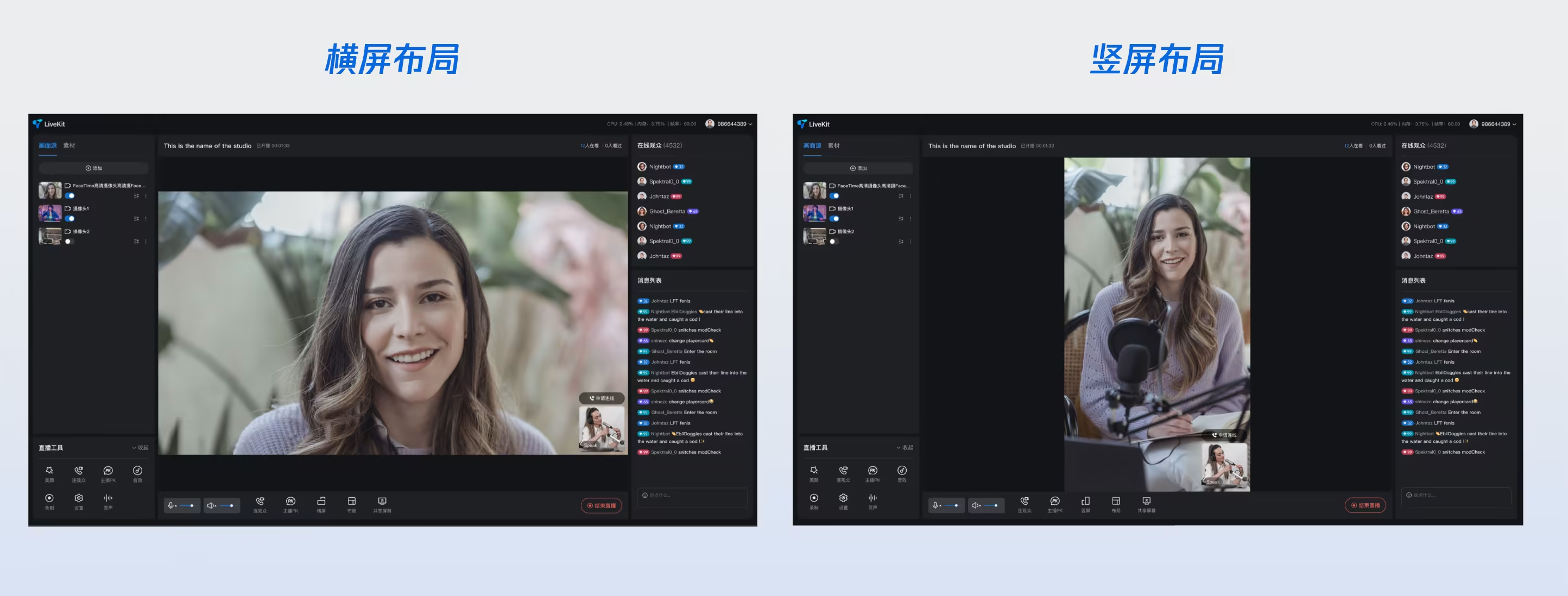
TUILiveKit 支持横屏和竖屏两种推流模式,您可根据直播场景选择合适的推流方向:
推流模式 | 适用场景 | 说明 |
竖屏推流 | 秀场直播、电商带货、聊天互动 | 默认模式,适合移动端观看,画面比例为 9:16。 |
横屏推流 | 游戏直播、在线教育、会议直播 | 适合 PC 端观看,画面比例为 16:9。 |
注意:
横竖屏切换必须在开播前进行设置,直播过程中无法切换推流方向。
通过 UI 交互切换横竖屏
在主播开播页的底部控制栏,点击横屏 / 竖屏按钮即可切换推流方向:
显示竖屏时,当前为竖屏推流模式;
显示横屏时,当前为横屏推流模式。
通过代码设置横竖屏
您也可以通过调用
updateLiveInfo 方法,在代码中设置推流方向:import { useLiveListState } from 'tuikit-atomicx-vue3';const { updateLiveInfo } = useLiveListState();// 切换为横屏模式(模板 ID: 200)updateLiveInfo({ layoutTemplate: 200 });// 切换为竖屏模式(模板 ID: 600)updateLiveInfo({ layoutTemplate: 600 });
说明:
横屏模式对应的布局模板 ID 范围为 200-599,默认使用 200(横屏浮动布局)。
竖屏模式对应的布局模板 ID 范围为 600-899,默认使用 600(动态宫格布局)。
切换横竖屏时,系统会自动切换到对应方向的默认布局模板。
支持布局设置能力
若您需要支持视频流切换布局能力,包括设置动态宫格布局、静态宫格布局、静态小窗布局、浮动小窗布局等内容,请参考如下代码示例复制到
live-pusher.vue 文件中即可。OrientationSwitch 布局设置
<template><divclass="custom-icon-container":class="{ 'disabled': disabled }"@click="handleSwitchLayout"><IconLayoutTemplate class="custom-icon" /><span class="custom-text setting-text">{{ t('Layout Settings') }}</span></div><TUIDialog:customClasses="['layout-dialog']":title="t('Layout Settings')":visible="layoutSwitchVisible"@close="handleCancel"@confirm="handleConfirm"@cancel="handleCancel"appendTo="body"><div class="layout-label">{{ t('Audience Layout') }}</div><div class="template-options"><div class="options-grid"><templatev-for="template in layoutOptions":key="template.id"><divclass="option-card":class="{ active: selectedTemplate === template.templateId }"@click="selectTemplate(template.templateId)"><div class="option-info"><component:is="template.icon"v-if="template.icon"class="option-icon"/><h4>{{ template.label }}</h4></div></div></template></div></div></TUIDialog></template><script lang="ts" setup>import { ref, computed, watch, h, defineComponent } from 'vue';import { TUIErrorCode } from '@tencentcloud/tuiroom-engine-js';import { useUIKit, TUIDialog, TUIToast, TOAST_TYPE, IconLayoutTemplate } from '@tencentcloud/uikit-base-component-vue3';import { useLiveListState, useCoHostState, CoHostStatus } from 'tuikit-atomicx-vue3';/*** 直播间麦位排版模板*/enum TUISeatLayoutTemplate {LandscapeDynamic_1v3 = 200,PortraitDynamic_Grid9 = 600,PortraitDynamic_1v6 = 601,PortraitFixed_Grid9 = 800,PortraitFixed_1v6 = 801,PortraitFixed_6v6 = 802,}const createSvgIcon = (pathD: string) => defineComponent({render: () => h('svg', { xmlns: 'http://www.w3.org/2000/svg', viewBox: '0 0 24 24', fill: 'currentColor', width: '24', height: '24' }, [h('path', { d: pathD })])});const Dynamic1v6 = createSvgIcon('M3 3h7v7H3V3zm11 0h7v4h-7V3zm0 6h7v4h-7V9zm0 6h7v6h-7v-6zM3 12h7v9H3v-9z');const DynamicGrid9 = createSvgIcon('M3 3h5v5H3V3zm7 0h4v5h-4V3zm6 0h5v5h-5V3zM3 10h5v4H3v-4zm7 0h4v4h-4v-4zm6 0h5v4h-5v-4zM3 16h5v5H3v-5zm7 0h4v5h-4v-5zm6 0h5v5h-5v-5z');const Fixed1v6 = createSvgIcon('M2 2h9v9H2V2zm11 0h9v4h-9V2zm0 5h9v4h-9V7zm0 5h9v4h-9v-4zm0 5h9v5h-9v-5zM2 13h9v9H2v-9z');const FixedGrid9 = createSvgIcon('M2 2h6v6H2V2zm7 0h6v6H9V2zm7 0h6v6h-6V2zM2 9h6v6H2V9zm7 0h6v6H9V9zm7 0h6v6h-6V9zM2 16h6v6H2v-6zm7 0h6v6H9v-6zm7 0h6v6h-6v-6z');const HorizontalFloat = createSvgIcon('M2 4h20v12H2V4zm3 14h4v2H5v-2zm6 0h4v2h-4v-2zm6 0h4v2h-4v-2z');const { t } = useUIKit();const { currentLive, updateLiveInfo } = useLiveListState();const { coHostStatus } = useCoHostState();const disabled = computed(() => coHostStatus.value === CoHostStatus.Connected);watch(() => currentLive.value?.liveId,(liveId) => {if (!liveId) {updateLiveInfo({ layoutTemplate: TUISeatLayoutTemplate.PortraitDynamic_Grid9 });}},{ immediate: true },);const layoutSwitchVisible = ref(false);const handleSwitchLayout = () => {if (disabled.value) {TUIToast({ type: TOAST_TYPE.ERROR, message: t('Layout switching is not available during co-hosting') });return;}layoutSwitchVisible.value = true;};const portraitLayoutOptions = computed(() => [{id: 'PortraitDynamic_Grid9',icon: DynamicGrid9,templateId: TUISeatLayoutTemplate.PortraitDynamic_Grid9,label: t('Dynamic Grid9 Layout'),},{id: 'PortraitFixed_1v6',icon: Fixed1v6,templateId: TUISeatLayoutTemplate.PortraitFixed_1v6,label: t('Fixed 1v6 Layout'),},{id: 'PortraitFixed_Grid9',icon: FixedGrid9,templateId: TUISeatLayoutTemplate.PortraitFixed_Grid9,label: t('Fixed Grid9 Layout'),},{id: 'PortraitDynamic_1v6',icon: Dynamic1v6,templateId: TUISeatLayoutTemplate.PortraitDynamic_1v6,label: t('Dynamic 1v6 Layout'),},]);const horizontalLayoutOptions = computed(() => [{id: 'LandscapeDynamic_1v3',icon: HorizontalFloat,templateId: TUISeatLayoutTemplate.LandscapeDynamic_1v3,label: t('Landscape Template'),},]);const layoutOptions = computed(() => {if (currentLive.value && currentLive.value?.layoutTemplate >= 200 && currentLive.value?.layoutTemplate <= 599) {return horizontalLayoutOptions.value;}return portraitLayoutOptions.value;});const selectedTemplate = ref<TUISeatLayoutTemplate | null>(currentLive.value?.layoutTemplate ?? null);function selectTemplate(template: TUISeatLayoutTemplate) {selectedTemplate.value = template;}watch(() => currentLive.value?.layoutTemplate, (newVal) => {if (newVal) {selectedTemplate.value = newVal;}});async function handleConfirm() {if (selectedTemplate.value) {try {await updateLiveInfo({ layoutTemplate: selectedTemplate.value });layoutSwitchVisible.value = false;} catch (error: any) {let errorMessage = t('Layout switch failed');if (error.code === TUIErrorCode.ERR_FREQ_LIMIT) {errorMessage = t('Operation too frequent, please try again later');}TUIToast({ type: TOAST_TYPE.ERROR, message: errorMessage });}} else {layoutSwitchVisible.value = false;}}function handleCancel() {selectedTemplate.value = currentLive.value?.layoutTemplate ?? null;layoutSwitchVisible.value = false;}</script><style scoped>.custom-icon-container { display: flex; flex-direction: column; align-items: center; justify-content: center; gap: 4px; width: 56px; height: 56px; cursor: pointer; color: var(--text-color-primary); border-radius: 12px; position: relative; } .custom-icon-container .custom-icon { display: inline-block; width: 24px; height: 24px; background: transparent; } .custom-icon-container .custom-text { font-size: 12px; font-weight: 400; } .custom-icon-container:not(.disabled):hover { box-shadow: 0 0 10px 0 var(--bg-color-mask); } .custom-icon-container:not(.disabled):hover .custom-icon { color: var(--text-color-link); } .custom-icon-container:not(.disabled):hover .custom-text { color: var(--text-color-link); } .custom-icon-container.disabled { cursor: not-allowed; opacity: 0.5; color: var(--text-color-tertiary); } .custom-icon-container.disabled .custom-icon { color: var(--text-color-tertiary); cursor: not-allowed; } .custom-icon-container.disabled .custom-text { color: var(--text-color-tertiary); } :deep(.layout-dialog) { padding: 24px; width: 480px; } :deep(.layout-dialog) .dialog-body { flex-wrap: wrap; } :deep(.layout-dialog) .dialog-footer { padding-top: 32px; } .layout-label { font-size: 14px; font-weight: 400; color: var(--text-color-primary, #ffffff); margin: 4px 0px 16px 0px; } .template-options { width: 100%; height: 100%; overflow: auto; } .template-options .options-grid { display: flex; flex-wrap: wrap; gap: 16px; justify-content: flex-start; } .template-options .options-grid .option-card { box-sizing: border-box; padding: 12px 13px; width: 208px; background: #3a3a3a; border: 2px solid transparent; border-radius: 12px; cursor: pointer; transition: all 0.2s ease; text-align: center; } .template-options .options-grid .option-card:hover { background: #4a4a4a; border-color: #5a5a5a; } .template-options .options-grid .option-card.active { border: 2px solid var(--text-color-link-hover, #2B6AD6); background: var(--list-color-focused, #243047); } .template-options .options-grid .option-card.active .option-info h4 { color: #ffffff; } .template-options .options-grid .option-card .option-info { display: flex; align-items: center; justify-content: flex-start; gap: 8px; } .template-options .options-grid .option-card .option-info .option-icon { width: 24px; height: 24px; } .template-options .options-grid .option-card .option-info h4 { margin: 0; font-size: 14px; font-weight: 600; color: #ffffff; transition: color 0.2s ease; }</style>
直播布局模板介绍
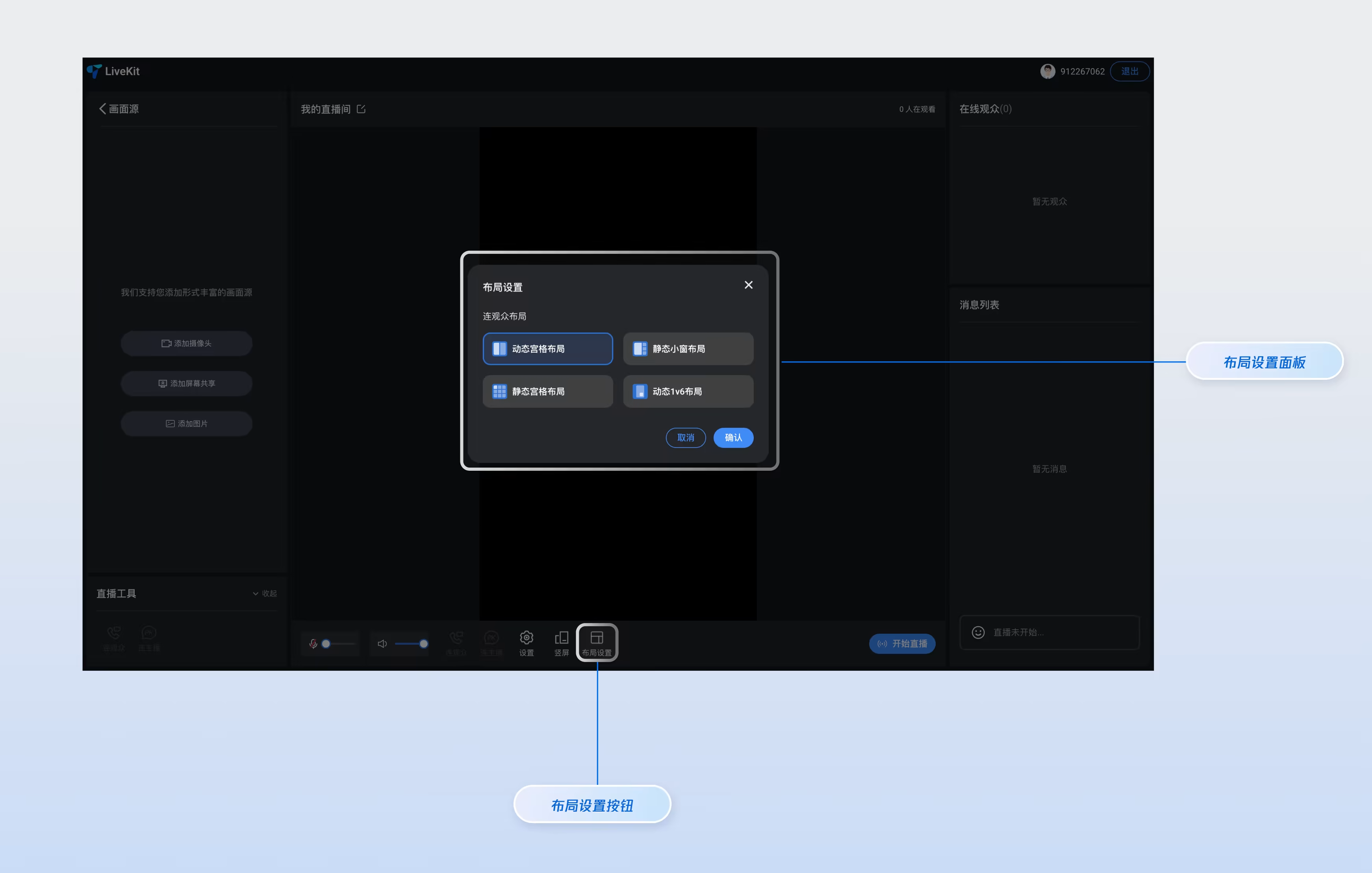
TUILiveKit 在横屏布局和竖屏布局下分别提供多种直播布局模板,用于控制主播与连麦嘉宾的画面排列方式。您可在开播页的布局设置中选择合适模板。(1)竖屏模式布局模板
竖屏模式下提供 4 种布局模板,较适用于秀场直播、电商带货等场景:
名称 | 动态宫格布局 | 动态 1V6 布局 | 静态宫格布局 | 静态小窗布局 |
模板 ID | 600 | 601 | 800 | 801 |
描述 | 默认布局,根据连麦人数动态调整宫格大小,画面自适应填充。 | 主播画面居中大窗显示,连麦嘉宾以浮动小窗形式环绕在主播周围。 | 固定 9 宫格布局,每个嘉宾占据一个固定大小的宫格位置。 | 主播画面全屏显示,连麦嘉宾以固定小窗形式显示在画面边缘。 |
适用场景 | 通用场景,连麦人数不固定。 | 主播为主、嘉宾为辅的互动场景。 | 多人连麦、语音聊天室等固定人数场景。 | 主播全屏展示、嘉宾辅助的场景。 |
(2)横屏模式布局模板
横屏模式下提供 2 种布局模板,适用于游戏直播、在线教育等场景:
名称 | 横屏浮动布局 | 横屏1v1 连麦布局 |
模板 ID | 200 | 400 |
描述 | 主播画面全屏显示,连麦嘉宾以浮动小窗形式显示在画面底部 | 主播与 1 位连线/PK 嘉宾以固定位置、左右各占一半的形式并排显示在横屏画面中,麦位位置固定 |
适用场景 | 游戏直播、屏幕分享、在线教育等需要横屏展示的场景 | 横屏方向下的双人连线与主播 PK 对战场景 |
通过代码设置布局模板
您可以通过调用
updateLiveInfo 方法,在代码中设置布局模板。import { useLiveListState } from 'tuikit-atomicx-vue3';const { updateLiveInfo } = useLiveListState();// 设置竖屏动态宫格布局updateLiveInfo({ layoutTemplate: 600 });// 设置竖屏动态 1v6 布局updateLiveInfo({ layoutTemplate: 601 });// 设置竖屏静态宫格布局updateLiveInfo({ layoutTemplate: 800 });// 设置竖屏静态 1v6 布局updateLiveInfo({ layoutTemplate: 801 });// 设置横屏浮动布局updateLiveInfo({ layoutTemplate: 200 });// 设置横屏 1v1 布局updateLiveInfo({ layoutTemplate: 400 });
支持连观众能力
若您需要支持观众连麦能力,包括设置连麦申请、连麦管理等内容,请参考如下代码示例复制到
live-pusher.vue 文件中即可。CoGuestButton 观众连麦设置
<template><div class="custom-icon-container" :class="{ disabled: disabled }" @click="handleCoGuest"><span v-if="applicants.length > 0" class="unread-count">{{ applicants.length }}</span><IconCoGuest class="custom-icon" /><span class="custom-text co-guest-text">{{ t('CoGuest') }}</span></div><TUIDialog :title="t('CoGuest')" :visible="coGuestPanelVisible" :custom-classes="['co-guest-dialog']" @close="coGuestPanelVisible = false" @confirm="coGuestPanelVisible = false" @cancel="coGuestPanelVisible = false"><CoGuestPanel class="co-guest-panel" /><template #footer><div /></template></TUIDialog></template><script lang="ts" setup>import { computed, ref, watch } from 'vue';import { useUIKit, TUIDialog, TUIToast, TOAST_TYPE, IconCoGuest } from '@tencentcloud/uikit-base-component-vue3';import { CoGuestPanel, CoHostStatus, useCoGuestState, useCoHostState, useLiveListState } from 'tuikit-atomicx-vue3';const { t } = useUIKit();const { applicants } = useCoGuestState();const { currentLive } = useLiveListState();const { coHostStatus } = useCoHostState();const disabled = computed(() => !currentLive.value?.liveId || coHostStatus.value !== CoHostStatus.Disconnected);const coGuestPanelVisible = ref(false);const handleCoGuest = () => {if (disabled.value) {const message = !currentLive.value?.liveId? t('Cannot use co-guest before live starts'): t('Cannot enable audience co-hosting while co-hosting with other hosts');TUIToast({ type: TOAST_TYPE.ERROR, message });return;}coGuestPanelVisible.value = true;};watch(disabled, () => {if (disabled.value) {coGuestPanelVisible.value = false;}});</script><style scoped>.custom-icon-container{display:flex;flex-direction:column;align-items:center;justify-content:center;gap:4px;width:56px;height:56px;cursor:pointer;color:var(--text-color-primary);border-radius:12px;position:relative}.unread-count{position:absolute;top:0;right:0;background-color:var(--text-color-error);border-radius:50%;width:16px;height:16px;display:flex;align-items:center;justify-content:center;font-size:12px}.custom-icon{width:24px;height:24px;background:transparent}.custom-text{font-size:12px}.custom-icon-container:not(.disabled):hover{box-shadow:0 0 10px 0 var(--bg-color-mask)}.custom-icon-container:not(.disabled):hover .custom-icon,.custom-icon-container:not(.disabled):hover .custom-text{color:var(--text-color-link)}.custom-icon-container.disabled{cursor:not-allowed;opacity:.5;color:var(--text-color-secondary)}.custom-icon-container.disabled .custom-icon{cursor:not-allowed}.custom-icon-container.disabled .custom-text{color:var(--text-color-secondary)}.co-guest-panel{height:560px}:deep(.co-guest-dialog){width:520px}</style>
自由定制
配置皮肤主题及语言
通过配置
App.vue 中 UIKitProvider 的入参,修改主题及语言的默认值。UIKitProvider 参数 | 可选值 | 默认值 |
theme | "light" | "dark" | "light" |
language | "zh-CN" | "en-US" | "en-US" |
<UIKitProvider theme="light"><router-view /></UIKitProvider><script setup lang="ts">import { UIKitProvider } from '@tencentcloud/uikit-base-component-vue3';</script>
深色主题 | 浅色主题 |
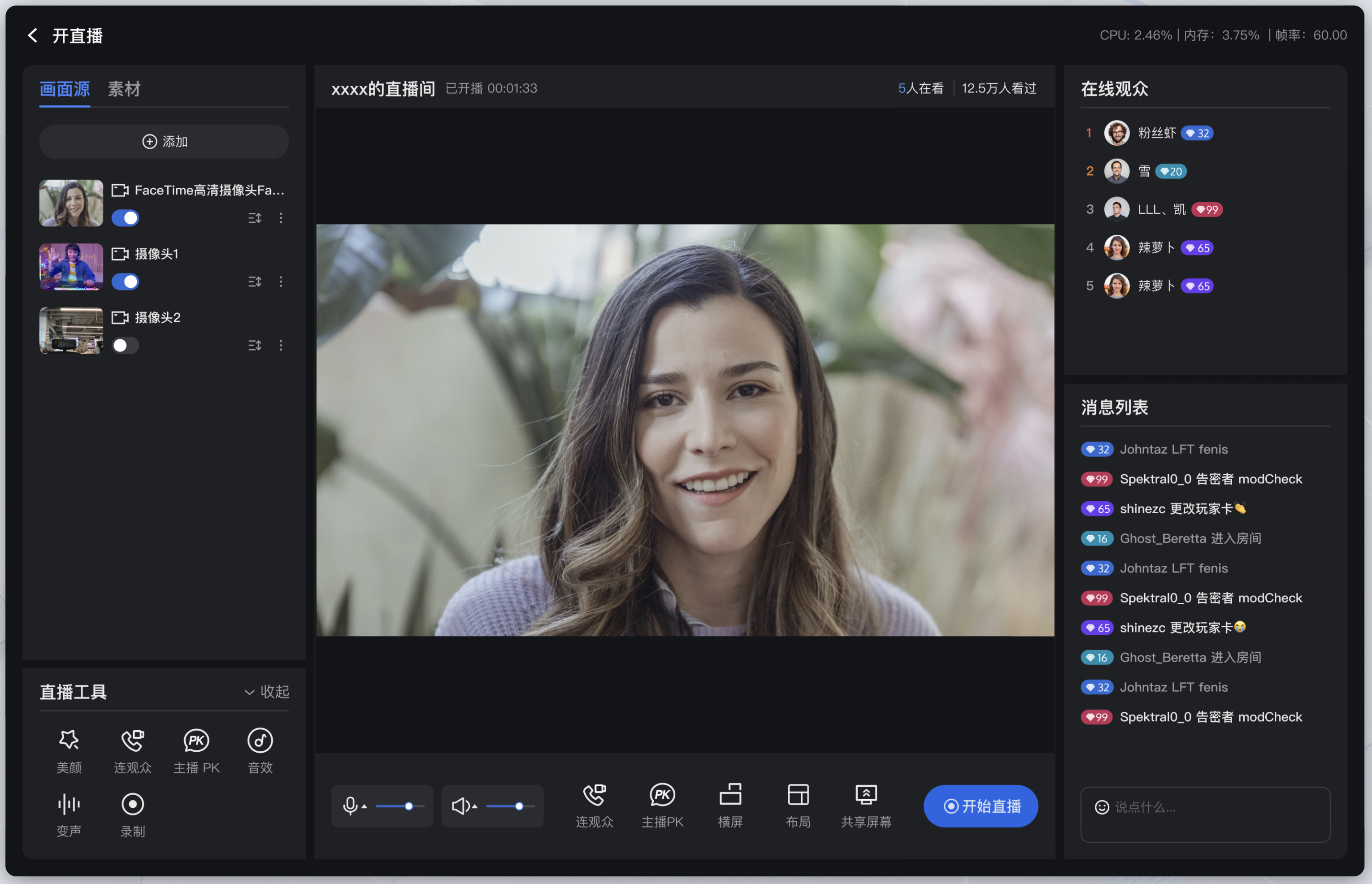 | 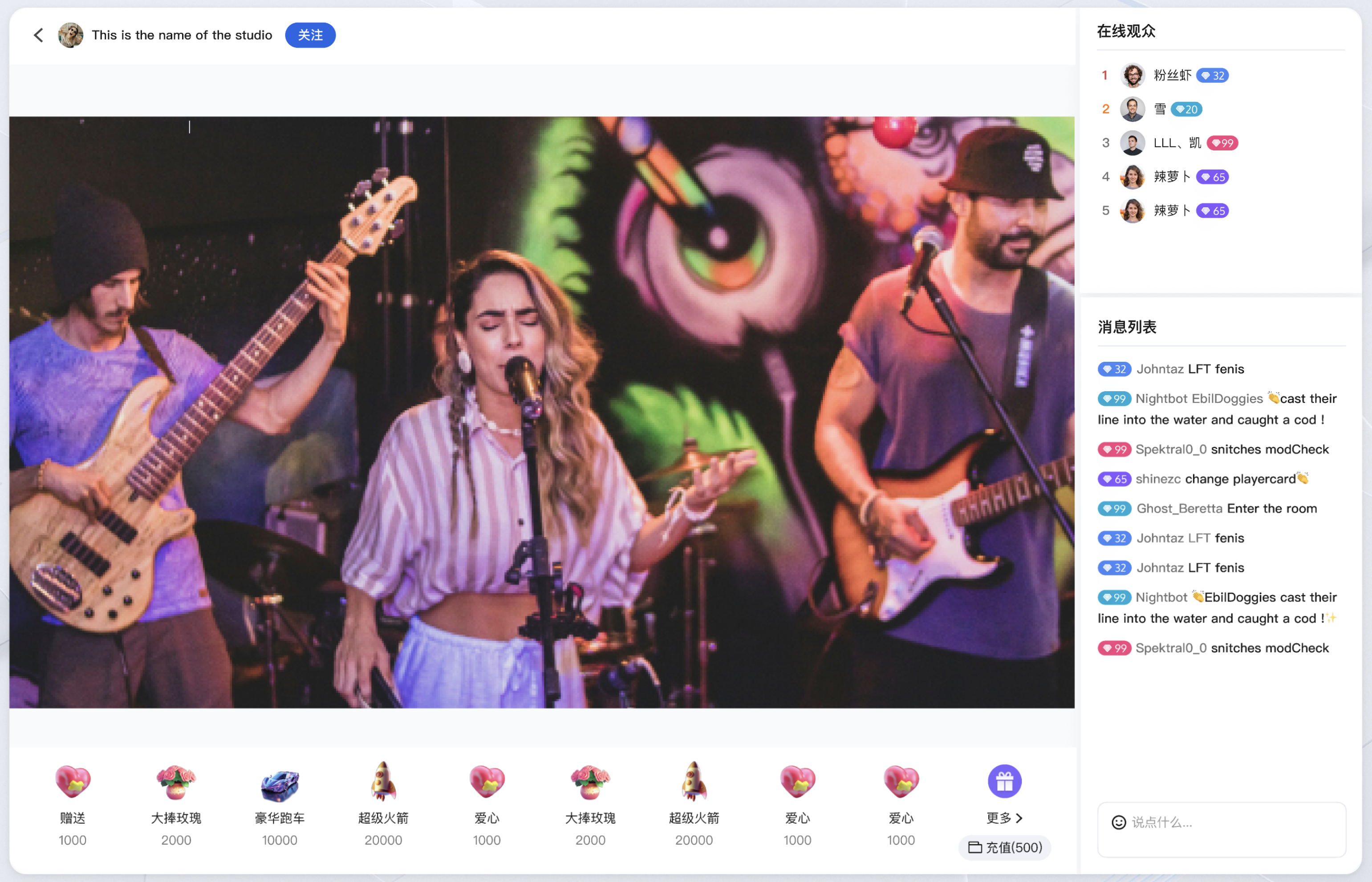 |
我们支持您根据项目需求对观众观看页面进行 UI 定制——除页面布局调整外,还可对颜色主题、字体、圆角、输入框、弹框等内容进行增删改;若需新增或替换按钮(Button)、图标(Icon)等控件,也可找到对应控件的指定位置源码,直接进行增加、删除、替换等操作,满足您的 UI 定制需要。
下一步
恭喜您,现在您已经成功集成了主播开播页面 。接下来,您可以实现观众观看页、直播列表页和 UI 自定义等内容,可参考下表:


