This document aims to guide users on how to set up alarms to receive timely Cloud Workload Protection Platform (CWPP) alarms, log capacity warnings, client operation status, security broadcasts, and other messages.
Alarm Directory
The current alarm rule configuration supports Message Center/SMS/email and robot notifications methods. The former must be used with the Message Center.
Alarm Category | Alarm Type | Warnings | Alarm Host Range | Message Center/SMS/Email, Etc | Robot Notification |
| | | | Alarm Time | Alarm Time |
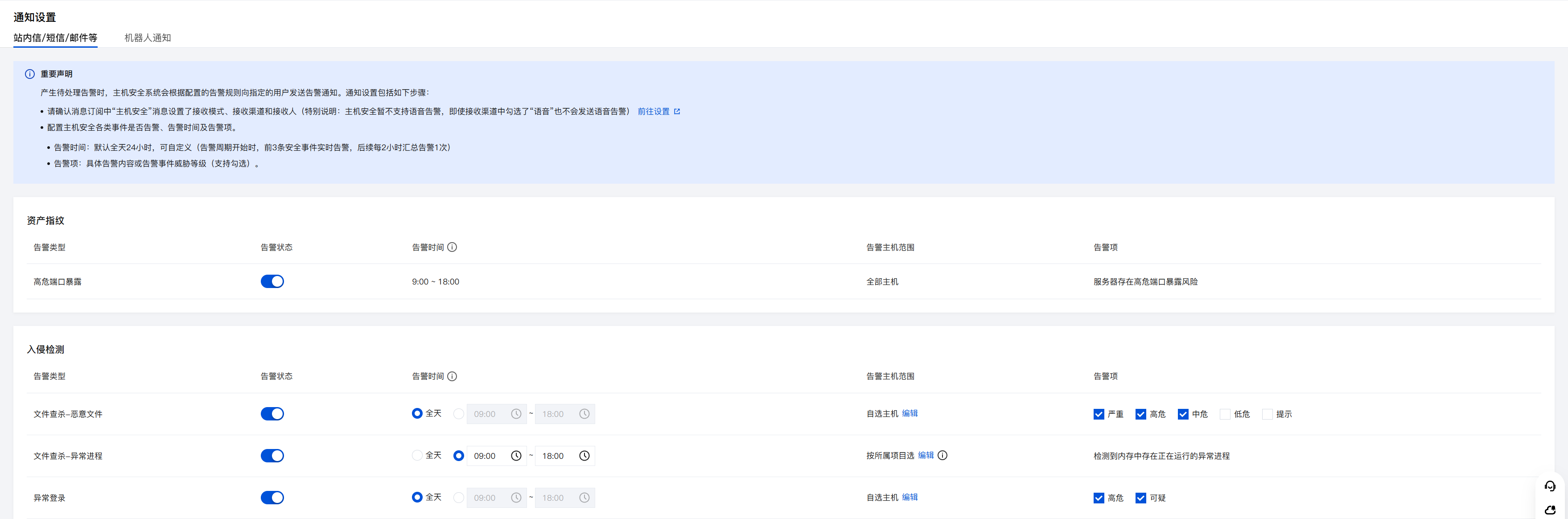
Intrusion Detection | Malicious File Scan - Malicious File | Critical, High, Medium, Low, Note. | All/Custom | All/Custom Note: To minimize user disturbance, the alarm has been limited as follows: At the start of the alarm period, the first 3 security alarms are notified in real-time, and subsequent alarms are summarized every 2 hours. Alarms generated during non-alarm periods will be summarized and notified at the start of the alarm period. | Real-time |
| Malicious File Scan - Unhealthy Process | Detected an unhealthy process running in memory. | | | |
| Abnormal Login | High, Suspicious. | | | |
| Password Cracking | The login password has been successfully cracked. | | | |
| Malicious Requests | The server requested a malicious domain name. | | | |
| High-risk Commands | High, Medium, Low. | | | |
| Local privilege escalation | A low privilege attempt to gain higher permission appeared in the system. | | | |
| Reverse shell | A shell reverse connection appeared on the server. | | | |
Vulnerability Management | Urgent Vulnerability | Critical, High, Medium, Low. | | | |
| Linux Software Vulnerability | Critical, High, Medium, Low. | | | |
| Windows System Vulnerability | Critical, High, Medium, Low. | | | |
| Web-CMS Vulnerability | Critical, High, Medium, Low. | | | |
| Application Vulnerability | Critical, High, Medium, Low. | | | |
| Exploit Prevention | Successfully defended vulnerability type attack events. | | | |
Baseline management | Security baseline | There are baseline items that failed detection (account-related, weak password, unauthorized baseline). | | | |
Advanced Defense | Network Attack | Successful attack, attempted attack. | | | |
| Java Memory Horse | Detected a memory webshell in the JavaWeb service process. | | | |
| Core File Monitoring | High, Medium, Low, None. | | | |
Client | Client Offline | Detected client exception offline, and not back online within a certain time. | | | |
| Uninstalling Client | Detected client uninstalled. | | | |
Log Analysis | Log analysis storage | When the log storage reaches a certain percentage, a log storage alarm will be triggered. | Not involved | Real-time | |
Information Related | Security Broadcast | Security announcements, version releases, feature updates, practical practices, industry honors. | | | |
Message Center/SMS/Email, Etc
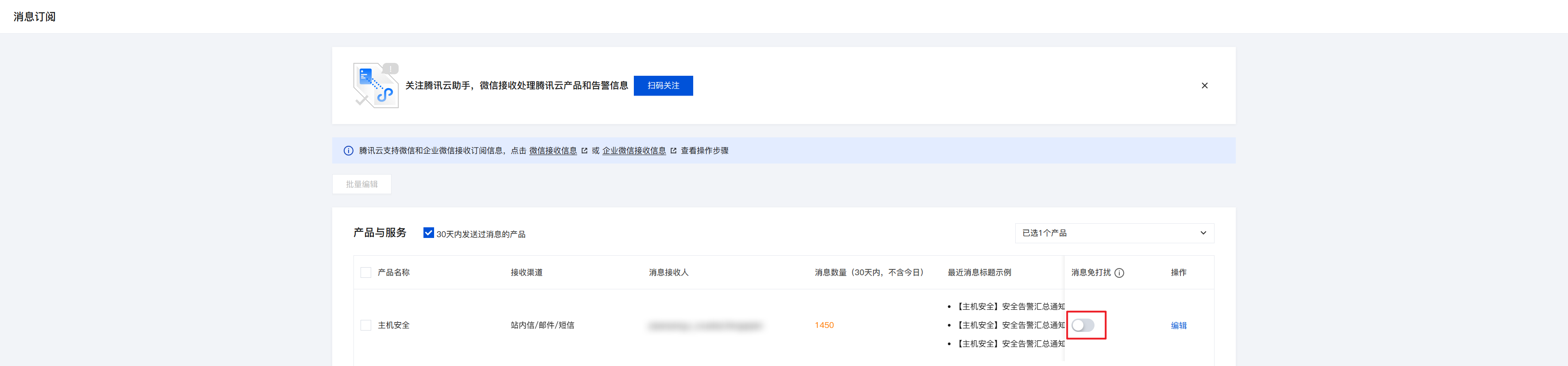
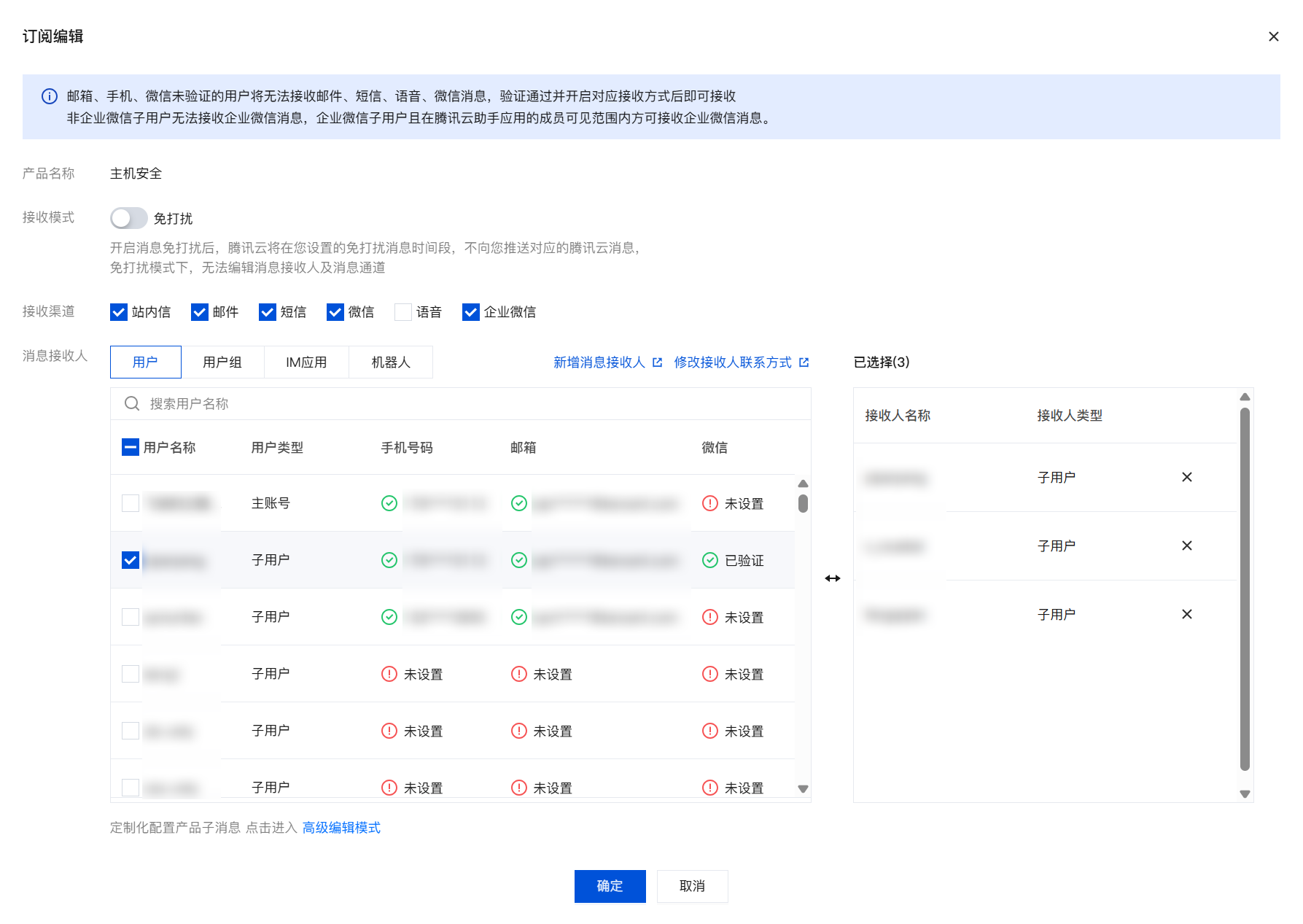
1. Before configuring alarm rules, make sure to turn off the Notification Muting switch for CWPP in Message Center > Subscription Management and set the receiving channel and recipient.
Receiving channels: Host Security supports receiving via Message Center, mail, SMS, WeChat, and WeCom. Voice receiving is not supported (selection is ineffective).
Message Recipient: Supports users, user groups, IM applications, and robots.

2. In the CWPP Console Settings Center > Alarm Settings, select Message Center/SMS/Email, etc. to configure alarm rules.

Robot Notification
By using robots as Message Recipients, messages can be notified to IM groups. This method also supports robot notifications but can only notify based on alarm rules configured for Message Center/SMS/email. If you want to configure different alarm rules for different robots, you can use this method.
Note:
Before configuring robot notifications, please create a group bot in an IM group (such as a WeCom group) and obtain its Webhook address. For details, see Enterprise WeChat Robot Creation Guide.
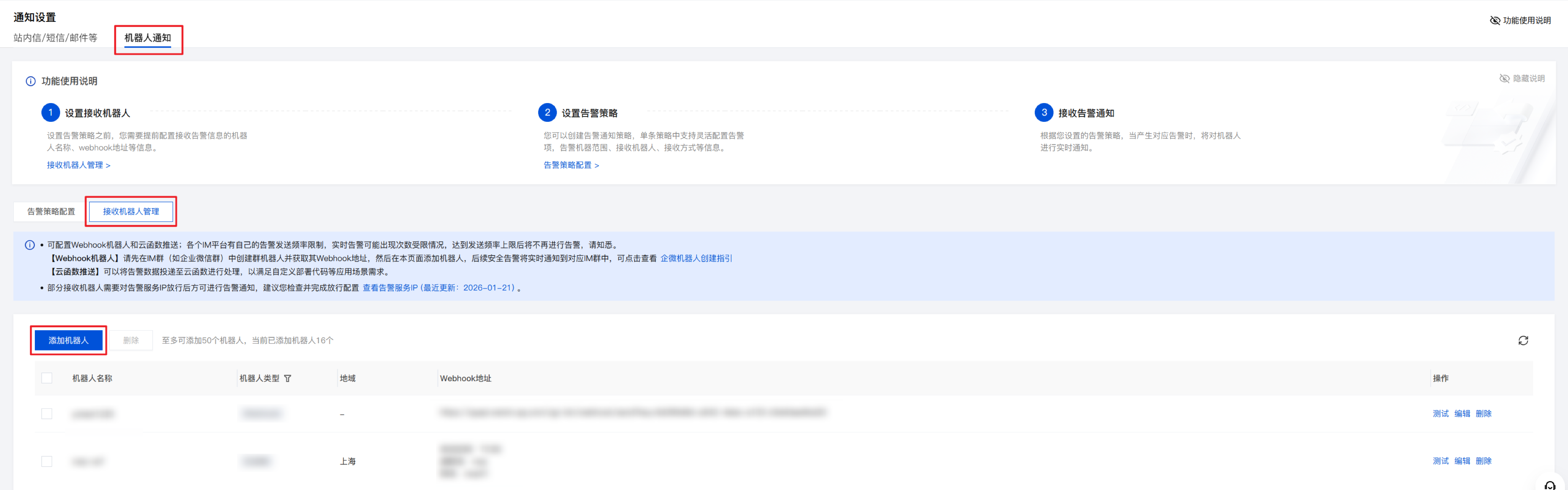
1. Log in to the CWPP Console, and on the left sidebar, select Settings Center > Alarm Settings.
2. On the alarm settings page, select Bot Notification > Receive Bot Management.

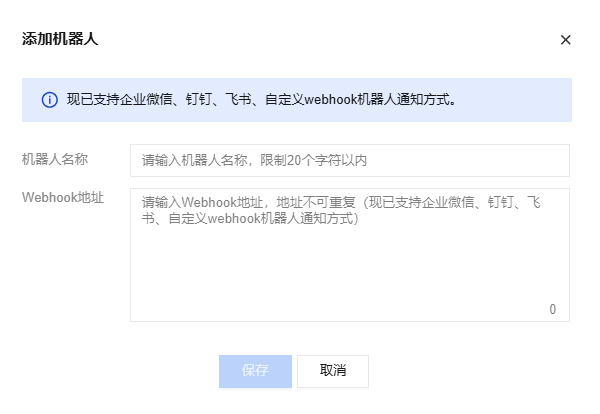
3. Click create robot, enter the bot name and Webhook URL, and click Save.

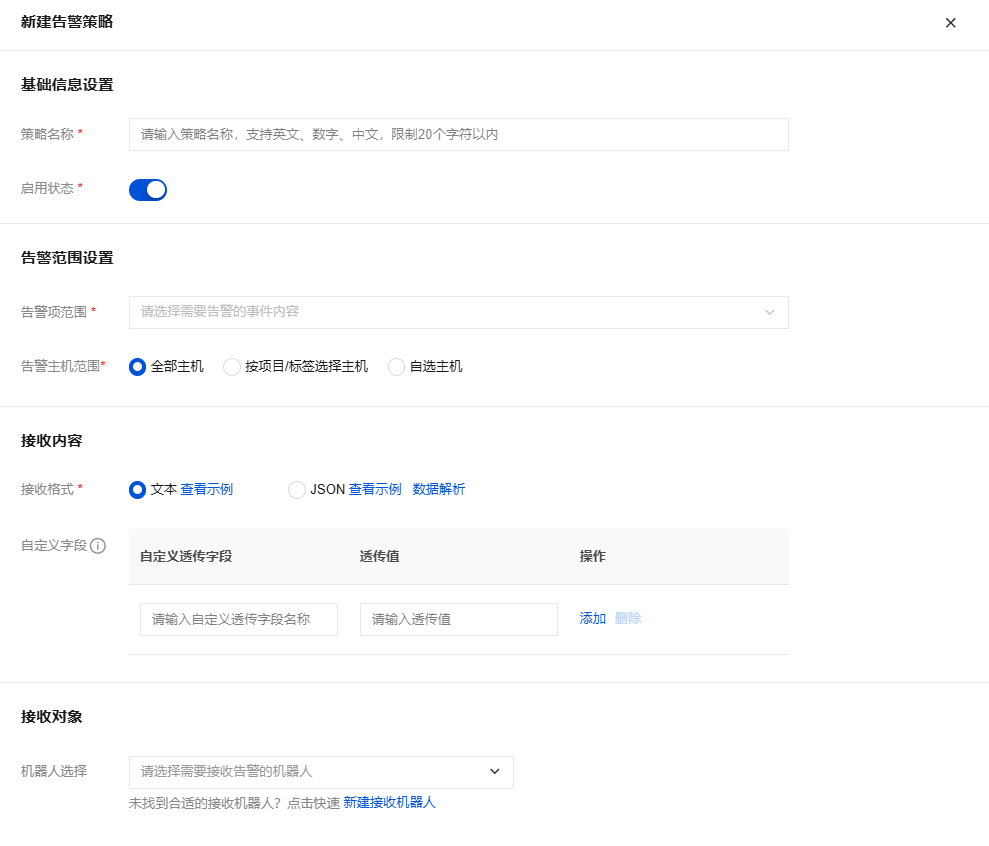
4. Select Alarm Policy Configuration, click Create Alarm Policy, configure the policy name, enable status, alarm scope, and other information, and associate the newly created receiving robot.

5. Click Save, and the host security will notify you according to the configured policy.