The content of this page has been automatically translated by AI. If you encounter any problems while reading, you can view the corresponding content in Chinese.
Currently, connection to a VPC over DC is only supported in South China (Guangzhou), North China (Beijing), East China (Shanghai, Shanghai Finance, Nanjing), and Southwest China (Chengdu). The public cloud can communicate with the customer server room network over a VPC, and the client can be directly installed.
If connection to a VPC over DC is not supported in a region, you need to use Cloud Connect Network to connect the Direct Connect gateway (VPN) and the VPC. You need to purchase the Direct Connect gateway and set up the connection to the VPC over DC.
Operation Guide
Step 1. Check Whether CCN Is Required For Connection
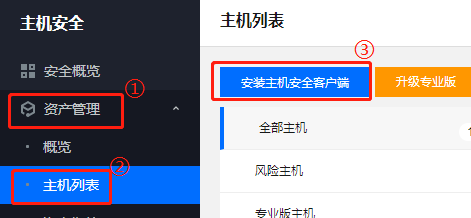
1. Log in to the CWPP Console, click Asset Management > Host List > Install CWPP Agent in the left navigation bar, and view the installation instruction details in the pop-up window on the right.
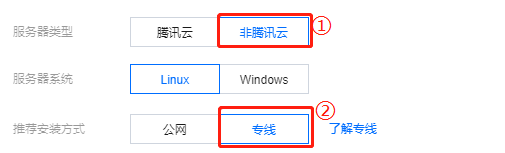
2. In the installation instruction, click to select the server type Non-Tencent Cloud, and click to select the recommended installation method Dedicated line.
Note:
The server system selects the corresponding Linux or Windows OS based on the user's operating system.
3. If you are in South China (Guangzhou), North China (Beijing), East China (Shanghai), East China (Shanghai Finance), East China (Nanjing), and Southwest China (Chengdu):
If you have a VPC connected to the non-Tencent Cloud data center network, select the VPC connected to Direct Connect and run the installation command.
If you find no VPC for connection to your non-Tencent Cloud data center network, see Step 2 CCN.
Step 2. Confirm the VPC For Connection To Direct Connect
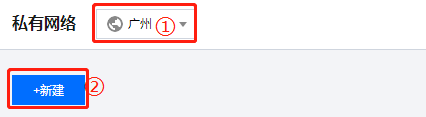
1. If you do not have a VPC in the current South China (Guangzhou), North China (Beijing), East China (Shanghai), East China (Shanghai Finance), East China (Nanjing), and Southwest China (Chengdu) regions, log in to the VPC console, click VPC to enter the VPC page.
2. On the VPC page, click the "dropdown" to select the desired region, click +Create, and a pop-up window for creating a VPC will appear.
3. In the create VPC pop-up window, enter the required parameters and click Confirm to complete the creation of the VPC.
Step 3. Use CCN To Connect the VPC To the Non-Tencent Cloud IDC Network Connected To Direct Connect
1. If there is already a CCN communicating with the non-Tencent Cloud data center, add the VPC instance selected in Step 2 to the CCN.
a. Log in to the VPC console, click CCN in the left sidebar to go to the CCN page.
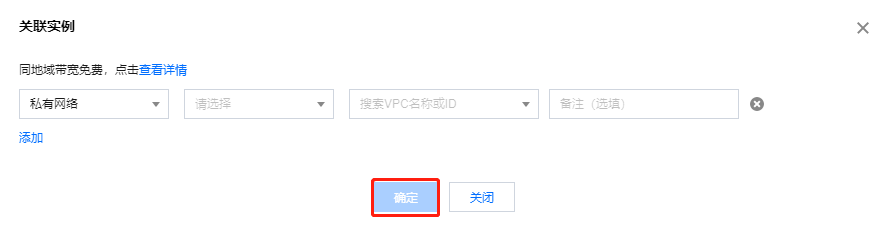
b. On the CCN page, click Manage Instance > Associate Instance on the right to go to the associate instance page.
c. On the associate instance page, click Add Instance to add the VPC instance selected in Step 2 to the CCN, and click Confirm to complete the association.
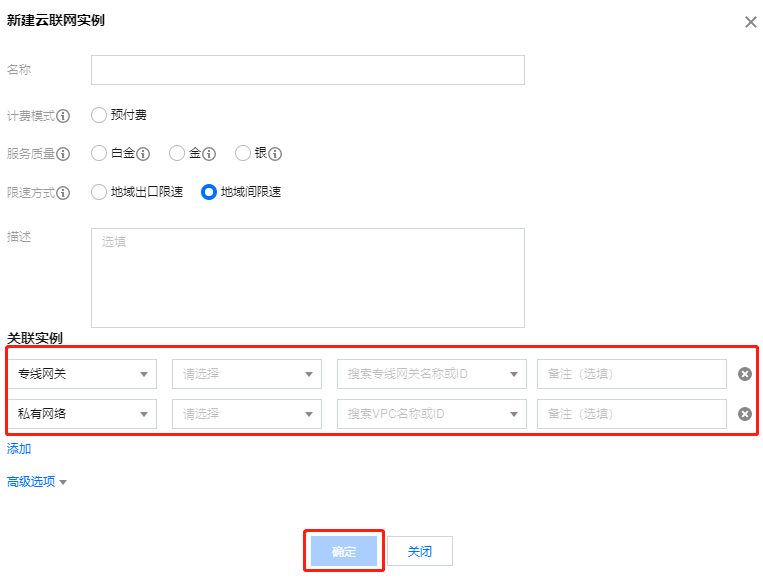
2. If the CCN is not configured, you need to create a new one.
a. Log in to the VPC console, click CCN in the left sidebar to go to the CCN page.
b. On the CCN page, click **+Create to pop up the Create CCN Instance window.
c. In the Create CCN Instance window, enter the required parameters and click Yes to complete the creation of the CCN instance.
Description
Direct connect gateway: Select the Direct Connect gateway connected to your non-Tencent Cloud data center network.
If an IP range conflict occurs, go back to Step 2 and select another VPC instance or create one.
3. Go back to the CWPP Console and get the installation command as instructed in Step 1 for installation. You need to open ports 5574, 8080, 80, and 9080 of the IP described in Step 1 for your non-Tencent Cloud data center network.