Note:
The high-defense resource will provide a CNAME. Please modify the DNS resolution address to this CNAME high-defense resource. The CNAME resolution destination high-defense IP will be changed periodically. (Not involving three-network resources)
Access Rules
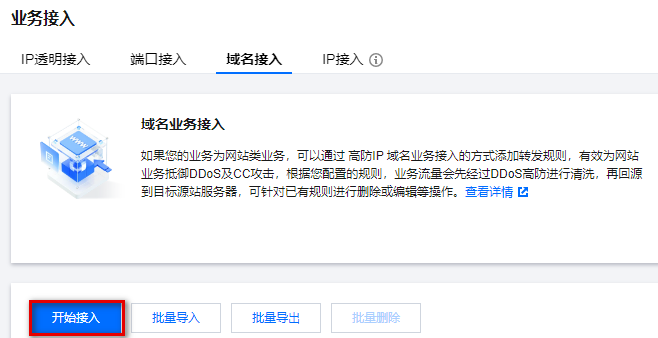
1. Log in to the Anti-DDoS (New Version) Console, and in the left sidebar, click Business Access > Domain Access.
2. On the domain access page, click Start Access.

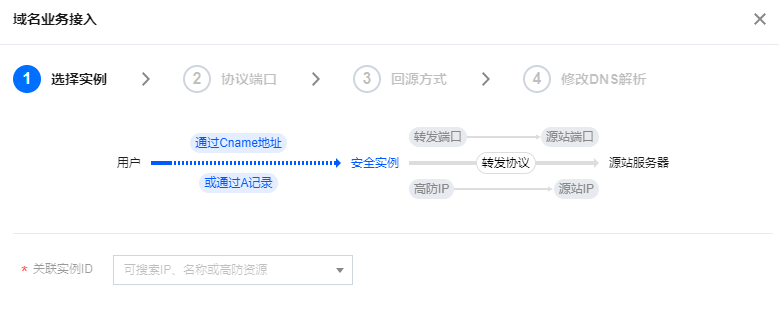
3. On the domain business access page, select the associated instance ID, and click Next: Protocol Port.
Note:
Multi-select is supported, allowing multiple instances to be integrated simultaneously.

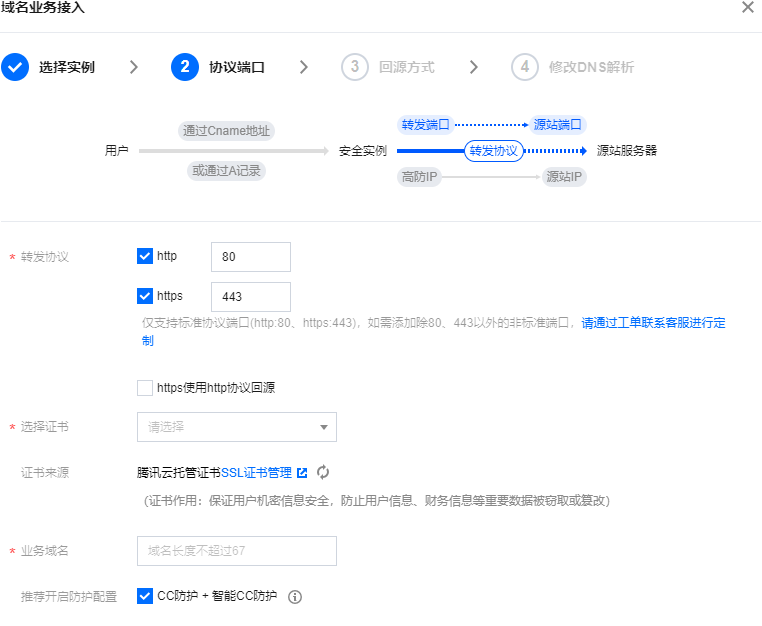
4. Select a forwarding protocol, enter the business domain, and click Next: Origin-Pull Method.

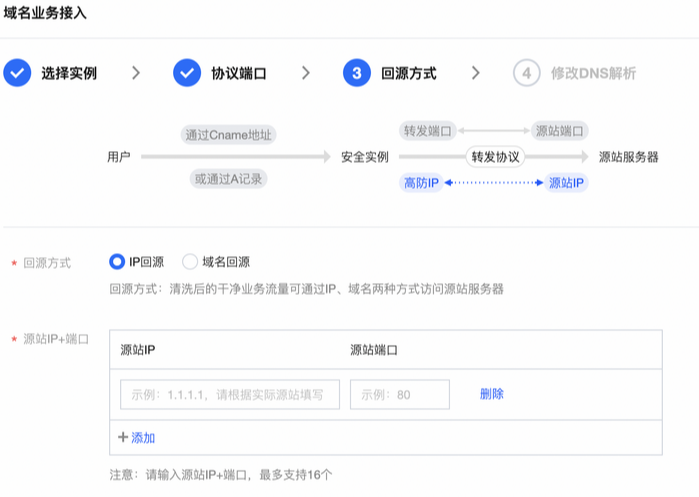
5. Choose an origin-pull method, enter the origin server IP + Port or origin server domain name. If there is a backup origin server, select the backup origin server, add the backup origin server and its weight, and click Next: Modifying DNS Resolution.
Note:
Standby origin server: When the origin server forwarding has an exception, it will automatically switch to forward to the standby origin server.

6. Click Complete. The connected rules will appear in the domain access list. Check the access status to see if the connection is successful.
Note:
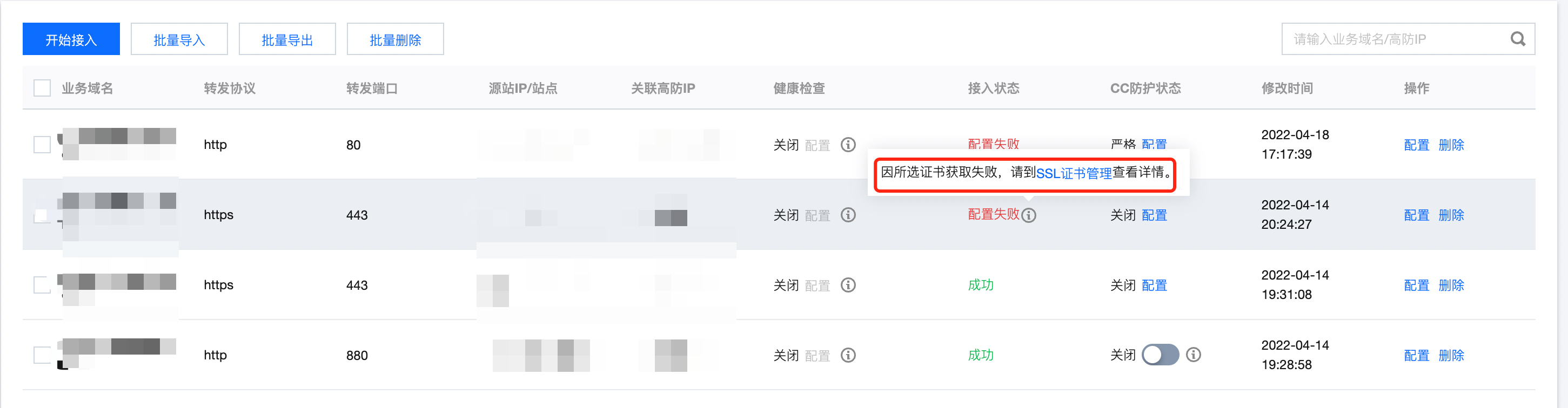
When the configuration fails due to a certificate issue, a bubble reminder will appear on the right side of the access status saying "Failed to obtain the selected certificate. Please go to SSL Certificate Management for details."
When a domain name that has been successfully connected updates its certificate, there will be a momentary disconnection lasting for a few seconds. If you need to update the certificate, it is recommended to do so during the off-peek period.

Configure the Rules
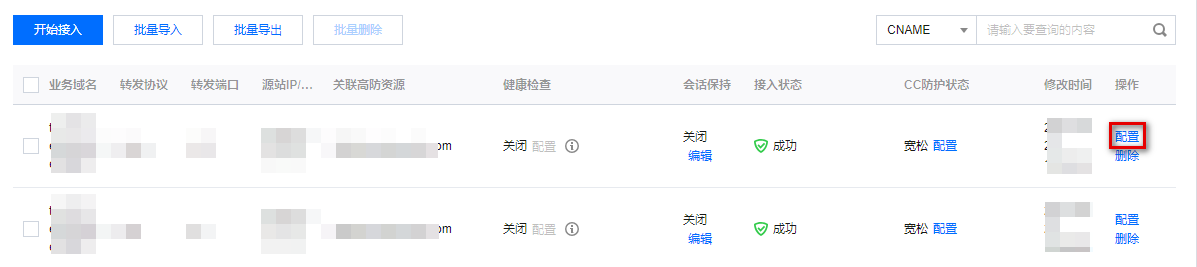
1. On the domain access page, select the required rules and click Configuration in the operation column.

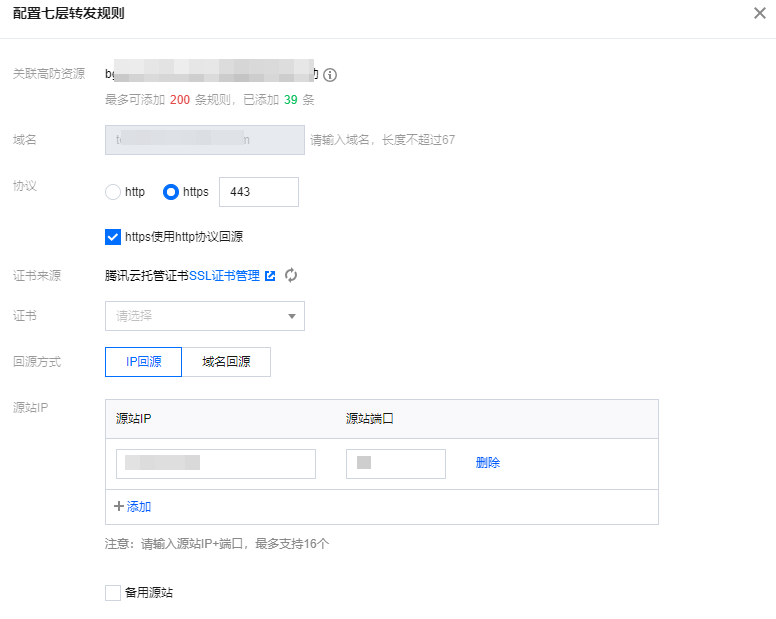
2. On the page of configuring layer-7 forwarding rules, you can modify related parameters and click Yes to save.

Delete Rule
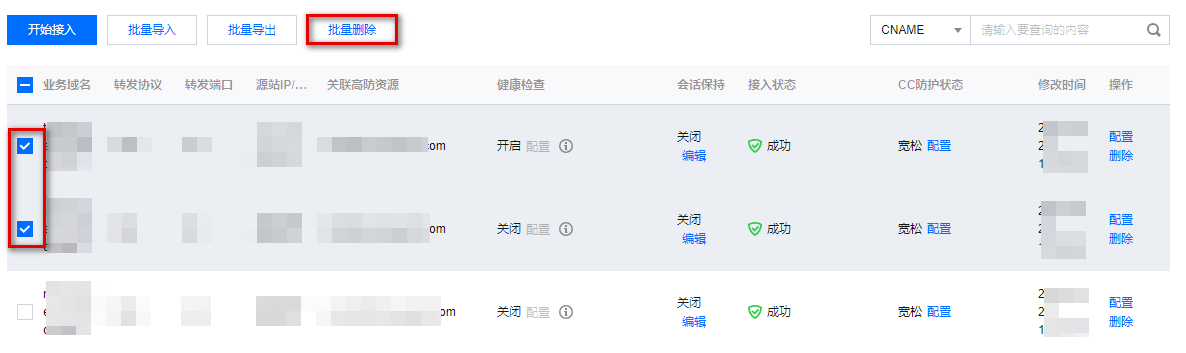
1. On the domain access page, it supports deleting single or multiple rules in batches.
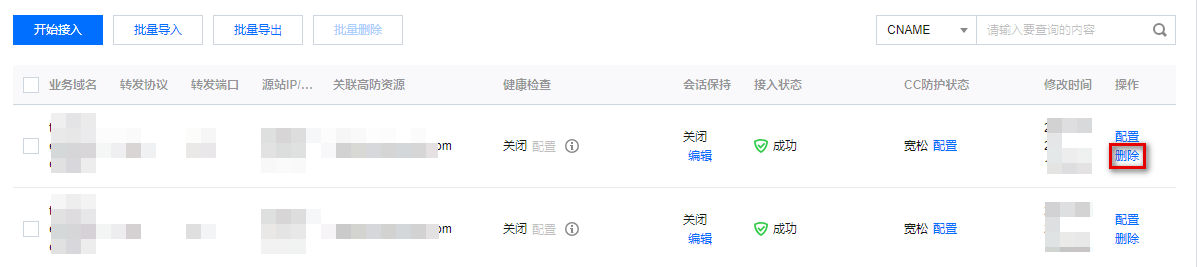
Single: Select the desired rule, click Delete in the operation column, and a pop-up window for deleting the rule will appear.

Batch: Select one or more rules, click Batch Deletion, and a pop-up window for deleting the rule will appear.

2. In the delete rule pop-up, click Delete to delete the selected rules.