Auto Scaling (AS) dynamically adjusts the number of instances in the scaling group based on monitored metrics. You need to define an alarm trigger strategy, which includes the status of the monitored metrics that trigger expansion and how to scale according to demand changes. The alarm trigger strategy encompasses both simple and target tracking strategies.
Basic Strategy
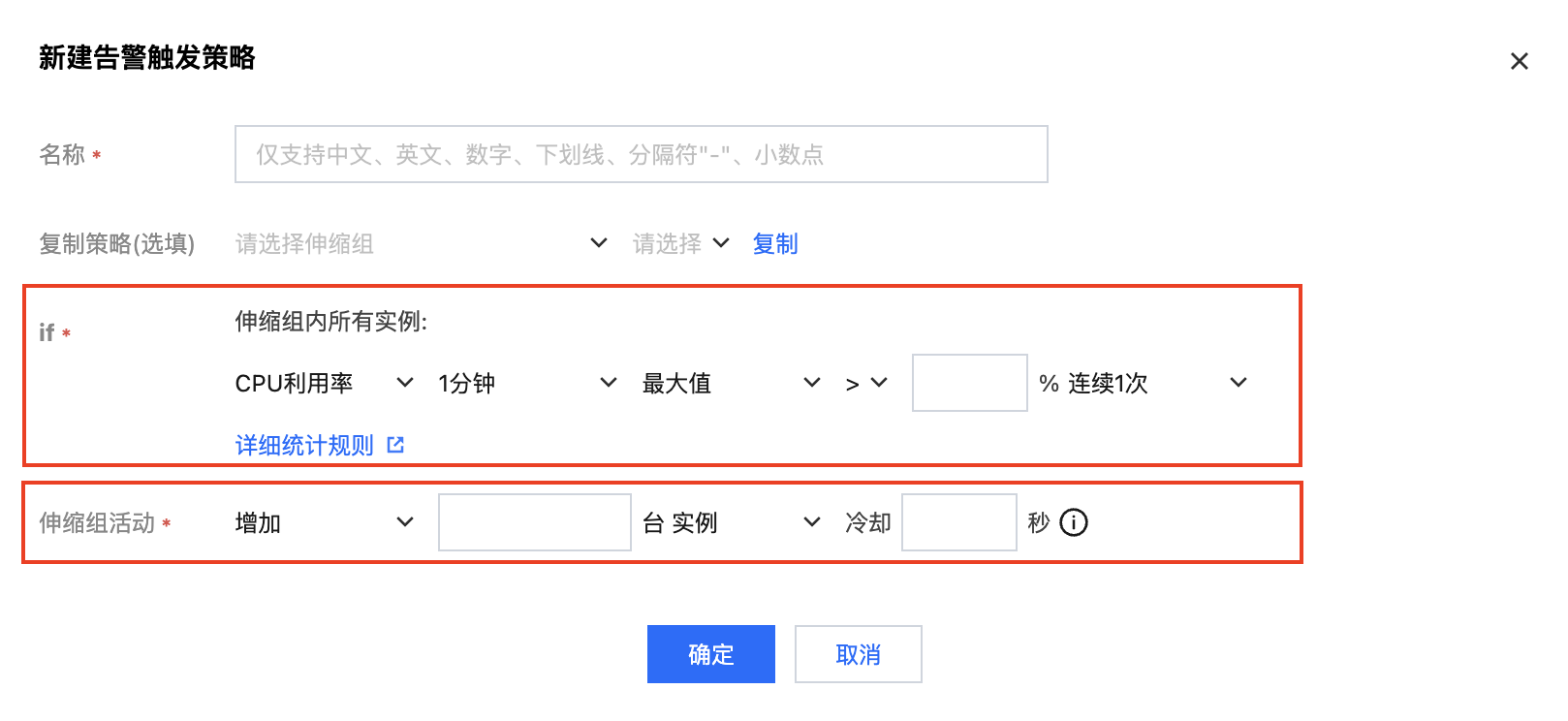
To create an alarm strategy, specific conditions and actions must be designated, as illustrated below:
The condition format is: a specific metric + threshold + period + number of consecutive periods reaching the threshold. That is, the metric has reached the threshold for N consecutive periods.
The execution actions are: sending notifications + increasing/decreasing a specified number of cloud servers.
You can create two simple strategies for each scaling group: one for expansion and another for contraction. When the business volume reaches the conditions specified by the alarm strategy, AS will execute the associated strategy to contract (by terminating instances) or expand (by launching instances) the scaling group.
Target Tracking Strategy
Each scaling group supports the creation of a single target tracking strategy. The target tracking strategy will automatically calculate the required number of instances and perform scaling up or down based on the alarm value of the selected monitoring indicator, the set target value, and the number of instances in the scaling group, thereby keeping the monitoring indicator close to the target value. To create a target tracking strategy, it is necessary to specify predefined metrics, target values, warm-up time, and whether to disable scaling down.
Select Metric
The target tracking strategy has certain limitations on applicable monitoring metrics. The monitoring metrics applicable to the target tracking strategy must be valid usage rate metrics, capable of accurately reflecting the busyness of instances, and the metric values need to increase or decrease proportionally with the number of scaling group instances. Only when these conditions are met, the target tracking strategy can use metric values to proportionally scale up or down the number of instances. When creating a target tracking strategy, the type of monitoring metric must be specified. The supported monitoring metrics include:
Average CPU Utilization of Scaling Group
Average Outbound Bandwidth of Scaling Group on Internal Network
Average Inbound Bandwidth of Scaling Group on Internal Network
Average Outbound Bandwidth of Scaling Group on External Network
Average Inbound Bandwidth of Scaling Group on External Network
Target Value
A target tracking policy must specify a target value. This value represents the optimal utilization or throughput of the scaling group. Generally, under the conditions that satisfy the Tencent Cloud Observability Platform's alarm, when the monitored metric alarm value exceeds the target value, it triggers the scaling group to expand. When the monitored metric alarm value is less than 80% of the target value, it triggers the scaling group to contract. The number of instances for expansion or contraction is determined by the ratio of the alarm value to the target value (80% of the target value when contracting), and the instances within the scaling group are expanded or reduced proportionally. The calculated number of instances (which may be a decimal) is adjusted by rounding up for expansion and rounding down for contraction. The final number of instances for expansion or contraction is also limited by the minimum and maximum number of instances in the scaling group. For example, if the minimum number of instances in the scaling group is 0 and the maximum is 10, and there are currently 9 instances in the scaling group. At this point, the target tracking policy is triggered, and it is calculated that 1.5 instances need to be expanded proportionally. After rounding up, it becomes 2 instances. However, due to the limitation of the maximum number of instances in the scaling group, only 1 instance is actually expanded.
Instance Preheating Time
When creating a target tracking policy, you can specify the time required for instance preheating. New instances created by the expansion triggered by the target tracking policy will enter a preheating phase. During this specified preheating time, the instance will not affect the monitoring metrics of the scaling group. After a new instance joins the scaling group, it typically needs to go through processes such as business deployment, load balancing health checks, and data collection before it can report stable monitoring data. During this process, it is not suitable to trigger new scaling activities. To limit the frequency of scaling operations, any scaling activities generated by the target tracking policy will be cancelled if there are instances in the scaling group that are currently in the preheating phase.
Disable Contraction
When the disable contraction feature is enabled, the target tracking policy will only trigger expansion activities and will not trigger contraction activities.
The conditions for triggering expansion with a target tracking policy are when a specified type of metric exceeds the threshold (target value) for three consecutive periods, each period being one minute. The conditions for triggering contraction are when a specified type of metric falls below the threshold (80% of the target value) for fifteen consecutive periods, each period being one minute.
Scenario Example
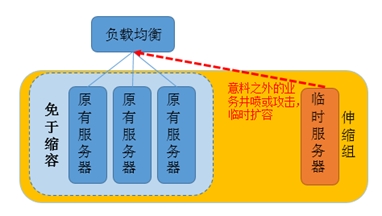
For instance, you have an e-commerce website application currently utilizing five instances. If you are conducting a marketing campaign and are concerned that the traffic will far exceed your estimates, you can set up your system to launch two additional instances when the load on the current instances rises to 70%, and then terminate the surplus instances when the load drops to 40%. You can configure two simple policies for the scaling group, one for expansion when the load exceeds 70%, and another for contraction when the load falls below 40%. As illustrated in the following diagram:
Alternatively, you may wish to maintain the load level of the entire scaling group around 60%, and carry out proportional expansion and contraction based on the actual load level. You can configure a target tracking policy for the scaling group, allowing the number of instances to dynamically change according to the actual load level, in order to achieve a target load level close to the desired value.
Instructions
1. Log into the Auto Scaling console and select Scaling Groups from the left navigation bar.
2. Select the scaling group you wish to modify, click on the scaling group ID to enter the basic information page of the scaling group, as shown in the figure below:
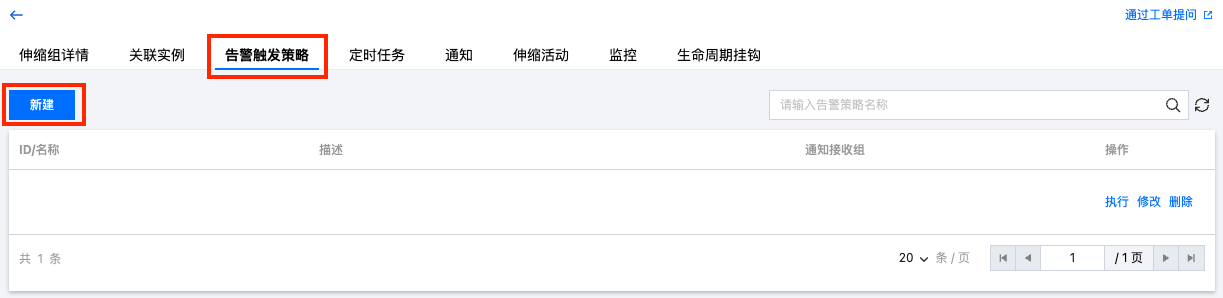
3. On the details page of the scaling group, select the Alarm Trigger Policy tab. On this page, manage the alarm trigger policies associated with the scaling group, as depicted in the figure below:
Click on Create to add a new alarm trigger policy.
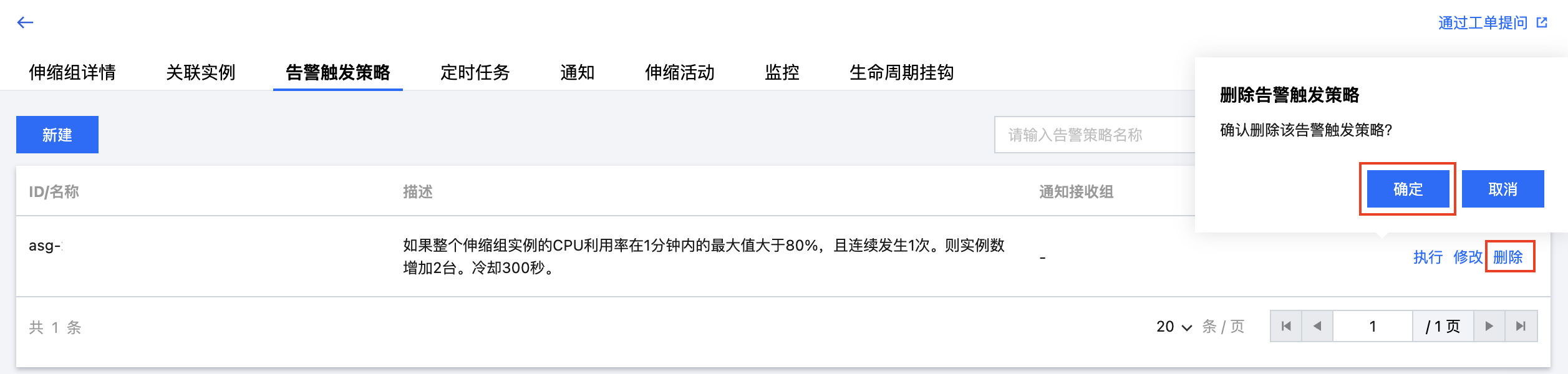
Click on Delete to remove the selected alarm trigger policy.
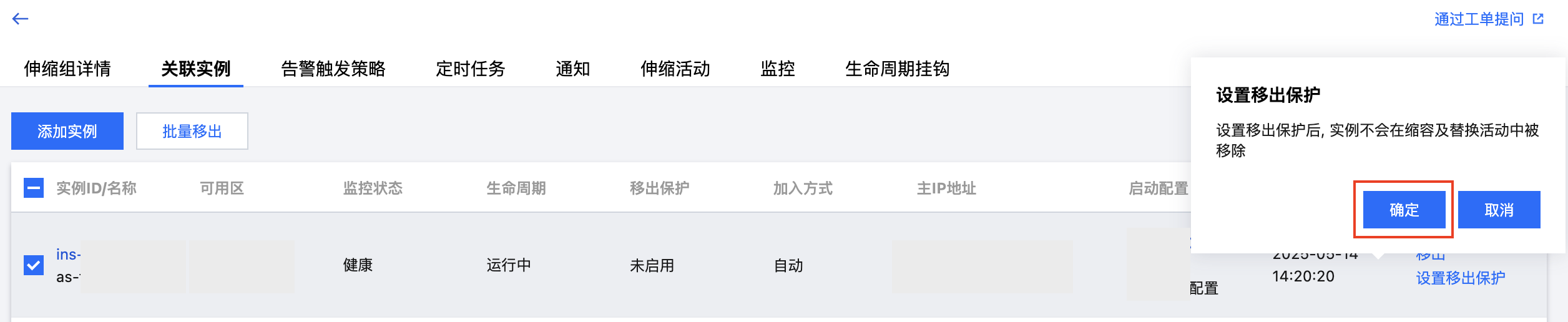
Designate a specific server to be unaffected by the alarm scaling policy.
Before using auto scaling, your system may already have commonly used servers. You may not want these machines to be removed by the alarm scaling policy for the following reasons:
Multifunctional Machine: A server within the cluster serves multiple purposes in addition to its primary role. For instance, during the initial stages of website development, a particular server might function both as a cache server and a file server. When the cache server cluster is incorporated into the scaling group, you would not want it to be removed by the alarm scaling policy.
Data Storage: The server is stateful or contains data that other servers do not possess. For instance, incremental data generated by other servers in the cluster is uniformly stored on this server.
Update Image/Snapshot: Regularly create images and snapshots using this specific server.
Configuration Method:
1. You can click on the scaling group where the server is located in the Scaling Group List to access the management page.
2. Select the Associated Instances tab on the management page and click on "Set Removal Protection" for the instance you wish to configure.