Auto Scaling (AS) requires prior knowledge of the configuration to produce Cloud Virtual Machine (CVM) during expansion. You need to specify related resources in advance, such as images, data disk information, instance configurations, key pairs, security groups, and block storage devices.
It's worth noting that the launch configuration is merely a template, and machines are produced according to this template during automatic scaling. Creating the launch configuration itself does not produce any machines, hence it is entirely free of charge, ensuring your peace of mind.
Instructions
Log in to the Auto Scaling Console, and click on 'Launch Configuration' in the left navigation bar.
Select region
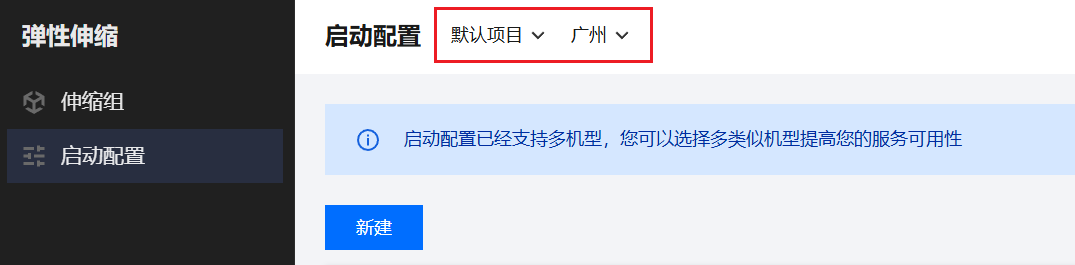
At the top of the screen, select a region for the scaling group that meets your requirements, as shown in the figure below:
Note:
It is important to select the region where the cloud server you wish to bind to the scaling group is located, as both the launch configuration and the scaling group are region-specific. For instance, if the launch configuration is set to Guangzhou, only scaling groups in Guangzhou can be bound, and the automatically added CVM will also be in Guangzhou.
Specify parameters
1. Within the Launch Configuration page, click on New and follow the instructions to create a launch configuration, the process is identical to purchasing a cloud server.
2. Enter the Launch Configuration Name, for example, Front-end Server Cluster Configuration A.
3. Select the machine type. For example, 2-core 2G, which means a 2-core CPU with 2G of memory.
4. Select an image. You can choose a clean Public Image, or a Custom Image that has already had the business deployed.
To ensure that the machine is immediately usable upon creation, it is strongly recommended that you deploy your business application within the custom image. The business application within the image should be set to launch alongside the operating system, this way, machines expanded by AS can achieve automation.
5. Select the size of the system disk and data disk.
If you wish for the machine to come with data on the data disk upon activation, you can specify a data disk snapshot, this way, the machine will come with the data from the snapshot upon creation.
Note:
Given that the machines in the scaling group are generally stateless, for convenience, it is recommended that you place the machine's inherent data into the custom image. If the system disk is not large enough, you can submit a ticket to request a larger system disk.
If you wish to use a data disk to store data, you need to set the data disk to mount automatically, this way, expansion can occur without manual intervention. For more details, please refer to the specific method.
6. Select the bandwidth, similar to the operation when purchasing a cloud server.
7. Set the username, password, and security group.
8. Click Finish.
9. Create a scaling group based on this launch configuration. The launch configuration determines what machine to create during scaling, while the scaling group determines when to scale.