If you are applying for a certificate for the first time, it is essential to familiarize yourself with the various brands and types of certificates. Then, based on your actual needs, apply for the certificate that best suits you. For more details, please refer to Tencent Cloud SSL Certificate Overview.
This document primarily details the process of automating certificate management.
Note:
To achieve automated certificate management, simply enable the three services: Automatic DNS Addition, Certificate Auto-Renewal, and Certificate Hosting, and ensure that your account has sufficient balance.
Implications of not renewing an SSL certificate on time
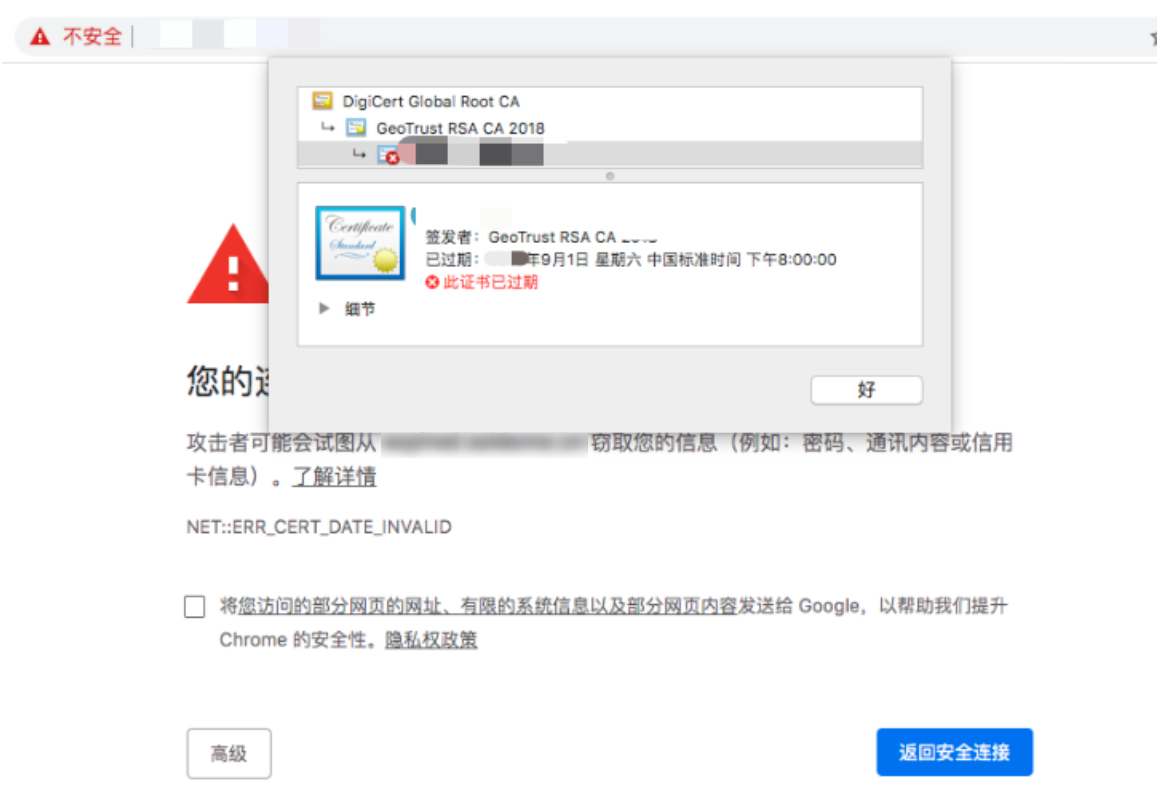
If an SSL certificate is not renewed after its expiration, users will encounter a warning message stating "The website's security certificate has expired" when they attempt to access the website. This could deter users from visiting the website due to security concerns. Furthermore, malicious entities could exploit expired SSL certificates to tamper with or steal information and data transmitted between the browser and the server, compromising user data security.
Auto-renewal is only available for formal certificates; free certificates do not support this feature.
Automatic replacement of old resources after SSL certificate renewal
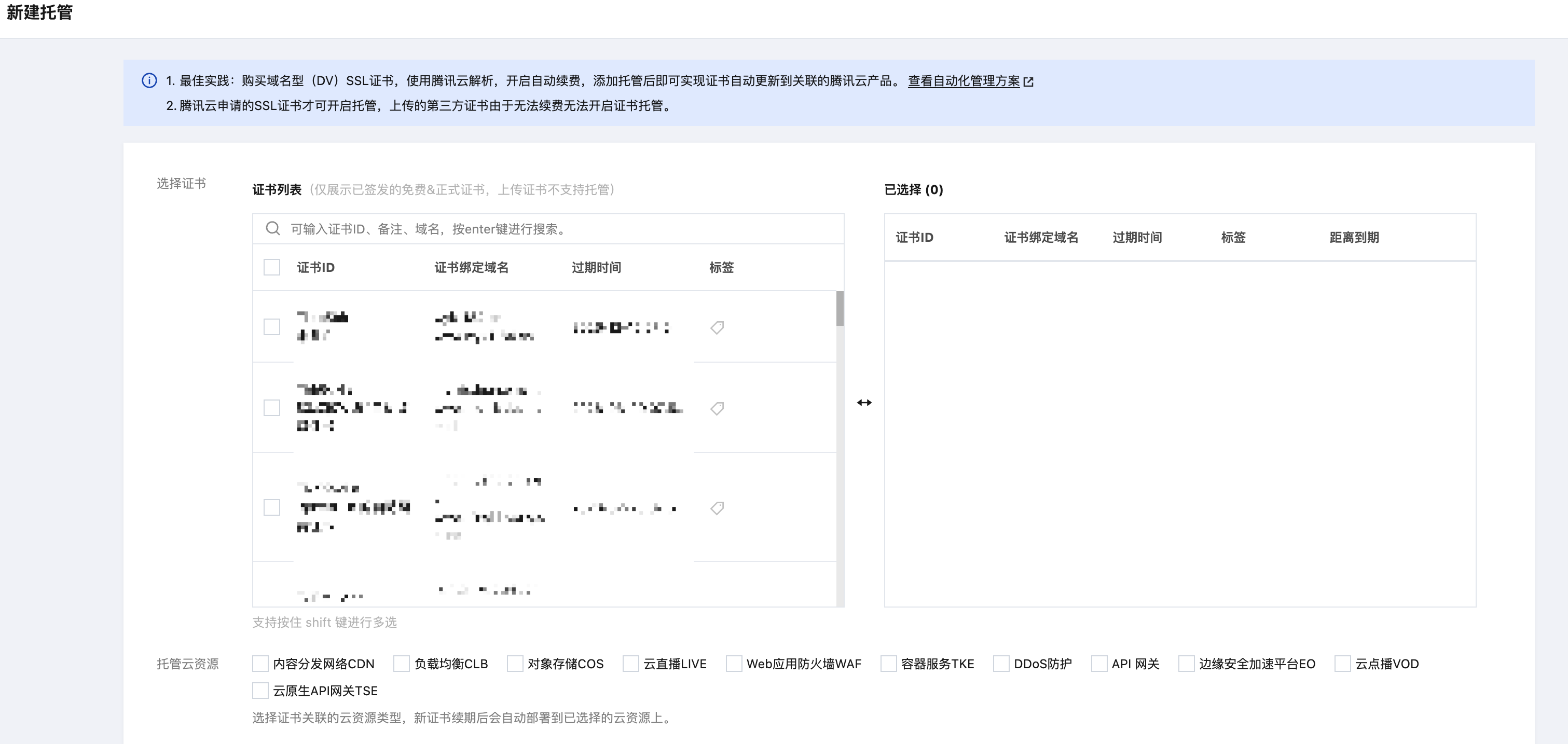
By enabling the certificate hosting service, you won't need to redeploy the certificate to the cloud resources after successfully renewing the SSL certificate. This service will automatically deploy the new SSL certificate to the Tencent Cloud resources where the original SSL certificate was deployed, such as Load Balancer, Content Delivery Network, etc. For more details, please refer to Cloud Resource Hosting Guide.
Note:
Upon issuance of an SSL certificate, you can initiate cloud resource hosting and bind the relevant cloud resources. When the SSL certificate is renewed, generating a new certificate, the cloud resources associated with the original certificate will automatically be bound to the new one.
1. Please navigate to the SSL Certificate Service Console, proceed to My Certificates, and on the My Certificates page, click on the ID.
2. On the opened page, activate the certificate hosting service as required.