The content of this page has been automatically translated by AI. If you encounter any problems while reading, you can view the corresponding content in Chinese.
Help & Documentation>Web Application Firewall

Rule Engine

Last updated: 2025-08-06 14:57:21

This document explains how to use WAF to set protection rules and configure malicious file detection to safeguard against Web attacks.

Background

Tencent Cloud WAF employs a Regular Expression-based Rule Protection Engine and an AI Protection Engine based on Machine Learning to protect against Web vulnerabilities and unknown threats.

The Tencent Cloud WAF Rule Protection Engine provides an Expert Rule Set based on Tencent's accumulated Web threat intelligence, automatically defending against OWASP Top 10 Attacks. Currently, it protects against 17 types of common Web attacks, including: SQL Injection, XSS Attacks, Malicious Scanning, Command Injection Attacks, Web Application Vulnerabilities, WebShell Upload, Non-compliant Protocols, Trojan Backdoors, and more.

The WAF rule protection engine supports rule level classification. Users can set the rule protection level according to actual business needs. It also supports switch settings for rule sets or single rules. It can disable WAF preset rules and provide allowlist disposal policies based on specified domain name URLs and rule IDs for false positives processing.

Directions

Viewing Rule Classification

1. Log in to the WAF Console, select Service Management > Web Rule Base from the left navigation bar to enter the Web Rule Base page.
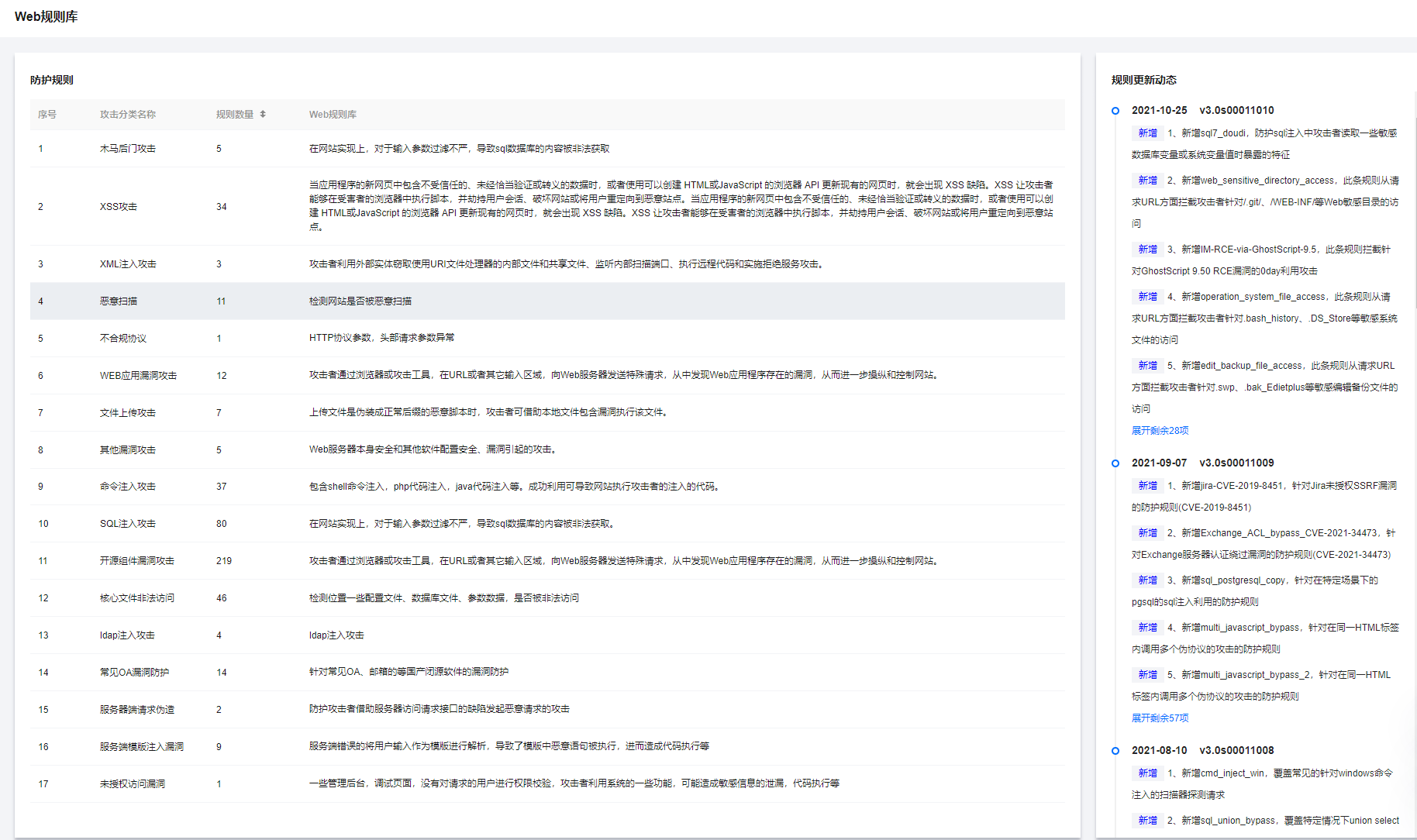
2. In the "Protection Rules" tab on the Web Rule Base page, you can view the current WAF-supported attack classifications and rule update information.

The current WAF-supported attack classifications are as follows:
Attack Classification
Attack Description
SQL Injection Attacks
In the process of website implementation, if input parameters are not filtered strictly, it may lead to the illegal acquisition of the SQL database content.
XSS Attacks
XSS vulnerabilities occur when an application includes untrusted data in new web pages that are not properly validated or escaped, or when an existing web page is updated using browser APIs that can create HTML or JavaScript. XSS allows attackers to execute scripts in the victim's browser and hijack user sessions, deface websites, or redirect users to malicious sites.
Malicious Scanning
Detects whether the website has been scanned for malicious intent.
Illegal Access to Core Files
Check whether certain configuration files, database files and parameter data are downloaded at will.
Open Source Component Vulnerability Attacks
Attack behaviors caused by common Web open source component vulnerabilities.
Command Injection Attacks
A type of injection attack, including Shell command injection, PHP code injection, Java code injection, etc. If successfully exploited by the attacker, it can lead to the website executing the injected code.
Web Application Vulnerability Attacks
Security of web applications (security of Java, ActiveX, PHP, ASP code running on web servers).
XXE attacks
Because of the XML processor, there are external entity references in the XML file. An attacker can exploit an external entity to steal internal and shared files using URI file processor, listen to internal scan ports, execute remote code, and perform denial of service attacks.
Trojan Backdoor Attack
Detects the Trojan horse dissemination process or the Trojan horse’s communication behavior with the control end after the Trojan horse is uploaded.
File Upload Attack
When an uploaded file is disguised as a malicious script with a normal suffix, an attacker can use the local file inclusion vulnerability to execute the file.
Other Vulnerability Attacks
Attacks caused by security vulnerabilities in the Web server itself and other software configurations.
Non-Compliant Protocol
HTTP protocol parameters and header request parameters are abnormal.
3. You can view rule update information through the rule update notifications on the right side of the Defense rule tag. For more Security Announcements, please check the Security Announcements.

Manage Rules

1. Log in to WAF Console, and select Configuration Center > Basic Security on the left sidebar to enter the Basic Security page.
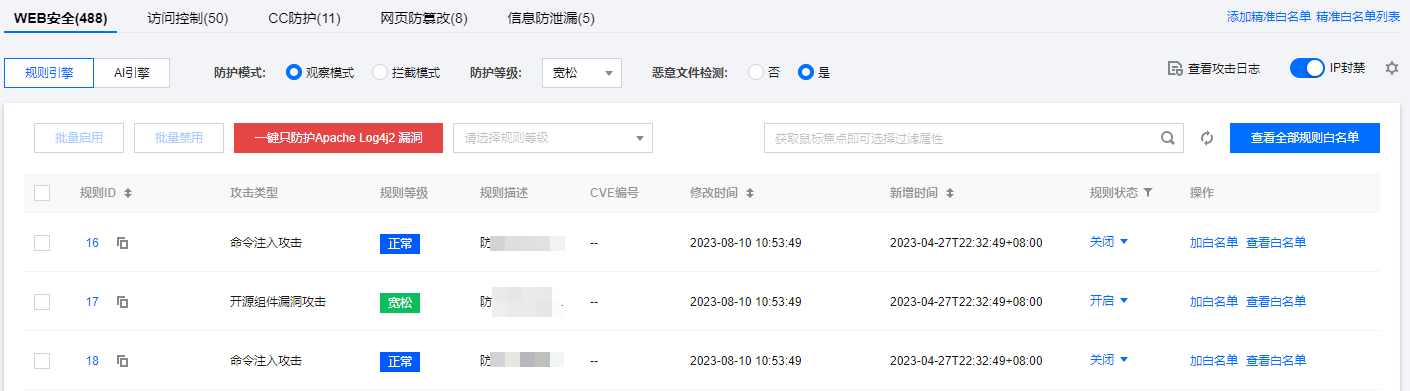
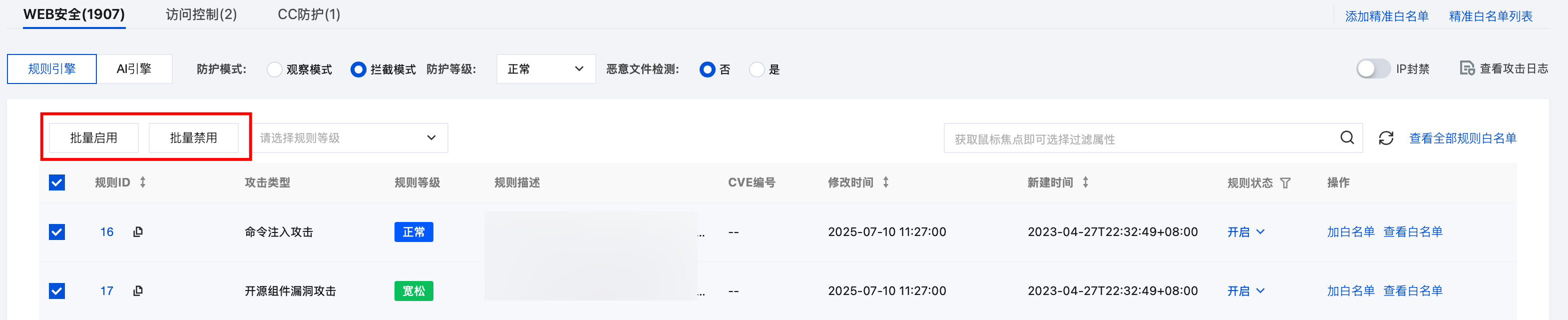
2. On the Basic Security page, click Web Security. In the "Rule Engine" tab, you can enable settings for individual rules based on the domain name to decide whether to enable the rule in the rule engine. All rules are enabled by default.

3. Users can search the rule set by "Rule Level," "Protection Level," or by entering "Rule ID, Attack Type, CVE Number" to view and operate specific rules.
Note:
The strict rule level contains normal and relaxed rules, and the normal rule level contains relaxed rules.


Malicious File Detection

Malicious file detection refers to detecting

Rule Allowlist or False Positive Handling

1. Log in to WAF Console, and select Configuration Center > Basic Security on the left sidebar to enter the Basic Security page.
2. On the Basic Security page, click Web Security. In the Rule Engine tab, you can allowlist and handle false positives based on Domain URL and Rule ID.
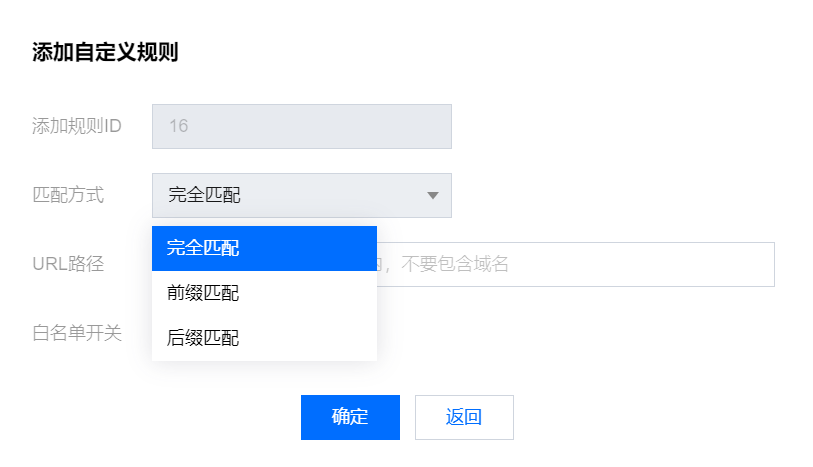
3. In the "rule engine" tab, select the required rule, click Add to allowlist, a pop-up window for adding custom Definition rule will appear.

4. In the pop-up window, configure the required parameters, click OK.

Field Description:
Rule ID: Enter the rule ID to be added to the allowlist. A policy can add one rule ID.
Matching Method: Matching method of the URL path to be allowed. Supports exact match (default), prefix match, and suffix match.
URL Path: The URL path to be allowed. The same URL cannot be added under one domain name.
Allowlist Switch: Switch to enable the allowlist policy. Enabled by default.
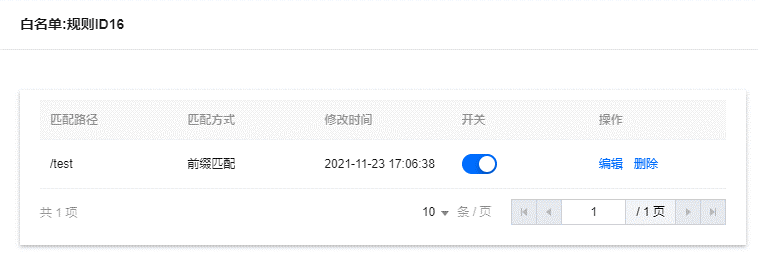
5. After adding to the allowlist, click View Allowlist to view the allowlist rule and perform related operations.

Field Descriptions:
Matching Path: The URL path to be allowed. The same URL cannot be added under one domain name.
Matching Method: Matching method of the URL path to be allowed. Supports exact match (default), prefix match, and suffix match.
Rule ID: The rule ID to be allowed, which can be obtained from the attack log or rule management.
Switch: Allowlist policy switch.
Modification Time: The last time the policy was created or modified.
Operations: Edit or delete the policy.
Click Edit, modify the relevant parameters, click OK to modify the rule parameters.
Click Delete, after secondary confirmation, the policy can be deleted.