The content of this page has been automatically translated by AI. If you encounter any problems while reading, you can view the corresponding content in Chinese.

Video

Last updated: 2024-08-28 15:28:58

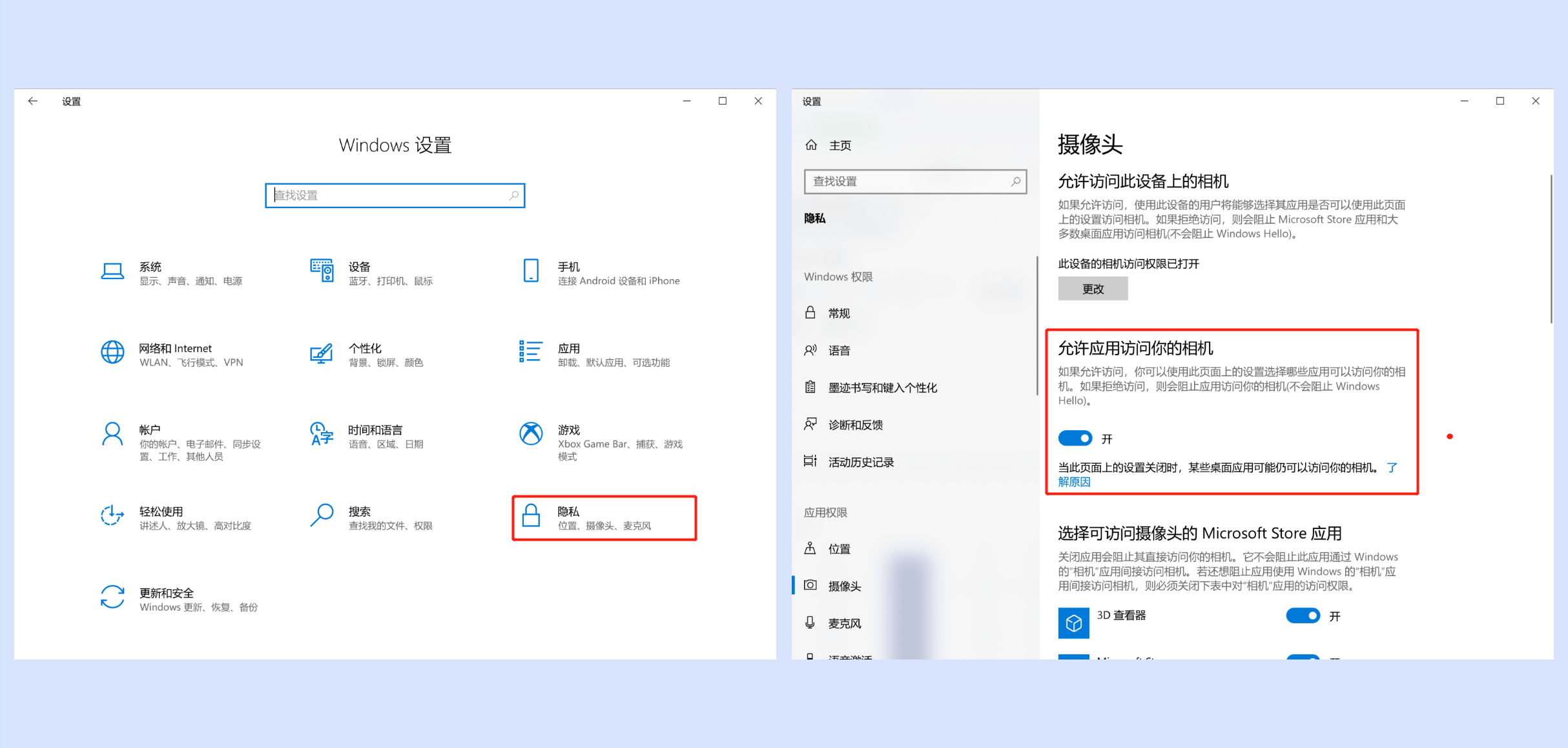
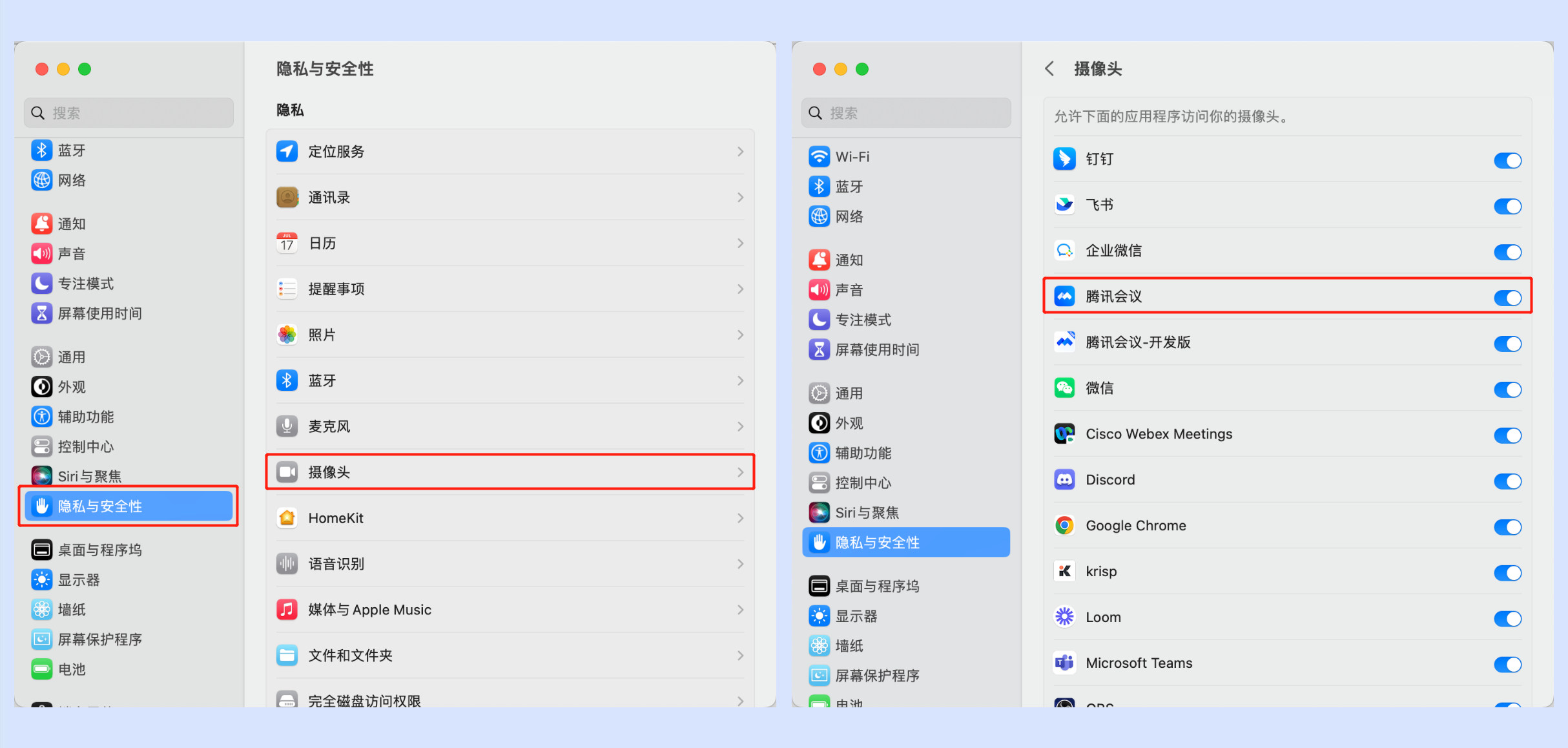
Why can't the video start correctly?

Troubleshoot by following the steps:
1. First, confirm whether other programs are using the camera.
2. Restart your computer to ensure no other programs are using the camera.
3. Update your camera driver.

I only want to see the shared screen, not the other participant's video. What should I do?

In the meeting, click on the menu bar at the bottom of the screen More > Settings, then click General Settings and turn on "Audio Mode" to stop receiving video from other participants, only keeping the shared screen.

How do I share only one window instead of the entire desktop?

Tencent Meeting supports two screen sharing modes: full desktop or application window. In the meeting, click on the menu bar at the bottom of the screen Share Screen and select the application window you wish to share for single window screen sharing.

I'm in an important meeting, but the background is messy. What should I do?

In the meeting, click on the menu bar at the bottom of the screen More > Settings, then click Virtual Background, choose "Background Blur" to blur the background behind you, highlighting the participant.

How to enable background blur and virtual background?

Note:
Currently, some devices do not support background blur and virtual background. Please refer to the actual situation. See the contents of the devices open below.
PC Version
In the meeting, you can set your background by clicking on the toolbar at the bottom of the page Apps > Beauty > Virtual Background.
In the meeting, you can set your background by clicking on the toolbar at the bottom of the page Enable Video next to the Arrow Up > Background&Beauty > Virtual Background.
You can click Settings > Background&Beauty > Virtual Background to set your background.
You can choose an image or video as a virtual background for the meeting and preview the effect in the Preview Window. You can also select Background Blur here and preview the effect in the Preview Window.
Mobile Client
In the meeting, you can set your background by clicking More on the bottom toolbar > Virtual Background.
Before the meeting, you can set your background by clicking Avatar > Settings > Virtual Background.
You can choose an image or video as a virtual background for the meeting and preview the effect in the Preview Window. You can also select Background Blur here and preview the effect in the Preview Window.

Why is the Background Blur feature not available on my device?

Currently, Tencent Meeting has enabled the Background Blur feature on Windows, Mac, iOS, and Android. Some models do not support Background Blur/Virtual Background due to hardware limitations.
System
Model
Windows/macOS
Supports CPU models with AVX2 instruction set and dual-core or above (generally CPUs released after 2013 meet this requirement)
iOS
Supports iPhone models from iPhone 6s and later.
Supports iPad Pro series 1st generation and later iPad Pro models.
Supports iPad Air series 3rd generation and later iPad Air models.
Supports iPad series 5th generation and later iPad models.
Supports iPad mini series 5th generation and later iPad mini models.
Android
For devices with Adreno series GPU, the model must be at least 512 or equal to 508 or 509, such as Oppo R11s.
Devices with the following CPU models:
For Snapdragon 600 series chips, the model must be at least 670, such as Vivo X23.
For Snapdragon 700 series chips, the model must be at least 710, such as Vivo NEX.
For Snapdragon 800 series chips, the model must be at least 835, such as Xiaomi MIX2.
For Qualcomm QCS series, the chip model must be at least QCS603.
For Kirin 700 series, the chip model must be at least 710, such as Honor 20i.
For Kirin 800 series, the chip model must be at least 810, such as Honor 9X.
For Kirin 900 series, the chip model must be at least 955, such as Huawei P9.
For Samsung series, the chip model must be at least Exynos 9 series, such as vivo X30 pro.
For MediaTek series, the chip model must be at least Dimensity 700 series, such as Redmi Note 10.
For MediaTek Kunpeng series, the chip model must be at least Kunpeng 1300T series, such as Honor Tablet V7 Pro.
If your device model is not listed, please be patient as we will gradually support more models.

What to do if the virtual background is not working properly?

If you encounter issues with the virtual background while using Tencent Meeting, please promptly record the problem and use Online Support. The maintenance team of Tencent Meeting will assist you in identifying and resolving the issue.

How to set up beauty filter?

Note:
Some models currently do not support the beauty filter. Please refer to the actual situation. The list of supported models is provided below.
PC Version
You can set up the beauty filter during the meeting by clicking Application > Beauty Filter in the toolbar at the bottom of the page.
You can set up the beauty filter during the meeting by clicking the up arrow next to Enable Video in the bottom toolbar and then selecting Background and Beauty Filter > Beauty Filter.
You can set up the beauty filter by clicking Settings > Background and Beauty Filter > Beauty Filter.
You can choose your preferred beauty effects and adjust the beauty level by dragging the slider in the "Beauty Filter" feature.
Mobile Client
You can set up the beauty filter during the meeting by clicking More > Beauty Filter in the bottom toolbar.
You can set up the beauty filter before the meeting by clicking Profile Picture > Settings > Beauty Filter.
You can set up the beauty filter after entering the meeting page by selecting Enable Beauty Filter > Beauty Settings.
You can choose your preferred beauty effects and adjust the beauty level by dragging the slider in the "Beauty Filter" feature.

Why doesn't my device have the beauty filter feature?

Currently, Tencent Meeting supports the beauty filter feature on Windows, macOS, iOS, and Android. However, there are certain hardware and software system requirements for each platform.
System
Model Instructions
Windows/Mac
The CPU must support AVX2 or Apple series chips.
For Intel i5 series, Mac requires 2 or more cores, Windows requires 4 or more cores; for higher than i5 series no core requirement.
For AMD chip series, Mac requires 2 or more cores, Windows requires 4 or more cores; for Series 5 or higher no core requirement.
Unsupported GPU driver versions:
Intel GPU, Version: 0x8086_14.51.11.5437.
NVIDIA GPU, Version: 0x10DE_9.18.13.4196.
iOS
Requires iPhone X or later, or iPad (6th generation) or later.
Android
Android version 10 or above.
Devices with the following CPU models:
For Snapdragon series, the chip model must be at least 625, such as Mi Max 2.
For Kirin series, the chip model must be at least 810, such as Huawei nova 5.
For MediaTek series, the chip model must be at least Dimensity 1000 series, such as Redmi K30 Ultimate Edition.
For Samsung series, the chip model must be Exynos 1000/2000 series or at least Exynos 9 series, such as vivo X30 pro
Note:
If your device model is not listed, please be patient as we will gradually support more models.

How to enable headgear?

Desktop (Mac):
You can select headgear during a meeting by clicking the Applications > Beauty Filter > Headgear option in the bottom toolbar.
You can select headgear during a meeting by clicking the up arrow next to Enable Video in the bottom toolbar and then selecting Background and Beauty Filter > Headgear.
You can select headgear by clicking Settings > Background and Beauty Filter > Headgear.
You can choose your preferred headgear effects for decoration in the "Headgear" feature.
Mobile:
You can select headgear during a meeting by clicking the More option in the bottom action bar > Beauty Filter > Headgear.
You can select headgear before the meeting by clicking Profile > Settings > Beauty Filter > Headgear.
You can select headgear by checking Enable Beauty Filter > Beauty Filter Settings > Headgear on the meeting page.
You can choose your preferred headgear effects for decoration in the "Headgear" feature.
Note:
Some models currently do not support the headgear feature. Please refer to the actual situation. The list of supported models is provided below.

Why don't I have the headgear feature on my device?

Currently, Tencent Meeting supports the headgear feature on Mac, iOS, and Android, but there are certain hardware and software requirements for each platform.
System
Model
Windows
Intel GPU minimum driver version: 14.51.11.5437.
NVIDIA GPU minimum driver version: 9.18.13.4196.
CPU Instruction Set: AVX2 supported.
CPU Version: Intel i3 series > 10000 (10th gen and above), Intel i5 series > 8400, Intel i7 series > 7000, Intel i9 full series.
Mac
The CPU must support AVX2 or Apple series chips.
For Intel i5 series, Mac requires 2 or more cores, Windows requires 4 or more cores; for higher than i5 series no core requirement.
For AMD chip series, Mac requires 2 or more cores, Windows requires 4 or more cores; for Series 5 or higher no core requirement.
System version 10.15.0 or above. Unsupported GPU driver versions:
Intel GPU, Version: 0x8086_14.51.11.5437.
NVIDIA GPU, Version: 0x10DE_9.18.13.4196.
iOS
Requires iPhone 8 or later, or iPad (6th generation) or later.
Android
Android version 10 or above;
Devices with the following CPU models:
For Snapdragon series, the chip model must be at least 625, such as Mi Max 2.
For Kirin series, the chip model must be at least 810, such as Huawei nova 5.
For MediaTek series, the chip model must be at least Dimensity 1000 series, such as Redmi K30 Ultimate Edition.
For MediaTek Kunpeng series, the chip model must be at least Kunpeng 1300T series, such as Honor Tablet V7 Pro.
For Samsung series, the chip model must be Exynos 1000/2000 series, or at least Exynos 9 series, such as vivo X30 Pro.
Note:
If your device model is not listed, please be patient as we will gradually support more models.

Why doesn't my device support virtual avatars?

System
Model
iOS
iPhone 11 and later models.
iPad 9 and later models.
iPad Mini 6 and later models.
iPad Pro 11 inch third generation and later models.
iPad Pro 12.9 inch fifth generation and later models.
iPad Air is not supported yet.
Android
MediaTek series: Dimensity 1200 and later models.
Kirin series: Kirin 980 and later models.
Qualcomm series: SDM712 and later models.

Why isn't there a brightening effect after turning on Dark Scene Enhancement?

Currently, Tencent Meeting's dark scene capability includes Dark Scene Detection. If the scene is not identified as a dark scene, the feature will not be activated.

How to switch video size?

PC Version
When holding a video meeting, you can display Nine-grid Mode or enlarge a specific person's video. Click the top right button on the screen to switch split screen modes.
To view a specific member’s video, double-click the user's video to enlarge it.
Mobile Client
When holding a video meeting, you can display Cross Grid Mode or double-click to select and enlarge a specific person's video.
You can switch between the two modes by swiping left or right.

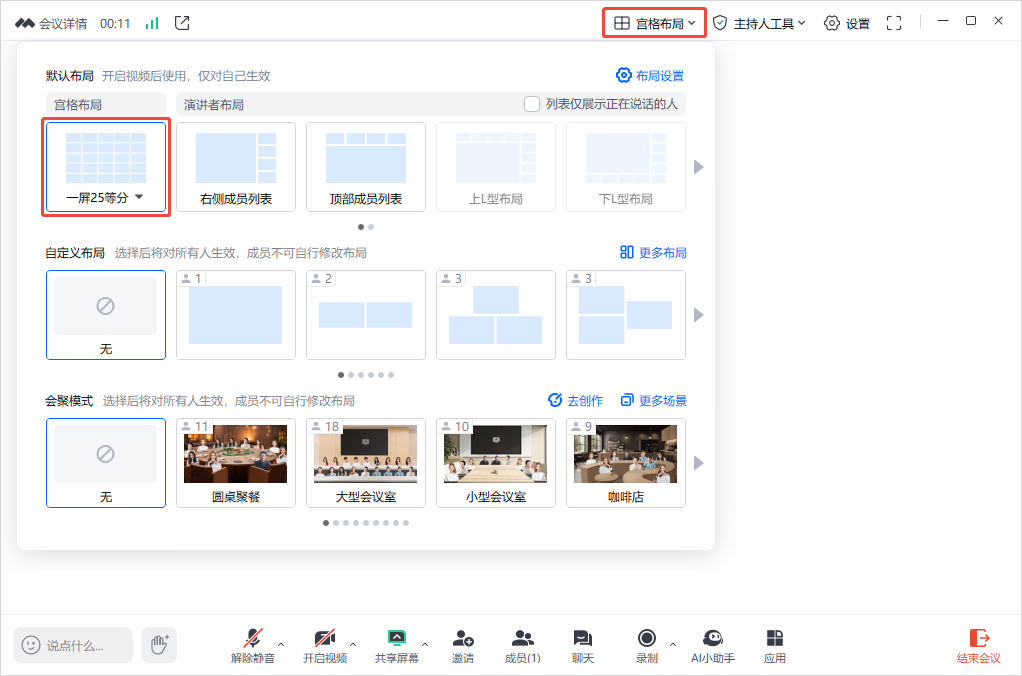
How to set 25 People in Same Screen?

Note:
This operation is only supported on the PC version.
Tencent Meeting's default video interface shows 9 participants. To display more participants, you can choose 25 People in Same Screen.


How to start a Live Streaming?

Tencent Meeting's live streaming feature currently supports the PC version only, with a maximum of 4 video streams, while the web version has no limit on the number of viewers.
For detailed instructions, please refer to Start Broadcasting.

How to lock a video frame?

PC Version
After enabling the video, select the video screen you wish to lock, and click the Lock Icon on the left side of the page to lock the video screen. Click the icon again to unlock.
In Speaker Mode, the large screen split screen defaults to Voice Activation (the speaker automatically jumps to the big screen). If the screen is locked, the large screen will not auto-adjust with Voice Activation.
Mobile After enabling the video, select the video screen you wish to lock, and click the Lock Icon at the bottom right corner of the page to lock the video screen. Click the icon again to unlock.

Does Tencent Meeting support broadcasting A meeting room to B meeting room?

It is not supported.

How to enable recording in Tencent Meeting?

Tencent Meeting version 1.6.5 and above on Windows supports recording. Steps: Enter the meeting, click Recording to start recording. If you are prompted that you do not have recording permissions, the host needs to grant you authorization.

Where are the recording files saved? How to set the save path?

Recording files are by default saved in the TencentMeeting folder within Documents on the C drive. The specific path is: C:\Users\Windows username\Documents\TencentMeeting\ If you need to change the save path, you can find the save path at the bottom of Settings > General Settings in Tencent Meeting. Click Switch to choose your desired location. After setting, click Open on the right to quickly locate the recording files.

How to hide users who have not enabled their video in a meeting?

Currently, only the desktop version supports hiding users who have not enabled their video. Steps are as follows: In the meeting, click More > Settings on the bottom toolbar, check Hide Non-Video Attendees to enable.