The content of this page has been automatically translated by AI. If you encounter any problems while reading, you can view the corresponding content in Chinese.
I need to use the ES Serverless service. How do I perform data migration?
Currently, data can be migrated to the ES Serverless service index via COS Snapshot or Logstash. COS Snapshot is suitable for scenarios with large data volumes or high migration speed requirements, while Logstash is suitable for migrating full or incremental data with low real-time requirements. For data migration using Logstash, refer to the documentation . If you need to migrate using a snapshot, you can submit a ticket for consultation.
Is it supported to collect data to the ES Serverless service index using Filebeat?
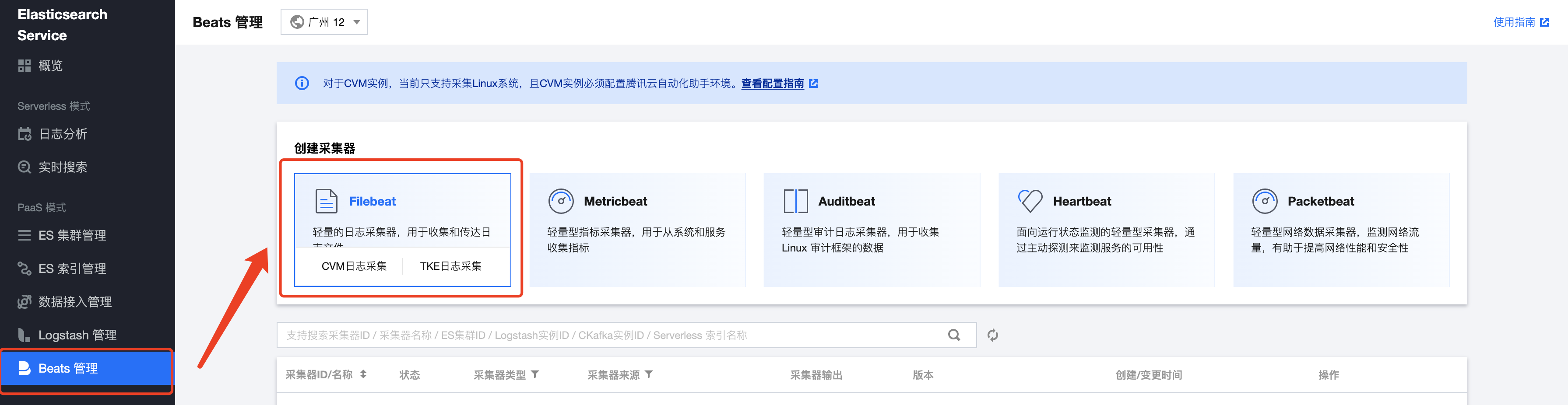
Supported. You can use the Beats Management feature in the cloud console to collect data to the index using Filebeat from CVM, TKE (including EKS). You can also use a self-built Filebeat with the internal network access address of the ES Serverless service to write data into the index.
Search for the required CAM policy as needed, and click to complete policy association.
Does it support writing data to the ES Serverless service index through Logstash?
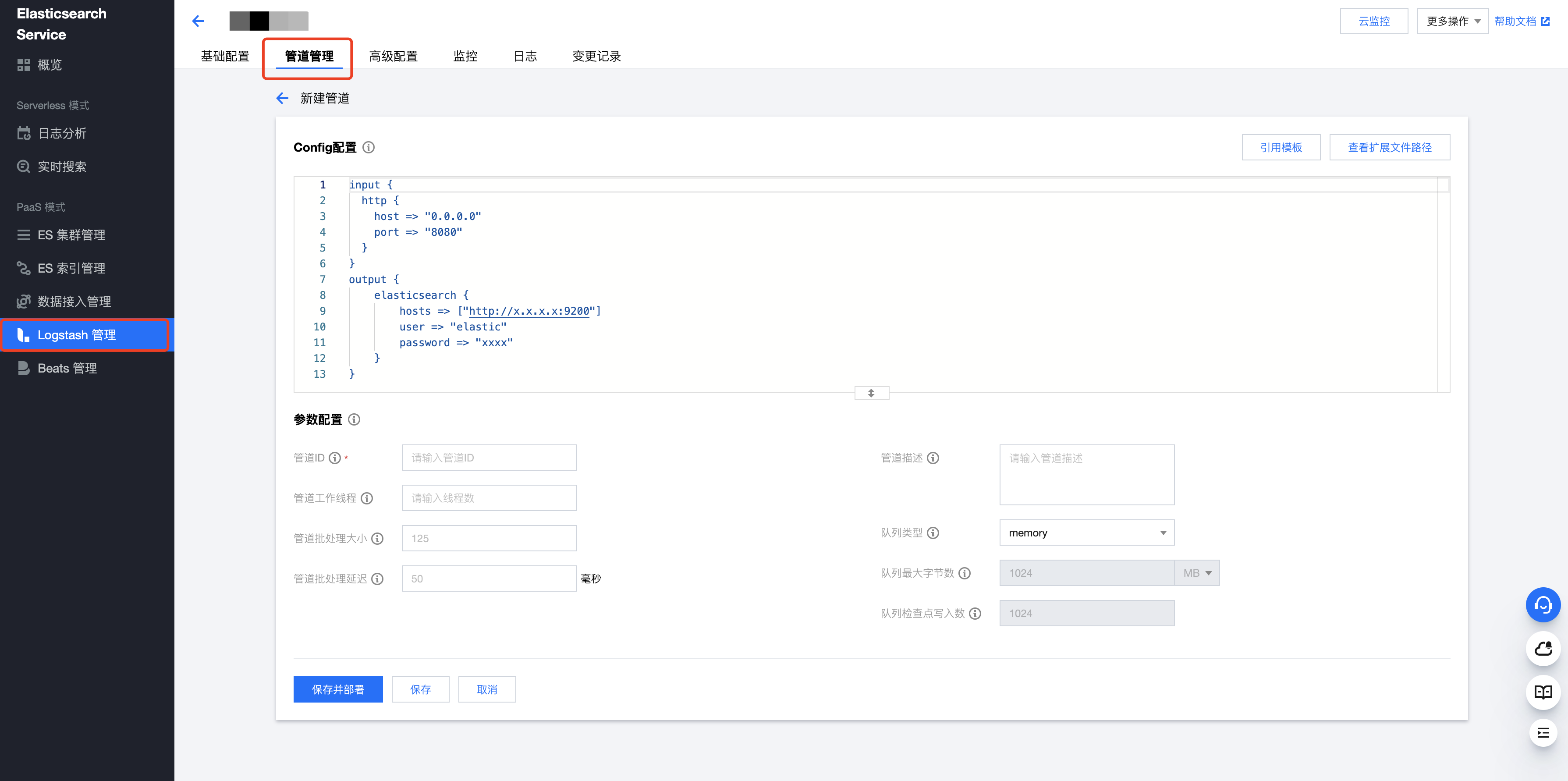
Supported. You can set the output end to the index of ES Serverless service in the pipeline configuration of Cloud-based Logstash or your own Logstash cluster. For details, please refer to Logstash Data Delivery.
Search for the required CAM policy as needed, and click to complete policy association.
What is the recommended size for batch writing?
The ES Serverless service has a built-in proprietary directed routing capability. It is recommended that the number of documents for a single batch write be set to 2000 - 5000, which helps improve write performance and reduce interface call costs.
What should I do if the required field type is not available in the field settings form?
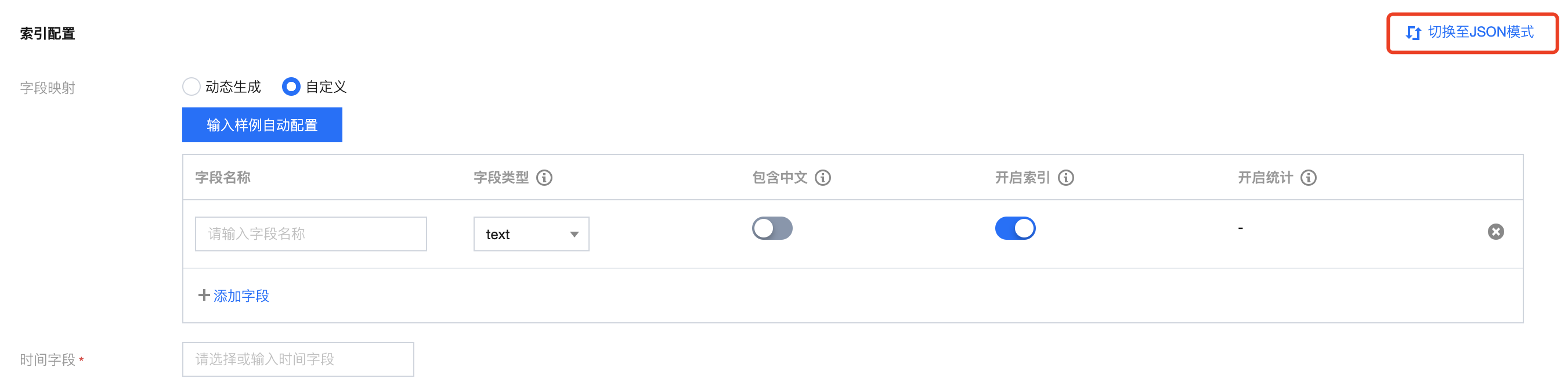
The form page dropdown supports selecting common field types. If more types are needed, you can switch to JSON mode and set the field to the desired type.
Search for the required CAM policy as needed, and click to complete policy association.