The content of this page has been automatically translated by AI. If you encounter any problems while reading, you can view the corresponding content in Chinese.
How to set a field to geo_point type and draw a map?
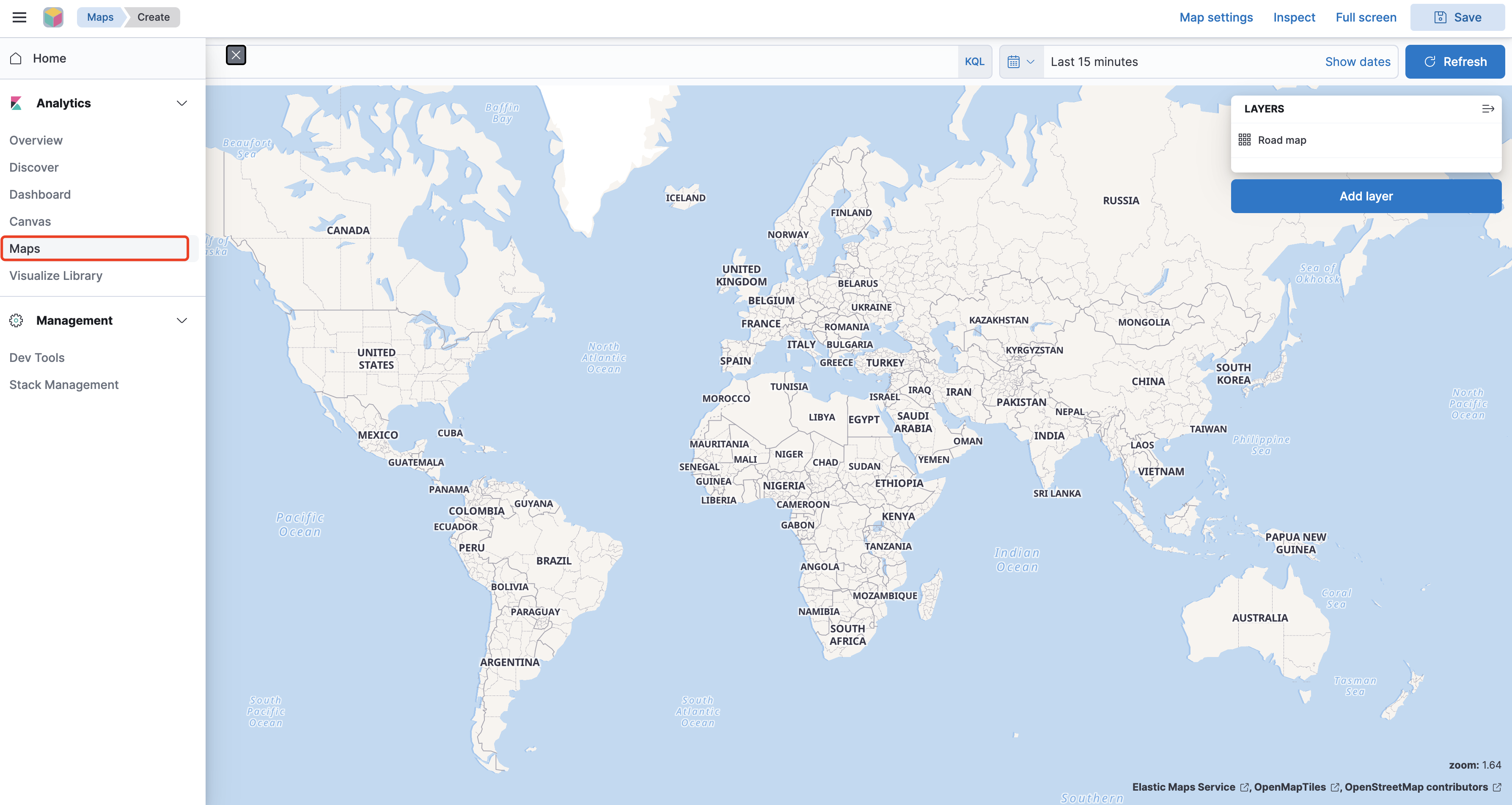
Before writing data, set the type of the specified field to geo_point in the mapping. After the data is written, you can select Maps in the Kibana navigation bar to enter the map drawing interface.
Note:
For the geo_point type, please set it manually; otherwise, the field might be automatically mapped to an incorrect type, resulting in an inability to render the map.
Search for the required CAM policy as needed, and click to complete policy association.
Where can the Coordinate Map feature of Kibana be found?
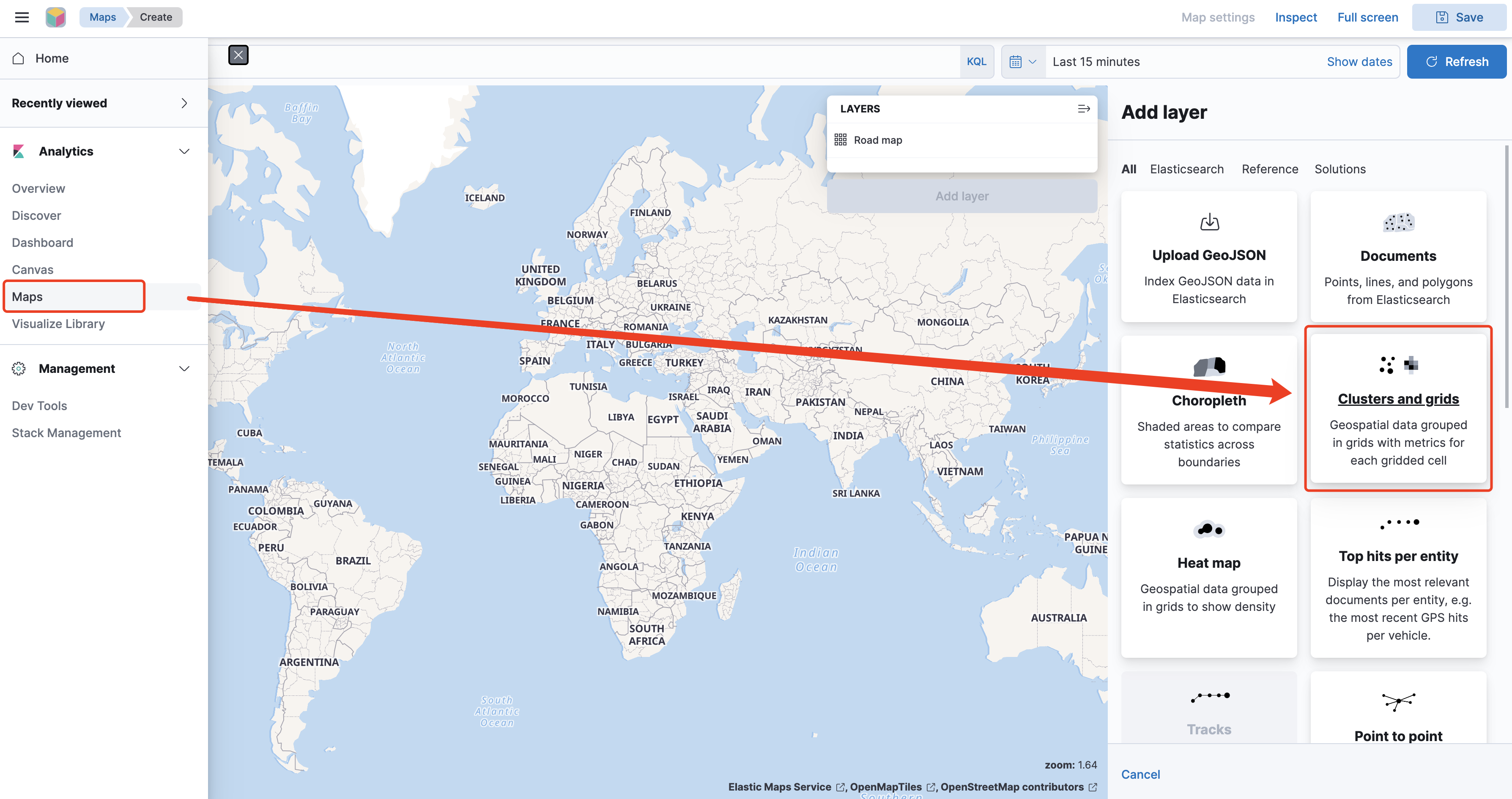
You can use the Maps option's Clusters and grids type to perform aggregation on specific fields.
Search for the required CAM policy as needed, and click to complete policy association.
How to distinguish and display values in different intervals based on the values of fields aggregated by metrics?
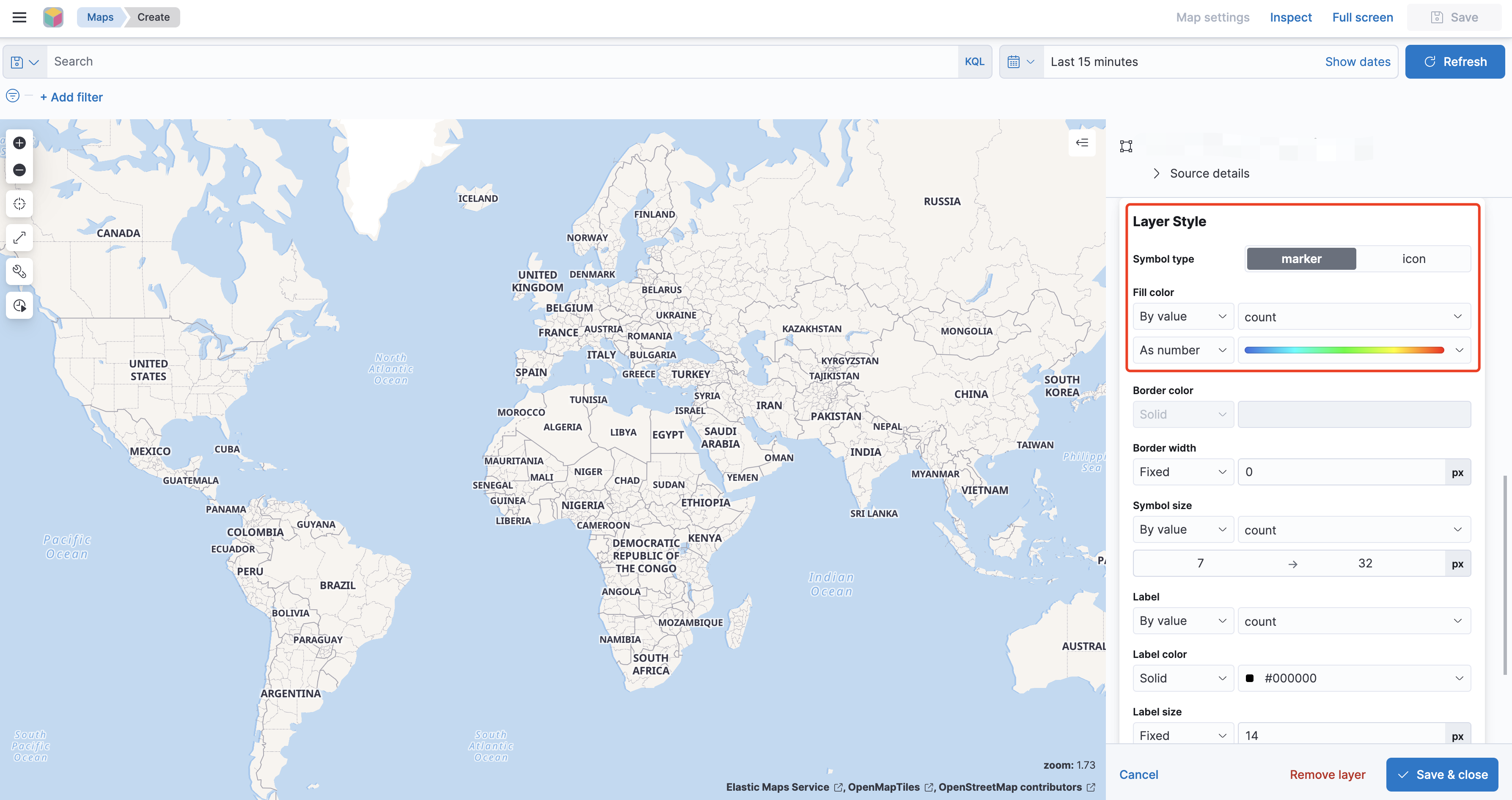
You can adjust the Fill color: In the Layer settings, scroll down to find the Layer Style module, select Fill color by value, choose the key you want to differentiate for display, and in the as number field, select the appropriate Gradient Color.
Search for the required CAM policy as needed, and click to complete policy association.
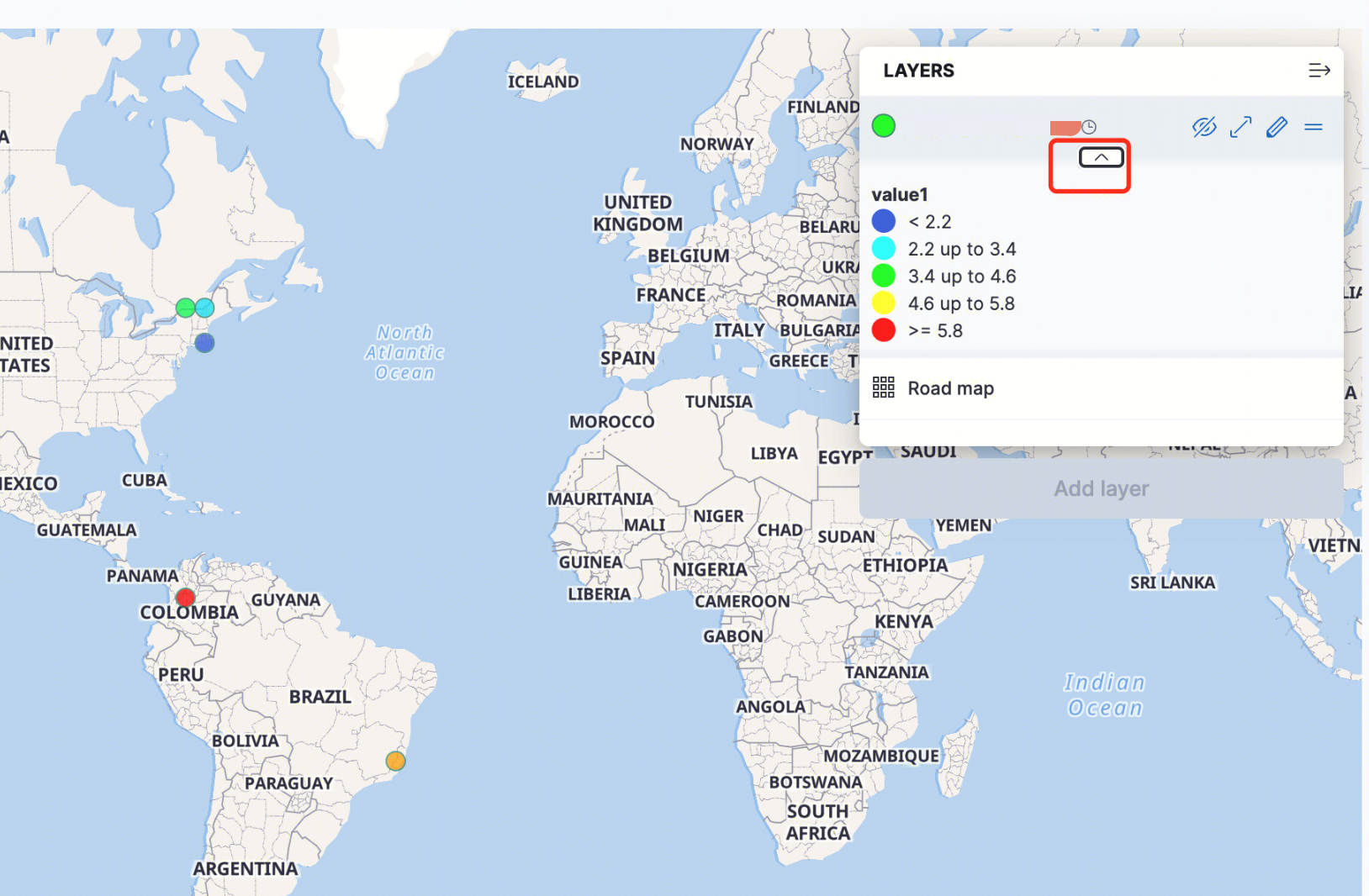
After displaying metrics, how can we know the corresponding value range for the various colored dots on the map?
Just click the arrow in the middle of the corresponding layer under LAYERS to display it (the arrow is not displayed by default and will only be shown when the mouse hovers over it).
Search for the required CAM policy as needed, and click to complete policy association.
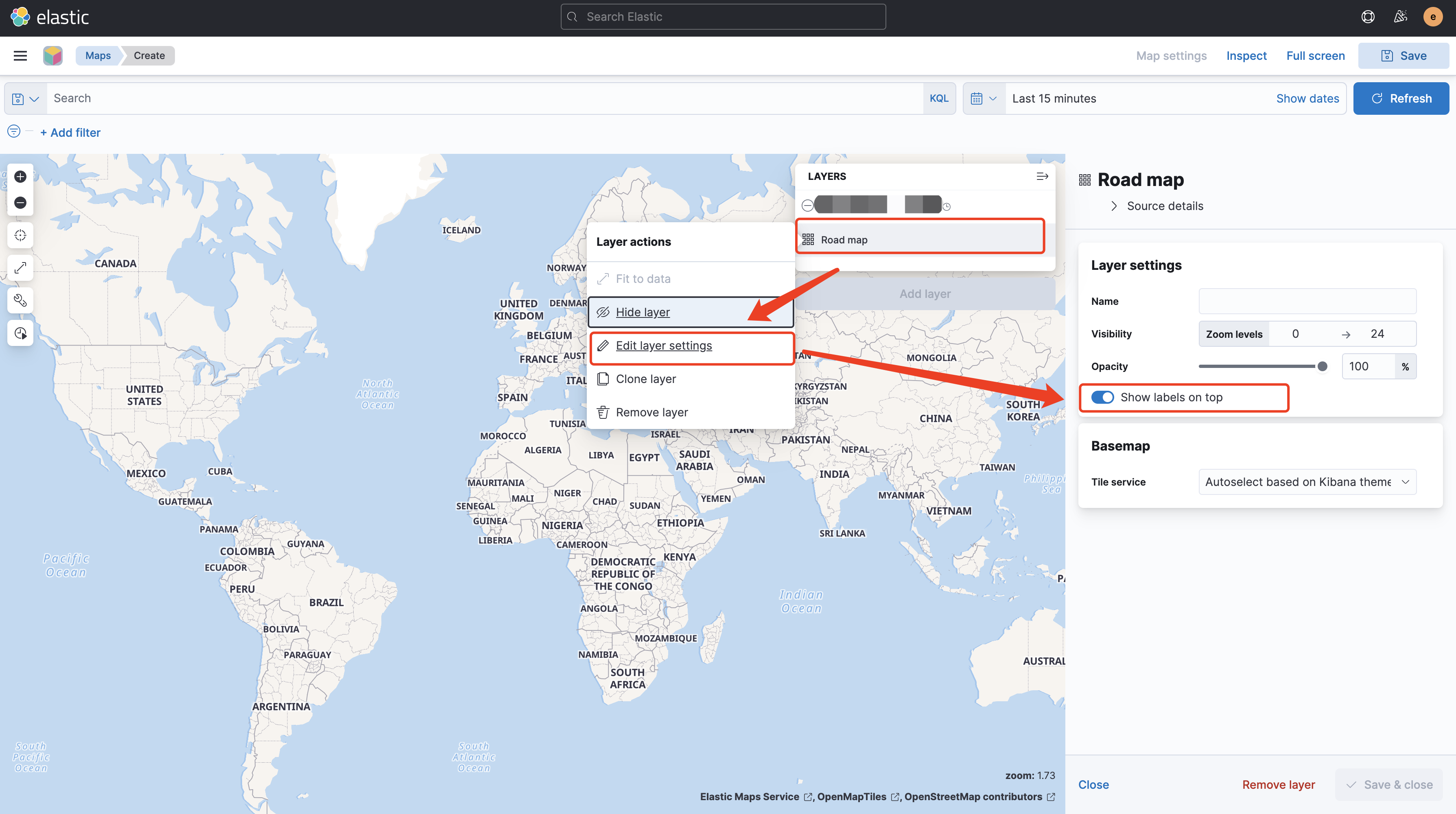
After displaying metrics, each dot is very large, occupying the base map's place names, causing them not to be displayed. How can this be set?
You can click Layer under the Road map, select Edit layer settings, and set the base map display priority to top in the Layer settings.
Search for the required CAM policy as needed, and click to complete policy association.