136.[HarmonyOS NEXT 实战案例七:List系列] 水平列表组件实战:打造精美图片库 进阶篇
原创
136.[HarmonyOS NEXT 实战案例七:List系列] 水平列表组件实战:打造精美图片库 进阶篇
原创
全栈若城
发布于 2025-06-30 22:38:50
发布于 2025-06-30 22:38:50
HarmonyOS NEXT 实战案例七:List系列 水平列表组件实战:打造精美图片库 进阶篇
项目已开源,开源地址: https://gitcode.com/nutpi/HarmonyosNextCaseStudyTutorial , 欢迎fork & star
效果演示
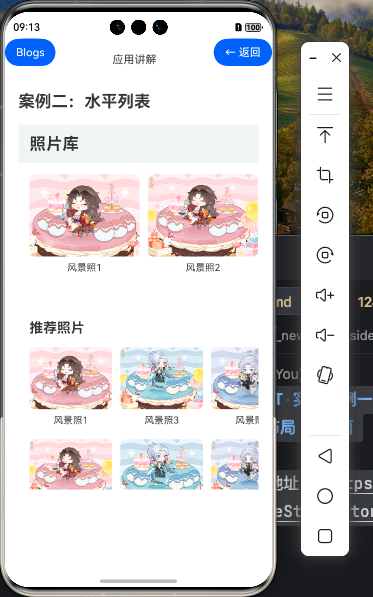

一、水平列表的进阶特性
在基础篇中,我们已经学习了如何创建基本的水平图片列表。在本篇教程中,我们将深入探讨水平列表的进阶特性,包括交互功能、动画效果、布局优化等方面。
1.1 水平列表的进阶属性
属性 | 说明 | 用途 |
|---|---|---|
alignListItem | 设置列表项对齐方式 | 控制列表项在交叉轴上的对齐方式 |
scrollBar | 设置滚动条样式 | 控制滚动条的显示和外观 |
edgeEffect | 设置边缘效果 | 控制列表到达边缘时的视觉反馈 |
itemExtent | 设置列表项固定尺寸 | 优化列表性能 |
cachedCount | 设置缓存数量 | 控制预加载的列表项数量 |
initialIndex | 设置初始索引 | 控制列表初始显示的位置 |
1.2 水平列表的交互特性
特性 | 说明 | 用途 |
|---|---|---|
onScrollIndex | 滚动索引事件 | 监听当前显示的列表项索引 |
onScroll | 滚动事件 | 监听列表的滚动状态 |
onScrollStop | 滚动停止事件 | 监听列表停止滚动的状态 |
onReachStart/End | 到达边缘事件 | 监听列表到达开始/结束位置 |
二、图片库的交互增强
在基础版本的图片库基础上,我们可以添加更多的交互功能,使图片库更加实用和用户友好。
2.1 添加图片点击预览功能
我们可以为图片列表项添加点击事件,点击后显示图片的详细信息:
@Component
export struct AdvancedHorizontalList {
    // 图片数据
    private images: Image[]= [...] // 与基础版相同

    // 当前选中的图片索引
    @State selectedIndex: number = -1

    // 是否显示预览
    @State showPreview: boolean = false

    build() {
        Stack() {
            Column() {
                // 标题栏和列表(与基础版相同)

                // 水平图片列表
                List() {
                    ForEach(this.images, (item:Image, index: number) => {
                        ListItem() {
                            Column() {
                                // 图片
                                Image(item.image)
                                    .width(160)
                                    .height(120)
                                    .borderRadius(8)
                                    .objectFit(ImageFit.Cover)

                                // 图片标题
                                Text(item.title)
                                    .fontSize(14)
                                    .margin({ top: 8 })
                                    .maxLines(1)
                                    .textOverflow({ overflow: TextOverflow.Ellipsis })
                            }
                            .alignItems(HorizontalAlign.Center)
                            .width(160)
                        }
                        .padding({ right: 12 })
                        .onClick(() => {
                            this.selectedIndex = index
                            this.showPreview = true
                        })
                    })
                }
                // List属性设置(与基础版相同)

                // 其他内容(与基础版相同)
            }

            // 图片预览层
            if (this.showPreview && this.selectedIndex >= 0) {
                this.ImagePreview()
            }
        }
        .width('100%')
        .height('100%')
    }

    @Builder ImagePreview() {
        Column() {
            // 预览顶栏
            Row() {
                Text(this.images[this.selectedIndex].title)
                    .fontSize(20)
                    .fontWeight(FontWeight.Bold)
                    .fontColor('#FFFFFF')

                Blank()

                Button({
                    type: ButtonType.Circle,
                    stateEffect: true
                }) {
                    Image($r('app.media.ic_close'))
                        .width(24)
                        .height(24)
                }
                .width(40)
                .height(40)
                .backgroundColor('rgba(255, 255, 255, 0.3)')
                .onClick(() => {
                    this.showPreview = false
                })
            }
            .width('100%')
            .padding(16)

            // 预览图片
            Image(this.images[this.selectedIndex].image)
                .objectFit(ImageFit.Contain)
                .layoutWeight(1)
                .width('100%')
        }
        .width('100%')
        .height('100%')
        .backgroundColor('#000000')
    }
}
在这个示例中:
- 添加了两个@State装饰的状态变量:selectedIndex和showPreview
- 为ListItem添加了onClick事件处理函数,点击时更新selectedIndex并显示预览
- 使用Stack组件作为根容器,可以在图片列表上方显示预览层
- 添加了ImagePreview Builder函数,用于构建图片预览界面
2.2 实现图片轮播效果
我们可以为水平列表添加自动轮播功能,使图片自动滚动:
@Component
export struct AdvancedHorizontalList {
    // 图片数据
    private images: Image[]= [...] // 与基础版相同

    // 列表控制器
    private listController: ListController = new ListController()

    // 当前显示的索引
    @State currentIndex: number = 0

    // 定时器ID
    private timerId: number = -1

    aboutToAppear() {
        // 启动自动轮播
        this.startAutoScroll()
    }

    aboutToDisappear() {
        // 停止自动轮播
        this.stopAutoScroll()
    }

    // 启动自动轮播
    private startAutoScroll() {
        if (this.timerId !== -1) {
            clearInterval(this.timerId)
        }

        this.timerId = setInterval(() => {
            this.currentIndex = (this.currentIndex + 1) % this.images.length
            this.listController.scrollTo(this.currentIndex)
        }, 3000) // 每3秒滚动一次
    }

    // 停止自动轮播
    private stopAutoScroll() {
        if (this.timerId !== -1) {
            clearInterval(this.timerId)
            this.timerId = -1
        }
    }

    build() {
        Column() {
            // 标题栏(与基础版相同)

            // 水平图片列表(轮播)
            List({ space: 12, controller: this.listController }) {
                ForEach(this.images, (item:Image, index: number) => {
                    ListItem() {
                        Column() {
                            // 图片
                            Image(item.image)
                                .width('100%')
                                .height(200)
                                .borderRadius(8)
                                .objectFit(ImageFit.Cover)

                            // 图片标题
                            Text(item.title)
                                .fontSize(16)
                                .margin({ top: 8 })
                                .maxLines(1)
                                .textOverflow({ overflow: TextOverflow.Ellipsis })
                        }
                        .alignItems(HorizontalAlign.Center)
                        .width('100%')
                    }
                    .width('90%')
                })
            }
            .width('100%')
            .height(250)
            .margin({ top: 16 })
            .listDirection(Axis.Horizontal)
            .onScrollStop(() => {
                // 获取当前显示的索引
                this.listController.getScrollOffset((offset: number) => {
                    const itemWidth = px2vp(this.context.width) * 0.9 + 12 // 列表项宽度 + 间距
                    this.currentIndex = Math.round(offset / itemWidth) % this.images.length
                })
            })

            // 指示器
            Row() {
                ForEach(this.images, (_, index: number) => {
                    Circle({
                        width: 8,
                        height: 8
                    })
                    .fill(this.currentIndex === index ? '#007DFF' : '#CCCCCC')
                    .margin({ right: 8 })
                })
            }
            .width('100%')
            .justifyContent(FlexAlign.Center)
            .margin({ top: 16 })

            // 其他内容(与基础版相同)
        }
        // Column属性设置(与基础版相同)
    }
}
在这个示例中:
- 添加了ListController实例,用于控制列表的滚动
- 添加了currentIndex状态变量,用于跟踪当前显示的图片索引
- 实现了startAutoScroll和stopAutoScroll方法,用于启动和停止自动轮播
- 在aboutToAppear和aboutToDisappear生命周期函数中启动和停止轮播
- 为List组件添加了onScrollStop事件处理函数,用于更新currentIndex
- 添加了指示器,显示当前图片的位置
2.3 实现图片卡片效果
我们可以为水平列表添加卡片效果,使图片以卡片的形式展示:
List() {
    ForEach(this.images, (item:Image) => {
        ListItem() {
            Column() {
                // 图片
                Image(item.image)
                    .width('100%')
                    .height(160)
                    .borderRadius({ topLeft: 8, topRight: 8 })
                    .objectFit(ImageFit.Cover)

                // 图片信息
                Column() {
                    Text(item.title)
                        .fontSize(16)
                        .fontWeight(FontWeight.Medium)

                    Text('2023-06-15')
                        .fontSize(12)
                        .fontColor('#999999')
                        .margin({ top: 4 })
                }
                .width('100%')
                .alignItems(HorizontalAlign.Start)
                .padding(12)
            }
            .width(200)
            .borderRadius(8)
            .backgroundColor('#FFFFFF')
            .shadow({
                radius: 6,
                color: 'rgba(0, 0, 0, 0.1)',
                offsetX: 0,
                offsetY: 2
            })
        }
        .padding({ right: 16 })
    })
}
.width('100%')
.height(240)
.margin({ top: 16 })
.listDirection(Axis.Horizontal)
.padding({ left: 16 })
在这个示例中:
- 为列表项添加了卡片样式,包括背景色、圆角和阴影
- 图片只在顶部设置了圆角,与卡片底部的信息区域形成一体
- 在图片下方添加了更多信息,如拍摄日期
三、水平列表的布局优化
除了基本的布局外,我们还可以对水平列表进行更多的布局优化,使其更加美观和实用。
3.1 对齐方式设置
使用alignListItem属性可以控制列表项在交叉轴上的对齐方式:
List() {
    // 列表内容
}
.width('100%')
.height(200)
.listDirection(Axis.Horizontal)
.alignListItem(ListItemAlign.Center) // 设置列表项居中对齐
ListItemAlign枚举值说明:
值 | 说明 |
|---|---|
ListItemAlign.Start | 列表项在交叉轴上靠近起点对齐 |
ListItemAlign.Center | 列表项在交叉轴上居中对齐 |
ListItemAlign.End | 列表项在交叉轴上靠近终点对齐 |
3.2 固定尺寸优化
使用itemExtent属性可以设置列表项的固定尺寸,这对于优化列表性能非常有帮助:
List() {
    // 列表内容
}
.width('100%')
.height(200)
.listDirection(Axis.Horizontal)
.itemExtent(200) // 设置列表项固定宽度为200
当列表项的尺寸相同时,使用itemExtent可以提高列表的渲染性能,因为系统可以预先计算列表的布局。
3.3 分页滚动效果
我们可以实现分页滚动效果,使列表一次滚动一个完整的列表项:
@Component
export struct AdvancedHorizontalList {
    // 图片数据和其他属性

    // 列表控制器
    private listController: ListController = new ListController()

    build() {
        Column() {
            // 标题栏和其他内容

            // 分页滚动的水平列表
            List({ space: 16, controller: this.listController }) {
                // 列表内容
            }
            .width('100%')
            .height(240)
            .listDirection(Axis.Horizontal)
            .padding({ left: 16, right: 16 })
            .onScrollFrameBegin((offset: number) => {
                // 计算应该滚动到的位置
                const itemWidth = 200 + 16 // 列表项宽度 + 间距
                const page = Math.round(offset / itemWidth)
                const newOffset = page * itemWidth

                // 返回新的滚动偏移量
                return { offsetX: newOffset }
            })

            // 翻页按钮
            Row() {
                Button('上一页')
                    .onClick(() => {
                        this.listController.getScrollOffset((offset: number) => {
                            const itemWidth = 200 + 16 // 列表项宽度 + 间距
                            const page = Math.floor(offset / itemWidth)
                            if (page > 0) {
                                this.listController.scrollTo((page - 1) * itemWidth)
                            }
                        })
                    })

                Button('下一页')
                    .onClick(() => {
                        this.listController.getScrollOffset((offset: number) => {
                            const itemWidth = 200 + 16 // 列表项宽度 + 间距
                            const page = Math.floor(offset / itemWidth)
                            const maxPage = Math.ceil(this.images.length * itemWidth / (px2vp(this.context.width) - 32)) - 1
                            if (page < maxPage) {
                                this.listController.scrollTo((page + 1) * itemWidth)
                            }
                        })
                    })
            }
            .width('100%')
            .justifyContent(FlexAlign.SpaceAround)
            .margin({ top: 16 })
        }
        // Column属性设置
    }
}
在这个示例中:
- 使用onScrollFrameBegin事件处理函数实现分页滚动效果
- 添加了上一页和下一页按钮,用于控制列表的滚动
- 使用ListController的getScrollOffset和scrollTo方法获取和设置滚动位置
四、水平列表的动画效果
添加动画效果可以使水平列表更加生动和有吸引力。
4.1 列表项缩放效果
我们可以为列表项添加缩放效果,使当前显示的列表项放大,其他列表项缩小:
@Component
export struct AdvancedHorizontalList {
    // 图片数据和其他属性

    // 当前中心索引
    @State centerIndex: number = 0

    build() {
        Column() {
            // 标题栏和其他内容

            // 带缩放效果的水平列表
            List() {
                ForEach(this.images, (item:Image, index: number) => {
                    ListItem() {
                        Column() {
                            // 图片和标题
                        }
                        .width(160)
                        .height(200)
                        .scale({ x: this.centerIndex === index ? 1.1 : 0.9, y: this.centerIndex === index ? 1.1 : 0.9 })
                        .opacity(this.centerIndex === index ? 1 : 0.7)
                        .animation({
                            duration: 250,
                            curve: Curve.EaseInOut
                        })
                    }
                    .padding({ right: 16 })
                })
            }
            .width('100%')
            .height(240)
            .listDirection(Axis.Horizontal)
            .padding({ left: 16 })
            .onScrollIndex((start: number, end: number) => {
                // 更新中心索引
                this.centerIndex = Math.floor((start + end) / 2)
            })
        }
        // Column属性设置
    }
}
在这个示例中:
- 添加了centerIndex状态变量,用于跟踪当前中心位置的列表项索引
- 使用scale属性为列表项添加缩放效果,中心列表项放大,其他列表项缩小
- 使用opacity属性为列表项添加透明度效果,中心列表项完全不透明,其他列表项半透明
- 使用animation属性为缩放和透明度变化添加动画效果
- 使用onScrollIndex事件处理函数更新centerIndex
4.2 列表项旋转效果
我们可以为列表项添加旋转效果,创建一个类似旋转木马的效果:
List() {
    ForEach(this.images, (item:Image, index: number) => {
        ListItem() {
            Column() {
                // 图片和标题
            }
            .width(160)
            .height(200)
            .rotate({
                x: 0,
                y: 1,
                z: 0,
                angle: (index - this.centerIndex) * 15
            })
            .translate({
                x: (index - this.centerIndex) * 20,
                z: Math.abs(index - this.centerIndex) * -50
            })
            .animation({
                duration: 250,
                curve: Curve.EaseInOut
            })
        }
        .padding({ right: 16 })
    })
}
.width('100%')
.height(240)
.listDirection(Axis.Horizontal)
.padding({ left: 16, right: 16 })
.onScrollIndex((start: number, end: number) => {
    // 更新中心索引
    this.centerIndex = Math.floor((start + end) / 2)
})
在这个示例中:
- 使用rotate属性为列表项添加旋转效果,根据与中心索引的距离计算旋转角度
- 使用translate属性为列表项添加平移效果,创建3D空间中的深度感
- 使用animation属性为旋转和平移变化添加动画效果
总结
在本篇教程中,我们深入探讨了HarmonyOS NEXT的水平列表的进阶特性和用法。
在实际开发中,可以根据应用的具体需求,选择合适的特性和技巧,打造出既美观又实用的水平列表界面,提升用户体验。
原创声明:本文系作者授权腾讯云开发者社区发表,未经许可,不得转载。
如有侵权,请联系 cloudcommunity@tencent.com 删除。
原创声明:本文系作者授权腾讯云开发者社区发表,未经许可,不得转载。
如有侵权,请联系 cloudcommunity@tencent.com 删除。
评论
登录后参与评论
推荐阅读
目录
腾讯云开发者

Copyright © 2013 - 2026 Tencent Cloud. All Rights Reserved. 腾讯云 版权所有
深圳市腾讯计算机系统有限公司 ICP备案/许可证号:粤B2-20090059  粤公网安备44030502008569号
腾讯云计算(北京)有限责任公司 京ICP证150476号 | 京ICP备11018762号