操作场景
Topic 是 TDMQ Pulsar 版中的核心概念。Topic 通常用来对系统生产的各类消息做一个集中的分类和管理,例如和交易的相关消息可以放在一个名为 “trade” 的 Topic 中,供其他消费者订阅。
在实际应用场景中,一个 Topic 往往代表着一个业务聚合,由开发者根据自身系统设计、数据架构设计来决定如何设计不同的 Topic。
本文档可以指导您使用 TDMQ Pulsar 版时,利用 Topic 对消息进行分类管理。
约束与限制
无论通过哪种方式(手动或者自动创建)创建的 Topic,都会占用集群下的 Topic 配额,总数到达数量上限后,将无法继续创建 Topic。
如果您的集群在2025年1月18日前创建,则不支持自动创建 Topic,如需支持请联系我们升级集群版本。
仅专业集群支持自动创建 Topic 功能。
前提条件
操作步骤
1. 登录 TDMQ Pulsar 版控制台,在左侧导航栏单击 Topic 管理。
2. 在 Topic 管理页面,选择好地域、集群和命名空间后,单击新建,弹出新建 Topic 的弹框。
3. 在新建 Topic 弹框中,填写以下信息:
参数 | 是否必填 | 说明 |
地域 | 是 | 根据您所选择的集群所在地域自动带出,无需填写。 |
命名空间 | 是 | 根据您所选择的命名空间自动带出,无需填写。 |
Topic 名称 | 是 | 支持数字字母以及符号 “-_=:.”,长度不超过128个字符 |
Topic 类型 | 是 | 支持持久化和非持久化两种类型,默认为持久化。 持久化:持久化的消息会以多副本形式落盘,保证消息不丢失,多适用于金融、交易等高可靠场景。 非持久化:非持久化主题的消息不会落盘,直接投递给当前在线的订阅,投递完成即删除。如果当前没有在线订阅,会直接删除,消息在服务端不保留。多适用于数据可靠性要求不高、流处理等场景(非持久化消息仅支持普通消息的即时收发,不支持消息查询、消息轨迹、延迟消息、消息过滤、消息回溯等功能)。 注意: 非持久化类型主题,在收发消息的时候,要填写完整的前缀为 non-persistent:// 主题名。 |
是否分区 | 否 | 支持开启和关闭,默认为开启,开启状态下分区数默认为 2 分区。 分区开关关闭表示不做分区拆分,无需配置分区数。 分区开关开启表示开启分区拆分,需要配置分区数,分区数支持 1 至 32 个分区。 Pulsar 内部可以保证单个分区内的消息有序,即如果创建 1 分区的 Topic 则可以保证全局有序。 单分区的 Topic 会在性能上弱于多分区 Topic,如果希望兼顾性能与有序性, 可以参见 订阅模式 使用 Key-shared 模式进行消费,实现局部有序,标记同一个 key 让需要有序的消息落在同一分区即可。 |
隔离异常消费者 | 否 | 支持开启和关闭,默认为关闭,开启状态下 ACK 超时时间默认为 1 分钟。 Pulsar 支持服务端主动隔离异常消费者,可选 ACK 超时时间。其中 ACK 超时时间可选 1 分钟至 24 小时。 异常消费者隔离的场景及其实践教程参见 异常消费者隔离。 请确保您已了解清楚该功能的适用场景后再开启,避免对您的生产系统产生不必要的影响。 |
说明 | 否 | 填写 Topic 的说明信息,不超过 128 字符。 |
4. 单击保存,在 Topic 列表中即可看见创建好的 Topic。
参数 | 说明 |
Topic 名称 | Topic 名称,格式为: pulsar-****/namespace/topicName。 |
监控 | |
类型 | 持久化或者非持久化。 |
创建来源 | 用户创建或系统创建。 |
分区数 | Topic 的分区数量。 |
客户端 | 生产者:生产者数量/生产者数量上限,单击可跳转至生产详情页,详情参见 查看生产者连接关系。 消费者:展示消费者数量/消费者数量上限,单击可跳转至消费详情页,详情参见 查看和管理订阅关系。 说明: 当展示为 warning 的橙色, 代表分数数值达到 80%,当展示为 Error 红色,则代表分数数值达到 90%,请及时断开不需要使用的客户端连接。 |
创建时间 | Topic 的创建时间。 |
说明 | Topic 的说明信息。 |

“自动创建 Topic”表示客户端向一个 Topic 生产或消费消息时,会自动检测该 Topic 是否存在,若 Topic 不存在,且 Topic 名称符合命名规则,系统会自动创建此 Topic。
开启自动创建 Topic
1. 登录 TDMQ Pulsar 版控制台。
2. 在左侧导航栏选择集群管理,选择好地域后单击目标集群的“ID”,进入基本信息页面。
3. 在基本信息页面的自动创建 Topic 模块,点击右上角的编辑。
4. 在弹窗中开启自动创建 Topic 按钮,并设置好默认分区数的数量。
Pulsar 内部可以保证单个分区内的消息有序,即如果创建 1 分区的 Topic 则可以保证全局有序。
多分区可以提高单个 Topic 的生产消费性能,但是无法保证顺序性。
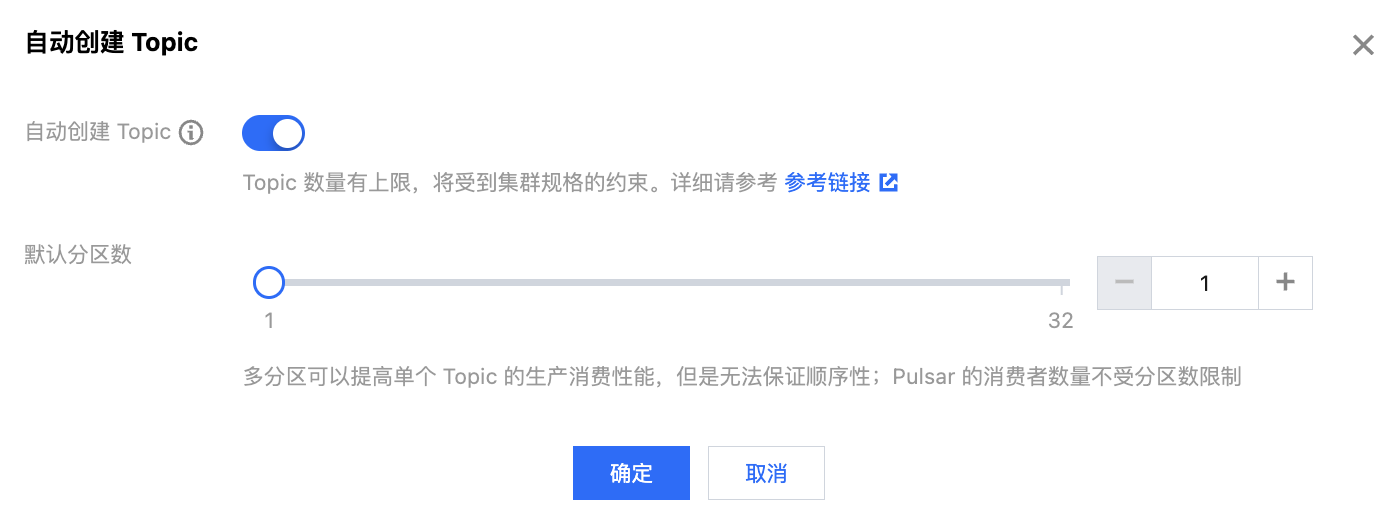
5. 单击确定,完成开启。
客户端使用方式
1. 使用自动创建 Topic 功能时,应注意规范 Topic 命名:
Topic 名长度控制在128个字符之内;
Topic 名内容应在合法字符(数字字母以及符号-_=:.)之内;
Topic 名不能包含"-partition-"字符串。
2. 使用自动创建 Topic 功能时,只能创建持久化的分区 Topic。
3. 避免创建同名的持久化 Topic 和非持久化 Topic :
若在控制台创建一个非持久化主题(non-persistent://tenant/namespace/topic1)后,再使用自动创建持久化主题(persistent://tenant/namespace/topic1),该持久化主题 topic1不能在管控台展示,并且会影响监控数据上报。
若出现该问题,可以在管控台删除非持久化主题 topic1,刷新页面后同步数据并展示持久化主题 topic1。
4. 使用重试队列和死信队列,并开启自动创建 Topic 功能时:
若用户在构建消费者的逻辑中,没有配置
deadLetterPolicy 中 retryLetterTopic 和 deadLetterTopic 参数,会自动创建出名为“订阅名-RETRY”的重试队列 Topic 和“订阅名-DLQ”的死信队列 Topic 并收发消息,会与管控台开启该功能创建出的重试队列主题和死信队列主题存在差异。其次需要额外注意,若是存量用户没有配置完整的
deadLetterPolicy且客户端版本较低,在重启消费者后,会向重试队列(名为“订阅名-RETRY”)和死信队列(名为“订阅名-DLQ”)进行消息发送与消费,原来使用的重试队列(名为“主题名-订阅名-RETRY”)和死信队列(名为“主题名-订阅名-DLQ”)将会失效,存在消息丢失问题;为避免上述问题,建议在创建 consumer 的时候,设置
deadLetterPolicy 中的重试主题和死信主题:Consumer<byte[]> consumer = myClient.newConsumer().topic("persistent://wzjtest-tenant/test-ns/topic1").subscriptionName("sub").enableRetry(true).subscriptionType(SubscriptionType.Shared).deadLetterPolicy(DeadLetterPolicy.builder().maxRedeliverCount(1)//完整配置.retryLetterTopic("topic1-sub-RETRY") //命名规范为:主题名-订阅名-RETRY.deadLetterTopic("topic1-sub-DLQ") //命名规范为:主题名-订阅名-DLQ.build()).subscribe();
Java 客户端3.0.6、3.3.1或4.0.0及更高版本,通过优化限制重试队列(名为“订阅名-RETRY”)和死信队列(名为“订阅名-DLQ”)的自动创建,可以规避该问题,但依旧建议用户在 deadLetterPolicy 中显式配置完整的重试主题和死信主题参数信息。Go 客户端目前现有版本暂不支持规避该问题。
5. 不同集群规格的主题数和分区数存在限制
对于使用自动创建主题功能,需控制合适的主题数量。
若使用超出集群主题数量限制规格后,将不能继续成功创建出主题,并会报错“Topic Not Found.”。
常见问题
在使用自动创建主题功能过程中,若出现"Topic Not Found."报错信息时,请按照以下原因进行排查:
该主题为非持久化主题。
该主题的名称中包含“-partition-”字符串。
该主题的名称超过最大长度限制(128个字符)。
目前已创建的主题数量,已达到目前集群规格的最大主题数量限制。
该主题的名称包含主题名支持字符(数字字母以及符号“-_=:.”)以外的字符。
该主题的名称不符合三段式命名标准(三段式命名标准:persistent://tenantName/namespacesName/topicName)。


