The content of this page has been automatically translated by AI. If you encounter any problems while reading, you can view the corresponding content in Chinese.

Simple mode and standard mode

Last updated: 2024-08-24 18:16:16

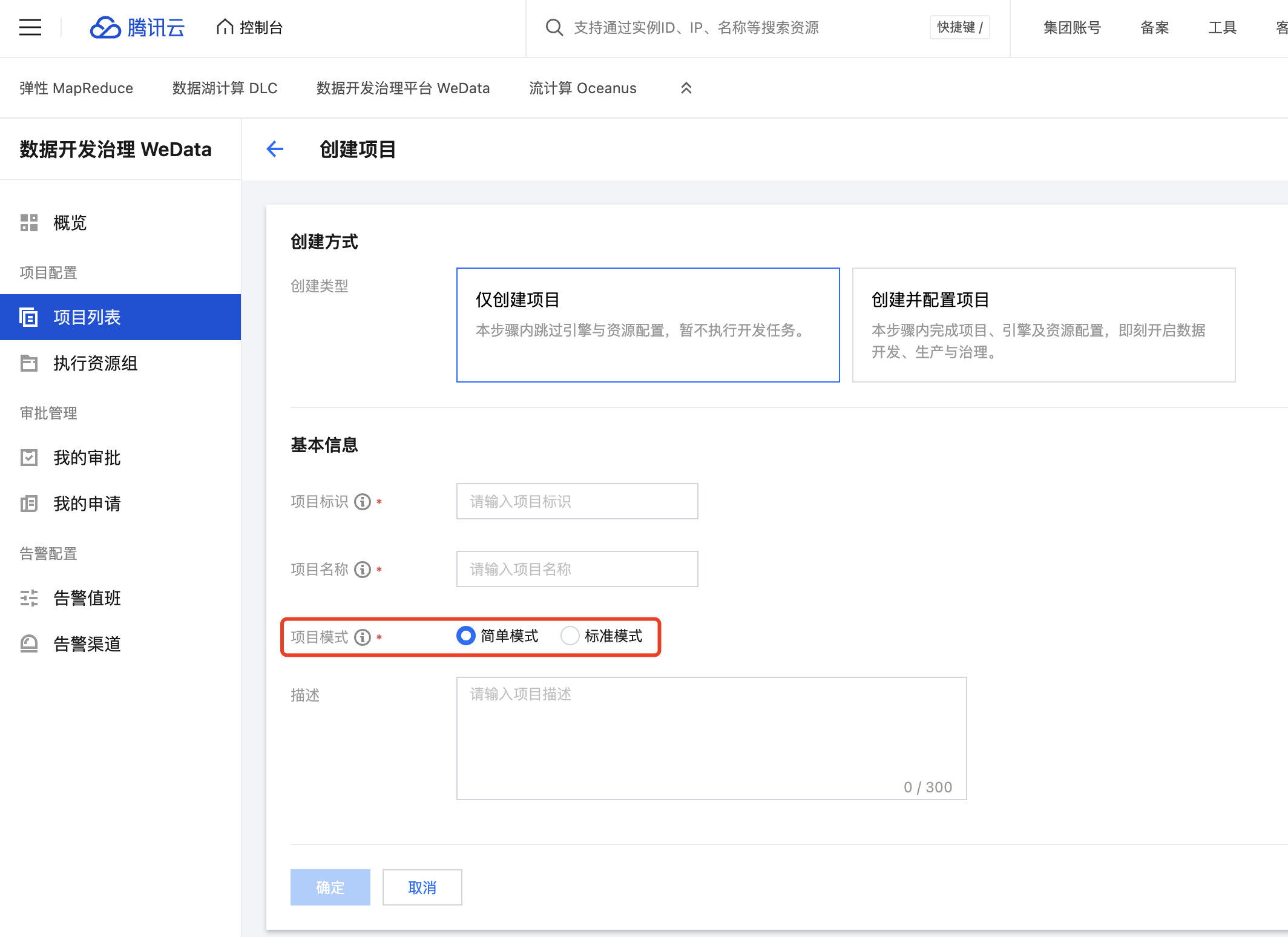
To meet customer needs in various data development and data management scenarios, WeData Project Space Management offers Simple Mode and Standard Mode. Different project modes correspond to different engine configurations, data management, and development processes. This article will provide a detailed introduction to the two modes of the WeData project.
Note
Currently, the standard project mode is in the invitation testing phase. You can click Trial Application to apply.
After the trial is activated, you can see the project mode selection when creating a project. Additionally, the project mode can also be seen in the basic project information, supporting upgrades from Simple Mode to Standard Mode.


Standard Project Mode Usage Restrictions

Note:
1. In the WeData standard project mode, it currently does not support binding different EMR instances for the development environment and production environment, different TCHouse-P clusters, or DLC engines in different regions.
2. In the WeData standard project mode, operations like data table version management and rollback are not supported in Data Management. Therefore, tables deleted in the development environment cannot be recovered via the Data Management visualization interface.
3. After enabling the WeData standard project mode, the cross-project cloning feature is no longer provided. Tasks and other objects in a standard mode project cannot be published to other projects through cross-project cloning, nor can tasks and other objects from other projects be published to a project with standard mode enabled through cross-project cloning.
4. For SQL tasks, SparkSQL and Trino are currently not supported for development and production isolation.

Differences between the two modes

Below, we will compare the differences between the two modes in terms of project management, task development processes, other objects involved in data development, DataInLong, etc.
Affected Modules
Simple Mode
Standard Mode
Project Management - Storage and Computing Engine Configuration
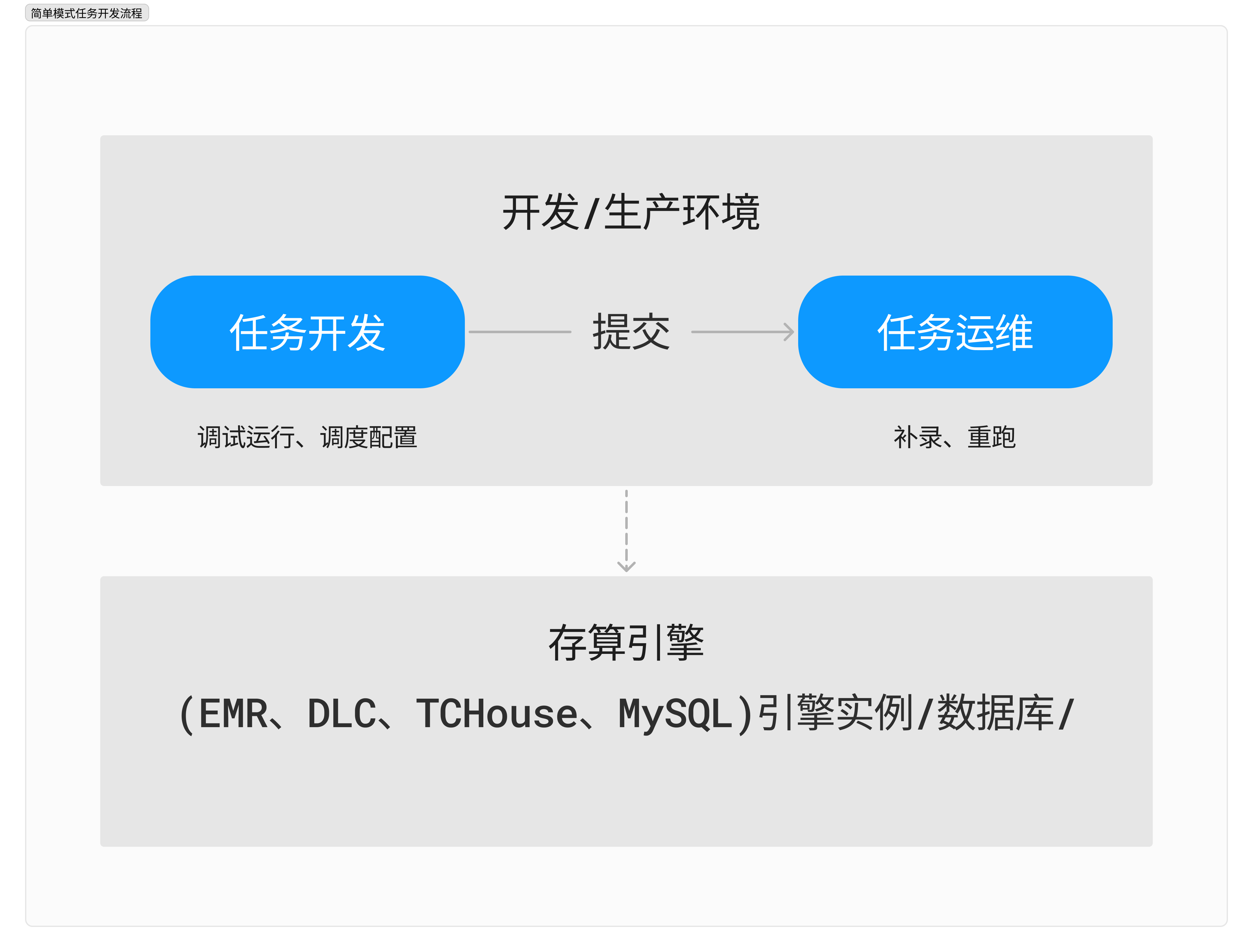
A project-bound engine has only one default environment, with no distinction between development and production environments.
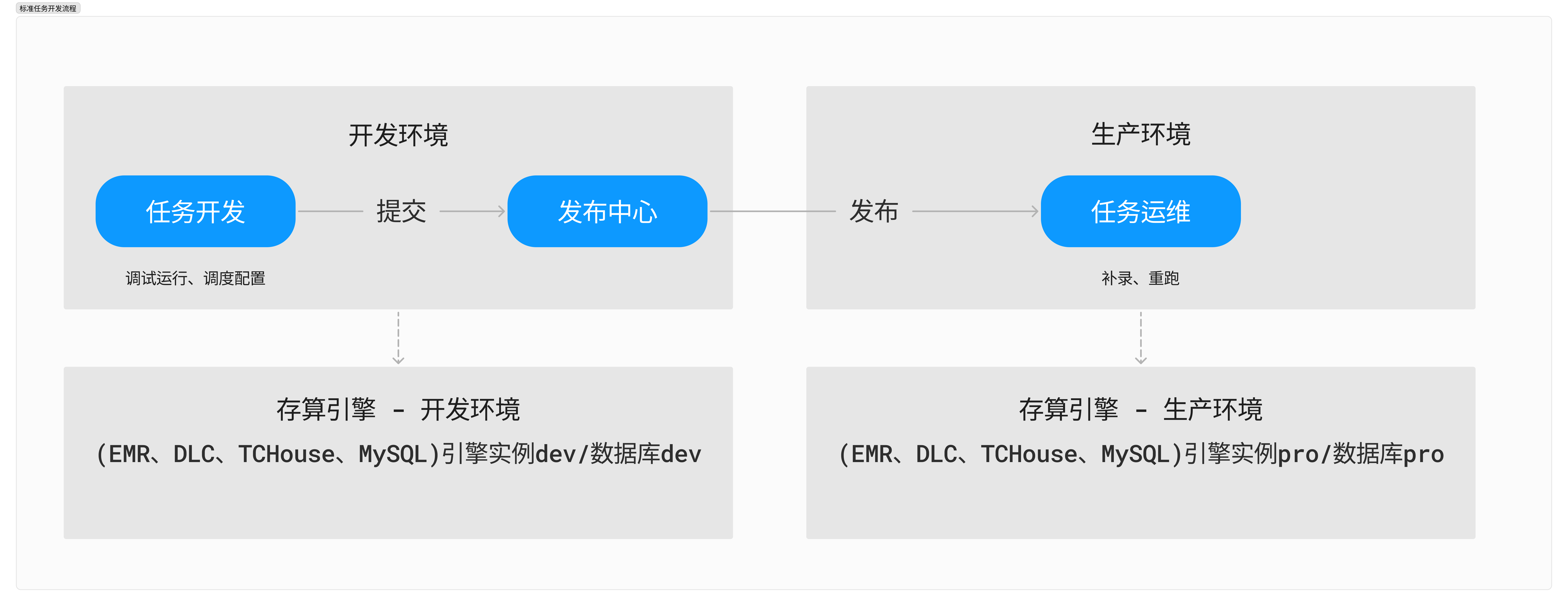
An engine bound to a project has two environment configurations: Development Environment and Production Environment.
Currently, an engine instance supports two databases, e.g., the development environment database is set to db_dev and the production environment database is set to db_prod.
Project Management - System Source
A system source automatically generates a data source environment configuration with no distinction between development and production environments.
A system source automatically generates a data source.
Corresponding to two environment configurations: Development Environment Configuration and Production Environment Configuration.
Project Management - Custom Data Source
A custom data source corresponds to only one environment configuration with no distinction between development and production environments.
A custom data source corresponds to two environment configurations: Development Environment Configuration and Production Environment Configuration.
Project Management - Approval Configuration
Task submission approval is enabled by default. It can be disabled.
Task submission approval is disabled by default. Release approval configuration is enabled by default and cannot be disabled.
Task Development Process
Task development process includes:
Create > Develop > Debug\Save > Submit > Schedule OPS


Task development process includes:
Create > Develop > Debug\Save > Submit > Publish>Schedule OPS.


Task Data Access
Access production data using identities configured in project management.
Development and production environments can use different access accounts.
Task debugging uses personal accounts, while scheduling runs can use a specified unified account.
Task development involves other objects
Function: Takes effect immediately after submission.
Workflow, project parameters, resources, data table take effect immediately after saving.

Function and data table take effect in development environment instance\database after submission, and in production environment instance\database after publishing.
Workflow, project parameters, resources take effect in development environment after upload and saving and submission, and in production environment after publishing.
DataInLong - Offline Synchronization
Task process:
Create > Develop > Debug\Save > Submit > Production Environment
Development debugging uses datasource's environment configuration. After submission to scheduling, it still uses the datasource's environment configuration.
Task process:
Create > Develop > Debug\Save > Submit > Production Environment
Development and debugging use the data source's development environment. After submission to the production environment, it is replaced with the data source's production environment. If the database configured during the development and debugging stage is not the data source's development and production environment database, no replacement occurs.
For example, the development environment database is set to db_dev, the production environment database is set to db_prod.
Offline Synchronization Task configuration uses db_dev, Cron Scheduling uses db_prod.
Offline Synchronization Task configuration uses db_prod, Cron Scheduling uses db_prod.
Offline Synchronization Task configuration uses db_other, Cron Scheduling still uses db_other.
Note:
The current Project Standard Mode does not affect the DataInLong > Offline Synchronization Task development flow. It affects the Orchestration Space > Offline Synchronization Task development flow.
DataInLong - Real-time Synchronization
Task:
Create > Develop > Debug\Save > Submit > Production Environment
Development debugging uses datasource's environment configuration. After submission to scheduling, it still uses the datasource's environment configuration.
Task:
Create > Develop > Debug\Save > Submit > Production Environment
Development and debugging use the data source's production environment configuration. After submission to the production environment, it still uses the data source's production environment configuration.
For example, the development environment database is set to db_dev, the production environment database is set to db_prod.
Real-time Synchronization Task configuration can only be selected to db_prod. After submission of the real-time task, it uses db_prod.
Real-time Synchronization Task configuration uses db_other. After submission of the real-time task, it uses db_other.
Note:
The current Project Standard Mode does not affect the DataInLong > Real-time Synchronization Task development flow.

Use cases for two modes

Simple Mode: Suitable for small data development teams that do not require a very strict data development process. It is simple and fast to use, and the roles of data development and data operation and maintenance can complete all the data development and maintenance work.
Standard Mode: Suitable for medium to large data development teams with more standardized data development process requirements and stricter production environment data permissions. The development process is more standardized and secure, requiring collaboration between data development, data operation and maintenance, and publisher approver.

Configuration methods and working principle of Project Standard Mode

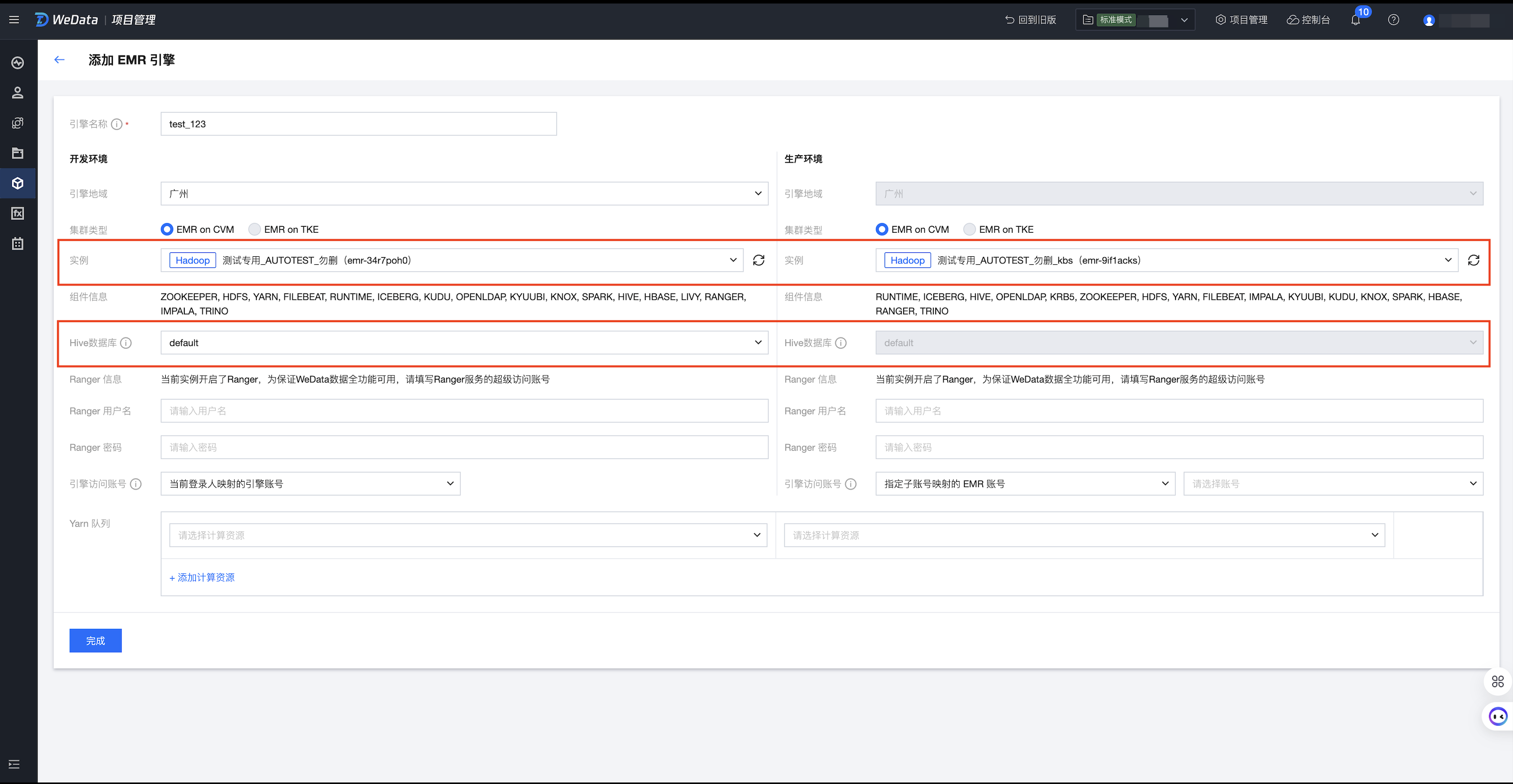
When binding the engine and creating the data source in Standard Mode, it provides configuration for both the development environment and the production environment, along with account configuration for accessing these environments. For the computational storage engine bound to the project, the system automatically generates data sources based on the engine configuration information. Data sources have their own development and production environment attributes, typically corresponding to two different JDBC connection strings.
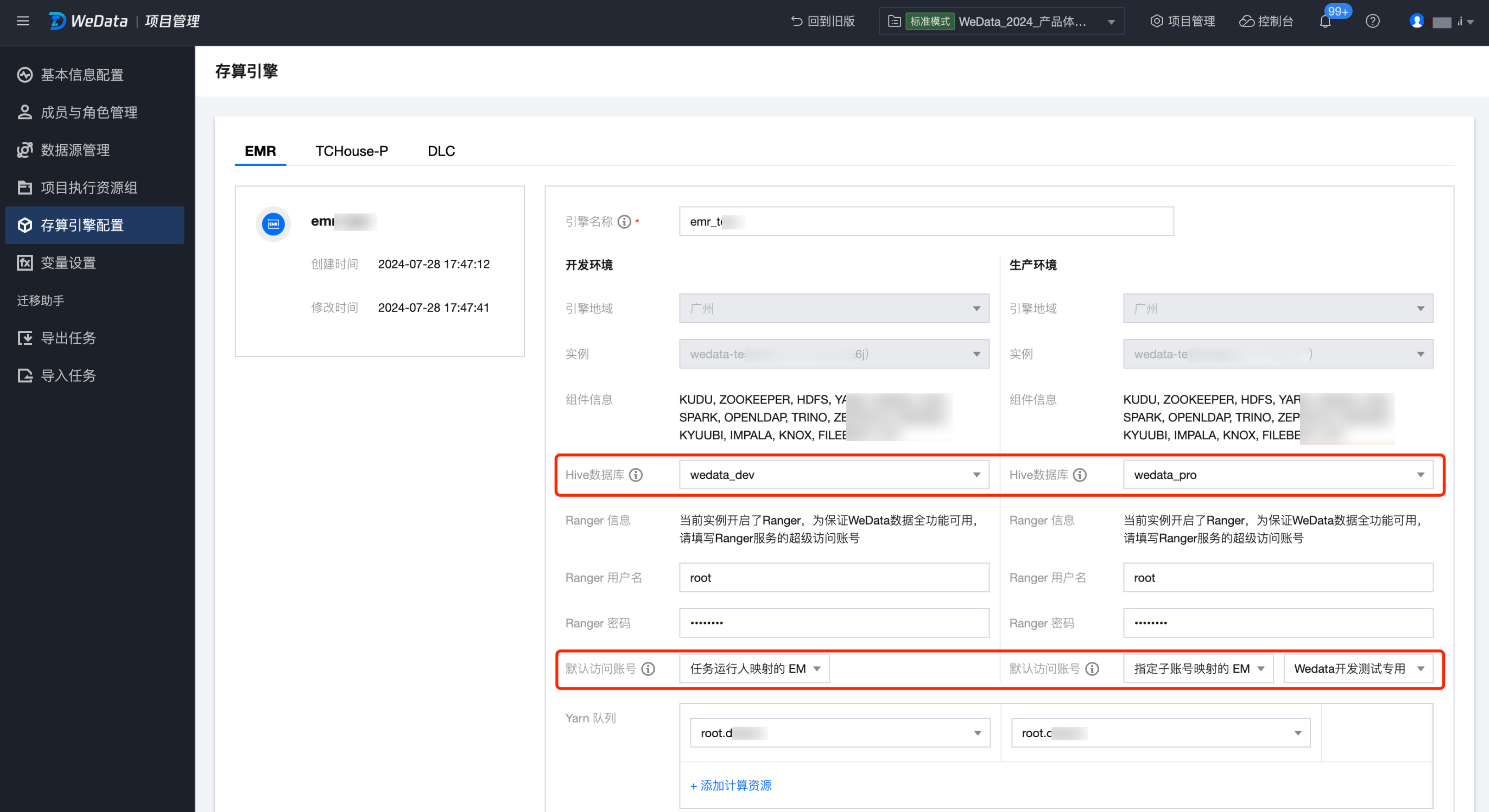
The following is a simple example using the configuration of EMR.
1. In the computational storage engine configuration, set the development environment and production environment to use the same EMR Cluster Instance but with different databases. For example, the development environment database is wedata_dev, and the production environment database is wedata_pro. The default account for the development environment is the EMR account mapped by the task operation, while the account for accessing the production environment is the EMR account mapped by the specified sub-account.


2. According to the above engine configuration, the system generates system data sources by default. Since the cluster for the development and production environments is the same but the databases are different, the generated Hive data sources are as follows:
Development Environment:jdbc:hive2://ip:port/wedata_dev
Production Environment:jdbc:hive2://ip:port/wedata_pro
3. When developing and testing running HiveSQL tasks in the orchestration space, the development environment configuration of the data source (jdbc:hive2://ip:port/wedata_dev) will be used, and the account used is the corresponding EMR account of the person running it. After the task is submitted and published, during the cron scheduling of task operation and maintenance, the production environment configuration of the data source (jdbc:hive2://ip:port/wedata_pro) will be used, and the account used is the specified sub-account configured in the production environment.
4. Therefore, in HiveSQL's SQL statements, if the corresponding database name is not written, it will automatically read/write the wedata_dev database during development and testing, and read/write the wedata_pro database during cron scheduling. This achieves the goal of using the development database during development and the production database during production.

insert into user_info
select * from table_1
-- Debug run reads data from wedata_dev.table_1 and writes to wedata_dev.user_info
-- Cron run reads data from wedata_pro.table_1 and writes to wedata_pro.user_info
5. If the corresponding database is written in the SQL statements of HiveSQL, the database in the SQL statement will still be used, and the effect of isolating the development environment from the production environment cannot be achieved.
insert into other_db.user_info
select * from other_db.table_1
-- Debugging run reads data from other_db.table_1 and writes it into other_db.user_info
-- Periodic run reads data from other_db.table_1 and writes it into other_db.user_info
Note:
Currently, in the SQL task types in WeData orchestration space, the Hive data source for SparkSQL tasks and Trino tasks cannot achieve isolation between development and production environments through the above method. It is recommended to use project parameters to achieve this isolation.

Simple mode upgrade to standard mode

WeData provides a feature to upgrade project simple mode to standard mode. Users can upgrade existing simple mode projects to standard mode. The upgrade process is irreversible, so please evaluate and proceed with caution.
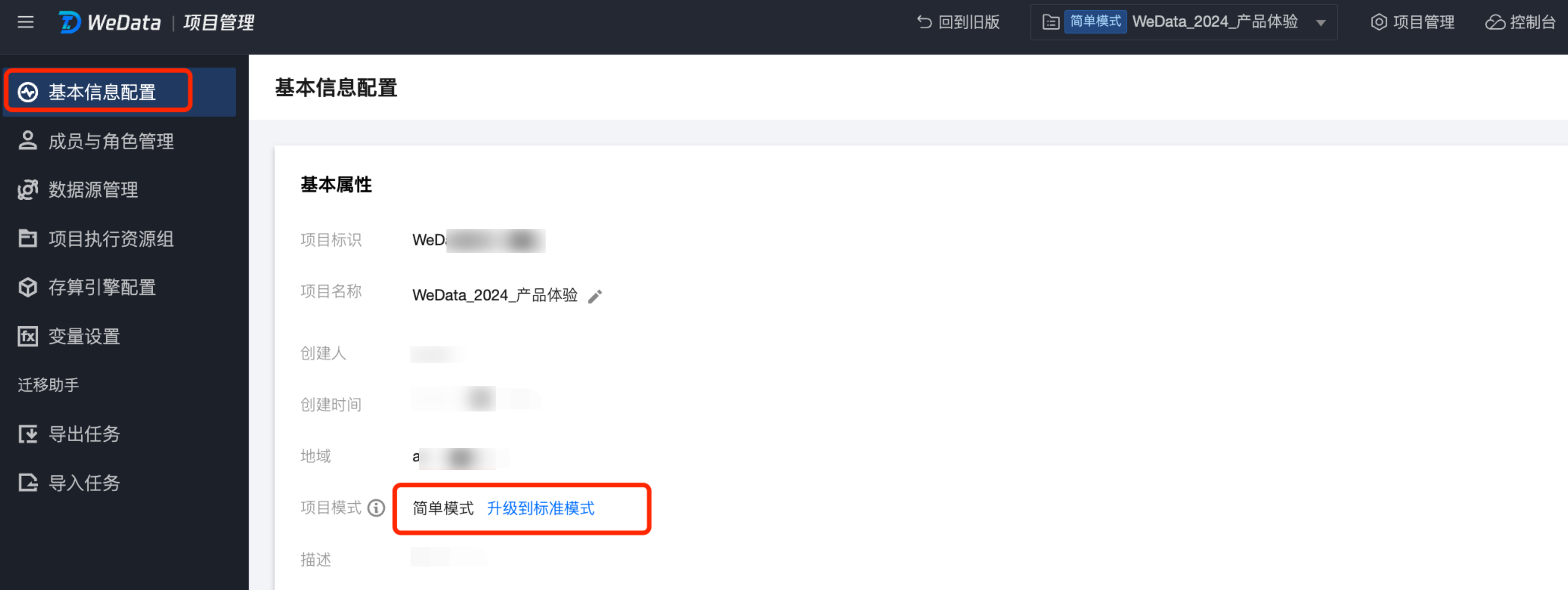
1. In WeData Project Management > Basic Information Configuration > Project Mode attributes, you can check the current project mode. If it is simple mode, click the Upgrade to Standard Mode button next to proceed with the upgrade.


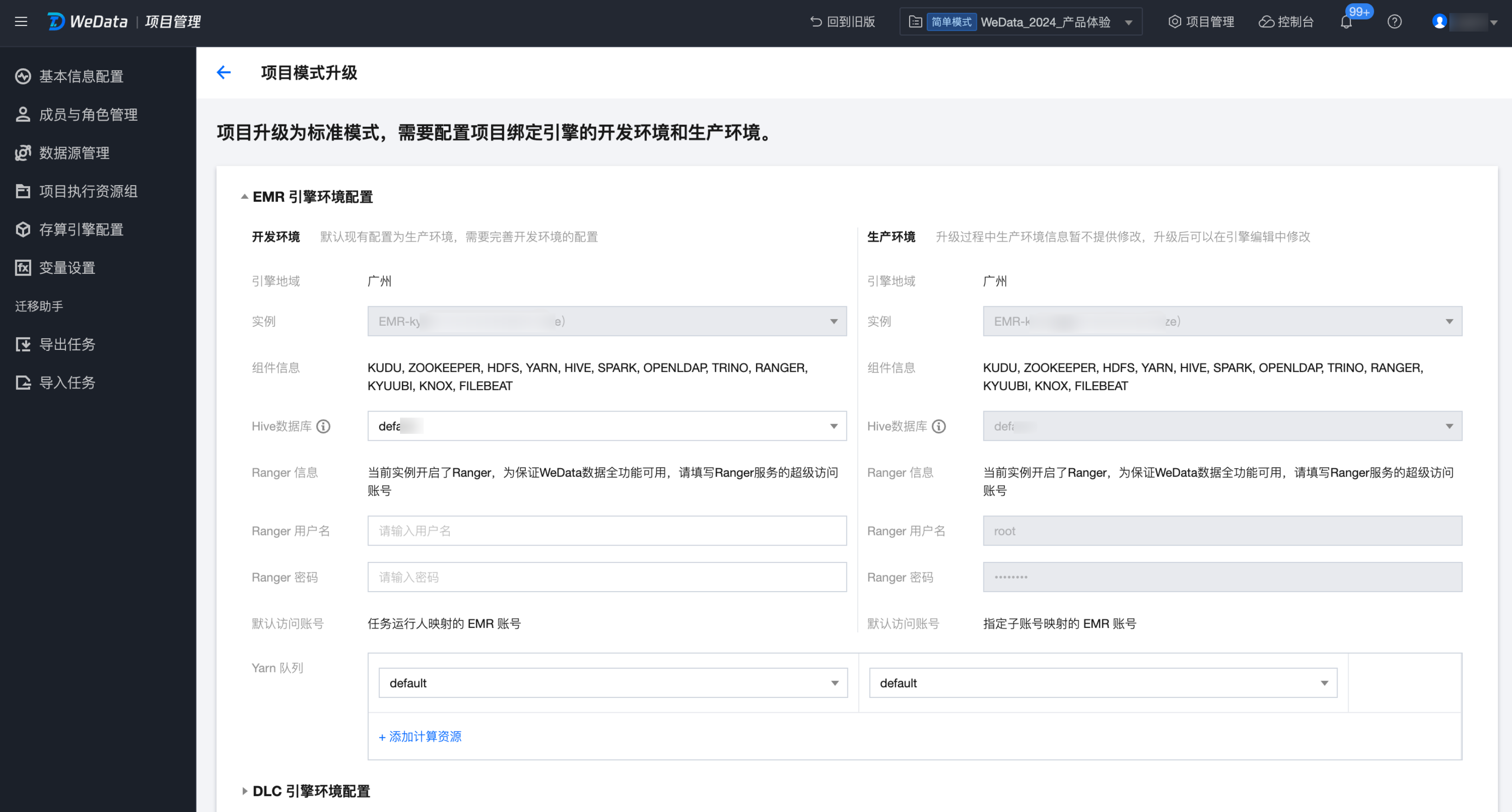
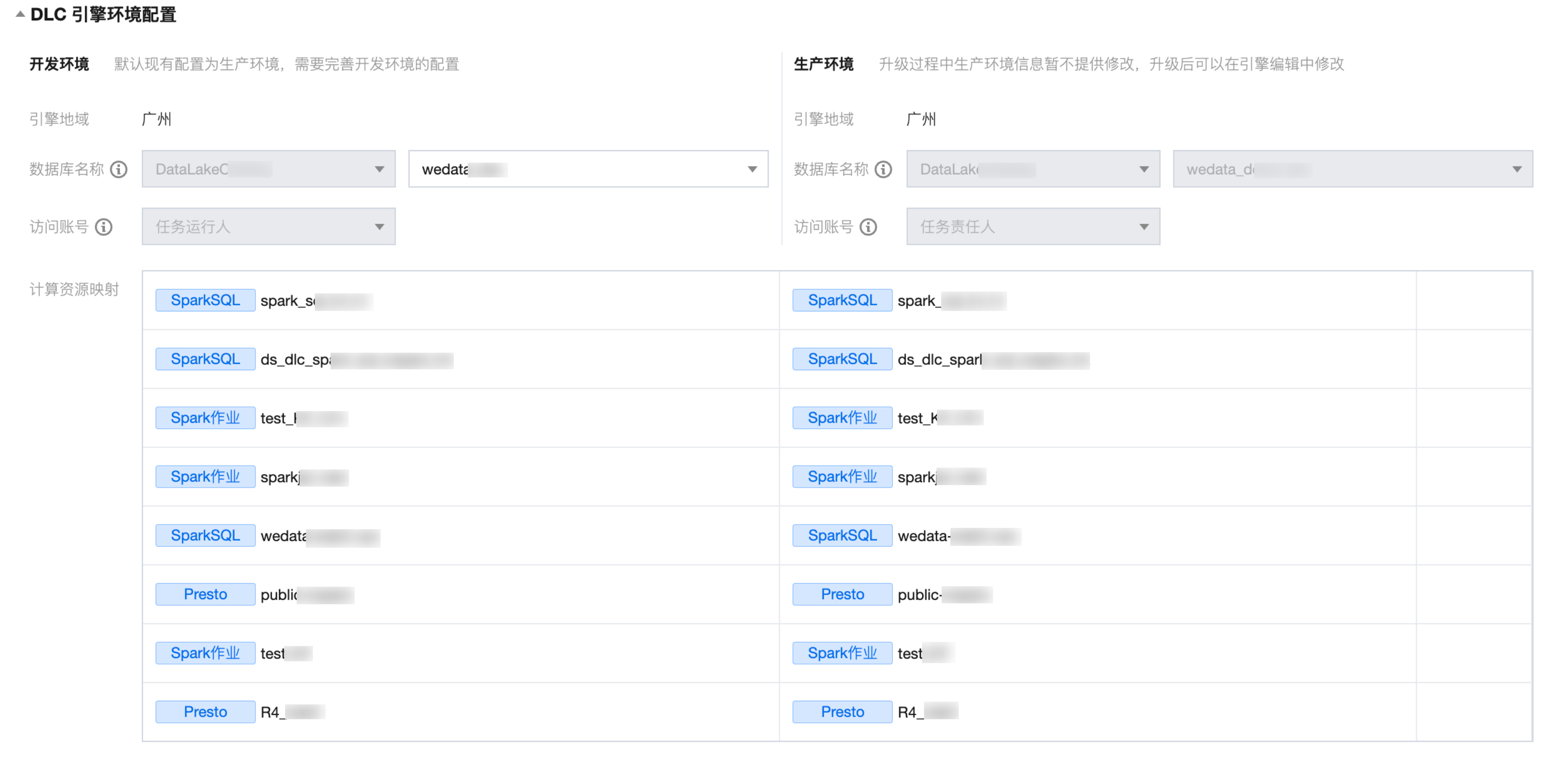
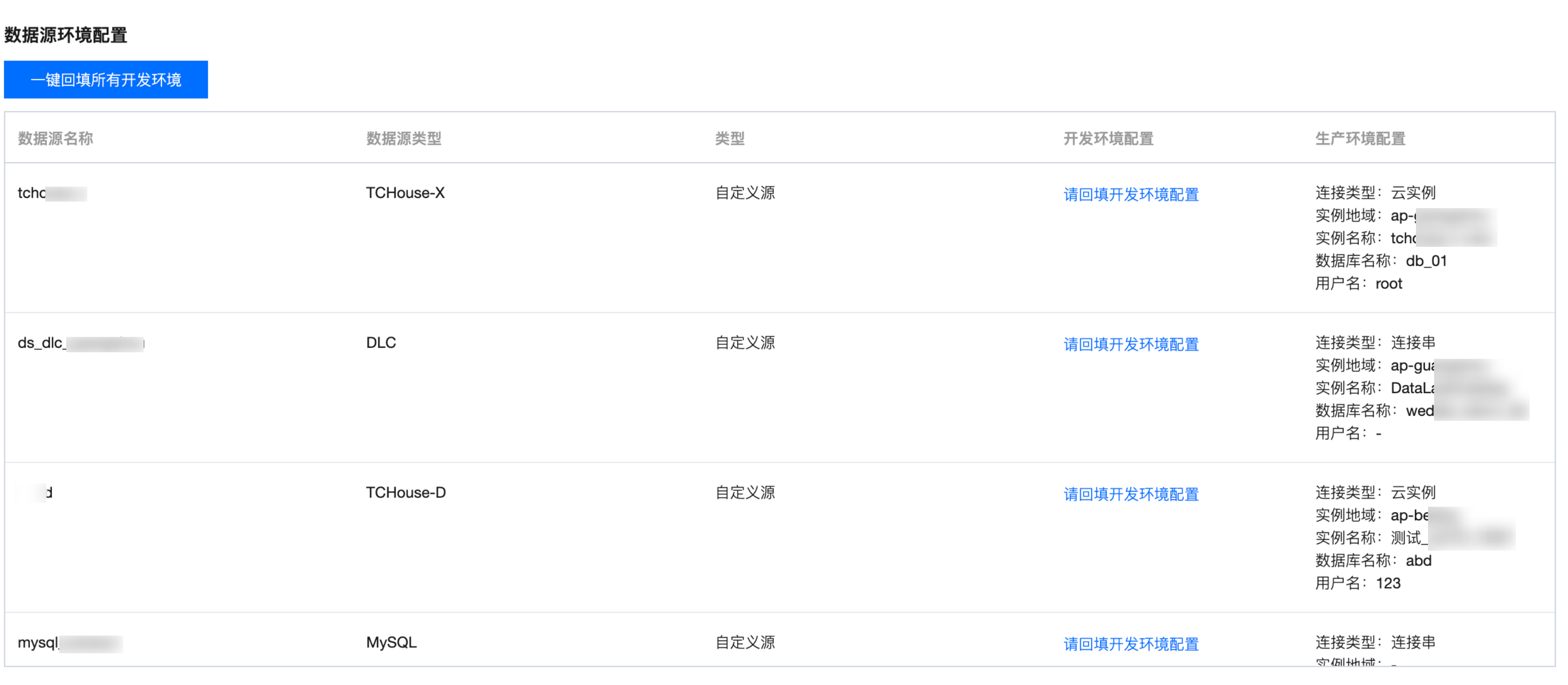
2. Upgrade conditions will be checked before the upgrade process. After passing the check, you can enter the upgrade page. The following images show the upgrade interface for EMR, DLC, and self-defined data sources.


DLC Engine Environment Configuration:


EMR Data Source Environment Configuration:


3. Complete and confirm the compulsory parameters during the upgrade process, which include configuring the computational storage engine development environment. Confirm the backfill data source development environment configuration, check the Agree to upgrade checkbox, and click the Upgrade button to complete the upgrade. The upgrade duration depends on the number of computational storage engines and data sources in the project.

Upgrade Notice

Note
1. Before upgrading, the system will automatically check whether the current project meets the upgrade conditions. Only if the upgrade conditions are met can the upgrade proceed.
2. During the upgrade process, the current computational storage engine configuration information of the project will be set to the production environment configuration by default, and users need to fill in the development environment configuration. At the same time, the current data source configuration information of the project will be set to the production environment configuration by default. Users need to confirm the one-click backfill development environment configuration to proceed with the upgrade normally.
3. After upgrading, the cross-project cloning feature will no longer provide the new feature. The historical cloning information will be retained. The upgraded project can no longer be used as a target project for cross-project cloning.
4. After upgrading, task submission approval will be turned off by default, but approval for publishing tasks and other objects will be enabled and cannot be turned off.
5. The upgrade process is irreversible. After upgrading, you cannot return to Simple mode.