The batch signing feature refers to the ability to sign multiple contracts at once using Face Recognition, reducing the repetitive action of Face Recognition confirmation for each contract. Currently, this feature only supports batch signing for corporate signatories.
Authorized employees can batch sign
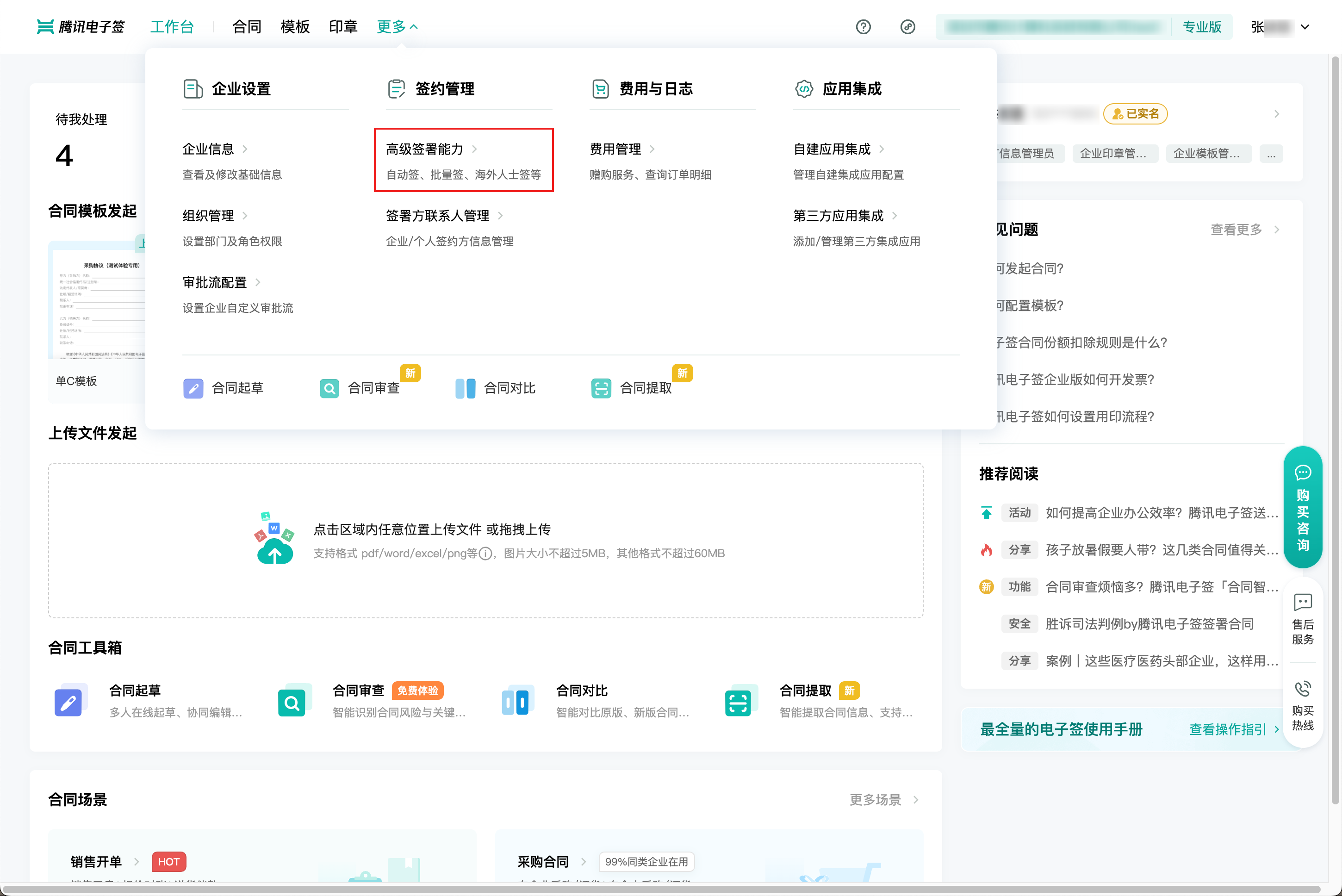
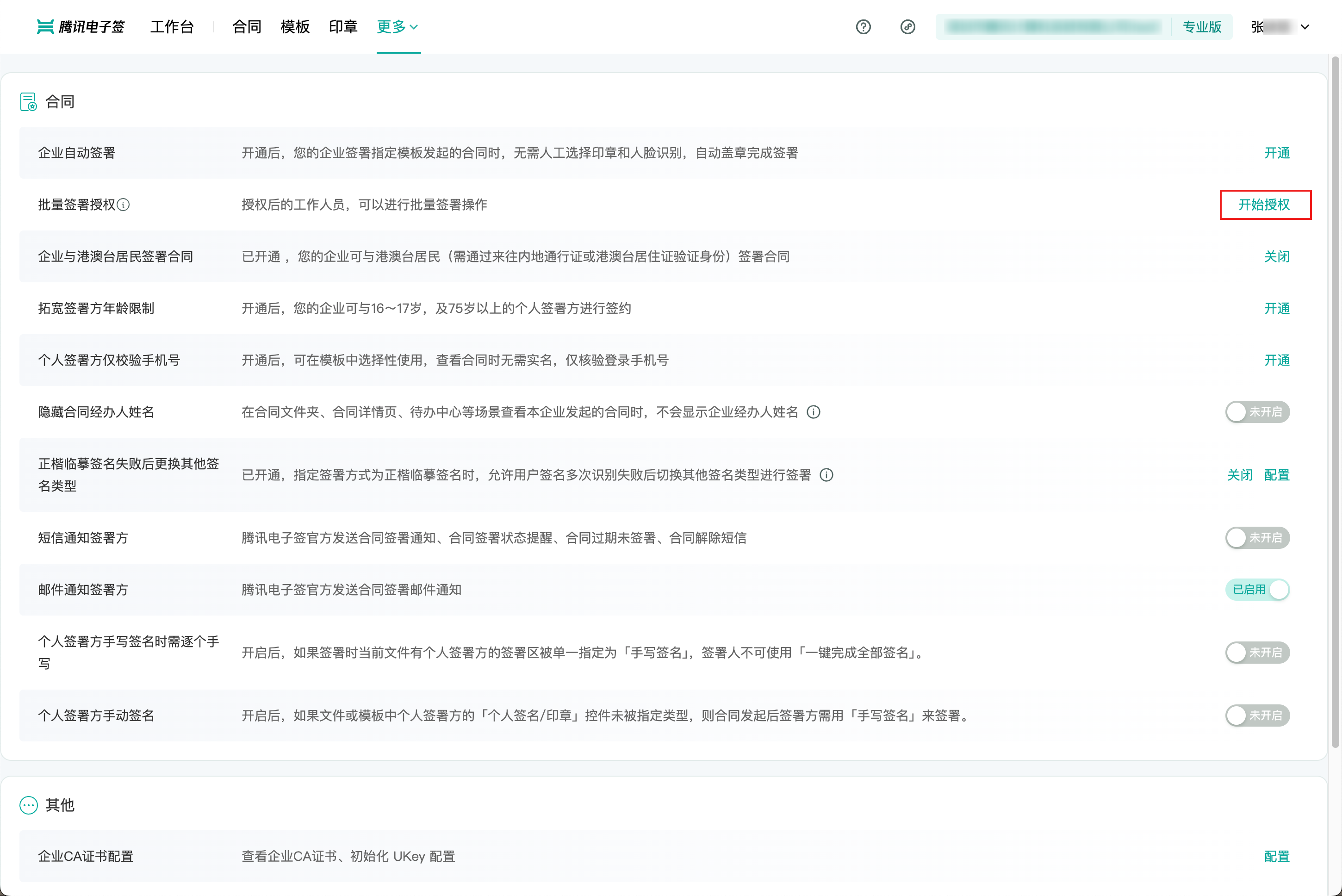
1. In Enterprise Settings > Extended Services > Batch Signing, click Start Authorization.

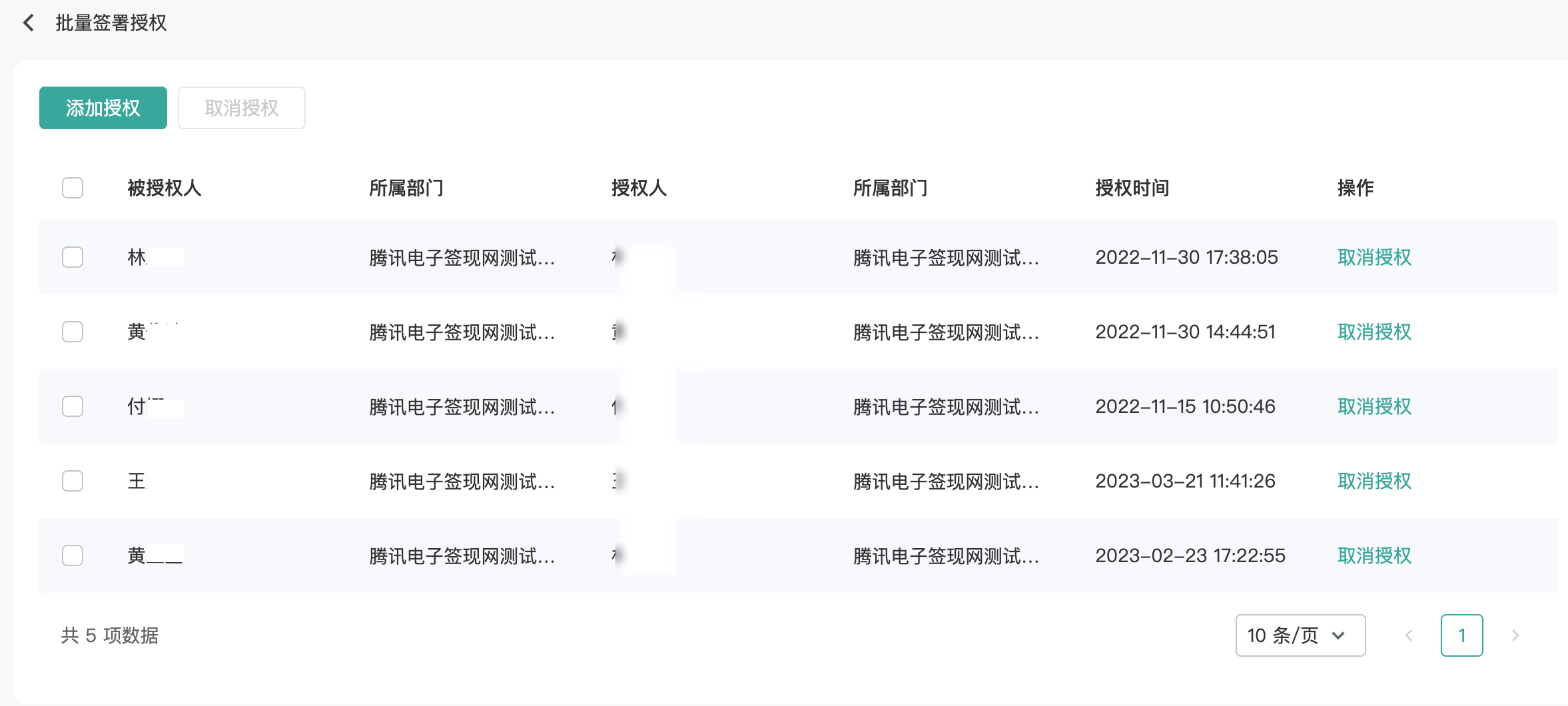
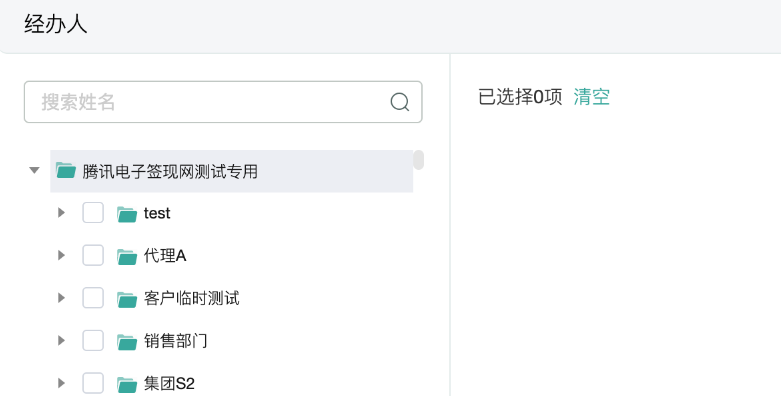
Employees can be selected in batches to add authorization.

2. Click Add Authorization and select the employees to be authorized for batch signing.

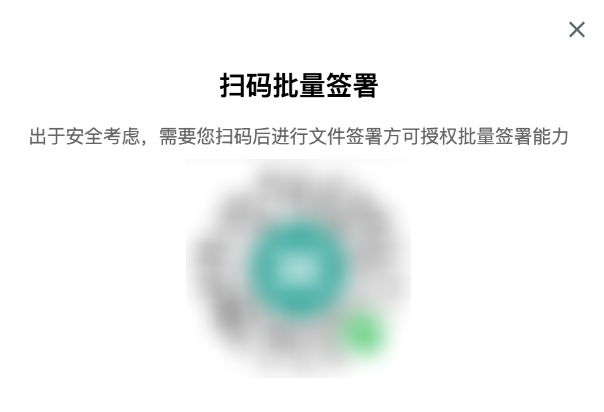
3. Scan QR Code for authorization.

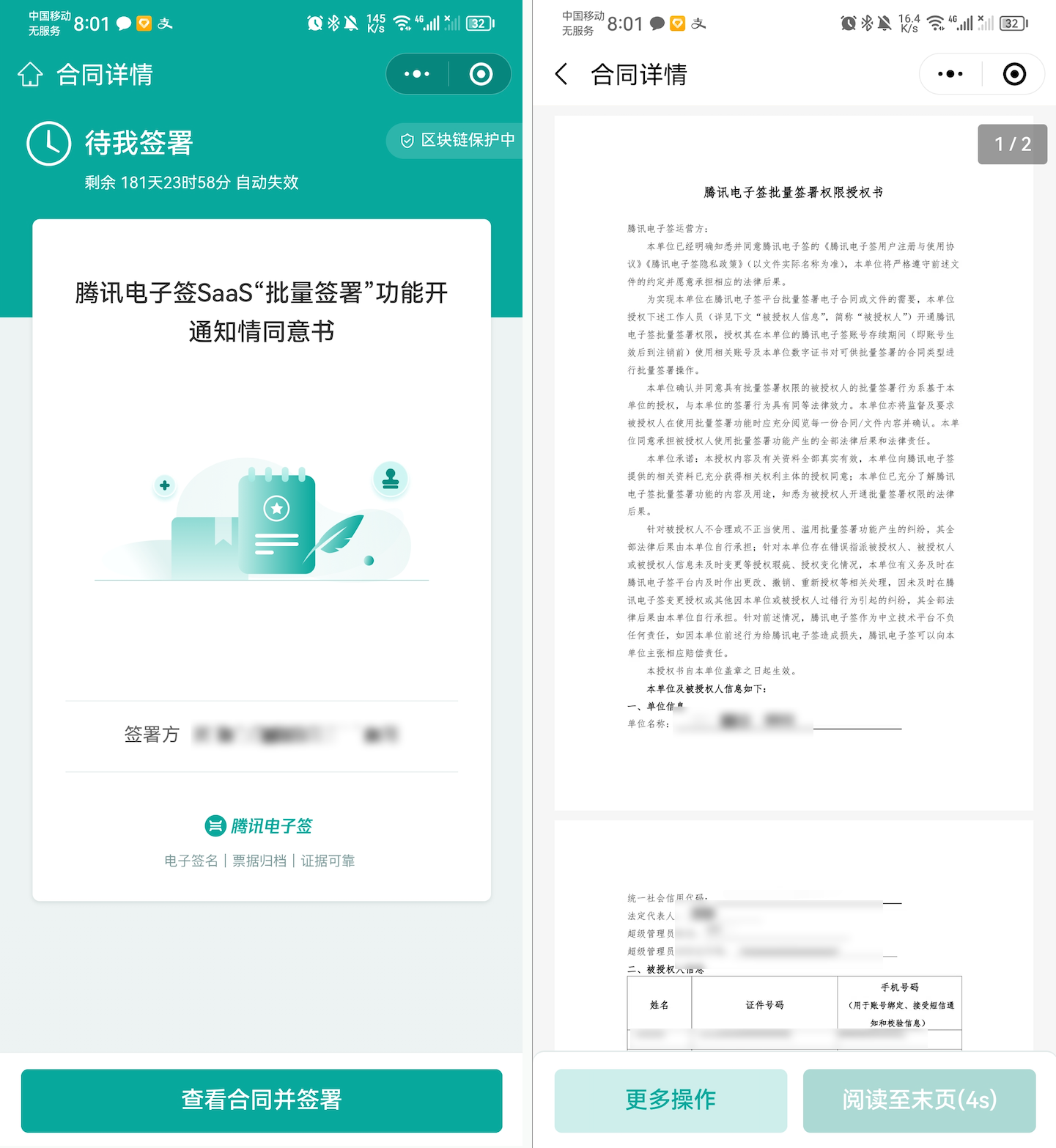
4. View the consent form and complete the signing.

Batch signing can be done on the computer web version
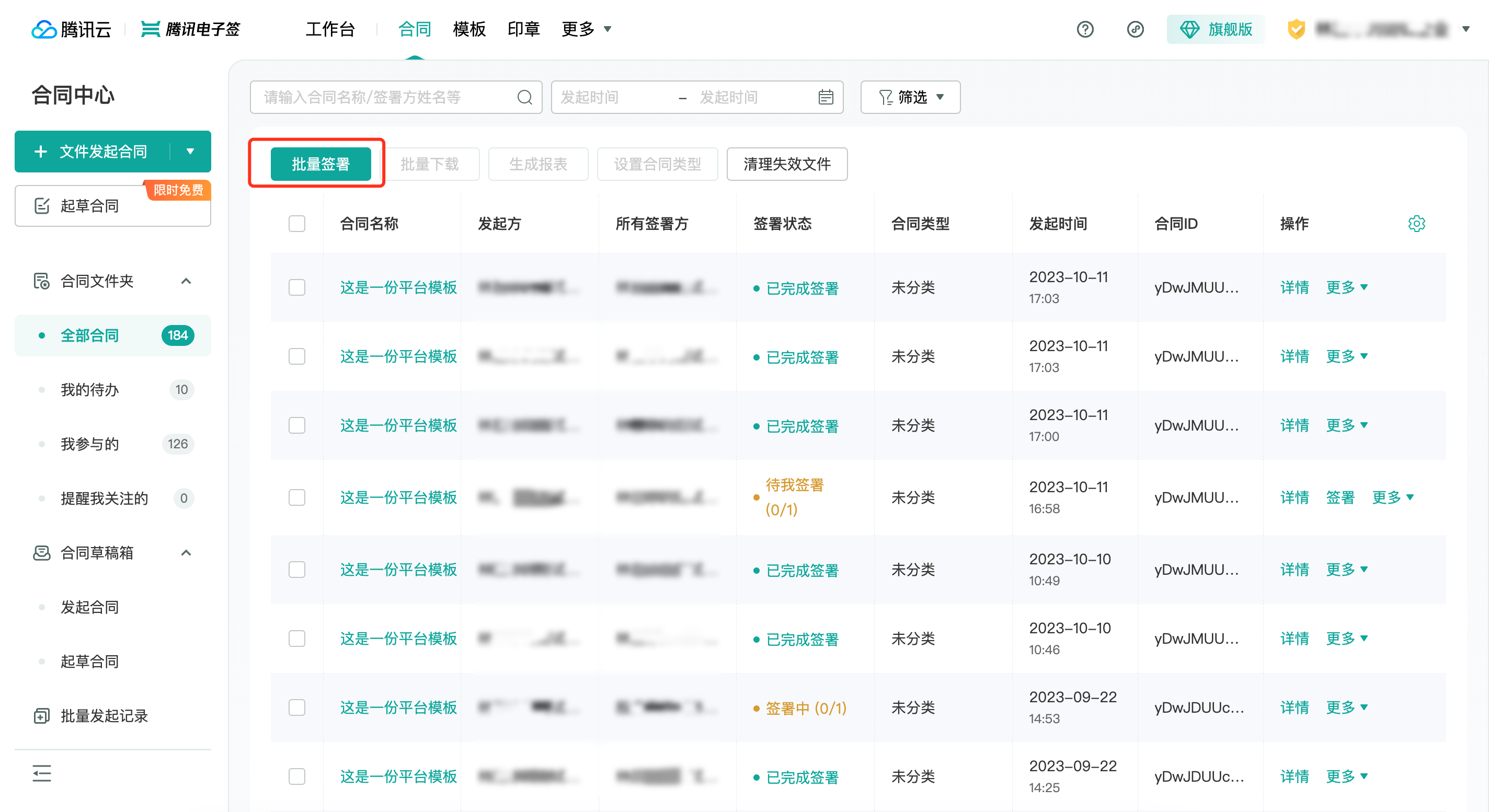
1. In the Contract Center, click Batch Signing.

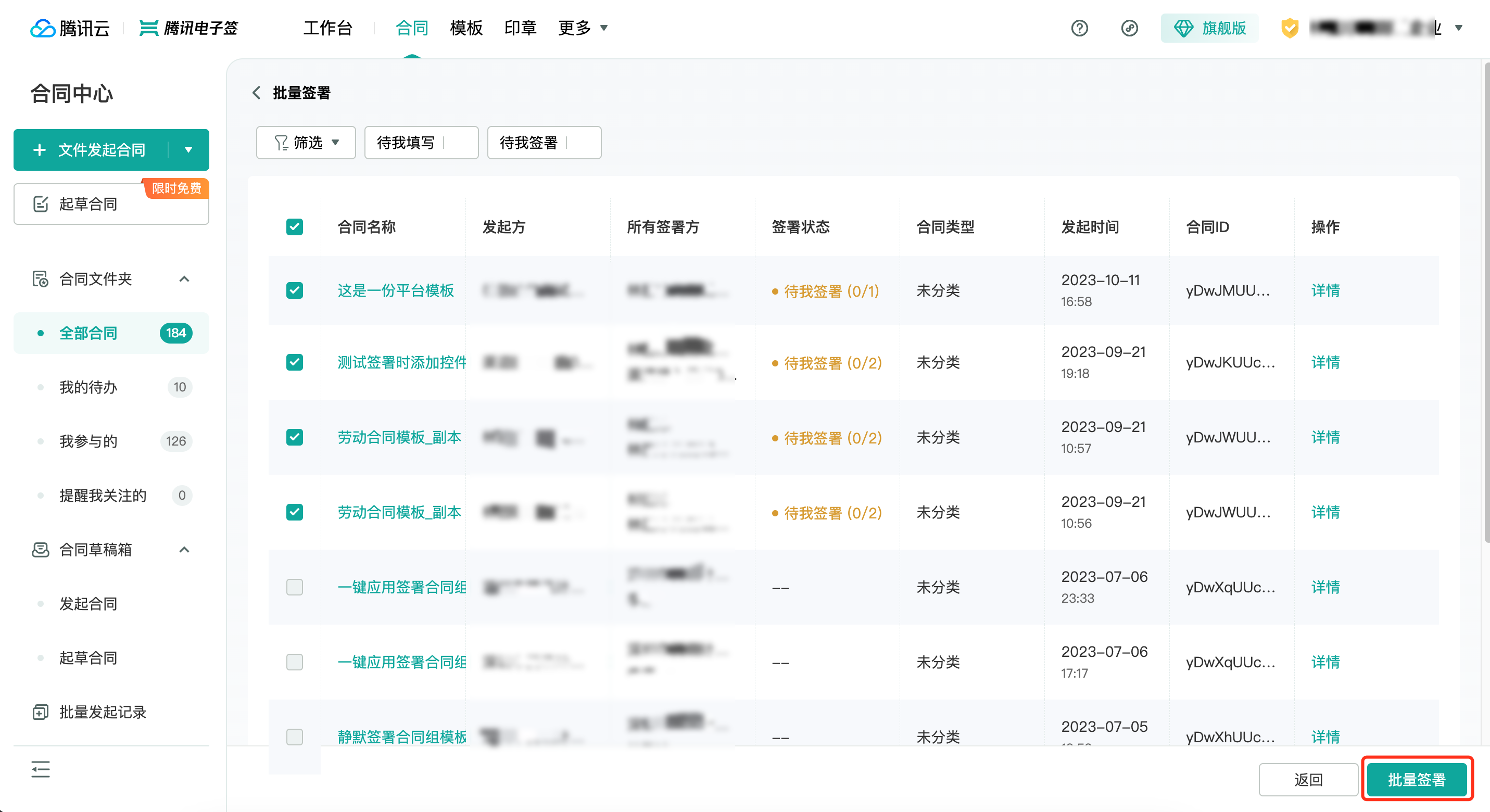
2. Enter the list and select the contracts to be signed this time.

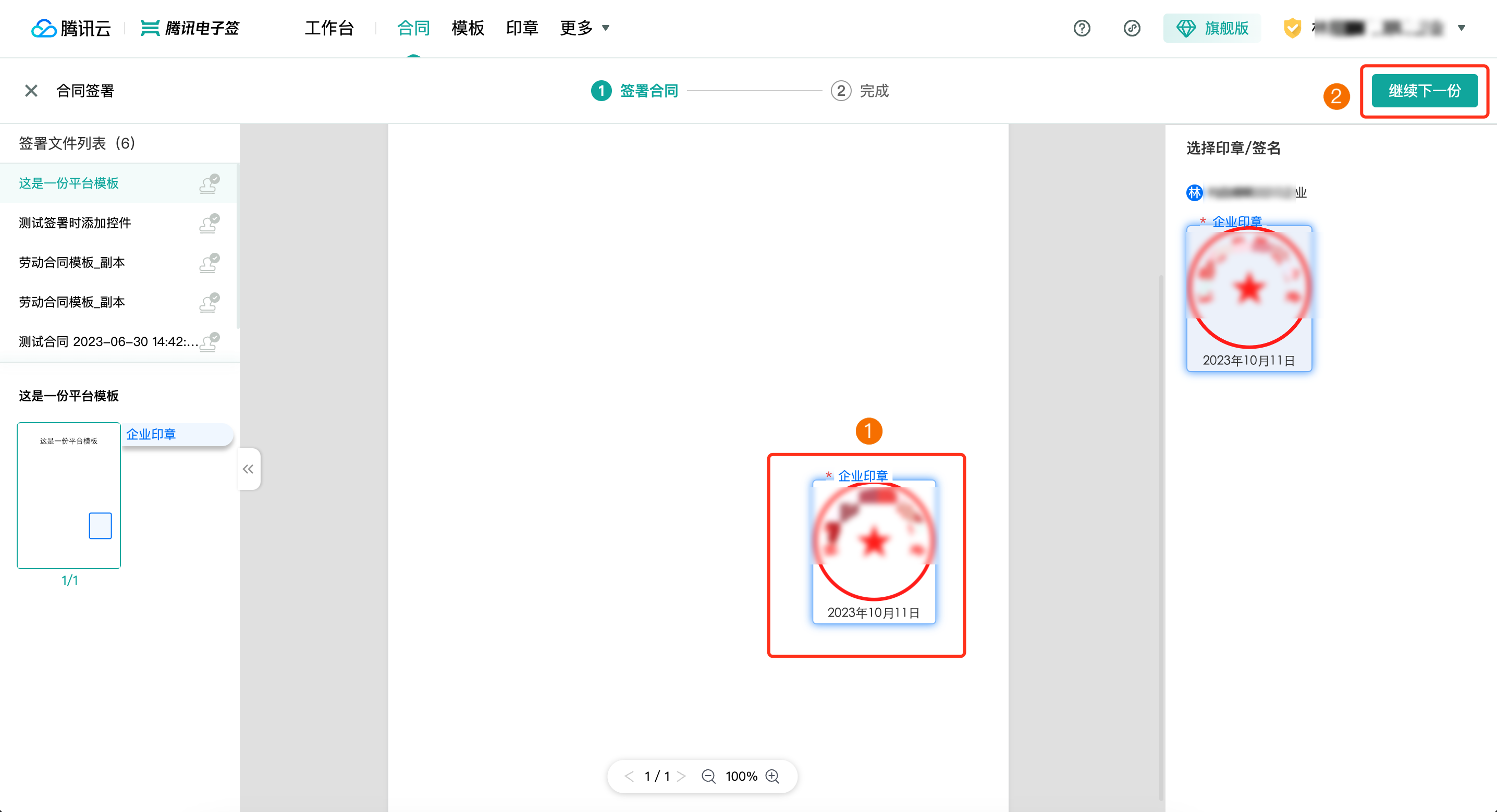
3. Stamp the contracts.

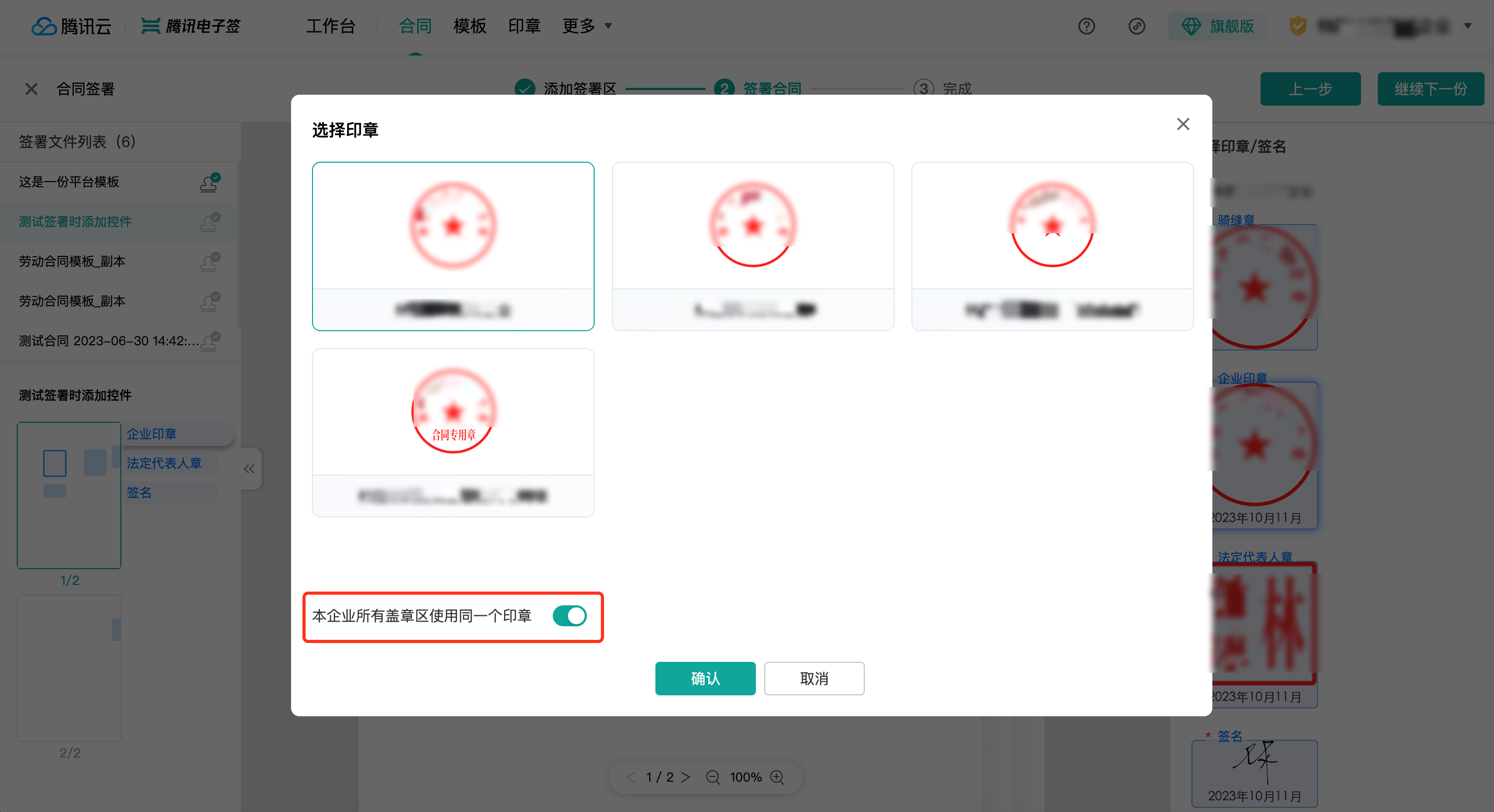
If all contracts use the same seal, you can turn on the switch for using the same seal for all stamping areas when selecting the seal. Confirming this will stamp all contracts with the same seal.

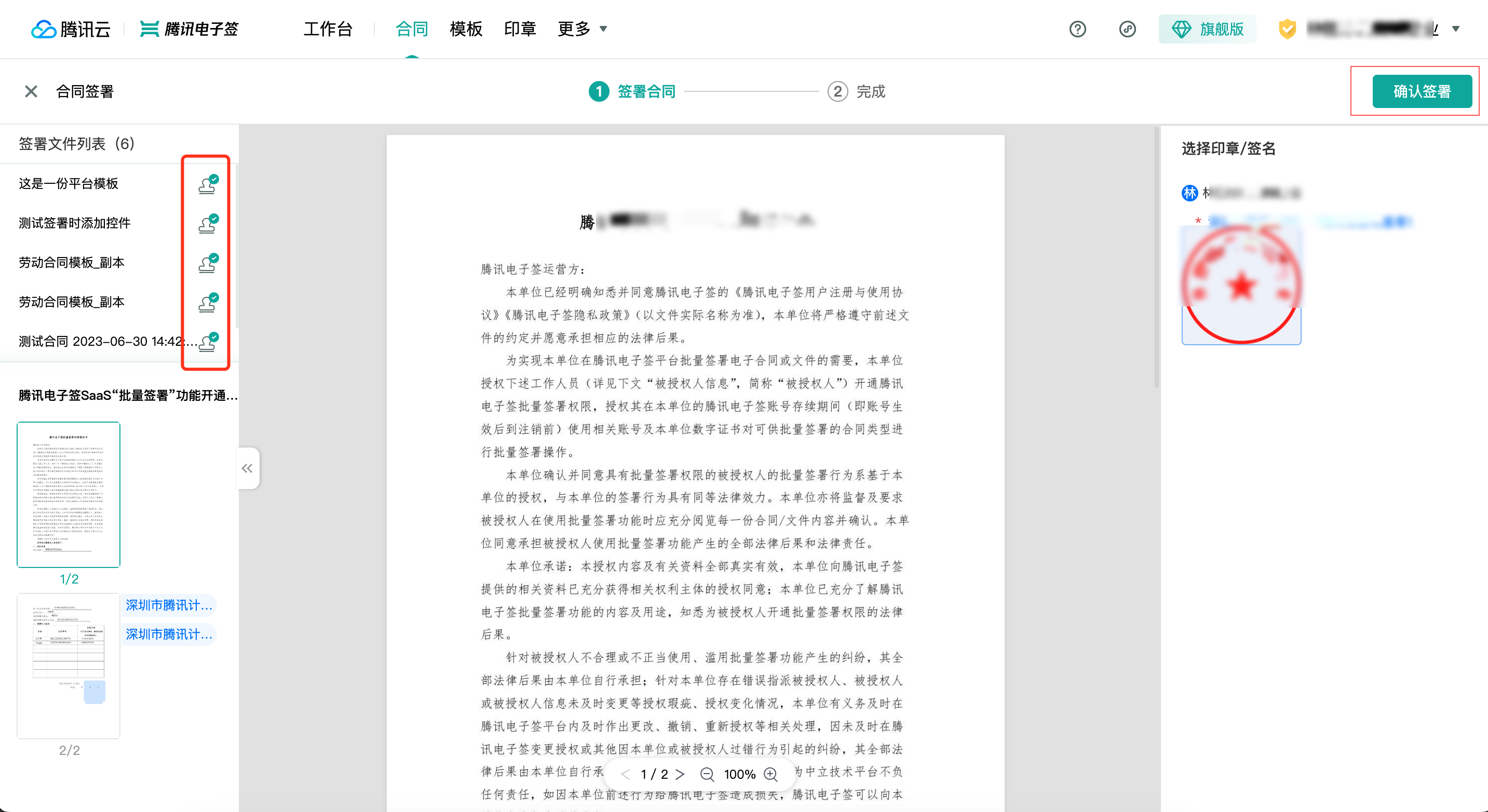
For contracts that have already been stamped or signed, the Stamp icon in the top left directory will be highlighted. Once all contracts have been stamped or signed, click the Confirm Signing button in the top right corner.

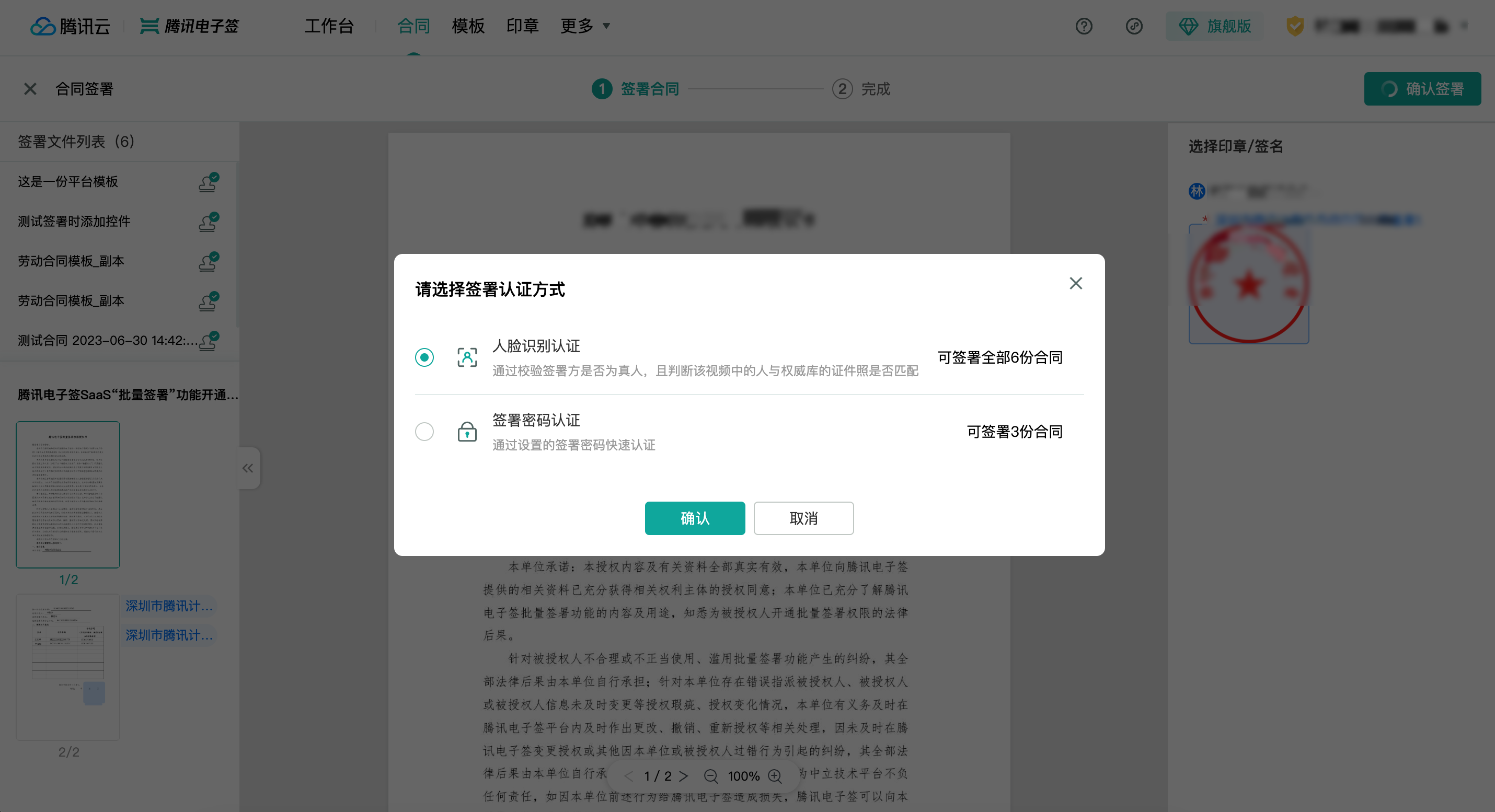
If there are multiple authentication methods, one needs to be selected for signing.

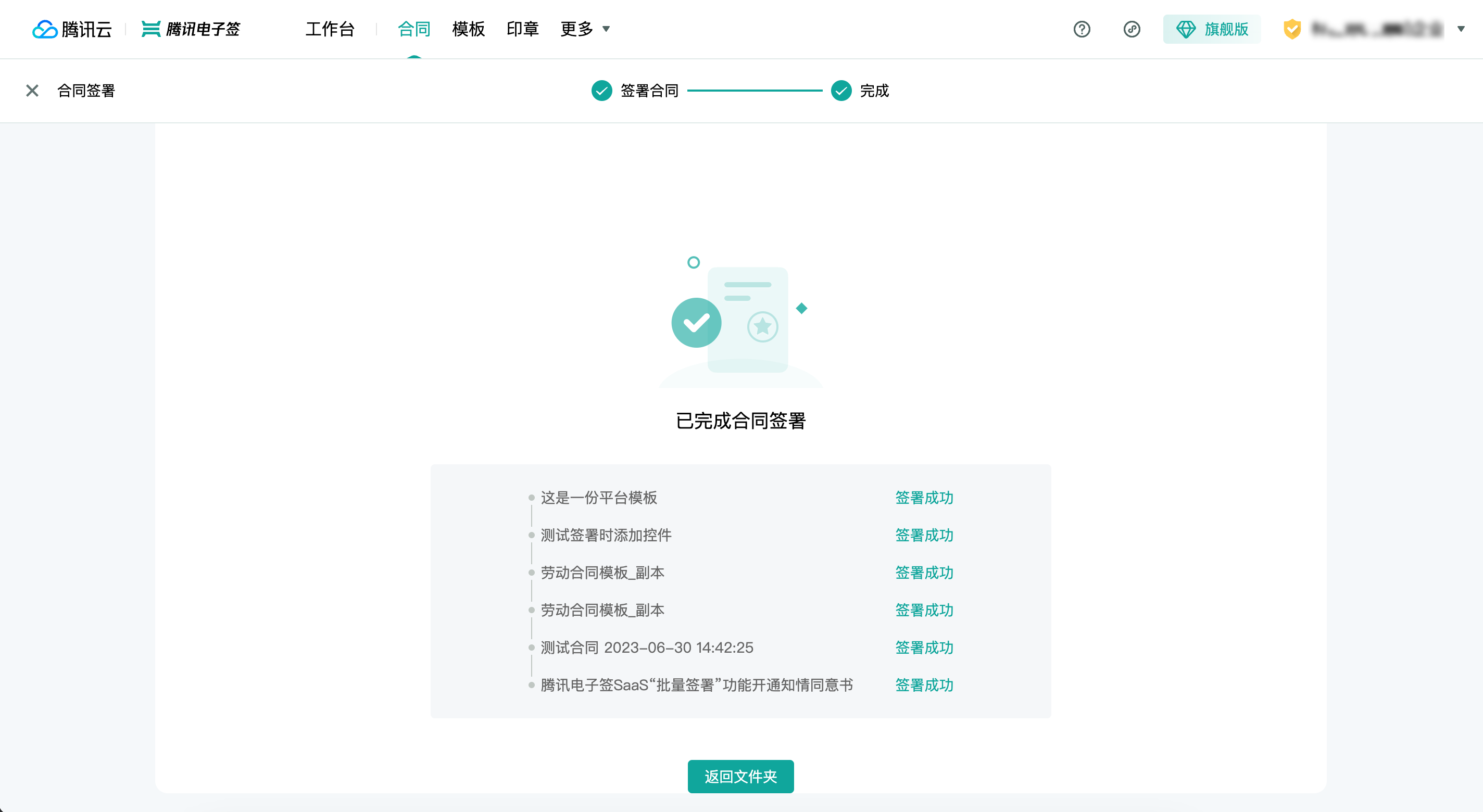
4. Signing successful.

Batch signing can be conducted on the mini programs
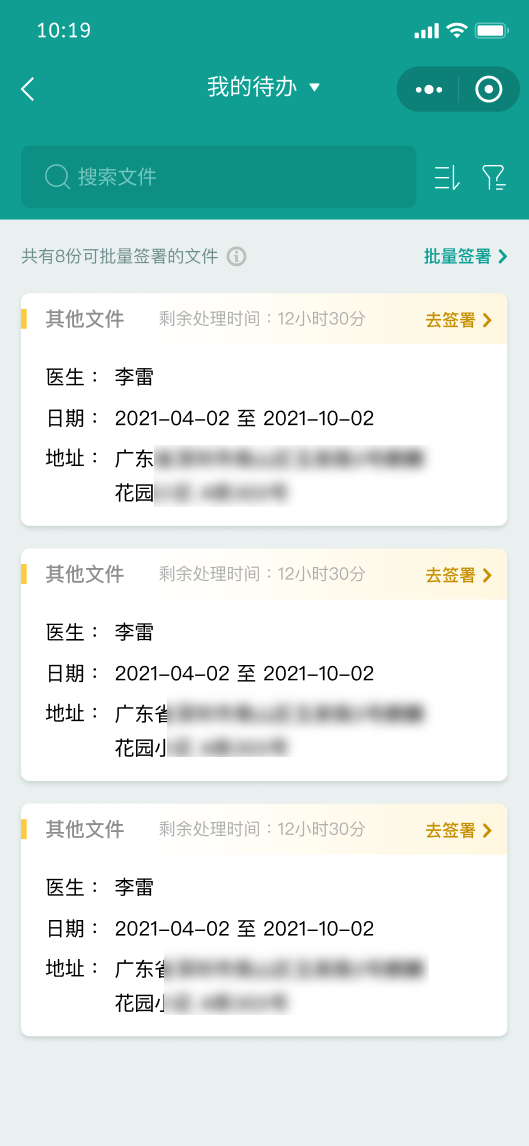
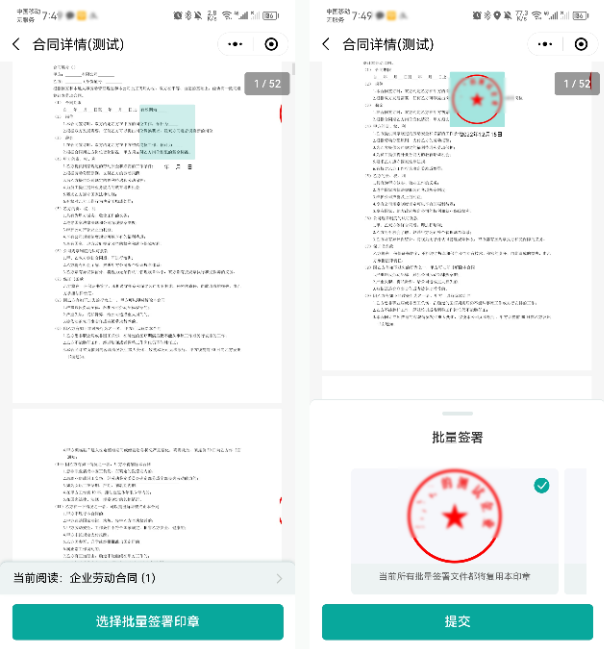
1. Log in to Tencent E-Sign Service mini program, enter the folder, click the Batch Signing button in the top right corner, and go to the contract selection page.

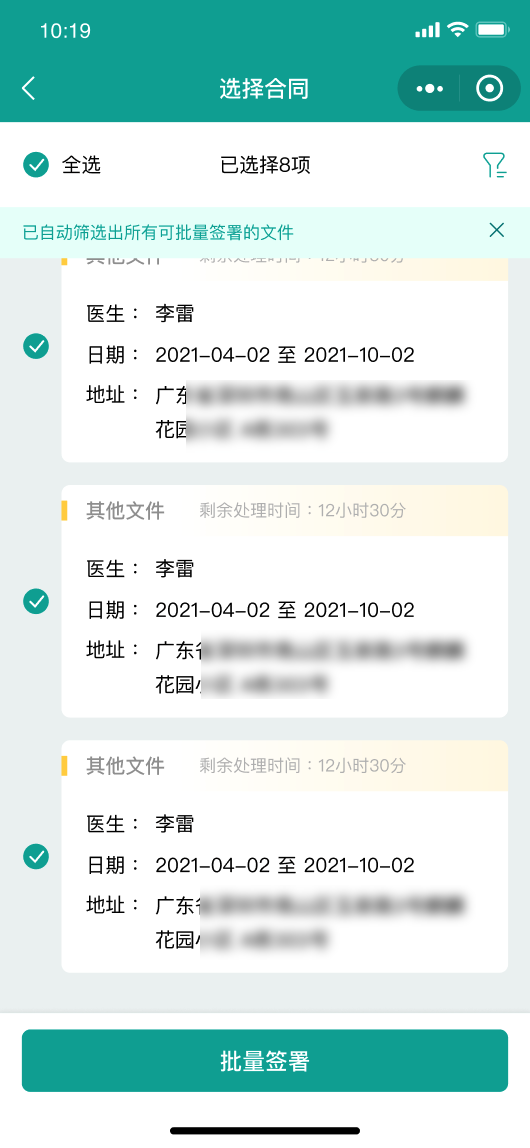
2. Select the contracts that need to be signed in bulk.

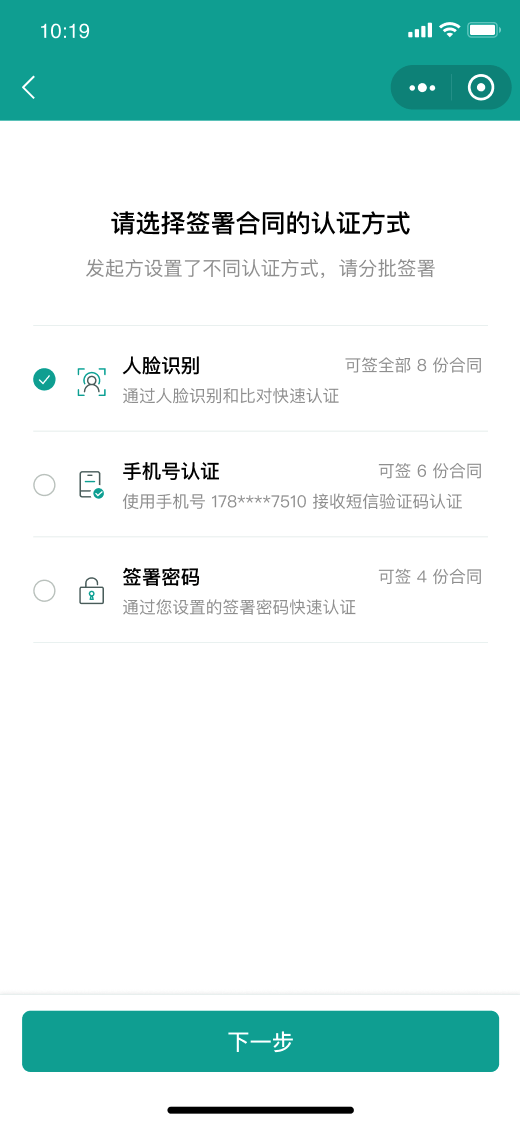
3. Follow the interface prompts to choose the contract signing method.

4. Select Bulk Signing Seal and Submit.

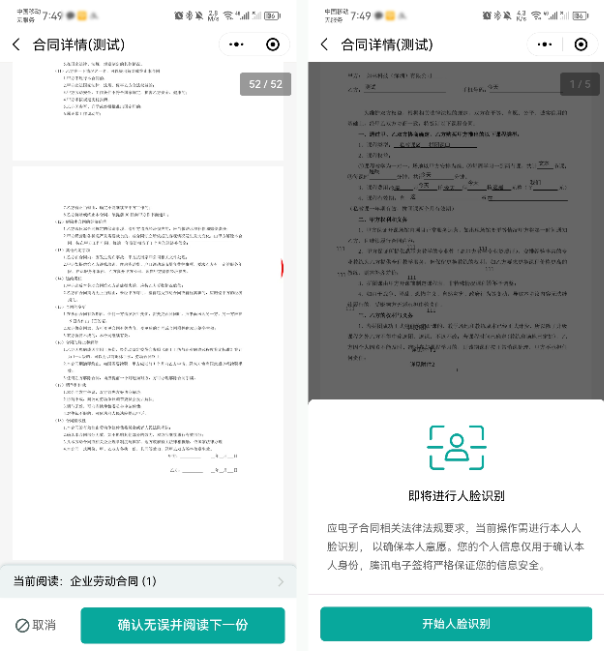
5. After submission, confirm the content of the selected contracts, click Confirm and Proceed to Next Document. After confirmation, proceed with the contract signing certification.

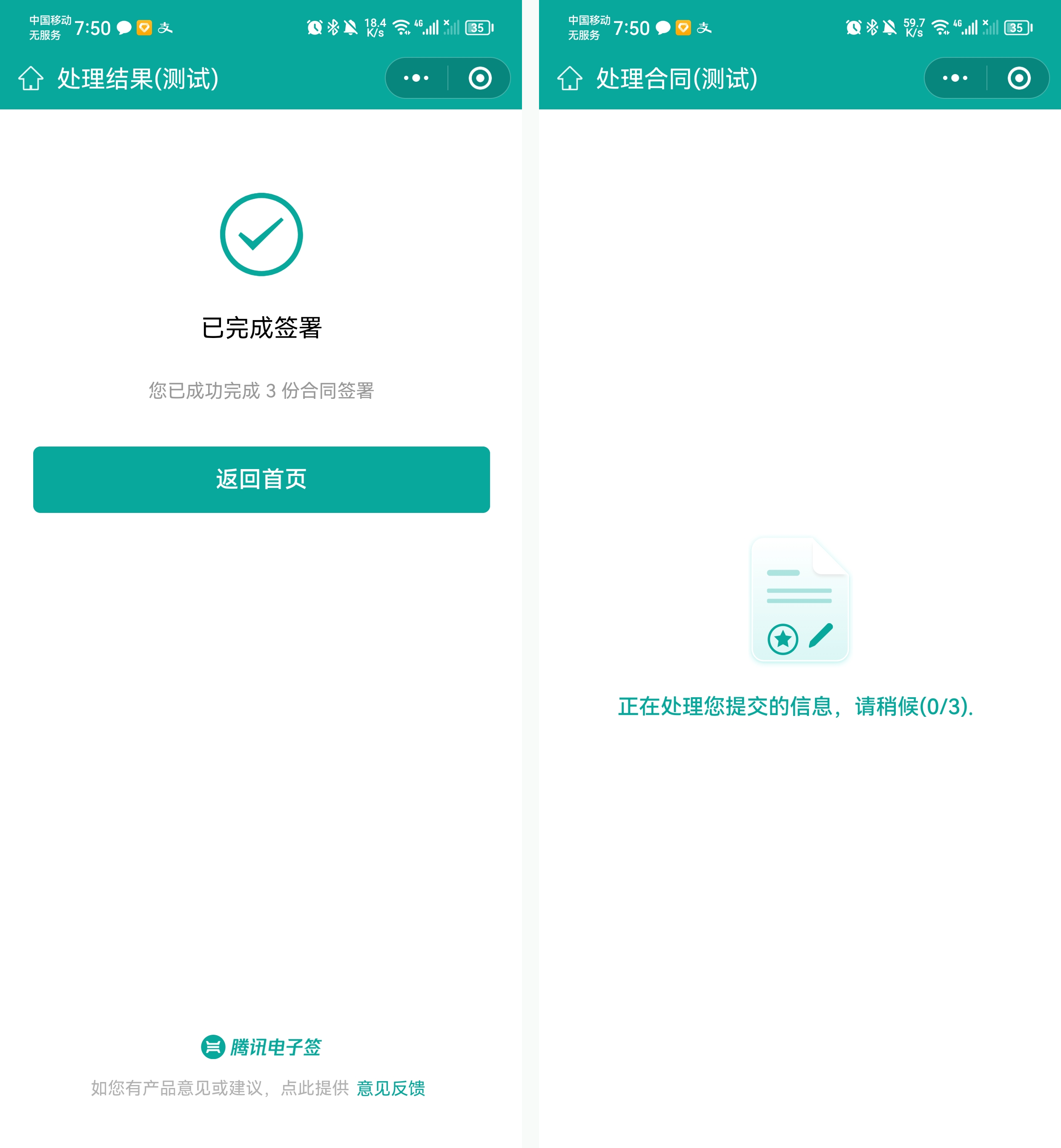
6. You can return to the homepage after completing the signing.