The content of this page has been automatically translated by AI. If you encounter any problems while reading, you can view the corresponding content in Chinese.
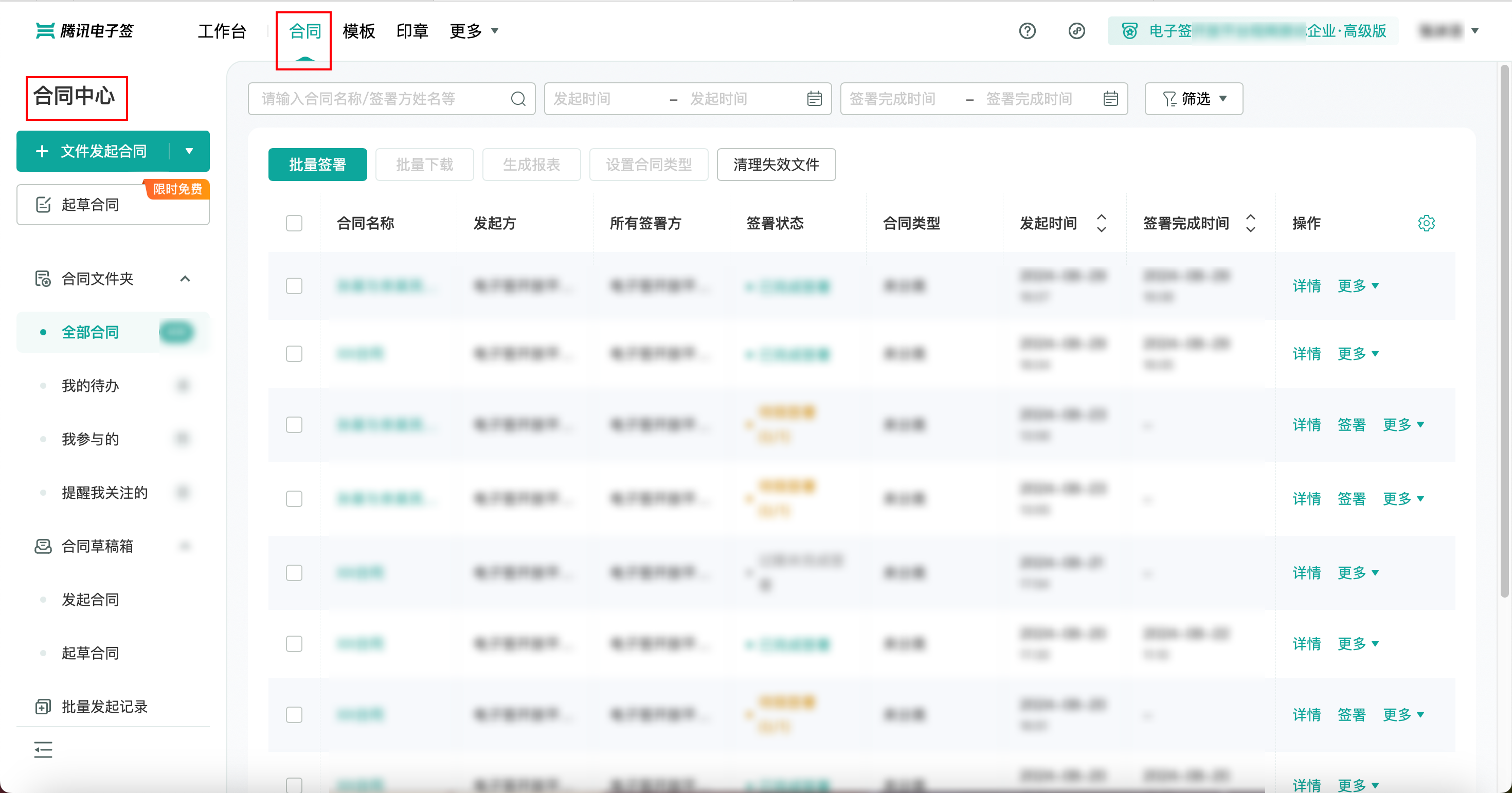
For contract management, Web Version click on Contract at the top-Contract Center, Mini Program Platform at the bottom-Folder.
Introduction to Global Page
Actions for a single contract
Batch operation
Web Version
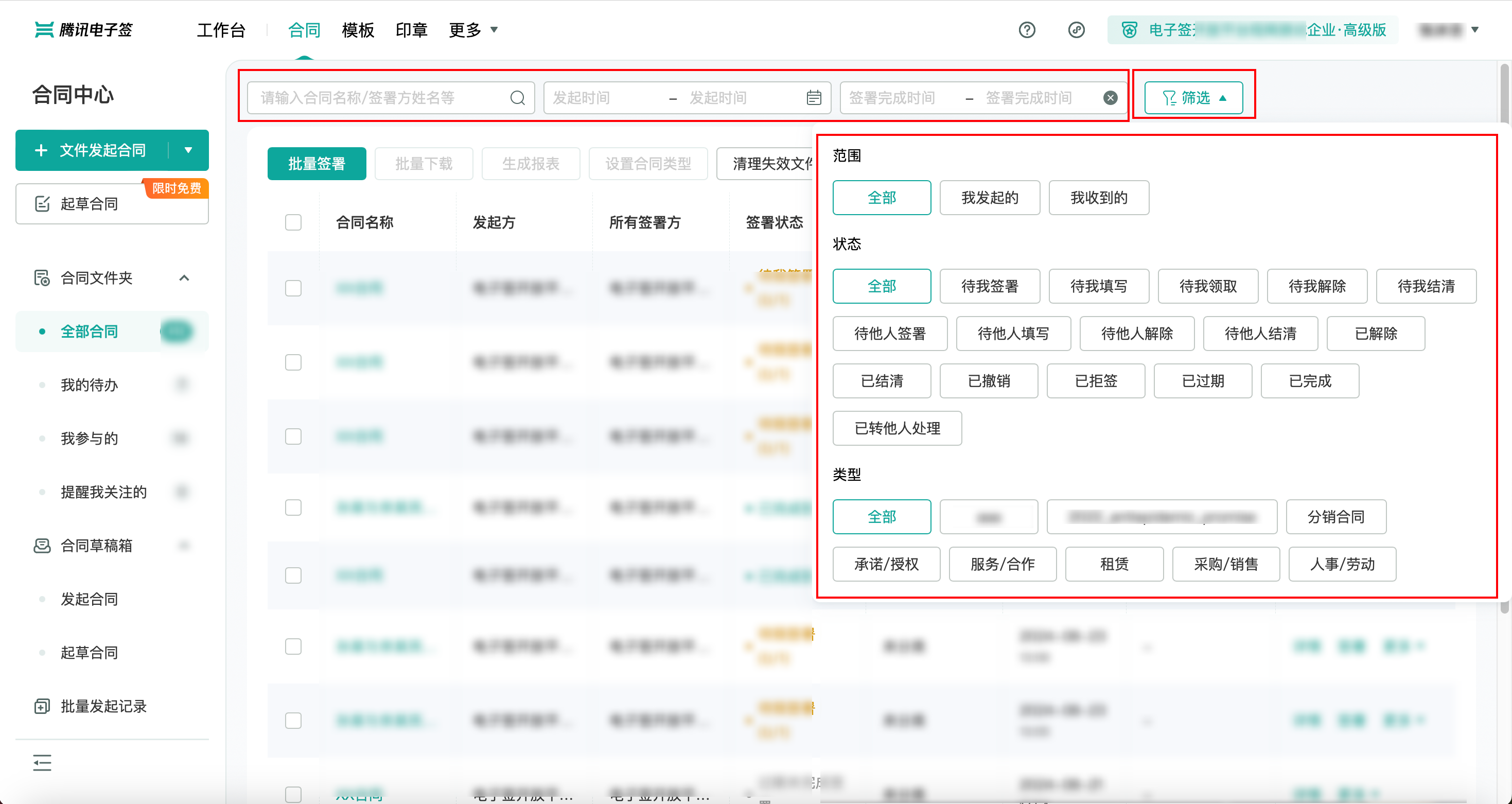
1.Query contract list at the top
You can search by entering the contract name/signatory name (company name and name of both signatory and initiator), initiation time, and signature completion time. You can also click on the filter to find suitable filtering options for the query.
Filter Options:
Scope
Status
Type: Contract type, including both user-defined contract types and system contract types.
2.Left Navigation Bar
Operation Name
Description
Contract Folders
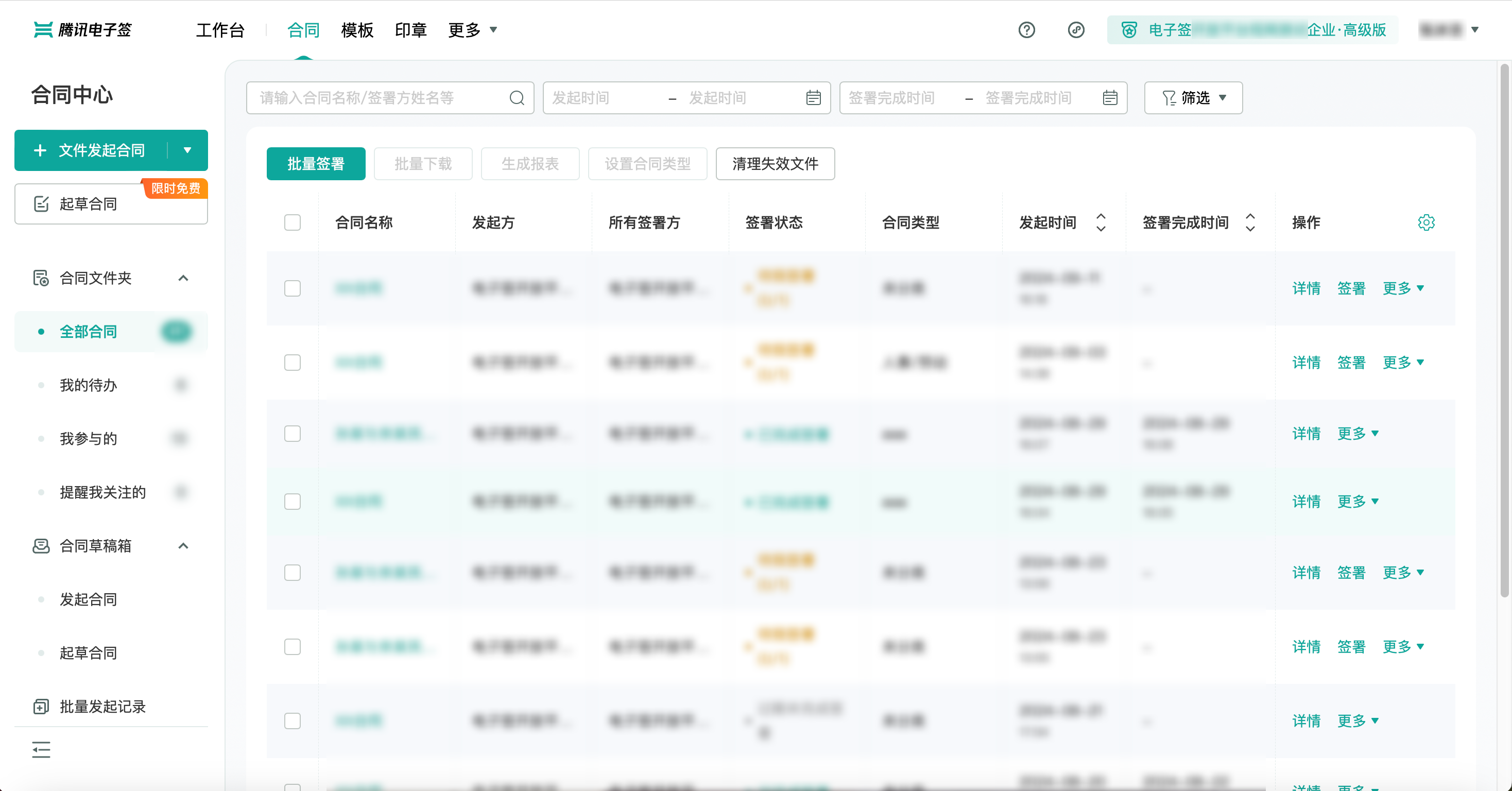
This section will display the initiated contracts and their related information in a list format on the page, including the contract name, initiator, all signatories, signature status, contract type, initiation time, expiration reminder date, signing deadline, contract ID, and completion time.
You can click the gear icon in the top-right corner to adjust the displayed information items and their order.
All Contracts: Display all initiated contracts that the current employee has permission to view.
My Pending Tasks: All contracts that I need to fill out and sign.
My Participation: Includes contracts that I initiated and contracts I participated in signing.
Remind Me of Attention: All contracts CC'd to me.
Contract Draft Box
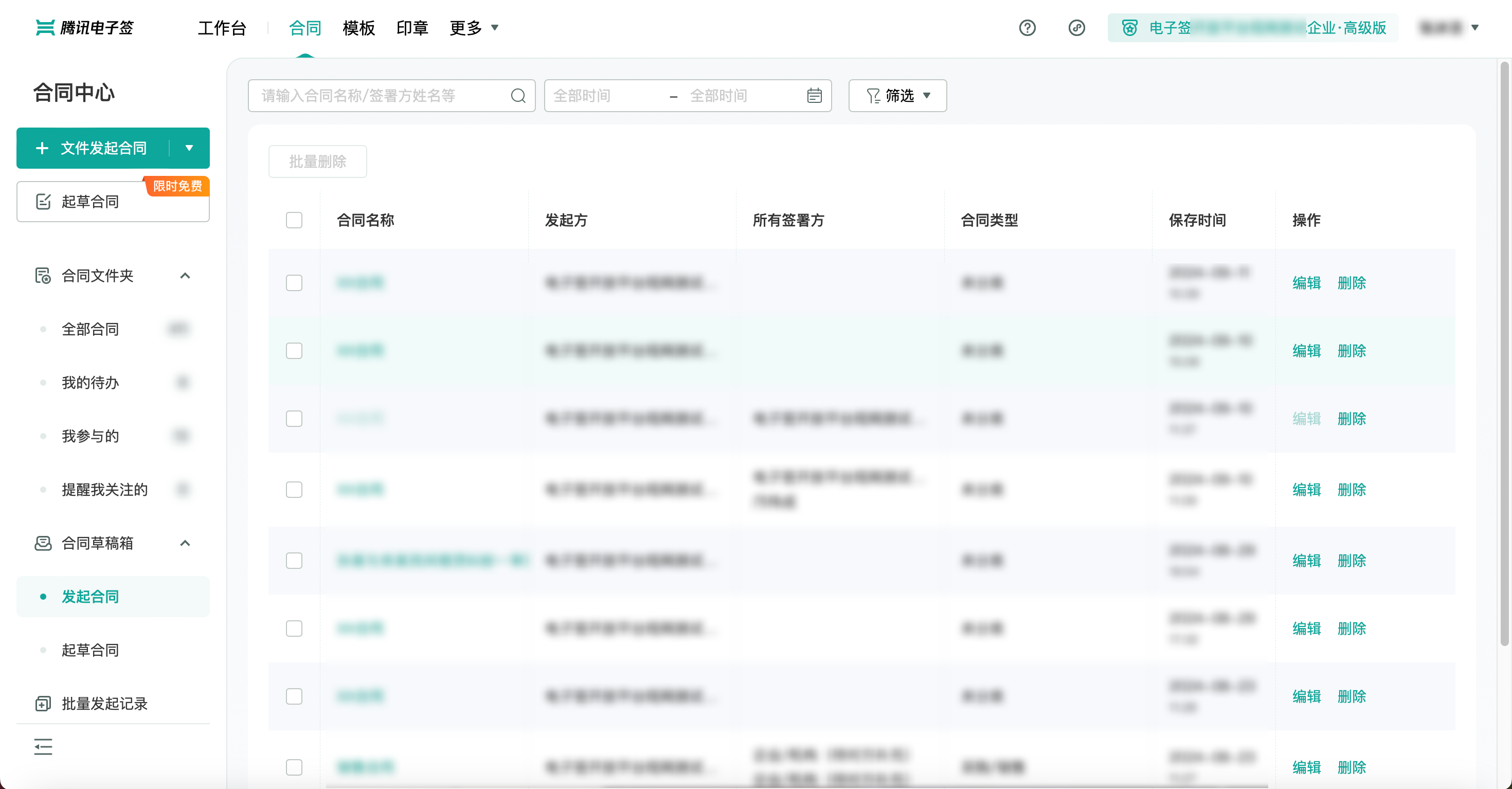
Initiated Contracts: In the contract initiation process, all records saved as drafts.
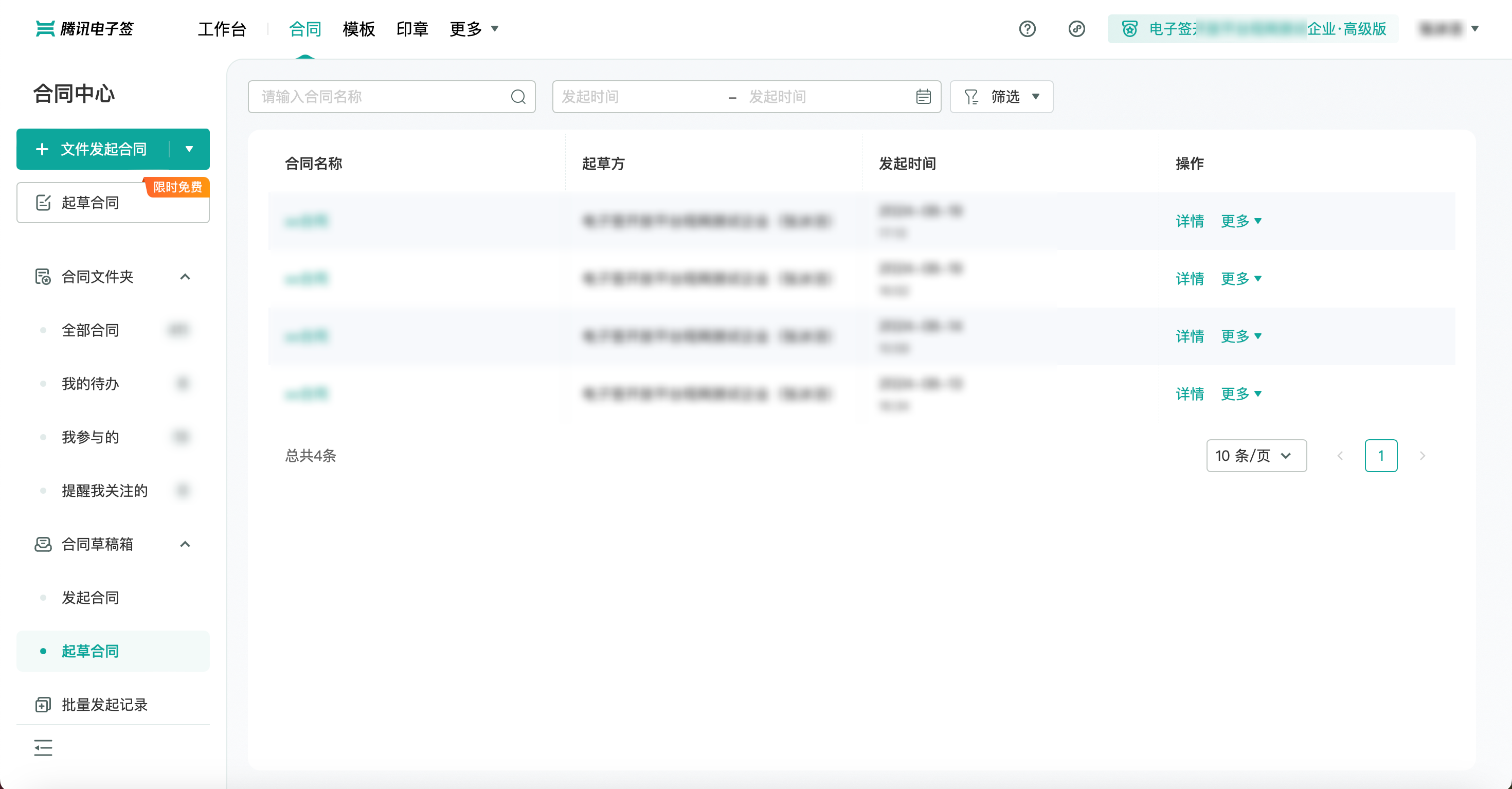
Drafted Contracts: In the contract drafting process, all records of uncompleted initiations.
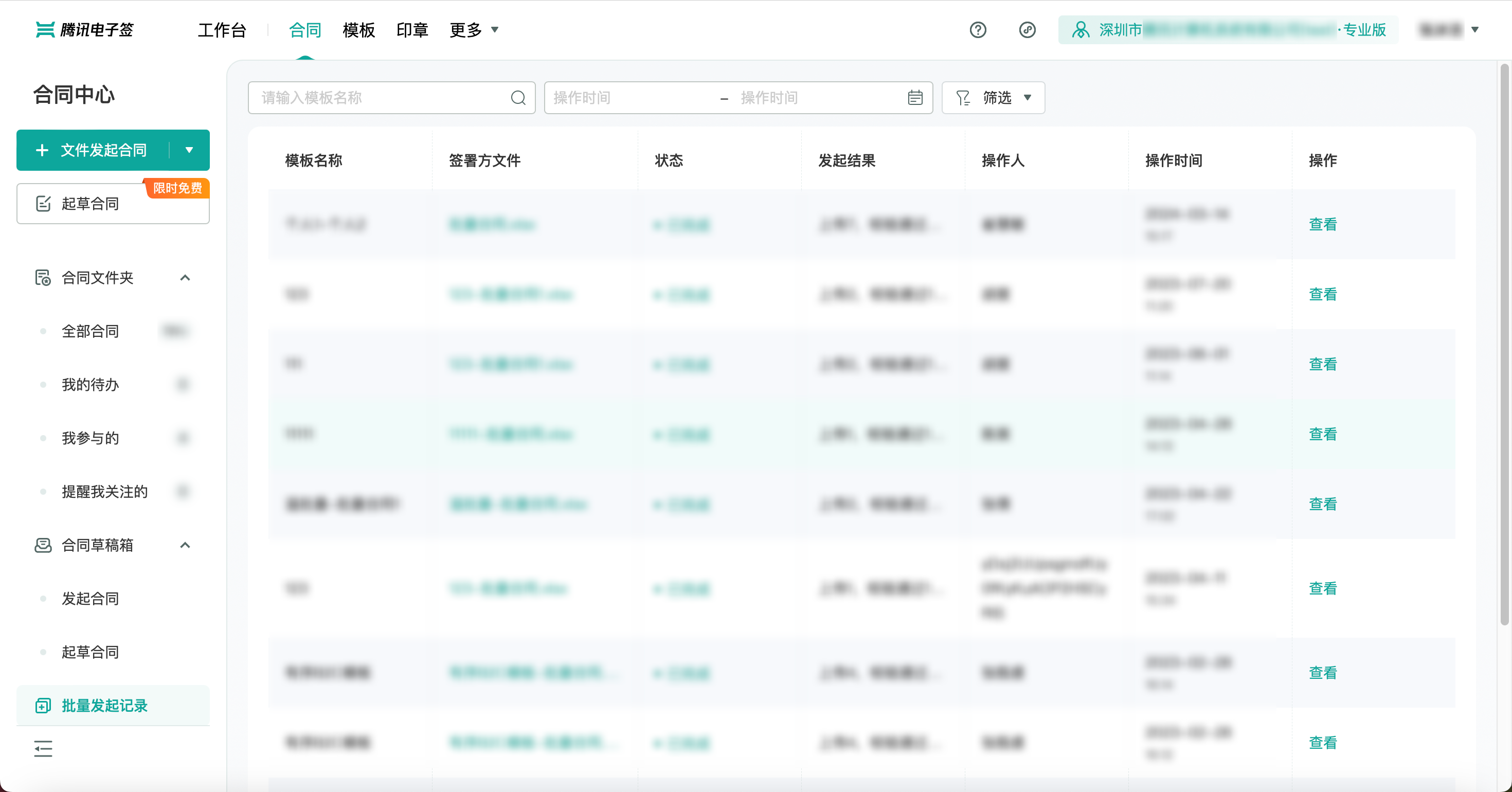
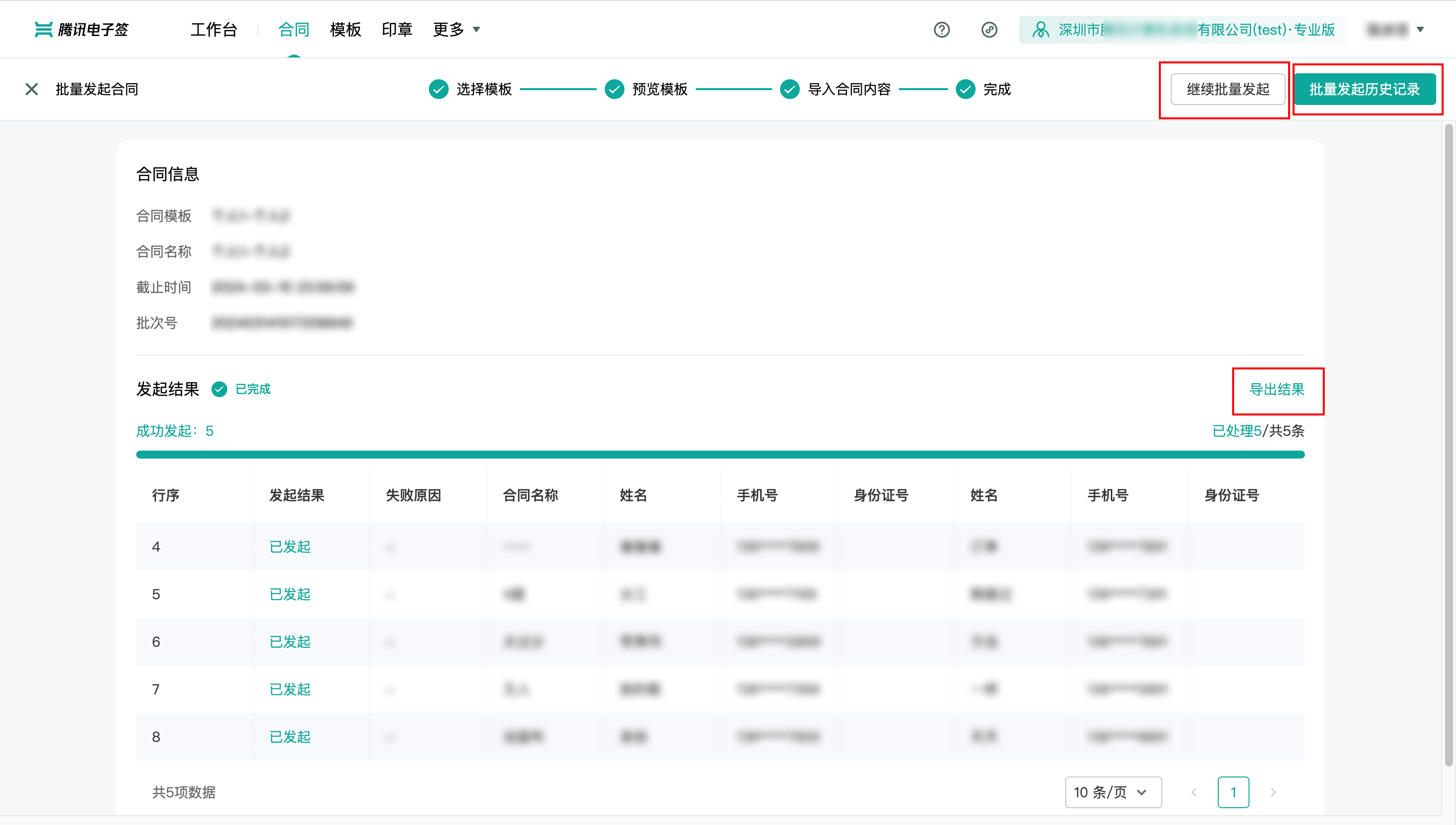
Batch Initiation Records
All batch records of historical batch initiations.
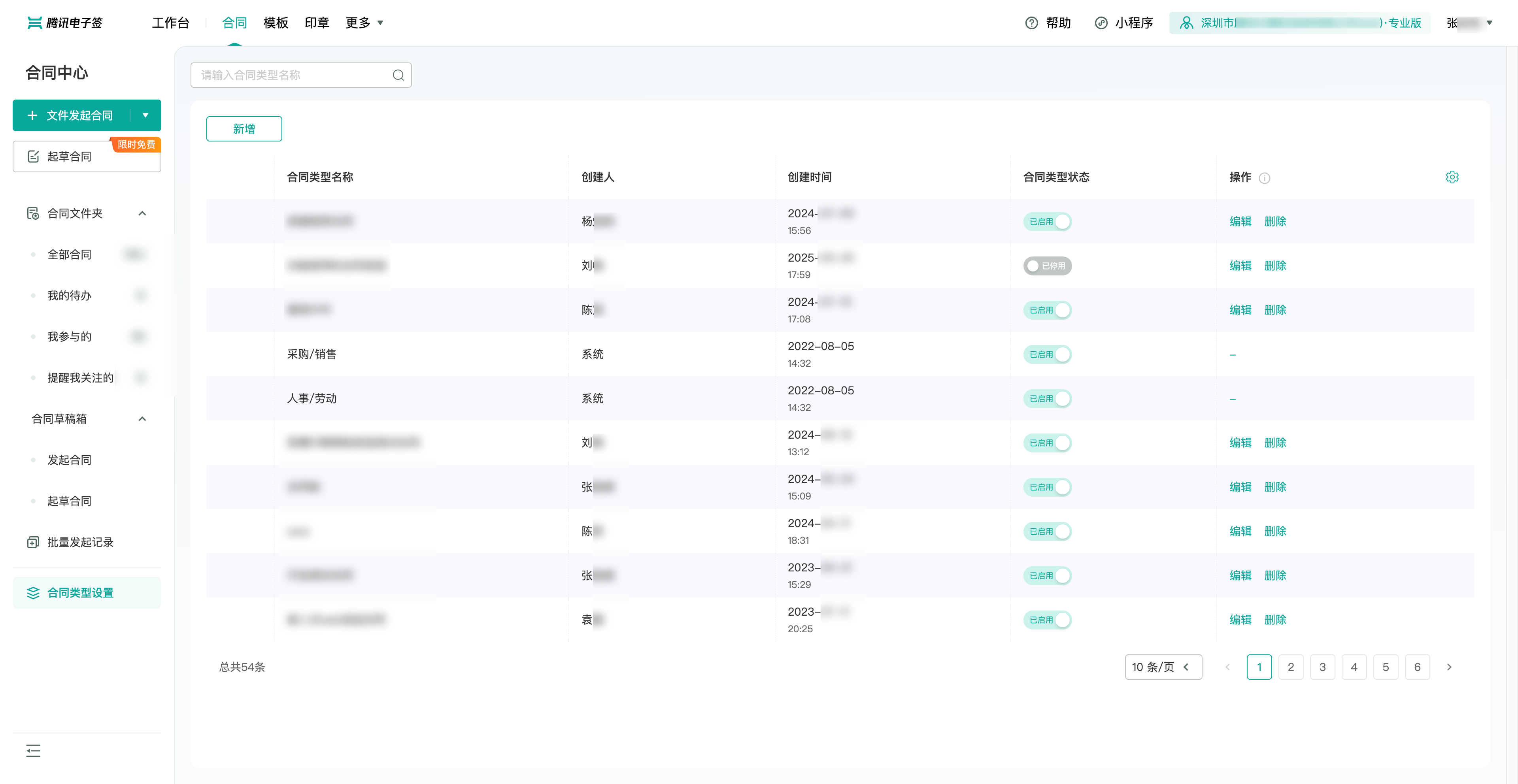
Contract Types Settings
Displays the currently existing custom contract types and system contract types along with approval branch numbers, descriptions, creators, and creation times for each contract type. Custom contract types can be added, edited, and deleted.
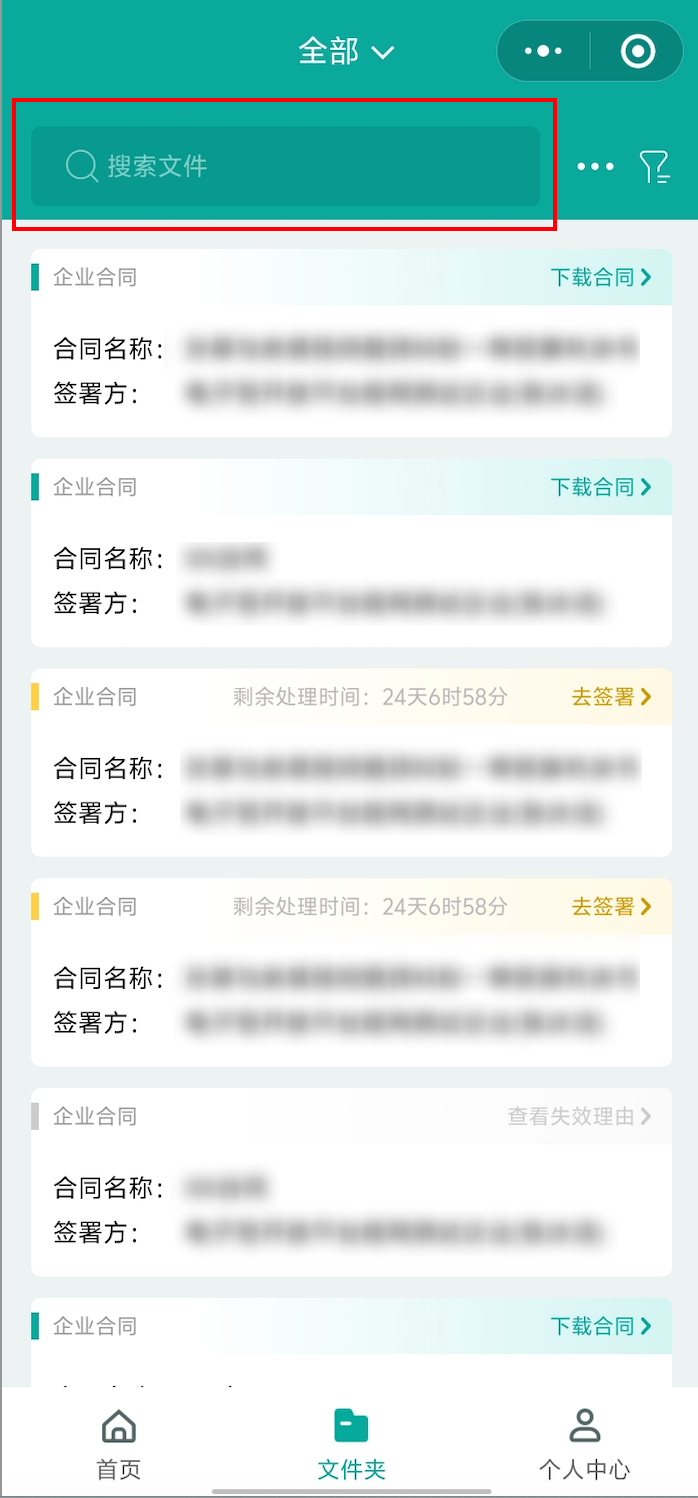
Mini Program Platform
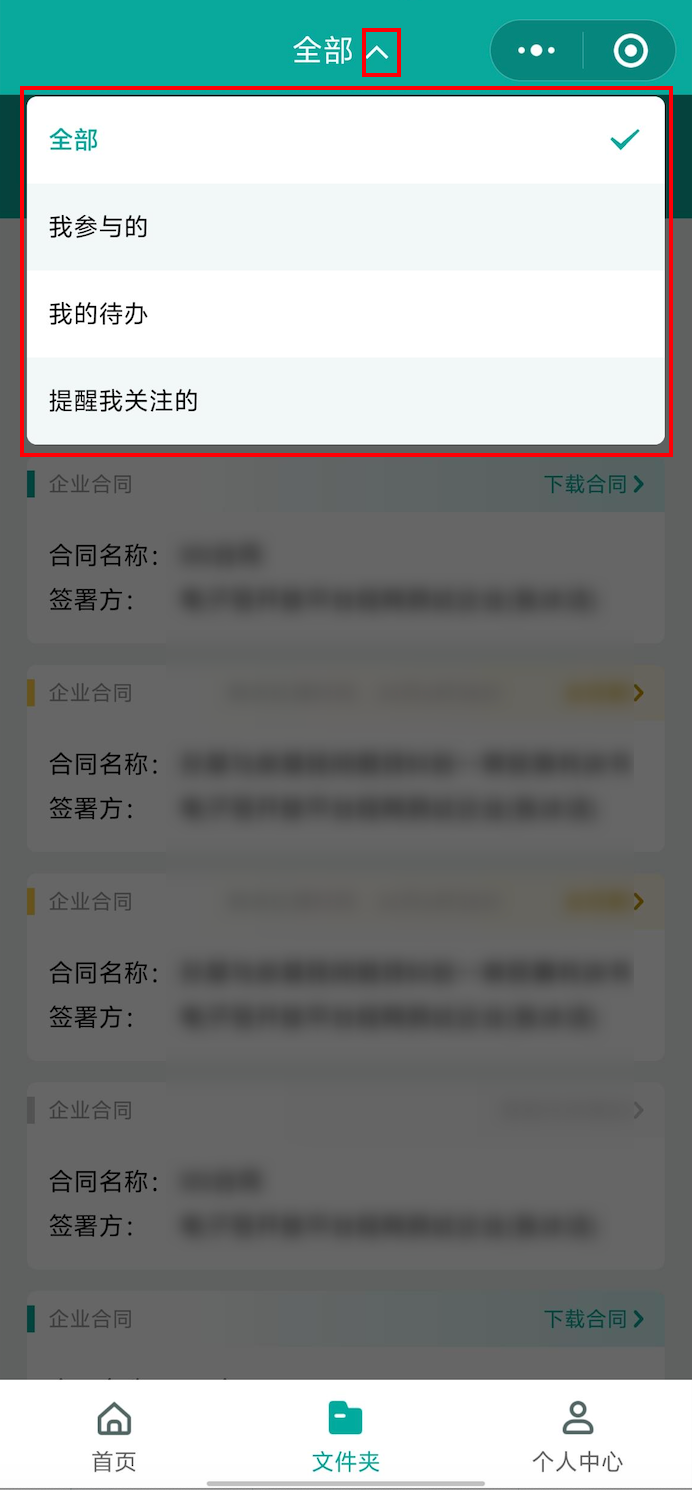
1.Top small arrowhead: Click the small arrowhead next to 'All' to quickly filter out contracts related to me: those I am involved in, my pending tasks, and contracts that need my attention.
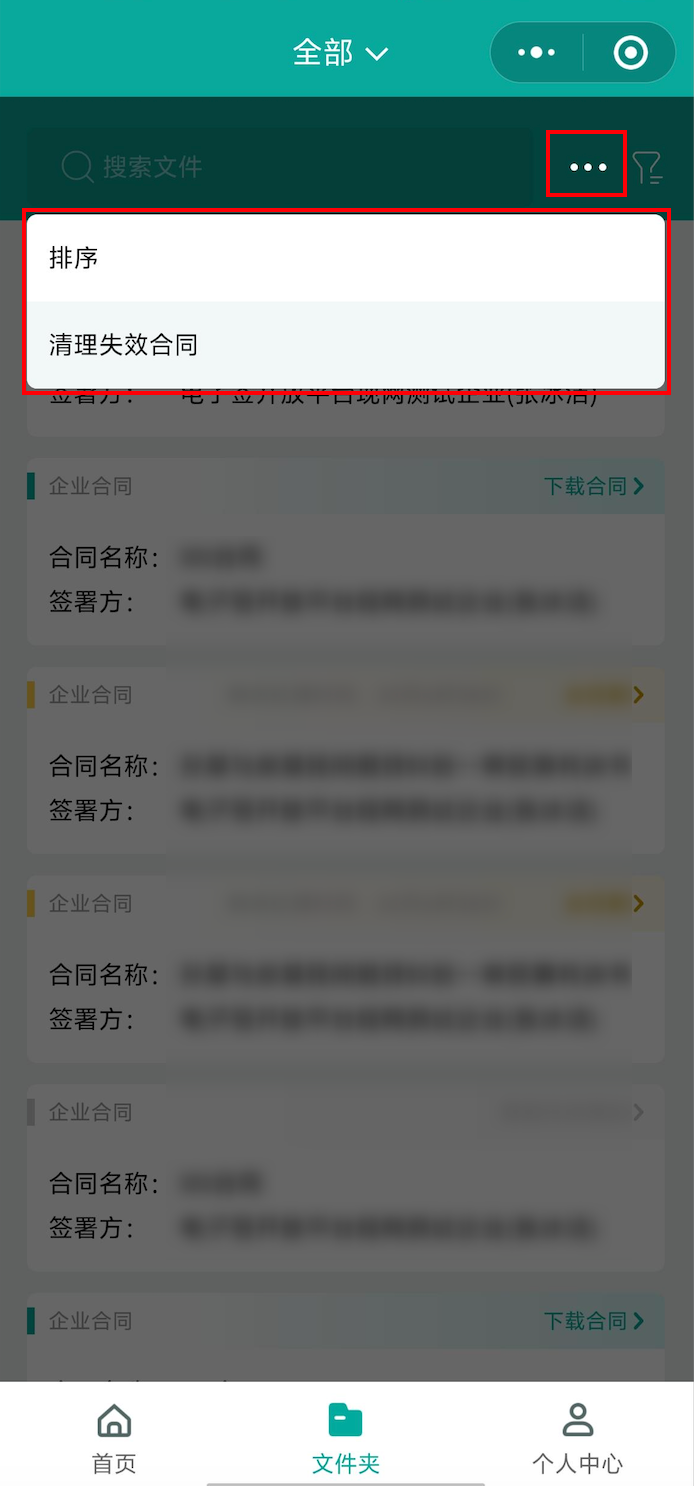
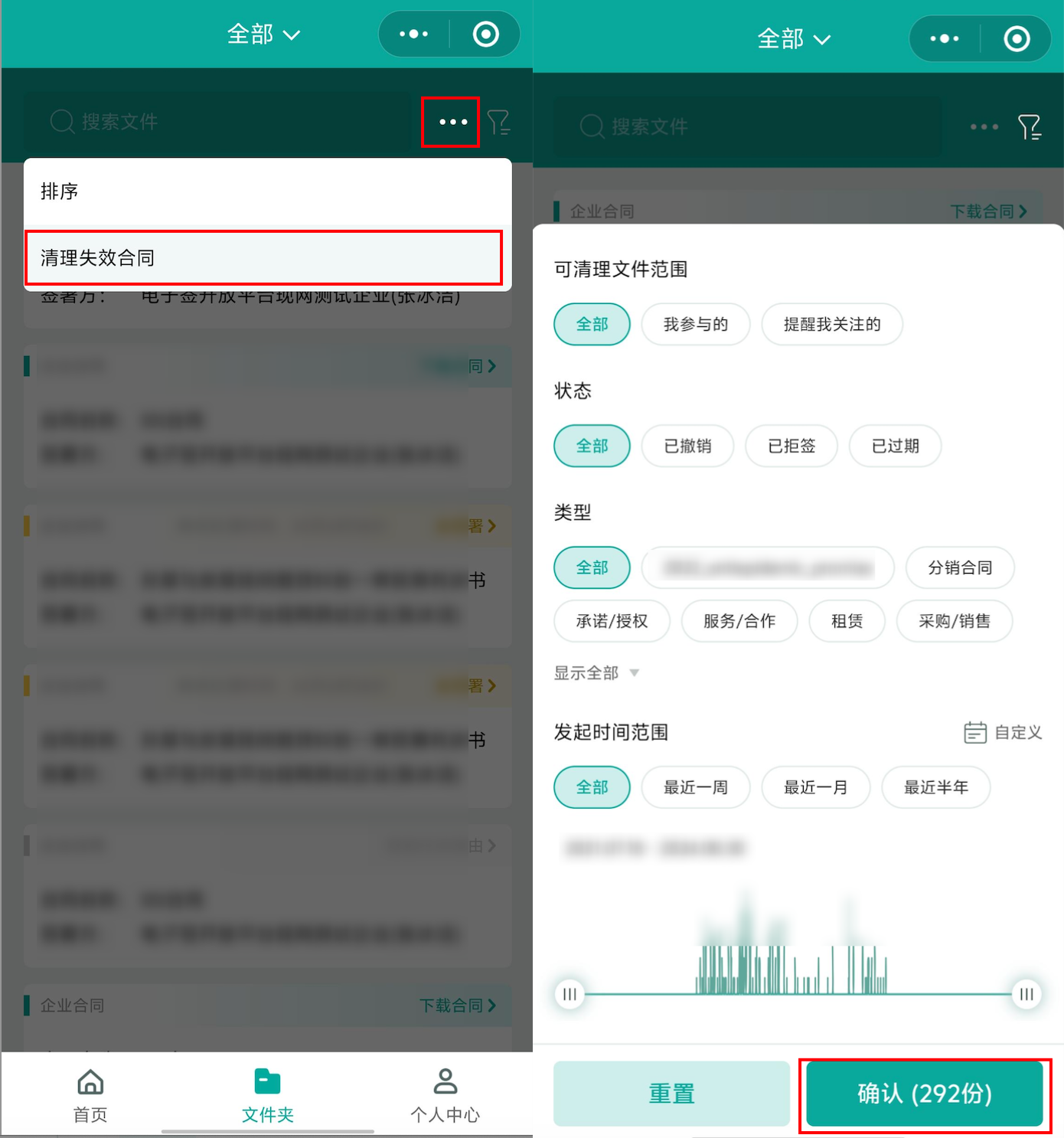
2.Three dots in the upper right corner: Click to sort contracts by creation time or expiration time, or to clear expired contracts.
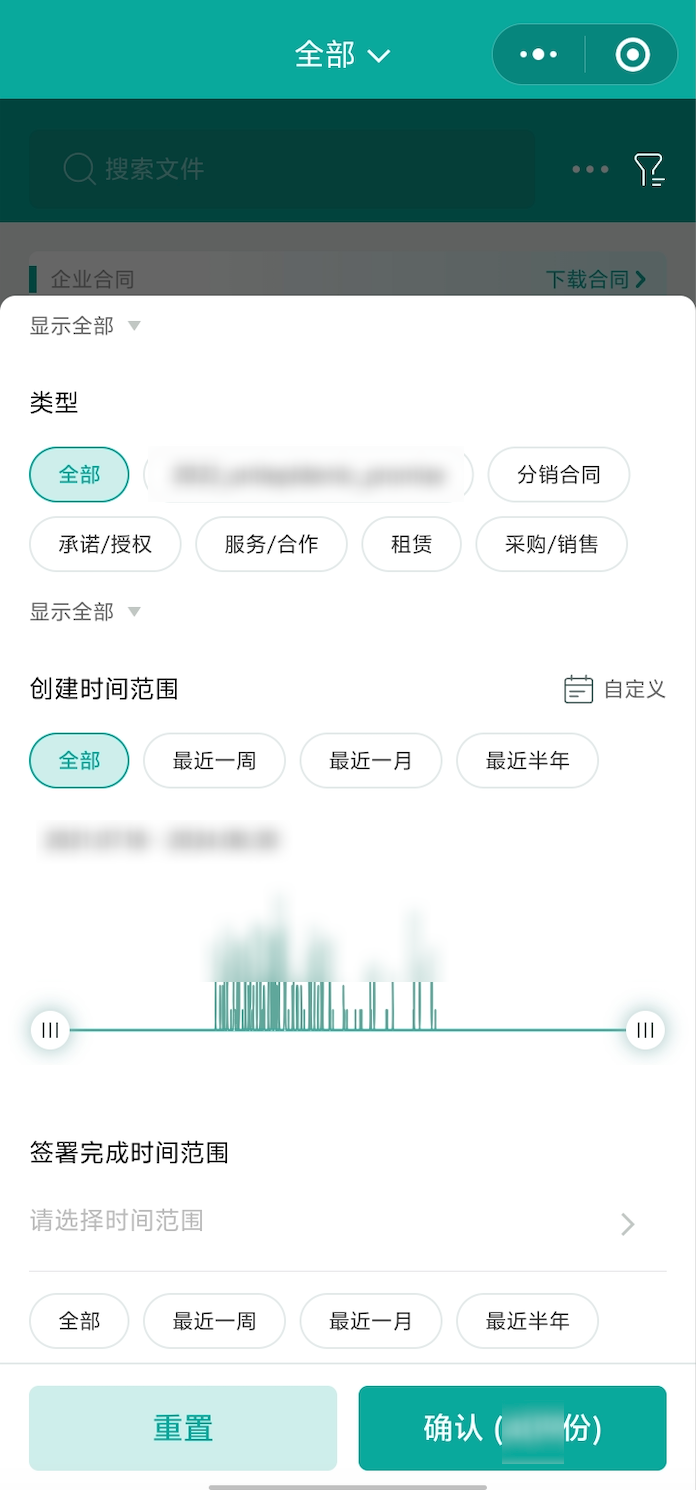
3.Filter in the upper right corner: Click the filter icon to filter contracts in the floating layer by range, status, type, creation time range, and signature completion time range.
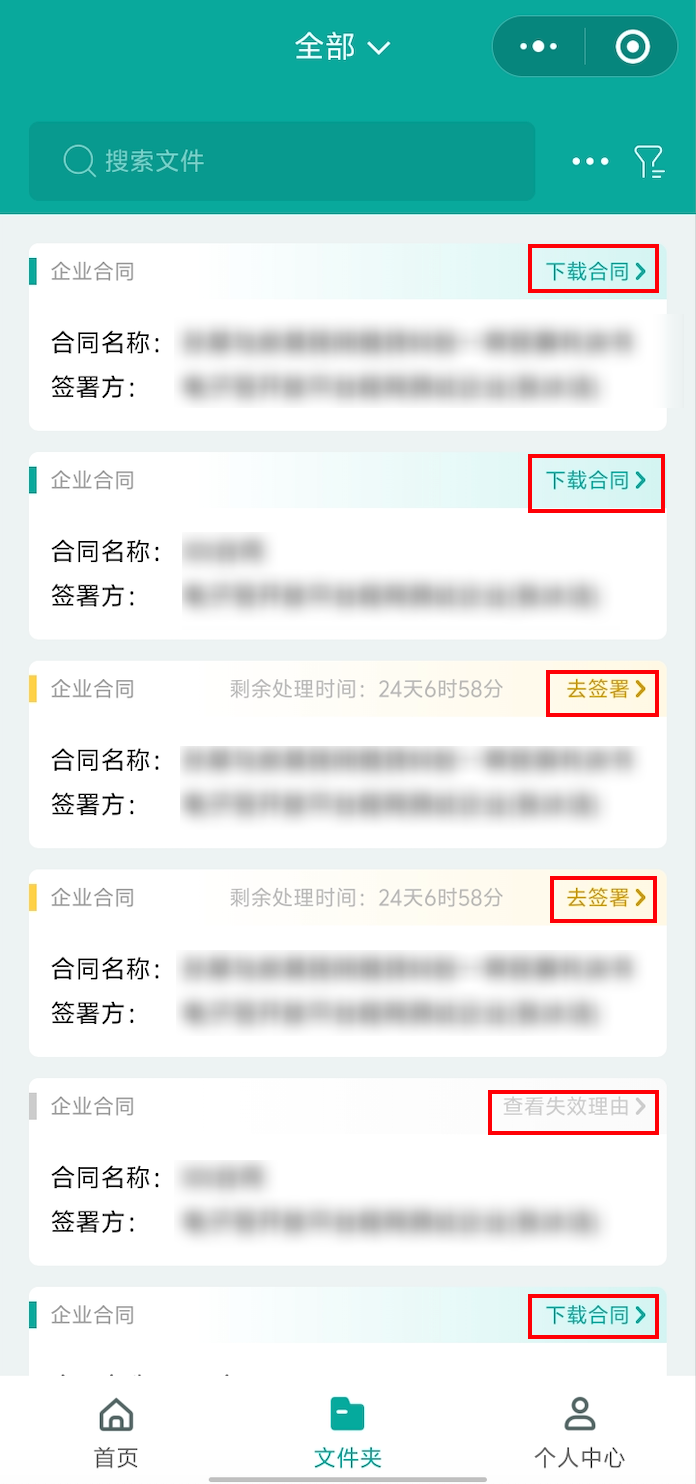
4.The main section of the page is the contract list. Contracts of different statuses have different colors: pending signature contracts are yellow, signed contracts are green, and expired contracts are gray.
Web Version
Contract Folders
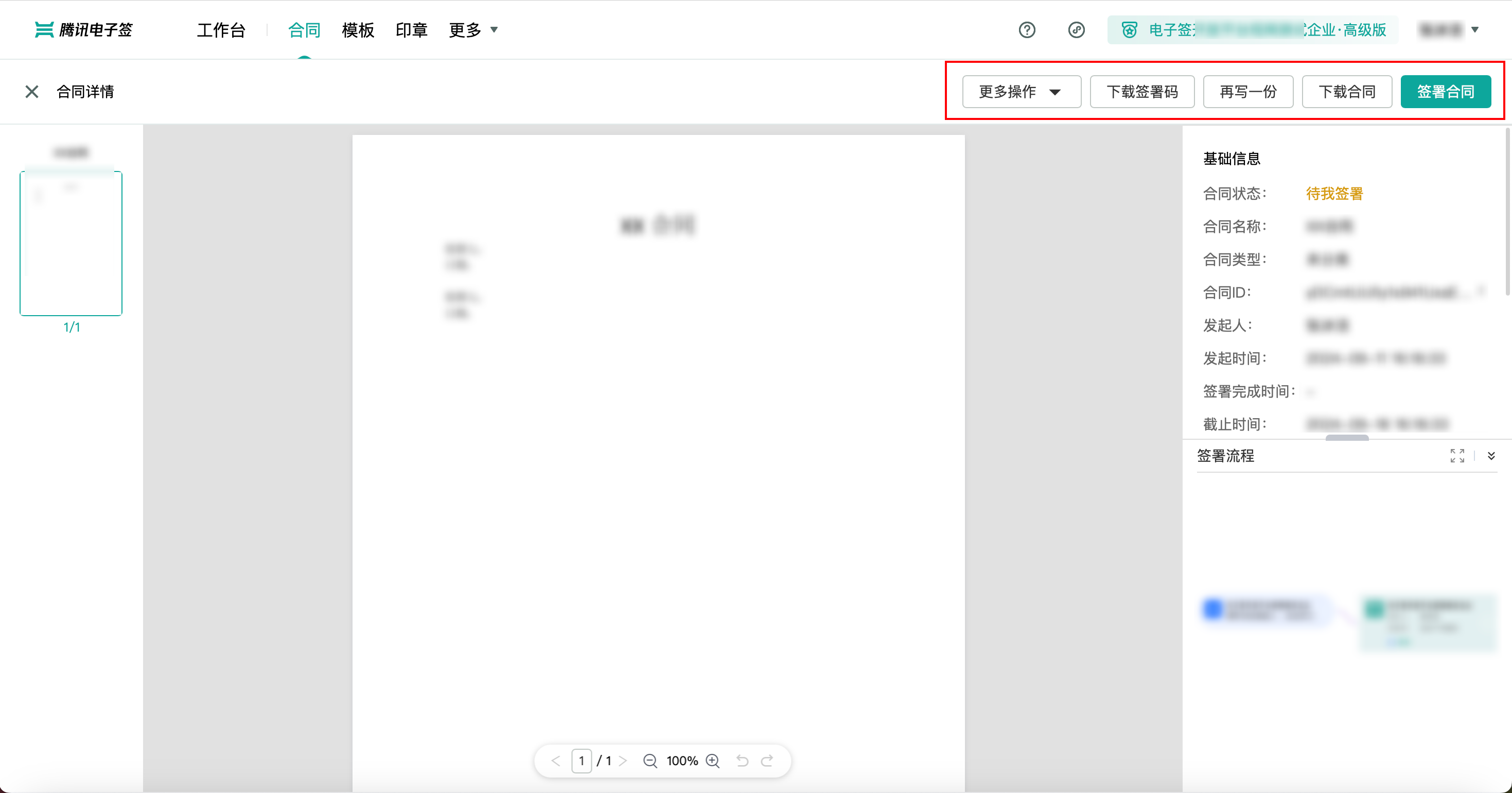
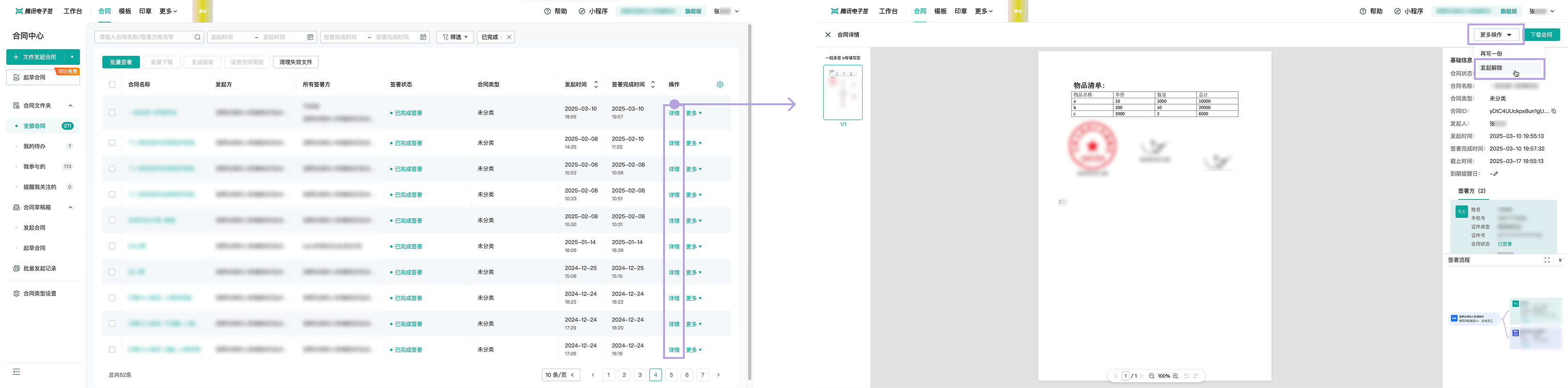
Details: Click to enter the contract details page to view the contract content, basic information, and type of signature, and perform the following operations.
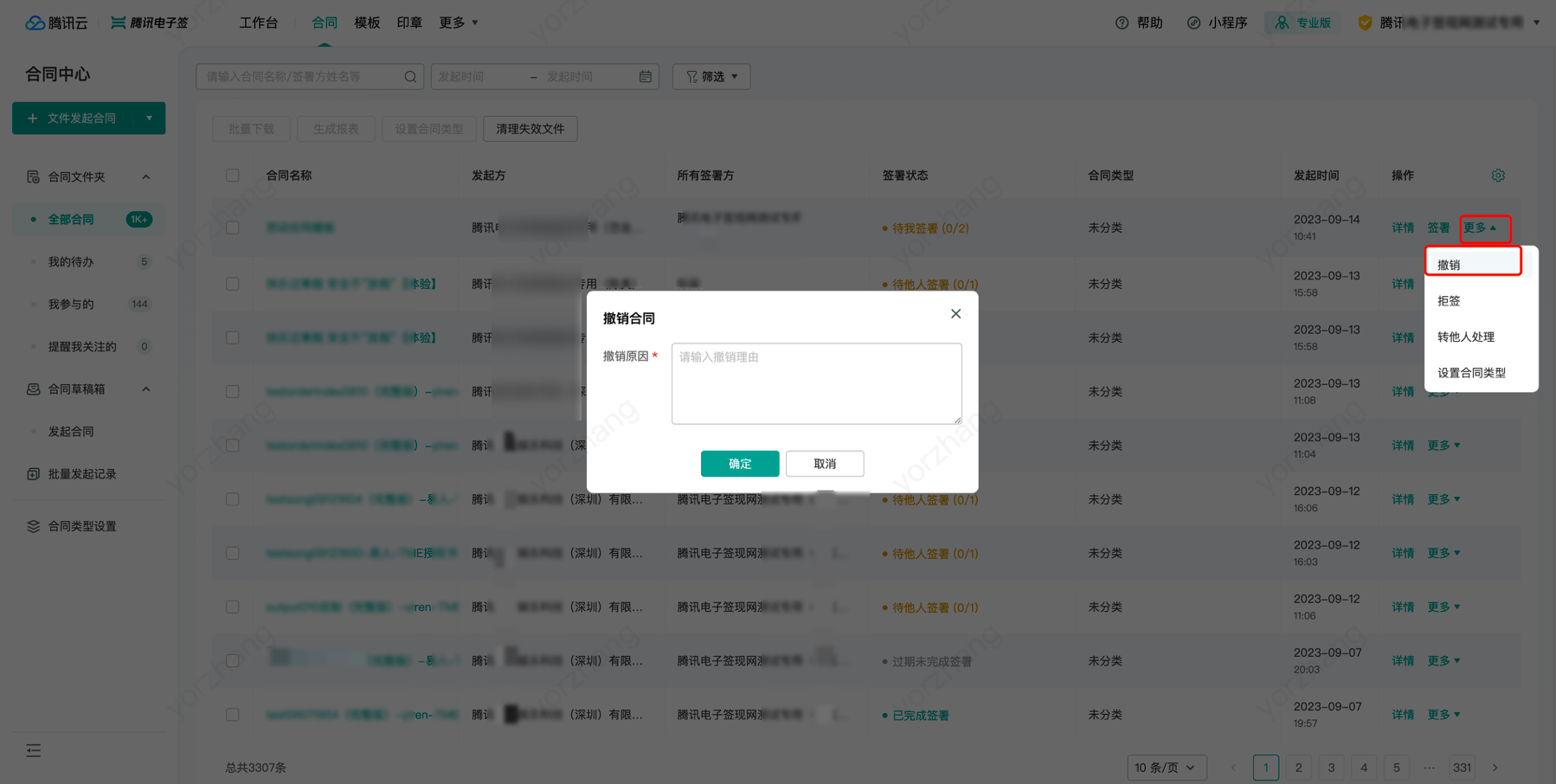
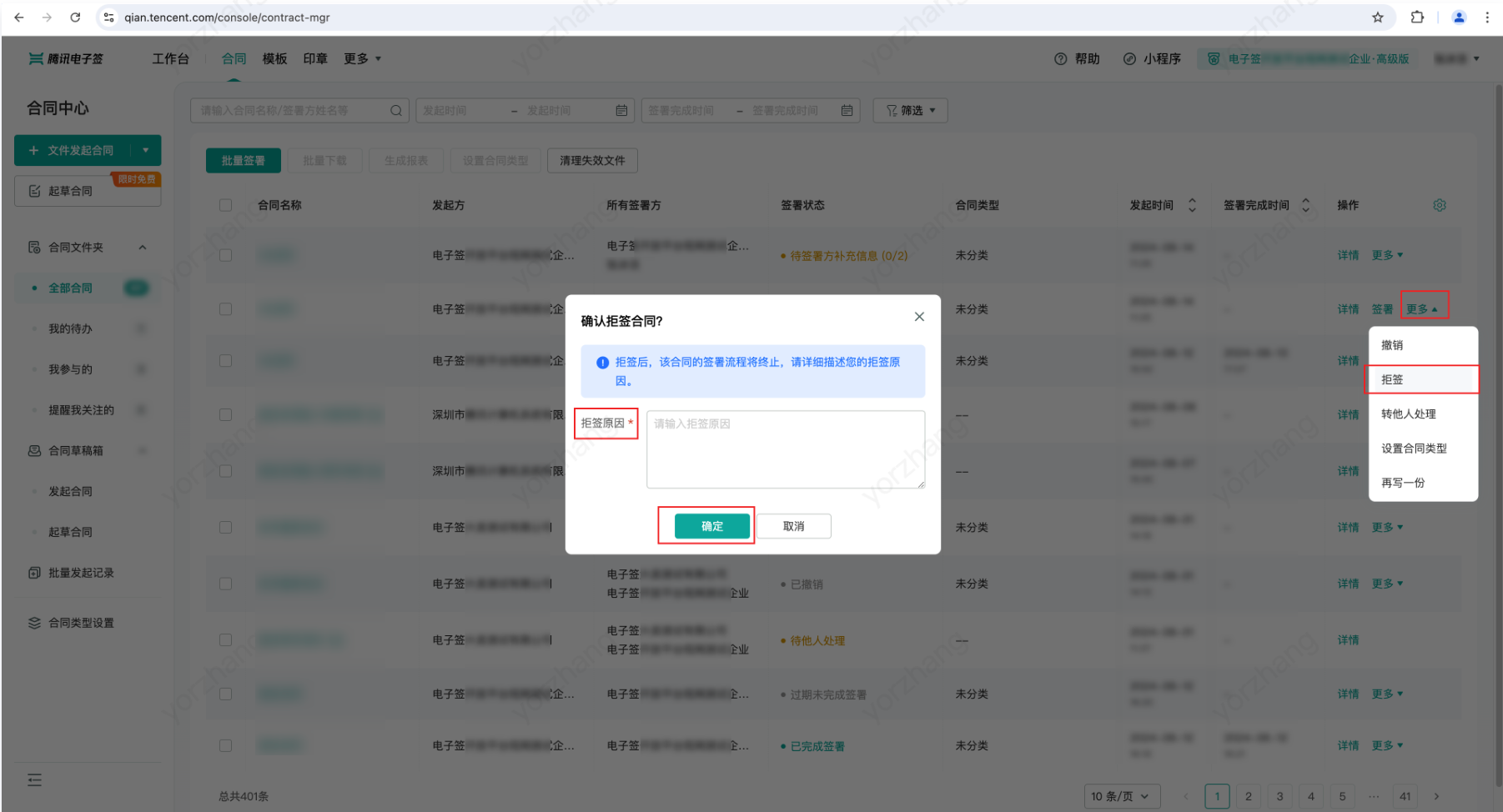
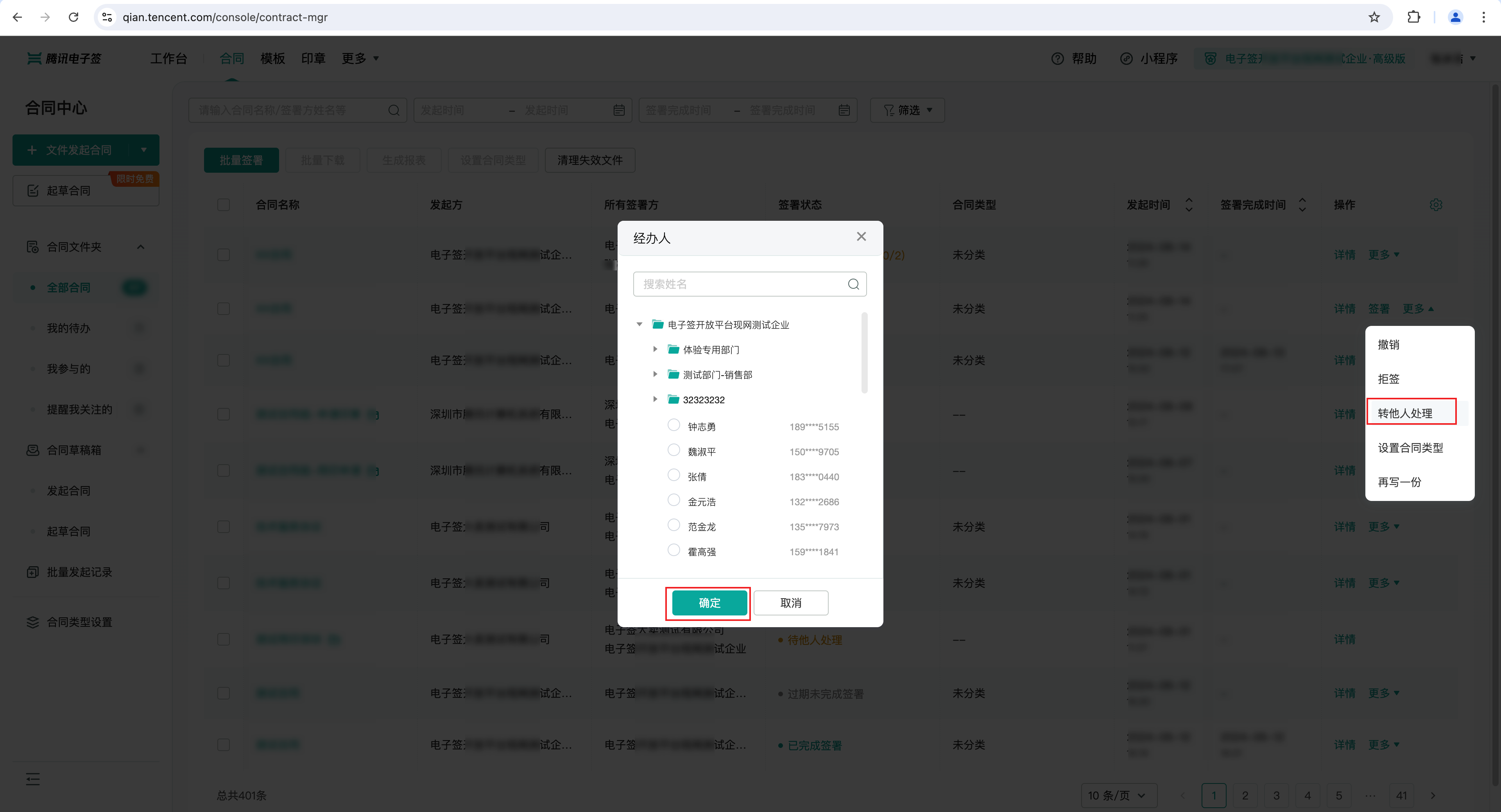
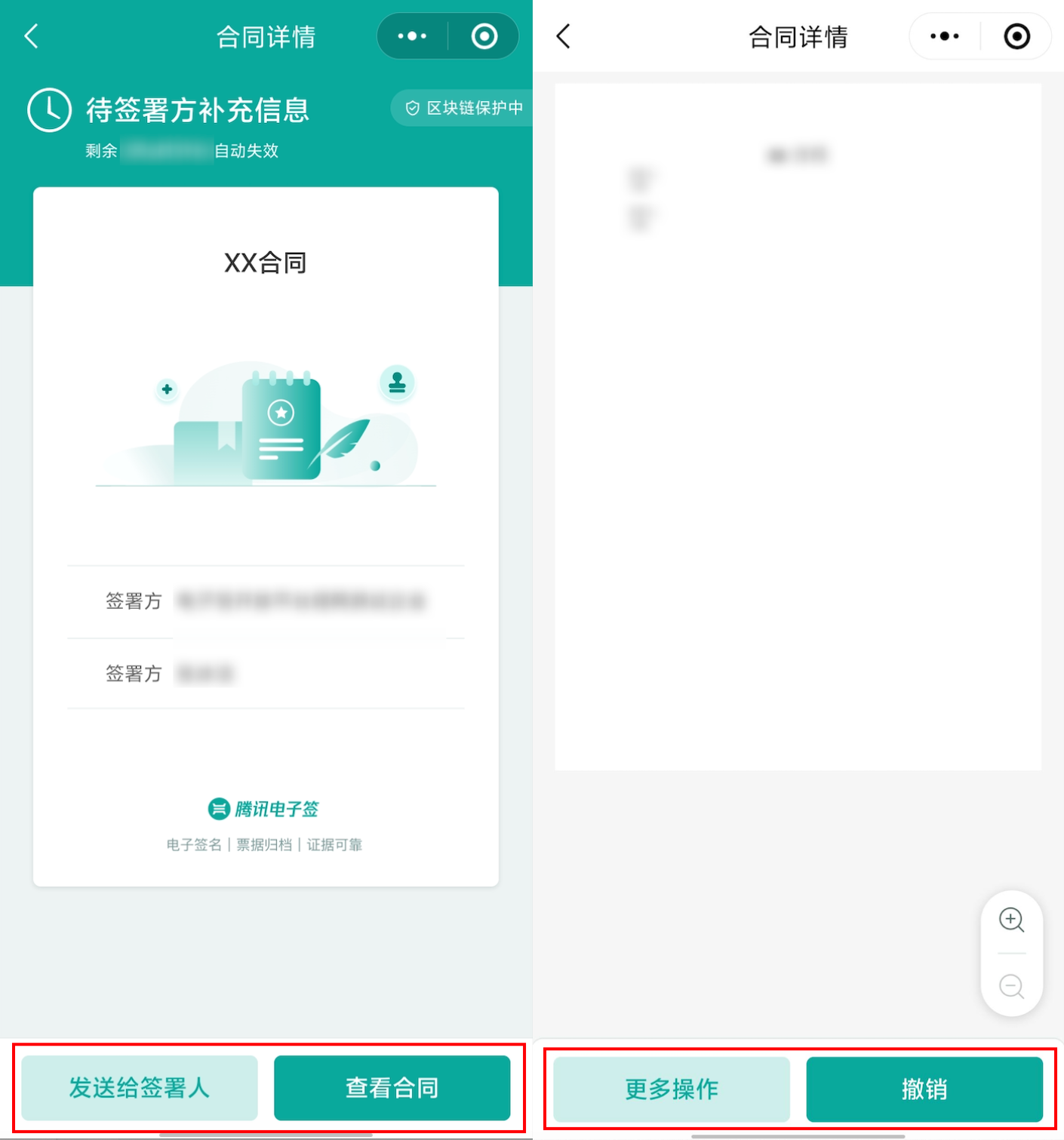
More Actions: Revoke (this option appears for contracts initiated by me), Refuse to Sign (this option appears for contracts pending my signature), Forward to Others for Processing (this option appears for contracts pending my signature)
Download Signature Code: After downloading the signature code, it can be sent to the signatory for scanning to sign.
Duplicate: Generate a contract using this contract as a template, and the content you filled in last time will be automatically populated
Download Contract: Download the contract as a PDF version.
Sign Contract (this option appears for contracts pending my signature).
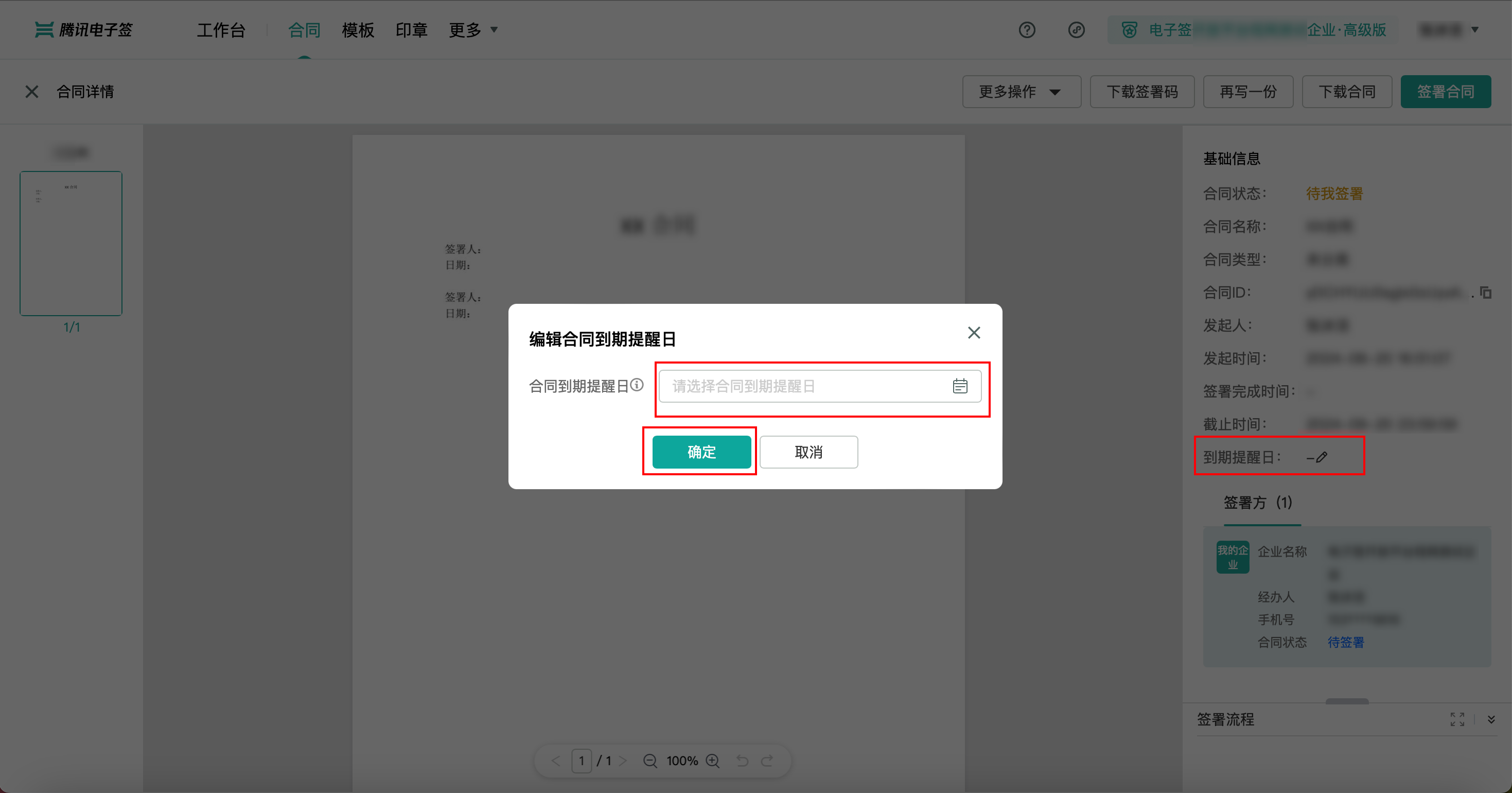
Set Expiration Reminder Date: Find the Expiration Reminder Date in the basic information and click the pencil icon to set it.
More:
Revoke: The initiator can revoke the contract if <signatures from both parties have not been completed</1>.
Refusal: For contracts pending my handling, you can choose to refuse to sign based on the actual situation.
Forward to Others for Processing: For contracts pending my handling, you can choose to forward it to other company personnel based on the actual situation. If the contract has already been supplemented and completed by the handler, forwarding to others will no longer be supported.
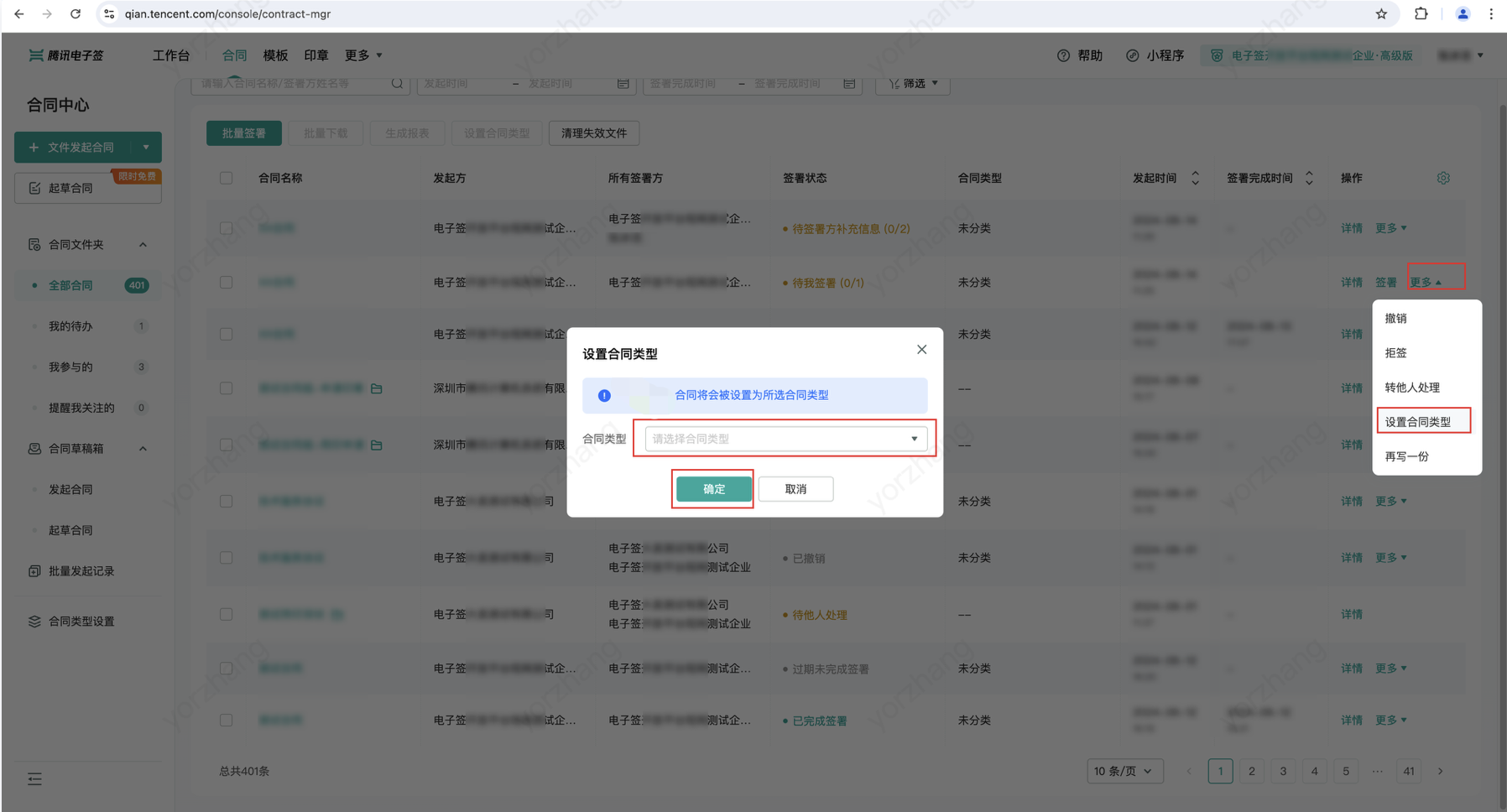
Set Contract Type: For uncategorized contracts, you can classify them by setting the contract type for easier search and management.
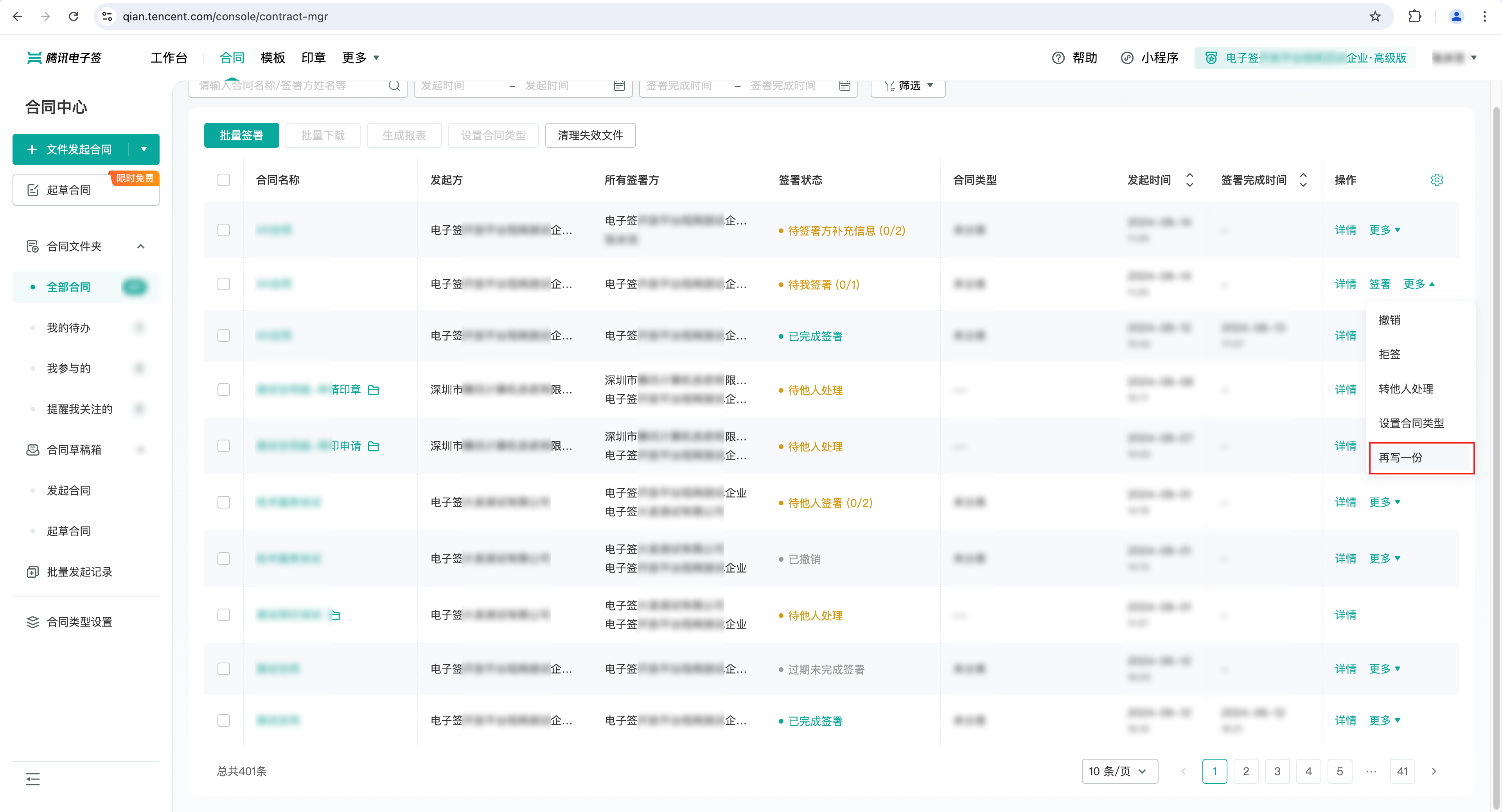
Duplicate: Generate a contract using a previously initiated contract as a template, and the content you filled in last time will be automatically populated.
Contract Draft Box:
Initiate Contract: You can click Edit to continue editing the initiation process or delete this record.
Draft Contract: You can click Details to view drafting contract details or click More to download the contract and delete this record.
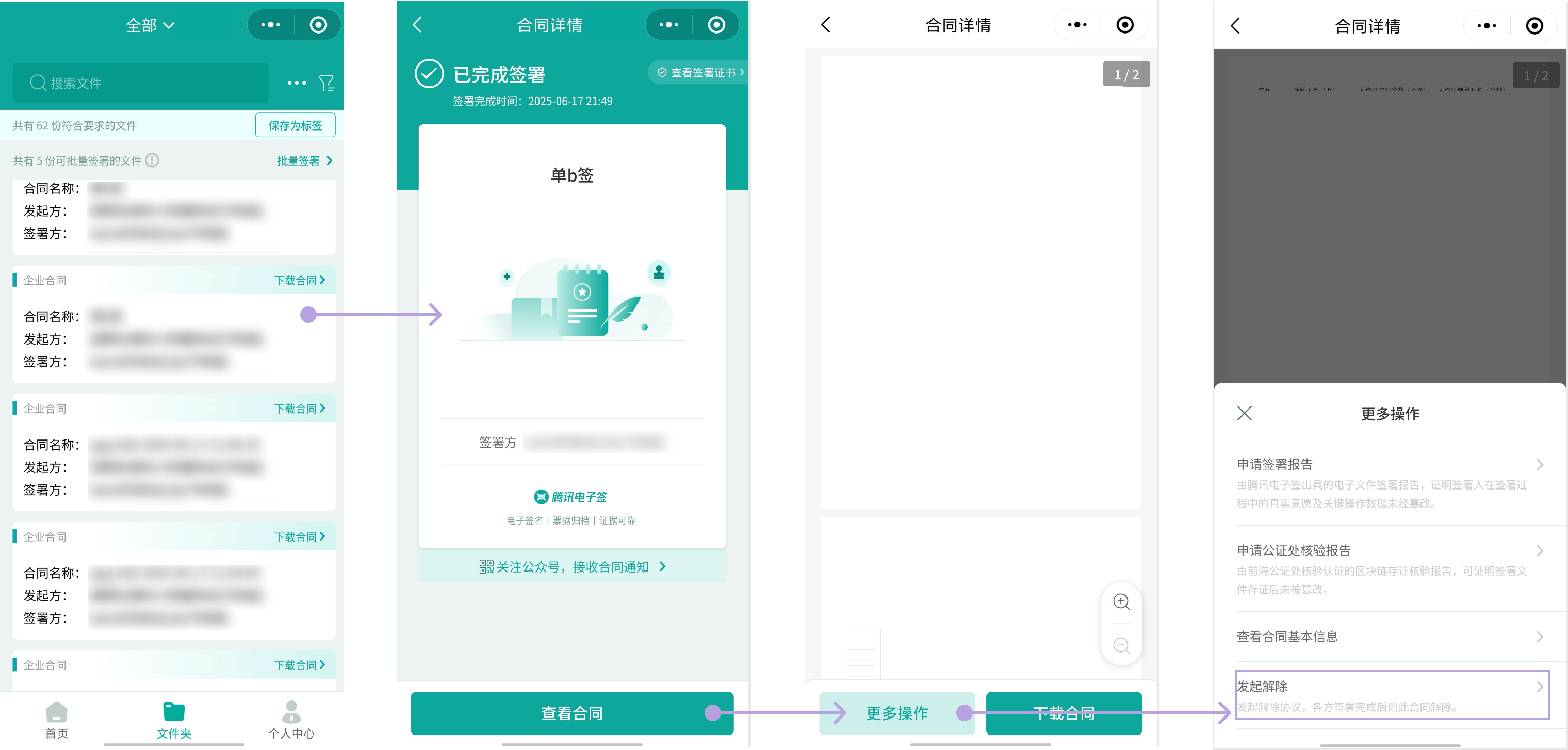
Mini Program Platform
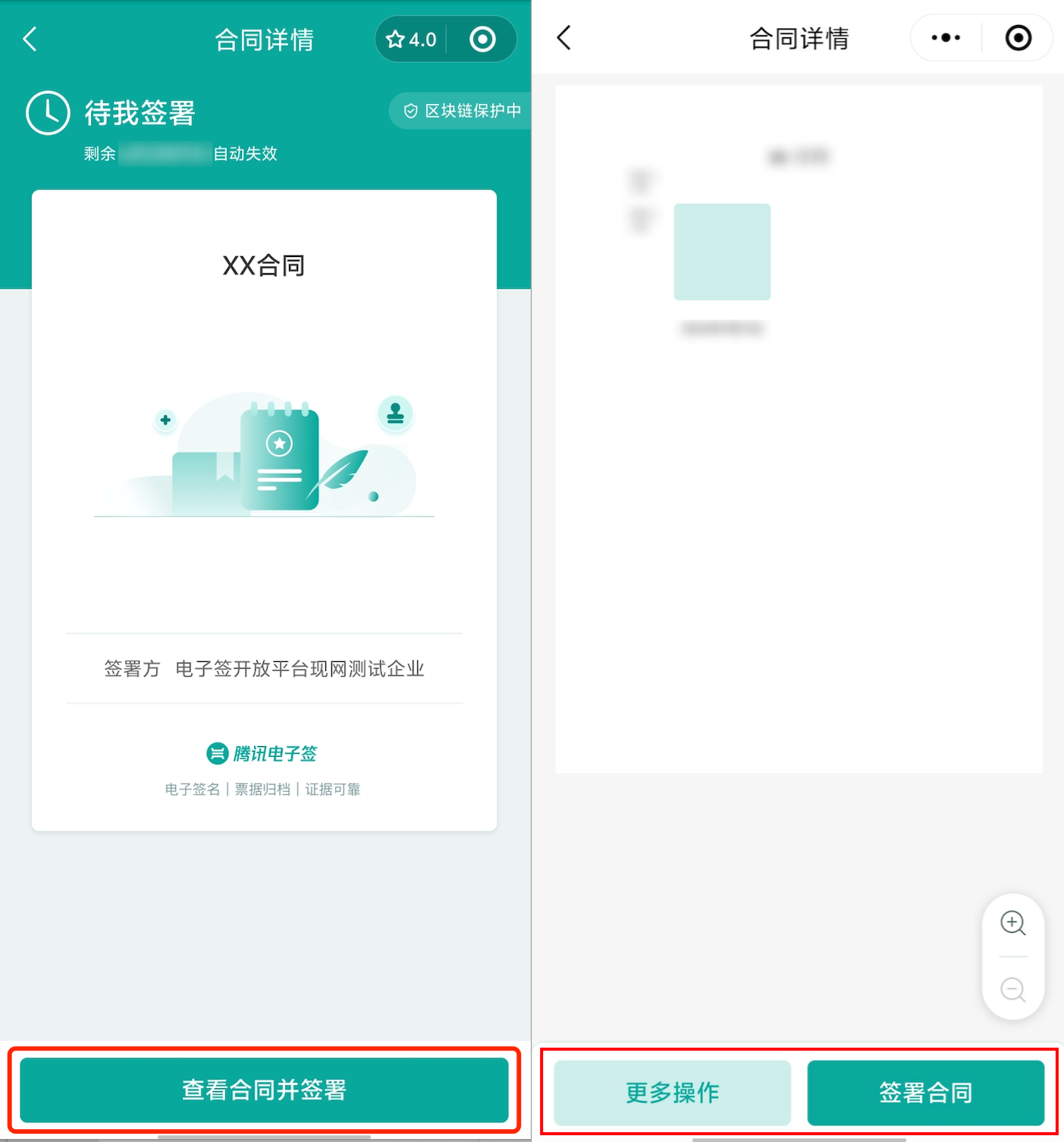
Pending Signature Contract: Click to Sign to proceed with signature. For details, see Contract Signing.
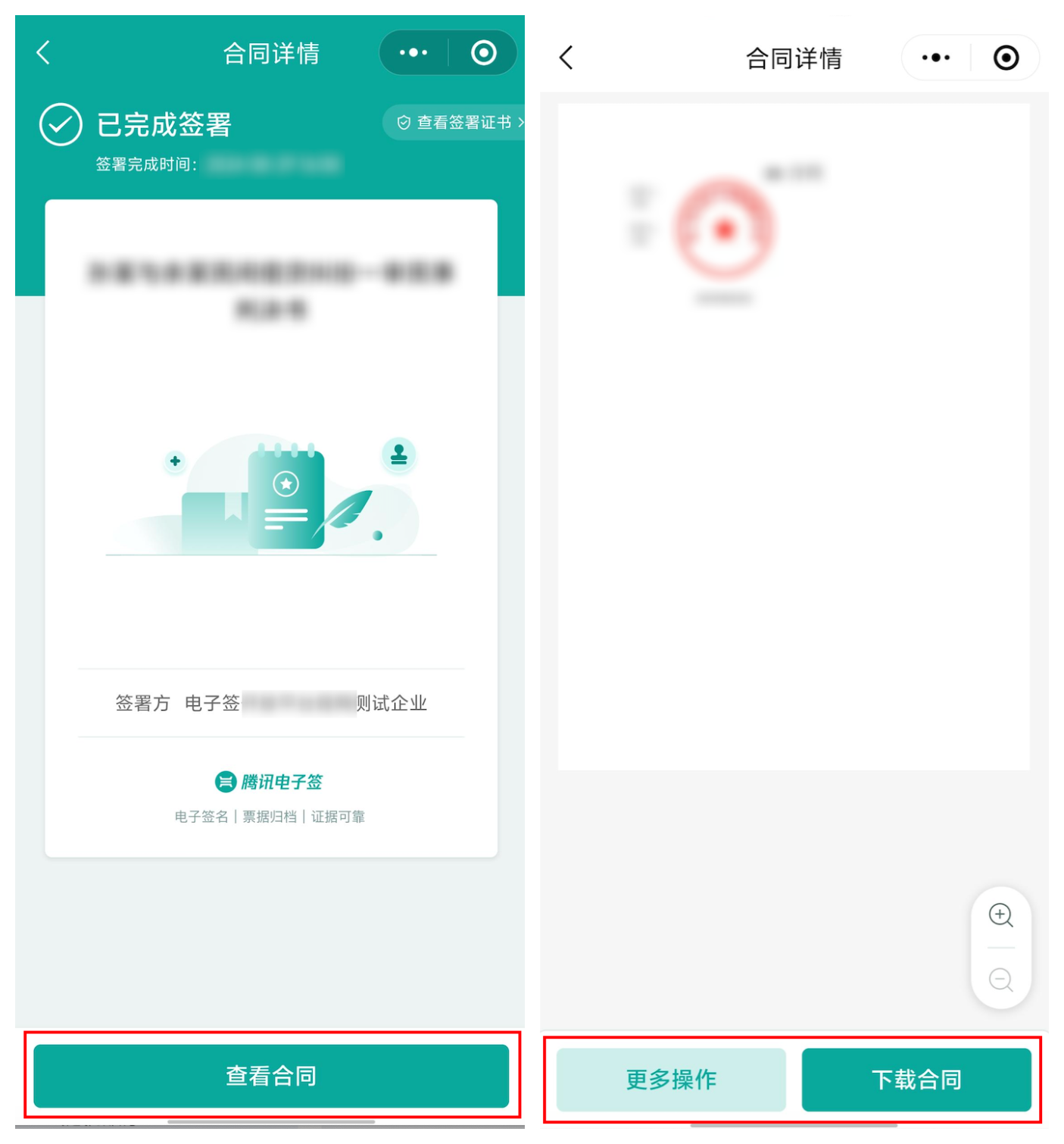
Signed Contract:
Click Download Contract to send the PDF contract to WeChat or Email.
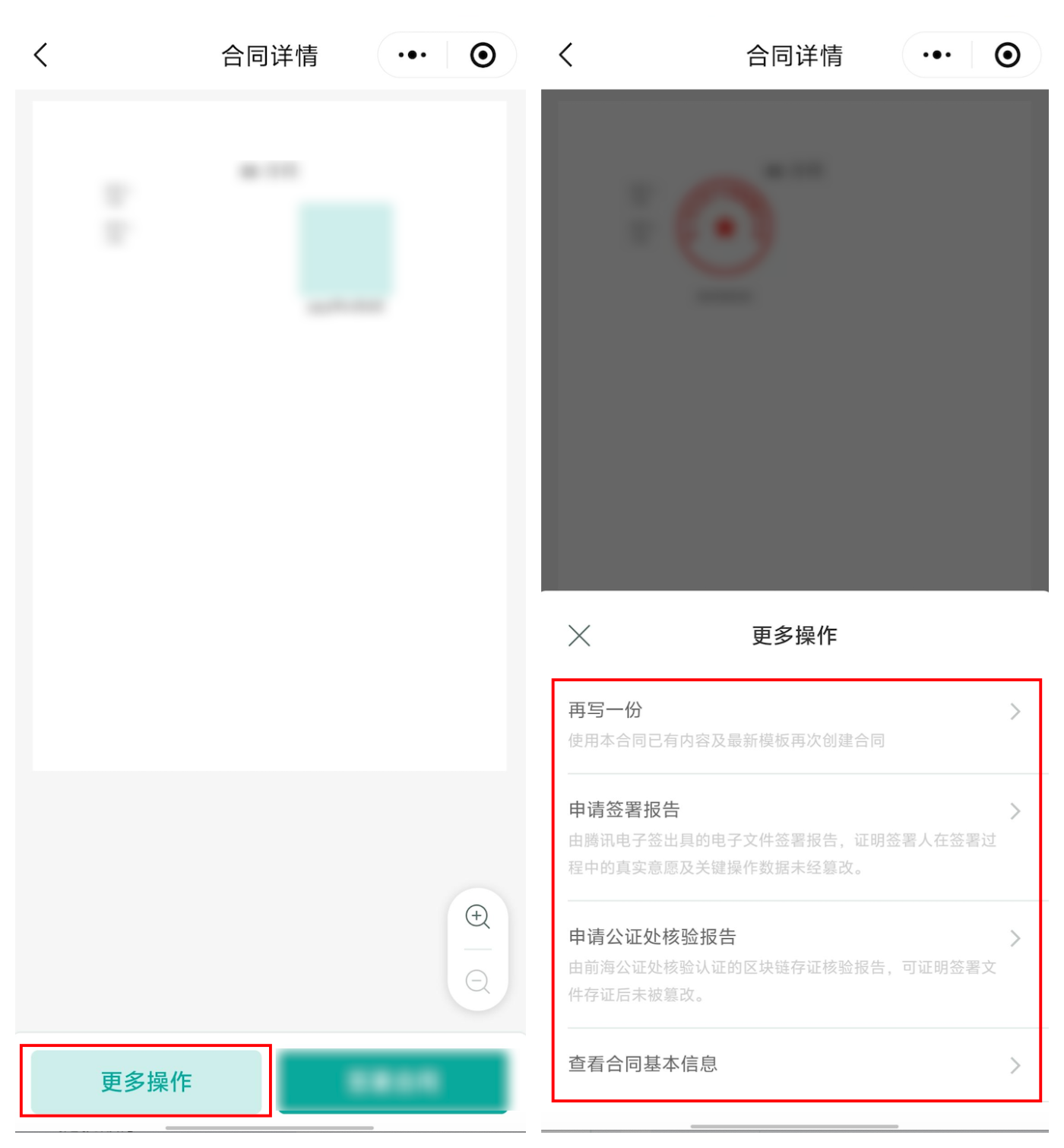
Click the contract card to view the contract. Click View Contract to see the contract file. Click More Actions at the bottom left for the following options:
Duplicate: Generate a contract using a previously initiated contract as a template, and the content you filled in last time will be automatically populated.
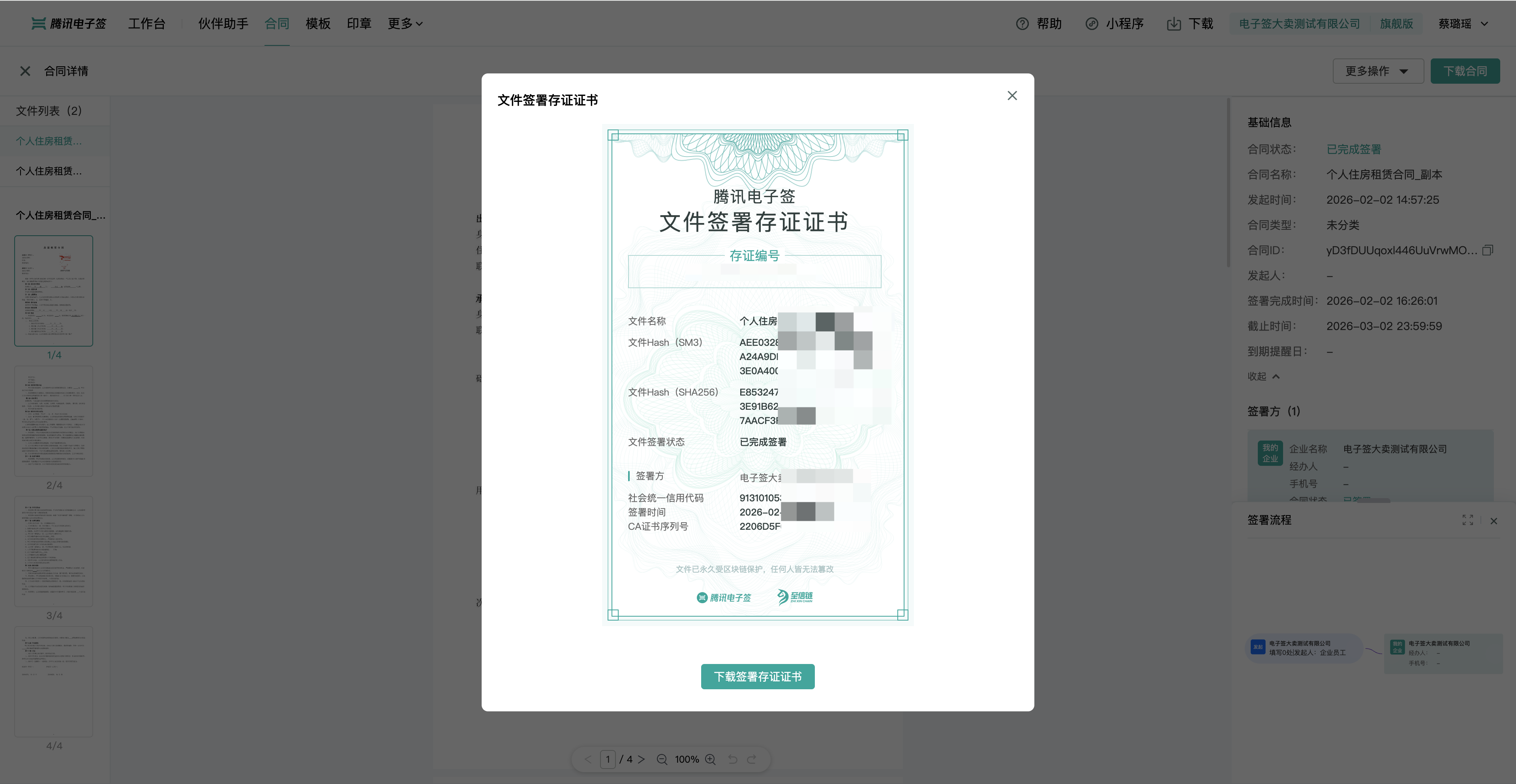
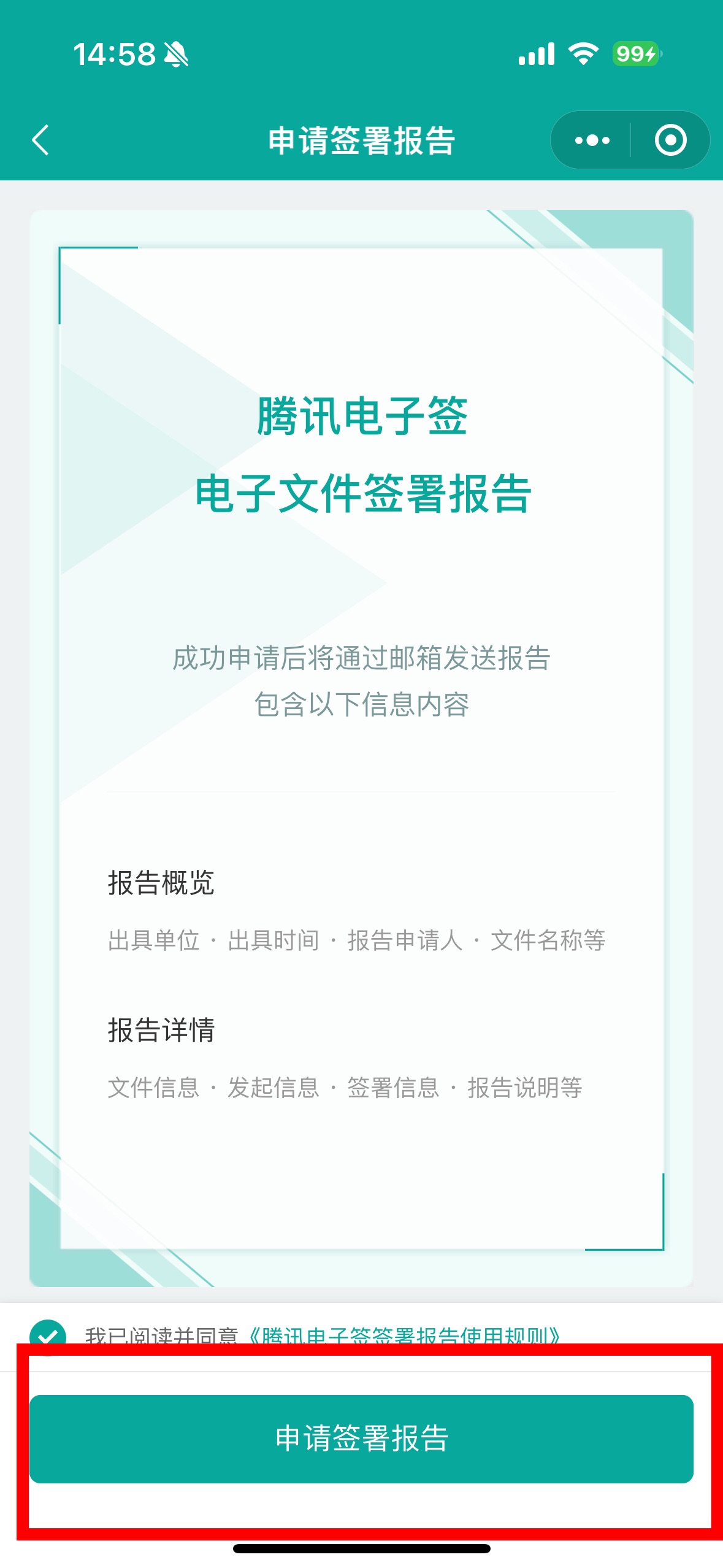
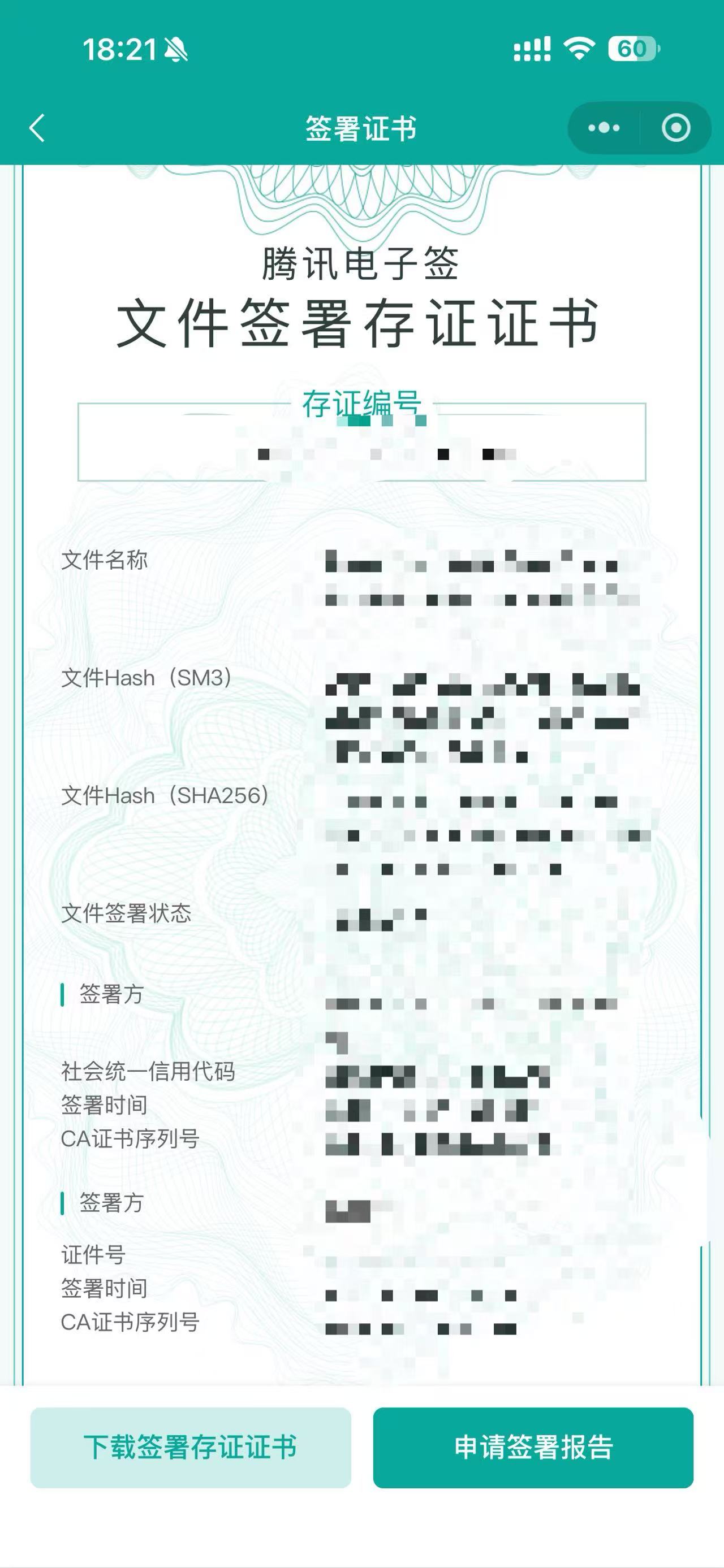
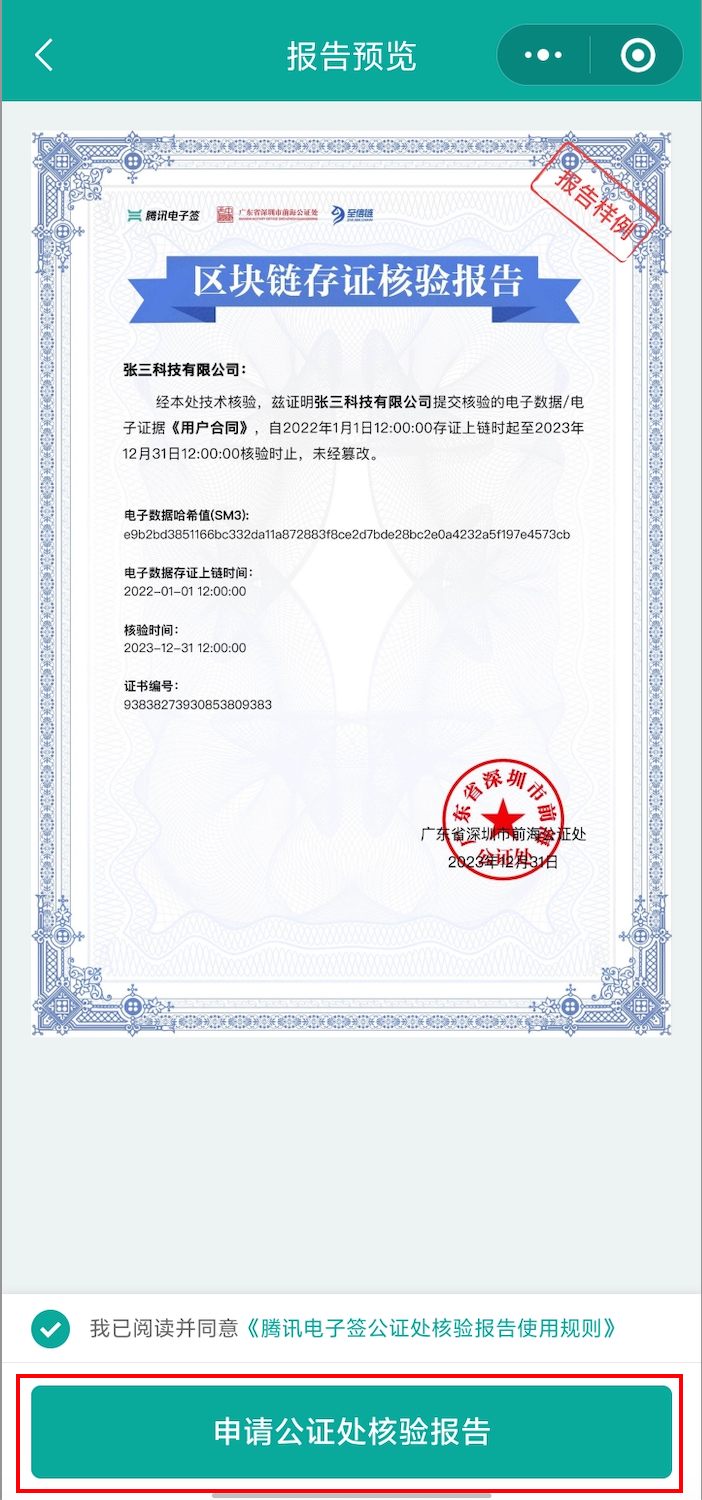
Request Signature Report: If you encounter legal disputes and need the Tencent E-Sign Service to issue a proof of contract signature intent, you can request a signature report.
Click Request Signature Report, read the page content to understand the basic information of the signature report, then click Request Signature Report at the bottom, provide your email information, and complete the application. The signature report will be sent to your email within 24 hours and you will be notified of the result via SMS.
Apply for a Notary Office Verification Report: If you encounter legal disputes and need to further prove the authenticity and probative force of your documents, you can apply for a Notary Office Verification Report.
Click Apply
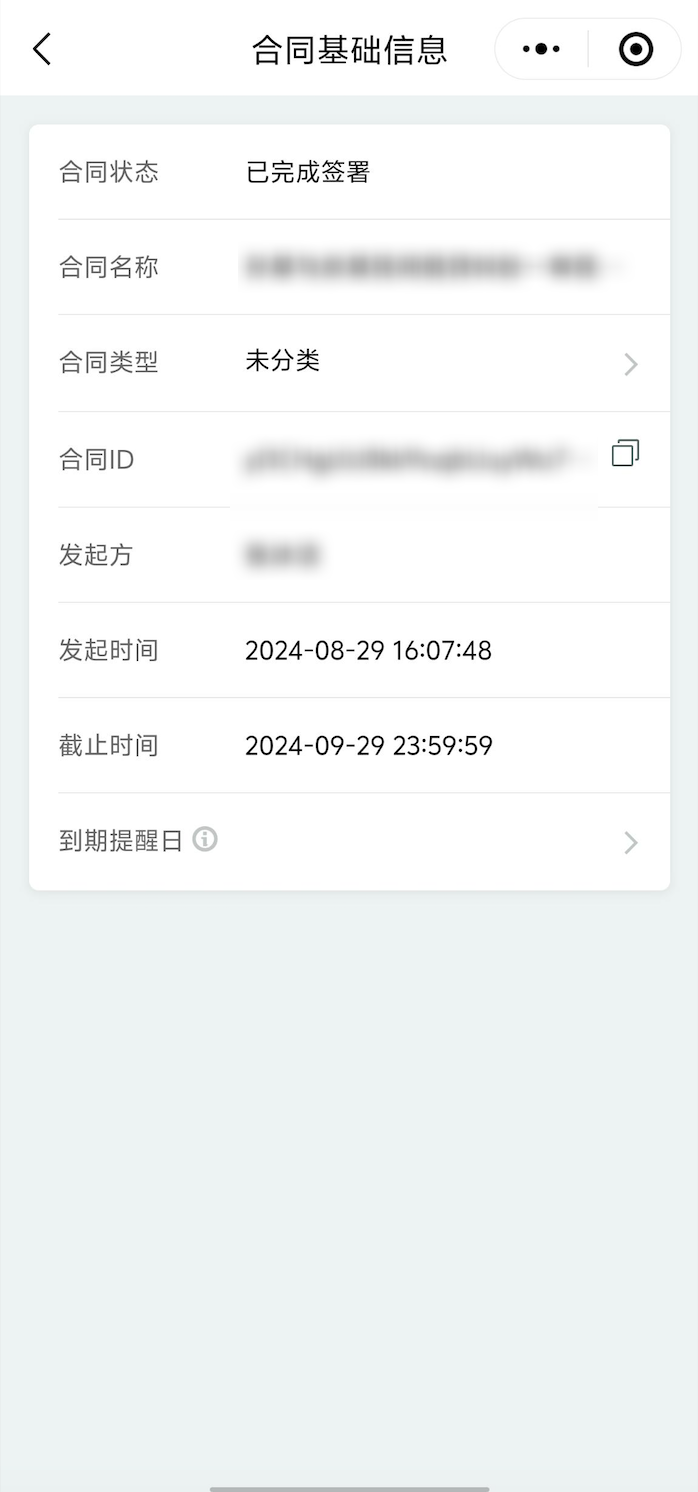
View basic contract information
Invalid Contract: You can click to view the reasons for invalidity.
Web Version
Batch Download: You can batch download selected contract files without any restrictions on their current status.
Generate Reports: You can batch generate selected contract signing report information.
Set Contract Type: You can set the type for selected contracts. Users can self-define contract types.
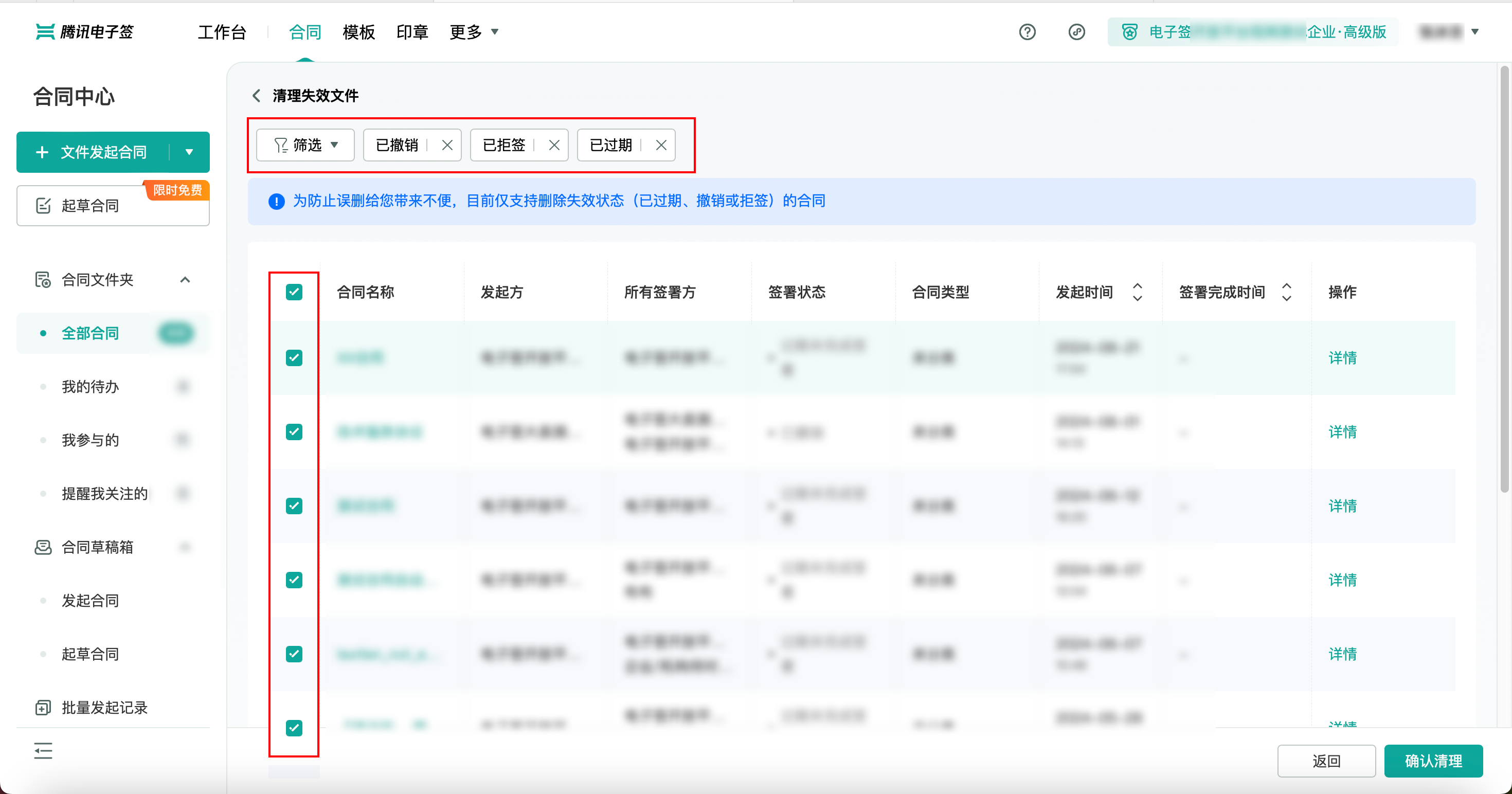
Clear Invalid Files: You can delete revoked, refused, and expired contracts. Click 'Clear Invalid Files' to filter based on the tags above, or select contracts by clicking the checkboxes. Click 'Confirm Cleanup' to delete. This only removes them from the enterprise contract list.
Mini Program Platform
Clear Invalid Contracts: Click the three dots in the top right corner to select 'Clear Invalid Contracts'. Filter the contracts you want to clear in the overlay, and the number of hit contracts within that range will be displayed at the bottom right. Click to clear.
Contract Tools
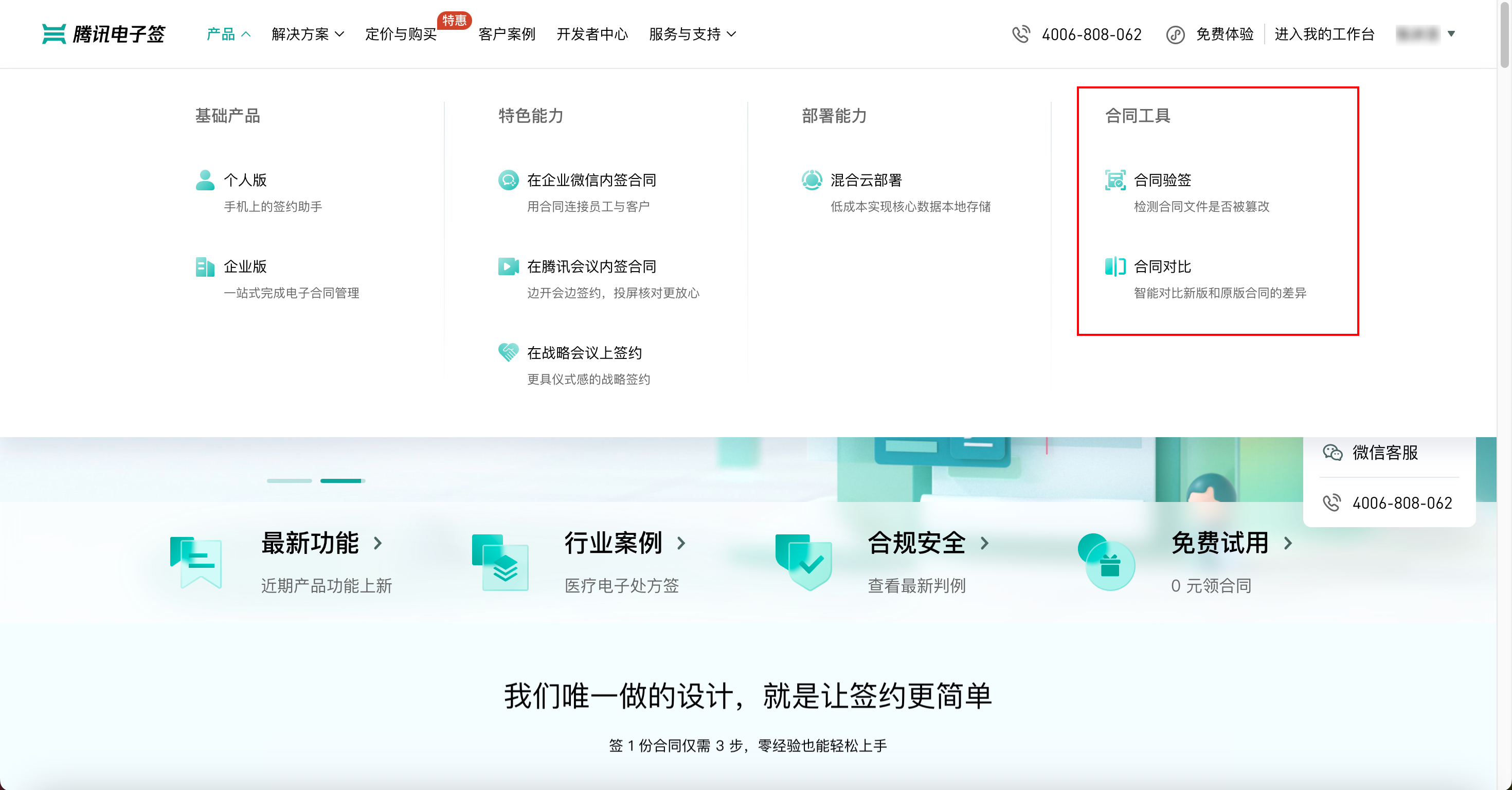
In the navigation bar at the top of the Electronic Signature homepage, select Products, and find the rightmost column Contract Tools. Contract Tools has two features: Contract Signature Verification and Contract Comparison.
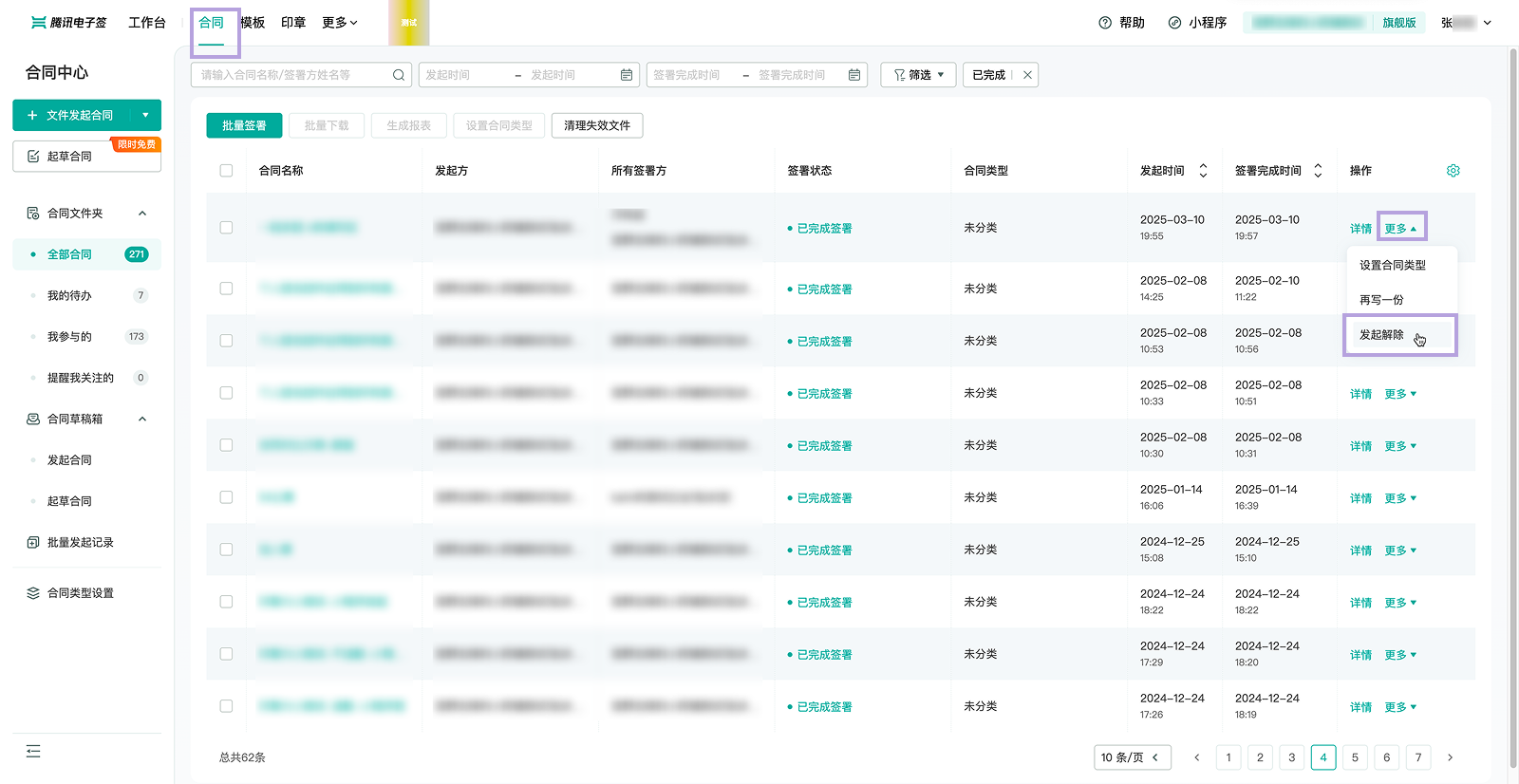
Contract Termination
The main application scenario is to perform termination operations on a previously signed contract (signing process). The template termination agreement is provided by the official and has undergone legal review. Currently, self-definition is not supported. Only interface-initiated termination is supported. For details, please refer to the interface Initiate Termination Agreement.
Contract Validation
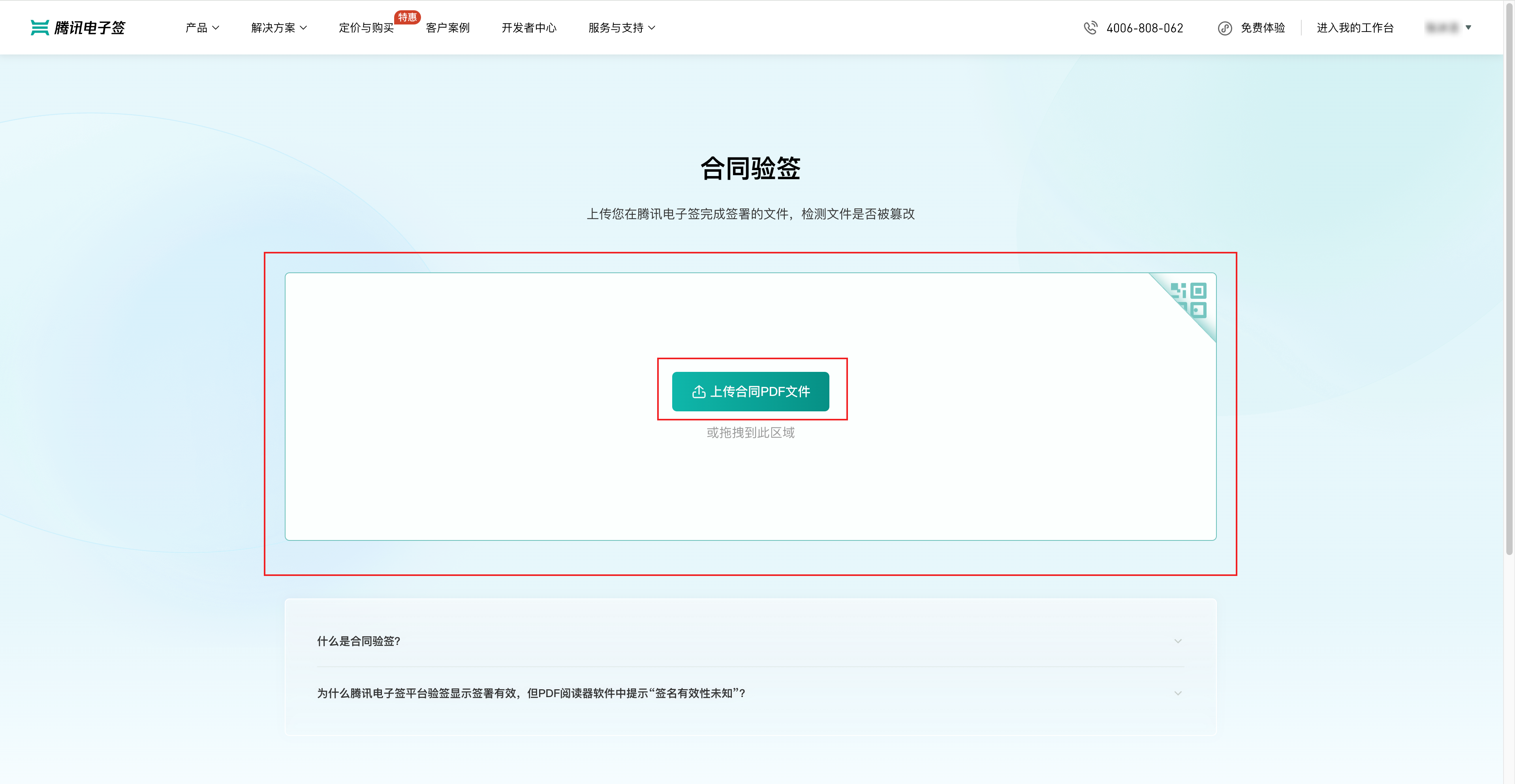
The Contract Validation feature allows you to upload PDF files signed on any electronic contract platform to check if they have been tampered with.
Web Version: Open the Contract Validation page on your computer, upload the signed PDF file, and the system will provide the validation results.
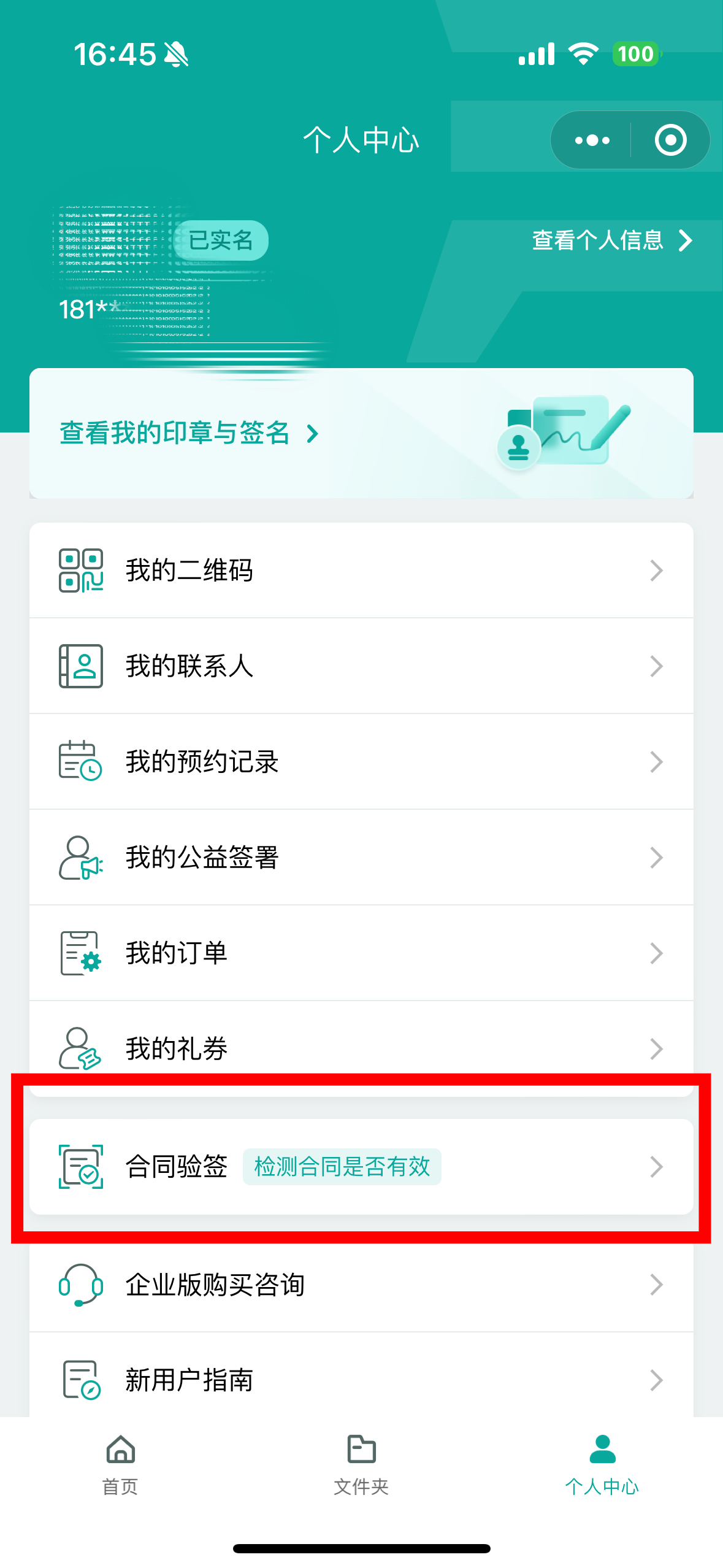
Mini-program Version: In the Tencent E-Sign Service mini-program > Personal Center, you can see the Contract Validation entry. Follow the prompts to select the contract PDF file in the WeChat conversation, and the system will provide the validation results.
The Signature Verification results are as follows:
Verification Result
Description
File not tampered with
The contract has not been modified after signing.
File tampered with
The contract has been modified after signing.
Signature verification failed
No electronic signature in the contract or the file format is corrupted.
Contract Comparison
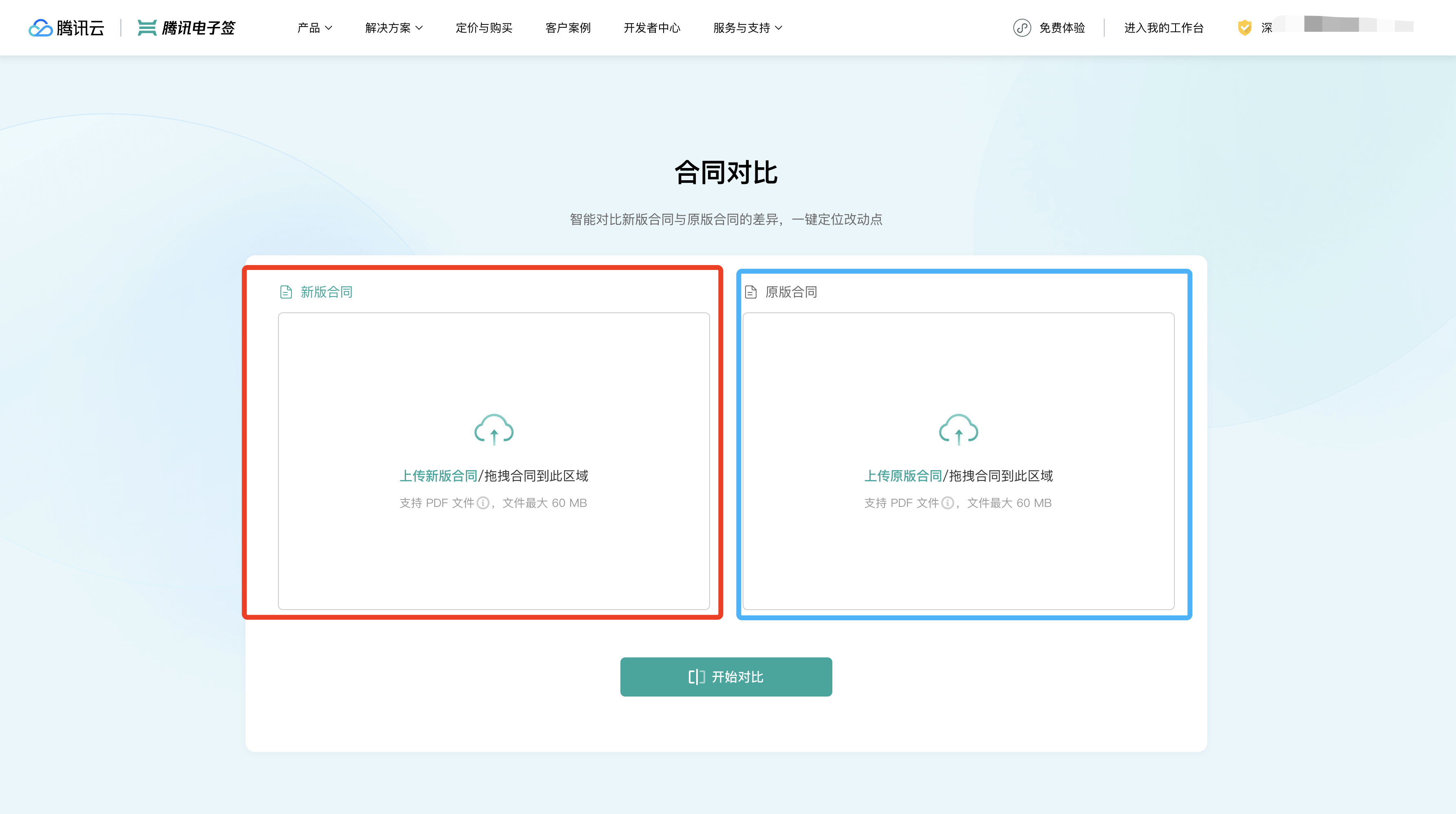
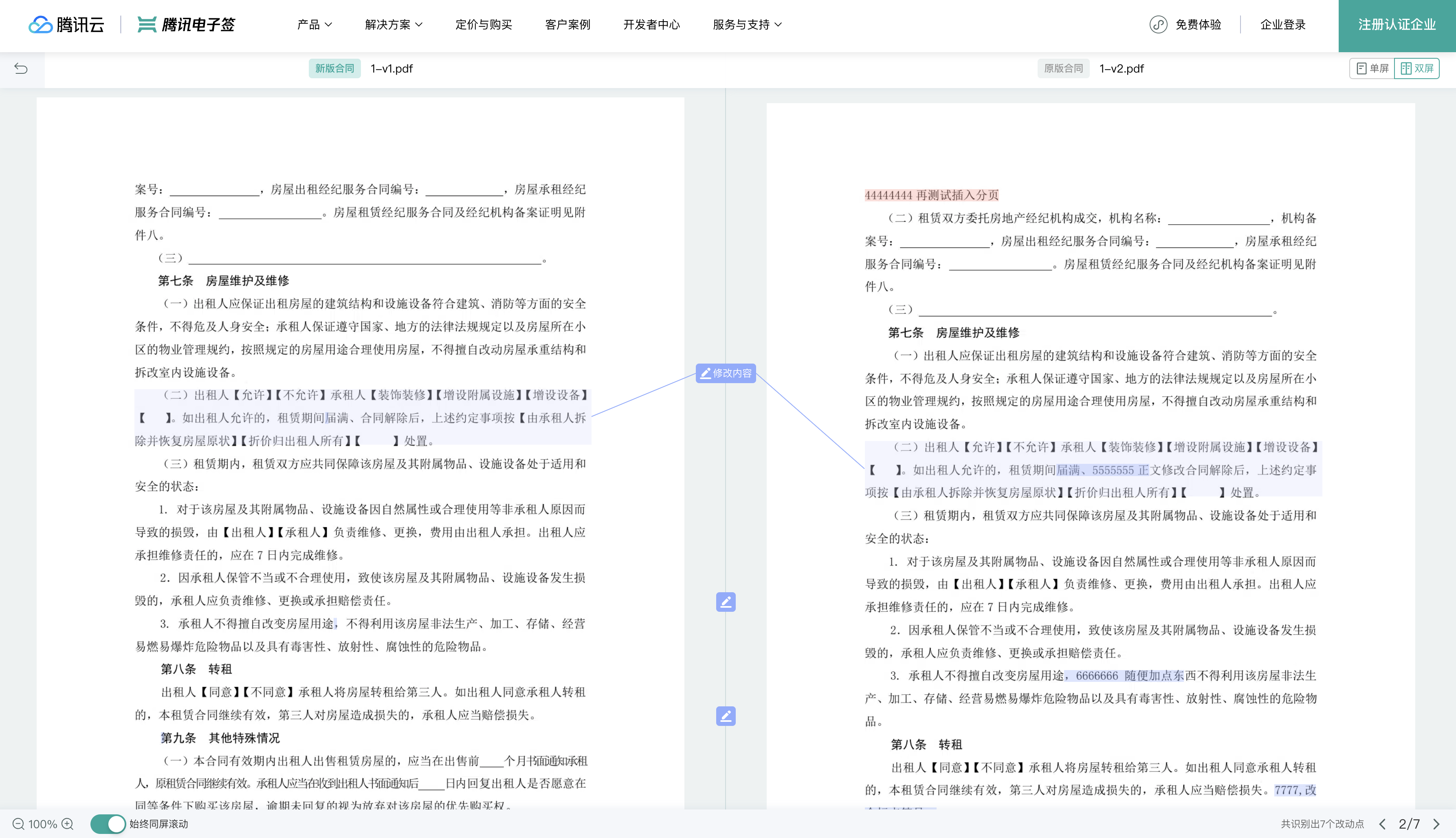
If you need to compare the content differences between 2 contracts, you can use the Contract Comparison tool. After entering the page, you need to upload both the new and original versions of the contracts, only PDF files are currently supported. After uploading, click Start Comparison.
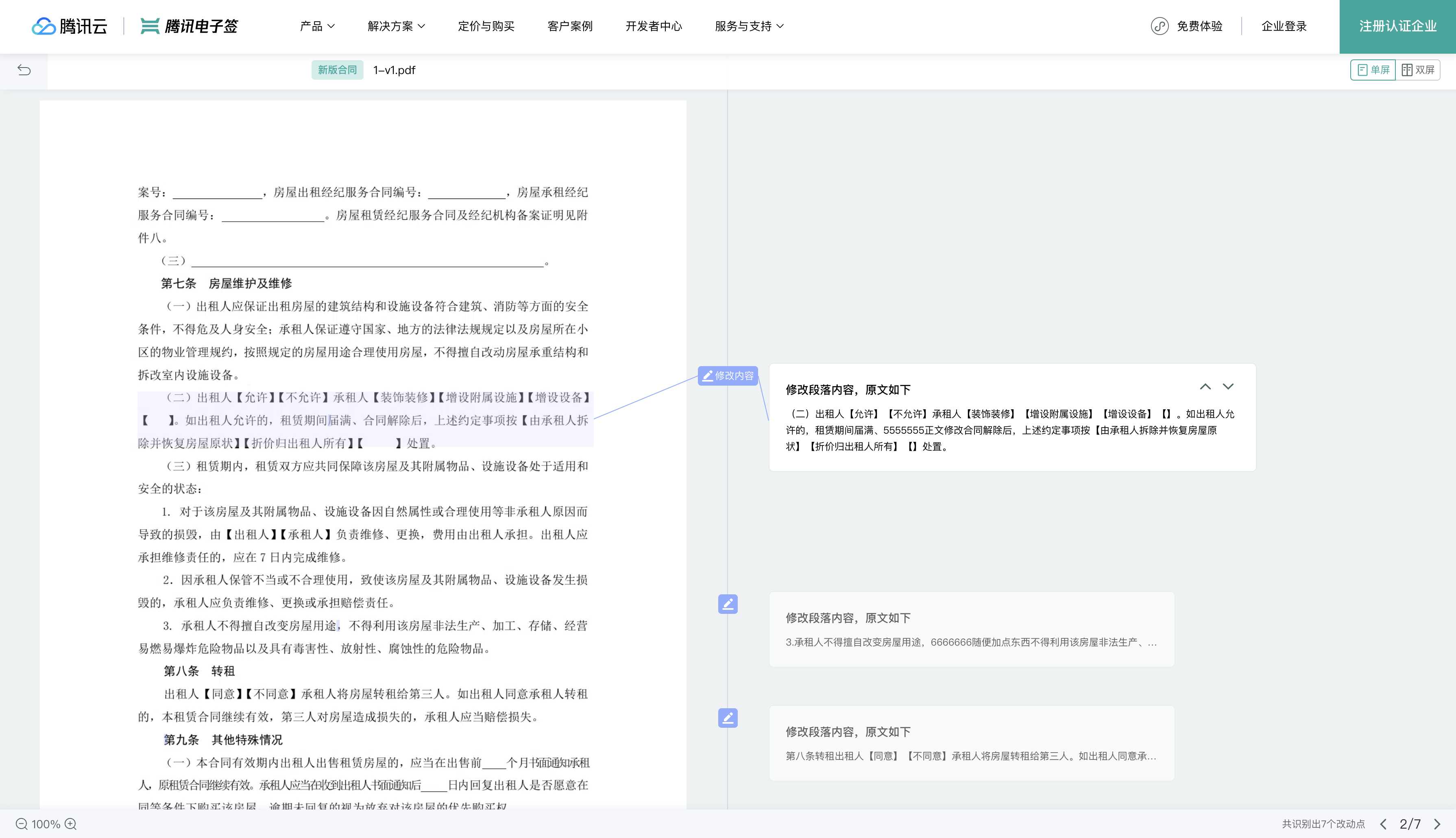
The system will intelligently compare the content differences between the two files and mark the differences in the contract text. Currently, text and table additions, modifications, and deletions are supported. The system will default to single-screen viewing mode. You can click the colored blocks in the contract text, the icon in the middle of the page, or the card on the right to view specific difference descriptions.
Click the dual-screen icon in the upper right corner of the page, you can also switch to dual-screen mode to view the contract comparison results. In dual-screen mode, you can directly view the new and original contracts for comparison.
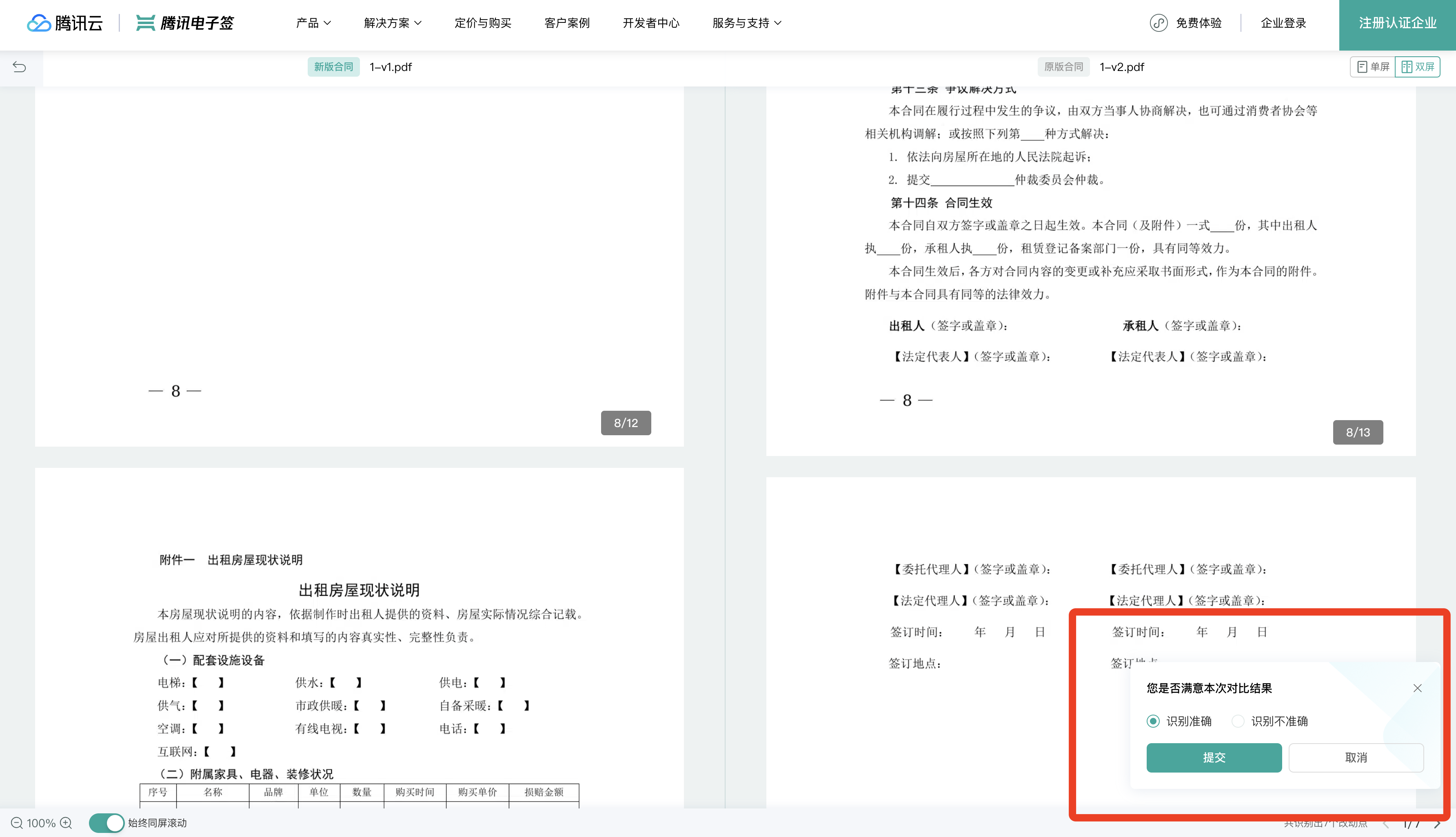
If you find the comparison results inaccurate, you can provide feedback through the pop-up window in the red frame. We will record your feedback and continuously optimize the feature.
Contract Approval
This feature requires approval before initiating a contract. Once approved, the number of contracts will be deducted, and the signers will be notified. If the approval is not granted, the initiator can adjust the contract content and re-initiate the approval process.
The internal process of the company requires managerial approval before initiating a contract, which can then be sent to employees/users for signing. Such contracts can be set to require contract approval.
Usage
When initiating a contract through files, templates, or the draft box, it supports post-approval initiation.
When creating or editing a contract template, you can set the template to require approval and save it. Subsequently, all users using that template will need approval when initiating.
Currently supported on the web and mini-program platforms
Web: When initiating a contract or confirming the edit of a template, click More Settings to toggle the Contract Approval switch. Once toggled, you can view the approval list.
Mini-program: When initiating a contract, go to Setting Signature Information Page > More Settings. When editing a template, go to Template Settings Page to toggle the Contract Approval switch. Once toggled, you can view the approval list.
Signature Approval
This feature requires approval from the initiator's approver before the signer can sign the contract. If the approval is not granted, the signer cannot sign.
Approvers can go to the To-do Center for approvals.
Use cases (Examples)
After a company initiates a contract, the other party needs to complete filling in the contract and get approval from the initiating company before both parties can sign.
When a company initiates a sequentially signed contract, before the last signer signs, the initiator company needs to confirm the contract terms and the other signers' signatures are correct. After approval, the last signer can sign, completing the contract.
Usage
When initiating contracts through files or templates, it is possible to set one or more signing parties to require approval before signing.
When creating or editing contract templates, you can set the corresponding signing party in the template to require signing approval. After saving the template, all employees using it for initiation will need approval before the corresponding signing party can sign. If you want the signing party to no longer need approval and sign directly, you must clear the signing approver in the template's signing process and then initiate it again.
Approval Flow Engine
Supports the built-in approval flow in Tencent E-Sign Service, the default approval flow in WeChat Work, and custom WeChat Work approval flows.
The approval flow used for signing approval currently depends on the Enterprise Settings >Extended Services >Approval Flow Configuration, and the selected approval flow engine. For switching methods, refer to Approval Process Configuration. For example, if the WeChat Work approval flow engine is selected in the current Approval Process Configuration, all signing approvals will trigger the WeChat Work approval flow, requiring approval in the WeChat Work approval application and not on the Tencent E-Sign Service web or mini-program platforms.
Currently supported on the web and mini-program platforms
Web: During the contract initiation and template editing Signing Process setup phase, click Signing Process, hover over a signing party's More, and click Add next to Signing Approval. After clicking, you can add an approver for that signing party, specifying a role or member.
Mini-program: If the templates initiated on the web have signing approval set, when using the template to initiate a contract on the mini-program, you can view the list of approvers for each signing party that requires approval through Signature Information Page >More Information >Sign Approval.