The content of this page has been automatically translated by AI. If you encounter any problems while reading, you can view the corresponding content in Chinese.

Copy Item or Link

Last updated: 2024-09-05 16:20:42

This article provides a detailed introduction on how to copy items or links in CODING-PM.

Open Project

1. Log in to CODING Console and click Use Now to enter the CODING usage page.
2. Click Item on the left side of the team homepage to enter the project list page and select the target project.
3. Click the Project Collaboration feature in the left-hand menu.
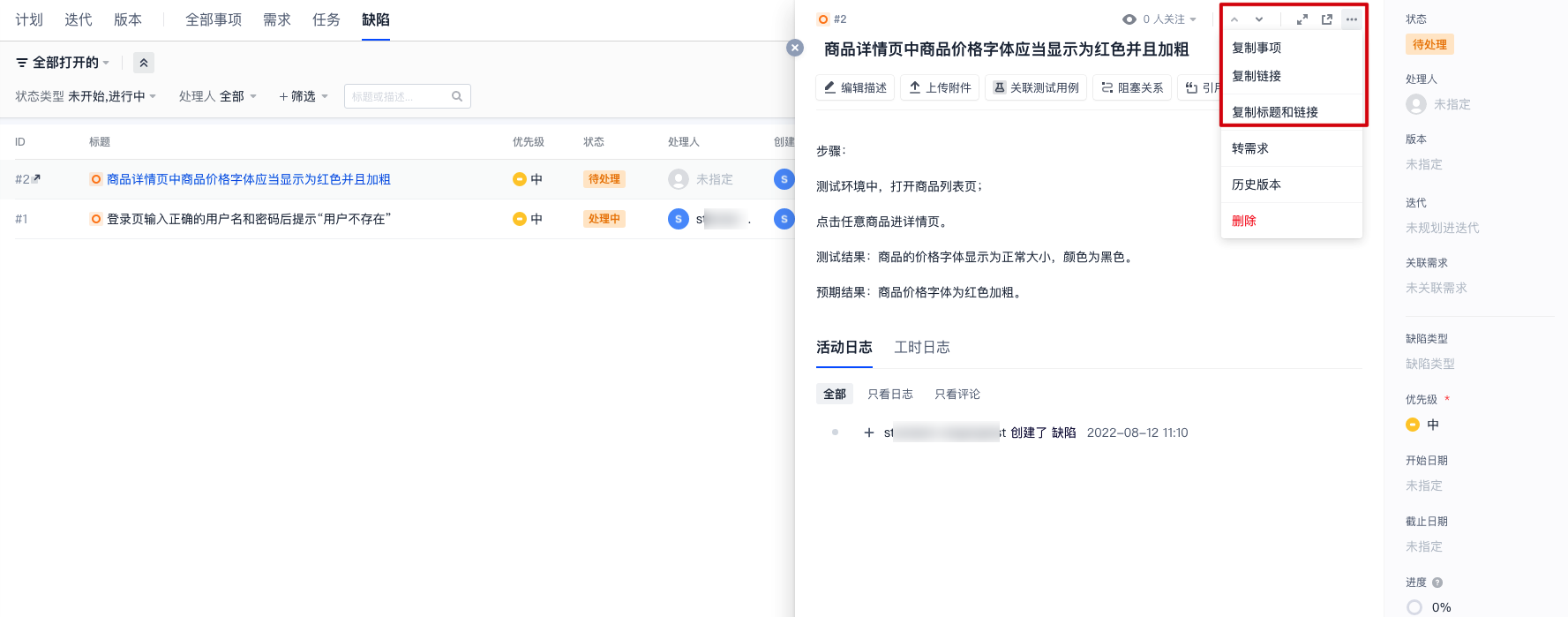
4. After selecting the target item, click the

at the top right corner of the item to perform the copy operation.


Copy Item

The Copy Item feature allows you to quickly create a replica of the current item.
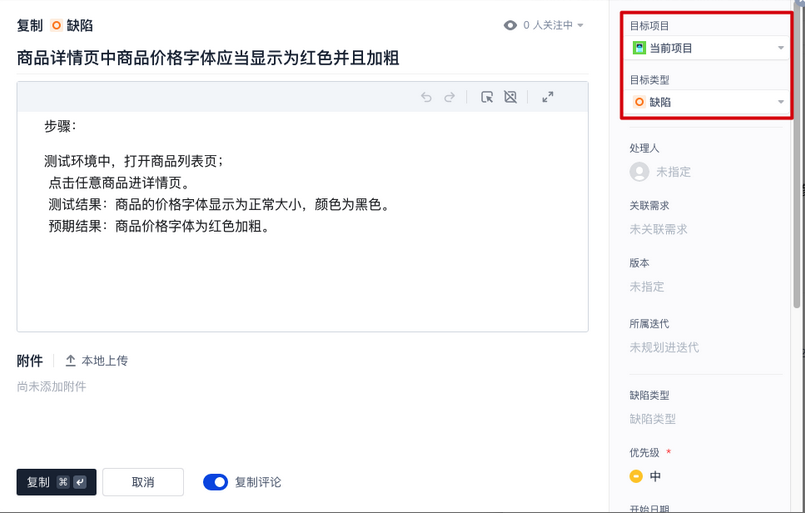
Click Copy Item to create a replica of the current item. The replica inherits the description, uploaded attachments, handlers, and other information from the original item. You can also choose to transfer the replica to another project or convert it to another item type, such as changing a requirement to a task.

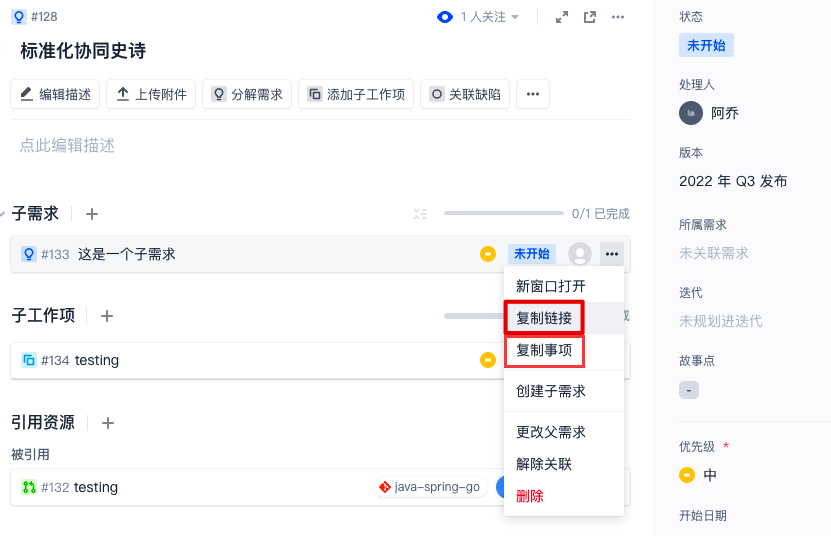
Sub-items in the parent item also support the copy operation.


Copy Link

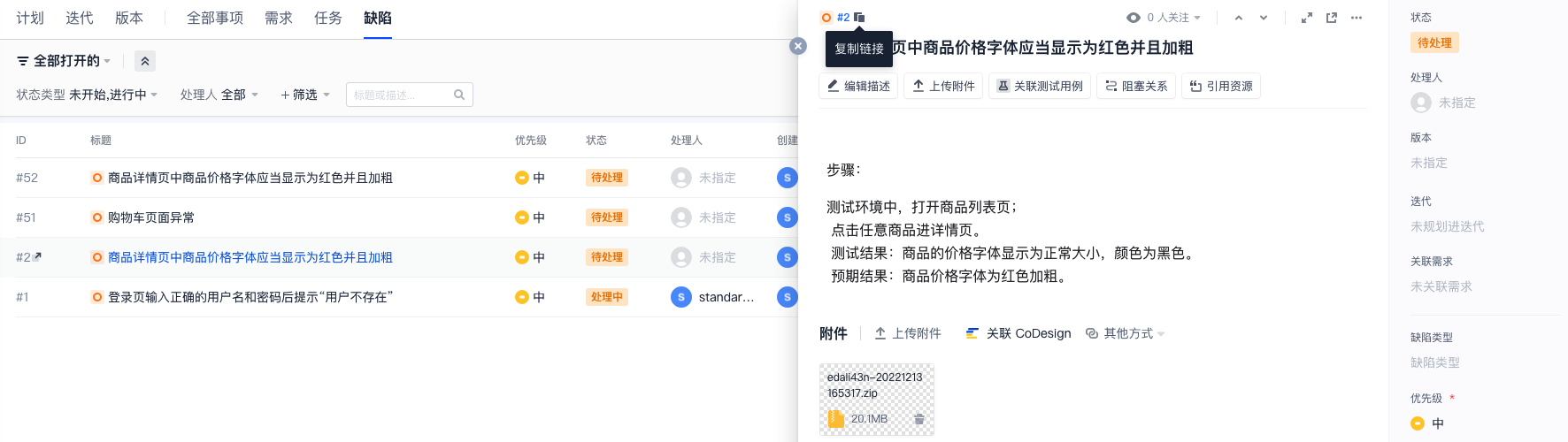
Each item has a unique URL link. Click Copy Link or the "Copy" button at the top left of the item to automatically copy the item's URL to the clipboard.


Copy Title and Link

Click Copy Title and Link to copy the current item's title and link to the clipboard with one click, often used for collaboration within team instant messaging tools.