The content of this page has been automatically translated by AI. If you encounter any problems while reading, you can view the corresponding content in Chinese.
This document describes how to filter issues in CODING Project Collaboration.
Open Project
1. Log in to CODING Console and click Use Now to enter the CODING usage page.
2. Click Item on the left side of the team homepage to enter the project list page and select the target project.
3. Click the Project Collaboration feature in the left-hand menu.
Description of the Feature
In Project Collaboration, filters are available on the list pages of Pending Planning (Scrum agile project management mode), Plans (classic project management mode), Iterations, and All Issues, helping team members query and sort issues by specified conditions. CODING provides a system filter and a custom filter. The former is unable to be modified or deleted. The following shows how to use and customize filters in All Issues.
New Filter Conditions
Under the All Issues section, the filter supports custom combinations of multiple attribute conditions to filter issues.
You can also use the "Title" and "Description" fields in the search box for fuzzy search. Multiple keywords (separated by spaces, with an 'or' relationship) are supported for fuzzy matching of titles.
Configure Default Filter
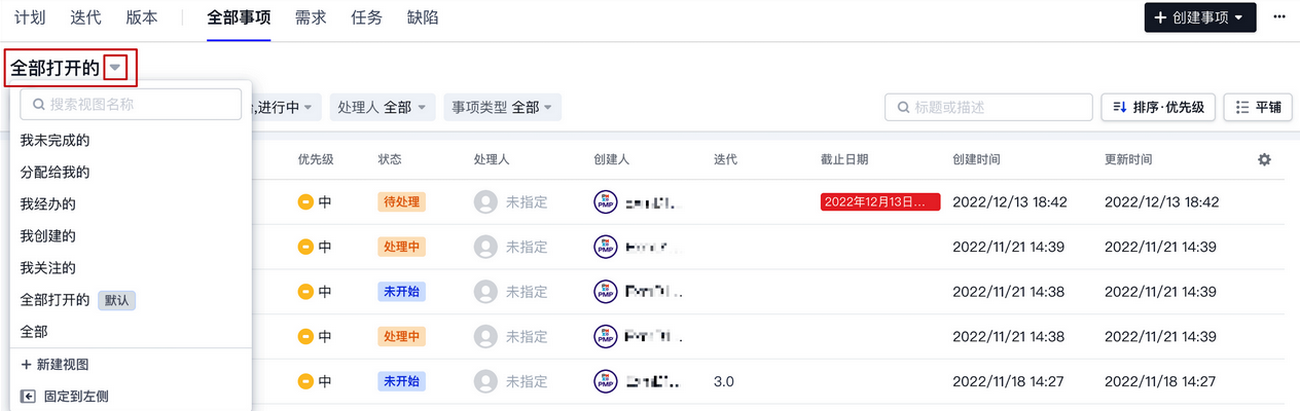
1. The filter under the All Issues section has built-in system filters that cannot be modified or deleted. You can change the search conditions from the dropdown menu on the right side of the filter.
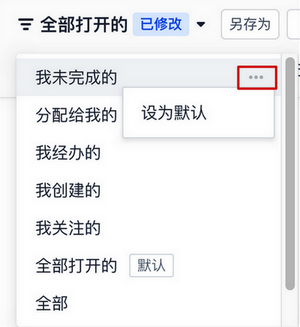
2. Through the
menu behind the filter conditions, you can set the current filter condition as the default filter. Modified settings will be saved, and the filter will be used by default the next time you access All Issues.
Custom Filter
Create a custom filter
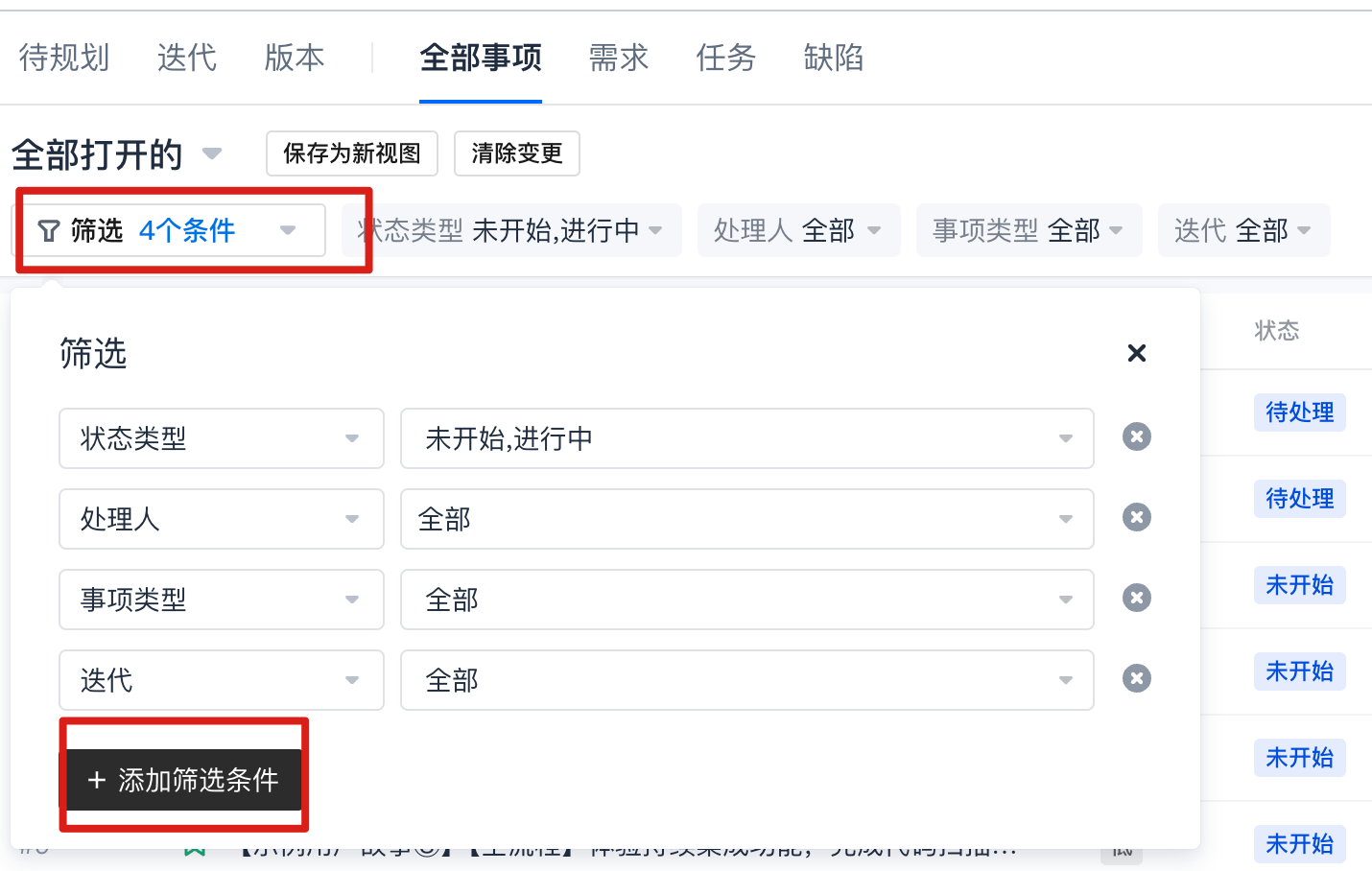
1. In the filter dialog at the top left corner of the issue list, click Add Filter Conditions. After modifying the filter conditions and values, click the pinned icon on the right side to pin or hide the filter conditions in the action area.
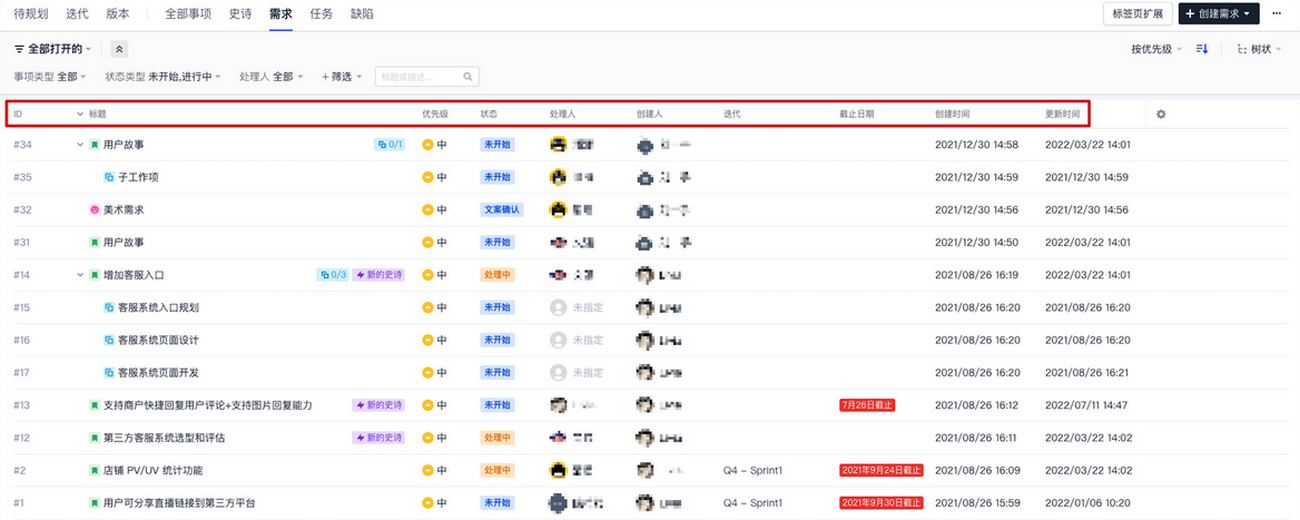
2. The task header is used to describe various parameters. You can refer to the Custom Task Header to make adjustments, which will help in sorting the filtered issues. The adjusted headers will be saved under the current filter conditions.
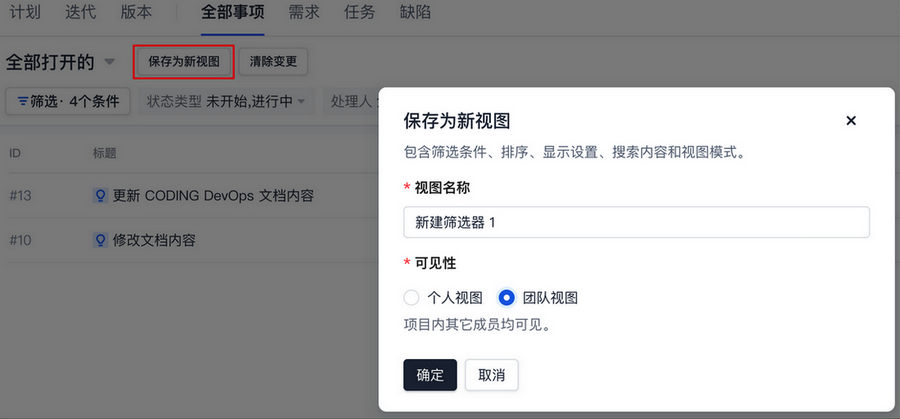
3. If the settings are incorrect, select Clear Changes. If the filter settings are correct, click Save as New View and enter a name to save. You can set it as a team filter, making it visible to other project members.
Personal View: Only visible to yourself, not to other members of the team.
Team View: Visible to all members in the project.
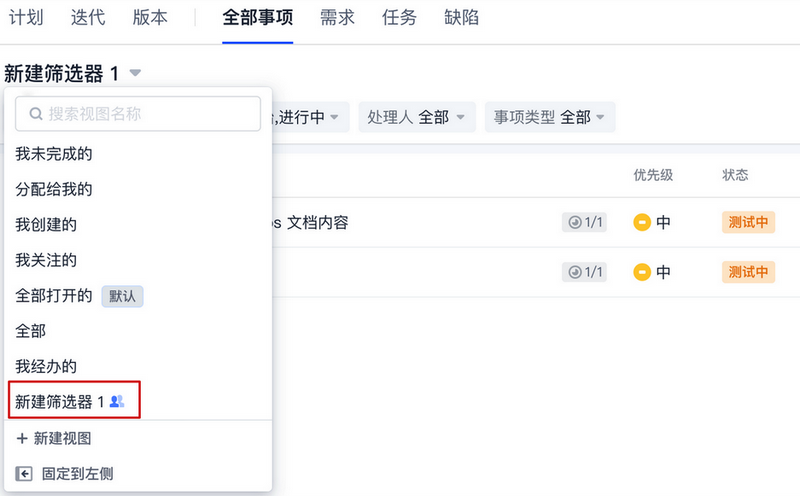
4. You can view your custom filter in the dropdown menu of the filter list.
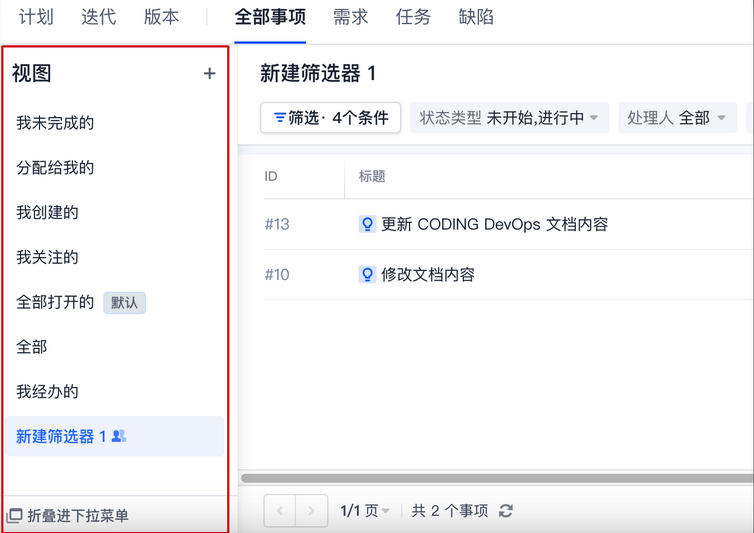
In the dropdown menu of the filter list, click Pin to Left to pin the filter view to the left sidebar for quick switching and positioning.
Modify a custom filter
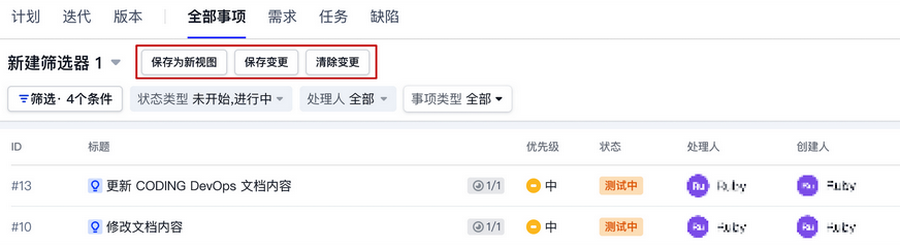
In the dropdown menu of the filter list, select the custom filter you want to modify, change the search conditions and sorting. Click Save as New View to save as a new filter; click Save Changes to overwrite the current filter. If the settings are incorrect, select Clear Changes.
Delete a custom filter
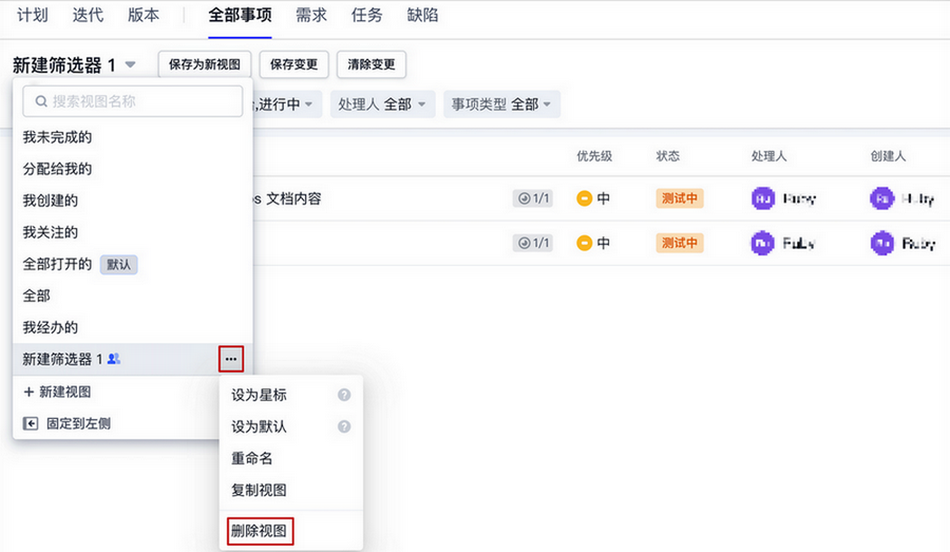
Through the ··· menu behind the filter list, click Delete View to delete the custom filter.