The content of this page has been automatically translated by AI. If you encounter any problems while reading, you can view the corresponding content in Chinese.

Application Configuration Plan

Last updated: 2026-04-03 17:09:25

This article provides a detailed introduction on how to apply the configuration plan.

Open Project

1. Log in to CODING Console, click Go to Team to enter the CODING page.
2. Click Item on the left side of the team homepage to enter the project list page and select the target project.
3. Click the Project Collaboration feature in the left-hand menu.

Modifying the current project plan or preparing to apply another configuration plan will initiate the migration check process. During this process, the system will gradually verify item types, item statuses, item attributes, and hierarchical relationships until there are no unresolved conflict differences between the new and old plans. After confirmation, the new configuration plan will be officially enabled in the project.

Operation step

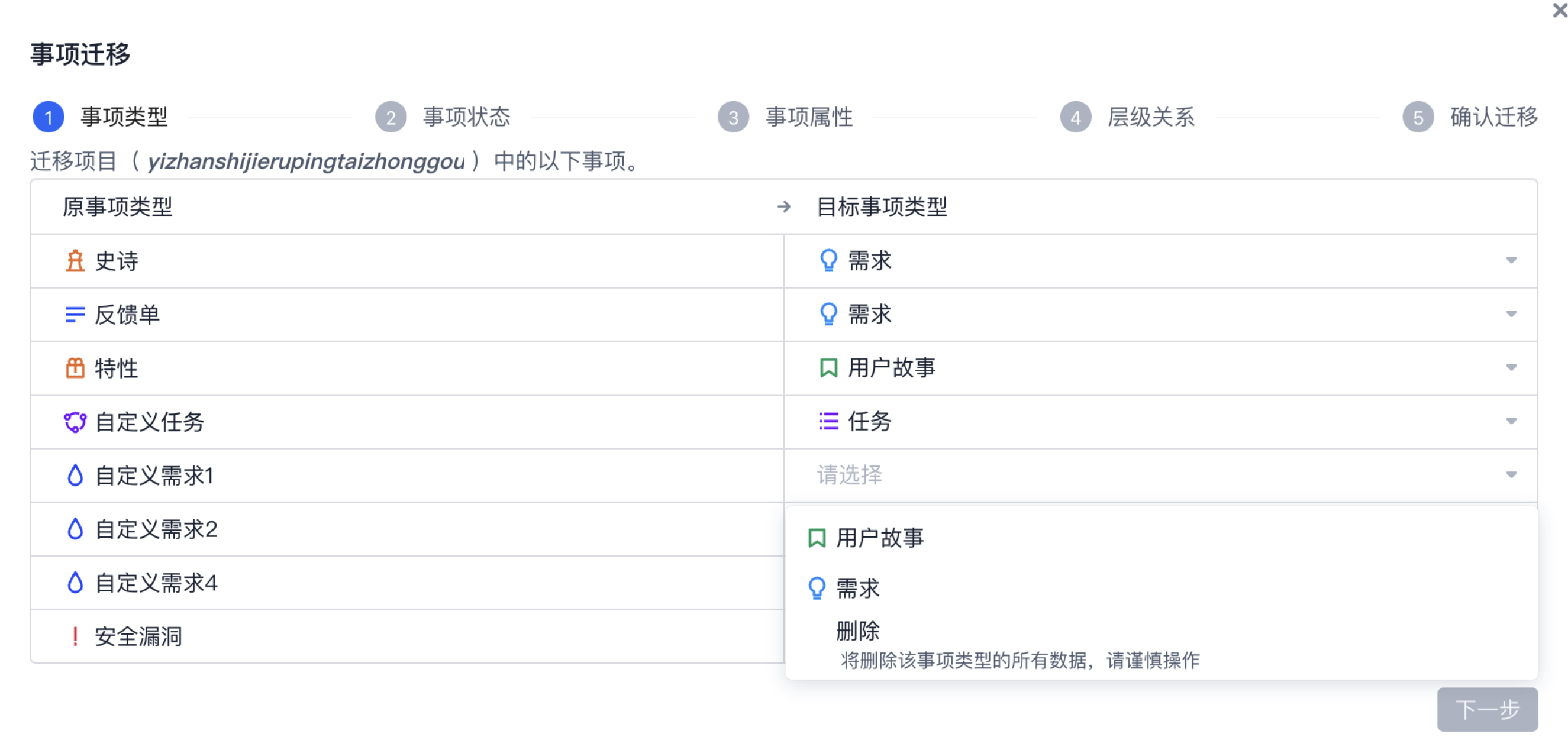
Step 1: Check Item Types

This step will check and confirm the corresponding relationships between the item types in the old and new plans. If an item type is removed in the new plan, items that belonged to that type will also be Deleted after migration.


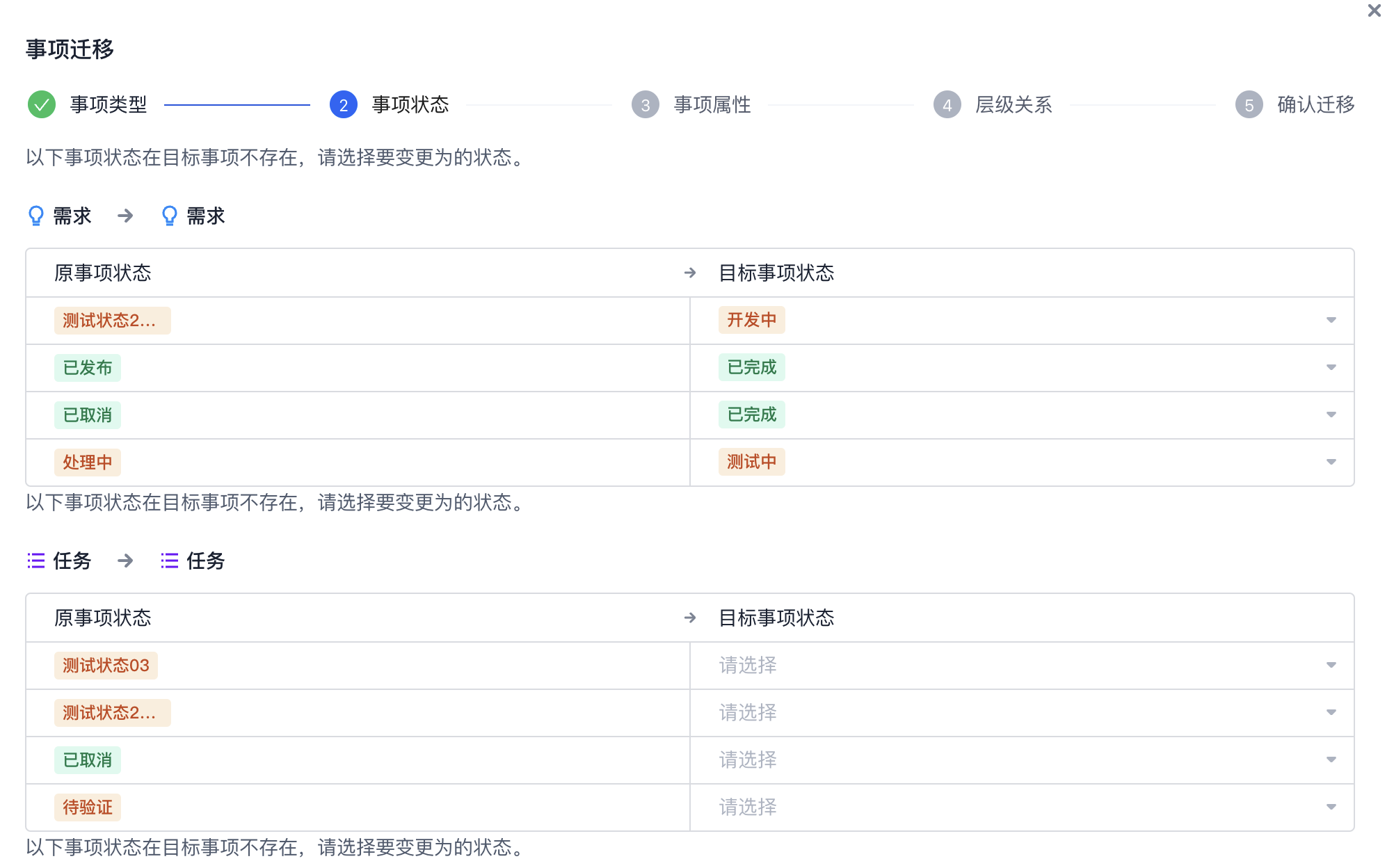
Step 2: Migrate Item Statuses

This step will check the item statuses. You can compare and specify the corresponding relationships between the item statuses in the old and new plans during this process.


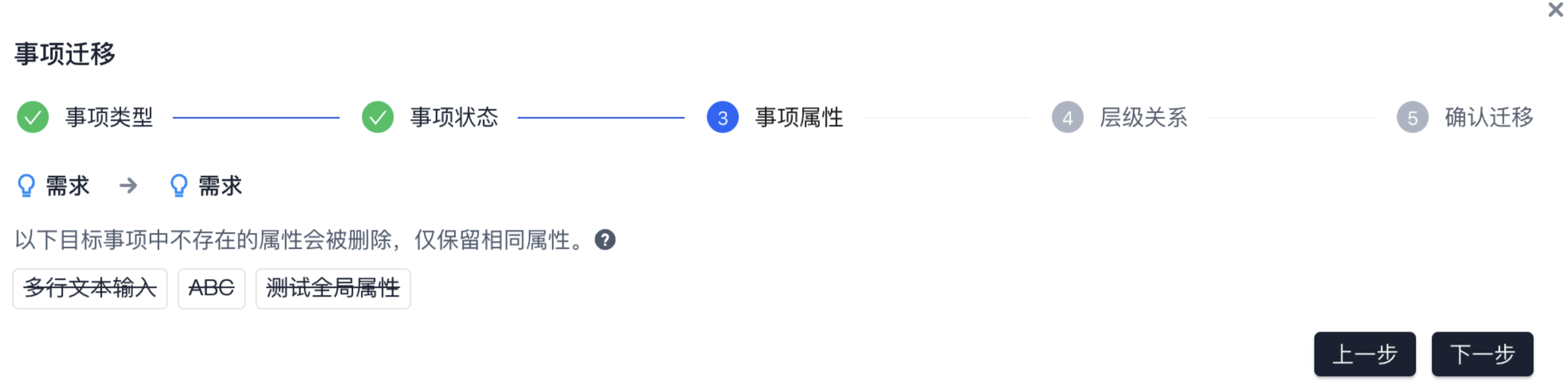
Step 3: Migrate Item Attributes

This step will check and compare the corresponding relationships between the attributes in the old and new plans. You can migrate the relationships between attributes in this step. If there are same menu attributes but different option values in the new and old plans, you will need to set the corresponding relationships between the attributes in the new and old plans. If an item attribute from the old plan does not exist in the new plan, it will be automatically deleted.


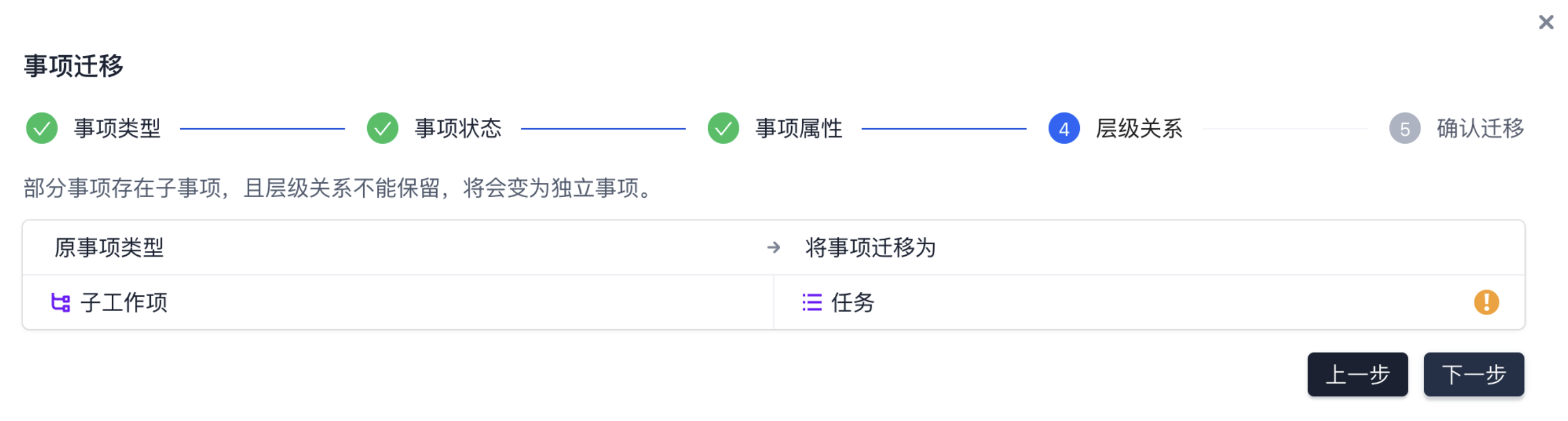
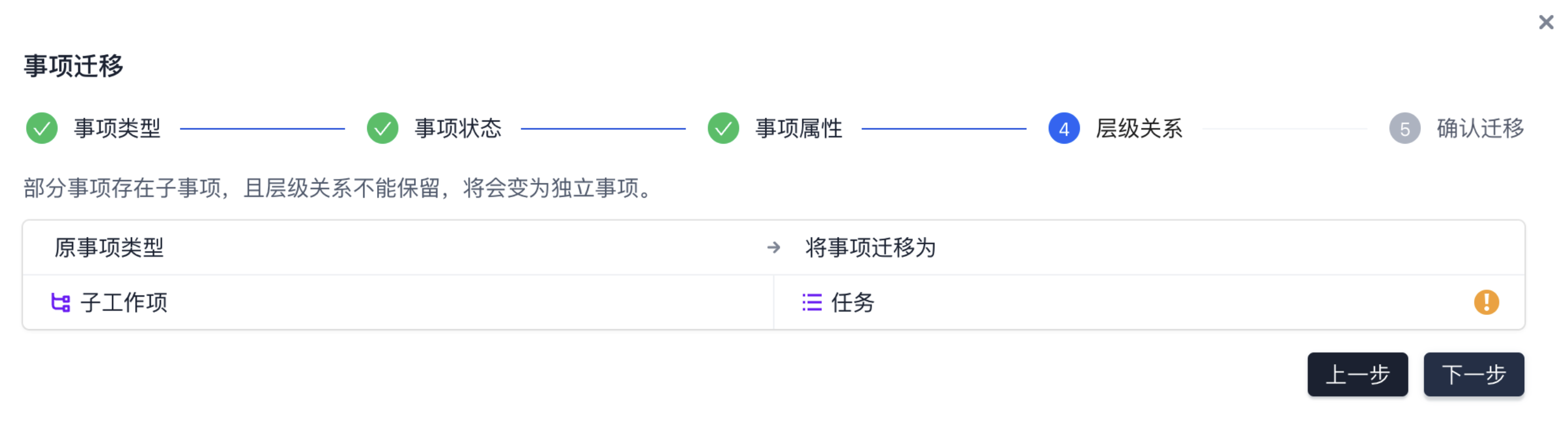
Step 4: Check Hierarchical Relationships

This step will check the Hierarchical Relationships between items. If there are differences in the hierarchical relationships between the old and new plans, item types under the decomposed hierarchy will become first-level item types.


Step 5: Verify and Confirm

This is the final confirmation step. You need to enter the account password of the current log in user. After verification, the data conversion task will be executed. During this process, the collaborative feature of the current project will not be available.