腾讯云
最新活动
大模型
产品
解决方案
定价
企业中心
云市场
开发者
客户支持
合作与生态
了解腾讯云
搜索
云服务器
文档中心
入门中心
API 中心
SDK 中心
文档活动
我的反馈
帮你快速理解、总结文档
立即下载
文档中心
>
云服务器
>
操作指南
>
镜像
>
删除自定义镜像
删除自定义镜像
最近更新时间:2025-05-15 16:43:42
微信扫一扫
QQ
新浪微博
复制链接
链接复制成功
我的收藏
本页目录:
操作场景
注意事项
操作步骤
操作场景
本文档指导您通过控制台或 API 删除自定义镜像。
注意事项
执行删除操作前,请您注意以下事项:
删除自定义镜像后,无法通过此镜像创建实例,但不影响已启动的实例。如果您需要删除所有从此镜像启动的实例,可参见
回收实例
或
销毁/退还实例
。
已共享的镜像无法删除,需要先取消所有共享后才可删除。取消共享镜像可参见
取消共享自定义镜像
。
仅自定义镜像能被删除,公共镜像和共享镜像均无法主动删除。
操作步骤
通过控制台删除
通过 API 删除
1.
登录云服务器控制台,选择左侧导航栏中的
镜像
。选择
自定义镜像
页签,进入自定义镜像的管理页面。
2.
根据实际需求,选择删除自定义镜像的操作方式。
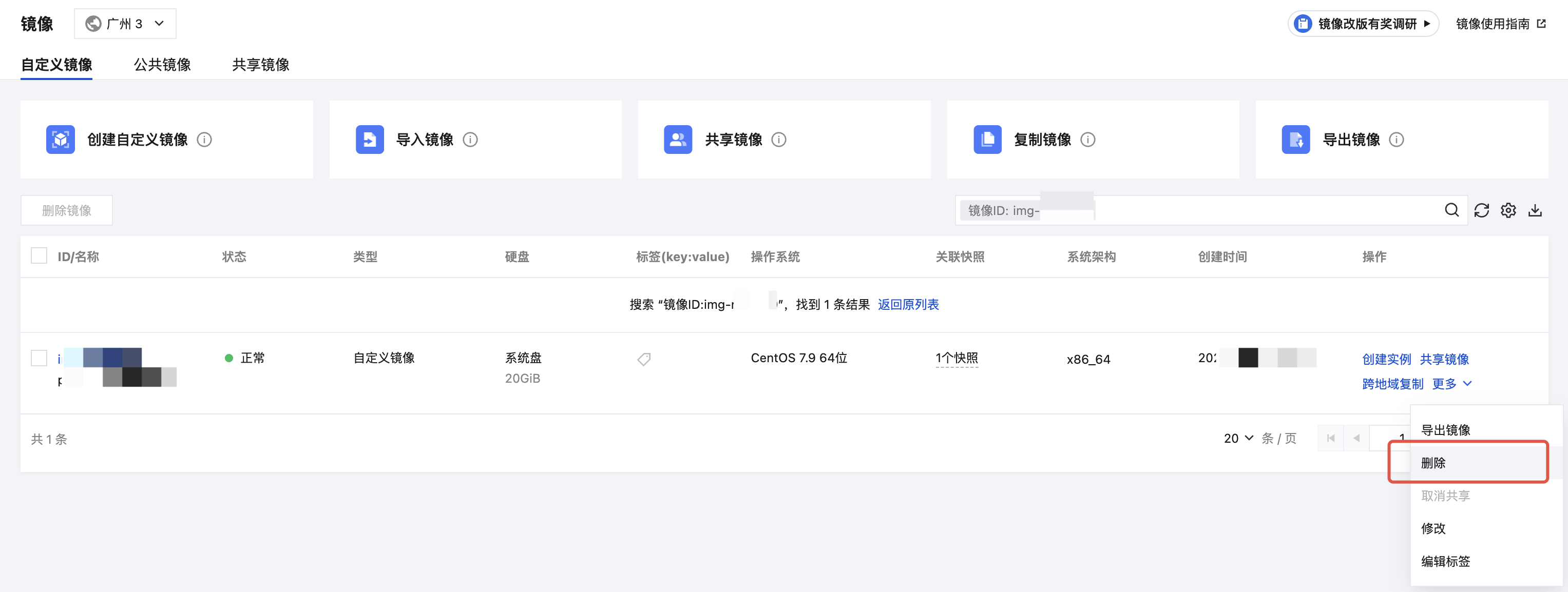
删除单个镜像
:列表中找到需要删除的自定义镜像,选择
更多
>
删除
。如下图所示:
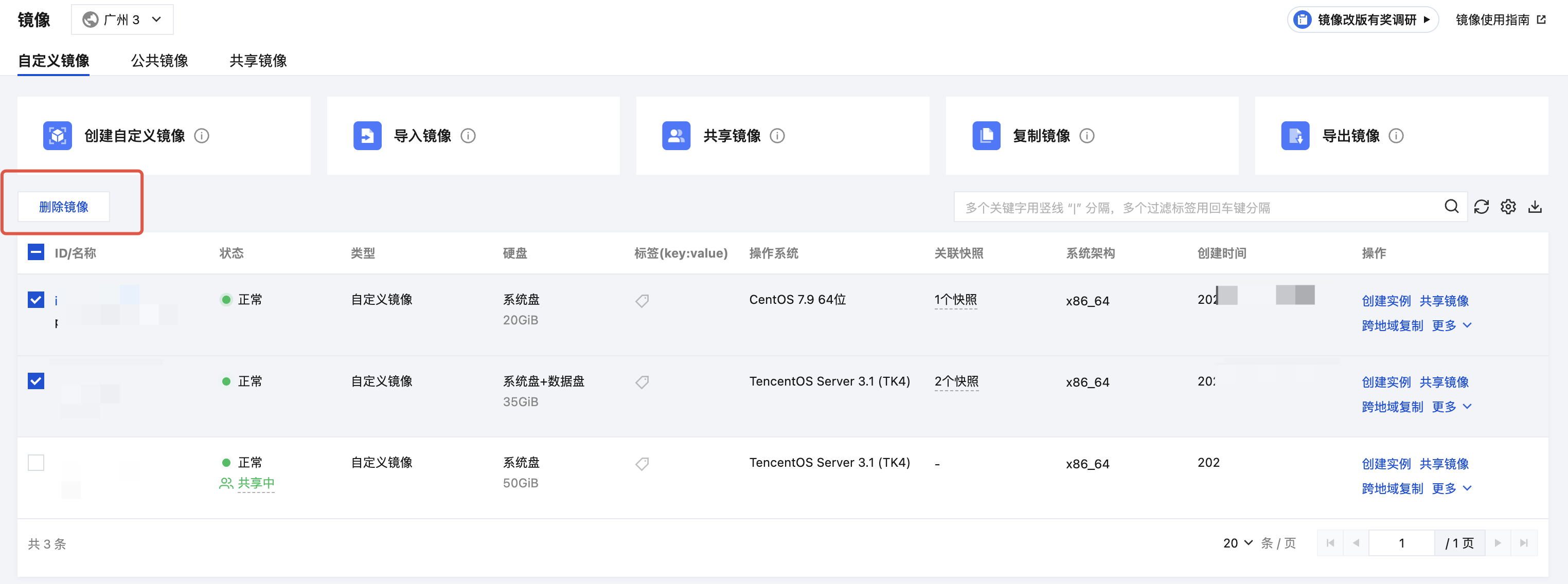
删除多个镜像
:列表中勾选所有要删除的自定义镜像,单击顶部
删除镜像
。如下图所示:
3.
在弹出的提示框中,单击
确定
。 无法删除时,将会提示原因。
您可以使用 DeleteImages 接口删除镜像,具体内容可以参见
删除镜像
。
上一篇: 取消共享自定义镜像
下一篇: 复制镜像
文档“捉虫”活动
检视指定产品文档,发现和反馈有效问题,奖!
API专项"捉虫"
反馈API文档问题,代金券、周边好礼奖不停!
文档建议,你提了吗
快来使用腾讯云产品文档,提出有效建议,奖!
咨询