说明
如果您是首次使用云服务器,建议您先选择轻量应用服务器(Lighthouse) 来作为云服务器使用的入门途径,详情请参见 快速配置轻量应用服务器 Linux 实例。轻量应用服务器专为云开发者及云计算入门者设计,您可前往 与云服务器 CVM 对比 了解云服务器与轻量应用服务器的区别。
本文主要介绍如何从零开始,以最简单的方式搭建一个 Linux 云服务器。您可按照以下文档,购买和配置您的第一台包年包月的 Linux 云服务器。
若想了解搭建 Windows 云服务器的入门教程,可以参见 快速配置 Windows 云服务器。
步骤1:注册腾讯云账号
如果您已在腾讯云注册,可忽略此步骤。
步骤2:购买 Linux 云服务器
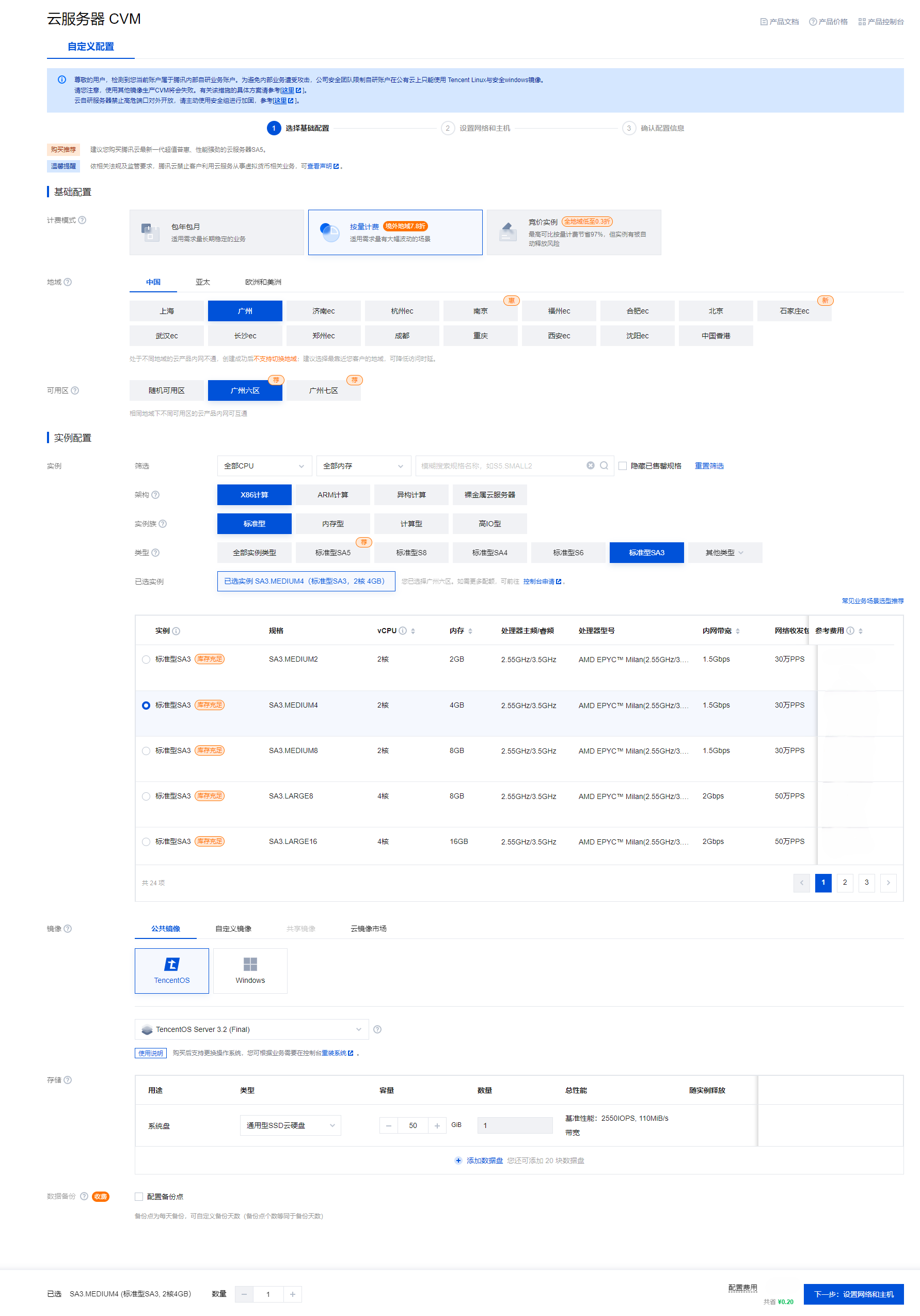
配置说明如下:
配置项 | 说明 |
计费模式 | 根据您的业务需求,选择适合的计费模式。 |
地域 | 选择与您最近的一个地区,例如我在深圳,地域选择广州。 |
实例 | 选择您需要的云服务器机型配置。这里我们选择标准型 SA3(2核4 GB)。 |
操作系统 | 选择您需要的云服务器操作系统。这里我们选择 TencentOS Server 3.2 (Final) 。 |
公网 IP | 勾选后会为您分配公网 IP,默认公网带宽为 1Mbps,您可以根据需求调整。 |
登录方式 | |
默认配置 | 可展开查看可用区、安全组等6项默认配置。 |
自动续费 | 勾选后,若账户余额足够,则将在云服务器到期时按月自动续费。 |
协议 | 查阅并了解相关协议后勾选。 |
时长 | 购买时长,默认为1个月。 |
数量 | 购买数量,默认为1台。 |
单击立即购买,并付费完成后,即完成了云服务器的购买。
云服务器可以作为个人虚拟机或者您建站的服务器。接下来,您可以登录您购买的这台服务器。
步骤3:登录云服务器
注意
通过快速配置购买的云服务器,系统将为您自动分配云服务器登录密码并发送到您的站内信中。此密码为登录云服务器的凭据。
1. 登录 云服务器控制台,在实例列表中找到刚购买的云服务器,在右侧操作栏中单击登录。

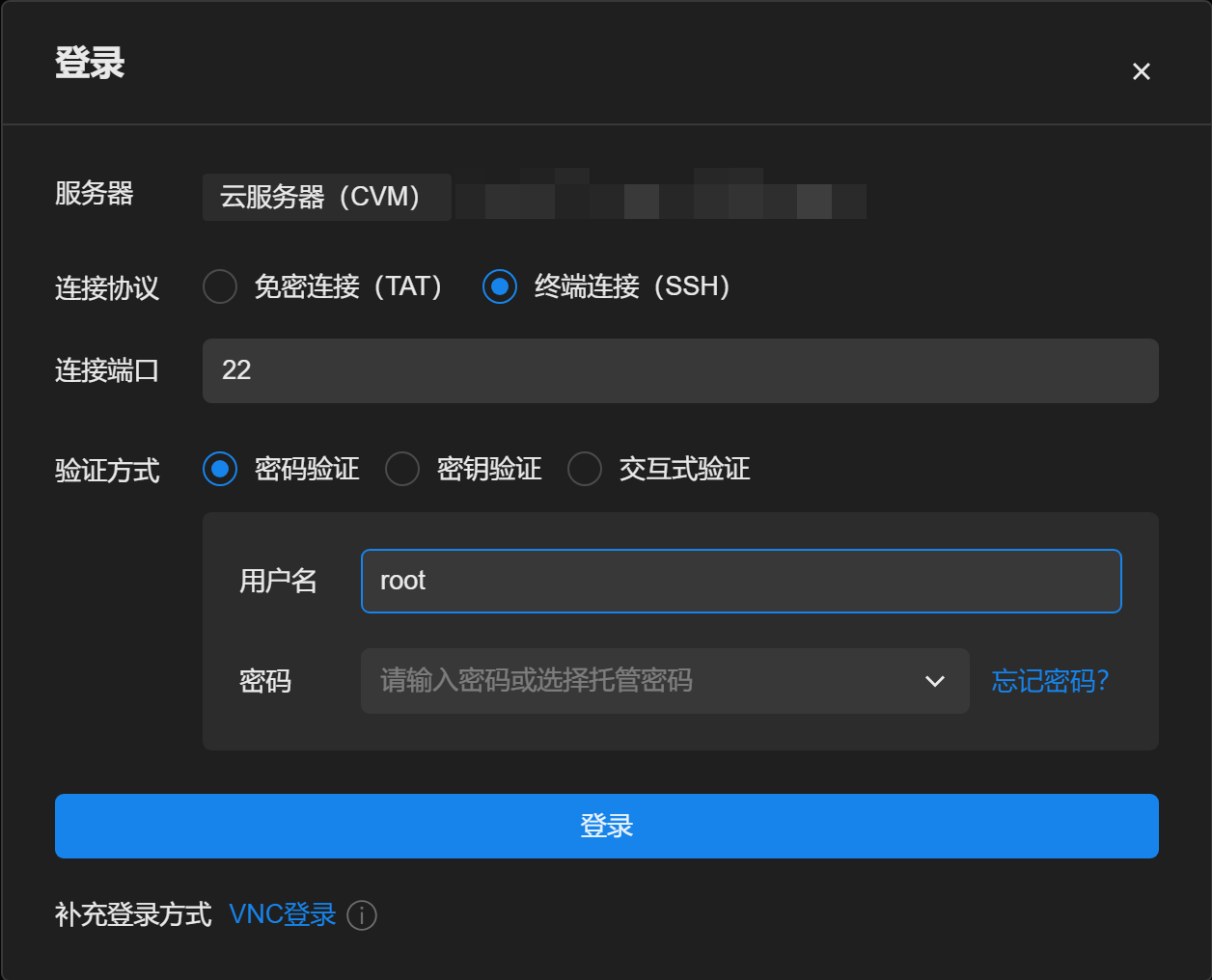
2. 在登录窗口中,输入云服务器的用户名和密码,并单击登录即可正常登录。如下图所示:
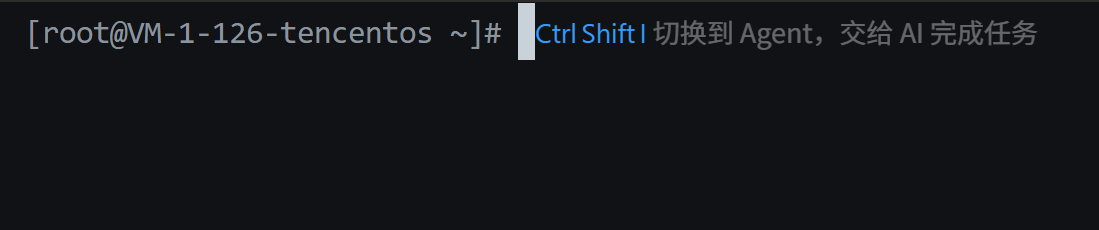
3. 登录成功后,界面如下图所示:
操作场景
OrcaTerm 客户端支持自动加载当前腾讯云账号下的云服务器。您可以通过 TAT 免密方式快速连接实例,也可以使用密码或密钥通过 SSH 登录。
该方式适合需要长期管理多台服务器、保存连接配置或频繁登录实例的用户。
前提条件
已下载并安装 OrcaTerm 客户端。
已登录拥有目标云服务器访问权限的腾讯云账号。
目标实例处于运行中状态。
使用 TAT 免密登录时,实例需支持并正常运行 TAT 服务。
使用 SSH 登录时:
实例需要具备可访问的公网 IP 或内网连接环境。
实例防火墙已放通 SSH 端口,默认端口为22。
已获取实例登录用户名及密码或私钥。
操作步骤
1. 打开 OrcaTerm 客户端并登录腾讯云账号。
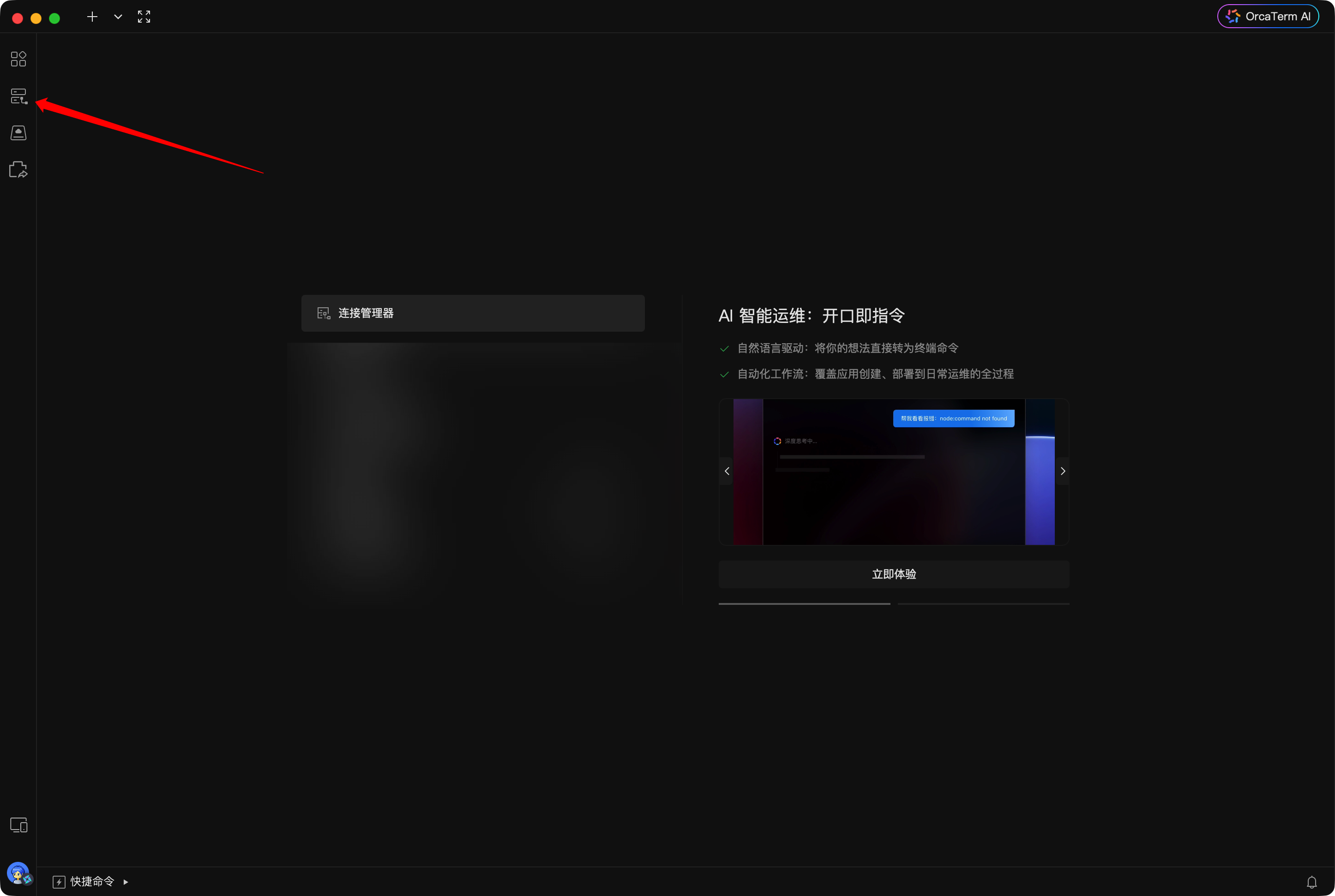
2. 在客户端中进入连接管理器。
3. 单击新建连接配置。
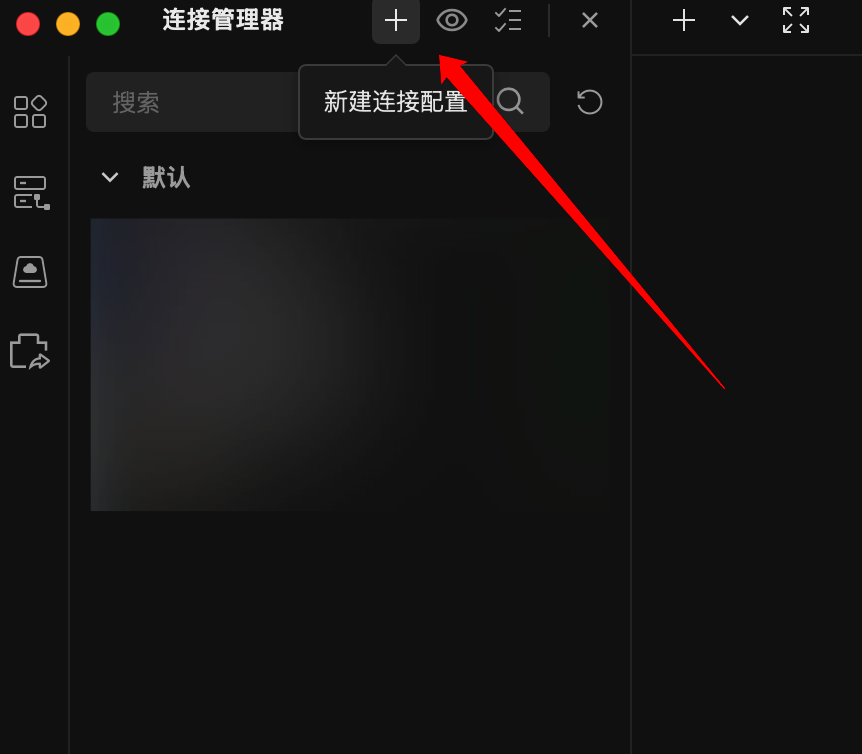
4. 在服务器输入框中选择云服务器(CVM)。
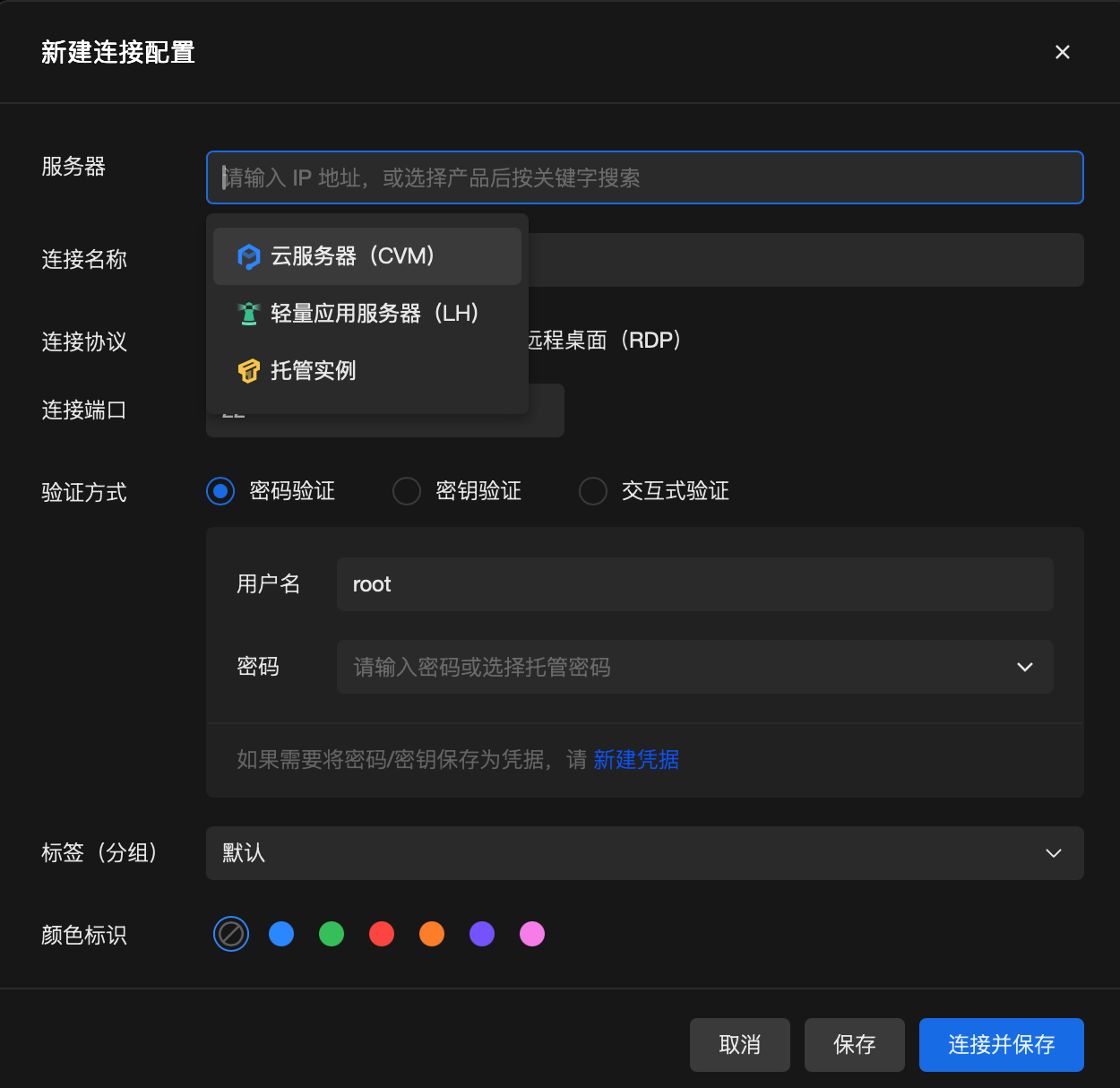
5. 搜索并选择需要登录的实例。
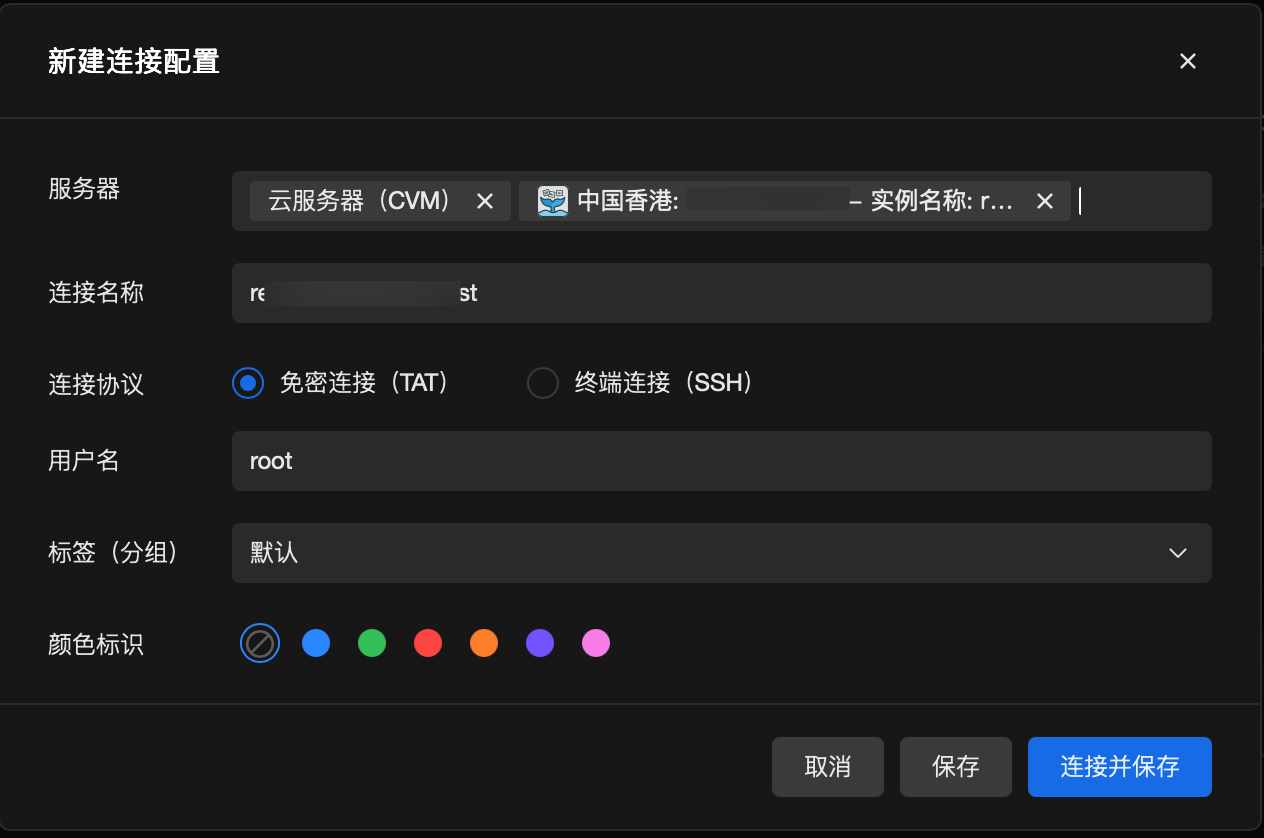
6. 根据需要选择登录方式,按照对应方式操作。
1. 选择免密登录(TAT)。
2. 确认目标实例及连接名称。
3. 单击连接并保存。
1. 选择终端连接(SSH)。
2. 确认连接端口。
3. 选择认证方式:
密码认证:填写用户名和密码。
密钥认证:填写用户名并选择对应私钥。
交互式验证:按照连接过程中的提示完成验证。
4. 单击连接并保存。
连接成功后,该连接将保存在连接管理器中。后续可直接发起连接,无需再次输入实例密码或密钥。
操作场景
OrcaTerm 已集成至腾讯云助手小程序。您可以通过移动设备快速登录云服务器,并通过自然语言描述操作需求,完成服务器巡检、日志查看及终端操作。
该方式适合需要随时查看或管理服务器,但当前不便使用电脑的场景。
适用设备
已安装微信的 iOS 或 Android 移动设备。
前提条件
已登录微信。
已使用拥有目标实例访问权限的腾讯云账号登录腾讯云助手小程序。
目标云服务器处于运行中状态。
操作步骤
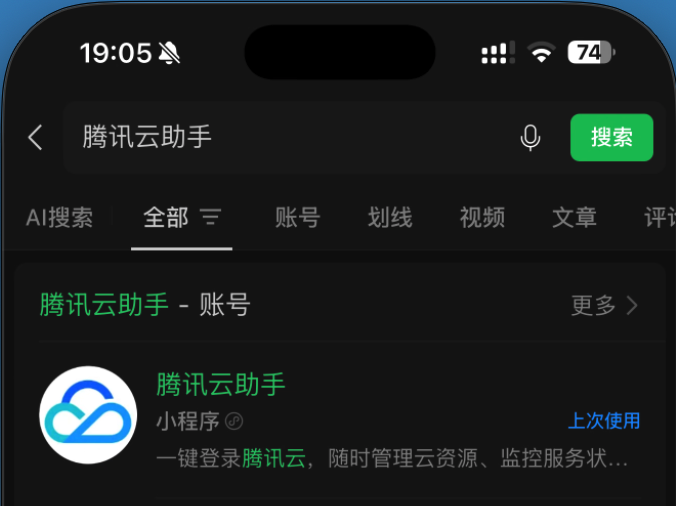
1. 打开微信,搜索并进入腾讯云助手小程序。
2. 进入控制台,单击云服务器。
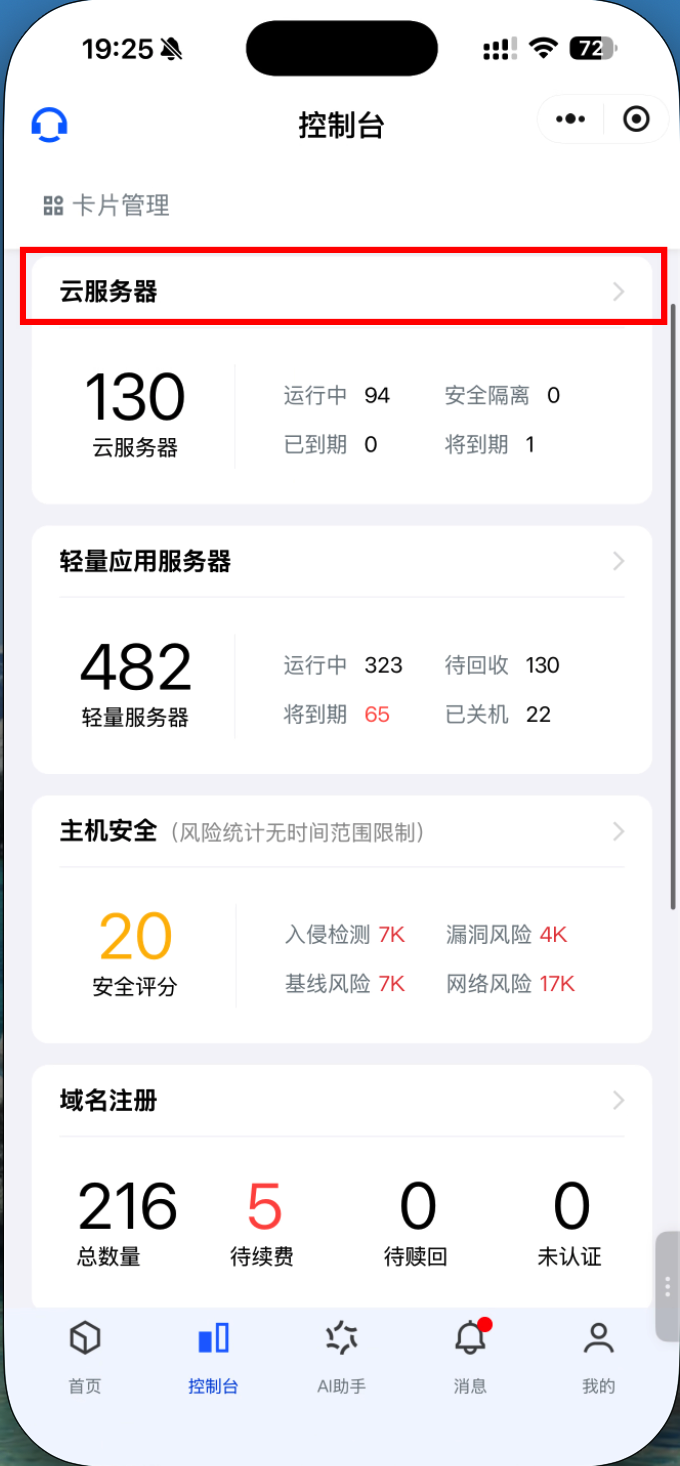
3. 选择目标实例所在地域。找到需要登录的服务器,单击登录。
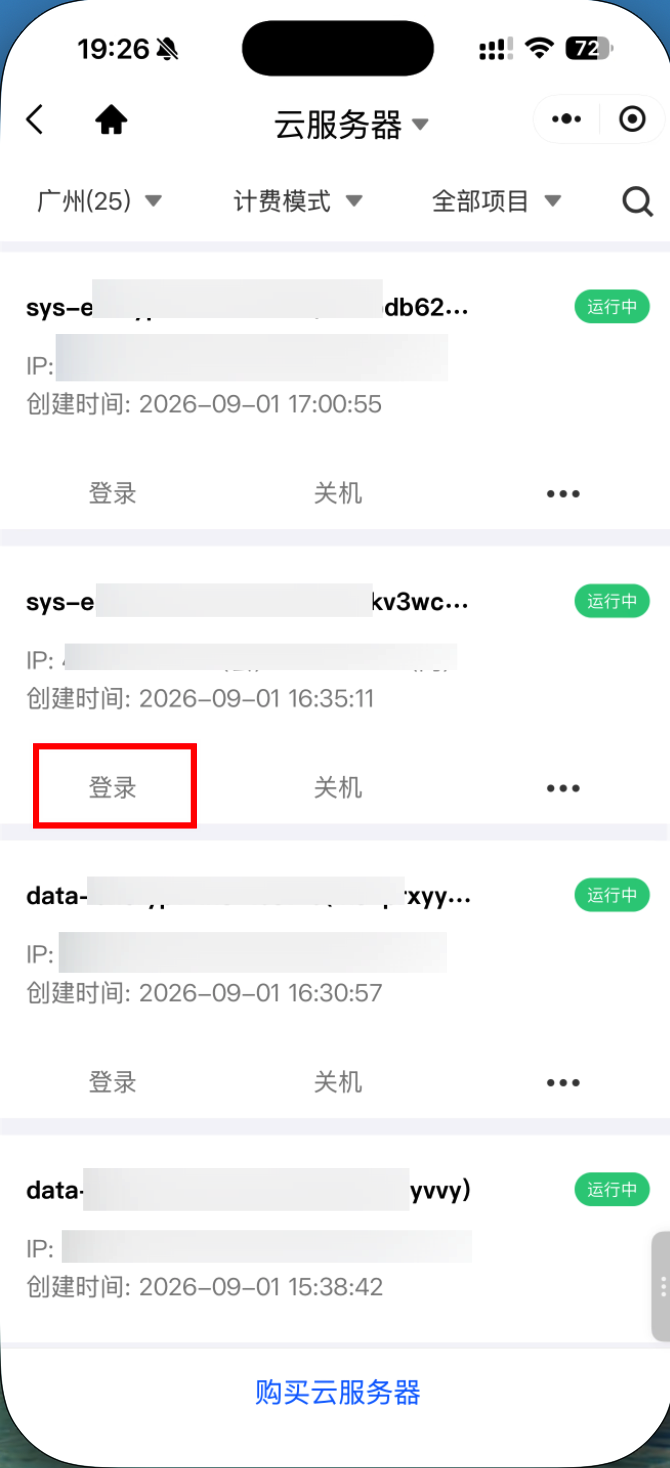
4. 等待系统建立连接。页面显示连接成功,即表示已成功登录实例。
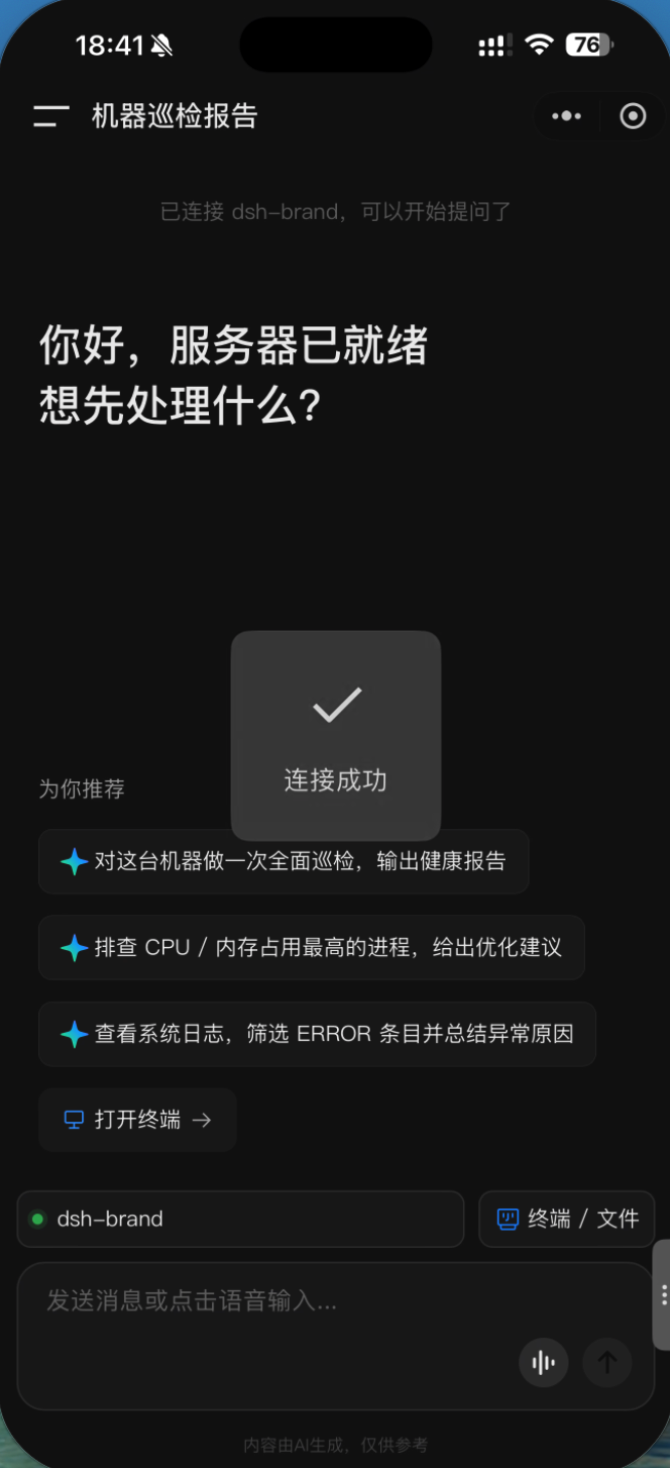
5. 在输入框中使用自然语言描述需要执行的操作,也可以单击打开终端,直接使用终端命令管理服务器。
例如,您可以输入:
对服务器进行全面巡检,并输出健康报告。
查找 CPU 或内存占用较高的进程。
查看系统日志,并分析异常原因。
下一步操作:使用云服务器
当您登录云服务器后,即可在云服务器上进行您所需要的操作。常用的任务包括:
您可以根据需要,按照文档指引进行下一步操作。
出现问题?
忘记云服务器登录密码?
请参见 重置实例密码。
登录不成功?如何定位问题?
请参见 无法登录 Linux 实例。


