This document explains how to perform a one-click online migration of your source server to Tencent Cloud CVM using the console.
Scenario
One-click migration is an agile solution under the Online Migration Overview, eliminating the need for complex operations such as logging into the source server and downloading tools. It allows for the creation of batch migration tasks with a single click, synchronizing the source operating system and service programs to Tencent Cloud. One-click migration is applicable to both Linux and Windows operating systems, and also supports querying migration progress through the Online Migration page on the Tencent Cloud server console.
Usage Limits
The console's one-click migration has certain requirements for the source server environment. The source server needs to have the corresponding cloud assistant installed (e.g., Alibaba Cloud ECS Cloud Assistant), be configured with a public IP, and use VPC networking (classic networking is not supported).
Currently, the console's one-click migration supports migrating Alibaba Cloud servers to Tencent Cloud, while other platforms are not yet supported.
The console's one-click migration feature is currently being iteratively optimized and only supports a limited number of scenarios. If it does not meet your requirements, we recommend using Online Migration: Client Import Migration Source, which offers greater compatibility.
Migration Workflow
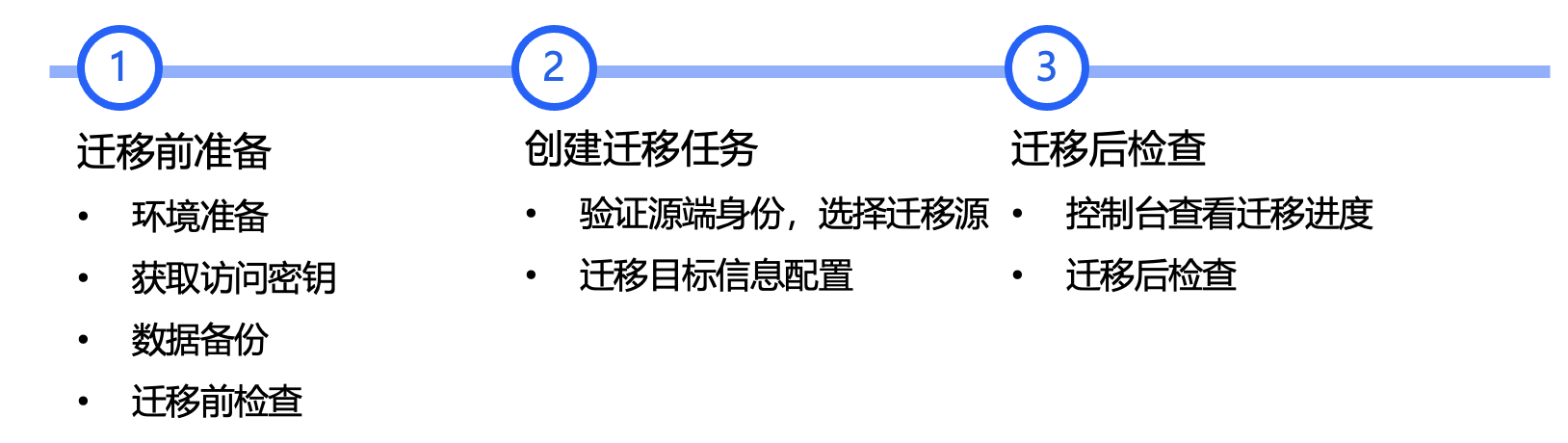
The process of performing online migration using the console's one-click migration is illustrated in the following diagram:
Migration Directions
Step 1. Prepare for migration
Obtain Access Keys in Tencent Cloud Console
Create and obtain SecretId and SecretKey in the API Key Management page of Tencent Cloud Access Management Console. For detailed operations, please refer to the Access Keys documentation.
Note
If you are using a sub-account for console migration, you need to log in to the Access Management Console as the root account and grant the sub-account QcloudCSMFullAccess and QcloudCVMFullAccess permissions.
Obtain Access Keys on the Source Cloud Platform
Follow these steps to obtain the Alibaba Cloud AccessKeyID and AccessKeySecret:
1.1 Log in to the Alibaba Cloud RAM console and go to the Identity Management > User page.
1.2 Click Create User, select Open API Access Method (other access methods will not take effect) for the access method, and confirm the creation. Please save the AccessKeyID and AccessKeySecret information promptly.
1.3 In the user list, add permissions to the newly created user Add Permissions, granting read-only access to Elastic Compute Service (ECS) (AliyunECSReadOnlyAccess) and management of ECS Cloud Assistant service (AliyunECSAssistantFullAccess).
Pause applications and perform data backup (optional)
We recommend that you suspend applications on the server and back up your data to resist possible impact on existing applications during the migration.
Source server: You can use the snapshot feature or other methods to back up data on the source server. The source server is the server to be migrated.
Source Host: When migrating a Windows system, it is recommended to temporarily disable antivirus software to avoid mistakenly blocking the migration tool and causing migration failure.
Destination CVM: Create a snapshot of the instance (See Creating Snapshots)
Destination CVM Check
If the migration target is a CVM, check the destination CVM.
Destination CVM
1. Storage space: the cloud disks of the destination CVM (including system and data disks) should have sufficient capacity to save data migrated from the source server.
2. Security group: Port 80, port 443 and port 3389 are opened.
3. Bandwidth: Set the bandwidth cap on both the two ends to the highest possible value. During the process, the traffic consumed is approximately the amount of data migrated. Adjust the billing mode beforehand if necessary.
4. Network: If the source or destination server supports only IPv6 but not IPv4, see Parameters in the client.json file.
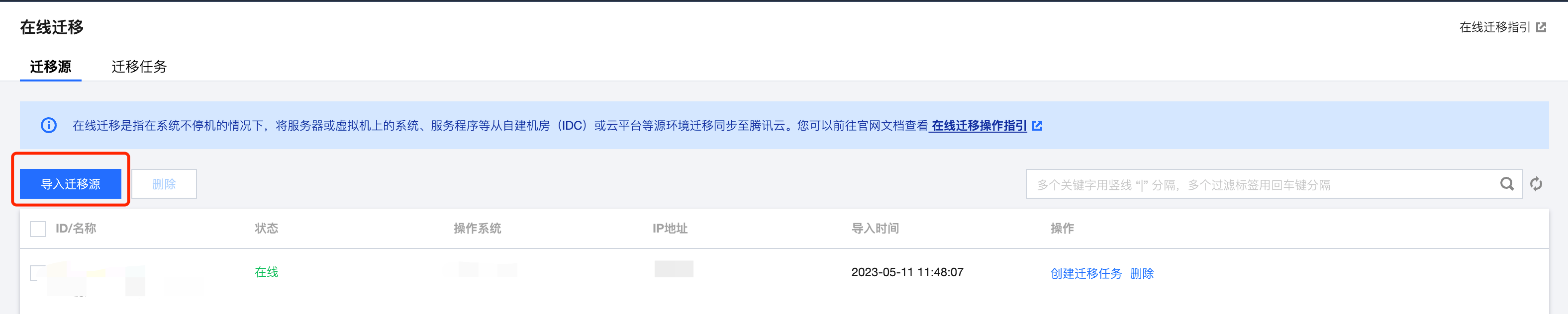
Access the One-Click Migration Page in the Console
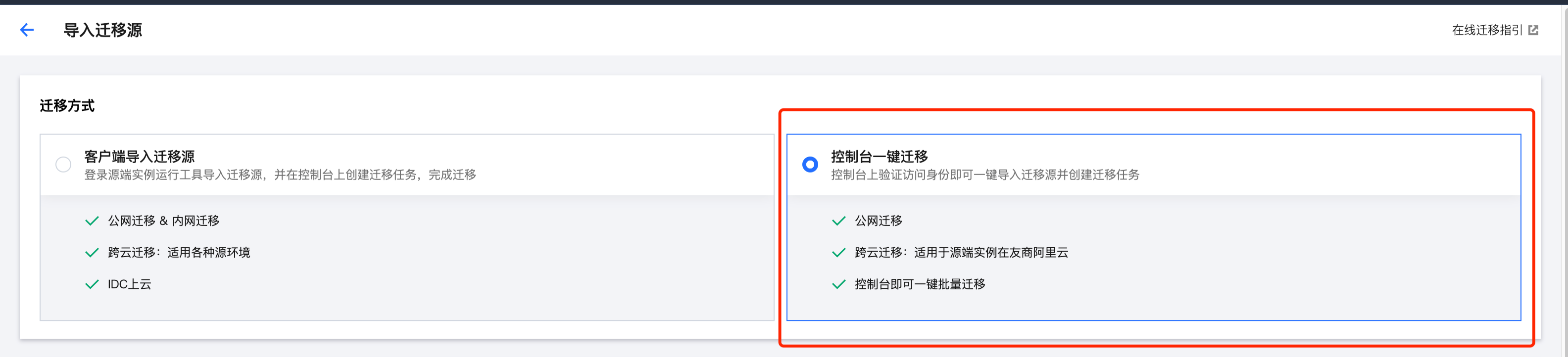
1.2 Select the Console One-Click Migration option to start creating migration tasks in bulk.
Step 2. Create a migration task
1. Configure Task
Enter the task name and task description.
2. Configure Source Migration Information
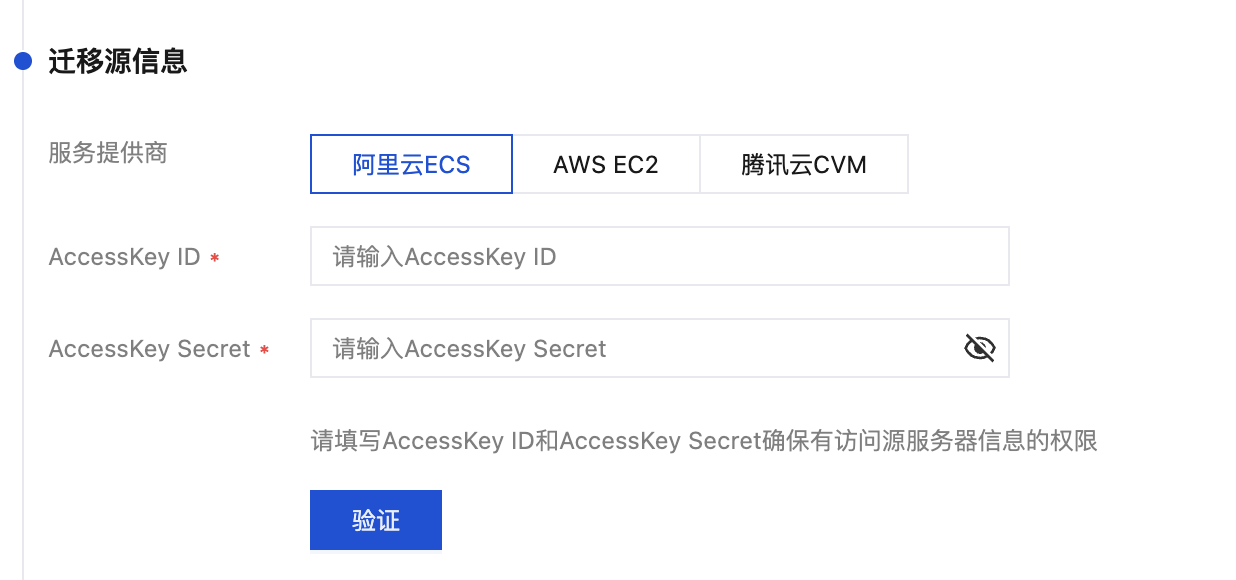
The current source service provider is set to Alibaba Cloud ECS by default. You need to enter the AccessKey and SecretKey of your Alibaba Cloud account (How to obtain) and verify to ensure access to the source server information, as shown in the figure:
Note
Keep your access key confidential. We recommend you delete or disable the access key after the migration.
3. Configure Migration Target
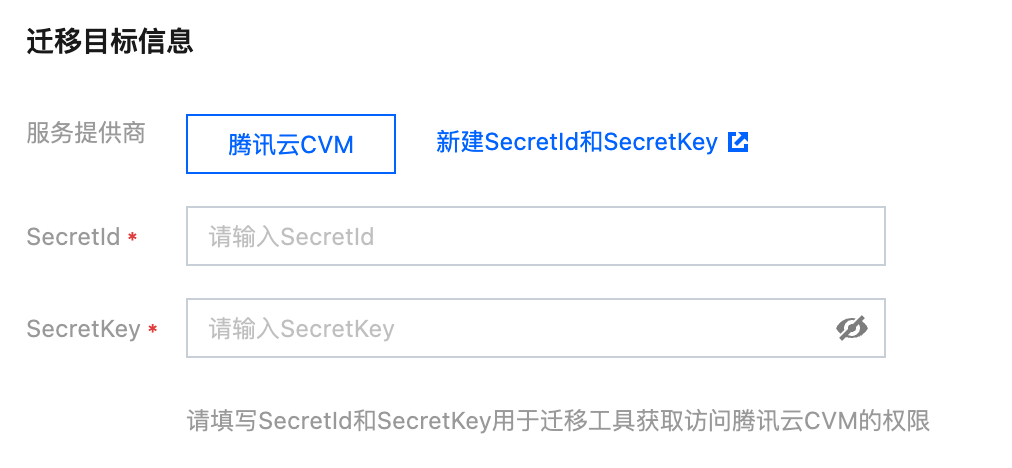
The current source service provider has been set to Tencent Cloud CVM by default. You need to enter the Tencent Cloud API key's SecretId and SecretKey (How to Obtain)to obtain the necessary permissions for Tencent Cloud CVM. You can directly copy the key information from the API Key Management page. Please verify that the API key is correct, as incorrect keys may result in migration failure.
Note
Keep your access key confidential. We recommend you delete or disable the access key after the migration.
4. Configure Migration Information
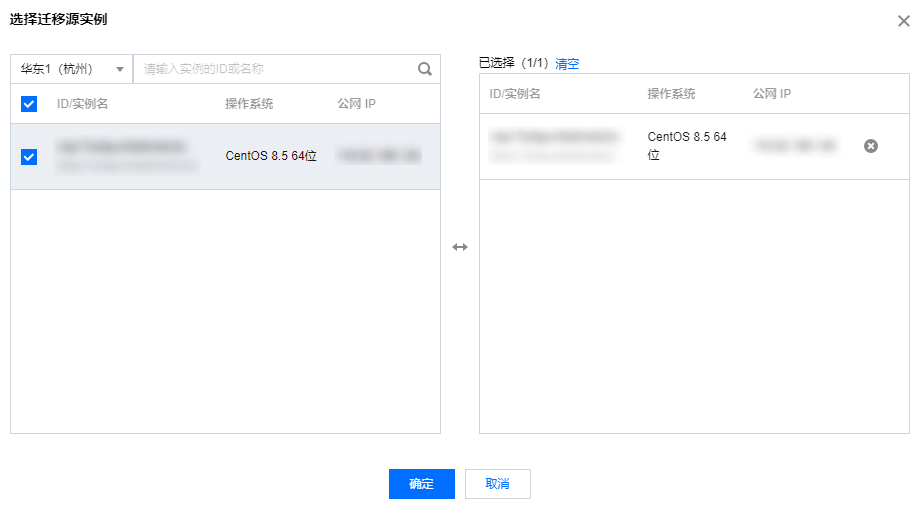
4.1 After the migration source information is successfully verified, you can click Add Migration Source to enter the pop-up window and select the instances to be migrated.
4.2 After selecting the corresponding region in the top left corner of the pop-up window, you can obtain the Instance List for that region. The number following the region name indicates the number of instances, making it convenient to choose the appropriate region.
4.3 Select the instances you want to migrate to add them to the Selected instance list on the right.
Note
Supports multi-instance, multi-region batch migration, allowing you to add multiple migration sources multiple times.
Currently, you can batch migrate up to five instances.
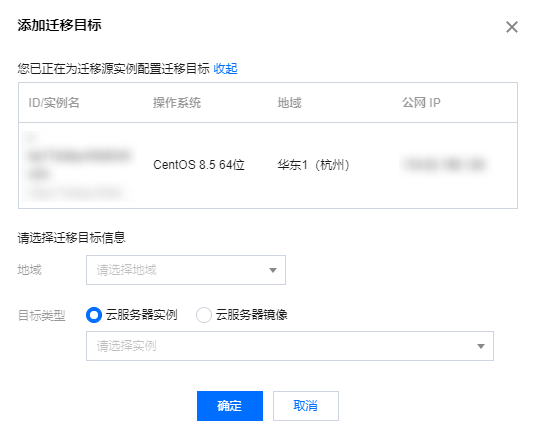
4.4 After clicking OK, the instance information to be migrated will be displayed in the Migration Source Information list. You can click Add deetination Information in the operation column to configure the migration target information.
4.5 In the Add Migration deetination pop-up window, configure the region and migration target type:
Configuration Item
Required
Note
Destination Region
Supported
The destination Tencent Cloud region for the source server migration. For information on regions, please refer to Regions and Availability Zones.
Destination Type
Supported
Set the destination type for the source server to be migrated to Tencent Cloud.
CVM image: Create a CVM image for the source server Image name: Name of the destination CVM image that will be generated for the migration source. If the name already exists, the migration task ID is appended to the name.
CVM Instance: Select a CVM instance in the target region as the migration destination. Target Instance: It is recommended that the target CVM's operating system is as close as possible to the source server's operating system type. For example, when migrating a CentOS 7 system source server, choose a CentOS 7 CVM as the migration target. Additionally, the target CVM's system disk and data disk capacities should both be larger than the source server's.
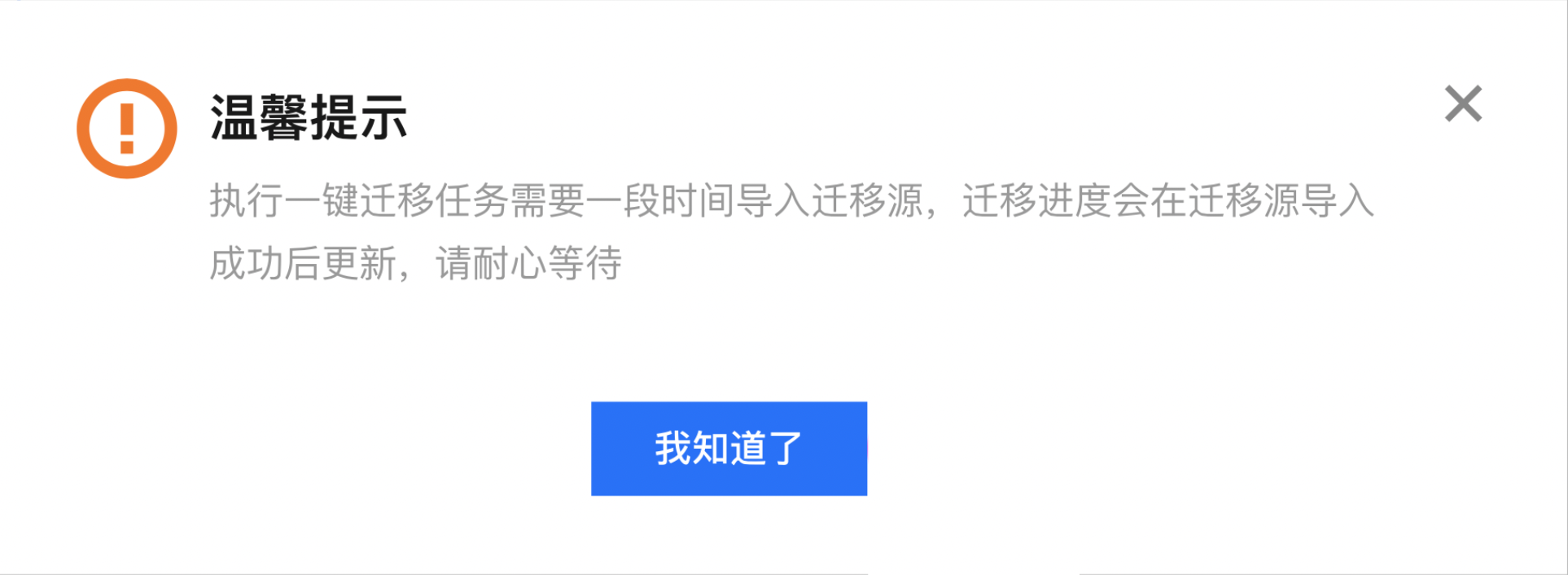
5. Click to create and start a migration task, and you will see a friendly reminder. Please pay attention:
You need to wait a minute before the progress can be viewed in the console, as it takes some time to execute the task on the migration source.
If the source environment is abnormal or the information is incorrect, preventing the import of the migration source, the Tencent Cloud console may not display the failure reason. Please recreate the task or switch to Online Migration.
Step 3. Check after migration
1. View Migration Status and Progress
After confirming the new task, the migration task will be executed automatically. You can query the migration source information and view the task progress on the Migration Source Page.
Note
If the migration destination is a CVM, the destination CVM enters migration mode after the migration starts. Do not reinstall the system, shut down, terminate, or reset passwords of the destination CVM until the migration ends and the destination CVM exits the migration mode.
When the migration target is a CVM image, a relay instance named "do_not_delete_csm_instance" will be created under your account after the migration starts. Please do not perform operations such as reinstalling the system, shutting down, destroying, or resetting the password on the relay instance until the migration is complete. The system will automatically destroy the relay instance created for this migration. The relay instance will incur certain costs, including instance fees and cloud disk fees. For detailed fee information, please refer to Billing Instructions.
2. Wait for the migration task to complete
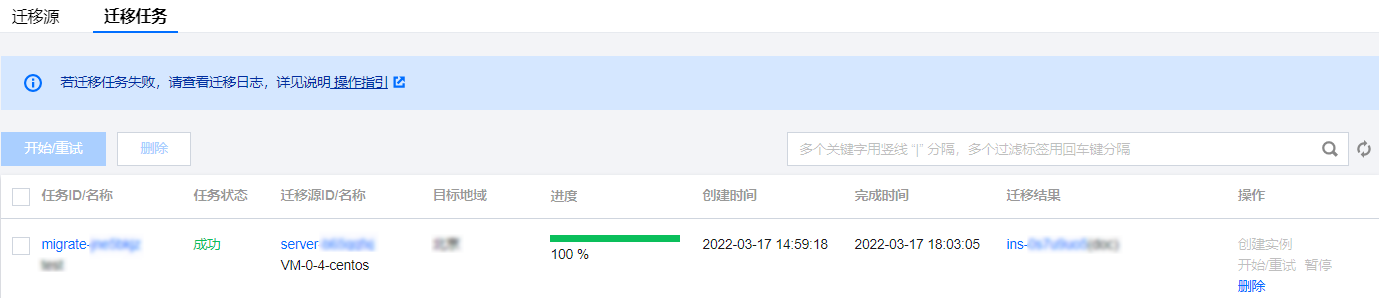
When the migration task status is Successful, it indicates that the migration has been successfully completed. As shown in the following figure:
Note
The time required for data transfer depends on the size of the data on the source server, network bandwidth, etc. Please wait for the migration process to complete.
After the migration task starts, you can click Pause on the row of the task to stop it.
The migration tool supports checkpoint restart. After a task is paused, you can click Start/Retry again to resume migration from where you paused.
A migration task can be paused during data transfer. After you click Pause for it in the console, the migration tool will pause the data transfer in progress.
If the migration process is time-consuming and you need to stop it, you can pause the migration task first and click Delete to delete it.
3. Checking After Migration
Failed migration:
Check the error information in log files (under the migration tool directory by default), operation guides, or FAQs about Service Migration for troubleshooting methods. After troubleshooting, click Start/Retry in the Actions column to restart the migration task.
Successful migration:
Migrating to a CVM: The destination CVM starts up normally. Data on the CVM is consistent with that on the source server. The network and other system services are normal.
If the migration target is a CVM image, click the "CVM Image ID" in the migration task row to access the CVM Image Page and view the image information. You can use this image to create a cloud server.