Rollback to an Existing Instance (Cross-Region)

Last updated: 2024-09-08 23:02:39

TencentDB for SQL Server provides a rollback tool for rolling back an instance. Historical data can be reconstructed by using periodical backups and real-time transactions. This document describes how to roll back a single database, multiple databases, or all databases to other instances in different regions based on a time point or backup set.
Note
Rolling back to instances in other regions means achieving off-site disaster recovery through cross-region backup. For example, if an instance in Region A has the cross-region backup feature enabled, the cross-region backup files are stored in Region B. If the instance in Region A fails or is damaged, the cross-region backup files can be restored to an instance in Region B using the rollback feature.

Prerequisites

To use the rollback feature, you must have an existing TencentDB for SQL Server instance. To create one, see Creating SQL Server Instance.
To use the rollback feature, there must be a database under the instance. To create one, see Create a Database.
Cross-region backup is enabled, and cross-region backups have been generated. Please refer to Cross-Region Backup.

Notes

Before rolling back, ensure that the target instance has sufficient storage space.
Make sure there are no other tasks being executed on the source instance before rollback.
The database version of the target instance must be greater than or equal to the source instance database version. For example: A source instance with the 2012 Enterprise version cannot be rolled back to a target instance with the 2008R2 Enterprise version; it can only be rolled back to instances with the 2012 Enterprise version or higher.
The architecture of the target instance must be the same as the source instance. For example: A Cloud Disk Edition dual-node instance can only be rolled back to another Cloud Disk Edition dual-node instance, and cannot be rolled back to a Cloud Disk Edition single-node or a local disk dual-node instance.

Operation step

1. Log in to SQL Server Console.
2. Select the Region above, find the required instance, click Instance ID or Operation in the Manage column to enter the instance management page.


3. Select Backup Management, and click Rollback at the upper right corner of the backup management page or click Rollback in the Operation column of the data backup list.


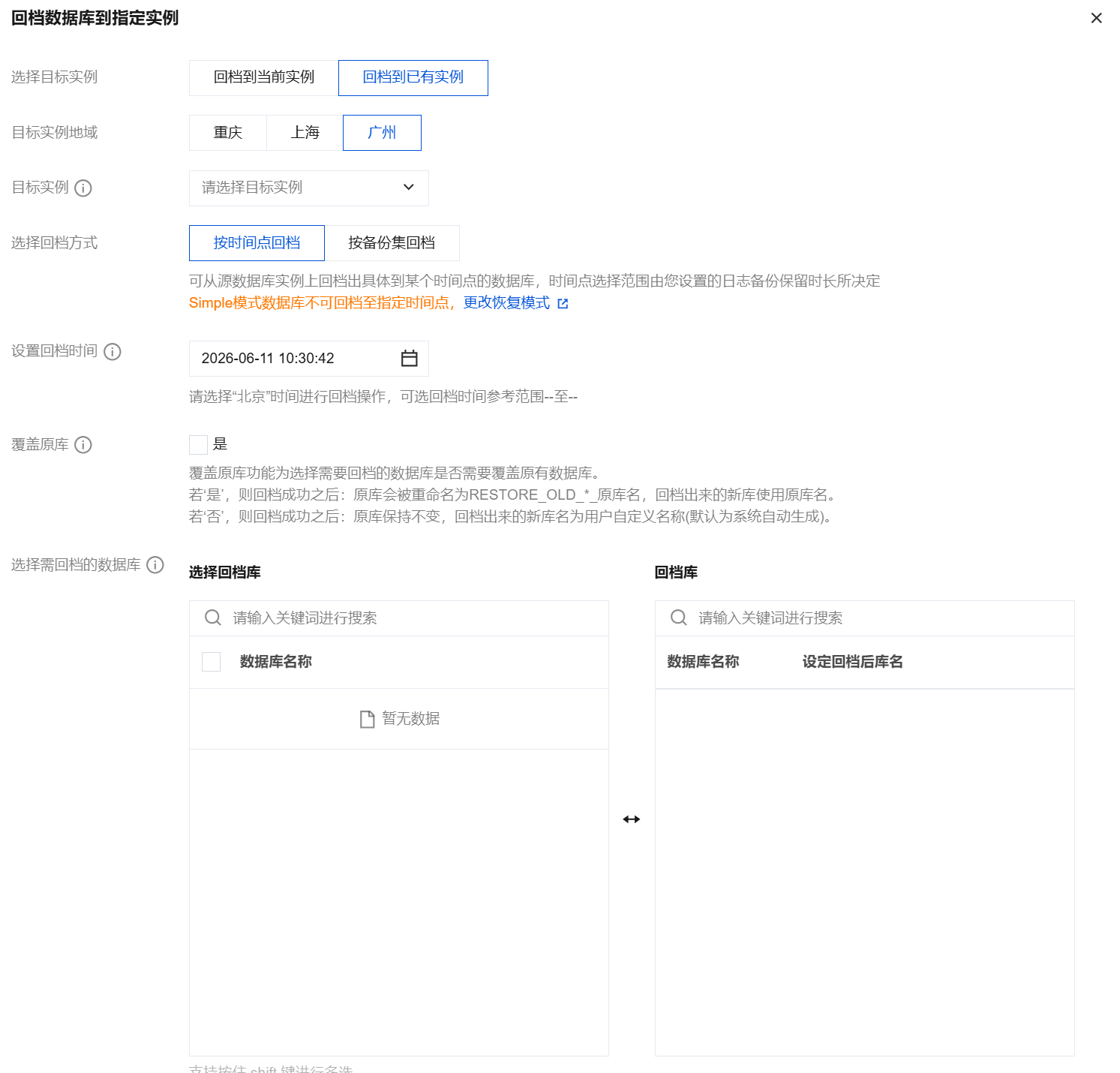
4. In the popped-up rollback settings interface, based on your selected rollback method, complete the corresponding configurations, and click Save. Scenario 1: Rollback by Time Point


Parameter
Description
Select the target instance
Select rollback to an existing instance here.
Target Instance Region
Select the location of the instance to roll back to in another region here.
Target instance name
Select the target instance in another region based on the instance ID/instance name for quick search. You can choose instances across availability zones in the selected region.
Select Rollback Method
Select Roll Back by Time Point.
You can roll back to a specific time point on the source database instance. The range of the time points you can select is determined by the log backup retention duration you have set.

Set the rollback time
Select the rollback time.
The databases of the same instance can only have a uniform rollback time.

Whether to overwrite the original database
Choose whether to overwrite the existing database when selecting the database to be rolled back.
If you select "Yes," after a successful rollback, the original database will be renamed to `RESTORE_OLD_*_original_database_name`, and the new database from the rollback will use the original database name.
If you select "No," after a successful rollback, the original database remains unchanged, and the new database name from the rollback will be the user-defined name (default is system-generated).

Select the database to be rolled back
Select the database to be rolled back. Supports rolling back a single database, multiple databases, or all databases. You can quickly filter by searching the database name. The selected databases can be renamed under Selected Databases on the right. If not renamed, the new databases from the rollback will have system-generated names, which are prefixed with the original database names.
The name of the database after rollback can contain only digits, uppercase and lowercase English letters, and special characters -_./()[]()+=::@. It must start with an English letter and can be up to 128 characters long.

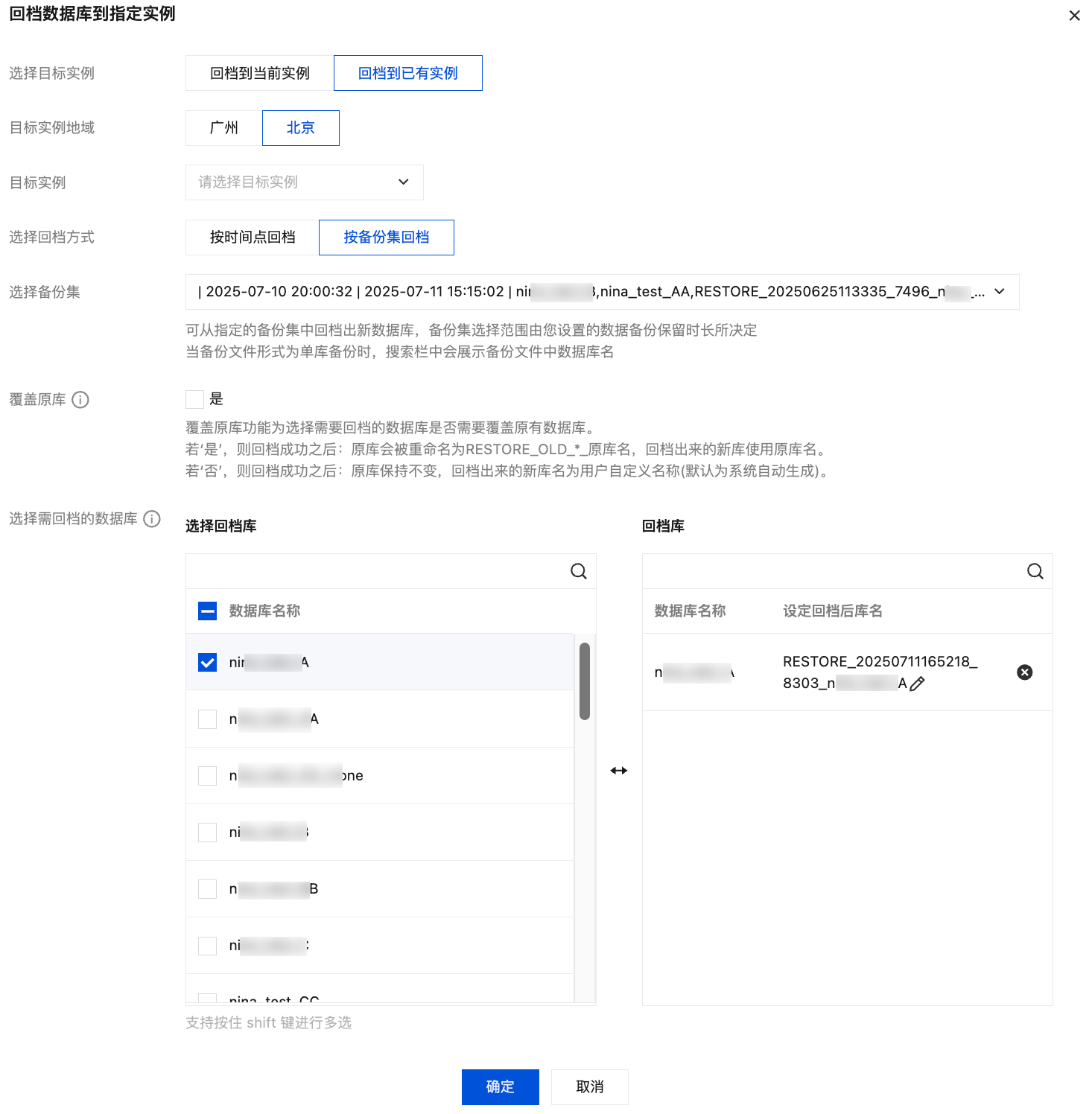
Scenario Two: Rollback by Backup Set


Parameter
Description
Select the target instance
Select rollback to an existing instance here.
Target Instance Region
Select the location of the instance to roll back to in another region here.
Target instance name
Select the target instance in another region based on the instance ID/instance name for quick search. You can choose instances across availability zones in the selected region.
Select Rollback Method
Select Rollback by Backup Set.
Note:
You can restore a new database from a specified backup set. The selection range of the backup set is determined by the data backup retention duration you set.

Select Backup Set
Select the backup set for rollback.
Whether to overwrite the original database
Choose whether to overwrite the existing database when selecting the database to be rolled back.
If you select "Yes," after a successful rollback, the original database will be renamed to RESTORE_OLD_*_original_database_name, and the new database from the rollback will use the original database name.
If you select "No," after a successful rollback, the original database remains unchanged, and the new database name from the rollback will be the user-defined name (default is system-generated).
Select the database to be rolled back
Select the database to be rolled back. Supports rolling back a single database, multiple databases, or all databases. You can quickly filter by searching the database name. The selected databases can be renamed under Selected Databases on the right. If not renamed, the new databases from the rollback will have system-generated names, which are prefixed with the original database names.
Note:
The name of the database after rollback can contain only digits, uppercase and lowercase English letters, and special characters -_./()[]()+=::@. It must start with an English letter and can be up to 128 characters long.

5. After confirming the rollback time or backup set and the database to be rolled back, click Save in the pop-up window.
6. In the Rollback Task List, when the task status changes to Running, you can click the task icon in the upper right corner of the Backup Management page to view the rollback progress.