The content of this page has been automatically translated by AI. If you encounter any problems while reading, you can view the corresponding content in Chinese.
Network quality monitoring targets application network stability, route stability, and DNS resolution accuracy rate, including ICMP latency and packet loss rate, etc., for monitoring. This document introduces how to create a network quality task.
2. Click Create Task at the top of the task list page.
3. Configure the basic information according to the following instructions.
Configuration Item
Description
Dial test type
Select "customized ping test".
Task type
Select the "network quality" task type.
Dial test task name
Customized ping test task name.
Probe address
Please enter the Web application address that requires probing (starting with http:// or https://)
Example:
1. Domain name: https://www.tencent.com
2. Domain port: https://www.tencent.com:80
Description: When using TCP or UDP protocol for Ping monitoring, you need to enter port.
Test frequency
Supports testing frequencies of 1 minute, 5 minutes, 10 minutes, 15 minutes, 30 minutes, 1 hour, 2 hours, and 4 hours. For example, selecting a 5-minute frequency means each testing point is tested every 5 minutes.
Custom execution
Execute daily by default at the specified frequency. You can also customize the execution plan as needed.
For example, you can configure the dial test task to run from 8:00 AM to 9:00 AM on a specific day of the week.
Task tag
CAT combines with Tencent Cloud resource tag function to offer you permission granting to sub-accounts by tags and cost allocation by tags. For more details, see Resource Tag to configure.
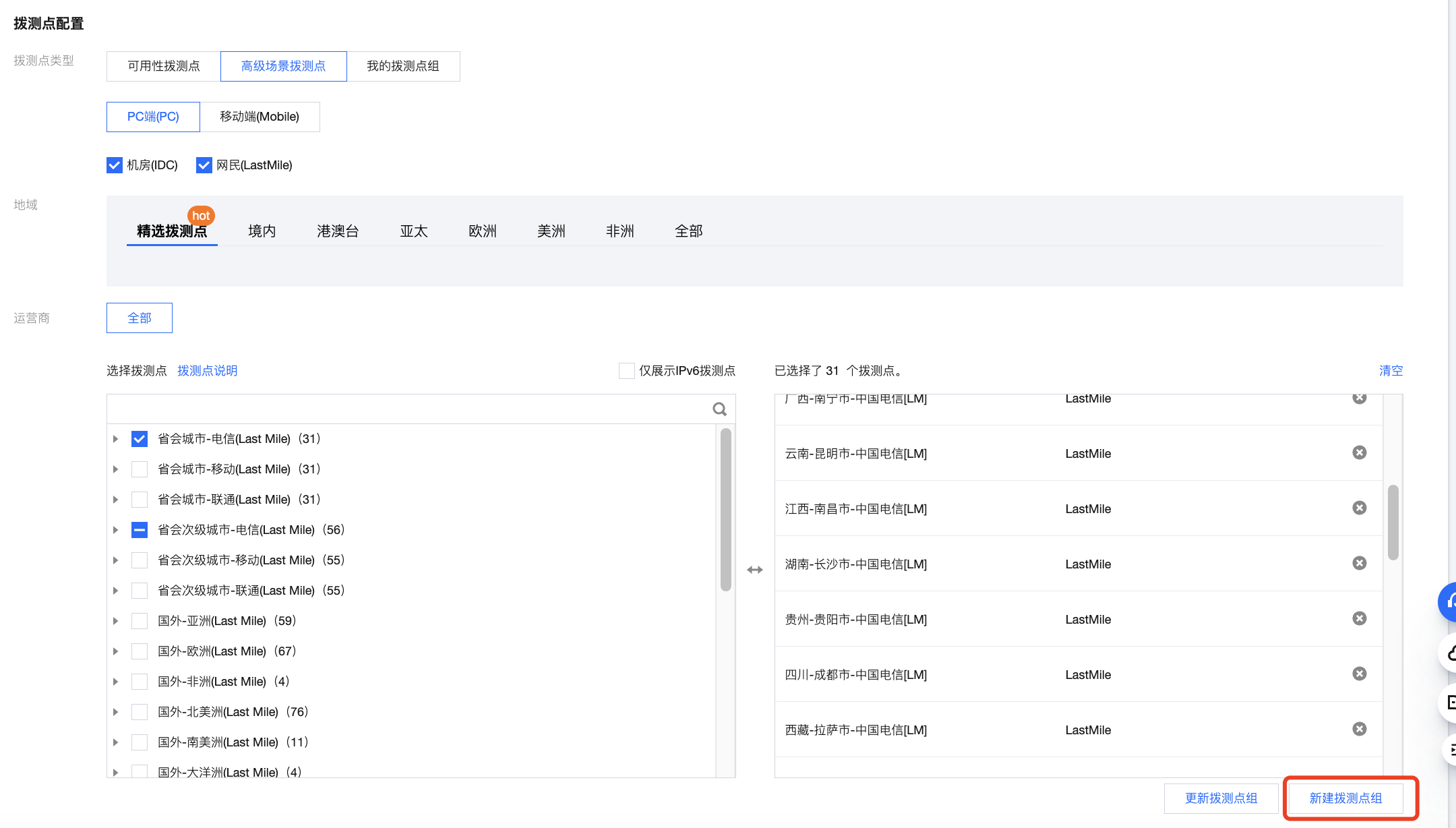
4. Configure the detection point according to the following instructions.
4.1 Selection method: Select a recommended testing node group or a custom testing node group (the recommended testing nodes are commonly used nodes).
4.2 Select a testing node.
availability testing node group: only supports network quality and port performance task types, suitable for network quality monitoring, interface availability monitoring, hijacking, and blocking detection.
Advanced scenario test nodes: Page User Experience Monitoring, Streaming Lag Monitoring, Availability Testing Under Poor Network Conditions, CDN Selection and Path Optimization. Covers IDCs, PC terminals, and mobile testing nodes inside and outside Chinese mainland.
Recommended testing node group: We recommend commonly used testing node groups.
Custom testing node group: Select region > Select node type > Check the testing nodes in the box on the right. Node type descriptions are as follows:
Dial Test Point Type
Description
PC client
IDC
The probe point deployed on the PC represents the PC user experience.
Internet users (LastMile)
The probe point deployed on the terminal user's PC represents the terminal PC user experience.
mobile terminal
The probe point deployed on the mobile terminal phone represents the mobile customer.
My Testing Node Group: You can select a commonly used testing node group in "Advanced Scenario Test Point" and click Create Testing Node Group in the bottom-right corner. Next time you create a task, directly select my testing node group to quickly choose the commonly used testing points you created.
Note:
Since IDC and LastMile have different network environments, IDC is more stable than LastMile.
If you need to monitor business availability, you can choose a relatively stable IDC.
To view suggestions for end users' access experience and network conditions, you can select multiple options such as LastMile or mobile terminals. You can simulate the access experience of terminal users to applications.
5. Configure test parameters (optional). The system defaults to configuring commonly used test parameters for you, or you can customize test rules. Configuration instructions are as follows:
Configuration Type
Configuration Item
Description
Default Value
Capture packets
-
Support disabling packet capture, request error packet capture, and all packet capture.
Disable
Ignore private IP
-
When the DNS Resolution Result is a private IP address (such as reserved addresses like 127.0.0.1, 0.0.0.0), it will be judged as a probe failure. If this situation is not ignored, this item dial testing result will not be shown, and no alarm or probe cost will be generated.
Ping Monitoring
Protocol Type
Supports ICMP, TCP, and UDP protocol types.
ICMP
Monitor timeout (seconds)
Define monitoring timeout time, with a value range of 0 - 60 seconds (excluding 0).
20 seconds
Execution interval (seconds)
Define the execution interval for Ping monitoring tasks, with options of 0.5s, 1s, 2s, 3s, 4s, 5s, 10s.
0.5 second
Number of packages (units)
Fill in the number of test data packages.
4
Package size (KB)
The size of ICMP packets during a Ping operation, which can be used to analyze the variations in network transmission for different packet sizes. Note: This parameter is only available when the Ping protocol is ICMP.
32KB
Split Package
The DF flag in the IP packet header. When the DF bit is 0, it means the router can segment the upper layer data packet (splitting is allowed by default). When the DF bit is 1, it means the router cannot perform segmentation.
If an IP packet cannot be forwarded without segmentation (e.g., when hitting the MTU limit), the router will discard it.
Segmentation
DNS Monitoring
Monitor timeout (seconds)
Define monitoring timeout time, with a value range of 0 - 45 seconds.
5 second
Query method
Recursive: The DNS query client only interacts with the LocalDNS, which initiates queries to the root service, hierarchical domain name servers, authoritative servers, etc.
Iteration: The DNS query client interacts with multi-level DNS servers manually and queries the final result independently.
recursive recurse recursion
Specify an NS server
Server designated for DNS resolution, fill in the NS service address.
-
dig command
Whether the monitoring result of the dig command format is enabled.
Disable
DNS Server Type
If you select the DNS server IP for IPv6, you need to check "Only display IPv6 test points" when selecting a test point.
IPV4
Tracert monitoring
Monitor timeout (seconds)
Define monitoring timeout time, with a value range of 0 - 300 seconds (excluding 0).
60 seconds
Maximum hop count (units)
Used to set the maximum number of hops during Tracert detection. If the destination IP is not arrived after exceeding the maximum limit, it is considered a probe error.
Adjustable based on actual conditions.
20
Hijack monitoring parameter
DNS hijacking allowlist
When the DNS resolution result IP is not in this allowlist, it is considered hijacked. The hijack result can be selected and viewed in the multi-dimensional analysis result details. For details, see Hijack Monitoring Parameter Description.
-
DNS hijacking blocklist
When the DNS resolution result IP is in this blocklist, it is considered hijacked. The hijack result can be selected and viewed in the multi-dimensional analysis result details. For details, see Hijack Monitoring Parameter Description.
-
Creating Batch Dial Test Tasks
Note:
Support batch addition of up to 20 dial test tasks.
You can click "+Add" on the right of the task name on the new task page, and then enter the task name and task address. Once created successfully, multiple dial test tasks will be displayed in the task list.