Help & Documentation>Auto Scaling>Best Practices>Set a Fixed Exit IP for the Scaling Group

Set a Fixed Exit IP for the Scaling Group

Last updated: 2024-01-17 17:59:40

This document elucidates the process of setting up a fixed external access IP, should there be a proactive need for external access within the cluster.

Use Cases

In the event that your cluster within the scaling group concurrently presents these three requirements:
Receiving requests via the Cloud Load Balancer (CLB).
The cluster machines necessitate proactive external access.
During external access, there is a preference for utilizing a fixed public IP.
In such a case, you may proceed with the following configuration scheme.

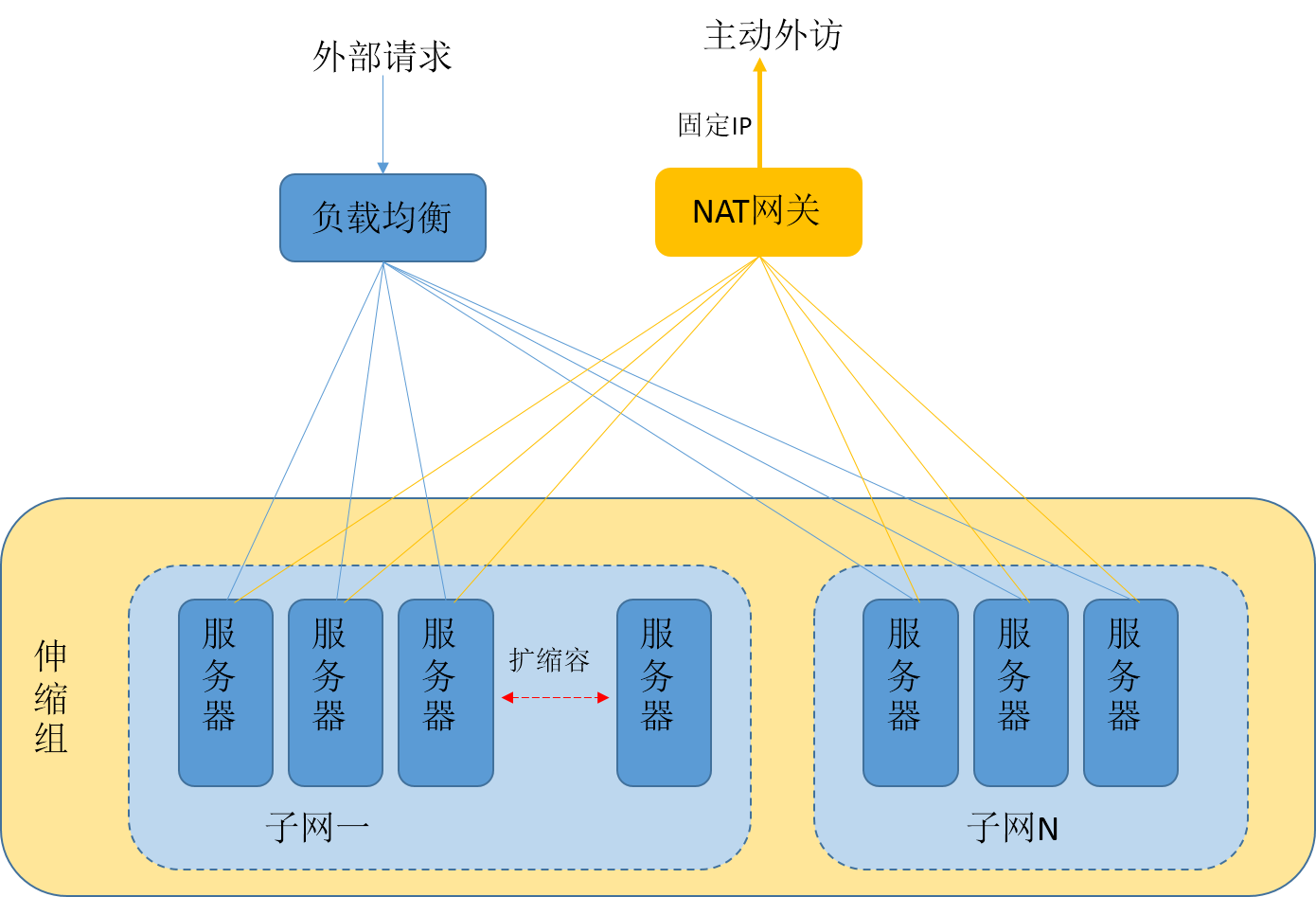
Brief Overview of the Scheme


1. Reception and response to external requests are facilitated through the Cloud Load Balancer (CLB).
2. Position the machines within a subnet of the Virtual Private Cloud (VPC), directing the routing table towards the NAT gateway. This ensures that all proactive external access requests are uniformly dispatched via the public IP of the NAT gateway.
3. Set the network attribute of the scaling group to this subnet, ensuring that all machines expanded will uniformly utilize the NAT gateway for proactive external access.

Setting Method

Step 1: Creation of VPC and Subnet

Creation of VPC

1. Log into the Private Network Console and select Private Network from the left-hand navigation bar.
2. At the top of the Private Network page, select a region, for instance, choose the North China (Beijing) region.
3. Click on +New, in the pop-up New VPC window, fill in the names and CIDR of the private network and subnet, and select the available zone for the subnet.
4. Click on Confirm to create the VPC.

Creating Subnets

1. In the Private Network Console, select Subnet from the left-hand navigation bar.
2. At the top of the Subnet page, select the region and VPC as shown in the image below:


3. Click on +New, in the pop-up Create Subnet window, fill in the subnet name, CIDR, available zone, and associated routing table.
4. Click on Create to finalize. Once the creation is complete, you can purchase machines for this subnet.

Step 2: Create NAT Gateway

Create a New NAT Gateway

1. In the Private Network Console, select NAT Gateway from the left navigation bar.
2. On the NAT Gateway page, click on +New.
3. In the pop-up New NAT Gateway window, sequentially input or confirm the following parameters:
Gateway name
Gateway Type (The type of gateway can be modified after creation)
The private network for the NAT Gateway service (i.e., the private network created in Step 1)
Assign an Elastic IP to the NAT Gateway (This IP will serve as the fixed IP for your machine's external access)
4. Upon completing the configuration, click Create to finalize the creation of the NAT Gateway. After the NAT Gateway is created, you need to configure routing rules on the private network console routing table page to direct subnet traffic towards the NAT Gateway.

Configure Routing Table (Key Point)

1. In the private network console, select Routing Table from the left navigation bar.
2. On the Routing Table page, select the routing table ID associated with the subnet that needs internet access, and proceed to the details page of that routing table.
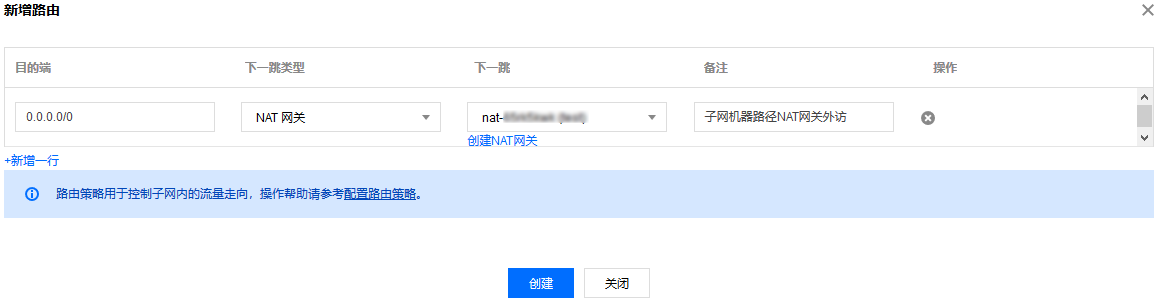
3. Click on +Add New Routing Policy. In the pop-up "Add Route" window, configure according to the following information. As shown in the figure below:


Destination: In this scenario, you can fill in 0.0.0.0/0.
Next Hop Type: Select "NAT Gateway" and choose the NAT Gateway ID created in Step 1.
4. Click Create. At this point, even if your machine in this subnet does not have a public IP, it can still initiate outbound access through the NAT gateway, and it will still appear as a fixed IP to the outside world. Even a host with no public IP and zero bandwidth can initiate outbound access. As shown in the figure below:

Note
The scaling group needs to identify this subnet and ensure that all machines are created on this subnet.

Step 3: Configure the Scaling Group

The purpose of this step is to direct the subnet information to the scaling group, which will then place the newly expanded machines in this subnet. The expanded machines will automatically use the IP address of the NAT gateway for outbound access, achieving a fixed exit IP effect.
1. Log into the Auto Scaling console and select Scaling Groups from the left navigation bar.
2. On the "Scaling Group" page, click New.
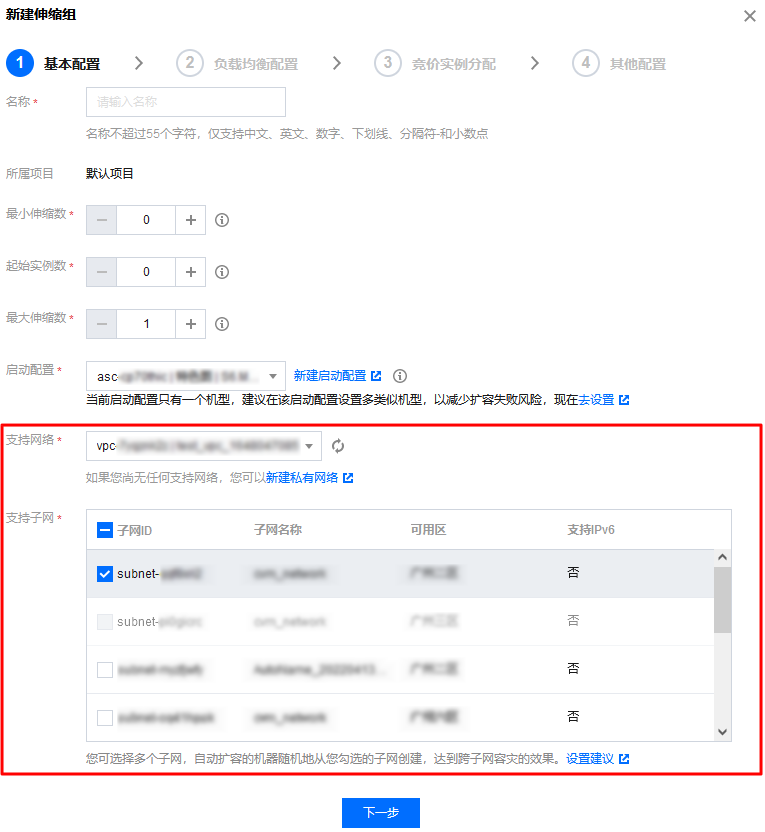
3. In the pop-up "New Scaling Group" page, fill in information such as the scaling group name, the created launch configuration, maximum scaling number, minimum scaling number, and initial instance count. For Supported Networks and Supported Subnets, please select the configured VPC and subnet. As shown in the figure below:


4. Click Next to complete the settings.