You can use a standard SQL client to connect to TencentDB for PostgreSQL via either a private or public network address.
Private Network Connection: Use a CVM instance to access the automatically assigned private network address of the TencentDB instance. This connection method utilizes high-speed private networks with low latency. The CVM and database instances must be under the same account and in the same VPC (ensuring they are in the same region), or both in the classic network.
Note
For CVM and database instances in different VPCs (including those under the same or different accounts, and in the same or different regions), refer to Peering Connection for private network connection methods.
Public Network Connection: Connect to TencentDB for PostgreSQL using a public network address.
Note
Enabling public network connection for your database instance exposes the service to the public internet, potentially making it vulnerable to intrusion or attack. It is recommended to use private network access for connecting to your database.
Public network access to TencentDB is suitable for development or auxiliary management of databases but not for business access in the production environment, as potentially uncontrollable factors may lead to unavailability of the public network access, such as DDoS attacks and bursts of high-traffic access.
Instances that currently support public network access are available only in Guangzhou, Shanghai, Beijing, Chengdu, Hong Kong (China), and Silicon Valley.
The following describes how to connect to a TencentDB for PostgreSQL instance from Windows and Linux CVM instances over the private and public networks.
This document uses pgAdmin as an example. You can download the appropriate installer for your system from https://www.pgadmin.org/download/.
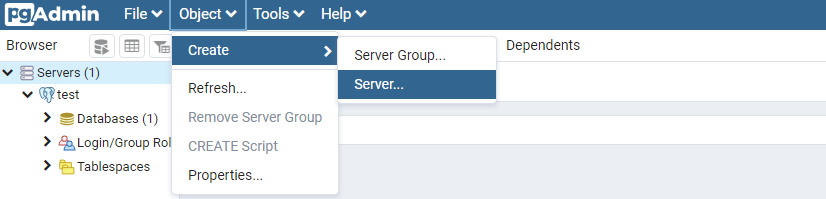
2. In pgAdmin, select Object > Create > Server.
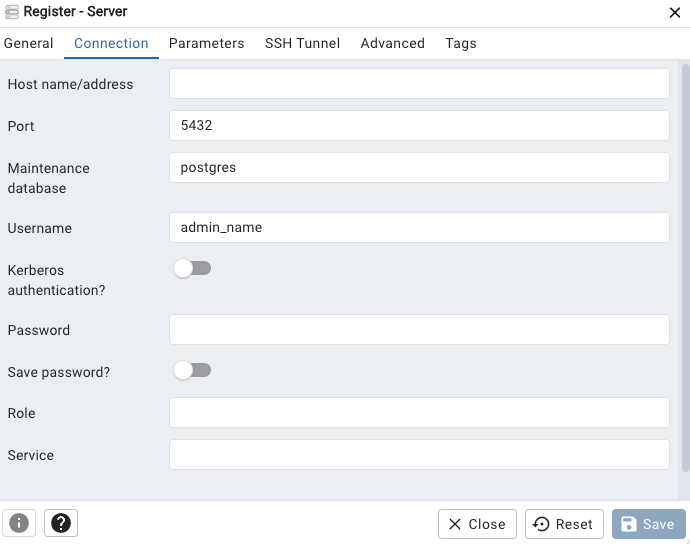
3. In the Create - Server dialog box, enter the name, host IP address, port number, username, and password, then click Save.
Host IP address and port number: You can find them in the PostgreSQL Console, under Private Network Address or Public Network Address on the Instance Details page. If the public network address is not enabled, please refer to Enabling Public Network Address for instructions.
Note
Here, the private IP is VIP; database instances are accessed by connecting to the gateway cluster rather than the physical servers of database instances directly. Therefore, the private IP will remain unchanged in the event of server failures or primary/standby switchover.
Username and Password: Use the database administrator username and password set during instance initialization. If you have forgotten the password, you can reset it on the Console Account Management page.
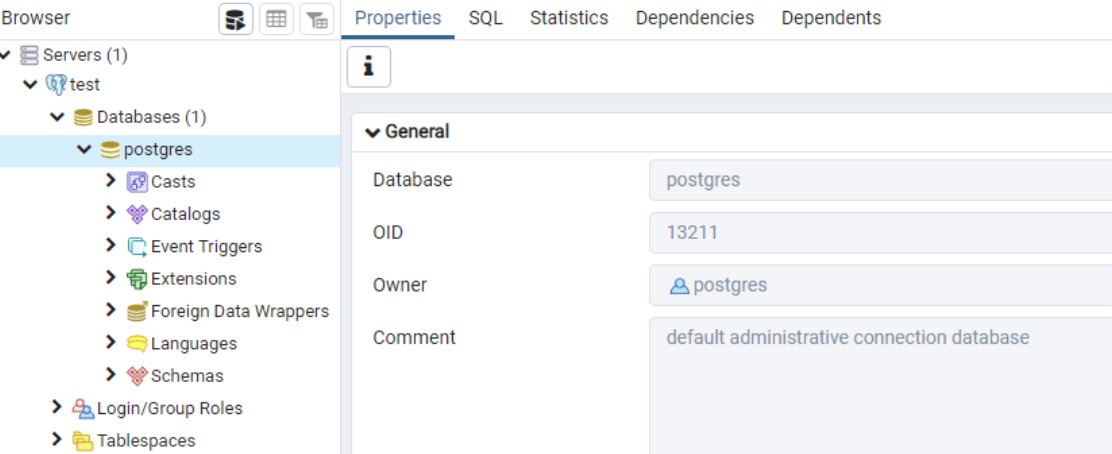
4. After logging in to the database, select Databases > postgres on the left sidebar to view the connected server (database instance).
Connecting from a Linux CVM Instance
1. Log in to a Linux CVM or on a local Linux server, and install a psql client using the yum repository.
2. To install the psql client, refer to the PostgreSQL Database Installation guide. Upon successful installation of PostgreSQL, the psql client will also be installed.
3. Run the following command to log in to the PostgreSQL database:
psql -U username -h access address -p port -d postgres
Note
To access from a CVM instance in the same VPC of the database instance, use the private IP of the database instance as the access address. To access from a Linux server on the internet, use the public IP of the database instance as the access address.
Appendix. Enabling Public Network Access
1. Log in to the TencentDB for PostgreSQL console. In the instance list, click an instance ID or Manage in the Operation column to enter the instance details page.
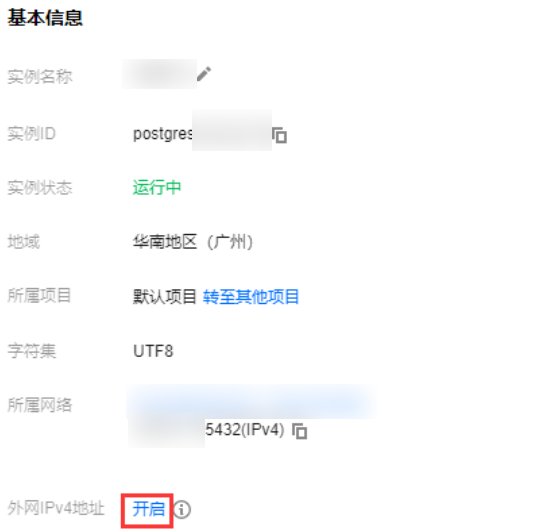
2. In the Basic Info section of the Instance Details page, find the Public IPv4 Address and click Enable.
3. In the pop-up dialog box, click OK and the public network activation will enter the processing state.
4. Once enabled successfully, the public network address can be found in the basic info section.