Granting Permission via Bucket Policy
Prerequisites
1. Create a Bucket
Granting permission via bucket policy (Policy) is specific to a particular bucket. Therefore, you need to create a bucket first. If you need to grant permission at the account level, please refer to Granting Permission via Access Management (CAM) Use Cases in this document.
2. Prepare the UIN of the Account to be Granted Permission
In this example, the root account owning the target bucket has a UIN of 100000000001, and its sub-account has a UIN of 100000000011. The sub-account needs to be granted permission to access the target bucket.
Note
To query sub-accounts created under the root account, log in to the CAM console and view them in the User List.
To create a sub-account, see Creating Sub-user.
3. Open the Add Policy Dialog
Navigate to the Permission Management of the target bucket, select Policy Permission Settings > Graphic Settings, and click to open the Add Policy dialog. Then, refer to the authorization use cases in this document for configuration. For detailed instructions on adding a policy, please refer to the Add Bucket Policy document.
The following lists several authorization cases, which you can configure as needed.
Authorization cases
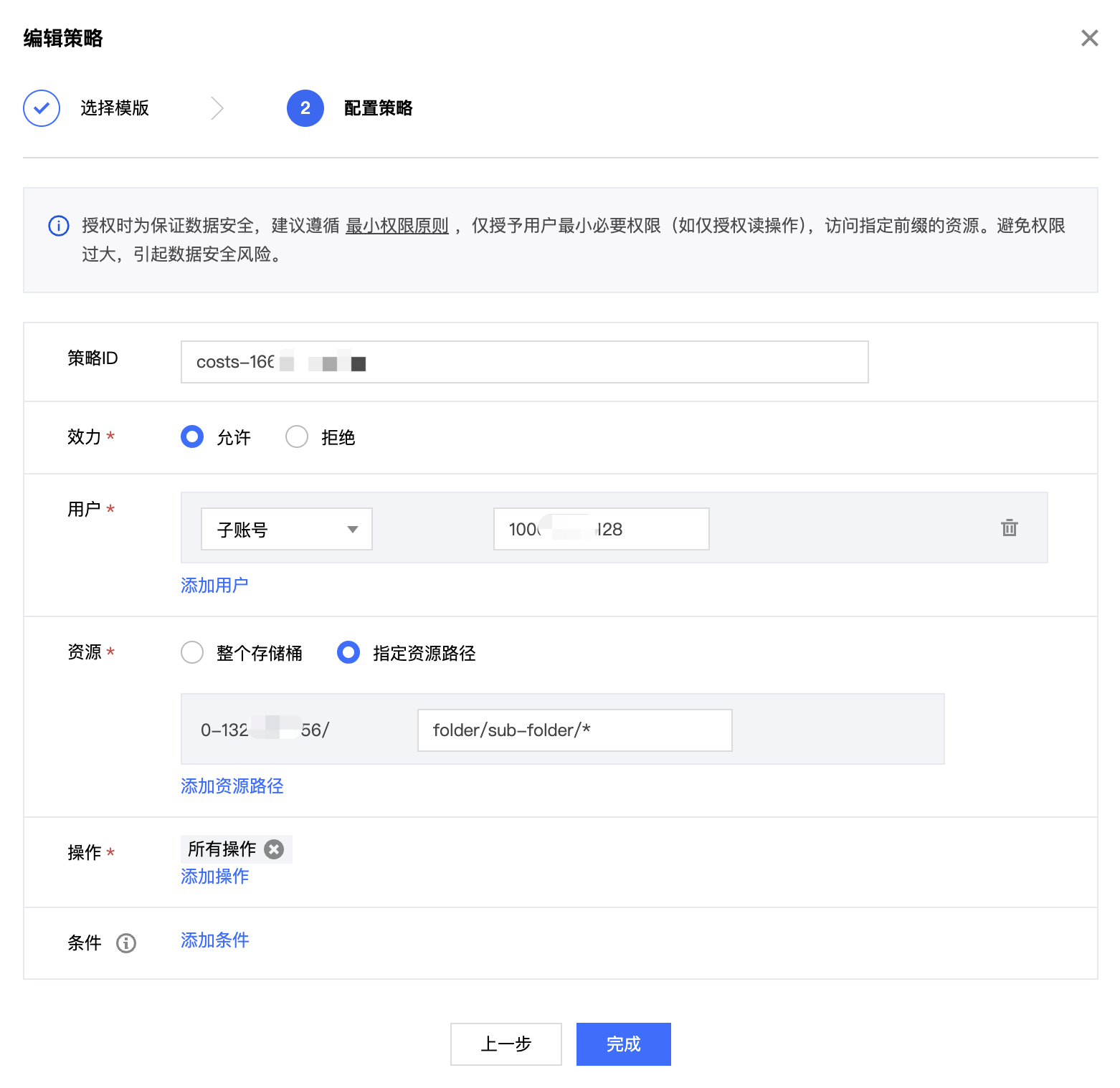
Case 1: Granting a sub-account full permissions for a specified directory
The configuration information is as follows:
Configuration items | Description |
Effect | Required |
User | Select Sub-account and enter a sub-account UIN, which must be a sub-account under the current root account, such as 100000000011. |
Resources | Select a specific resource path, such as folder/sub-folder/*. |
Action | Select All Actions. |
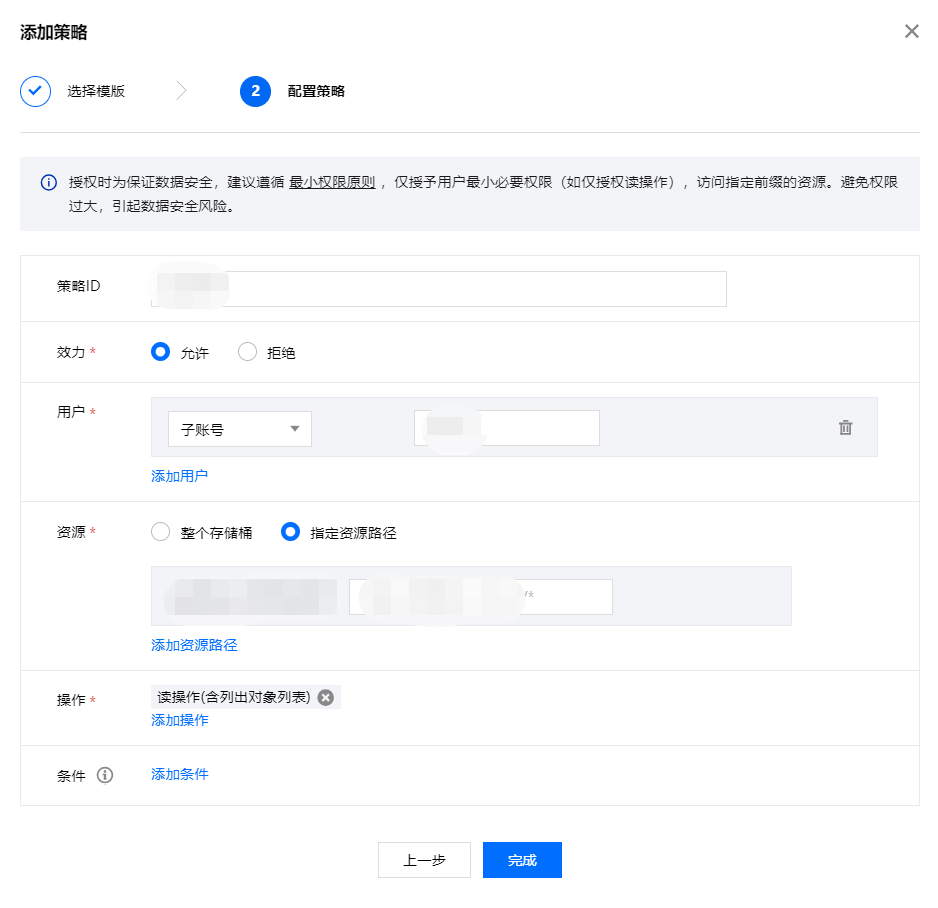
Case 2: Granting a sub-account read permission for all files in a specified directory
The configuration information is as follows:
Configuration items | Description |
Effect | Required |
User | Select Sub-account and enter a sub-account UIN, which must be a sub-account under the current root account, such as 100000000011. |
Resources | Select a specific resource path, such as folder/sub-folder/*. |
Action | Read operations (including listing the object list). |
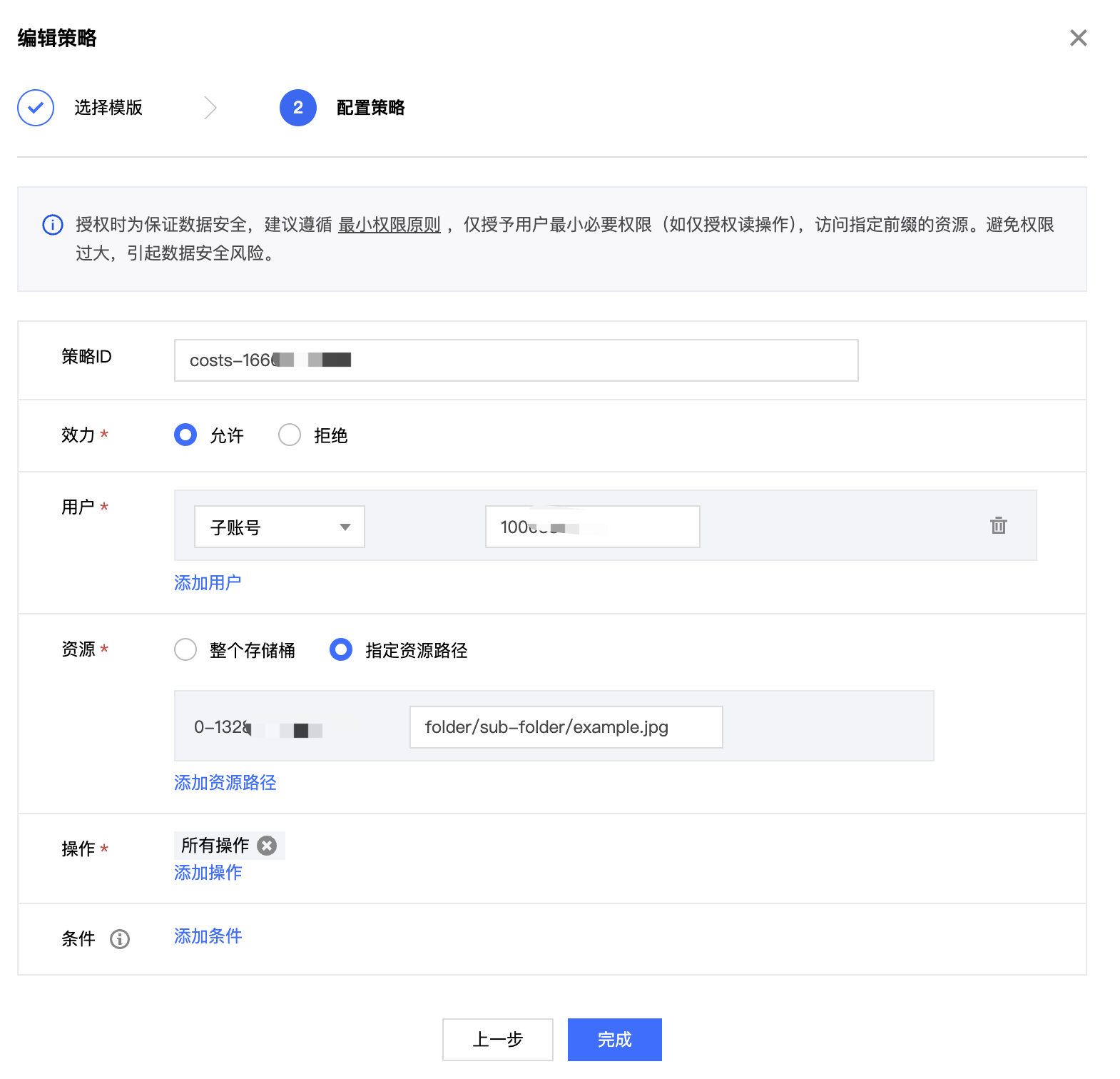
Case 3: Granting a sub-account read/write permission for specified files
The configuration information is as follows:
Configuration items | Description |
Effect | Required |
User | Select Sub-account and enter a sub-account UIN, which must be a sub-account under the current root account, such as 100000000011. |
Resources | Select a specific object key, such as folder/sub-folder/example.jpg. |
Action | All operations. |
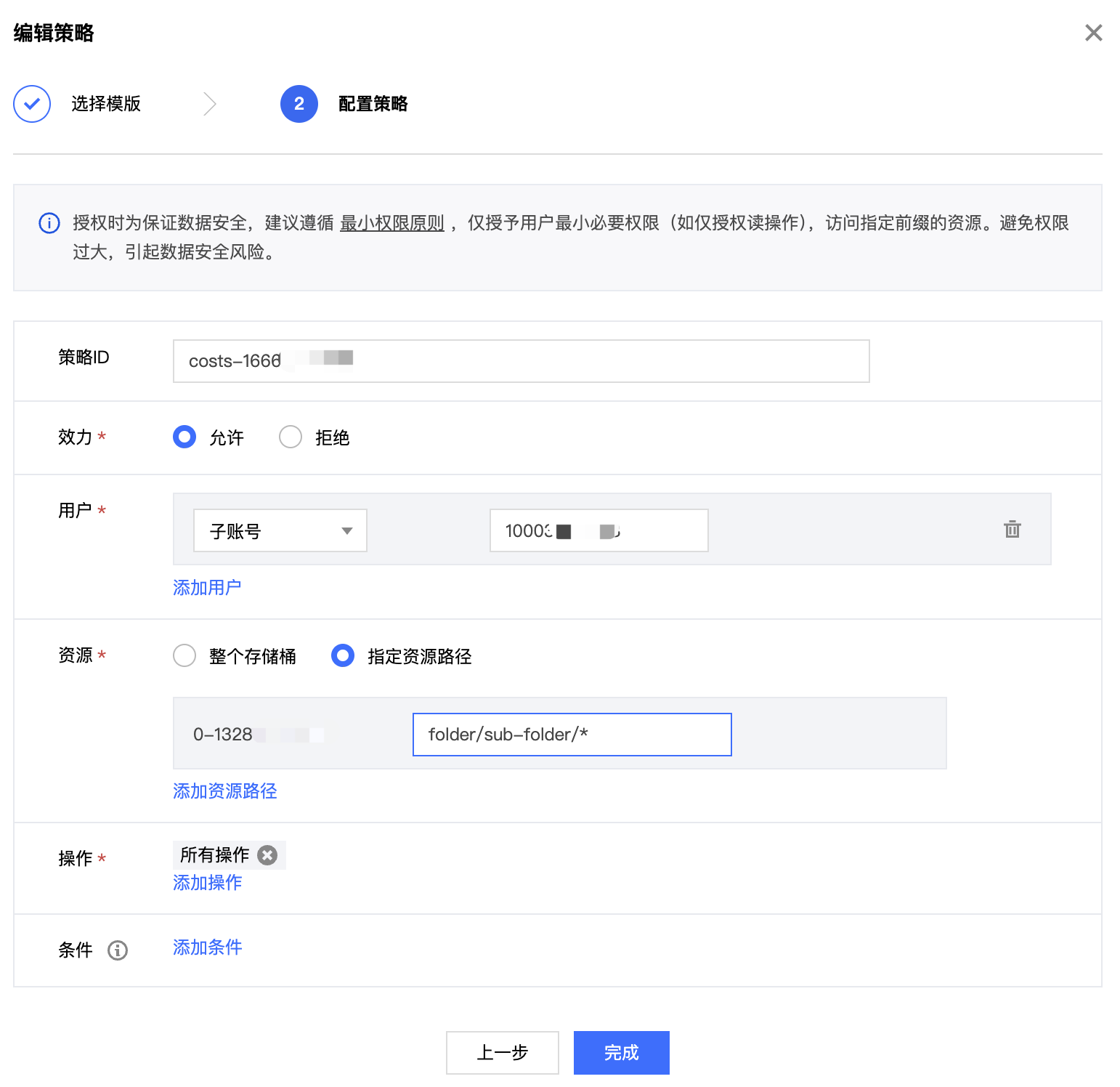
Case 4: Granting a sub-account read and write permission for all files in a specified directory while denying read and write permission for specified files in the directory
For this case, we need to add two policies: an Allow policy and a Deny policy.
1. First, add the allow policy. The configuration information is as follows:
Configuration items | Description |
Effect | Required |
User | Select Sub-account and enter a sub-account UIN, which must be a sub-account under the current root account, such as 100000000011. |
Resources | Specify a directory prefix, such as folder/sub-folder/*. |
Action | All operations. |
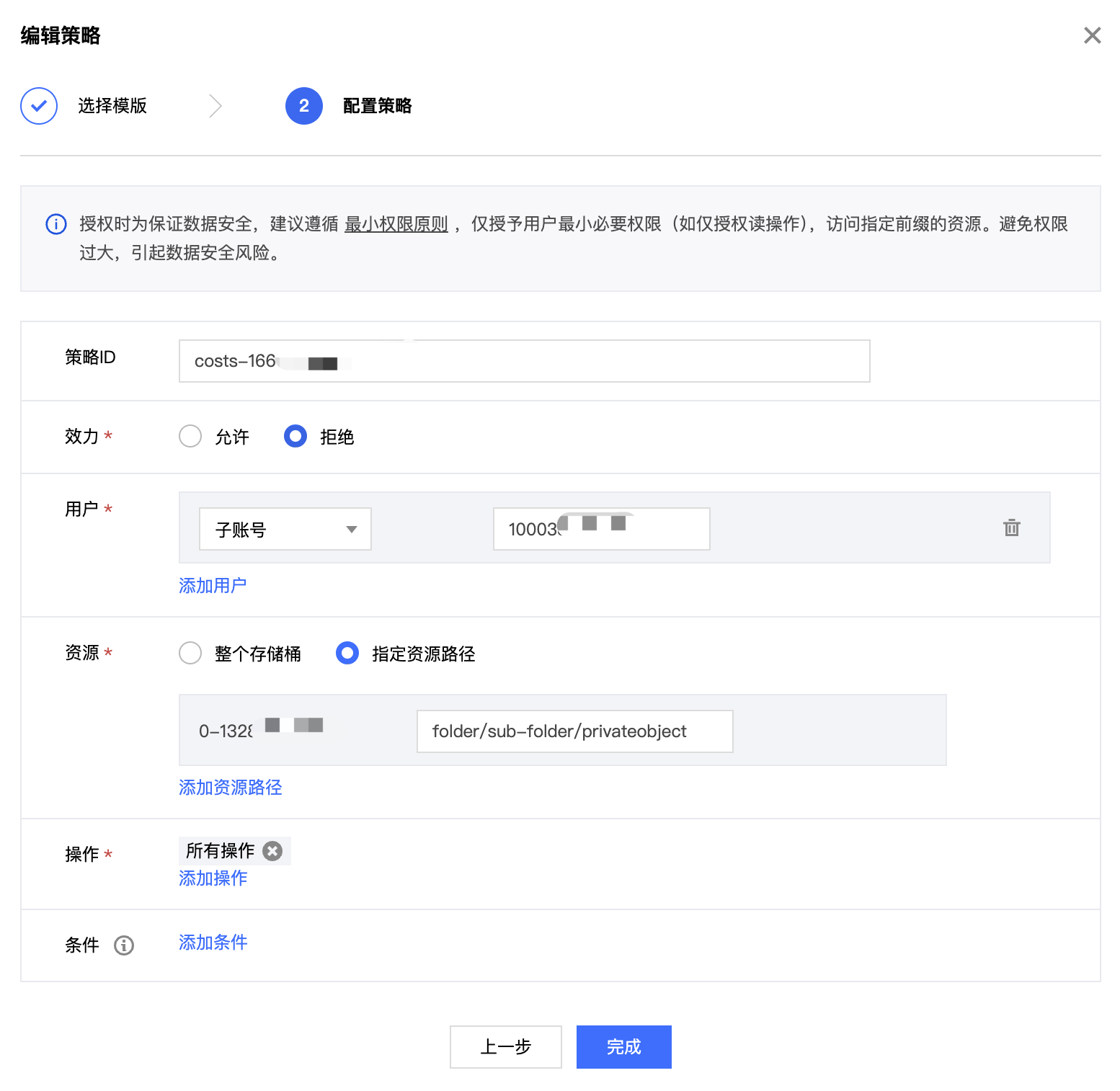
2. Then add the Deny policy. The configuration information is as follows:
Configuration items | Description |
Effect | Deny |
User | Select Sub-account and enter a sub-account UIN, which must be a sub-account under the current root account, such as 100000000011. |
Resources | Specify the object key to be denied access, such as folder/sub-folder/privateobject. |
Action | All operations. |
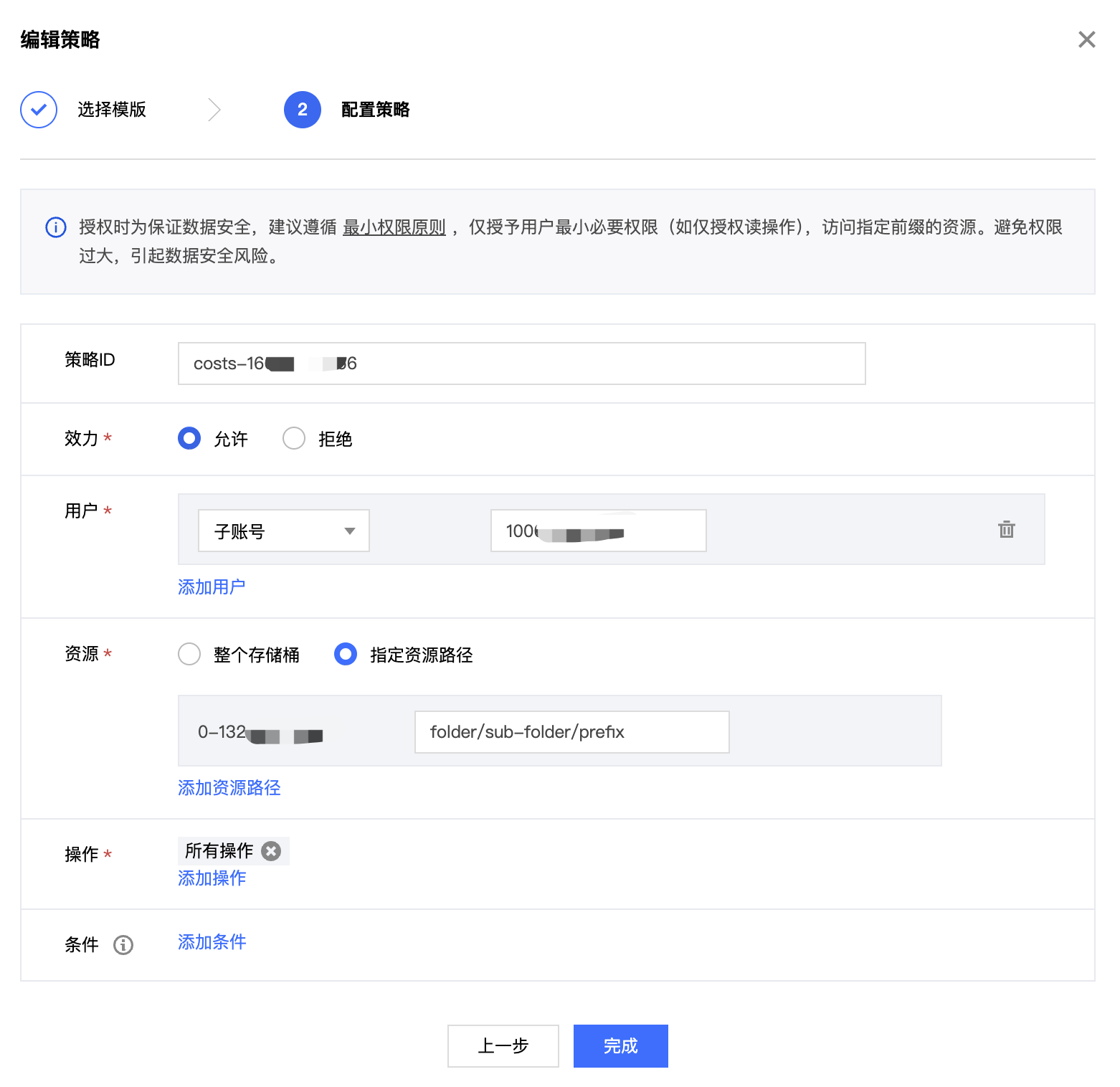
Case 5: Granting a sub-account read/write permission for files with a specified prefix
The configuration information is as follows:
Configuration items | Description |
Effect | Required |
User | Select Sub-account and enter a sub-account UIN, which must be a sub-account under the current root account, such as 100000000011. |
Resources | Specify a prefix, such as folder/sub-folder/prefix. |
Action | All operations. |
Granting Permission via CAM
If you need to grant permissions at the account level, see the following documents: