Help & Documentation>Cloud Object Storage

Querying Monitoring Data

Last updated: 2023-09-20 11:06:45

Feature Overview

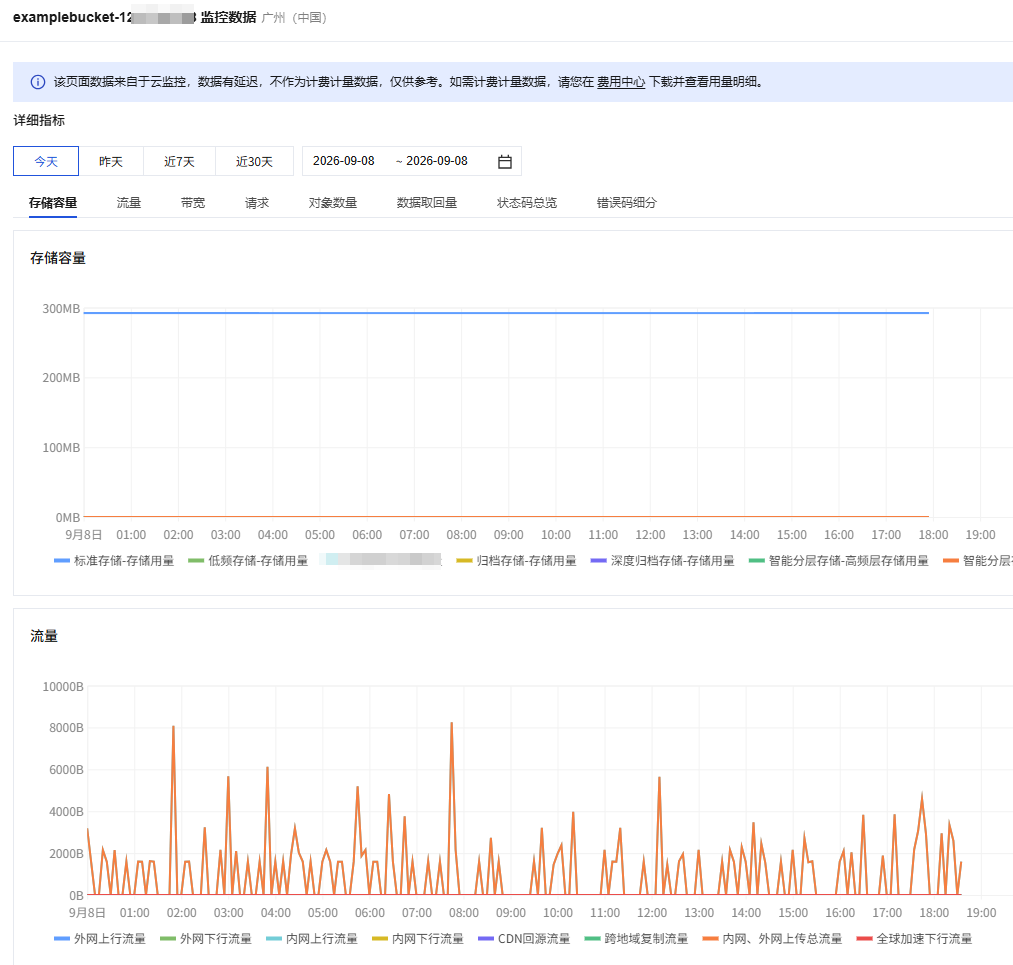
COS allows you to monitor your stored data. The COS data monitoring window displays information regarding request quantity, traffic, return code, data retrieval, etc. You can also query the details and trends of data in different storage classes for different time periods. The following describes how to view the monitoring data of a single bucket with a root account or sub-account.
Note
To view the summary of all data stored under your account, please go to Data Overview in the COS console.

Querying with a Root Account

1. Log in to the COS Console.
2. Click Bucket List on the left sidebar.
3. Locate the bucket for which you want to view the statistics, and click Monitor on the right side. Alternatively, click the bucket you want to view the statistics for, and then click Data Overview in the left navigation pane of the bucket details page.
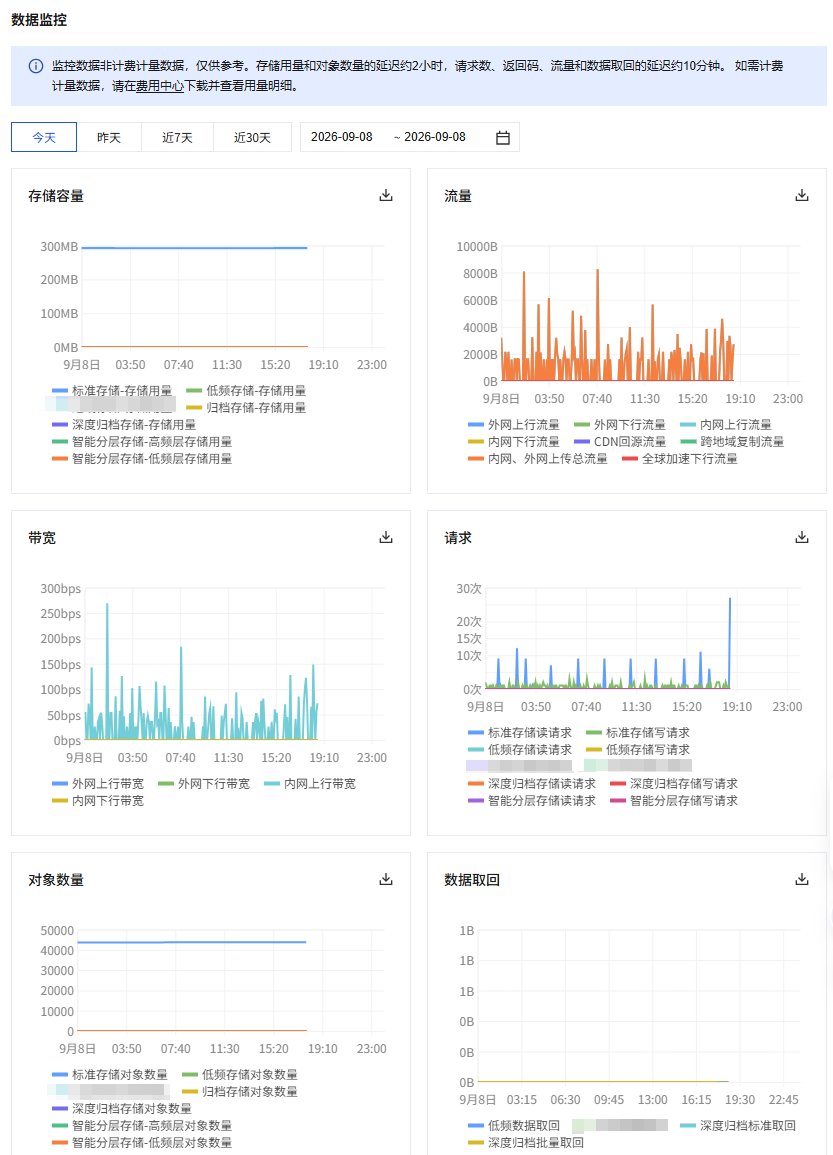
4. On the monitoring data page, view the information as shown below.


The specific monitoring items are described as follows:
Storage Usage: storage usage of each storage class
Number of Objects: number of objects (including incomplete multipart uploads) stored in the bucket
Number of incomplete multipart uploads: number of incomplete multipart uploads stored in the bucket. If an ongoing upload is suspended or canceled, the corresponding files will be stored in the bucket as incomplete multipart uploads.
Note
To query the number of objects in a folder, please see Viewing Folder Details.
If versioning is enabled, multiple versions of an object are counted as separate objects.
Requests: Number of all requests (including GET and PUT requests), as well as read/write requests of STANDARD and STANDARD_IA.
Traffic: public/private network traffic, CDN origin-pull/cross-region replication traffic, and total upload traffic of public and private network
Status Codes: You can query the number and proportion of 2xx, 3xx, 4xx, and 5xx status codes.
Data Retrieval: statistics of data retrievals for STANDARD_IA
Note
Under Details in the Current section, you can query monitoring data (including storage usage, number of objects, requests, traffic, return code, and data retrieval) of different time periods, such as today, yesterday, last 7 days, last 30 days, or a custom time period.
In the This month section, you can view data for the month, including the daily average storage usage of each storage class as well as total traffic (total public network traffic, total CDN origin-pull traffic, and total cross-region replication traffic).
For storage usage and object count, only data after March 1, 2020, is available. To view more detailed data, please go to Billing Center, select the corresponding time period, and export the data for review.

Querying with a Sub-account

To query monitoring data with a sub-account in the console, you need to first grant the sub-account relevant permissions.
You can grant such permission by using a Policy Template or Custom Access Policy.

Using a policy template

1. Log in to the Access Management Console as the root account, and select Users > User List to access the user list page.
2. Locate the sub-account that needs authorization, and click Authorize in the action column on the right.
3. Search for and select the QcloudMonitorFullAccess policy in the pop-up window and click OK to associate it with the sub-account. Then, the sub-account can access monitoring reports.
Note
The policy template grants full access to Tencent Cloud's observability platform. To protect account security, you can customize the access policy for sub-accounts with read-only permissions.

Using a custom access policy

1. Log in to the CAM console as the root account.
2. In the left sidebar, click Policies > Create Custom Policy > Create by Policy Syntax.
3. Select the blank template and click Next.
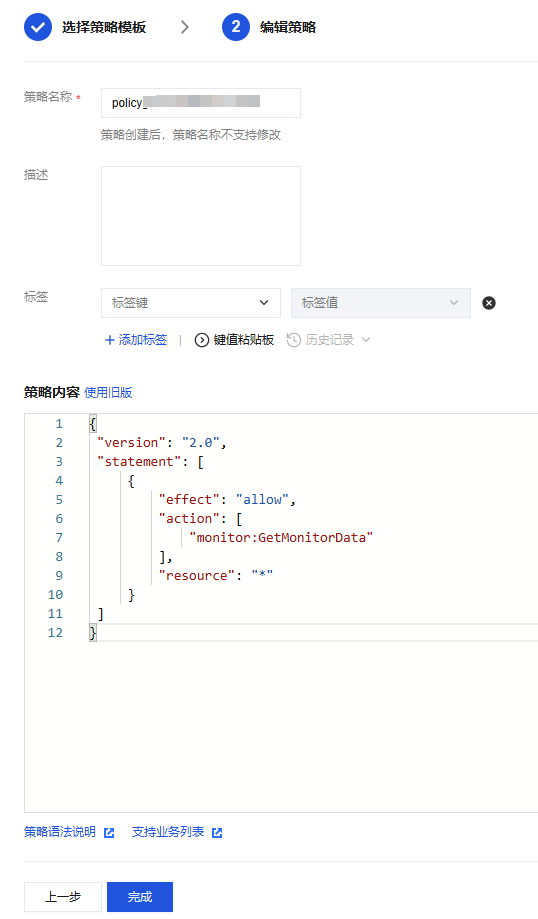
4. Copy and paste the following policy syntax into the Policy Content input box, as shown below. You can rename the policy according to your business needs for easier identification. Policy syntax:
{
"version": "2.0",
"statement": [
{
"effect": "allow",
"action": [
"monitor:GetMonitorData"
],
"resource": "*"
}
]
}

5. Click Create Policy. After the policy is created successfully, you can associate it with the sub-account as instructed in Authorizing by policy template.