The content of this page has been automatically translated by AI. If you encounter any problems while reading, you can view the corresponding content in Chinese.
How to View Key Information Such as APPID, SecretId, and SecretKey
The latter part of the bucket name is the APPID information. You can log in to the COS console to view it. For information such as SecretId and SecretKey, log in to the API Key Management section of the CAM console.
How long is the temporary key valid?
Currently, a temporary key can be valid for up to 2 hours (7200 seconds) for a root account and up to 36 hours (129600 seconds) for a sub-account. The default value is 30 minutes (1800 seconds). After a temporary key expires, requests carrying the expired key will be rejected. For an introduction to temporary keys, see the Temporary Key Generation and Usage Guide.
What to Do If Key Information Such as SecretId and SecretKey Is Leaked
You can delete a compromised key and create a new one. For details, see Access Keys.
How to generate time-sensitive access links for private read/write files?
You can use the Self-Service Diagnostic Tool provided by the COS team for developers. This tool can help you diagnose operation exceptions based on the RequestId of the request.
1. Please check whether the following configuration information is correct: BucketName, APPID, Region, SecretId, SecretKey, and so on.
2. After ensuring that the above information is correct, check whether you are using a sub-account for operation. If you are using a sub-account, check whether the root account has authorized the sub-account. Otherwise, you should log in to the root account first to authorize the sub-account.
4. If you use a temporary key to perform an operation, check whether the current operation is within the policy set when obtaining the temporary key. Otherwise, you should modify the related Policy settings.
How to Handle the COS AccessDenied Error
The AccessDenied error is usually caused by a lack of authorization or insufficient permissions. Please follow the steps below to troubleshoot the issue:
1. Please check whether the following configuration information is correct: BucketName, APPID, Region, SecretId, SecretKey, and so on. Pay special attention to whether they contain spaces.
2. After you ensure that the above information is correct, check whether you are using a sub-account for operation. If you are using a sub-account, check whether the root account has authorized the sub-account. Otherwise, you should log in to the root account first to authorize the sub-account. For authorization operations, see CAM Permission Setting Cases.
3. If you use a temporary key to perform an operation, check whether the current operation is within the Policy set when obtaining the temporary key. Otherwise, you should modify the related Policy settings. For details, see Temporary Key Generation and Usage Guide.
The COS team provides developers with the Self-Service Diagnostic Tool. This tool can help you diagnose operation exceptions based on the RequestId of the request.
What to Do When the Bucket Access Permission Limit Is Reached
Each root account (that is, the same APPID) can have a maximum of III,000 bucket ACL rules. If the number of configured bucket ACL rules exceeds 1,000, this error will occur. Therefore, it is recommended to delete unused ACL rules.
Note:
We do not recommend using file-level ACLs or Policies. When you call an API or SDK and do not require special ACL control over a file, leave the ACL-related parameters (such as x-cos-acl, ACL, and so on) empty to inherit the bucket permissions.
How to Handle Bucket Creation Errors
An error occurred while creating a bucket. Possible causes are:
1. The bucket name you specified for the bucket you are creating already exists. In this case, you need to use a different name for the bucket.
2. The existing buckets have been configured with an excessive number of public-read-private-write or public-read-write permissions, and the number of ACL rules has reached the upper limit for the root account. When a new bucket is created, because the bucket ACL limit cannot be adjusted, an error will occur.
Two solutions are provided below for your reference:
Solution 1: You can modify the access permissions of the existing bucket to private read-write. For details, see Setting Bucket Access Permissions. Then, try to create the bucket again.
Solution 2: You can add a policy in Policy Permission Settings to configure the corresponding access permissions. For details, see Adding a Bucket Policy.
Can a File Be Accessed with an Expired Signature Link for Public Read Files?
If you use an expired signature link to access a public-read file, COS will first verify the permission status. If the link is determined to be expired, access will be denied.
How to Handle "403 Forbidden" or "Permission Denied" Errors During Upload or Download Operations
Follow the steps below to troubleshoot the issue step by step:
1. Please check whether the following configuration information is correct: BucketName, APPID, Region, SecretId, SecretKey, and so on.
2. After ensuring that the above information is correct, check whether you are using a sub-account for operation. If you are using a sub-account, check whether the root account has authorized the sub-account. Otherwise, you should log in to the root account first to authorize the sub-account. For authorization operations, see CAM Permission Setting Cases.
3. If you use a temporary key to perform an operation, check whether the current operation is within the Policy set when the temporary key is obtained. Otherwise, you should modify the related Policy settings. For details, see Temporary Key Generation and Usage Guide.
The COS team provides developers with the Self-Service Diagnostic Tool. This tool can help you diagnose operation exceptions based on the RequestId of the request.
How to Restrict Others from Downloading Files to Local in COS
To restrict others from downloading files locally, you need to distinguish between the following scenarios:
2. To restrict anonymous users from downloading data, you can set the bucket to private read-write or configure a deny anyone Get Object operation in the bucket policy.
How to Set Permissions for Sub-Accounts of Other Accounts in COS
If a bucket under root account A needs to be authorized to sub-account B0 under root account B, you must first grant root account B permission to operate the bucket under A. Then, through root account B, you can grant sub-account B0 permission to operate the bucket under A. For detailed operations, see Granting Permissions for a Bucket to a Sub-Account Under Another Root Account.
How to Set Sub-Accounts/Collaborators to Only Upload Files Without Delete Permissions in COS
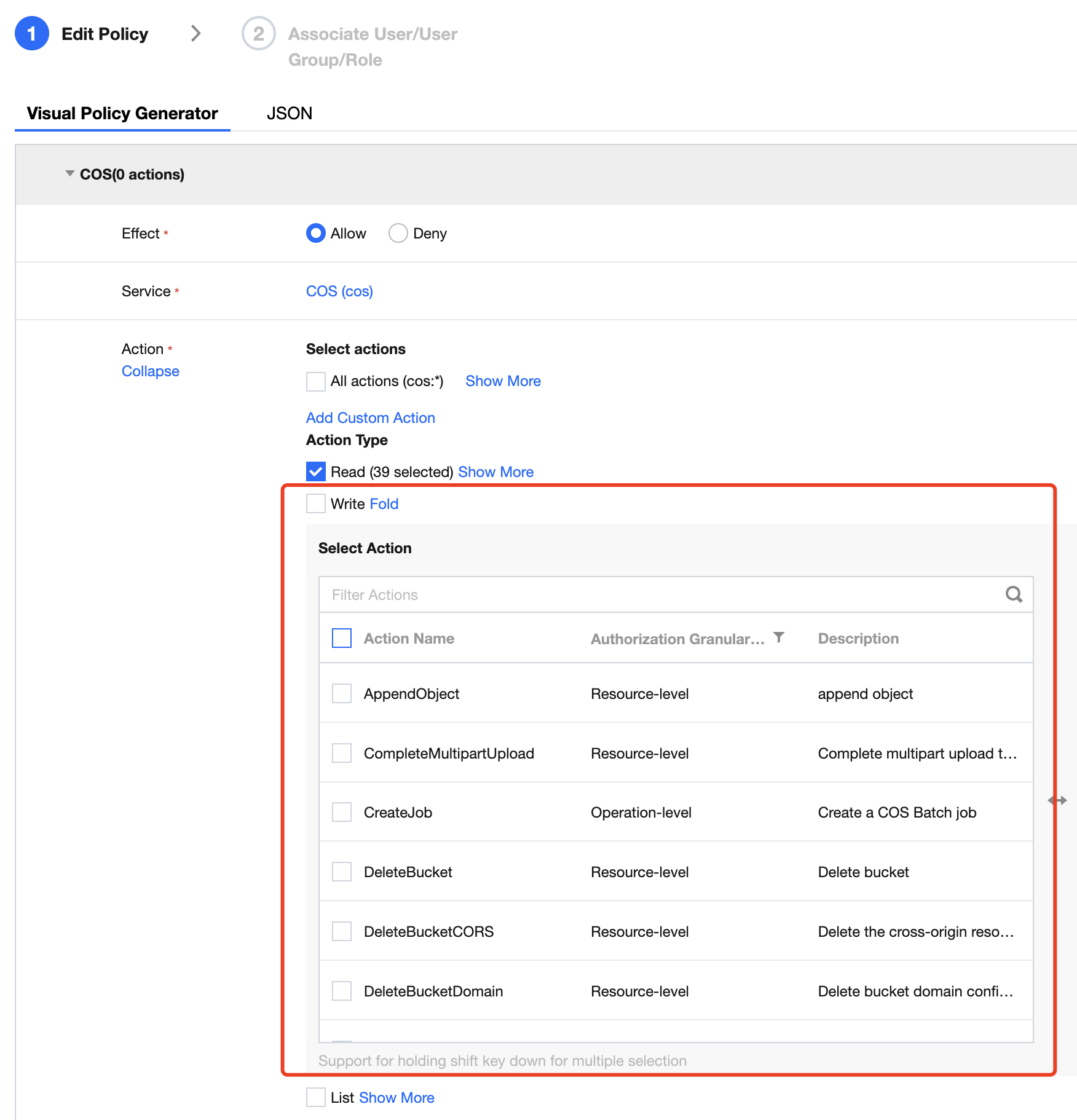
You can create a custom policy via the CAM console to set specific permissions for sub-users. For detailed steps, see Creating a Custom Policy.
Note:
When creating a custom policy, you need to grant read permissions. For write permissions, select only upload permissions, and do not select any delete-related permissions.
How to Hide the File List When Accessing a Public Read Bucket via Its Default Domain Name
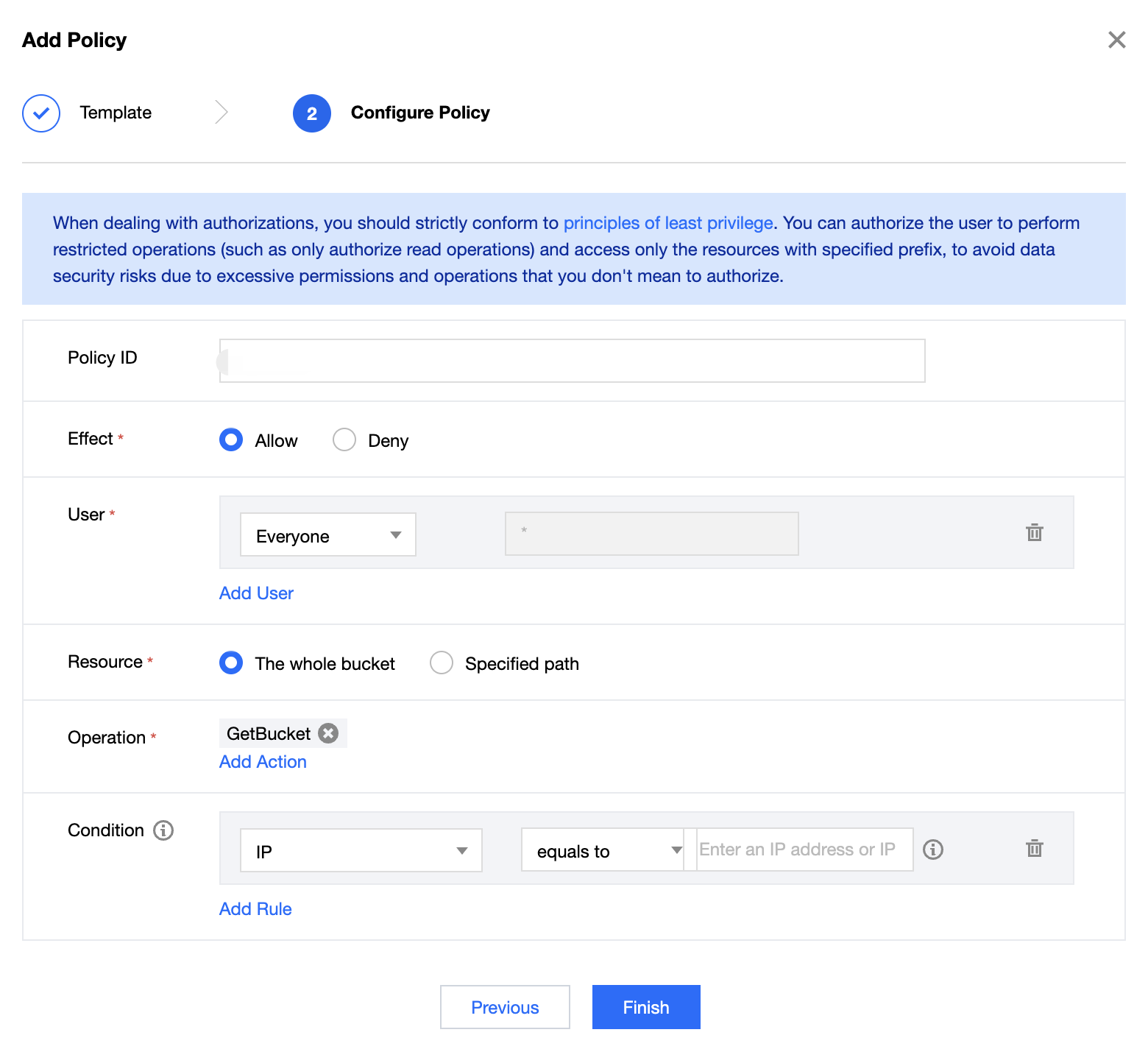
You can set a Get Bucket permission to deny anyone for the corresponding storage bucket. The steps are as follows:
Log in to the COS console, select the bucket list, and go to the Permission Management page of the corresponding bucket.
Method 1:
1. Locate the Policy Permissions setting and click Add Policy under Graphical Settings.
2. Add the corresponding operation permissions as shown in the figure below, and click Finish to save.
Method 2:
Locate the Policy Permissions setting, click Policy Syntax > Edit, and enter the following expression:
Replace the relevant information in qcs::cos:ap-beijing:uid/1250000000:examplebucket-1250000000/* as follows:
Replace "ap-beijing" with the region where your bucket is located.
Replace "1250000000" with your APPID information.
Replace "examplebucket-1250000000" with your bucket name.
The APPID is the latter part of the bucket name. You can view the bucket name in the COS console.
Is the ACL restriction on COS for buckets or accounts? Is it possible to specify permissions when uploading files?
ACL restrictions apply to accounts. We do not recommend using file-level ACLs or Policies. When you call an API or SDK and do not require special ACL control over a file, leave the ACL-related parameters (such as x-cos-acl, ACL, and so on) empty to inherit the bucket permissions.
How do I authorize collaborators to access a specified bucket?
If multiple businesses need to operate on a bucket, is it possible to isolate permissions based on buckets or other dimensions?
You can log in to the CAM console, go to the User Management page, enable sub-accounts for different businesses, and grant different authorization operations.
How do I create a sub-account for a subsidiary or employee and authorize access permissions to a specific bucket?
How can I grant certain sub-accounts permission to operate only a certain bucket?
If you want a sub-account to have operation permissions only for specific buckets, you can add a bucket policy to the sub-account through the root account. For details, see Adding a Bucket Policy.
Common Issues with Ranger Authorization and Authentication