The content of this page has been automatically translated by AI. If you encounter any problems while reading, you can view the corresponding content in Chinese.
Okta is a provider of identity recognition and access management solutions. Tencent Cloud supports federated identity authentication based on SAML 2.0 (Security Assertion Markup Language 2.0), an open standard used by many Identity Providers (IdPs). By integrating Okta with Tencent Cloud through SAML 2.0 federated identity authentication, you can enable automatic login (Single Sign-On) to the Tencent Cloud console with Okta accounts to manage Tencent Cloud resources, eliminating the need to create a CAM sub-user for each member of your enterprise or organization.
Instructions
Creating Okta Applications
Note
You can create an Okta application through this step. If you already have an application in use, you can ignore this operation and proceed to Configuring SAML for Okta Applications.
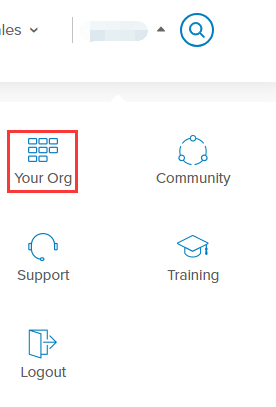
1. Log in to the Okta website, and click on the top right corner User Name > Your Org, as shown below:
2.
On the Okta homepage, click Admin in the top-right corner to enter the admin interface
.
3.
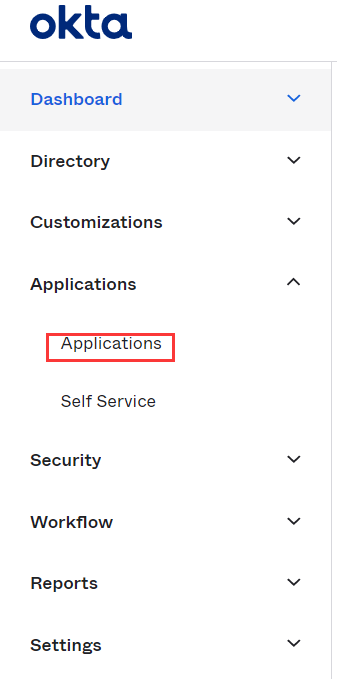
On the administrator page, select Applications to enter the application management page
, as shown below:
4. On the Application Management page, click Add Application to navigate to the Add Application page.
5. On the Add Application page, click Create APP Integration as shown below:
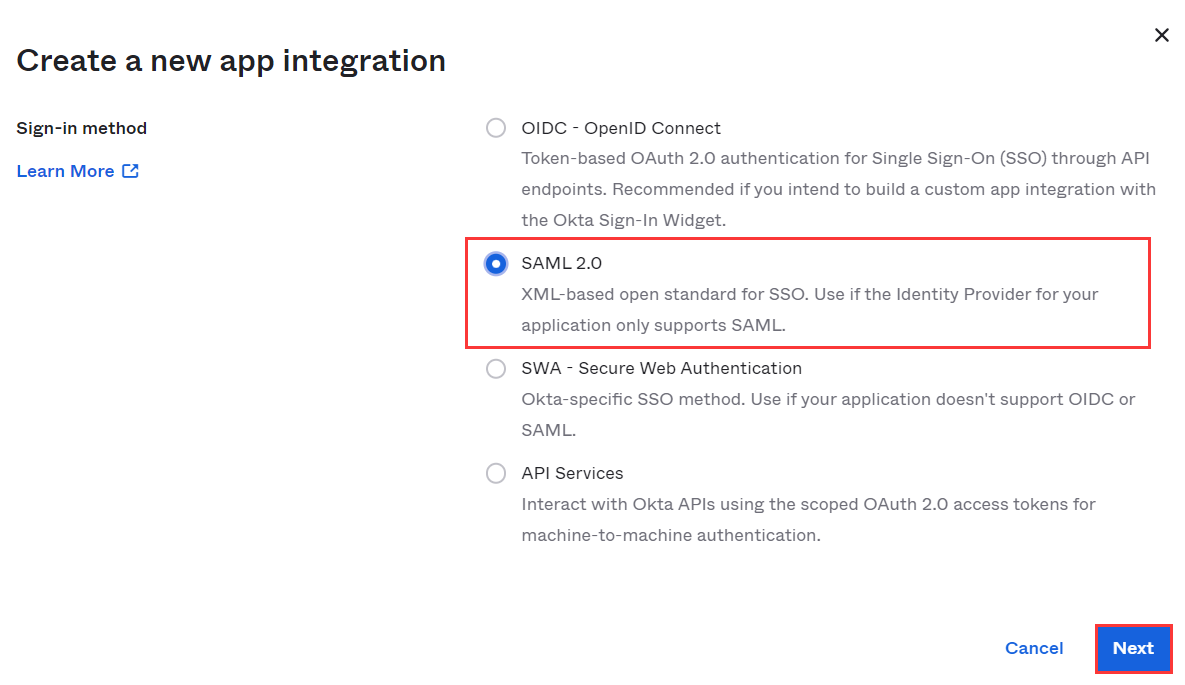
6. In the pop-up window for creating a new application integration, select the Platform and Sign on method, where the Sign on method should be set to SAML 2.0. Click Create as shown below:
7. On the General Settings page, supplement the App name, App logo (optional), and App visibility (optional) information. Click Next. This application can be used to integrate with Tencent Cloud, enabling automatic login (Single Sign-On) to the Tencent Cloud console with Okta accounts to manage Tencent Cloud resources.
Configuring SAML for Okta Applications
Note
This step maps Okta application attributes to Tencent Cloud attributes to create trust between Okta and Tencent Cloud.
2. On the General page, click Edit under the SAML Settings section, confirm the current App name, App logo (optional), and App visibility (optional) information, and then click Next to proceed to the Configure SAML page.
3.
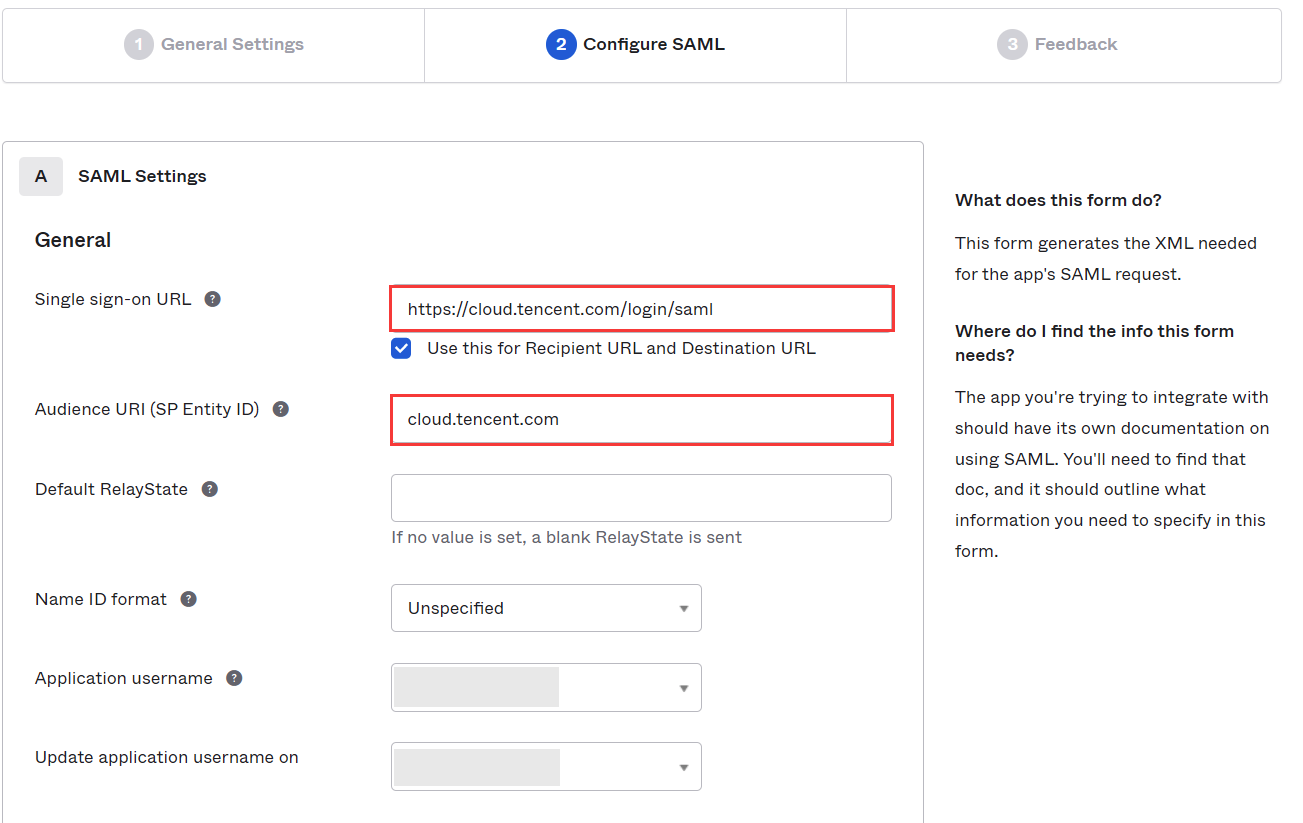
On the Configure SAML/Configure SAML page
, supplement the Single sign on URL and Audience URL (SP Entity ID) under GENERAL with the following information, as shown in the figure below:
4.
You can configure according to the site where your Tencent Cloud account is located:
Site
Single sign on URL
Audience URL(SP Entity ID)
China website
https://cloud.tencent.com/login/saml
cloud.tencent.com
International website
https://intl.cloud.tencent.com/login/saml
intl.cloud.tencent.com
Note
The Single Sign-On URL is the Tencent Cloud page to which you will be redirected. If you need to specify a different page, you can use the format https://cloud.tencent.com/login/saml?s_url=xxxx, where xxxx is the address you need to specify, which requires urlencode.
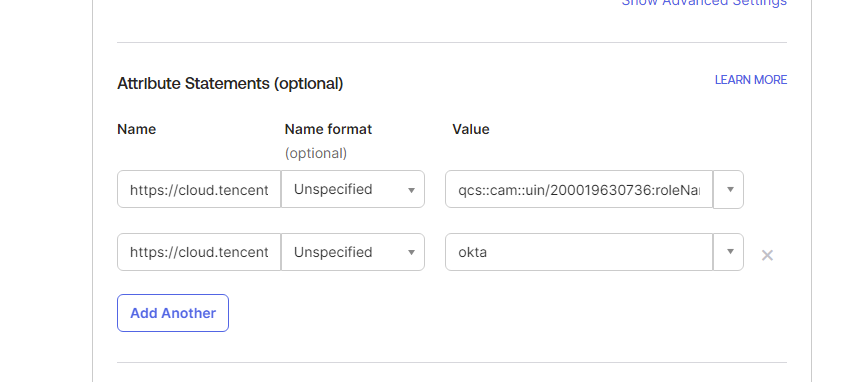
5. On the SAML/Configure SAML page, supplement the ATTRIBUTE STATEMENTS under GENERAL with the following information, as shown below:
Replace {RoleName} with the name of the role you created for the IdP in Tencent Cloud (click to see how to create a role for the IdP in Tencent Cloud here). You can view the role name in Roles - Console. If you need to add more, you can follow this format: qcs::cam::uin/{AccountID}:roleName/{RoleName}, separated by a semicolon (;).
Replace {ProviderName} with the name of the SAML identity provider you created in Tencent Cloud. You can view this at Identity Provider - Console.
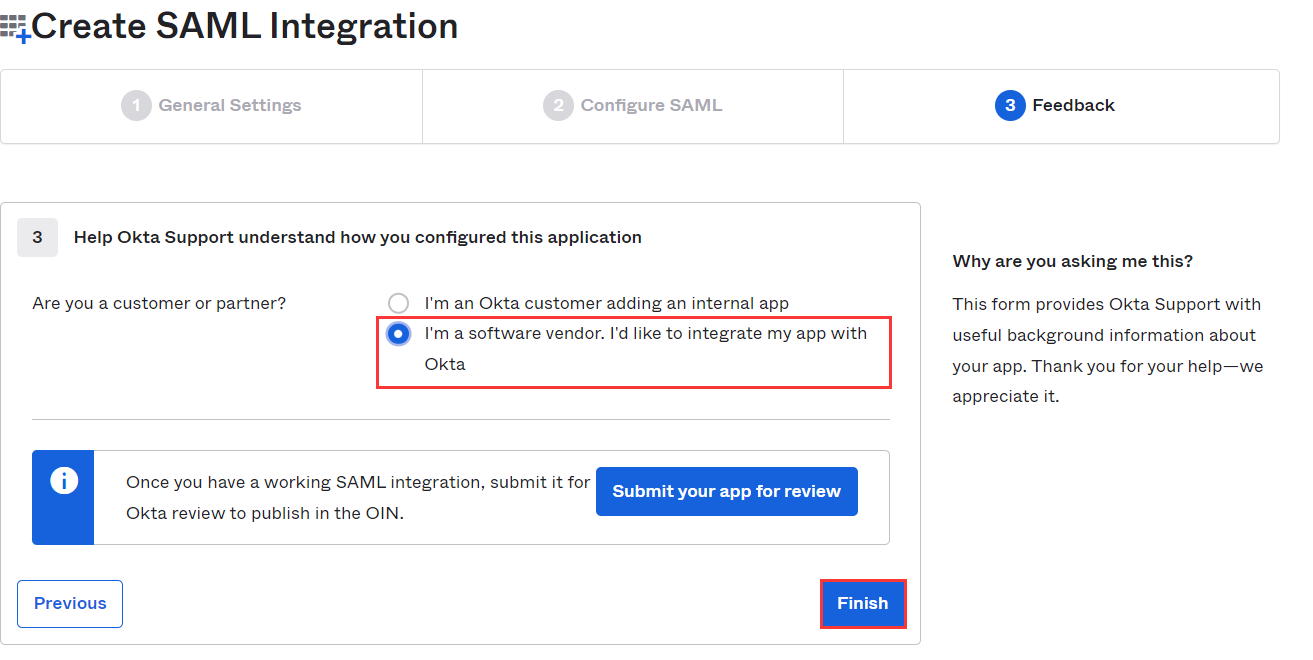
6. Click Next to proceed to the Feedback page. After selecting the following information, click Finish to complete the CAM operation configuration, as shown below:
Configuring SAML Integration for Okta Applications
Note
This step configures the trust relationship between Okta and Tencent Cloud.
1. Log in to the Admin Interface, select Applications to navigate to the application management page.
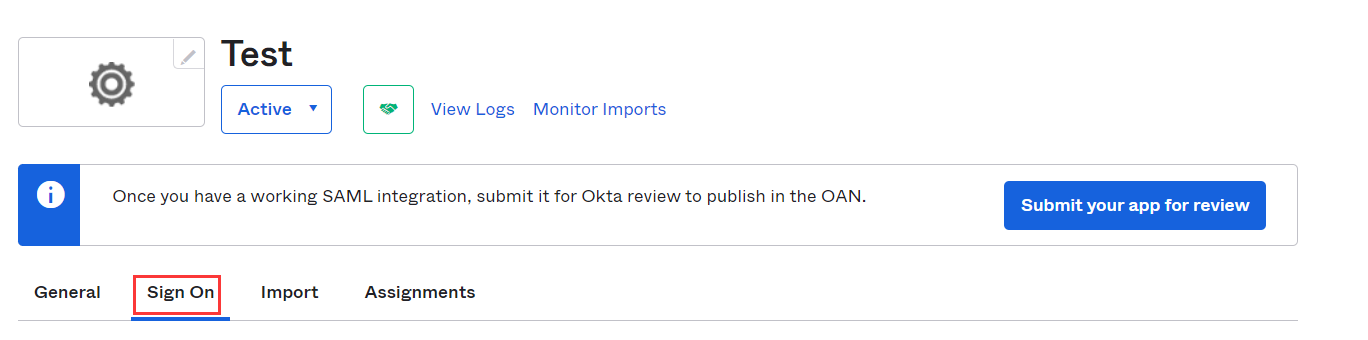
2. On the Application Management page, click the name of the application you created to enter the Application Details page, and then click Sign On, as shown below:
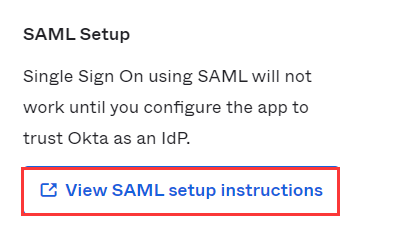
3. On the Sign On page, click View SAML setup instructions at the bottom right to view the IdP metadata, as shown below:
4. After obtaining the identity provider metadata, you can right click on the viewing page to save it locally.
5. Create a SAML IdP and role in Tencent Cloud. For detailed operations, see Create IdP.
Configuring Okta Users
Note
This step assigns Tencent Cloud SSO access permissions to Okta users.
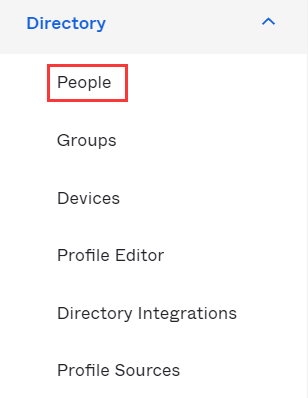
1. Log in to the Admin Interface, click on People under Directory to enter the user management page, as shown below:
2. On the user management page, locate the user you need to authorize.
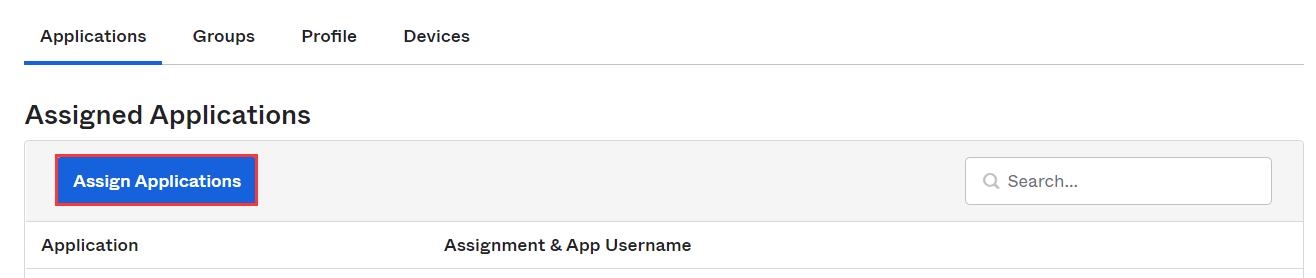
3. Click on the username to enter the user details page, then click Assign Applications in the upper left corner, as shown below:
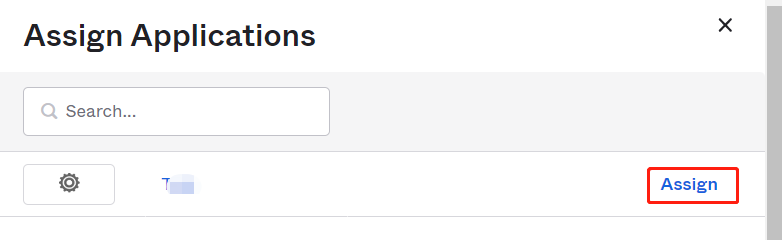
4. In the settings window that appears, click Assign, set the User Name, and then click Save and Go Back>Done to complete the configuration of Okta user operations. As shown in the figure below:
5. Navigate to the Application Management page, and click on the name of the application you created to access the application details page.
6. In the application details page, select General. Copy Embed Link under the App Embed Link box and log in to the Tencent Cloud console.