JSON Lines (JSONL) files are a text file format that stores data in JSON format. Unlike standard JavaScript Object Notation (JSON) files, each line in a JSONL file is a separate JSON object. This format makes data easy for humans to read and for computers to parse, and can be easily used with command line tools and scripts.
A standard JSON file typically contains an array or object, which comprises multiple data items encoded as a single JSON structure. In a JSONL file, however, each line is a JSON object, with each object separated by a line break. This makes the JSONL file particularly suitable for logging and stream data processing, as data can be easily read and processed line by line.
Below is an example of a standard JSONL file:
{"name":"Alice", "age":25}
{"name":"Bob", "age":30}
Each JSON object is independent and can be parsed separately. This format is particularly useful for processing large volumes of data, as it allows for line-by-line reading and processing without loading the entire file into memory at one time.
In the LLM field, JSONL is a very common dataset file format.
(2) Basic Structure of JSON
JSON is a lightweight data exchange format that is easy for humans to read and write, and also easy for computers to parse and generate. It is based on a subset of JavaScript, but it is completely language-independent. Many programming languages support exchanging data in JSON format.
Object: enclosed in curly braces ({}) and consisting of a series of key-value pairs separated by commas (,). Example:
{
"name":"Alice",
"age":25,
"isStudent":false
}
Array: enclosed in square brackets ([]) and can contain any number of values. These values can be strings, digits, objects, arrays, and so on, separated by commas (,). Example:
["apple","banana","cherry"]
Key-value pair: The key is a string, and the value can be a string, digit, object, array, Boolean value, or null. The key and value are separated by a colon (:). Example:
"name":"Alice"
(3) YAML Files
We use the YAML Ain't Markup Language (YAML) file format to define our labeling template. The syntax of the YAML file is described below.
YAML is a human-readable data serialization format, commonly used for configuration files, data exchange, and object transfer between different programming languages. YAML is designed to be easy for humans to read and write and for computers to parse and generate.
The basic structure of a YAML file includes the following characteristics:
1. Key-value pair: YAML uses a colon followed by a space (: ) to separate a key and a value.
2. Indentation: YAML uses indentation to represent hierarchical relationships. It typically uses the space, rather than the tab character (Tab) for indentation.
3. List: In YAML, lists start with a hyphen (-), and each list item occupies a separate line.
4. Dictionary/Mapping: Dictionaries or mappings in YAML are represented using key-value pairs and can be nested.
5. Comment: Comments in YAML start with a hash (#) and continue until the end of the line.
6. Multi-document support: YAML can contain multiple documents in a single file, with each document separated by three consecutive hyphens (---).
7. Data types: YAML supports multiple data types, including strings, Boolean values, integers, floating-point numbers, dates, and time.
8. Complex structures: YAML supports complex data structures, such as nested lists and dictionaries.
Below is a simple example of a YAML file:
# This is a comment.
name: John Doe
age:30
married:true
children:
-name: Jane Doe
age:10
-name: Jim Doe
age:8
address:
street: 123 Main St
city: Anytown
zip:12345
In this example, we define a YAML document containing personal information, including a string (name), an integer (age), a Boolean value (married), a list (children), and a nested dictionary (address).
2. LLM Labeling Scenarios
The Data Center module of Tencent Cloud TI-ONE Platform (TI-ONE) supports the import and labeling of multimodal datasets such as LLMs and MLLMs. Our labeling workbench allows you to customize data parsing and edit labeling pages.
(1) LLM Scenarios
Common labeling in LLM scenarios typically involve labeling single-turn or multi-turn Q&A pairs. Each sample in the raw dataset is a JSON object. Example:
Below is an example of a single-turn Q&A pair:
{
"instruction":"Please briefly answer the following question:"
"input":"What investment and financial management methods do you usually use?"
"output":"I generally opt for bank savings, which are relatively low-risk."
}
Below is an example of a multi-turn Q&A pair:
{
"conversations":[
{
"from":"human",
"value":"What is insurance? Is it reliable?"
},
{
"from":"model",
"value":"Insurance is a commercial insurance activity where the policyholder pays insurance premiums to the insurer according to the contract agreement, and the insurer bears the liability to pay insurance compensation for property losses caused by accidents specified in the contract, or bears the liability to pay insurance benefits when the insured dies, becomes disabled, falls ill, or meets conditions such as the age or term specified in the contract. Insurance purchased through legal channels is safe and reliable."
},
{
"from":"human",
"value":"I want to purchase insurance for investment and financial management. What types of insurance are available?"
},
{
"from":"model",
"value":"Annuity insurance, dividend insurance, investment-linked insurance, and so on."
}
]
}
(2) MLLM Scenarios
Labeing in MLLM scenarios generally involve displaying and processing resources such as images.
In sample data, we typically reference the relative path of images in JSON data and place the images in the corresponding directory.
Below is an example of an image labeling :
{
"img":[
"images/100230144.jpeg"
],
"target":[
{
"question":"Please provide a vivid image description."
"answer":"The image shows a toy doll inside a packaging box. The packaging box is primarily white, with a transparent plastic window that allows a clear view of the doll inside. The top of the box is printed with the words Pop! Movies, and the bottom says 'Home Alone', indicating that this is a collectible themed after the movie Home Alone. The doll is labeled as Kevin in a clearly visible red font, with a series number of 491. The doll features a simple design and the Funko Pop! style, with large black eyes, a small nose, no mouth, and short hair. He is wearing a red sweater with a fluffy design and green pants. He holds a rifle in his left hand and an iron in his right hand. Both props maintain a minimalist design with few details. The doll stands upright, with brown shoes visible under the green pants. The sides of the packaging box are red, and the front bottom is green, with additional brand and warning tags typically found on collectible packaging, including a warning about potential choking hazards."
}
]
}
3. TI-ONE Labeling Workbench Design
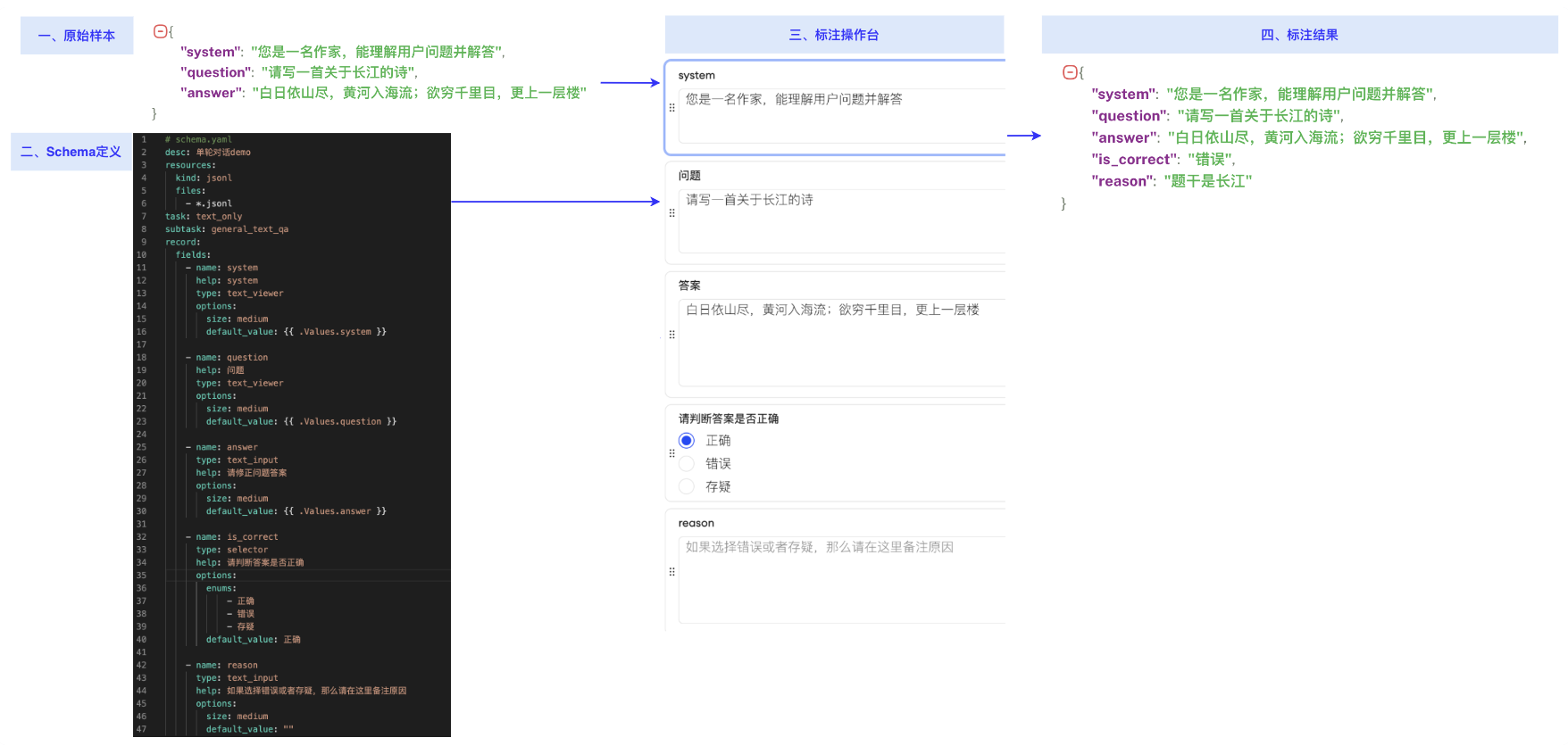
To easily modify the sample data in the labeling workbench, we need to convert multiple pieces of information in each sample to multiple labeling components on the frontend page and populate the sample data within the components.
Based on observations and research of the data processing process through internal algorithms, we have designed the dataset schema concept. Through the schema syntax structure agreed upon and built-in component features, it supports users in easily building labeling pages using raw data and performing editing processes such as data labeling and updates.
The design of labeling pages is divided into two steps:
Step 1: Define the required labeling components based on raw data.
Step 2: Parse data from the raw sample data and populate the corresponding labeling components with it.
Below is an example:
(1) Labeling Component Definition
Based on the review of algorithm labeling scenarios, we have defined the following built-in labeling components:
Labeling
Description
Property
Remarks
TextViewer
Text display box.
type
Component type: TextViewer.
name
Field name identifier, such as question.
key
Field corresponding to the JSON key in the output file after labeling (letters, underscores, and digits), such as question.
help
Labeling recommendation, such as "Enter the answer".
size
Text box size. Valid values: SingleLine/MultiLine/LongArticle.
value
Default value.
TextInput
Text input box.
type
Component type: TextInput.
name
Field name identifier, such as question.
key
Field corresponding to the JSON key in the output file after labeling (letters, underscores, and digits), such as question.
help
Labeling recommendation, such as "Enter the recommended answer for the question regarding the image".
size
Text box size. Valid values: SingleLine/MultiLine/LongArticle.
value
Default value of the input box.
StringSelector
String type selection button (single-choice/multi-choice).
type
Component type: StringSelector.
name
Field name identifier.
key
Field corresponding to the JSON key in the output file after labeling (letters, underscores, and digits).
Labeling recommendation, such as "Determine whether the provided answer is correct".
choices
Array type; enumeration of selectable choices, such as [Correct, Incorrect, Pending].
value
Array type; default choice, such as [Correct].
ImageViewer
Single-image display box.
type
Component type: ImageViewer.
name
Field name identifier.
key
Field corresponding to the JSON key in the output file after labeling (letters, underscores, and digits).
help
Labeling recommendation, such as "See the following image(s)".
value
Image path relative to the dataset, such as cat.jpeg.
ImageListViewer
Multi-image display box.
type
Component type: ImageListViewer.
name
Field name identifier.
key
Field corresponding to the JSON key in the output file after labeling (letters, underscores, and digits).
help
Labeling recommendation, such as "See the following image(s)".
value
Array type, list of image paths relative to the dataset: [cat.jpeg, dog.jpeg].
ImageListInput
Multi-image display box, allowing adding or deleting images (at least one image required).
type
Component type: ImageListInput.
name
Field name identifier.
key
Field corresponding to the JSON key in the output file after labeling (letters, underscores, and digits).
help
Labeling recommendation, such as "See the following image(s)".
value
Array type, list of image paths relative to the dataset: [cat.jpeg, dog.jpeg].
List
Component list type. Each item in the list can contain multiple components.
type
Component type: List.
name
Field name identifier.
key
Field corresponding to the JSON key in the output file after labeling (letters, underscores, and digits).
help
Labeling recommendation, such as "See the following graphic and textual information".
value
[][]field: double-layer nested list, where each element is a []field. Elements are distributed horizontally within each inner list and vertically between inner lists.
ImageBoxList
Multiple labeling boxes on the image.
type
Component type: ImageBoxList.
name
Field name identifier.
key
Field corresponding to the JSON key in the output file after labeling (letters, underscores, and digits).
help
Labeling recommendation, such as "Annotate the content on the image".
value
[][]field: double-layer nested list where each element is a []field containing a field to be labeled on the box (the content to be labeled can only be TextInput/StringSelector/Box).
Box
Coordinates of the labeling box. They are implicitly generated when the box is drawn in the labeling workbench, and do not need to be manually specified.
type
Component type: Box.
name
Field name identifier.
key
The JSON key for boxes in the input file must be the fixed value "box".
help
Labeling recommendation, such as "Box the content on the image".
value
String obtained from JSON serialization of box coordinates.
Below is a detailed description of the YAML configuration for each labeling component.
TextViewer
Read-only text display box, which is non-modifiable.
# name: field name identifier, with a maximum length of 100 bytes.
name: question.
# key: field corresponding to the JSON key in the output file after annotation (supports only letters, underscores, and digits, with a maximum length of 100 bytes).
key: question
# help: detailed field description, used to display help information on the annotation console.
help: See the following questions.
# type: component type.
type: TextViewer
# size: text box size. Valid values: SingleLine/MultiLine/LongArticle.
size: MultiLine
# value: syntax for this component to extract values from the sample data.
value:"{{ .Values.question }}"
TextInput
Editable text display box.
# name: field name identifier, with a maximum length of 100 bytes.
name: question.
# key: field corresponding to the JSON key in the output file after annotation (supports only letters, underscores, and digits, with a maximum length of 100 bytes).
key: question
# help: detailed field description, used to display help information on the annotation console.
help: See the following questions.
# type: component type.
type: TextInput
# size: text box size. Valid values: SingleLine/MultiLine/LongArticle.
size: MultiLine
# value: syntax for this component to extract values from the sample data.
value:"{{ .Values.xxxx }}"
StringSelector
String type selection button (single-choice/multi-choice).
# name: field name identifier, with a maximum length of 100 bytes.
name: question.
# key: field corresponding to the JSON key in the output file after annotation (supports only letters, underscores, and digits, with a maximum length of 100 bytes).
key: question
# help: detailed field description, used to display help information on the annotation console.
help: See the following questions.
# type: component type.
type: StringSelector
# option: specifies whether only one choice or multiple choices can be selected. SingleSelector specifies that only one choice can be selected, while MultiSelector specifies that multiple choices can be selected.
option: SingleSelector
# choices: list of selectable choices.
choices:
- Correct
- Incorrect
- Pending
# value: selected value. For a single-choice component, the value is an array with a length of 1. For a multi-choice component, the length can be greater than or equal to 1.
value:
- Correct
ImageViewer
Single-image display box, which is not editable.
# name: field name identifier, with a maximum length of 100 bytes.
name: single image.
# key: field corresponding to the JSON key in the output file after annotation (supports only letters, underscores, and digits, with a maximum length of 100 bytes).
key: imgpath
# help: detailed field description, used to display help information on the annotation console.
help: See the following questions.
# type: component type.
type: ImageViewer
# value: relative path of the image. The value is extracted from imgpath of the sample data.
value:"{{ .Values.imgpath }}"
ImageListViewer
Multi-image display box.
# name: field name identifier, with a maximum length of 100 bytes.
name: image list.
# key: field corresponding to the JSON key in the output file after annotation (supports only letters, underscores, and digits, with a maximum length of 100 bytes).
key: imgs
# help: detailed field description, used to display help information on the annotation console.
help: See the following questions.
# type: component type.
type: ImageListViewer
# value: relative path of the list image. The value is extracted from imgs of the sample data.
value:
# Use a circularly referenced image list.
{{- range .Values.imgs }}
-{{ . }}
{{- end }}
ImageListInput
Multi-image display box, allowing adding or deleting images (at least one image required).
# name: field name identifier, with a maximum length of 100 bytes.
name: image list (modifiable).
# key: field corresponding to the JSON key in the output file after annotation (supports only letters, underscores, and digits, with a maximum length of 100 bytes).
key: imgs
# help: detailed field description, used to display help information on the annotation console.
help: See the following questions.
# type: component type.
type: ImageListInput
# value: relative path of the list image. The value is extracted from imgs of the sample data.
value:
# Use a circularly referenced image list.
{{- range .Values.imgs }}
-{{ . }}
{{- end }}
List
Component list type, used for the layout of complex data types.
The value of the component is a double-layer nested list, where each element is a list of components. Elements are distributed horizontally within each inner list and vertically between inner lists.
Note: Nested List/ImageListViewer/ImageListinput components are currently not supported for List.
# name: field name identifier, with a maximum length of 100 bytes.
name: Q&A pair.
# key: field corresponding to the JSON key in the output file after annotation (supports only letters, underscores, and digits, with a maximum length of 100 bytes).
key: qa_chunks
# help: detailed field description, used to display help information on the annotation console.
help: See the following questions.
# type: component type.
type: List
# value: syntax for this component to extract values from the sample data: [][]field double-layer nested list, where each element is a []field.
value:
# Use a loop to unfold the list, where each item is a list of components. Elements are distributed vertically between items and horizontally within items.
{{- range .Values.qa_chunks }}# Indicates iterating over the qa_chunks array within a single JSON sample.
# First component within a list item.
--name: question. # Name of the annotation component displayed in the annotation console.
key: question. # JSON field key corresponding to this component when JSON annotation results are exported.
type: TextViewer. # Indicates that this component type is a non-editable text display box.
size: MultiLine. # Indicates that this field is a multi-line text box. Valid values: SingleLine/MultiLine/LongArticle.
value: "{{ .question }}". # Indicates that the value is extracted from the question field of a single element in the qa_chunks array within a single JSON sample.
# Second component within a list item.
-name: modified response. # Name of the annotation component displayed in the annotation console.
key: modified_response. # JSON field key corresponding to this component when JSON annotation results are exported.
type: TextInput. # Indicates that this component type is a text input box.
size: MultiLine. # Indicates that this field is a multi-line text box. Valid values: SingleLine/MultiLine/LongArticle.
value: "{{ .response }}". # Indicates that the default value of the text input box is extracted from the response field of a single element in the qa_chunks array within a single JSON sample.
# Third component within a list item.
-name: response. # Name of the annotation component displayed in the annotation console.
key: response. # JSON field key corresponding to this component when JSON annotation results are exported.
type: TextViewer. # Indicates that this component type is a non-editable text display box.
size: MultiLine. # Indicates that this field is a multi-line text box. Valid values: SingleLine/MultiLine/LongArticle.
value: "{{ .response }}". # Indicates that the value is extracted from the response field of a single element in the qa_chunks array within a single JSON sample.
{{- end }}
ImageBoxList
Labeling box on the image. The labeling field can be customized.
If there are only images and no pre-labeled data, manually add a list that defines the fields to be labeled:
# name: field name identifier, with a maximum length of 100 bytes.
name: image_box_list
# key: field corresponding to the JSON key in the output file after annotation (supports only letters, underscores, and digits, with a maximum length of 100 bytes).
key: image_box_list
# help: detailed field description, used to display help information on the annotation console.
help: See the following questions.
# type: component type.
type: ImageBoxList
# value: syntax for this component to extract values from the sample data: [][]field double-layer nested list, where each element is a []field.
value:
-# Defines the fields to be annotated.
-name: text content. # Name of the annotation component displayed in the annotation console.
key: text. # JSON field key corresponding to this component when JSON annotation results are exported.
type: TextInput. # Text input box.
size: LongArticle. # Indicates that this field is a multi-line text box. Valid values: SingleLine/MultiLine/LongArticle.
value: "". # If pre-annotation is not performed, each field can be assigned an empty value.
-name: text type. # Name of the annotation component displayed in the annotation console.
key: type. # JSON field key corresponding to this component when JSON annotation results are exported.
type: StringSelector. # String selector.
option: SingleSelector. # Single-choice or multi-choice.
choices:# Candidate items, which are a list.
- Main text
- Headline 1
- Table
value:# Selected value. For a single-choice component, the value is an array with a length of 1. For a multi-choice component, the length can be greater than or equal to 1.
-""# If pre-annotation is not performed, an empty value can be assigned.
If there is pre-labeled data, in addition to the labeling fields, the extraction of box coordinates needs to be configured:
# name: field name identifier, with a maximum length of 100 bytes.
name: image_box_list
# key: field corresponding to the JSON key in the output file after annotation (supports only letters, underscores, and digits, with a maximum length of 100 bytes).
key: image_box_list
# help: detailed field description, used to display help information on the annotation console.
help: See the following questions.
# type: component type.
type: ImageBoxList
# value: syntax for this component to extract values from the sample data: [][]field double-layer nested list, where each element is a []field.
value:
{{- range .Values.image_box_list}}. # Indicates extracting annotations from the image_box_list array within a single JSON sample.
-# Defines the fields to be annotated.
-name: text content. # Name of the annotation component displayed in the annotation console.
key: text. # JSON field key corresponding to this component when JSON annotation results are exported.
type: TextInput. # Text input box.
size: LongArticle. # Indicates that this field is a multi-line text box. Valid values: SingleLine/MultiLine/LongArticle.
value:"{{ .text }}"
-name: text type. # Name of the annotation component displayed in the annotation console.
key: type. # JSON field key corresponding to this component when JSON annotation results are exported.
type: StringSelector. # String selector.
option: SingleSelector. # Single-choice or multi-choice.
choices:# Candidate items, which are a list.
- Main text
- Headline 1
- Table
value:# Selected value. For a single-choice component, the value is an array with a length of 1. For a multi-choice component, the length can be greater than or equal to 1.
- Main text
-name: box coordinates. # Name of the annotation component displayed in the annotation console.
key: text. # JSON field key corresponding to this component when JSON annotation results are exported.
type: Box. # Box coordinates.
value:"{{ .box }}"
Box
Labeling box coordinates, which can only be used in ImageBoxList. For specific usage, see ImageBoxList.
(2) Parsing Syntax Definition
The essence of parsing syntax is to define how to extract values from JSON-formatted key values and populate template definitions with them.
For parsing syntax, we use the YAML rendering syntax of the Helm Chart based on Go template syntax.
For template syntax, we use double curly braces ({{ }}) to wrap template instructions.
The root node is .Values, which contains the values of each record in the user-provided JSONL sample file.
data:
myvalue:{{ .Values.myvalue }}
Basic Value Extraction
An object for a line of JSON sample is as follows:
{
"question":"question",
"answer":"answer"
}
We can use the following value extraction syntax:
question:{{ .Values.question }}
answer:{{ .Values.answer }}
Value Extraction of Array Elements
If JSON is an array, we need to extract the first element of the array.
An object for a line of JSON sample is as follows:
{
"question_list":[
"question1",
"question2",
"question3"
]
}
We can use the following value extraction syntax:
question:{{ index .Values.question_list 0 }}# Index 0 represents the first element.
Converting an Array to a Template Array
If JSON is an array, we need to extract all elements of the array and convert them to a list within the YAML template.
An object for a line of JSON sample is as follows:
{
"qa_list":[
{
"question":"question1",
"answer":"answer1"
},
{
"question":"question2",
"answer":"answer2"
},
{
"question":"question3",
"answer":"answer3"
}
]
}
We can use the following range value extraction syntax:
{{- range .Values.qa_list }}
# Note: Internal value extraction is a path relative to range qa_list.
-question:{{ .question }}
answer:{{ .answer }}
{{ end }}
After template rendering:
-question: question1
answer: answer1
-question: question2
answer: answer3
-question: question3
answer: answer3
Generally, the above syntax can meet basic requirements for schema definition. To handle more complex business data, define your schema based on the Helm Chart syntax.
(3) Schema Template Definition
By concatenating the above components and defining variables using template syntax, we can define our schema template.
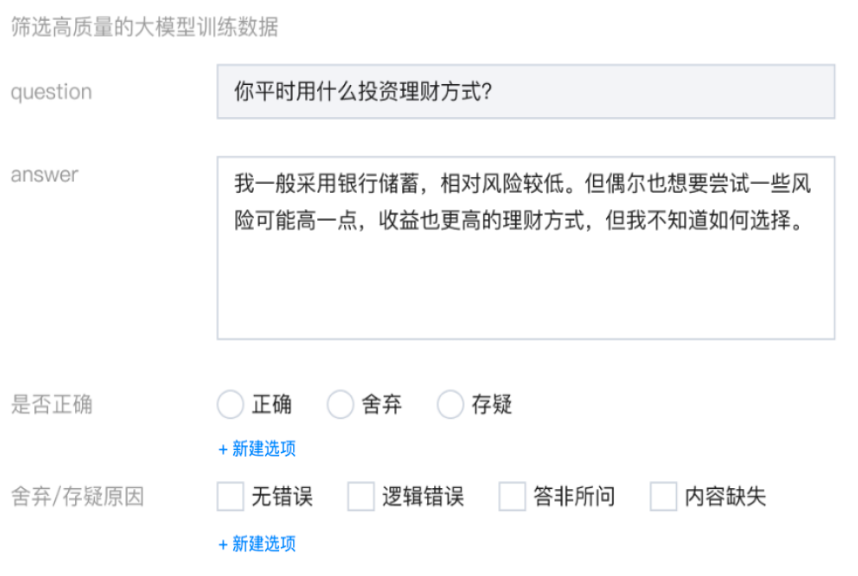
Scenario: Filtering High-Quality Text Q&A Pairs
For example, each line in our sample is a Q&A pair, as follows:
{
"question":"What investment and financial management methods do you usually use?"
"answer":"I generally opt for bank savings, which are relatively low-risk. Occasionally, I also want to try financial management methods that may have higher risks but can yield higher returns, but I do not know how to choose."
}
We define the following labeling schema:
desc: Filter high-quality LLM training data.
record_fields:
# Definition of the first component displayed in the annotation console.
-name: question. # Name of the annotation component displayed in the annotation console.
key: question. # JSON field key corresponding to this component when JSON annotation results are exported.
help: See the following questions. # Component help description.
type: TextViewer. # Indicates that this component type is a non-editable text display box.
size: SingleLine. # Indicates that this field is a single-line text box. Valid values: SingleLine/MultiLine/LongArticle.
value:"{{ .Values.question }}"# Indicates that the content of this field is sourced from the question field within a single JSON sample.
# Definition of the second component displayed in the annotation console.
-name: answer. # Name of the annotation component displayed in the annotation console
key: answer. # JSON field key corresponding to this component when JSON annotation results are exported.
type: TextInput. # Indicates that this component type is a text input box.
help: Correct the answer to the question. # Component help description.
size: MultiLine. # Indicates that this field is a multi-line text box. Valid values: SingleLine/MultiLine/LongArticle.
value: "{{ .Values.answer }}". # Indicates that the default content of this field is sourced from the answer field within a single JSON sample.
# Definition of the third component displayed in the annotation console.
-name: correct or not. # Name of the annotation component displayed in the annotation console.
key: correct. # JSON field key corresponding to this component when JSON annotation results are exported.
type: StringSelector. # Indicates that this component type is a string selector.
help: Determine whether the answer is correct. # Component help description.
option: SingleSelector. # Indicates that this component allows only one choice. Valid values: SingleSelector/MultiSelector.
choices:# Specifies the content of the choices.
- Correct
- Discard
- Questionable
value:# Specifies the default selected choice(s). The value is an array type. A single-choice component allows only one choice, while a multi-choice component allows multiple choices.
- Correct
# Definition of the fourth component displayed in the annotation console.
-name: reasons for Discard or Questionable. # Name of the annotation component displayed in the annotation console.
key: correct_reason. # JSON field key corresponding to this component when JSON annotation results are exported.
type: StringSelector. # Indicates that this component type is a string selector.
option: MultiSelector. # Indicates that this component allows multiple choices. Valid values: SingleSelector/MultiSelector.
help: reasons for Incorrect. # Component help description.
choices:# Specifies the content of the choices.
- No error
- Logical error
- Answer not relevant to the question
- Missing content
value:# Specifies the default selected choice(s). The value is an array type. A single-choice component allows only one choice, while a multi-choice component allows multiple choices.
- Logical error
- Missing content
The labeling workbench and content can finally be rendered as follows: