文档转码接入有两种方式:
注册回调方式 (适用在互动白板控制台已经 注册回调 的场景,推荐使用该方式,可以更及时收到转码进度和结果的推送)
主动轮询方式(适用于没有在互动白板控制台注册回调的场景)
此文档主要介绍注册回调方式发起文档转码的基本流程。
准备工作
存储桶配置 (文档转码后的资源文件存储依赖对象存储 COS,使用文档转码功能前,请先进行 存储桶配置)。
注意
如果没有进行存储桶配置,转码后的文件存储在互动白板的公共存储桶里,存储有效时间是7天。7天后,公共存储桶里的转码文件自动删除,URL的文件就会失效。建议您进行存储桶配置,将转码文件存储到您自己的存储桶里。
注册转码回调(为了让转码服务器,可以将转码结果实时推送给您,您需要注册回调地址;具体方法请参考 控制台回调设置)。
注意
由于文档转码存在转码耗时和排队耗时,建议使用服务端 API 提前转码,客户端直接使用转码结果。不建议直接在客户端调用互动白板 SDK 的转码接口
applyFileTranscode,避免长时间的等待,影响产品体验。交互流程(注册回调方式)
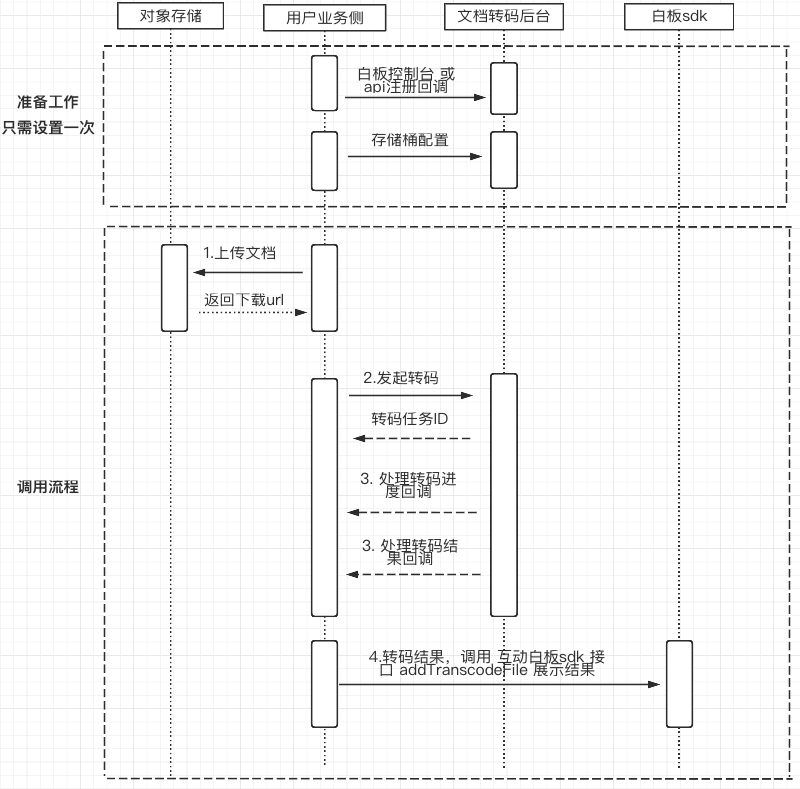
1. 上传文档(上传到 腾讯云 COS 为例)
为了能让腾讯云转码服务器获取到您待转的课件,您需要提供可以供转码服务器下载课件的 URL 地址。
说明:
1. 推荐使用腾讯云的 COS 服务来提供下载地址,当然也可以上传到其他存储服务器或者其他方式上传。
2. 此处以上传到腾讯云 COS GOLANG 语言为例,更多语言实现,请参考 腾讯云 COS。
示例代码:
package mainimport ("context""fmt""log""net/http""net/url""github.com/tencentyun/cos-go-sdk-v5""os")func main() {// 初始化cos 资源 TODO:将 examplebucket-1250000000 和 COS_REGION 修改为真实的信息domain := "https://examplebucket-1250000000.cos.COS_REGION.myqcloud.com"u, _ := url.Parse(domain)b := &cos.BaseURL{BucketURL: u}cosClient := cos.NewClient(b, &http.Client{Transport: &cos.AuthorizationTransport{// TODO:COS_SECRETID 需要替换成用户真实的 SECRETID, COS_SECRETKEY 需要替换成用户真实的 SECRETKEYSecretID: "COS_SECRETID",SecretKey: "COS_SECRETKEY",},})// TODO:上传到 cos 的对象键 名称keyName := "test/objectPut.go"// 本地文件路径localFilePath := "test/objectPut.go"// 获取文件大小file_info, err := os.Stat(localFilePath)if err != nil {panic(err)}opt := &cos.ObjectPutOptions{}opt.ObjectPutHeaderOptions = &cos.ObjectPutHeaderOptions{}opt.ObjectPutHeaderOptions.ContentLength = int(file_info.Size())// 对象键(Key)是对象在存储桶中的唯一标识。// 例如,在对象的访问域名 `examplebucket-1250000000.cos.COS_REGION.myqcloud.com/test/objectPut.go` 中,对象键为 test/objectPut.go// 开始上传_, err = cosClient.Object.PutFromFile(context.Background(), keyName, localFilePath, nil)if err != nil {// 上传失败panic(err)}// 上传成功,组装 resultUrlresultUrl := fmt.Sprintf("%s/%s", domain, keyName)log.Printf("upload successful! resultUrl[]%s", resultUrl)}
2. 发起转码
由于动态转码存在转码耗时和排队耗时,建议使用服务端 API 提前转码,客户端直接使用转码结果。不建议直接在客户端调用转码接口
applyFileTranscode,避免长时间的等待,影响产品体验。示例代码(GOLANG 为例):
package mainimport ("fmt""github.com/tencentcloud/tencentcloud-sdk-go/tencentcloud/common""github.com/tencentcloud/tencentcloud-sdk-go/tencentcloud/common/errors""github.com/tencentcloud/tencentcloud-sdk-go/tencentcloud/common/profile"tiw "github.com/tencentcloud/tencentcloud-sdk-go/tencentcloud/tiw/v20190919")func main() {// "SECRETID" 和 "SECRETKEY" 需要从控制台的 API 密钥管理 中获取credential := common.NewCredential("SECRETID","SECRETKEY",)cpf := profile.NewClientProfile()cpf.HttpProfile.Endpoint = "tiw.tencentcloudapi.com"client, _ := tiw.NewClient(credential, "ap-guangzhou", cpf)request := tiw.NewCreateTranscodeRequest()// SdkAppId 为用户自己的互动白板应用 ID Url 为上传文档后,得到的下载地址params := "{\\"SdkAppId\\":xxxxxxxxx,\\"Url\\":\\"https://board-sdk-1259648581.file.myqcloud.com/TIC/1590997573551/欢迎新同学.pptx\\"}"err := request.FromJsonString(params)if err != nil {panic(err)}response, err := client.CreateTranscode(request)if _, ok := err.(*errors.TencentCloudSDKError); ok {fmt.Printf("An API error has returned: %s", err)return}if err != nil {panic(err)}fmt.Printf("%s", response.ToJsonString())}
3. 处理转码回调
示例代码(GOLANG 为例):
import ("encoding/json""log""testing")const (// 转码进度改变TranscodeProgressChanged = "TranscodeProgressChanged"// 转码结束TranscodeFinished = "TranscodeFinished")// 转码错误type commonError struct {Code string `json:"Code"`Message string `json:"Message"`}// 转码的事件数据type EventData struct {Error *commonError `json:"Error"` // 错误信息;为空则没有错误TaskId string `json:"TaskId"` // 文档转码任务 idProgress int `json:"Progress"` // 任务进度Resolution string `json:"Resolution"` // 文档分辨率Title string `json:"Title"` // 文档标题Pages int `json:"Pages"` // 文档总页数ResultUrl string `json:"ResultUrl"` // 文档转码结果ThumbnailUrl string `json:"ThumbnailUrl"` // 缩略图 UrlThumbnailResolution string `json:"ThumbnailResolution"` // 缩略图分辨率CompressFileUrl string `json:"CompressFileUrl"` // 转码结果打包压缩文件的下载 Url}// 转码回调结果type TranscodeResult struct {EventType string `json:"EventType"` // 事件类型ExpireTime int `json:"ExpireTime"` // 签名过期时间SdkAppId int `json:"SdkAppId"` // 互动白板应用 SdkAppIdSign string `json:"Sign"` // 回调签名Timestamp int `json:"Timestamp"` // 事件生成的 Unix 时间戳,单位秒EventData EventData `json:"EventData"` // 事件具体信息}// 通过控制台 或 api 注册到 腾讯文档转码后台 的 转码事件回调接口func TrascoderEventCallback(resultStr []byte) {transcodeResult := TranscodeResult{}err := json.Unmarshal(resultStr, &transcodeResult)if nil != err {panic(err)}// 处理转码结果if TranscodeProgressChanged == transcodeResult.EventType {// 转码进度改变log.Printf("transcode progress [%d]", transcodeResult.EventData.Progress)} else if TranscodeFinished == transcodeResult.EventType {// 转码结束if nil != transcodeResult.EventData.Error {// 转码失败log.Printf("transcode failed!err[%v]", transcodeResult.EventData.Error)return}// 转码成功log.Printf("transcode successful! EventData[%v]", transcodeResult.EventData)}}
4. 使用转码结果
代码示例(JS 为例)
// 客户端 根据 文档转码 返回的结果,组装参数let config = {url: eventData.resultUrl,title: eventData.title,pages: eventData.pages,resolution: eventData.resolution}// 将 文档转码 的结果,加入到白板this.teduBoard.addTranscodeFile(config);
效果展示: