Overview
This document takes Llama-3.2-1B-Instruct as an example to introduce how to use DeepSpeed for distributed training on Tencent Cloud TI-ONE Platform (TI-ONE).
This document mainly uses two modules of TI-ONE: Dev Machines and Task-based Modeling. The Dev Machines module is used to download models and training frameworks, and configure related scripts. The Task-based Modeling module is used to initiate training tasks.
The training framework of this guide adopts the open-source LLaMA-Factory, which is a simple, easy-to-use, and efficient platform for training and fine-tuning LLMs. It provides examples of DeepSpeed configuration files for different stages (such as ZeRO-2/3), and comes preset with several data sets to support an out-of-the-box training process.
Note that DeepSpeed supports configuring multi-node computing resources using hostfiles in the OpenMPI format. The preset image for Task-based Modeling, tilearn-llm0.9-torch2.3-py3.10-cuda12.4-gpu, supports MPI communication mode. Therefore, this document takes this image as an example to introduce how to perform distributed training with DeepSpeed.
Prerequisites
Application for Cloud File Storage (CFS) or Data Accelerator Goose FileSystem extreme (GooseFSx): In the process of fine-tuning custom LLMs, the storage used for model files and training code is CFS or GooseFSx. Therefore, it is required to first apply for CFS or GooseFSx. For details, see CFS > Creating a File System and a Mount Point.
Operation Steps
Material Preparations
Note: Currently, TI-ONE does not support direct data upload through the console. To resolve this issue, you need to create an Ops dev machine that mounts CFS or GooseFSx instances and use the dev machine service to upload or download LLMs, training code, and other files.
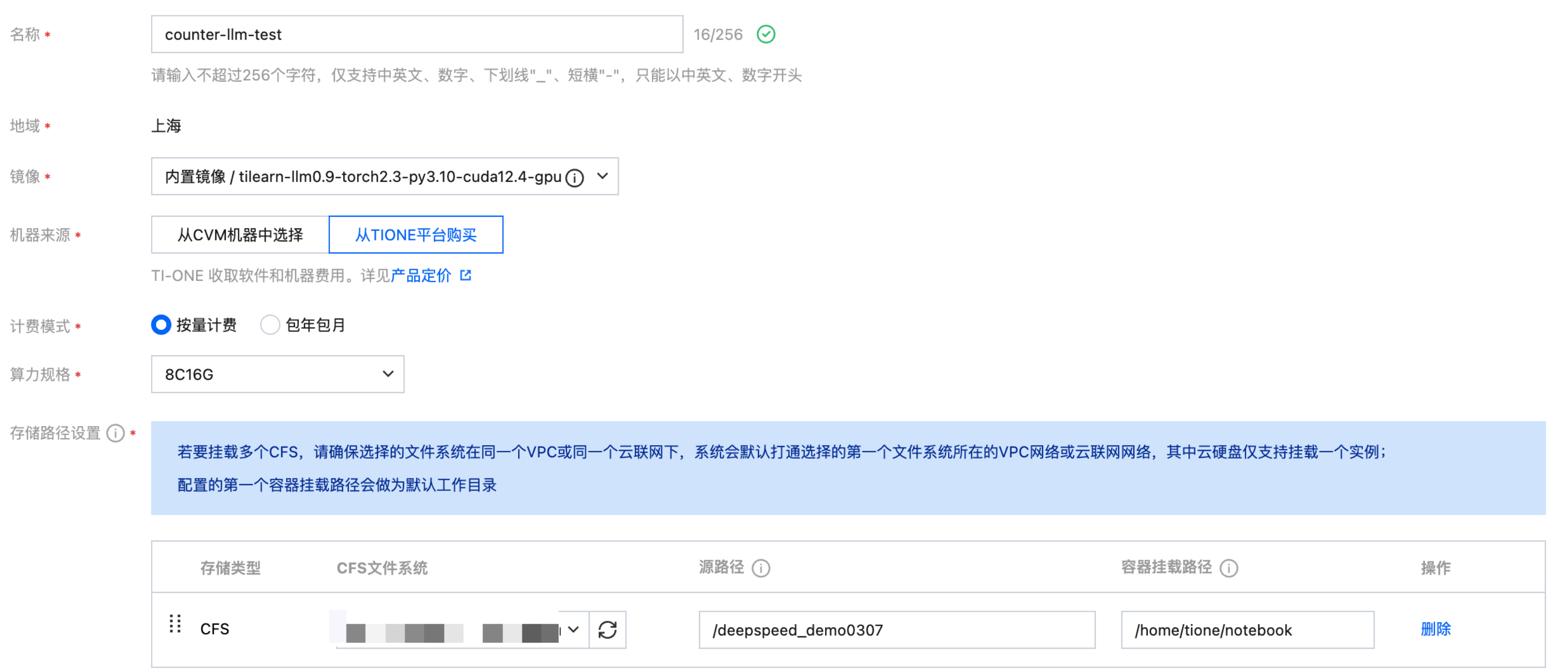
Choose Training Workshop > Dev Machines and click Create to create a dev machine for debugging training code.
Image: Select any built-in image, as this dev machine is only used for downloading model files and training code.
CVM Instance Source: Select purchasing pay-as-you-go CVM instances from TI-ONE or select from CVM instances.
Billing Mode: Select either pay-as-you-go or yearly/monthly subscription billing mode. For billing rules supported by TI-ONE, see Billing Overview.
Storage Path Configuration: Select CFS or GooseFSx. The name should be the CFS or GooseFSx instance you applied for and configured in the Prerequisites section. The path is the root directory / by default and is used to specify the storage location for your custom LLM.
Other Settings: Not required by default.
Model Files
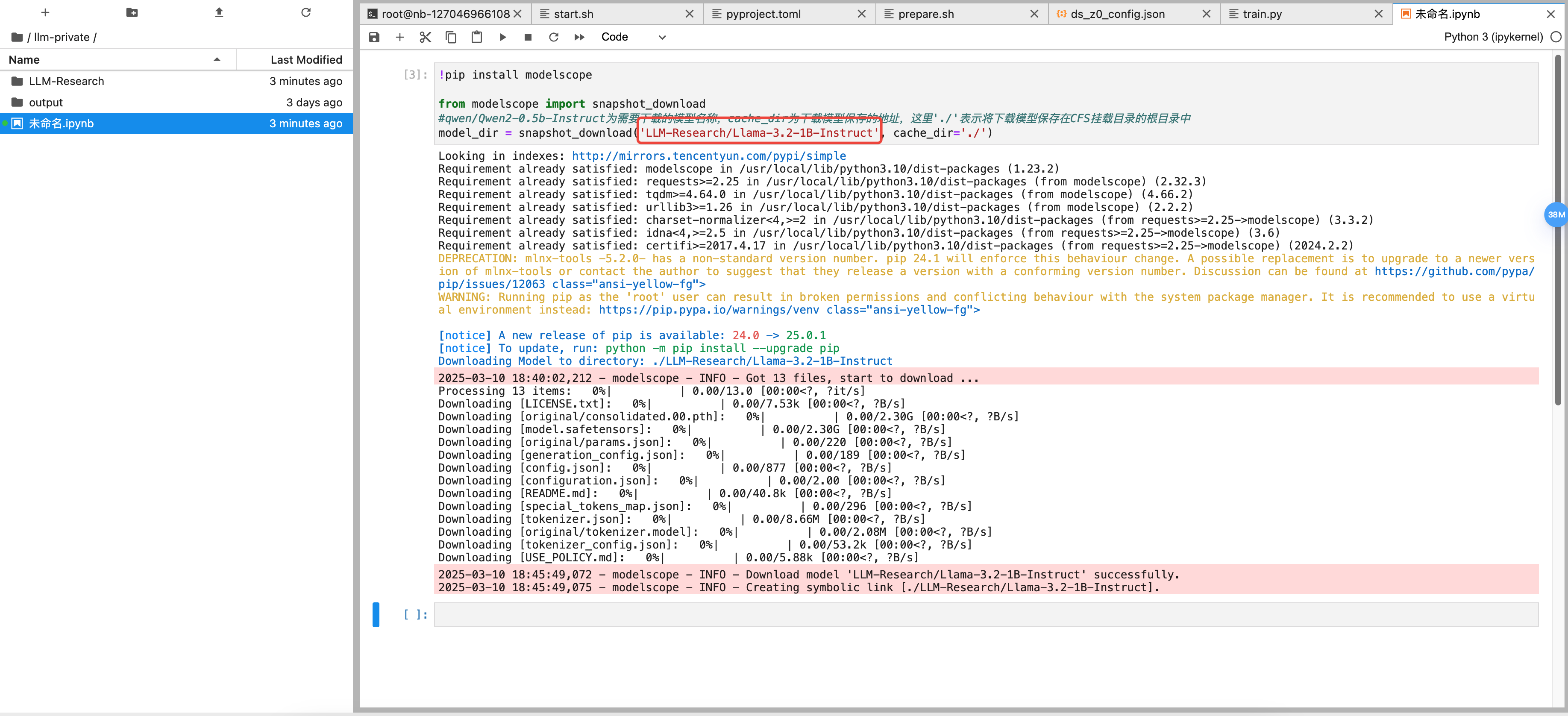
After successful creation, choose Dev Machines > Python3(ipykernel) to download the required model through the script. You can search for the required LLM in ModelScope or Hugging Face, download models through Python scripts in ModelScope, and save them to CFS or GooseFSx. This document takes the Llama-3.2-1B-Instruct model as an example, and the code for download is as follows:
!pip install modelscopefrom modelscope import snapshot_download#LLM-Research/Llama-3.2-1B-Instruct is the name of the model to be downloaded, cache_dir is the address where the downloaded model is saved, and ./ indicates saving the downloaded model in the root directory of the mount directory of CFS.model_dir = snapshot_download('LLM-Research/Llama-3.2-1B-Instruct', cache_dir='./')
Note: The specified cache_dir address for the downloaded model is the location in Task-based Modeling, namely, the mounted dev machine's path + cache_dir. For example, if the mounted dev machine's path is /dir1 and cache_dir is /dir2, then the file location in CFS or GooseFSx will be /dir1/dir2.
Copy the above download script, replace relevant content with the model to be downloaded, paste the modified script into the new .ipynb file, and click Run to start downloading the model.

Training Code
Downloading LLaMA-Factory Code
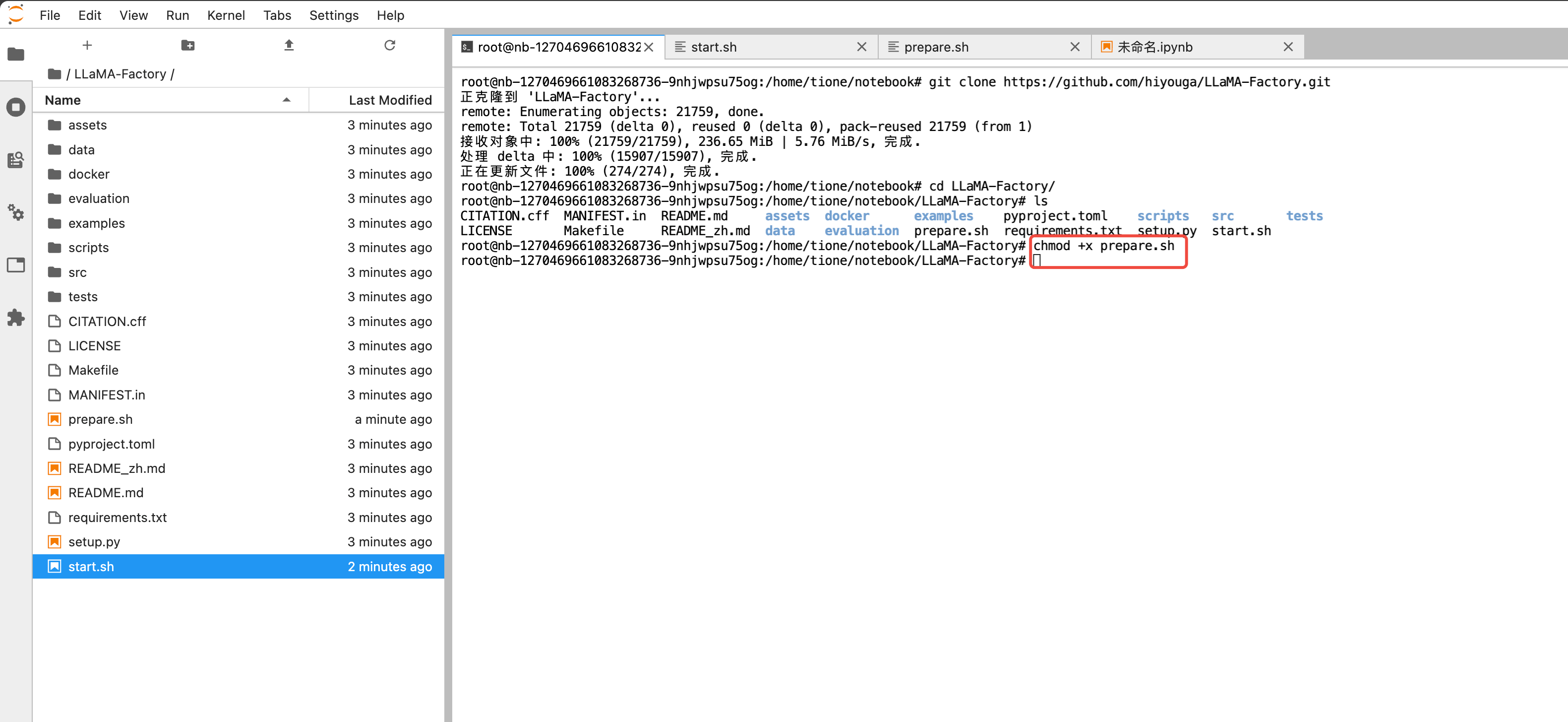
Directly download the code to CFS via git clone by clicking Terminal to enter the following command.
git clone https://github.com/hiyouga/LLaMA-Factory.git
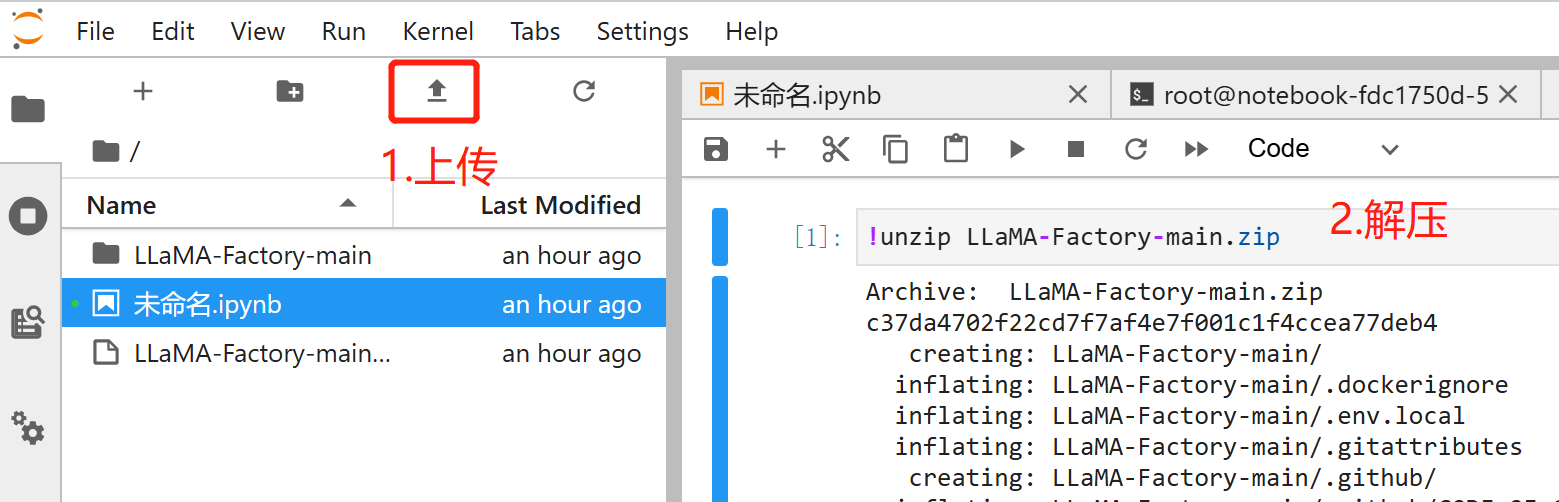
Alternatively, download the open-source code locally first as main.zip, and then upload the LLaMA-Factory source code to the dev machine and unzip it.
If you enable SSH Connection during creation, you can use SCP to upload local materials to the dev machine.
scp -r -P <port> Llama-3.2-1B-Instruct root@host:/home/tione/notebook/workspace
Tips: If your file is downloaded via Git, you can try to delete the .git directory under the directory to reduce the number of files to be uploaded and improve the upload speed.
Creating a Dependency Installation Script
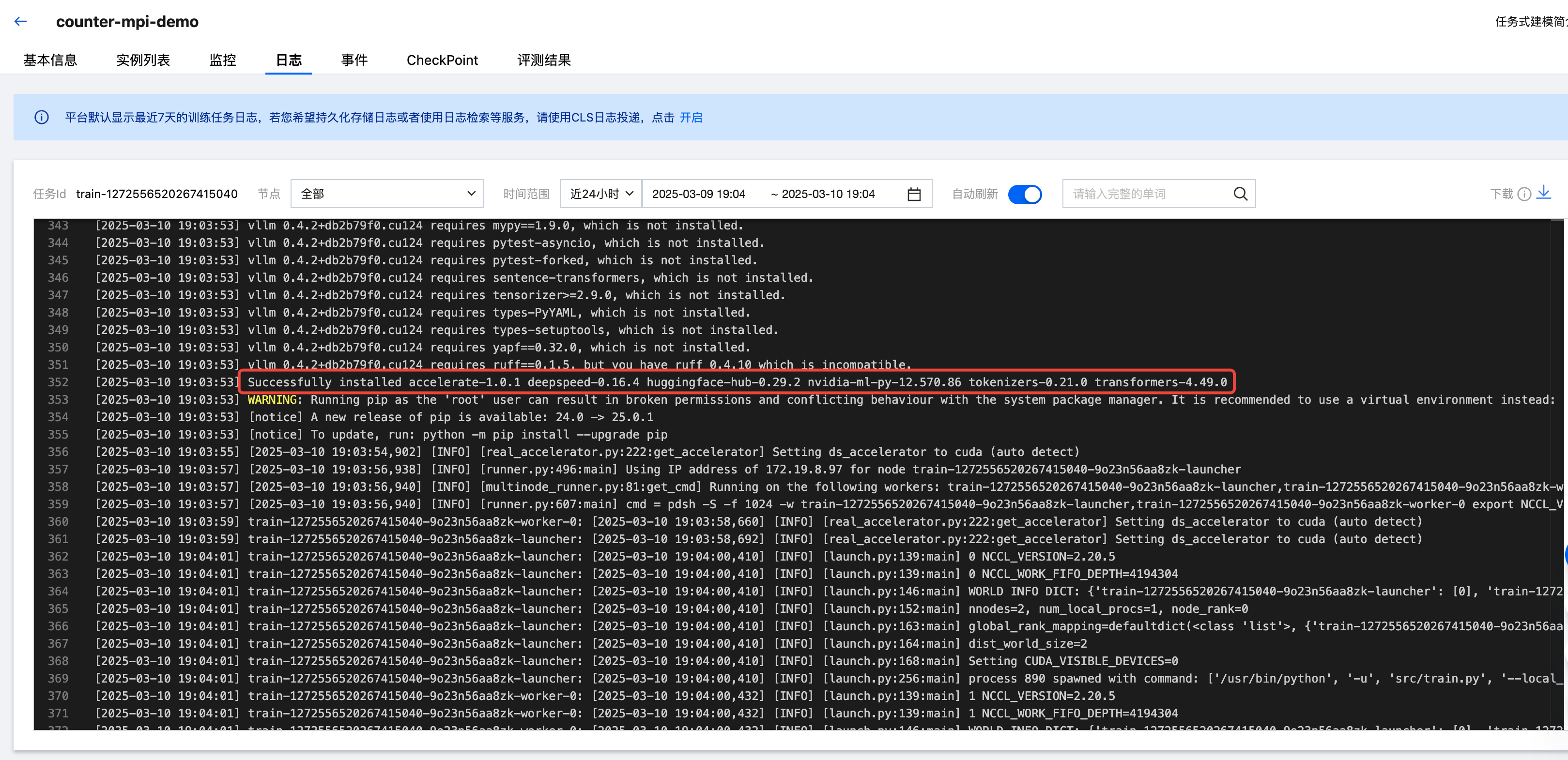
Using DeepSpeed requires a specific version of the transformer. Therefore, pip is directly used to install the latest DeepSpeed and the corresponding transformer.
In the multi-machine scenario, it is required to install or update dependencies on each machine, which can be done through mpirun. mpirun is a command line interface of OpenMPI, which provides a simple method to start applications in parallel.
Create a prepare.sh file in the LLaMA-Factory directory, which is used as a dependency installation script with the following content:
#!/bin/bashpip3 install -U accelerate==1.0.1 transformers deepspeed -i https://mirrors.tencent.com/pypi/simple
Grant execution permissions via chmod in the terminal.

Creating a Startup Script
Create a start.sh file in the LLaMA-Factory directory, which is used as a training startup script with the following content:
#!/bin/bash# Install dependencies.# pip3 install -U accelerate==1.0.1 transformers deepspeed -i https://mirrors.tencent.com/pypi/simple# Start DeepSpeed distributed training in the MPI mode.# Visit https://llamafactory.readthedocs.io/zh-cn/latest/advanced/distributed.html#id18.deepspeed --num_gpus $GPU_NUM_PER_NODE --num_nodes 2 --hostfile /etc/mpi/hostfile src/train.py \--deepspeed examples/deepspeed/ds_z0_config.json \--stage sft \--model_name_or_path /opt/ml/pretrain_model \--do_train \--dataset identity \--template llama3 \--finetuning_type full \--output_dir /llm-private/output \--overwrite_cache \--per_device_train_batch_size 1 \--gradient_accumulation_steps 8 \--lr_scheduler_type cosine \--logging_steps 10 \--save_steps 500 \--learning_rate 1e-4 \--num_train_epochs 10 \--plot_loss \--bf16
Specifically, the value of num_nodes can be adjusted based on the actual node number. $GPU_NUM_PER_NODE is an environment variable injected for Task-based Modeling, indicating the number of GPU cards for each node.
/etc/mpi/hostfile will be created through Task-based Modeling.
model_name_or_path refers to the model directory and needs to be mounted accordingly when training is started.
The value of template should be modified according to the corresponding model.
Launching a Distributed Fine-Tuning Task in Task-based Modeling
Creating a Training Task
Choose Training Workshop > Task-based Modeling and click Create a Task. Set the training image to the following built-in image, set the training mode to MPI, and select the resource configurations as needed. In this guide, a 2-node distributed training will be performed.
Training Image: Select built-in image/PyTorch/tilearn-llm0.9-torch2.3-py3.10-cuda12.4-gpu. This image has been configured with the runtime environment for LLM training by default.
CVM Instance Source: See the configuration of Dev Machines > Computing Resources.
CVM Instance Specifications: Select training resources appropriately. Use 1 GPU card per node (allocated as 0.5 GPU cards but functioning as a full GPU card) and use 2 nodes.
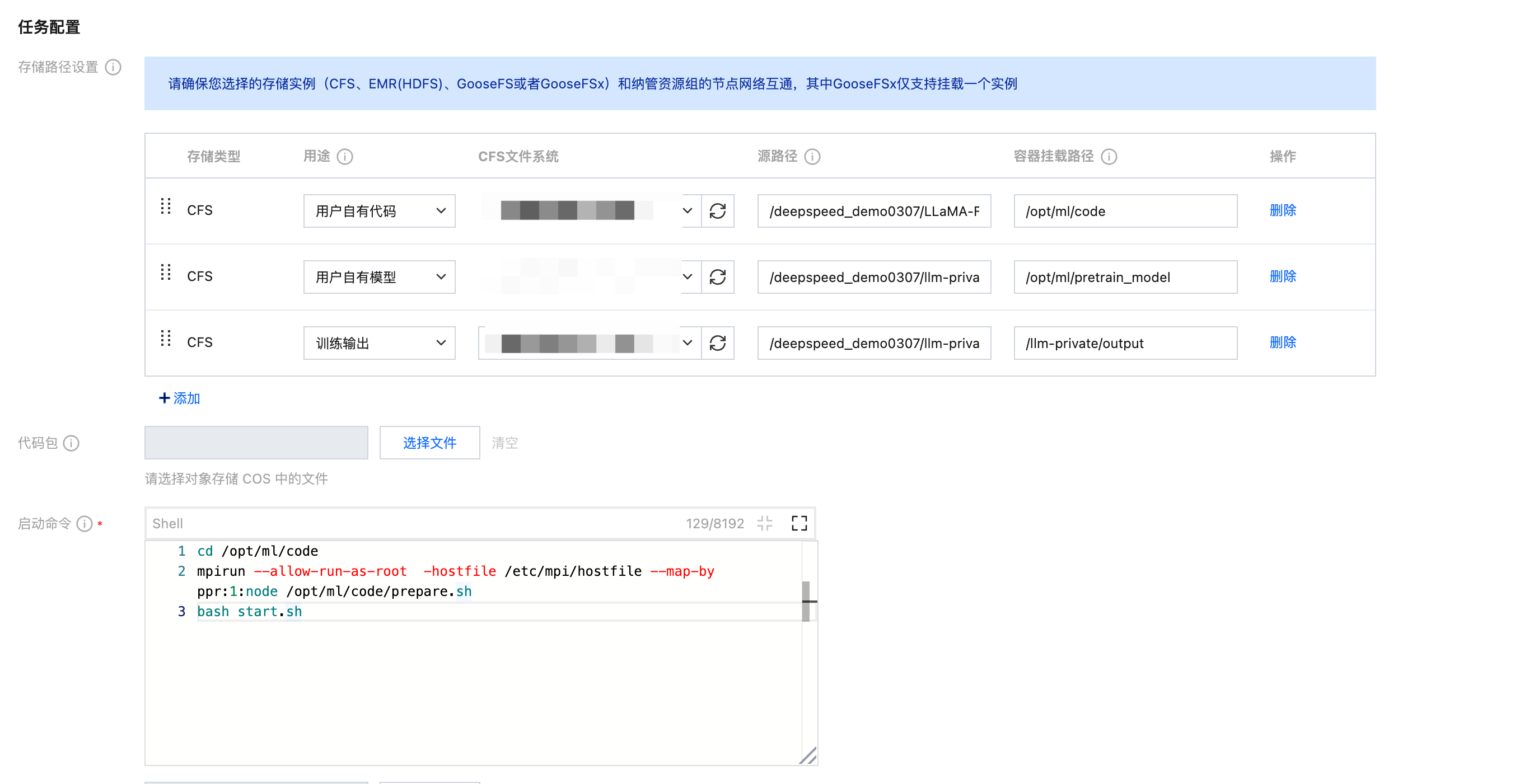
Storage Path Configuration: The training code, base model, and training output path need to be mounted. The container mount path corresponds to the relevant parameters in the training configuration file mentioned above. You can also place the training code, base model, and training output path in the same large directory, mount the root directory to the container, and modify the startup command to run the cd command to access LLaMA-Factory.
Startup Command: Run the dependency installation script via mpirun, and then start training.
cd /opt/ml/codempirun --allow-run-as-root -hostfile /etc/mpi/hostfile --map-by ppr:1:node /opt/ml/code/prepare.shbash start.sh
Viewing Training Status
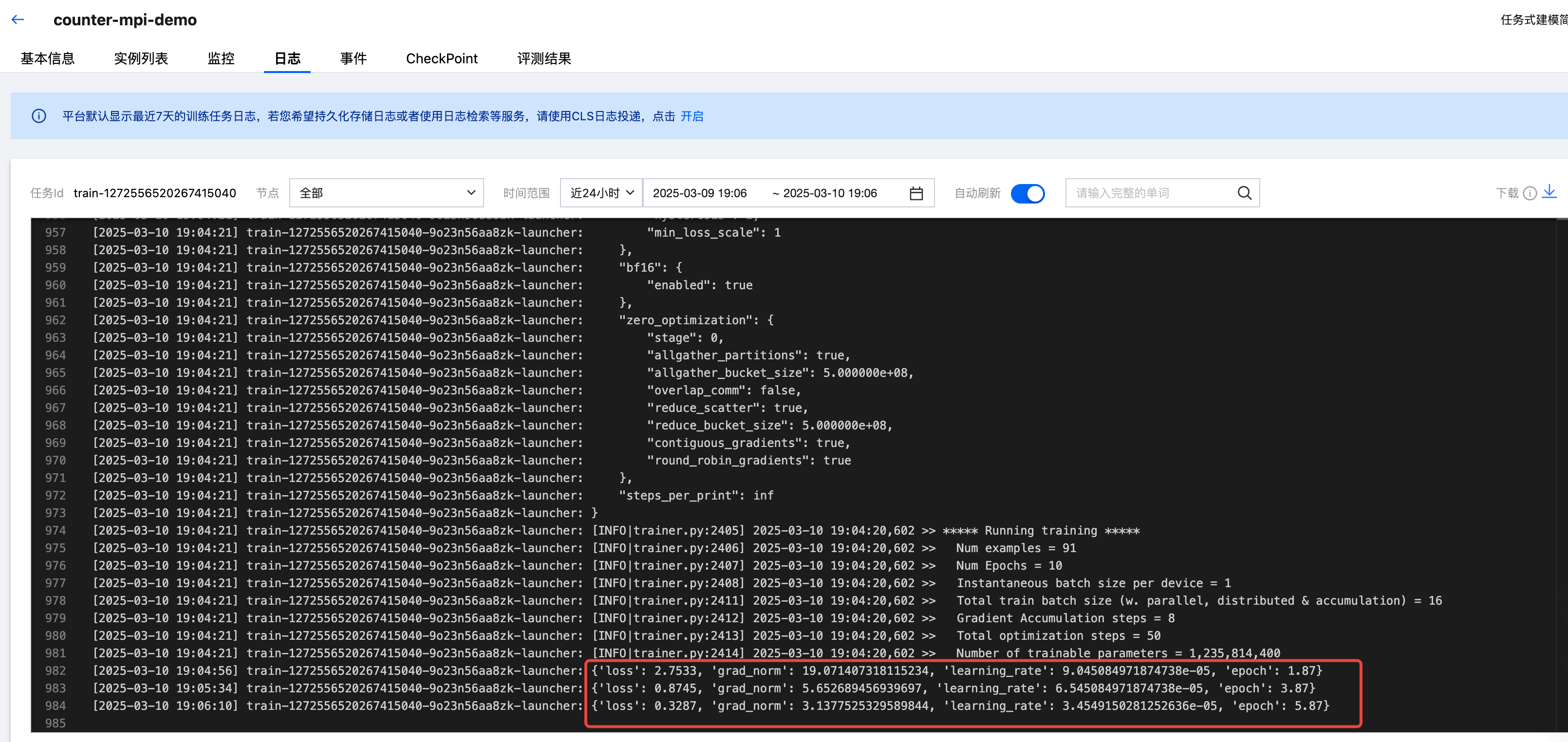
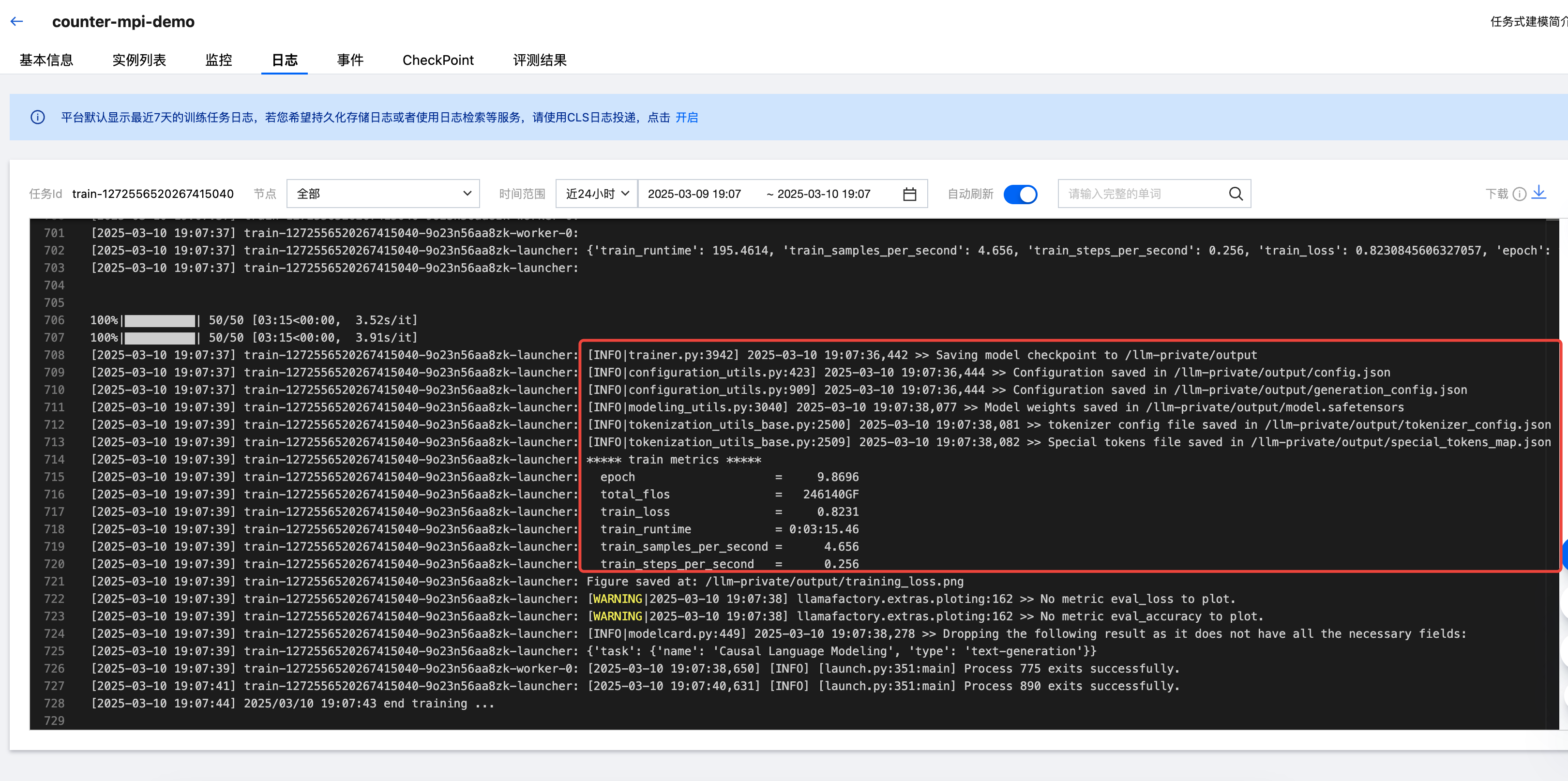
After the task is started, you can click Logs to view training logs and other information such as dependency installation and training.
After training is completed, the final checkpoint will be saved to the mounted output directory output, which is used for subsequent deployment of the fine-tuned model.
TensorBoard
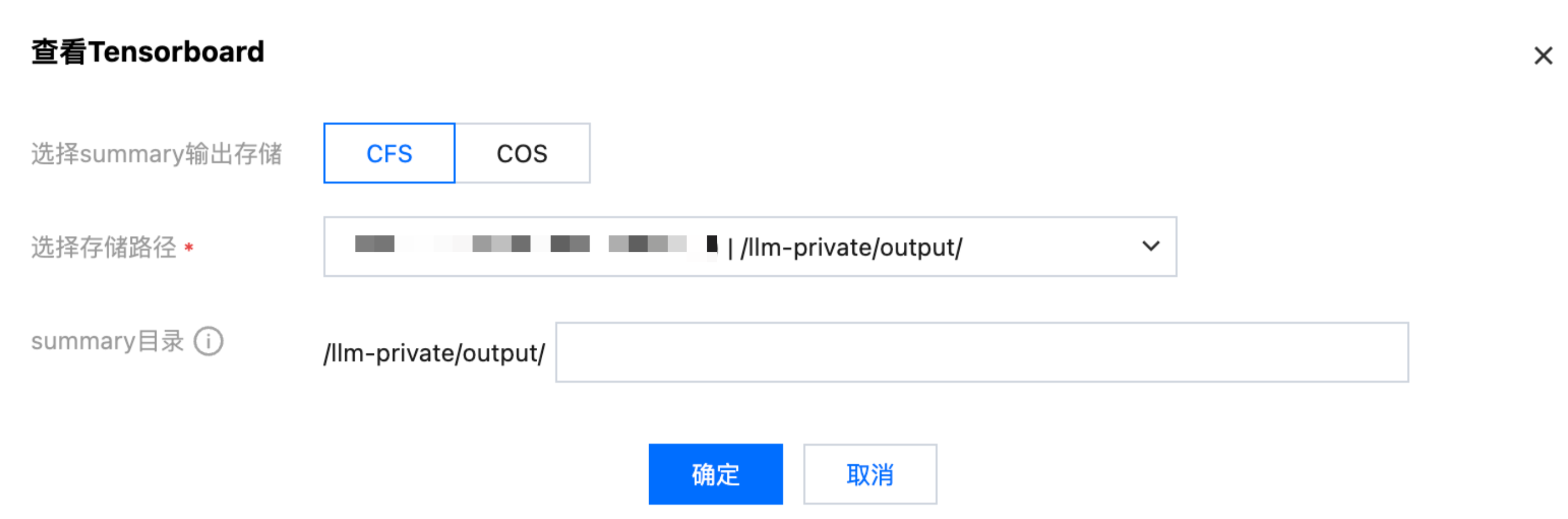
You can choose Task List and click TensorBoard in the Operation column to configure a TensorBoard task. The path /project/output is the output path for model training in CFS.
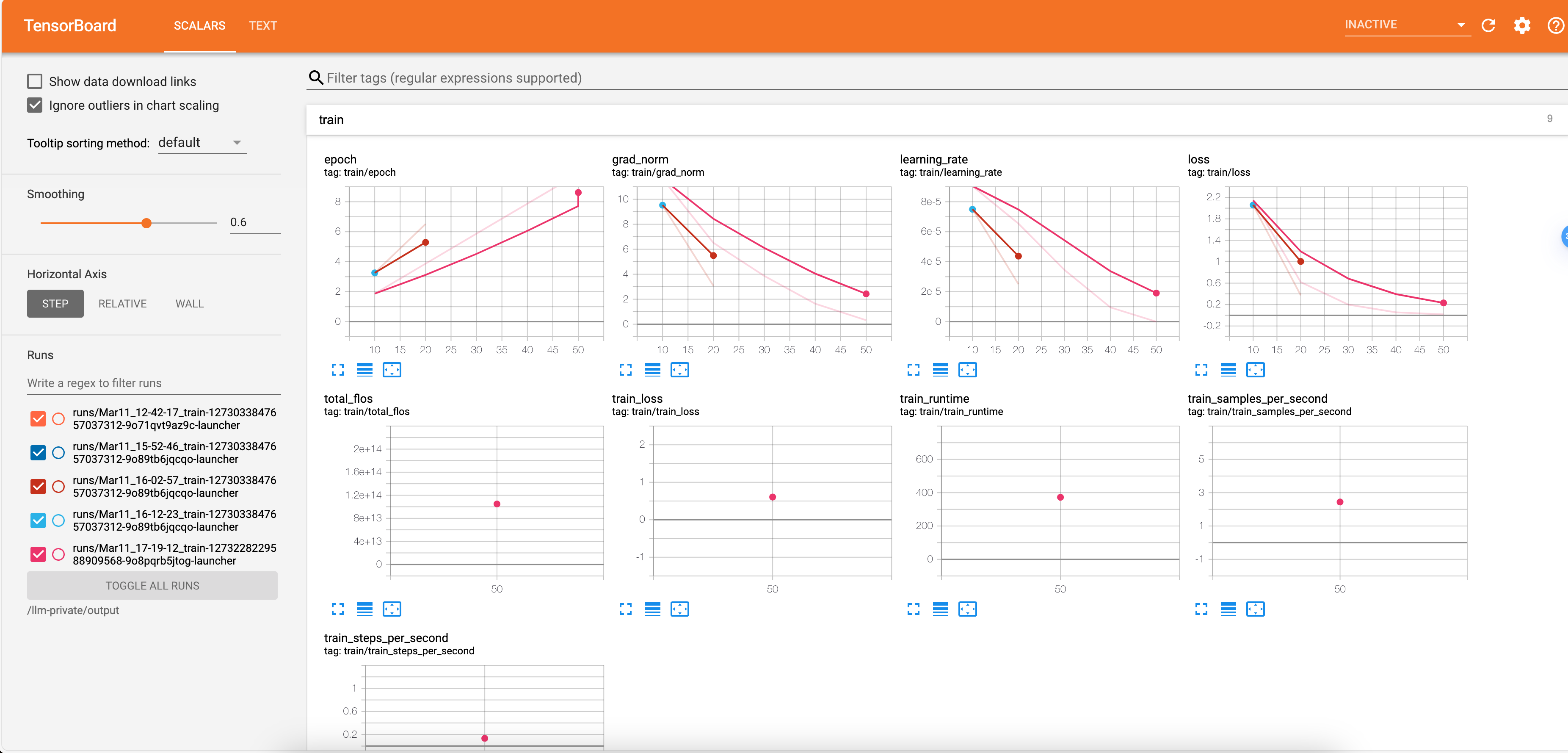
After confirmation, you can view the status of the training process, such as loss and gradient.