Domain Validation (DV) SSL Certificate Submission Process

Last updated: 2023-09-27 21:52:50

Scenario

Upon successful purchase of a Domain Validation (DV) SSL Certificate, relevant documents must be submitted. Please refer to the Purchase Process for the certificate acquisition procedure. Once the Certificate Authority (CA) has approved the authentication review, the certificate will be officially issued, and you can download and install the certificate.

Preparations

1. Log in to the SSL Certificate Service console and navigate to the Pending Submission management page.
2. Select the purchased certificate and click on Submit Materials.

Instructions

Note
The information required varies slightly depending on the type of domain certificate. This operation uses the Wotrus brand Domain Validation (DV) certificate for multiple domains as an example.

Step 1. Enter a domain name

Select one of the following CSR generation methods as needed.
Choose the "Generate CSR Online" method and execute the operation to generate CSR online (We recommend generating the CSR online, allowing the platform to generate and manage your private and public key certificate files, thus preventing the loss of private key files).
Choose the "Paste CSR" method and perform the Paste CSR operation (self-upload, private key cannot be generated).

Generating the CSR online

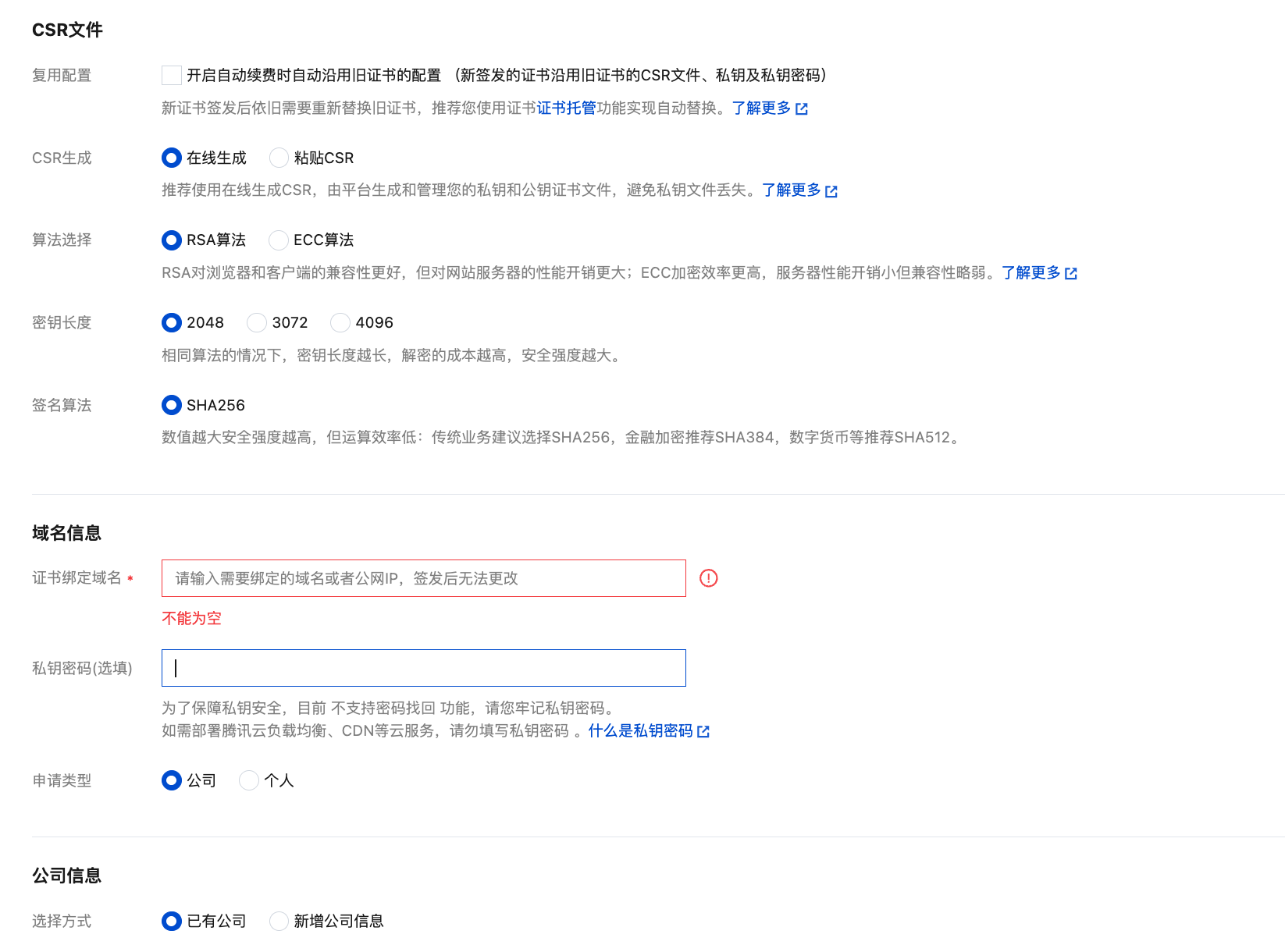
1. Enter the domain information as shown below:

The main parameter information is as follows:
Algorithm: Choose the certificate encryption algorithm based on your actual requirements.
Key Length: Select the key length for your certificate based on your actual requirements.
Bound domain: Enter a single domain to bind the certificate to, such as tencent.com or ssl.tencent.com.
Private Key Password: Optional. The password cannot be modified once entered or recovered, so please keep it in mind.
Note
If you need to deploy Tencent Cloud services such as CLB or CDN, don′t set the private key password.
2. Enter your organization information.
Existing Organization: Select Existing Organization to directly use the organization's information.
New Organization information: Enter full name, department, city, address, and landline number of your organization.
3. Enter the Admin information.
Existing Admin: Select Existing Admin to directly use the administrator's information.
New Admin Information: Please provide the accurate name, position, phone number, and email of the administrator.
4. Enter contact information. You may select Same as the admin.
5. Click Next to proceed to Step 2.

Pasting the CSR

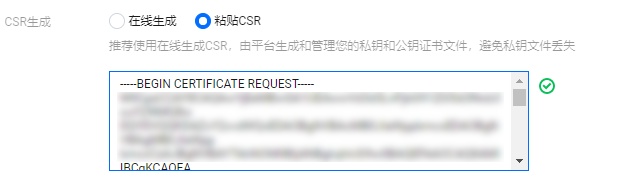
1. Paste the prepared CSR information into the text box, enter the "Domain Information", and fill in the organization information (you can select "Existing organization"), admin information (you can select "Existing Admin"), and contact information (you can check Same as Admin). As shown in the figure below:


2. Click Next to proceed to Step 2.

Step 2. Select the validation method

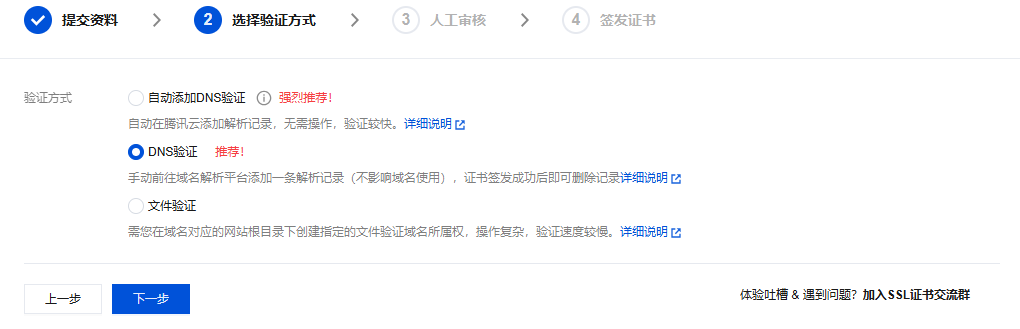
1. On the "Select Verification Method" page, the system will provide available domain verification methods based on the type of certificate you purchased, its validity period, and whether the domain is on DNSPod for DNS resolution, among other conditions.
Apply for a one-year Domain Validation (DV) certificate: DNS Verification/File Verification. As shown in the image below:


To apply for a TrustAsia Domain Validation (DV) certificate (2-year or 3-year wildcard domain): Automatic DNS Verification/Automatic File Verification.
2. Click Next.

Step 3. Validate your domain

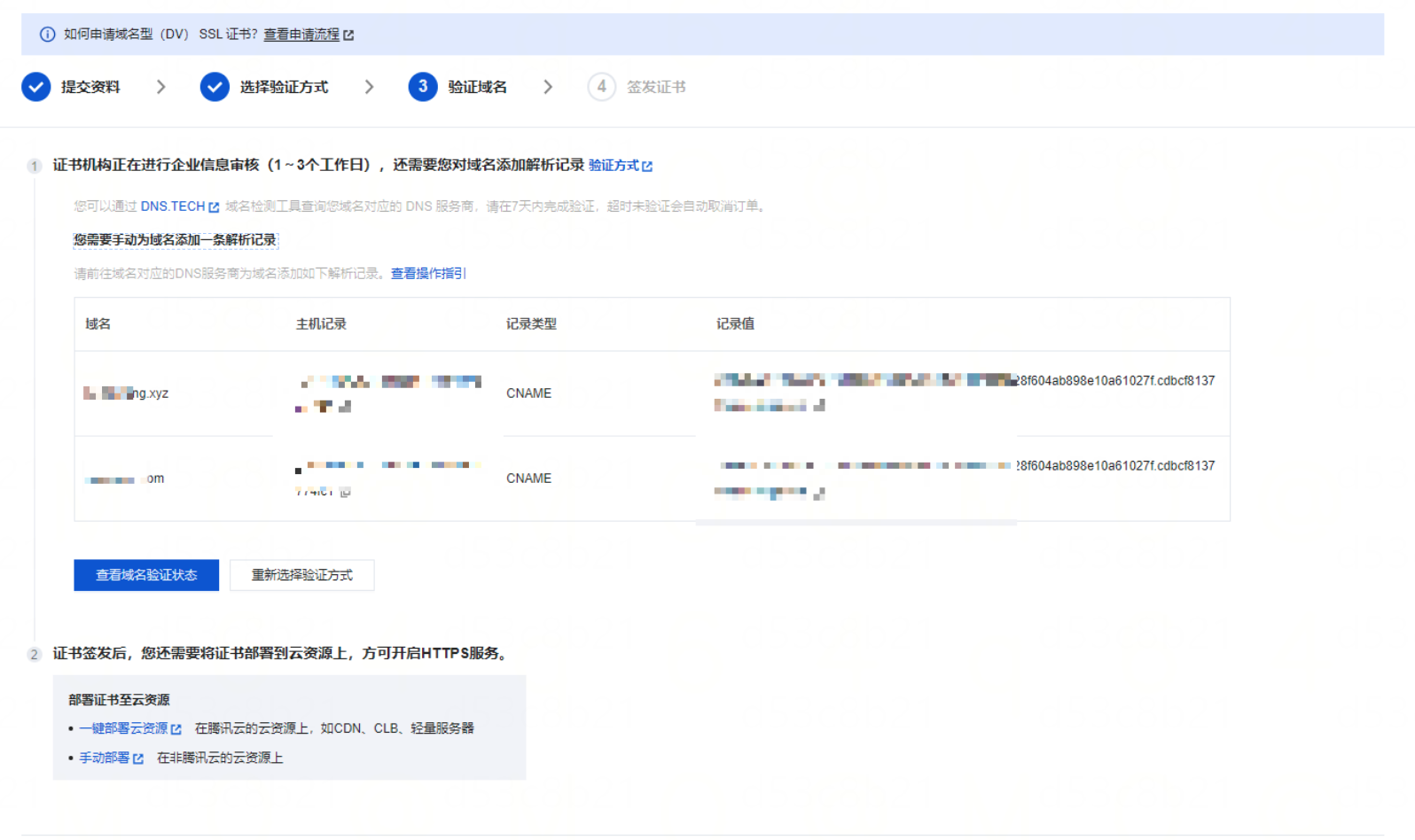
1. On the "validate domain" page, please carry out the domain verification operation according to the information provided on the page. For instance, if you have chosen the DNS verification method, the following information will be displayed, as shown in the figure below:


Applying for a one-year Domain Validation (DV) certificate:
DNS Validation: For domain validation operations, please refer to DNS Validation.
File Validation: For domain validation procedures, please refer to File Validation.
Applying for a TrustAsia Domain Validation (DV) certificate (2-year or 3-year wildcard domain):
Automatic DNS Validation: For domain validation operations, please refer to Automatic DNS Validation.
Automatic File Validation: Please refer to Automatic File Validation for domain validation operations.
2. After completing the domain verification operation, you can click View Domain Ownership Validation Status to check whether the domain verification operation was successful.
Note
For the DNSPod GM (SM2) DV certificate, once the domain name verification is passed for the first time, the verification will be retained for 13 months.
If a DNSPod GM (SM2) DV certificate has been applied for the same domain name under the same company name within the past 13 months, domain validation will not be required.

Step 4. Wait for CA to issue the certificate

After the review is completed, the CA will issue your certificate. You can download and install it.