本文将介绍如何快速接入 TUICallKit 组件。您可以在 10 分钟内完成以下关键步骤,最终获得一个功能完备的音视频通话界面。
准备工作
环境要求
Node.js LTS version
Modern browser, supporting WebRTC APIs.
开通服务
创建项目
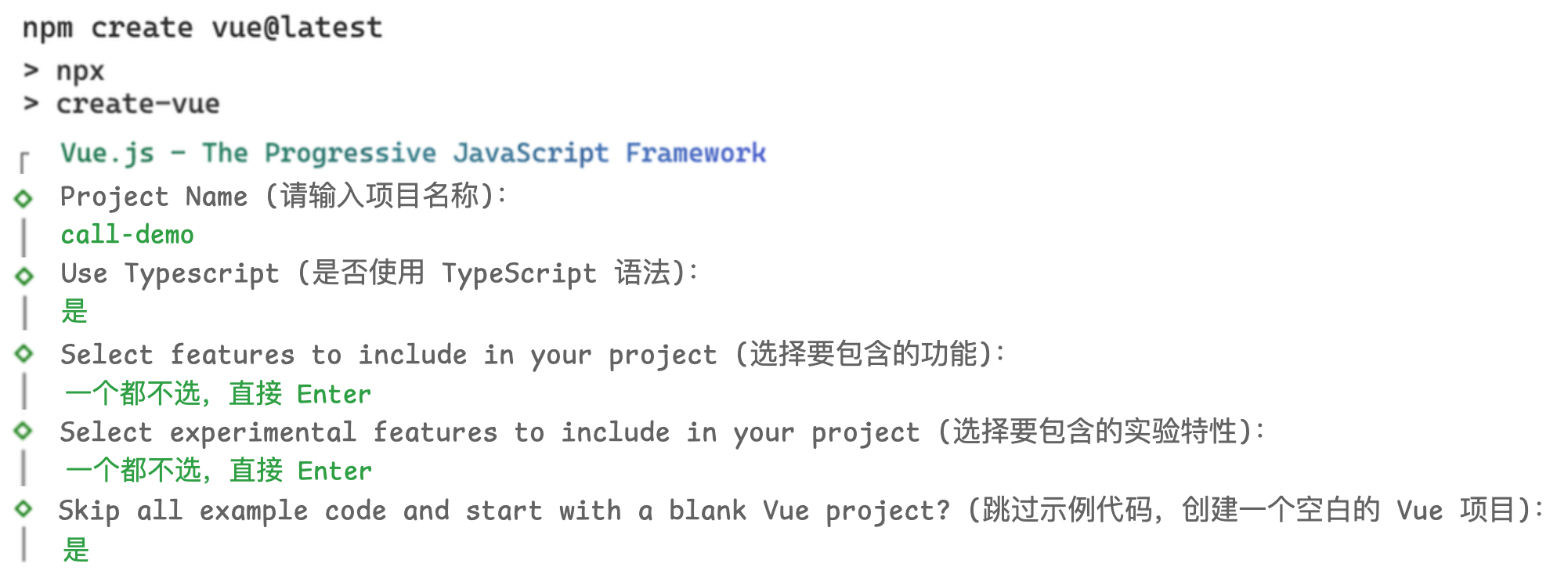
使用 Vue 脚手架创建一个新的名称为 call-demo 的 Vue3 项目。
说明:
高版本 Vite 需要使用最新的 Node.js LTS 版本。
如果项目中包含初始的样式文件,建议移除项目默认样式文件,避免对全局样式造成污染。
npm create vue@latestcd call-demo
项目脚手架的创建选项建议参考以下选择:
快速接入
步骤1:下载 TUICallKit 组件
说明:
1. 根据 Vue 的版本下载 @trtc/calls-uikit-vue 系列组件。
npm install @trtc/calls-uikit-vue
npm install @trtc/calls-uikit-vue2
npm install @trtc/calls-uikit-vue2.6 @vue/composition-api
npm i -D unplugin-vue2-script-setup
2. 将
debug 目录复制到您的项目目录 src/debug,本地生成 userSig 时需要使用。cp -r node_modules/@trtc/calls-uikit-vue/debug ./src
xcopy node_modules\\@trtc\\calls-uikit-vue\\debug .\\src\\debug /i /e
cp -r node_modules/@trtc/calls-uikit-vue2/debug ./src
xcopy node_modules\\@trtc\\calls-uikit-vue2\\debug .\\src\\debug /i /e
cp -r node_modules/@trtc/calls-uikit-vue2.6/debug ./src
xcopy node_modules\\@trtc\\calls-uikit-vue2.6\\debug .\\src\\debug /i /e
步骤2:引入 TUICallKit 组件
说明:
TUICallKit 组件需要放到一个 DOM 节点里,用于控制 TUICallKit 的位置、宽高等样式。
1. 引入 <TUICallKit />,该组件包含通话时的完整 UI 交互。将以下代码复制全量替换到
src/App.vue 中,需要在代码中填写 SDKAppID、SecretKey 两个参数。<script setup lang="ts">import { onMounted, reactive, ref } from 'vue';import { TUICallKit, TUICallKitAPI, CallMediaType } from '@trtc/calls-uikit-vue';import * as GenerateTestUserSig from './debug/GenerateTestUserSig-es';// ① 替换成你的应用信息(仅本地调试;生产环境请由服务端签发 UserSig)const SDKAppID = 0; // number 类型const SecretKey = ''; // string 类型const myUserID = ref('Bob');const peerUserID = ref('Alice');const initialized = ref(false);const inCall = ref(false);const minimized = ref(false);// 页面加载时,用查询参数预填两个 UserID(只用于填表,不改变页面文案)onMounted(() => {const params = new URLSearchParams(window.location.search);myUserID.value = params.get('me') || 'Bob';peerUserID.value = params.get('peer') || 'Alice';});// ② 登录(登录前先重置)const init = async () => {await TUICallKitAPI.hangup(); // 通话中时先挂断,空闲时直接返回await TUICallKitAPI.destroyed(); // 重置上一次登录const { userSig } = GenerateTestUserSig.genTestUserSig({ userID: myUserID.value, SDKAppID, SecretKey, });await TUICallKitAPI.init({ userID: myUserID.value, userSig, SDKAppID });// 开启小窗特性TUICallKitAPI.enableFloatWindow(true);initialized.value = true;};// ③ 打开新标签页,自动填好对方的 UserIDconst openPeerTab = () => {const url = new URL(window.location.href);url.search = '';url.searchParams.set('me', peerUserID.value || 'Alice');url.searchParams.set('peer', myUserID.value || 'Bob');window.open(url.toString(), '_blank');};// ④ 发起通话const call = async () => {await TUICallKitAPI.calls({ userIDList: [peerUserID.value], type: CallMediaType.VIDEO, });};// 监听通话状态与最小化状态,用来控制外层容器的显示const onStatusChanged = ({ newStatus }: { oldStatus: string; newStatus: string }) => {inCall.value = newStatus !== 'idle';};const onMinimizedChanged = (_old: boolean, current: boolean) => {minimized.value = current;};// ⑤ 通话窗口挂到 body,并支持拖拽const pos = reactive({ x: 24, y: 24 });let drag = { dx: 0, dy: 0, w: 640, h: 480 };const startDrag = (e: PointerEvent) => {const box = (e.currentTarget as HTMLElement).parentElement!;drag = { dx: e.clientX - pos.x, dy: e.clientY - pos.y, w: box.offsetWidth, h: box.offsetHeight };(e.currentTarget as HTMLElement).setPointerCapture(e.pointerId);};const onDrag = (e: PointerEvent) => {if (!e.buttons) return;pos.x = Math.min(Math.max(e.clientX - drag.dx, 0), window.innerWidth - drag.w);pos.y = Math.min(Math.max(e.clientY - drag.dy, 0), window.innerHeight - drag.h);};</script><template><main class="page"><section class="step"><h2>第一步. 登录 {{ initialized ? '✅' : '' }}</h2><p :class="initialized ? 'ok' : 'muted'">{{ initialized ? `已登录:${myUserID}` : '当前未登录' }}</p><label class="row"><span>我的 UserID</span><input v-model="myUserID" /></label><button class="primary" @click="init">{{ initialized ? '重新登录' : '登录' }}</button></section><section class="step"><h2>第二步. 打开新的标签页 登录被叫用户</h2><p class="muted">会自动填好对方的 UserID,登录后即可互相拨打。</p><button class="ghost" @click="openPeerTab">打开新的标签页 登录被叫用户</button></section><section class="step"><h2>第三步. 发起通话</h2><label class="row"><span>被叫 UserID</span><input v-model="peerUserID" /></label><button class="primary" :disabled="!initialized || !peerUserID" @click="call">发起通话</button></section><!-- ⑥ Teleport 到 body:不受父级 transform/filter 影响 --><Teleport to="body"><section v-show="inCall && !minimized" class="call-window" :style="{ left: `${pos.x}px`, top: `${pos.y}px` }"><header @pointerdown="startDrag" @pointermove="onDrag">通话窗口(按住拖动)</header><TUICallKitstyle="width: 640px; height: 480px":status-changed="onStatusChanged":on-minimized="onMinimizedChanged"/></section></Teleport></main></template><style scoped>.page { max-width: 520px; margin: 48px auto; padding: 0 20px; font-family: system-ui, -apple-system, sans-serif; } .step { margin-bottom: 20px; padding: 16px; border: 1px solid #e2e8f0; border-radius: 12px; background: #fff; } .step h2 { margin: 0 0 10px; font-size: 16px; } .row { display: flex; align-items: center; gap: 8px; margin-bottom: 10px; color: #475569; font-size: 14px; } .row input { flex: 1; padding: 8px 10px; border: 1px solid #e2e8f0; border-radius: 8px; } button { padding: 8px 14px; border: 0; border-radius: 8px; cursor: pointer; font-weight: 600; } button:disabled { opacity: 0.5; cursor: not-allowed; } .primary { background: #2563eb; color: #fff; } .ghost { background: #f1f5f9; color: #334155; } .muted { color: #94a3b8; font-size: 13px; } .ok { color: #10b981; font-size: 13px; } .call-window { position: fixed; z-index: 9999; overflow: hidden; border-radius: 12px; background: #0f172a; box-shadow: 0 20px 60px rgba(0, 0, 0, 0.35); } .call-window header { padding: 10px 12px; color: #e2e8f0; font-size: 13px; cursor: move; user-select: none; background: #111827; }</style>
<script lang="ts">import Vue from 'vue';import { TUICallKit, TUICallKitAPI, CallMediaType } from '@trtc/calls-uikit-vue2';import * as GenerateTestUserSig from './debug/GenerateTestUserSig-es';export default {name: 'App',components: { TUICallKit },data() {return {// ① 替换成你的应用信息(仅本地调试;生产环境请由服务端签发 UserSig)SDKAppID: 0, // number 类型SecretKey: '', // string 类型myUserID: 'Bob',peerUserID: 'Alice',initialized: false,inCall: false,minimized: false,pos: { x: 24, y: 24 },drag: { dx: 0, dy: 0, w: 640, h: 480 },};},// 页面加载时,用查询参数预填两个 UserID(只用于填表,不改变页面文案)mounted() {const params = new URLSearchParams(window.location.search);this.myUserID = params.get('me') || 'Bob';this.peerUserID = params.get('peer') || 'Alice';},methods: {// ② 登录(登录前先重置)async init() {await TUICallKitAPI.hangup(); // 通话中时先挂断,空闲时直接返回await TUICallKitAPI.destroyed(); // 重置上一次登录const { userSig } = GenerateTestUserSig.genTestUserSig({userID: this.myUserID,SDKAppID: this.SDKAppID,SecretKey: this.SecretKey,});await TUICallKitAPI.init({ userID: this.myUserID, userSig, SDKAppID: this.SDKAppID });// 开启小窗特性TUICallKitAPI.enableFloatWindow(true);this.initialized = true;},// ③ 打开新标签页,自动填好对方的 UserIDopenPeerTab() {const url = new URL(window.location.href);url.search = '';url.searchParams.set('me', this.peerUserID || 'Alice');url.searchParams.set('peer', this.myUserID || 'Bob');window.open(url.toString(), '_blank');},// ④ 发起通话async call() {await TUICallKitAPI.calls({userIDList: [this.peerUserID],type: CallMediaType.VIDEO,});},// 监听通话状态与最小化状态,用来控制外层容器的显示onStatusChanged({ newStatus }: { oldStatus: string; newStatus: string }) {this.inCall = newStatus !== 'idle';},onMinimizedChanged(_old: boolean, current: boolean) {this.minimized = current;},// ⑤ 通话窗口支持拖拽(Vue 2 没有 Teleport;此容器 position:fixed 且父级无 transform,效果等同)startDrag(e: PointerEvent) {const box = (e.currentTarget as HTMLElement).parentElement!;this.drag = {dx: e.clientX - this.pos.x,dy: e.clientY - this.pos.y,w: box.offsetWidth,h: box.offsetHeight,};(e.currentTarget as HTMLElement).setPointerCapture(e.pointerId);},onDrag(e: PointerEvent) {if (!e.buttons) return;this.pos.x = Math.min(Math.max(e.clientX - this.drag.dx, 0), window.innerWidth - this.drag.w);this.pos.y = Math.min(Math.max(e.clientY - this.drag.dy, 0), window.innerHeight - this.drag.h);},},};</script><template><div id="app"><main class="page"><section class="step"><h2>第一步. 登录 {{ initialized ? '✅' : '' }}</h2><p :class="initialized ? 'ok' : 'muted'">{{ initialized ? `已登录:${myUserID}` : '当前未登录' }}</p><label class="row"><span>我的 UserID</span><input v-model="myUserID" /></label><button class="primary" @click="init">{{ initialized ? '重新登录' : '登录' }}</button></section><section class="step"><h2>第二步. 打开新的标签页 登录被叫用户</h2><p class="muted">会自动填好对方的 UserID,登录后即可互相拨打。</p><button class="ghost" @click="openPeerTab">打开新的标签页 登录被叫用户</button></section><section class="step"><h2>第三步. 发起通话</h2><label class="row"><span>被叫 UserID</span><input v-model="peerUserID" /></label><button class="primary" :disabled="!initialized || !peerUserID" @click="call">发起通话</button></section></main><!-- ⑥ Vue 2 无 Teleport:靠 position:fixed 挂在视口上(父级不能有 transform/filter) --><section v-show="inCall && !minimized" class="call-window" :style="{ left: `${pos.x}px`, top: `${pos.y}px` }"><header @pointerdown="startDrag" @pointermove="onDrag">通话窗口(按住拖动)</header><TUICallKitstyle="width: 640px; height: 480px":status-changed="onStatusChanged":on-minimized="onMinimizedChanged"/></section></div></template><style scoped>.page { max-width: 520px; margin: 48px auto; padding: 0 20px; font-family: system-ui, -apple-system, sans-serif; } .step { margin-bottom: 20px; padding: 16px; border: 1px solid #e2e8f0; border-radius: 12px; background: #fff; } .step h2 { margin: 0 0 10px; font-size: 16px; } .row { display: flex; align-items: center; gap: 8px; margin-bottom: 10px; color: #475569; font-size: 14px; } .row input { flex: 1; padding: 8px 10px; border: 1px solid #e2e8f0; border-radius: 8px; } button { padding: 8px 14px; border: 0; border-radius: 8px; cursor: pointer; font-weight: 600; } button:disabled { opacity: 0.5; cursor: not-allowed; } .primary { background: #2563eb; color: #fff; } .ghost { background: #f1f5f9; color: #334155; } .muted { color: #94a3b8; font-size: 13px; } .ok { color: #10b981; font-size: 13px; } .call-window { position: fixed; z-index: 9999; overflow: hidden; border-radius: 12px; background: #0f172a; box-shadow: 0 20px 60px rgba(0, 0, 0, 0.35); } .call-window header { padding: 10px 12px; color: #e2e8f0; font-size: 13px; cursor: move; user-select: none; background: #111827; }</style>
1.
main.ts 文件注册 @vue/composition-api 。import Vue from 'vue'import VueCompositionAPI from '@vue/composition-api'Vue.use(VueCompositionAPI)
2. 将下面代码直接复制粘贴在
App.vue 文件中。<script lang="ts">import Vue from 'vue';import { TUICallKit, TUICallKitAPI, CallMediaType } from '@trtc/calls-uikit-vue2.6';import * as GenerateTestUserSig from './debug/GenerateTestUserSig-es';export default {name: 'App',components: { TUICallKit },data() {return {// ① 替换成你的应用信息(仅本地调试;生产环境请由服务端签发 UserSig)SDKAppID: 0, // number 类型SecretKey: '', // string 类型myUserID: 'Bob',peerUserID: 'Alice',initialized: false,inCall: false,minimized: false,pos: { x: 24, y: 24 },drag: { dx: 0, dy: 0, w: 640, h: 480 },};},// 页面加载时,用查询参数预填两个 UserID(只用于填表,不改变页面文案)mounted() {const params = new URLSearchParams(window.location.search);this.myUserID = params.get('me') || 'Bob';this.peerUserID = params.get('peer') || 'Alice';},methods: {// ② 登录(登录前先重置)async init() {await TUICallKitAPI.hangup(); // 通话中时先挂断,空闲时直接返回await TUICallKitAPI.destroyed(); // 重置上一次登录const { userSig } = GenerateTestUserSig.genTestUserSig({userID: this.myUserID,SDKAppID: this.SDKAppID,SecretKey: this.SecretKey,});await TUICallKitAPI.init({ userID: this.myUserID, userSig, SDKAppID: this.SDKAppID });// 开启小窗特性TUICallKitAPI.enableFloatWindow(true);this.initialized = true;},// ③ 打开新标签页,自动填好对方的 UserIDopenPeerTab() {const url = new URL(window.location.href);url.search = '';url.searchParams.set('me', this.peerUserID || 'Alice');url.searchParams.set('peer', this.myUserID || 'Bob');window.open(url.toString(), '_blank');},// ④ 发起通话async call() {await TUICallKitAPI.calls({userIDList: [this.peerUserID],type: CallMediaType.VIDEO,});},// 监听通话状态与最小化状态,用来控制外层容器的显示onStatusChanged({ newStatus }: { oldStatus: string; newStatus: string }) {this.inCall = newStatus !== 'idle';},onMinimizedChanged(_old: boolean, current: boolean) {this.minimized = current;},// ⑤ 通话窗口支持拖拽(Vue 2 没有 Teleport;此容器 position:fixed 且父级无 transform,效果等同)startDrag(e: PointerEvent) {const box = (e.currentTarget as HTMLElement).parentElement!;this.drag = {dx: e.clientX - this.pos.x,dy: e.clientY - this.pos.y,w: box.offsetWidth,h: box.offsetHeight,};(e.currentTarget as HTMLElement).setPointerCapture(e.pointerId);},onDrag(e: PointerEvent) {if (!e.buttons) return;this.pos.x = Math.min(Math.max(e.clientX - this.drag.dx, 0), window.innerWidth - this.drag.w);this.pos.y = Math.min(Math.max(e.clientY - this.drag.dy, 0), window.innerHeight - this.drag.h);},},};</script><template><div id="app"><main class="page"><section class="step"><h2>第一步. 登录 {{ initialized ? '✅' : '' }}</h2><p :class="initialized ? 'ok' : 'muted'">{{ initialized ? `已登录:${myUserID}` : '当前未登录' }}</p><label class="row"><span>我的 UserID</span><input v-model="myUserID" /></label><button class="primary" @click="init">{{ initialized ? '重新登录' : '登录' }}</button></section><section class="step"><h2>第二步. 打开新的标签页 登录被叫用户</h2><p class="muted">会自动填好对方的 UserID,登录后即可互相拨打。</p><button class="ghost" @click="openPeerTab">打开新的标签页 登录被叫用户</button></section><section class="step"><h2>第三步. 发起通话</h2><label class="row"><span>被叫 UserID</span><input v-model="peerUserID" /></label><button class="primary" :disabled="!initialized || !peerUserID" @click="call">发起通话</button></section></main><!-- ⑥ Vue 2 无 Teleport:靠 position:fixed 挂在视口上(父级不能有 transform/filter) --><section v-show="inCall && !minimized" class="call-window" :style="{ left: `${pos.x}px`, top: `${pos.y}px` }"><header @pointerdown="startDrag" @pointermove="onDrag">通话窗口(按住拖动)</header><TUICallKitstyle="width: 640px; height: 480px":status-changed="onStatusChanged":on-minimized="onMinimizedChanged"/></section></div></template><style scoped>.page { max-width: 520px; margin: 48px auto; padding: 0 20px; font-family: system-ui, -apple-system, sans-serif; } .step { margin-bottom: 20px; padding: 16px; border: 1px solid #e2e8f0; border-radius: 12px; background: #fff; } .step h2 { margin: 0 0 10px; font-size: 16px; } .row { display: flex; align-items: center; gap: 8px; margin-bottom: 10px; color: #475569; font-size: 14px; } .row input { flex: 1; padding: 8px 10px; border: 1px solid #e2e8f0; border-radius: 8px; } button { padding: 8px 14px; border: 0; border-radius: 8px; cursor: pointer; font-weight: 600; } button:disabled { opacity: 0.5; cursor: not-allowed; } .primary { background: #2563eb; color: #fff; } .ghost { background: #f1f5f9; color: #334155; } .muted { color: #94a3b8; font-size: 13px; } .ok { color: #10b981; font-size: 13px; } .call-window { position: fixed; z-index: 9999; overflow: hidden; border-radius: 12px; background: #0f172a; box-shadow: 0 20px 60px rgba(0, 0, 0, 0.35); } .call-window header { padding: 10px 12px; color: #e2e8f0; font-size: 13px; cursor: move; user-select: none; background: #111827; }</style>
参数 | 类型 | 说明 |
userID | String | 用户的唯一标识符,由您定义,只允许包含大小写英文字母(a-z A-Z)、数字(0-9)及下划线和连词符。 |
SDKAppID | Number | |
SDKSecretKey | String | |
userSig | String | 一种安全保护签名,用于对用户进行登录鉴权认证,确认用户是否真实,阻止恶意攻击者盗用您的云服务使用权。 |
userSig 说明:
开发环境:如果您正在本地跑通 Demo、开发调试,可以采用 debug 文件中的
genTestUserSig(参考步骤 1.2)函数生成 userSig。该方法中 SDKSecretKey 很容易被反编译逆向破解,一旦您的密钥泄露,攻击者就可以盗用您的腾讯云流量。生产环境:如果您的项目要发布上线,请采用 服务端生成 UserSig 的方式。
步骤3:发起通话
拨打方可以通过调用 calls 函数,并指定通话类型和被叫方的 userID,来发起语音或视频通话。
calls 接口同时支持一对一通话和多人通话。当 userIDList 中包含一个 userID 时,为一对一通话;当 userIDList 包含多个 userID 时,则为多人通话。1. 运行项目。
npm run dev
注意:
本地环境请在 localhost 协议下访问,公网体验请在 HTTPS 协议下访问,具体参见 网络访问协议说明。
如果启动时提示“rolldown”相关的报错,请检查 node.js 的版本是否过低。
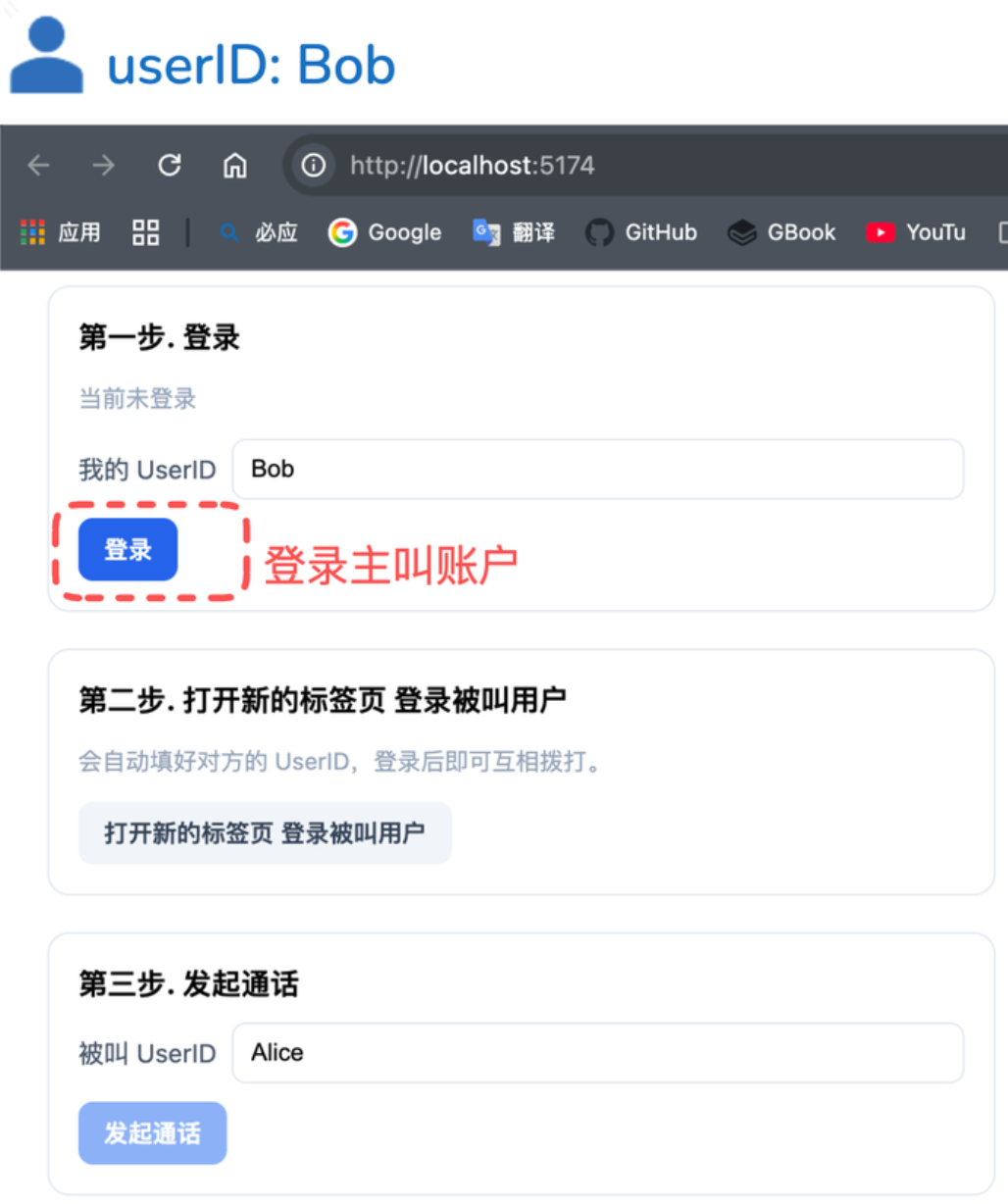
2. 打开启动地址,输入主叫的 userID(由您定义)并单击登录。
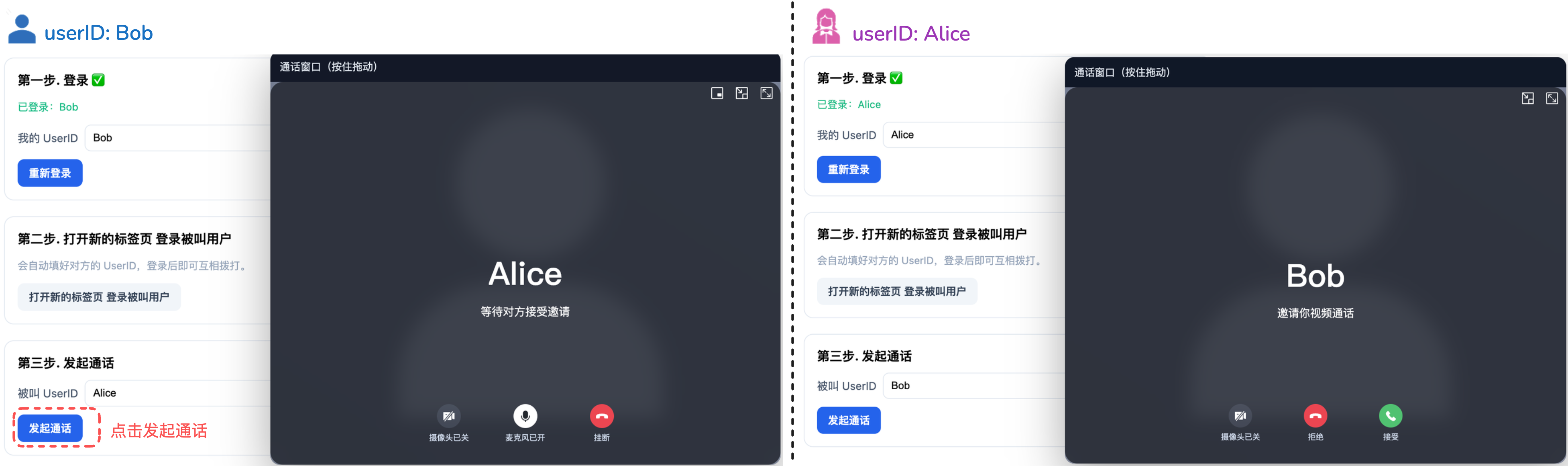
3. 点击打开新的标签页 登录被叫用户按钮,浏览器会打开一个新的标签页并且自动填入被叫 userID,然后在新标签页中点击登录,完成被叫方的登录。
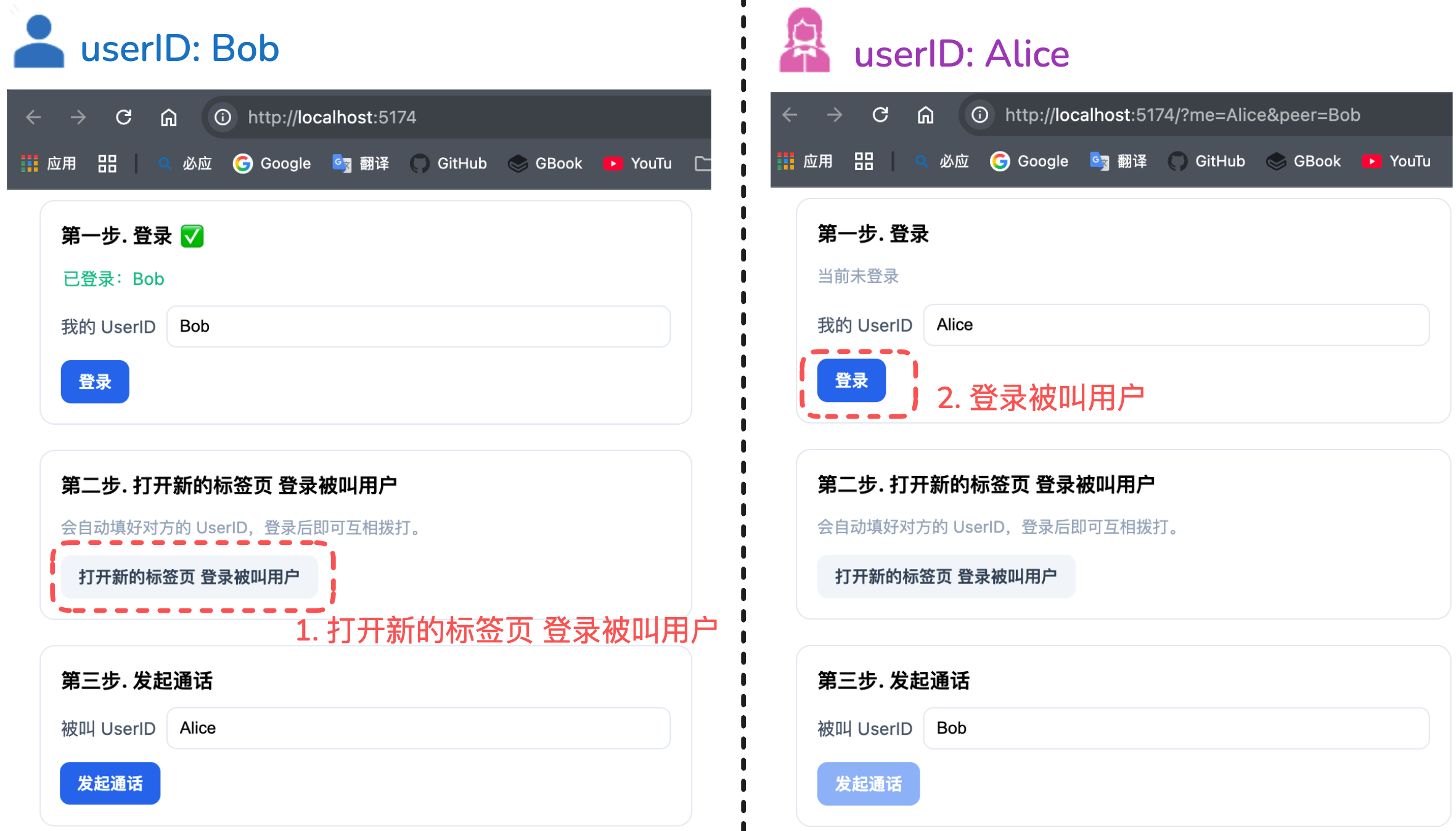
4. 主叫和被叫都登录成功后,在主叫方点击发起通话按钮即可发起通话。如果您有通话问题,参见 常见问题。
步骤4:接听通话
接听端完成登录后,拨打端发起通话,接收端就可以收到通话邀请,同时伴随铃声。
更多功能
设置昵称和头像
try {await TUICallKitAPI.setSelfInfo({nickName: "jack",avatar: "http://xxx",});} catch (error: any) {alert(`[TUICallKit] Failed to call the setSelfInfo API. Reason: ${error}`);}
注意:
因为用户隐私限制,非好友之间的通话,被叫的昵称和头像更新可能会有延迟,一次通话成功后就会顺利更新。
AI 转录与翻译
说明:
v4.4.5 版本及以上支持。
您可以通过调用
enableAITranscriber 开启/关闭 AI 转录与翻译功能。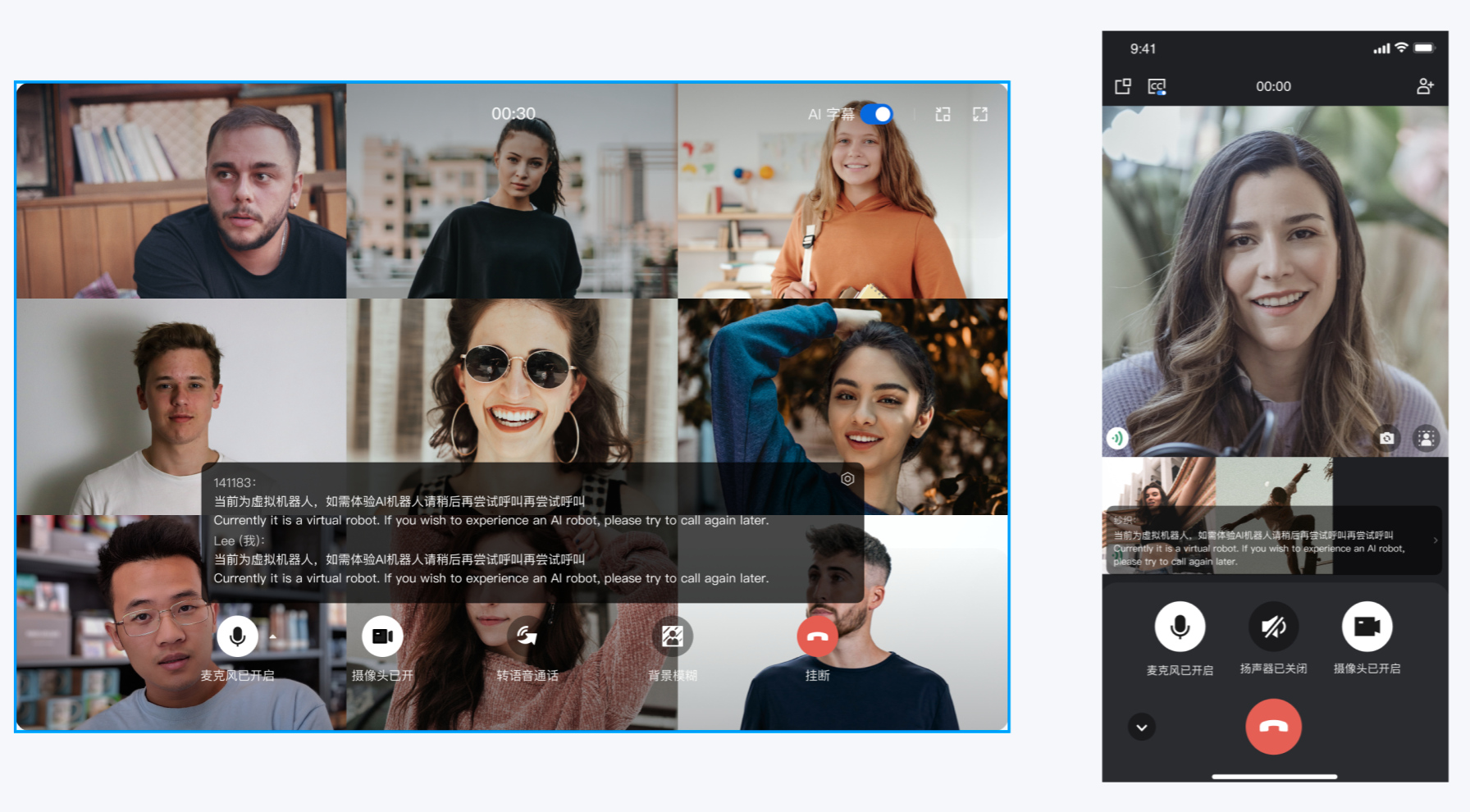
注意:
该功能默认为关闭状态。如需开启,请在发起通话前调用
enableAITranscriber(true)。enableAITranscriber
TUICallKitAPI.enableAITranscriber(true)
开启悬浮窗功能
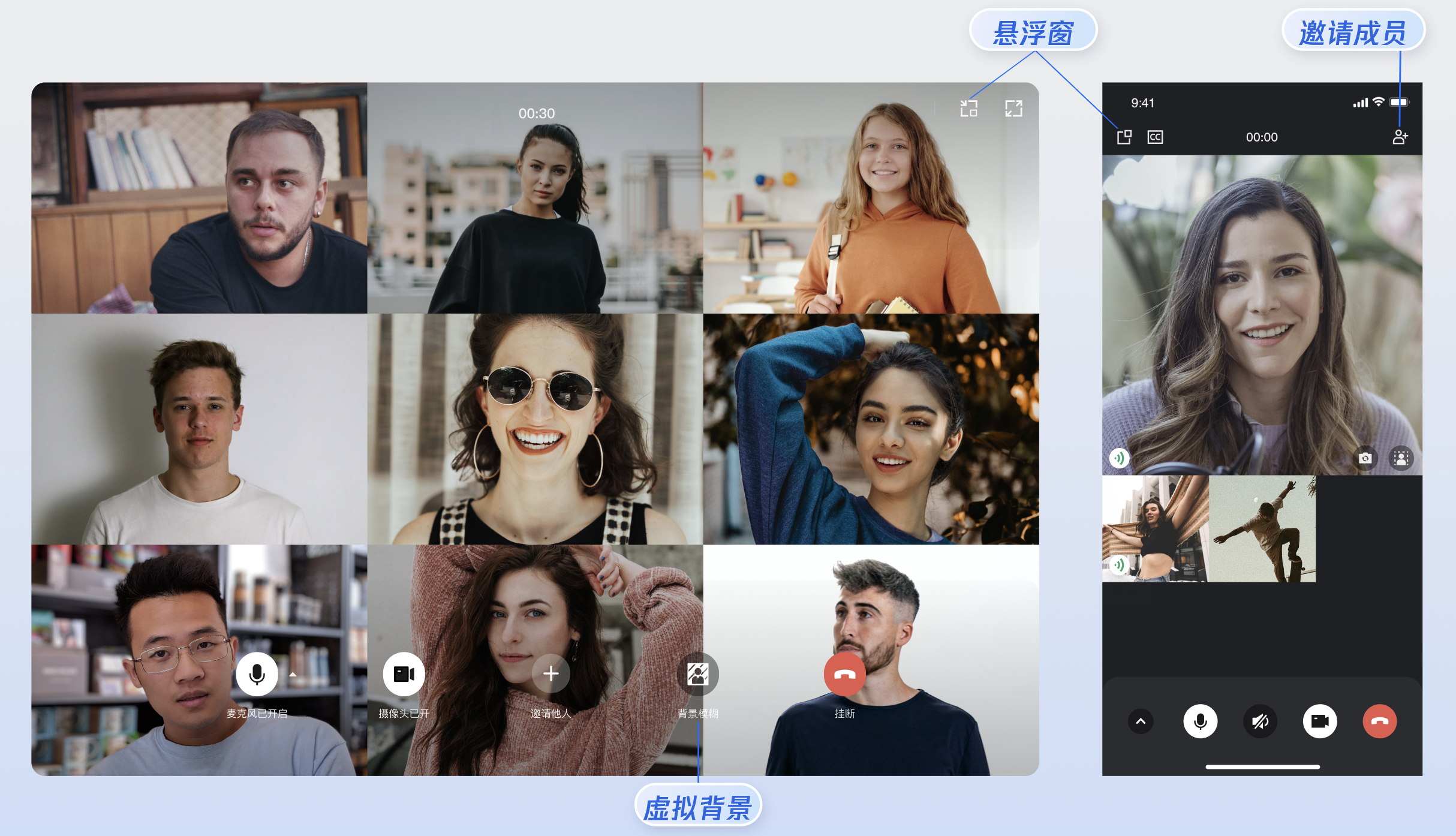
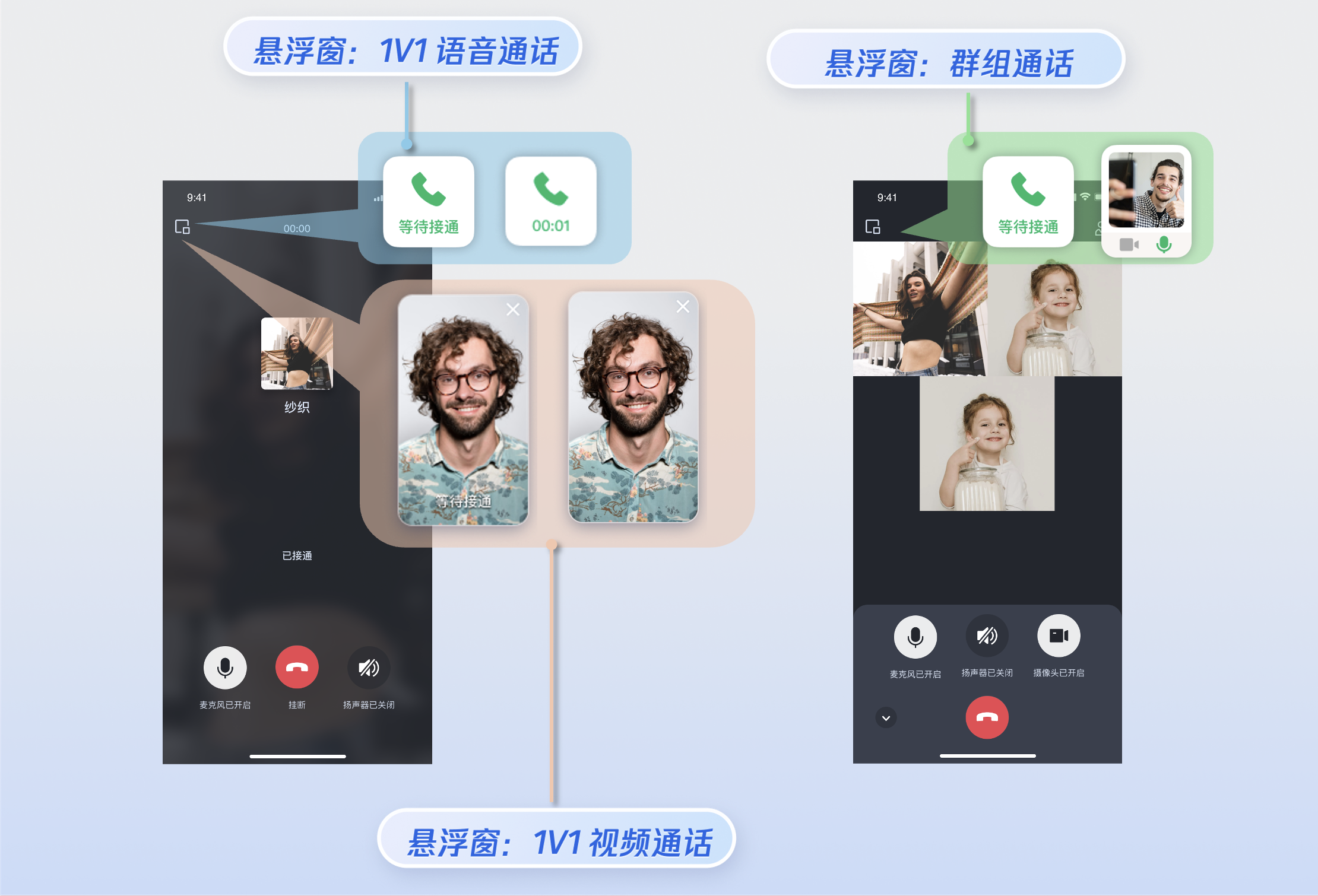
您可以通过调用 enableFloatWindow 开启/关闭悬浮窗功能,在初始化 TUICallKit 组件时启用该功能,默认状态为关闭(false)。可通过点击通话界面左上角的悬浮窗按钮,将通话界面缩小为悬浮窗形式。
调用
enableFloatWindow(enable: boolean) API 开启/关闭悬浮窗(集成代码中已默认开启)。TUICallKitAPI.enableFloatWindow(true)
多人通话
主叫方使用
calls 方法发起通话时,若被叫用户列表超过一人,则自动视为群组通话。其他成员可通过 join 方法加入该多人通话。发起多人通话:使用
calls 方法发起通话时,若被叫用户列表(userIDList)超过一人,则自动视为群组通话。calls
try {const params = {userIDList: ['user1', 'user2'],type: CallMediaType.VIDEO,}await TUICallKitAPI.calls(params);} catch (error: any) {alert(`[TUICallKit] groupCall failed. Reason:${error}`);}
参数 | 类型 | 说明 |
userIDList | string[] | 目标用户的 userId 列表。 |
type | 通话的媒体类型,例如视频通话、语音通话。 |
加入多人通话:可使用
join 方法加入指定的群组通话。join
try {await TUICallKitAPI.join({callId: 'xxx'});} catch (error: any) {alert(`[TUICallKit] join failed. Reason: ${error}`);}
参数 | 类型 | 说明 |
callId | String | 此次通话的唯一标识。 |
语言设置
设置支持的语言
支持的语言:目前支持简体中文、英文、日文。
切换语言:TUICallKit 会优先获取浏览器语言,如果是中文,英文或者日文中的一种,则以浏览器语言为主,否则使用英文。如果想切换语言,可以使用 setLanguage 接口。以设置语言为英文示例代码如下:
setLanguage
import { TUICallKitAPI } from '@trtc/calls-uikit-vue';TUICallKitAPI.setLanguage("zh-cn"); // "en" | "zh-cn" | "ja_JP"
参数 | 类型 | 说明 |
language | String | 设置的语言: "zh-cn":中文简体。 "en":英文。 "ja_JP":日文。 |
说明:
铃声设置
您可通过以下方式设置默认铃声、来电静音模式。
设置默认铃声(方式1):通过 setCallingBell 接口设置被叫端收到的来电铃声。
注意:
仅限传入本地 MP3 格式的文件地址,确保该文件是可以访问的。
如需恢复默认铃声 filePath 传空即可。
使用 ES6 import 方式引入铃声文件。
import filePath from './static/ring.mp3';try {await TUICallKitAPI.setCallingBell(filePath?: string);} catch (error: any) {alert(`[TUICallKit] setCallingBell API failed. Reason: ${error}`);}
设置默认铃声(方式2):如果您通过源码集成 TUICallKit 组件,可通过替换铃声文件来达到替换铃声的目的。
文件名 | 用途 |
phone_dialing.mp3 | 发起呼叫时的铃音 |
phone_ringing.mp3 | 接到呼叫时的铃音 |
来电静音模式:您可以通过 enableMuteMode 设置静音模式。
try {await TUICallKitAPI.enableMuteMode(enable: boolean);} catch (error: any) {alert(`[TUICallKit] enableMuteMode API failed. Reason: ${error}`);}
自定义您的 UI
替换图标按钮
替换图标需要先源码引入,将组件拷贝到您的项目中(源码为 TypeScript 版本)。
注意:
替换图标适用于 Vue + TypeScript 项目且 CallKit 版本号 ≥ 3.2.2,若您采用其他语言或者技术栈,请使用自实现 UI 方案。
1. 下载源码
npm install @trtc/calls-uikit-vue
npm install @trtc/calls-uikit-vue2
npm install @trtc/calls-uikit-vue2.6
2. 将源码拷贝到自己的项目中,以拷贝到
src/components/ 目录为例:mkdir -p ./src/components/TUICallKit && cp -r ./node_modules/@trtc/calls-uikit-vue/* ./src/components/TUICallKit
mkdir -p ./src/components/TUICallKit && cp -r ./node_modules/@trtc/calls-uikit-vue2/* ./src/components/TUICallKit
xcopy .\\node_modules\\@trtc\\calls-uikit-vue .\\src\\components\\TUICallKit /i /e
xcopy .\\node_modules\\@trtc\\calls-uikit-vue2 .\\src\\components\\TUICallKit /i /e
mkdir -p ./src/components/TUICallKit && cp -r ./node_modules/@trtc/calls-uikit-vue2.6/* ./src/components/TUICallKit
xcopy .\\node_modules\\@trtc\\calls-uikit-vue2.6 .\\src\\components\\TUICallKit /i /e
3. 修改引入路径
import { TUICallKit, TUICallKitAPI, CallMediaType } from "./components/TUICallKit/src/index";
4.
解决源码拷贝可能导致的报错
如果您在使用 TUICallKit 组件时遇到了报错,请不要担心,大多数情况下这是由于 ESLint 和 TSConfig 配置不一致造成的。您可以查阅文档,按照要求正确配置即可。如果您需要帮助,请随时联系我们,我们将确保您能够成功地使用此组件。以下是几个常见的问题:
若 TUICallKit 与您项目的代码风格不一致导致报错,可将本组件目录屏蔽,如在项目根目录增加
.eslintignore 文件,如:# .eslintignoresrc/components/TUICallKit
1. 如遇 Cannot find module '../package.json' 报错,是因为 TUICallKit 内引用了 JSON 文件,可在 tsconfig.json 中添加相关配置,示例:
{"compilerOptions": {"resolveJsonModule": true}}
2. 如遇 Uncaught SyntaxError: Invalid or unexpected token 报错,是因为 TUICallKit 使用了装饰器,可在 tsconfig.json 中添加相关配置,示例:
{"compilerOptions": {"experimentalDecorators": true}}
5. 修改 TUICallKit/Components/assets 文件夹下的图标组件
注意:
为了确保整个应用中的图标色调风格保持一致,请在替换时保持图标文件的名字不变。
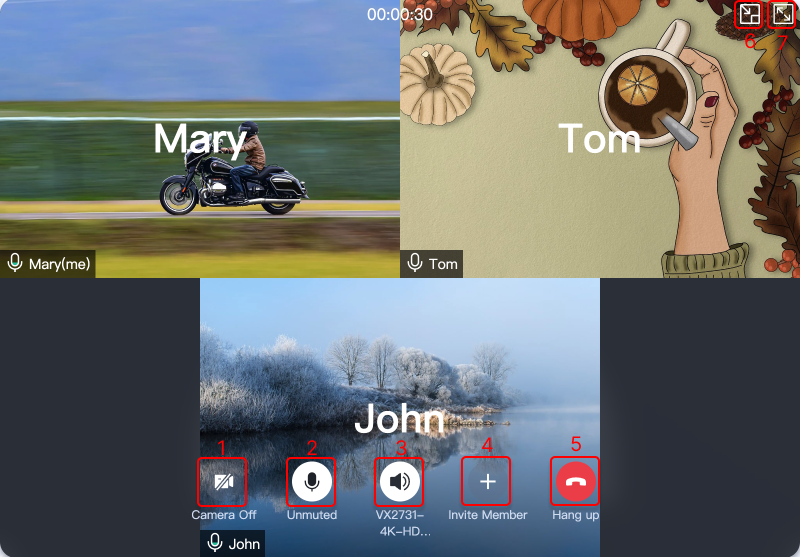
序号 | 资源路径 | 说明 |
1 | /TUICallKit/Components/assets/button/camera-close.svg | 关闭摄像头图标 |
2 | /TUICallKit/Components/assets/button/microphone-open.svg | 打开麦克风图标 |
3 | /TUICallKit/Components/assets/button/speaker-open.svg | 打开扬声器图标 |
4 | /TUICallKit/Components/assets/button/desktop/inviteUser.svg | 通话过程中邀请用户图标 |
5 | /TUICallKit/Components/assets/button/hangup.svg | 挂断通话图标 |
6 | /TUICallKit/Components/assets/button/desktop/minimize.svg | 悬浮窗切换图标 |
7 | /TUICallKit/Components/assets/button/desktop/fullScreen.svg | 切换全屏图标 |
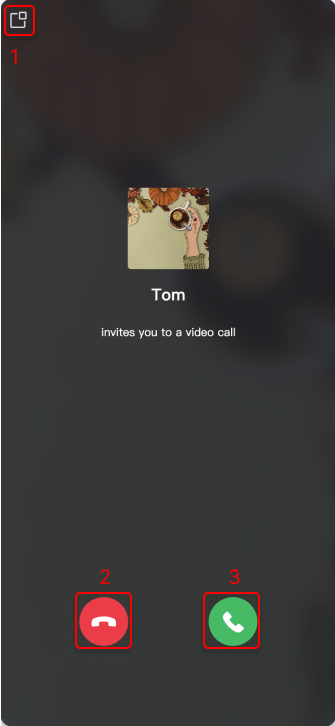
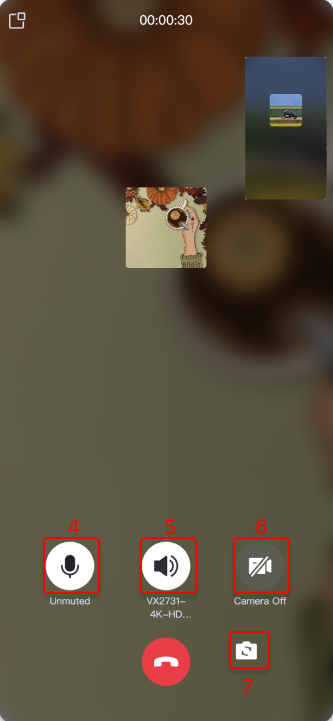
序号 | 资源路径 | 说明 |
1 | /TUICallKit/Components/assets/button/mobile/minimize.svg | 悬浮窗切换图标 |
2 | /TUICallKit/Components/assets/button/hangup.svg | 挂断通话图标 |
3 | /TUICallKit/Components/assets/button/accept.svg | 接听通话图标 |
4 | /TUICallKit/Components/assets/button/microphone-open.svg | 打开麦克风图标 |
5 | /TUICallKit/Components/assets/button/speaker-open.svg | 打开扬声器图标 |
6 | /TUICallKit/Components/assets/button/camera-close.svg | 关闭摄像头图标 |
7 | /TUICallKit/Components/assets/button/switchCamera.svg | 切换前后摄像头图标 |
隐藏按钮
注意:
v3.2.9+ 支持。
以隐藏摄像头按钮为例。
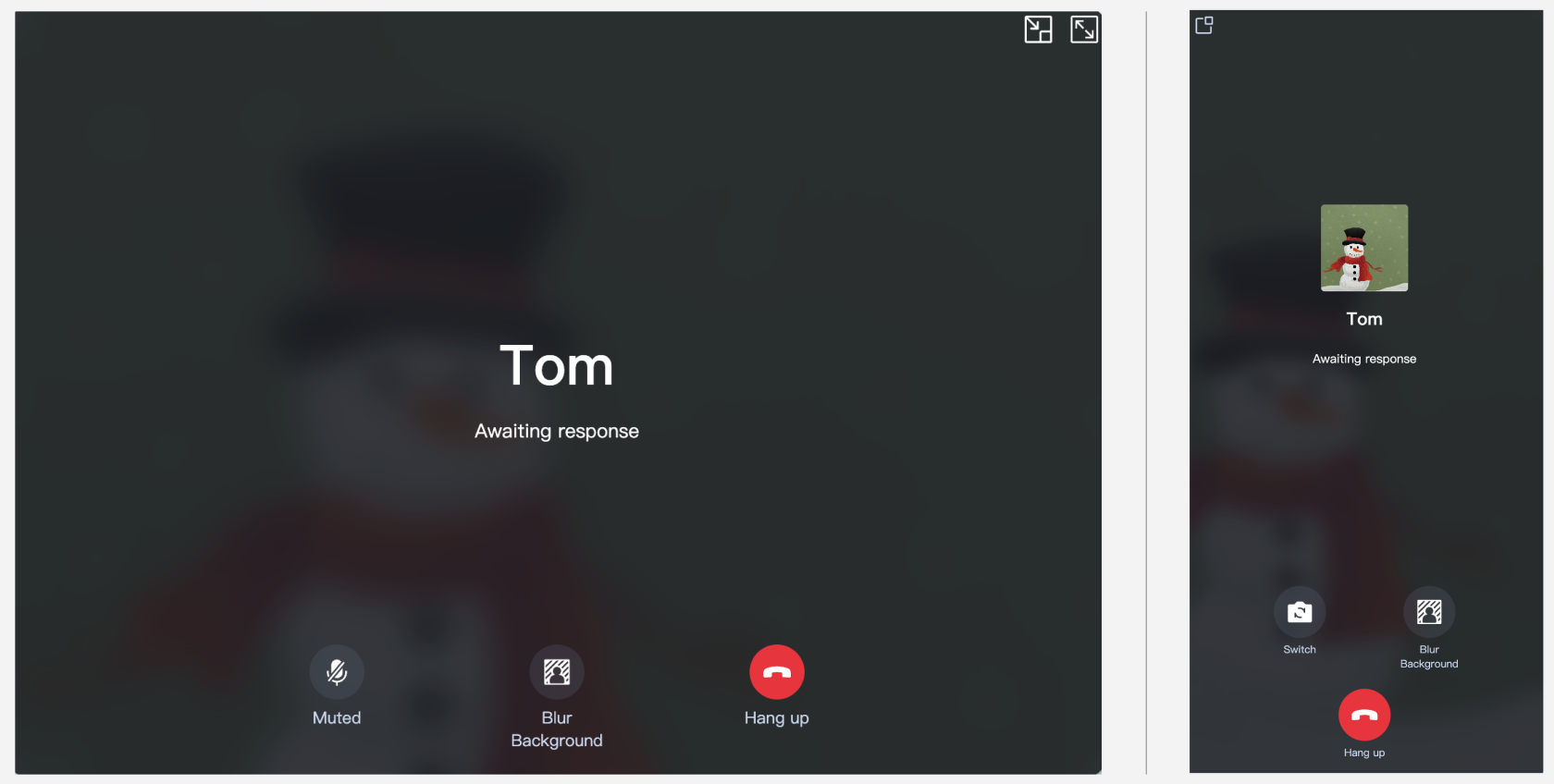
import { TUICallKitAPI, FeatureButton } from "@trtc/calls-uikit-vue";TUICallKitAPI.hideFeatureButton(FeatureButton.Camera);
import { TUICallKitAPI, FeatureButton } from "@trtc/calls-uikit-vue2";TUICallKitAPI.hideFeatureButton(FeatureButton.Camera);
import { TUICallKitAPI, FeatureButton } from "@trtc/calls-uikit-vue2.6";TUICallKitAPI.hideFeatureButton(FeatureButton.Camera);
自定义通话背景图
通话背景图会在语音通话或者视频通话关闭摄像头后出现,通过调用 setLocalViewBackgroundImage 修改本地用户通话界面背景图,setRemoteViewBackgroundImage 修改远端用户通话界面背景图。
注意:
v3.2.9+ 支持。
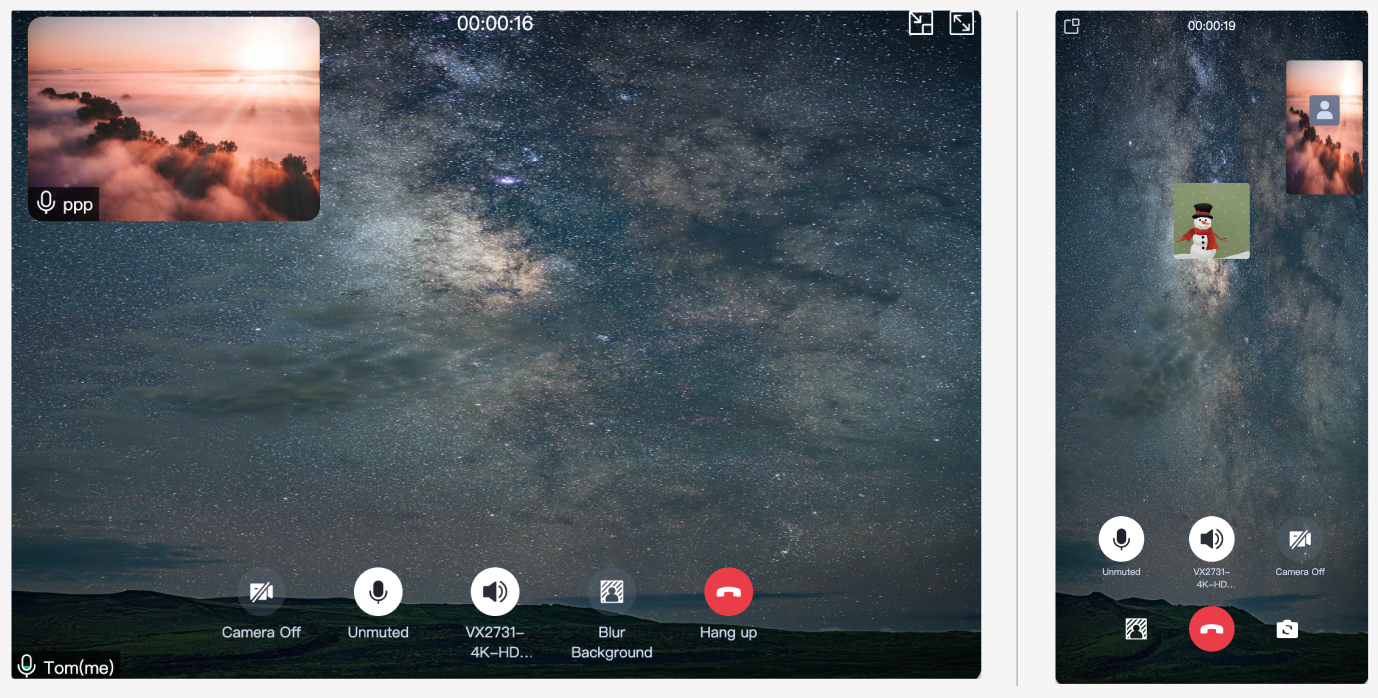
import { TUICallKitAPI } from "@trtc/calls-uikit-vue";TUICallKitAPI.setLocalViewBackgroundImage('http://xxx.png');TUICallKitAPI.setRemoteViewBackgroundImage('remoteUserId', 'http://xxx.png');
import { TUICallKitAPI } from "@trtc/calls-uikit-vue2";TUICallKitAPI.setLocalViewBackgroundImage('http://xxx.png');TUICallKitAPI.setRemoteViewBackgroundImage('remoteUserId', 'http://xxx.png');
import { TUICallKitAPI } from "@trtc/calls-uikit-vue2.6";TUICallKitAPI.setLocalViewBackgroundImage('http://xxx.png');TUICallKitAPI.setRemoteViewBackgroundImage('remoteUserId', 'http://xxx.png');
设置布局
注意:
仅 1V1 视频通话可用,v3.3.0+ 支持。
1. LocalInLargeView layout,本地用户在大窗:
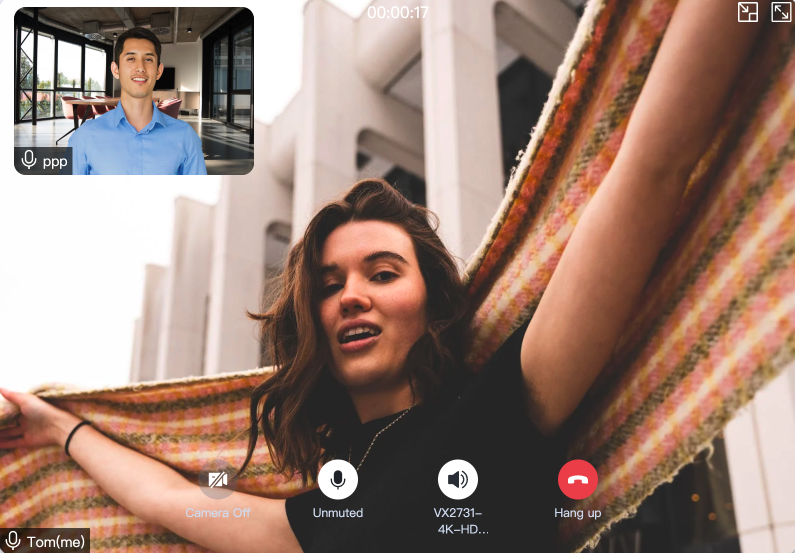
2. RemoteInLargeView layout,远端用户在大窗:
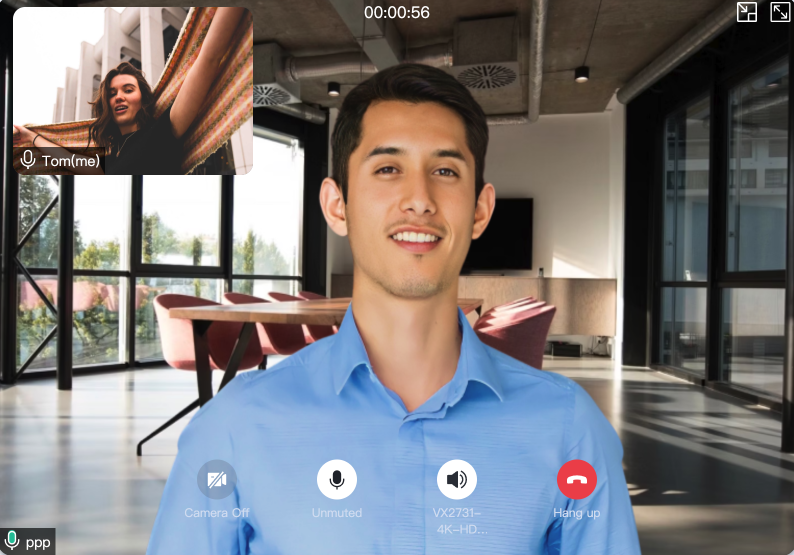
import { TUICallKitAPI, LayoutMode } from "@trtc/calls-uikit-vue";TUICallKitAPI.setLayoutMode(LayoutMode.LocalInLargeView);
import { TUICallKitAPI, LayoutMode } from "@trtc/calls-uikit-vue2";TUICallKitAPI.setLayoutMode(LayoutMode.LocalInLargeView);
import { TUICallKitAPI, LayoutMode } from "@trtc/calls-uikit-vue2.6";TUICallKitAPI.setLayoutMode(LayoutMode.LocalInLargeView);
设置摄像头初始状态
以默认关闭摄像头为例:
import { TUICallKitAPI } from "@trtc/calls-uikit-vue";TUICallKitAPI.setCameraDefaultState(false);
import { TUICallKitAPI } from "@trtc/calls-uikit-vue2";TUICallKitAPI.setCameraDefaultState(false);
import { TUICallKitAPI } from "@trtc/calls-uikit-vue2.6";TUICallKitAPI.setCameraDefaultState(false);
常见问题
接入方式与版本选择
npm 包集成
Vue3 开发环境,集成 @trtc/calls-uikit-vue npm 包。
Vue2.7 开发环境:集成 @trtc/calls-uikit-vue2 npm 包。
Vue2.6 开发环境:集成 @trtc/calls-uikit-vue2.6 + @vue/composition-api npm 包。
源码集成
Vue3 + TypeScript 开发环境:从 @trtc/calls-uikit-vue npm 包拷贝源码。
Vue2.7 + TypeScript 开发环境:从 @trtc/calls-uikit-vue2 npm 包拷贝源码。
Vue2.6 + TypeScript 开发环境:从 @trtc/calls-uikit-vue2.6 npm 包拷贝源码。
需要:Vue2.6 + unplugin-vue2-script-setup + @vue/composition-api。
注意:
1. Uniapp 用户在 HBuilderX 中选择 vue2 时,使用的是 vue2.6,因此需要使用:@trtc/calls-uikit-vue2.6。
2. Uniapp 用户在 HBuilderX 中选择 vue3 时,使用的是 vue3,因此需要使用:@trtc/calls-uikit-vue。


