The content of this page has been automatically translated by AI. If you encounter any problems while reading, you can view the corresponding content in Chinese.

Organization Fund Allocation Mode (Self-Pay)

Last updated: 2026-05-13 11:08:30

Organization Fund Allocation Mode includes the following features:
Financial permissions
Note
Admin accounts can perform fund transfers, including deposits and withdrawals, to and from member accounts.
Admin accounts can issue invoices on behalf of member accounts, maintain mailing addresses, and manage invoice titles (for regular invoices).
Admin accounts can consolidate and download the expenses of multiple member accounts.
Member accounts can inherit contracted discounts from the admin account.

Allocate funds to member accounts

After topping up the organization admin account, the account balance can be allocated to member accounts. Additionally, any remaining balance that has been allocated to members but not yet consumed can be transferred back to the admin account. The related operations are as follows:
Note
Gift balance, provided by Tencent Cloud, is non-transferable and cannot be withdrawn.
If the identity verification entity of a member account is different from the admin account, fund allocation is not supported. If required, please contact your sales manager for internal activation.

Fund deposit

1. Log in to the Tencent Cloud Organization Console and select Department Management on the left sidebar.
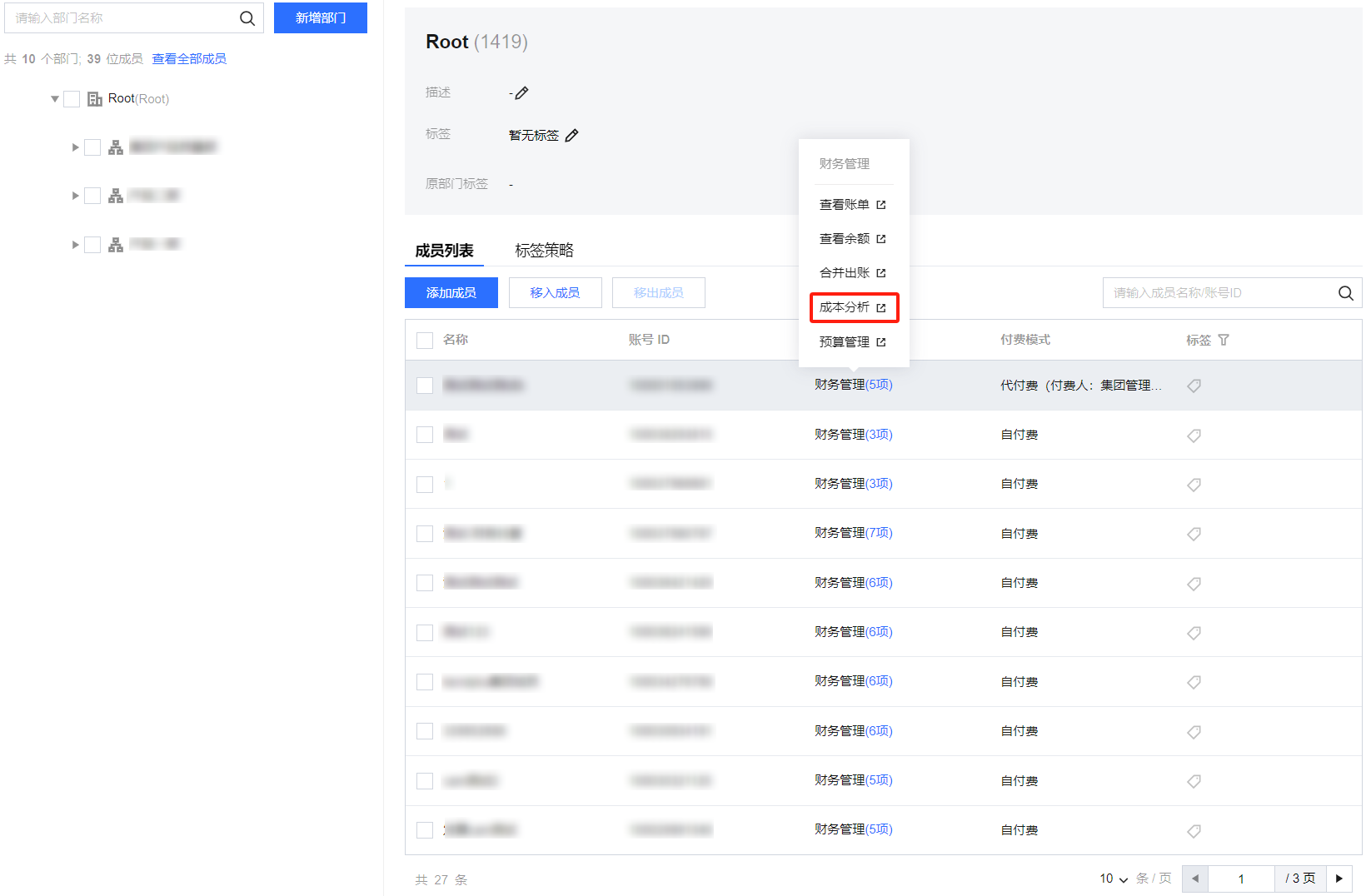
2. On the Organizational Structure page, select a department to view the member list and their respective permissions.
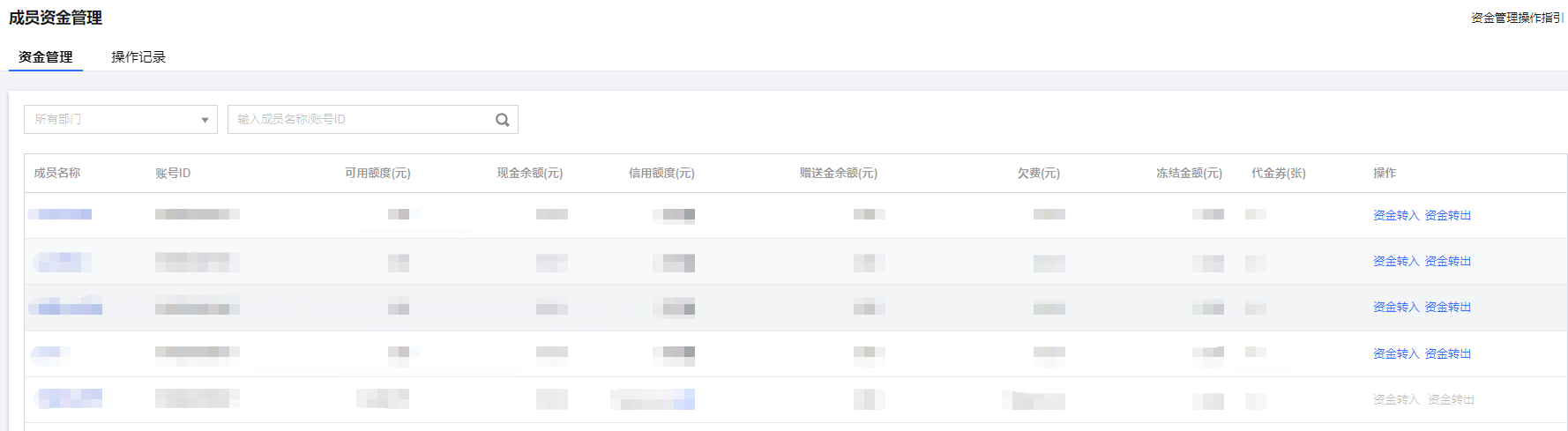
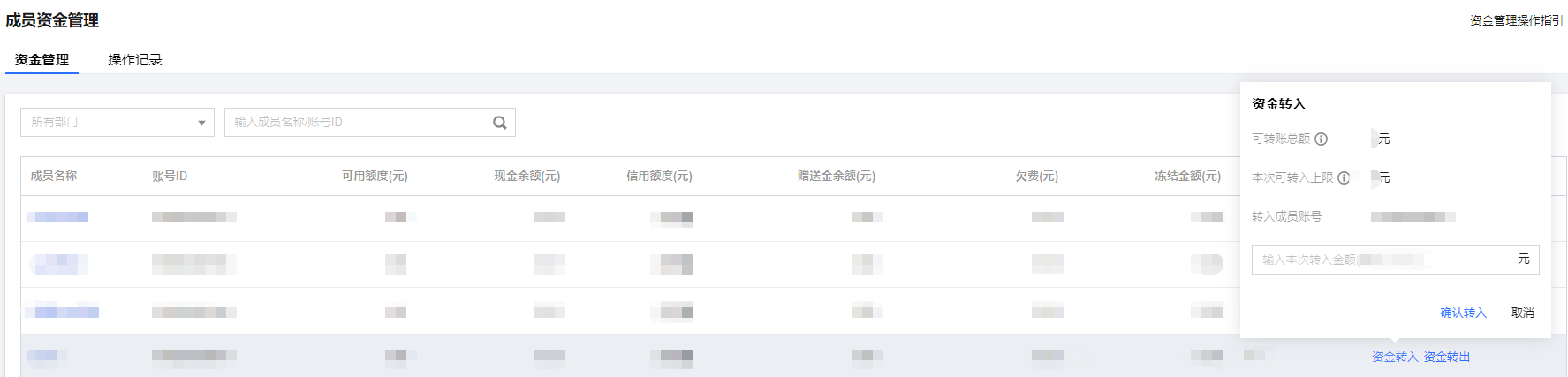
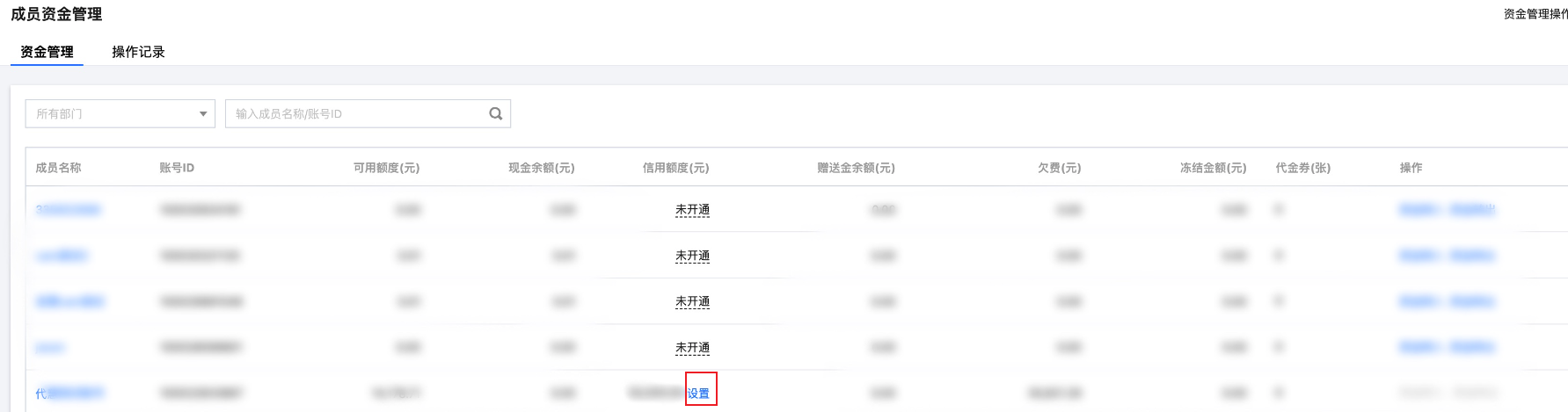
3. Click Financial Management > Fund Allocation for the target member, and on the Fund Management page, click Transfer in on the right side of the member's row.
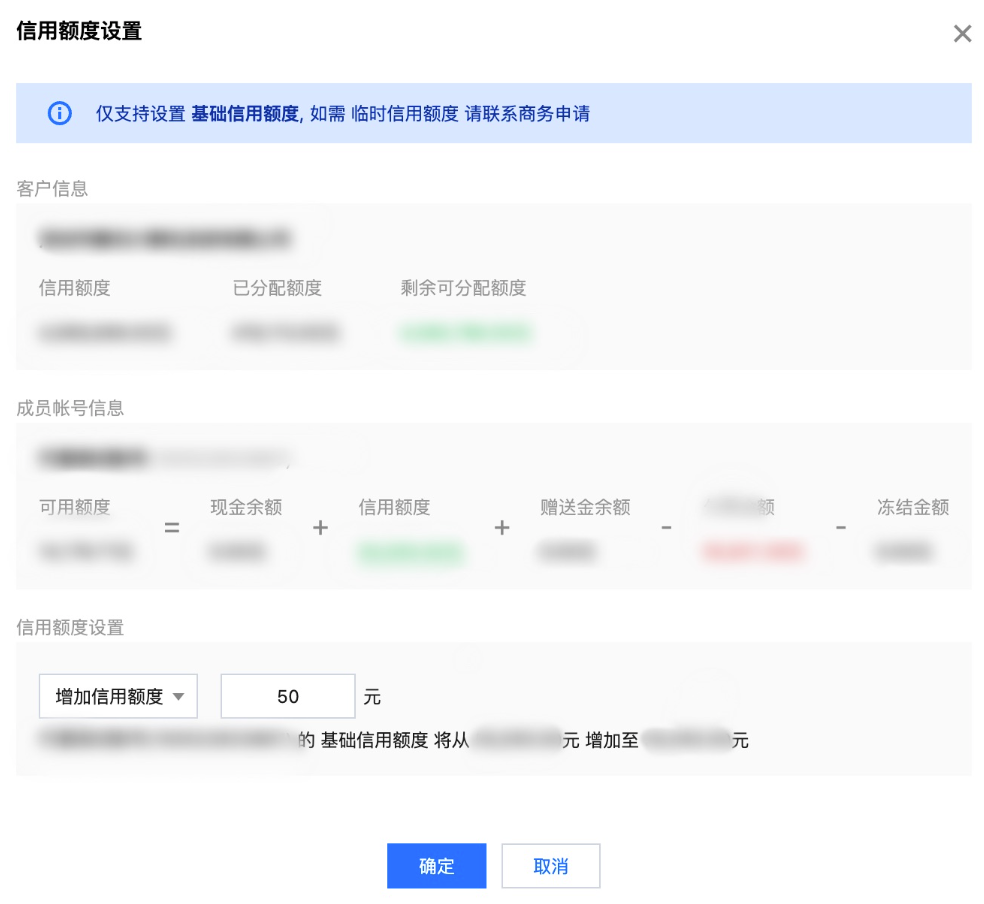
4. In the pop-up Transfer in window, enter the transfer amount and click Confirm as shown in the image below:


Fund withdrawal

If the funds transferred to a member account have not been fully consumed and need to be returned to the admin account, follow these steps:
1. Log in to the Tencent Cloud Organization Console and select Department Management on the left sidebar.
2. On the Organizational Structure page, select a department to view the member list and their respective permissions.
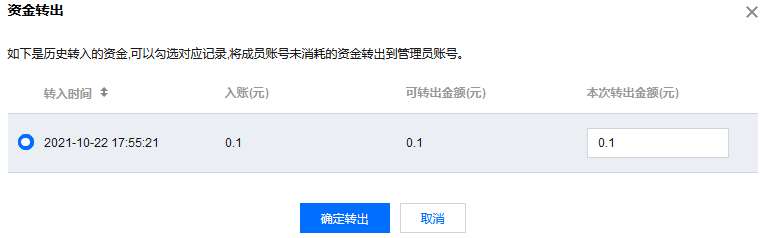
3. Click Financial Management > Fund Allocation for the target member, and on the Fund Management page, click Transfer out on the right side of the member's row.
4. In the pop-up Transfer out window, select the corresponding record, as shown below:


5. By clicking Confirm you can transfer the unused funds from the member account to the admin account.

View fund allocation records

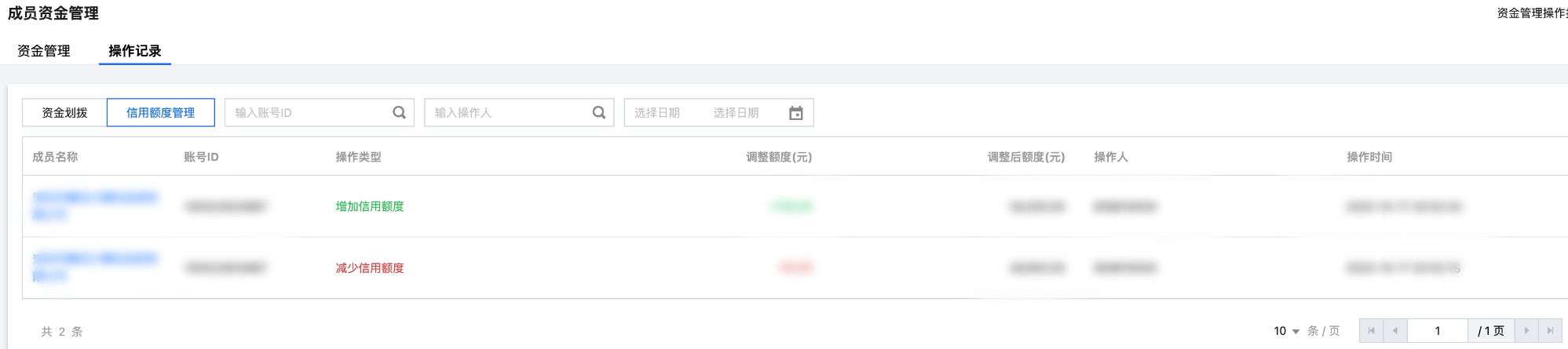
In the Fund Management page, click on the Fund Allocation Records tab to view the historical records of Transfers In and Transfers Out on the page.

Issuing invoices for member accounts

Group account administrators can issue invoices for Tencent Cloud, Cloud Marketplace, and Cloud Marketplace commissions for member accounts, as well as maintain the invoice header (general invoice) for member accounts.
1. Log in to the Tencent Cloud Organization Console and select Department Management on the left sidebar.
2. On the Organizational Structure page, select a department to view the member list and their respective permissions.
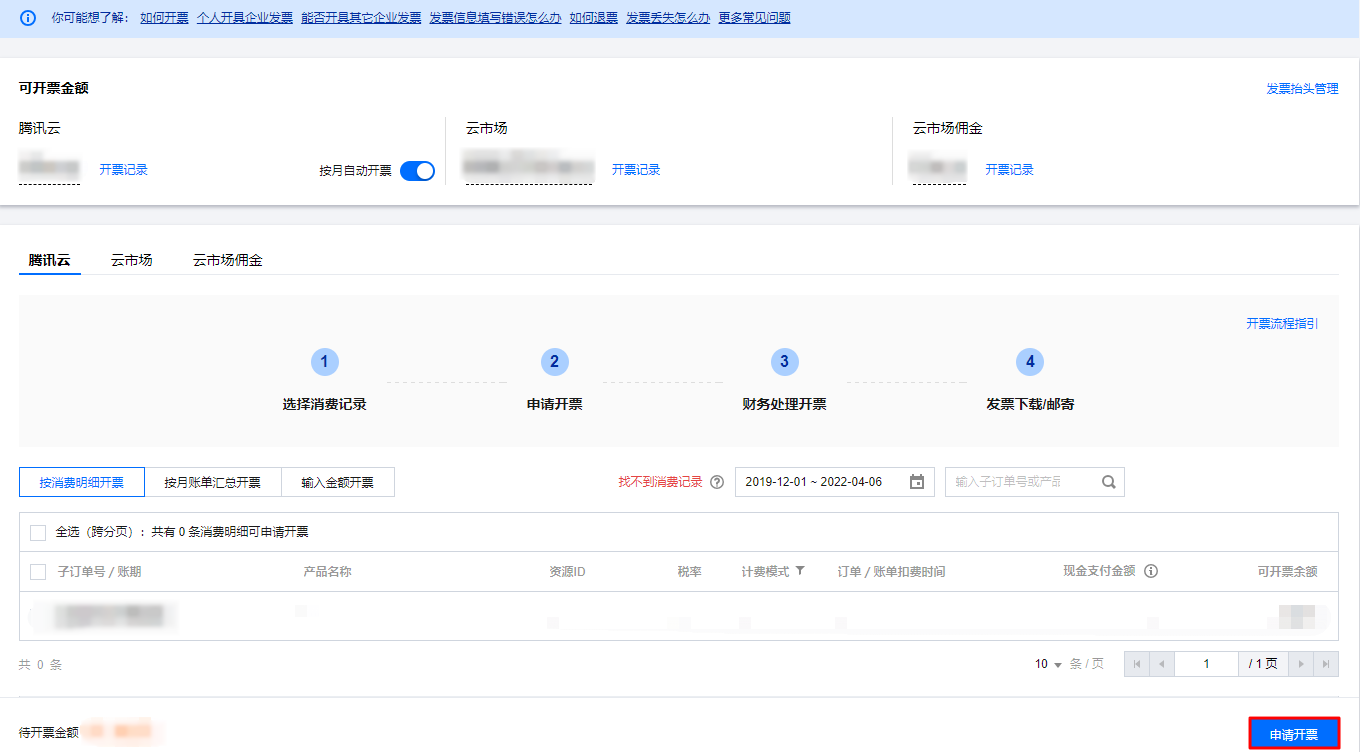
3. Click on Financial Management > Invoicing in the target member account to enter the "Invoice Management" page. Select the orders to be invoiced. For more information, please refer to the Invoice application process.
When a member account issues a general invoice, the admin account can directly modify the invoice title for billing purposes.
When a member account issues a special invoice, the system automatically obtains the account's verified name. Admin accounts can issue invoices on behalf of others but cannot modify the special invoice title. To issue an invoice with a different company title, please modify the identity compliance first.
For more information about invoices, see Invoice FAQs.

Select member accounts for consolidated billing

1. Log in to the Tencent Cloud Organization Console and select Department Management on the left sidebar.
2. On the Organizational Structure page, select a department to view the member list and their respective permissions.
3. Click Financial Management > Consolidated Billing in the target member account.
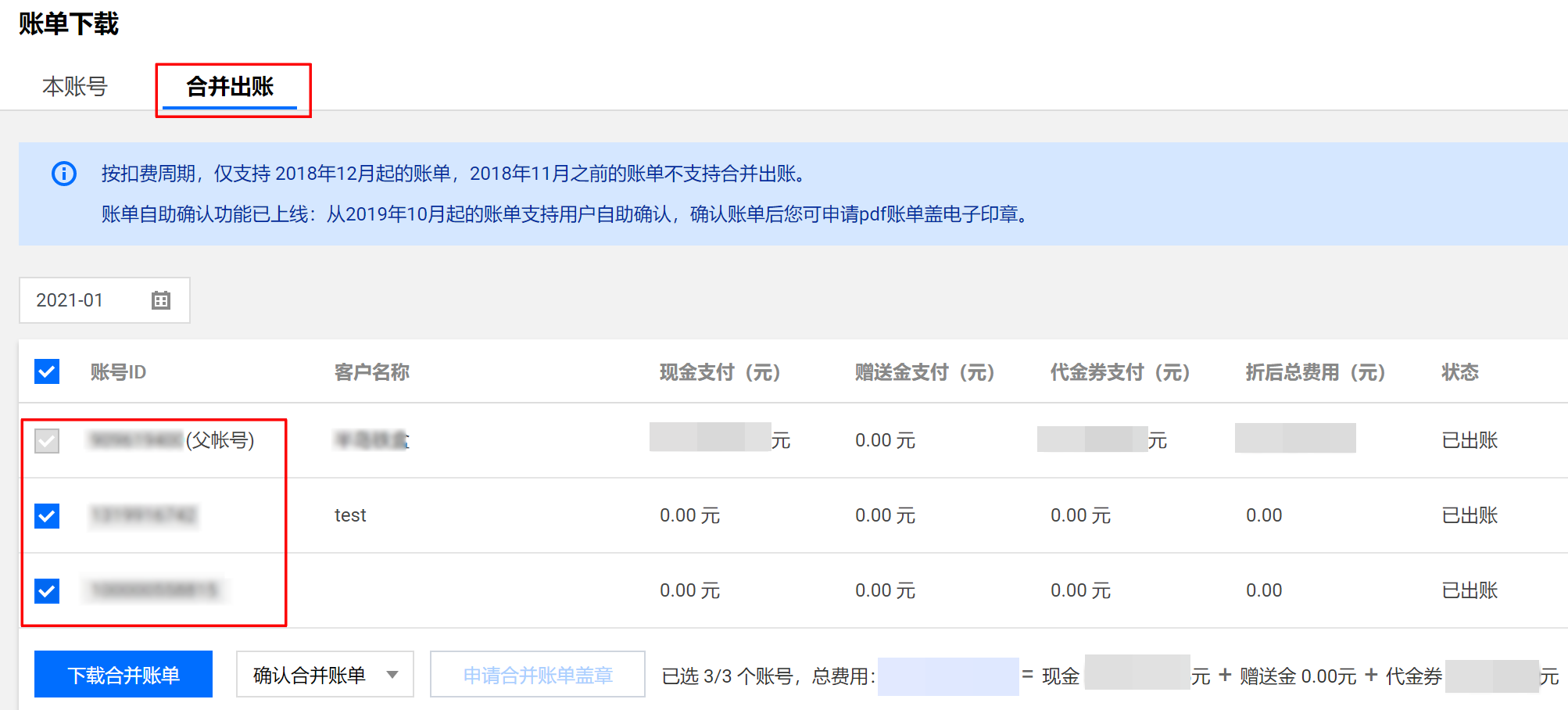
4. On the Bill Download page, select the Consolidated Billing tab, check the accounts to be consolidated, and click Download Consolidated Bill as shown in the image below: You can also download the consolidated bill by clicking Download on the right side of the row containing the consolidated bill in the Export Records page.

Inherit discounts

The following section explains how member accounts can inherit contracted discounts from the organization's admin account.

Discount Inheritance Scope

Inheritable discounts include those negotiated through business contracts with customers, but do not encompass official website discounts or promotional event discounts.
Contracted discount types include Billing-level discounts, Financial-level discounts, and Full Rebates. The inheritance relationships for different scenarios are shown in the table below:
Types of contract price discounts
Billing-level discounts
Account-level discounts
Full rebate
Promotion Type
Discounts based on individual prepaid orders or postpaid usage are applied in real-time and take effect immediately.
Discounts are set based on the combined monthly consumption scale of a single account ID or multiple account IDs, and are applied on the 1st day of the following month.
A preferential scheme that proportionally rewards vouchers or free credits for the entire billed month (list price/cash/cash + free credits) will be executed on the 3rd day of the following month.
Discount (Linear)
×
×
Contract pricing (linear, tiered, fixed-price)
×
×
Guaranteed (Fixed Monthly, Variable Monthly)
×
×
×
Note
✔ represents inheritable, × represents non-inheritable.
Note:
Ensure that the organization admin account ID's discounts include the discounts for all member account IDs.
Once the discount inheritance is activated, the member account can enjoy the contracted discounts from the admin account. However, the member account will no longer be eligible for separate contracted discounts applied individually.
Inheritance of discounts does not include CDN. If a member account is eligible for discounts on these products, please contact your sales manager to apply for contracted discounts.
Member accounts must have the same billing cycle (e.g., hourly, daily, or monthly) as the admin account to enjoy inherited discounts. If a member account needs to adjust its billing cycle, please contact the sales manager for assistance.
You can set up discount inheritance for accounts within the same entity through Tencent Cloud Organization . For accounts from different entities, you can contact sales to apply. Regardless of the method, once the discount inheritance is established, you can view the inheritance status of the member accounts.
In the Organization Fund Allocation Mode (self-payment), when an administrator deletes an organization, removes organization members, or members actively leave the organization, existing inherited discounts will not be automatically canceled. If you need to cancel them, please contact your business manager for assistance.

Related Actions

Configure Discount Inheritance
1. You can set up discount inheritance for member accounts when adding them by following these steps:
2. Log in to the Tencent Cloud Organization Console and select Member Account Management from the left sidebar.
3. On the Member Account Management page, click Add Member.
4. On the Add Member page, configure the Inherit Discounts option based on the method of adding members:
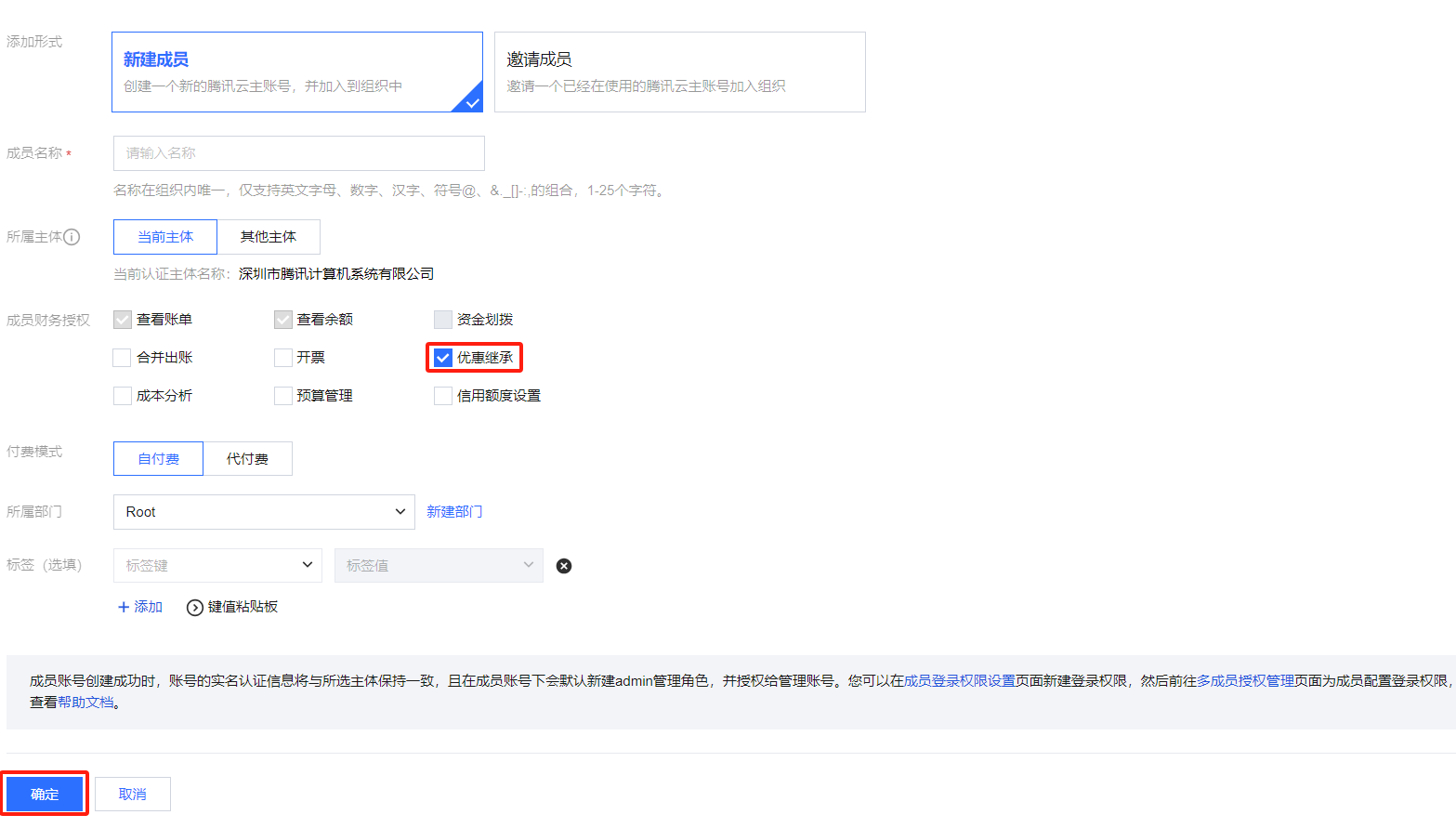
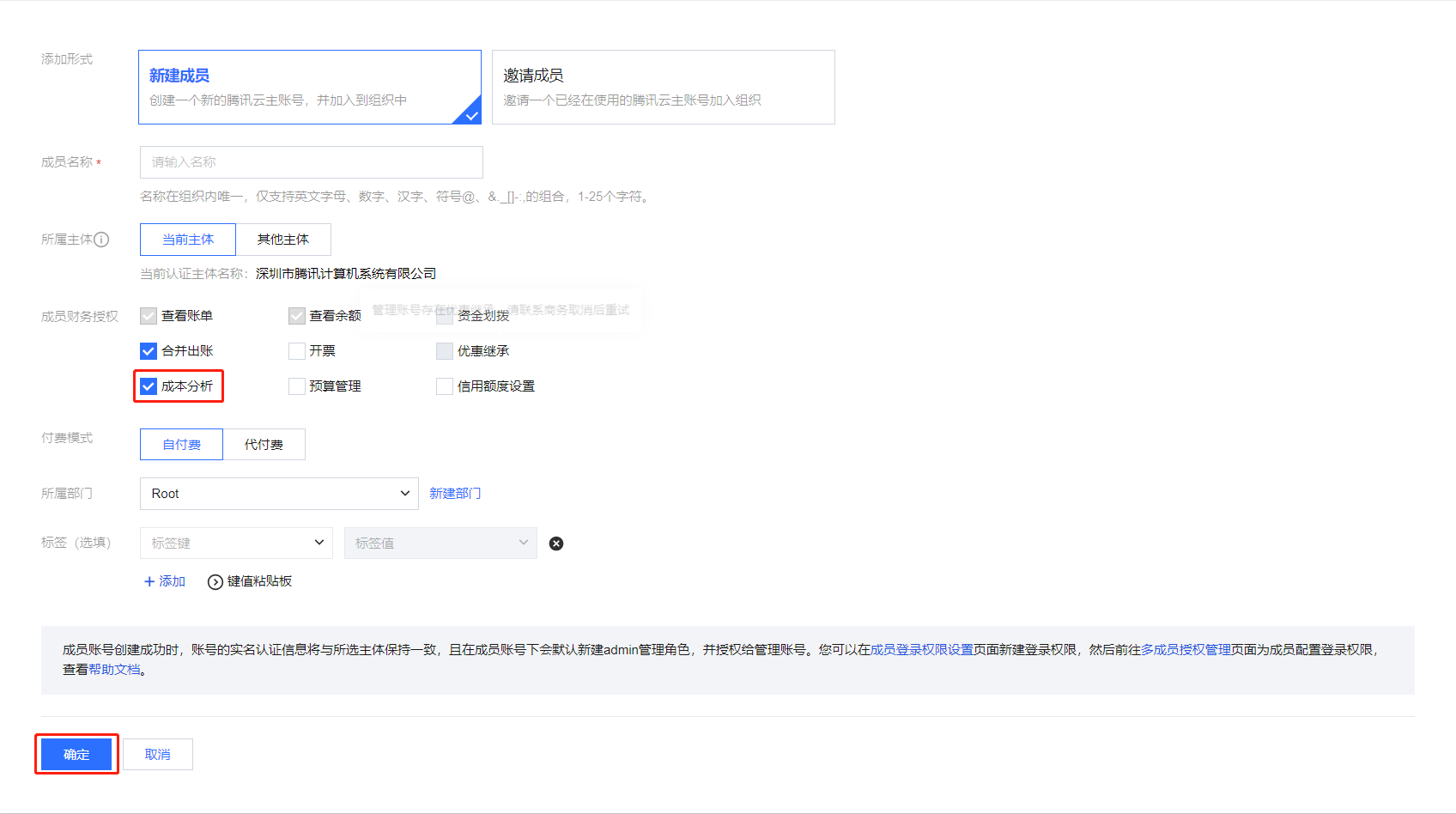
Create Member: When creating a new member, the member account will use the same enterprise identity verification name as the admin account by default. In the "Payment Mode" section, select "Self-pay" and then check "Inherit offer" to create the member as shown in the image below:


Invite members:
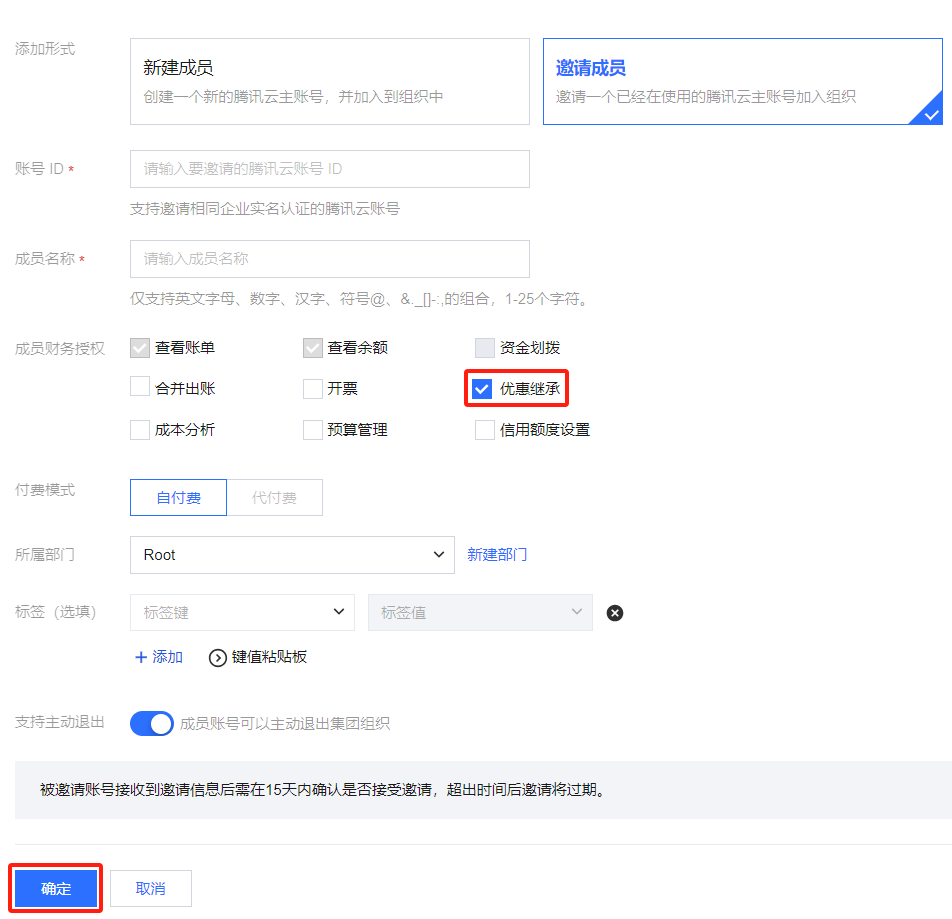
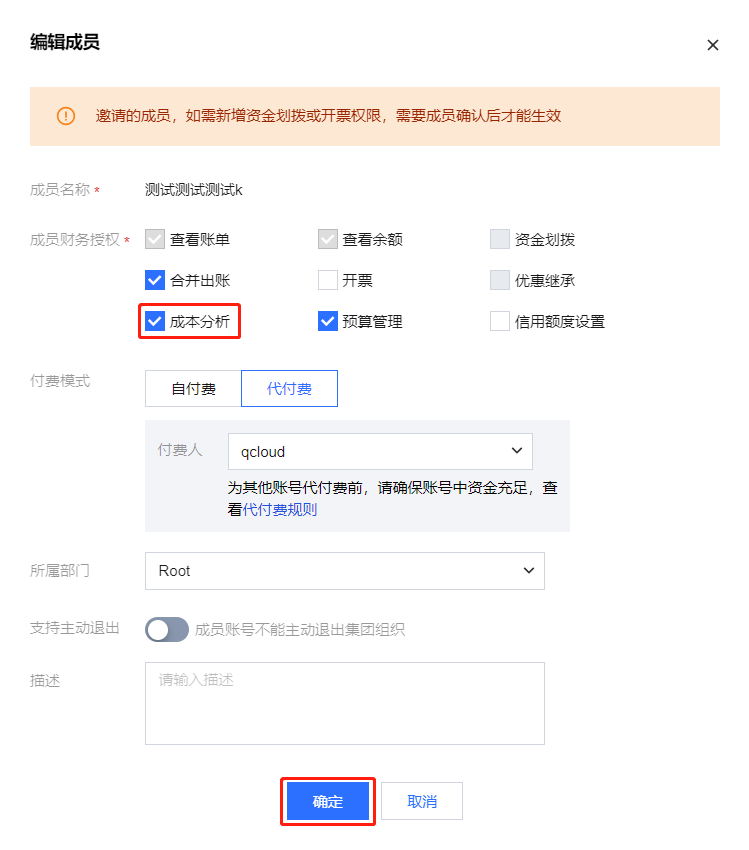
If the member account and the admin account share the same enterprise-verified entity, after selecting "Self-pay" in the "Payment Mode," you can also select "Inherit offer" to invite the member, as shown in the image below:


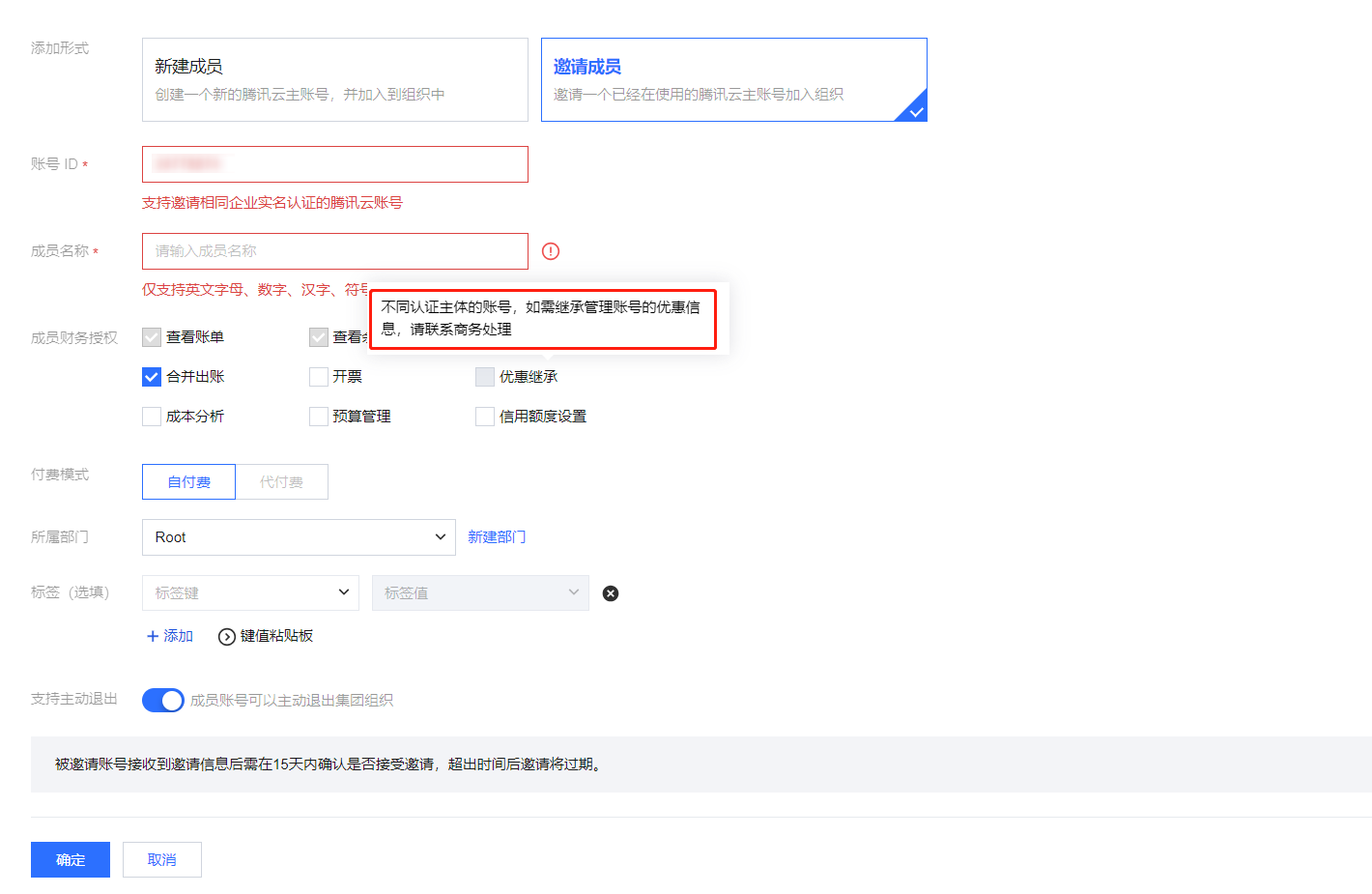
If the member account and the admin account have different corporate authentication entities, after selecting "Self-pay" in the "Payment Mode", if you need to set up "Inherit offer", please contact your business manager for assistance. As shown in the image below:


Canceling Discount Inheritance

To cancel the discount inheritance for a member account, please contact your business manager for assistance.