操作场景
本文介绍如何在 Windows、Linux 及 MacOS 系统的本地计算机中通过远程桌面登录 Windows 实例。
适用本地操作系统
Windows、Linux 和 MacOS 都可以使用远程桌面登录 Windows 实例。
前提条件
远程登录 Windows 实例需要使用实例的管理员账号和对应的密码。
如果您使用系统默认密码登录实例,请前往 站内信 (标有:云服务器创建成功字样)获取。
如果您忘记密码,请 重置实例密码。
您的云服务器实例已购买公网 IP,且该实例已开通云服务器实例的3389号端口。
操作步骤
方式一:RDP文件登录
1.
登录
云服务器控制台。2. 在实例的管理页面,根据实际使用的视图模式进行操作:
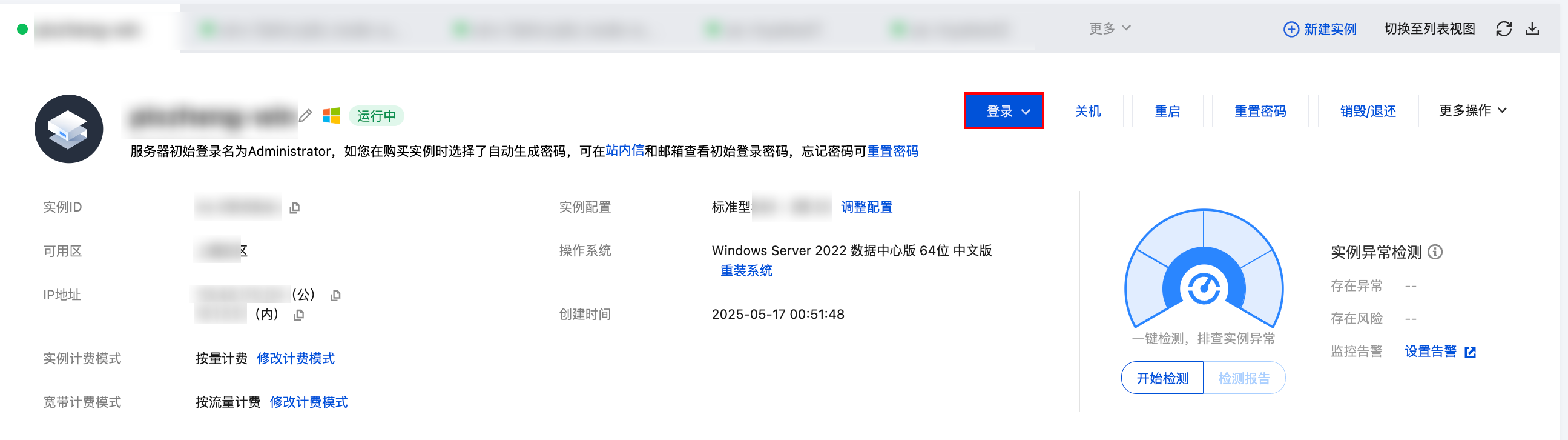
找到需要登录的 Windows 云服务器,单击右侧的登录。如下图所示:

选择需要登录的 Windows 云服务器页签,单击登录。如下图所示:
3. 在打开的 OrcaTerm 登录窗口中,选择 RDP文件下载,将 RDP 文件下载到本地。
说明:
若您已修改远程登录端口,则需修改 RDP 文件,在 IP 地址后增加
:端口。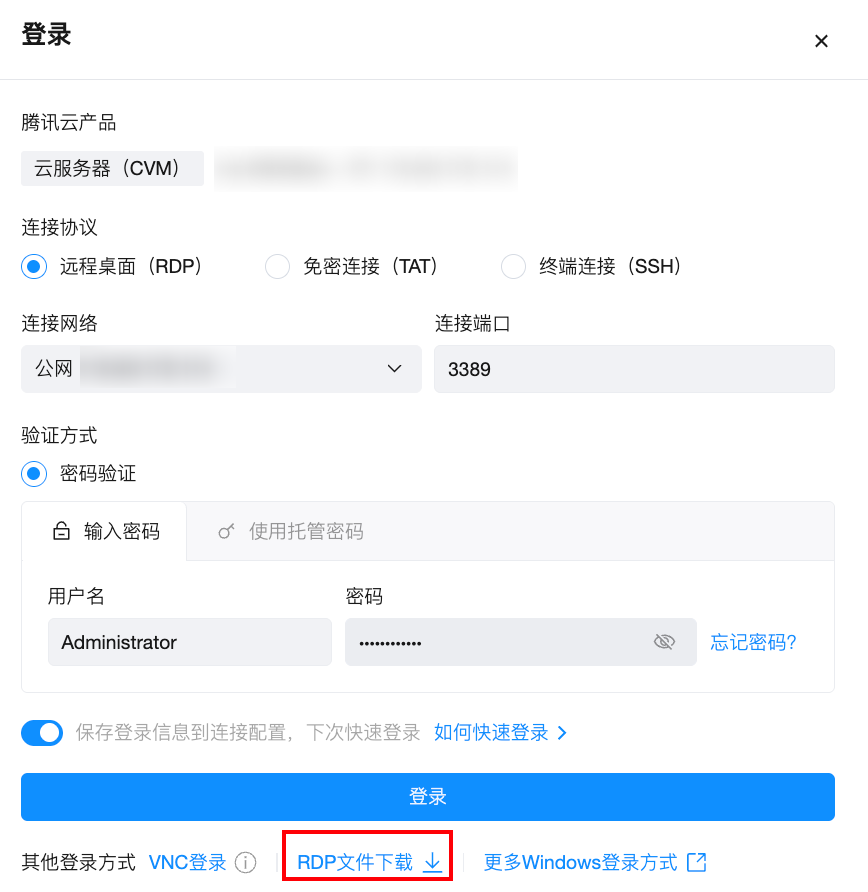
4. 双击打开已下载到本地的 RDP 文件,输入密码,单击确定,即可远程连接到 Windows 云服务器。
如果您使用系统默认密码登录实例,请前往 站内信 获取。
如果您忘记密码,请 重置实例密码。
方式二:手动登录
说明:
以下操作步骤以 Windows 10 操作系统为例。
1. 在本地 Windows 计算机上,单击 
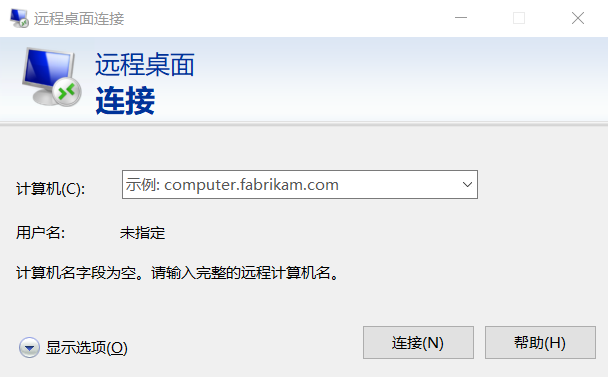
2. 在计算机后面,输入 Windows 实例的公网 IP,单击连接。
3. 在弹出的 Windows 安全窗口中,输入实例的管理员账号和密码,如下图所示:
说明:
若弹出无法验证此远程计算机的身份,是否仍要连接?对话框,可勾选不再询问我是否连接到此计算机,单击连接。
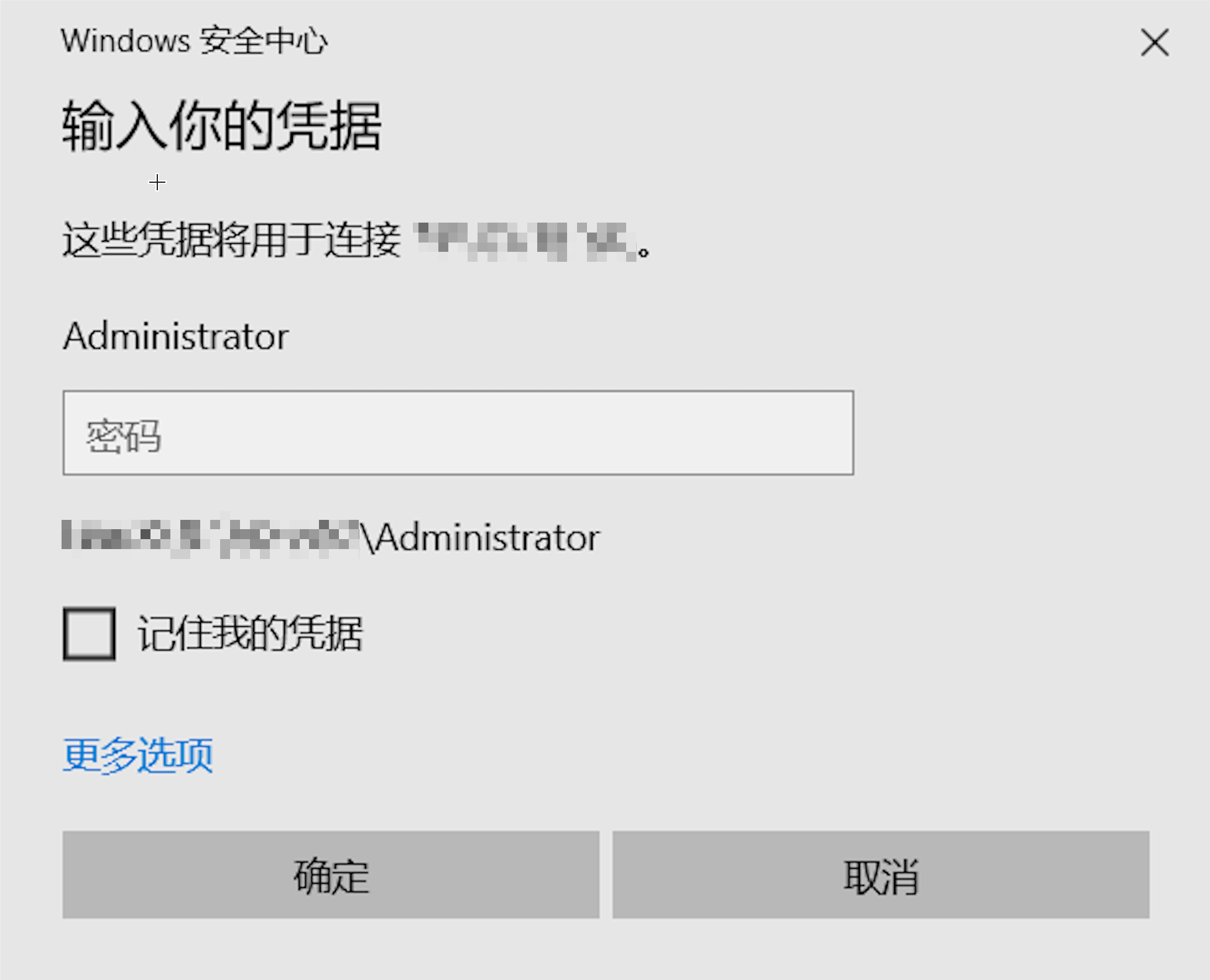
4. 单击确定,即可登录到 Windows 实例。
说明:
1. 在终端执行以下命令,检查系统是否已安装 rdesktop。
rdesktop
若已安装 rdesktop,请执行 步骤4。
若提示 command not found,则表示未安装 rdesktop,请执行 步骤2。
2.
在终端执行以下命令
,下载 rdesktop 安装包,此步骤以 rdesktop 1.8.3 版本为例。wget https://github.com/rdesktop/rdesktop/releases/download/v1.8.3/rdesktop-1.8.3.tar.gz
3. 在待安装 rdesktop 的目录下,依次执行以下命令,解压和安装 rdesktop。
tar xvzf rdesktop-1.8.3.tar.gz ##您可替换为实际使用的版本号cd rdesktop-1.8.3yum install -y libX11-devel./configure --disable-credssp --disable-smartcardmakemake install
说明:
如发生 “Failed to connect, CredSSP required by server.” 错误,您可在取消 Windows 服务器系统属性 > 远程桌面中的“仅允许运行使用网终级别身份验证的远程桌面的计算机连接”的勾选后,再次进行尝试。
4.
执行以下命令
,远程连接 Windows 实例。说明:
请将示例中的参数修改为您自己的参数。
rdesktop -u Administrator -p <your-password> <hostname or IP address>
Administrator 即为前提条件中获得的管理员账号。<your-password> 即为您设置的登录密码。
如果您忘记密码,请 重置密码。<hostname or IP address> 即为您的 Windows 实例公网 IP 或自定义域名。说明:
以下操作以 Microsoft Remote Desktop for Mac 为例。微软官方已于2017年停止提供 Remote Desktop 客户端的下载链接,转由其子公司 HockeyApp 进行 Beta 版本的发布。您可前往 Microsoft Remote Desktop Beta 下载 Beta 版本。
以下操作以连接 Windows Server 2022 数据中心版 64位 中文版操作系统的云服务器为例。
方式一:RDP文件登录
1.
下载 Microsoft Remote Desktop for Mac
并在本地进行安装。2.
登录
云服务器控制台。3. 在实例的管理页面,根据实际使用的视图模式进行操作:
找到需要登录的 Windows 云服务器,单击右侧的登录。如下图所示:

选择需要登录的 Windows 云服务器页签,单击登录。如下图所示:
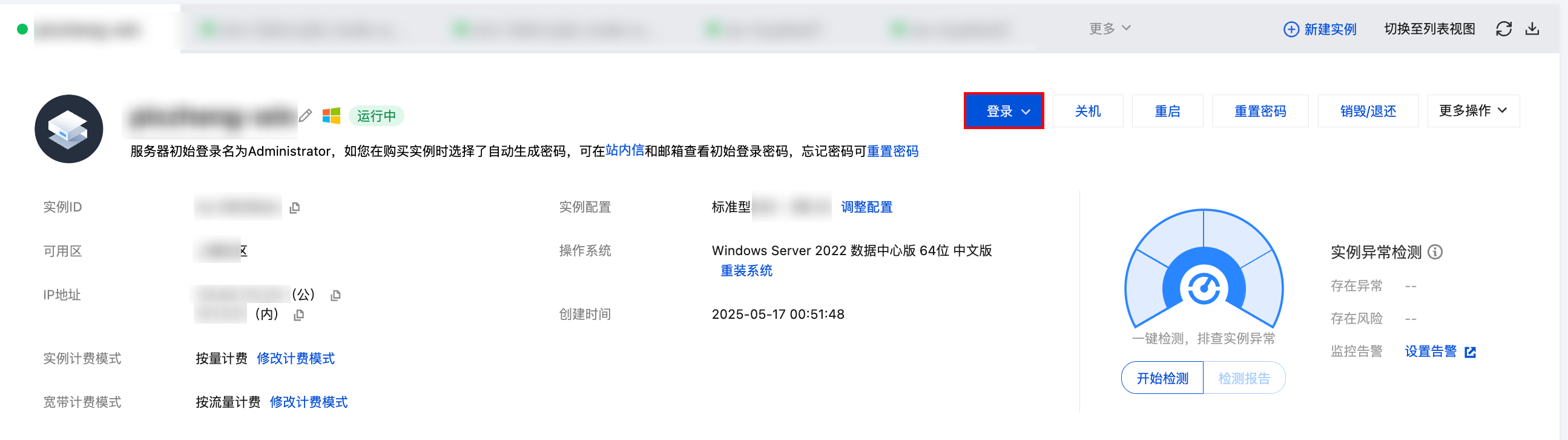
4. 在打开的 OrcaTerm 登录窗口中,选择 RDP文件下载,将 RDP 文件下载到本地。
说明:
若您已修改远程登录端口,则需修改 RDP 文件,在 IP 地址后增加
:端口。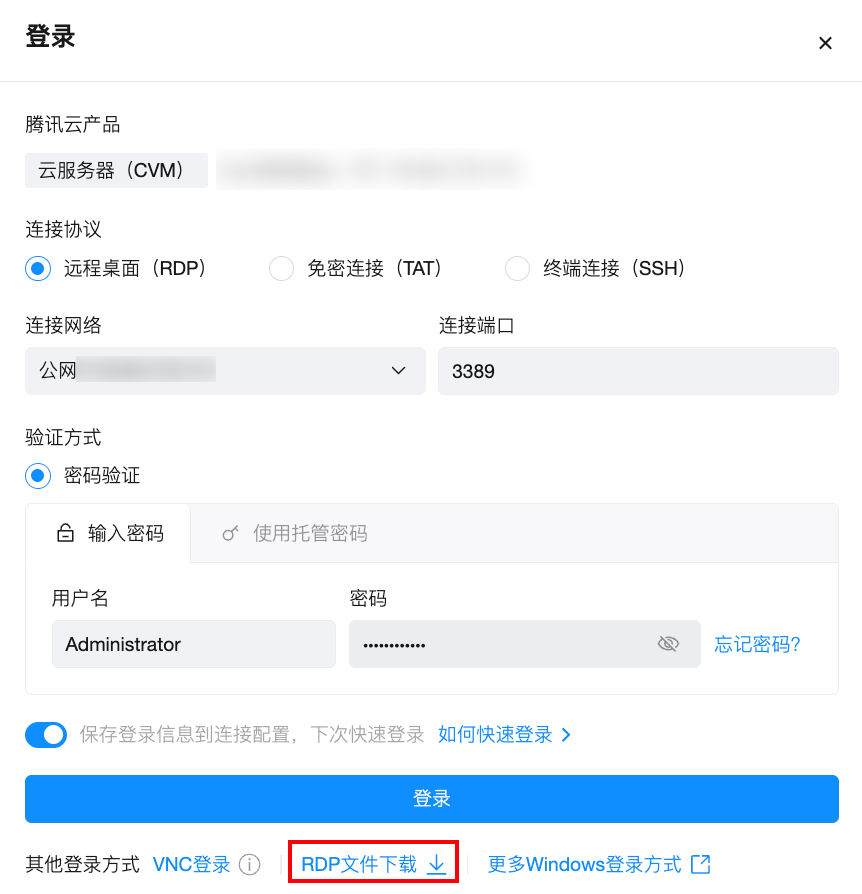
5. 双击打开已下载到本地的 RDP 文件,输入密码,单击确定,即可远程连接到 Windows 云服务器。
如果您使用系统默认密码登录实例,请前往 站内信 获取。
如果您忘记密码,请 重置实例密码。
方式二:手动添加
1.
下载 Microsoft Remote Desktop for Mac
并在本地进行安装。2. 启动 MRD,并单击添加电脑。如下图所示:
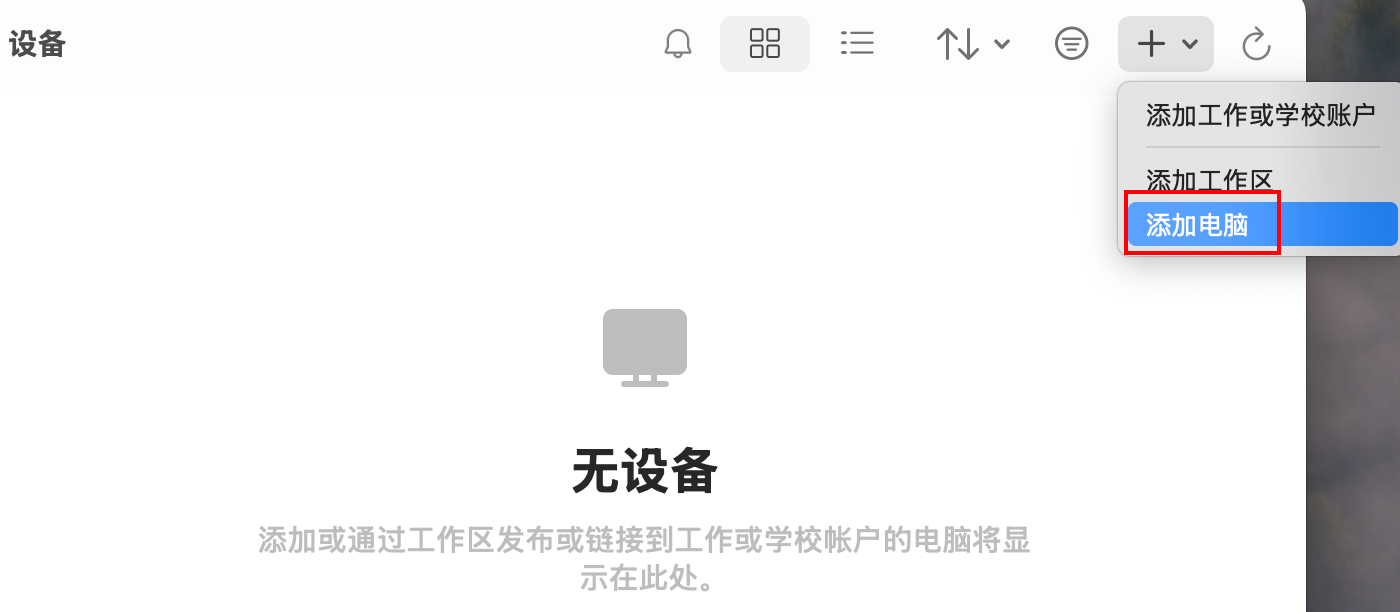
3. 在弹出的“添加电脑”窗口中,按以下步骤创建连接。如下图所示:
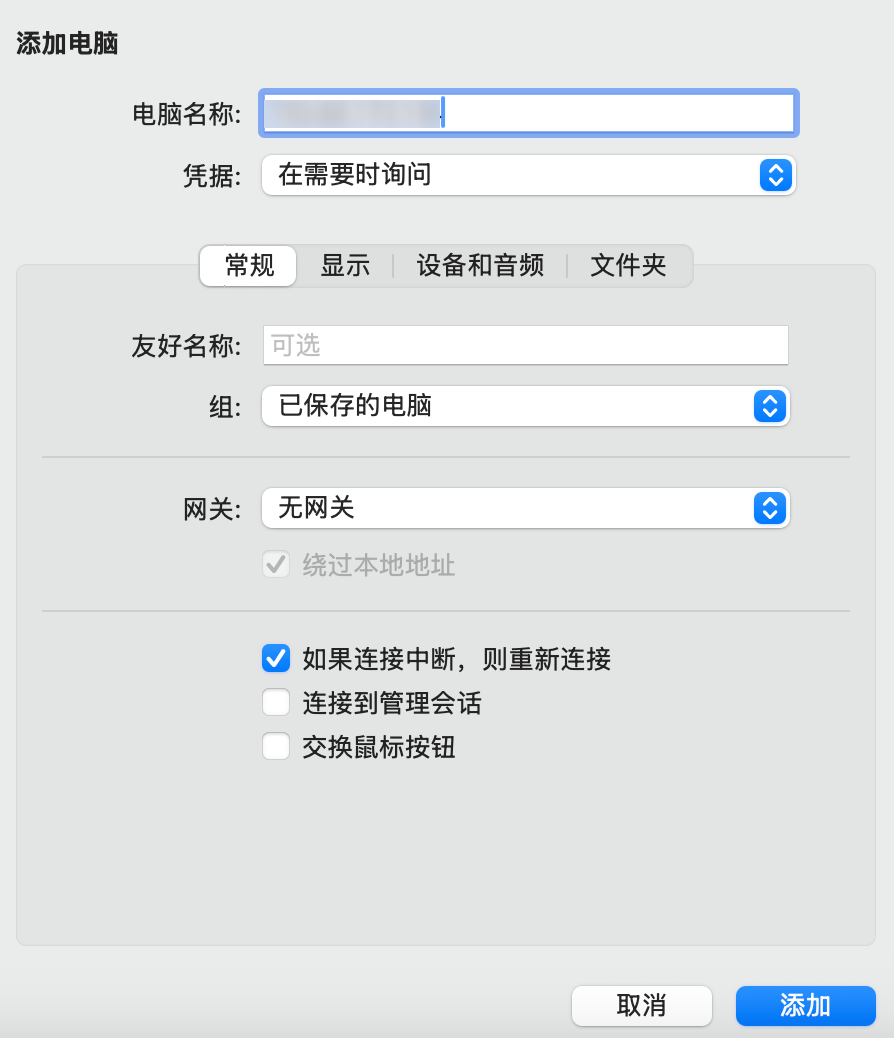
3.1 在电脑处输入云服务器公网 IP。获取方法请参见 获取公网 IP 地址。
3.2 单击添加确认创建。
3.3 其余选项保持默认设置,完成创建连接。
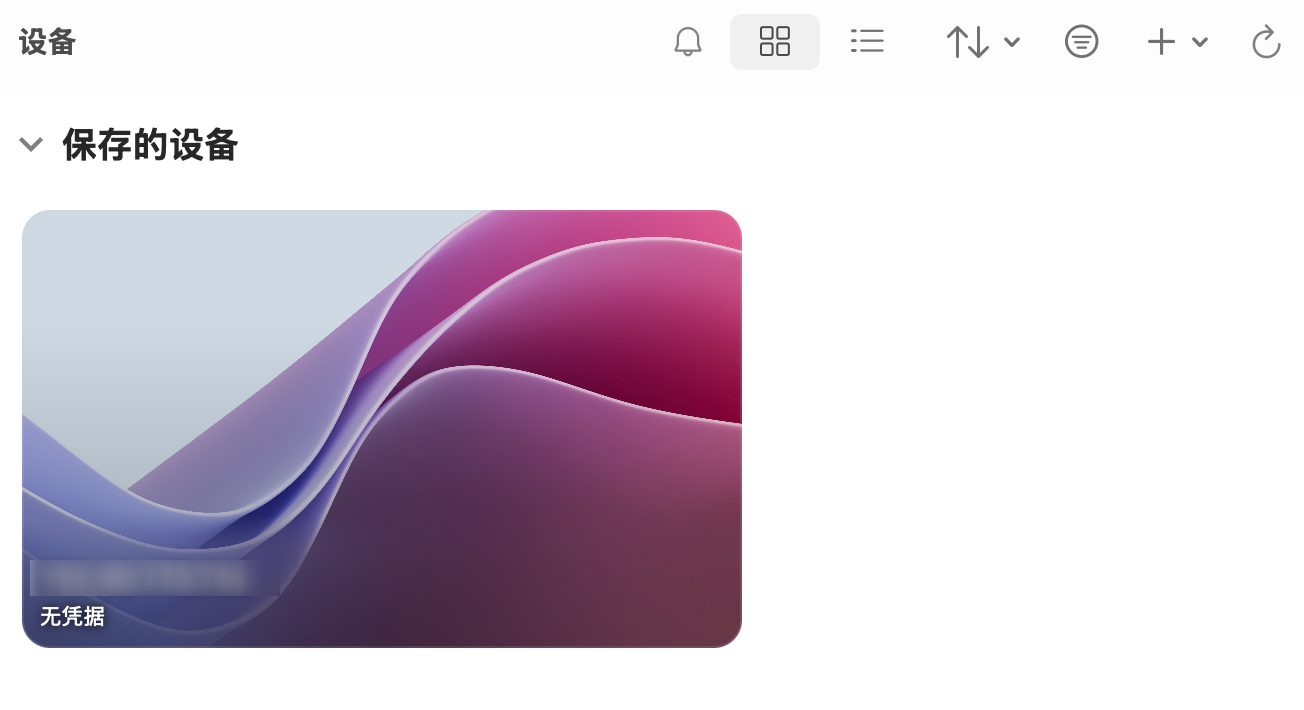
即可在窗口中查看已成功创建的连接。如下图所示:
4. 双击打开新创建的连接,并在弹出的窗口中根据提示,输入云服务器的账号和密码,单击继续。
如果您使用系统默认密码登录实例,请前往 站内信 获取。
如果您忘记密码,请 重置实例密码。
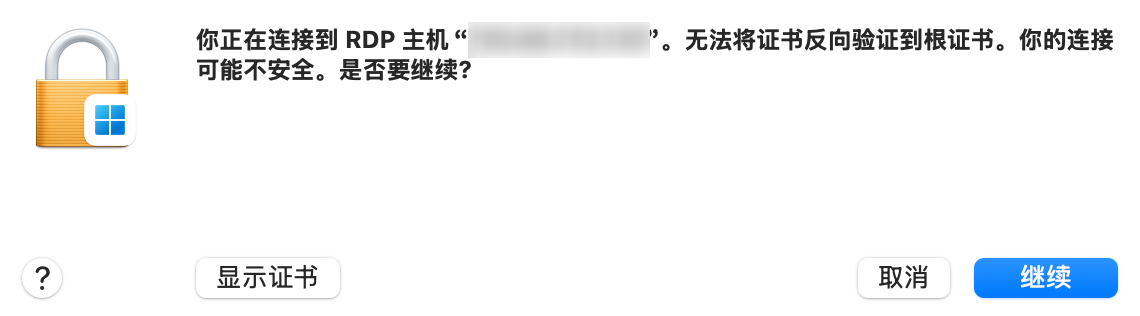
5. 在弹出的窗口中单击继续确认连接。如下图所示:
成功连接后将打开 Windows 云服务器界面。如下图所示: