TencentDB Security Group Management

Last updated: 2023-09-04 10:33:55

Scenario

Security group is a stateful virtual firewall with filtering capabilities, used to set network access control for single or multiple cloud databases. It is an important means of network security isolation provided by Tencent Cloud. A security group is a logical grouping, allowing you to add cloud database instances with the same network security isolation requirements within the same region to the same security group. Cloud databases and CVMs share the security group list, with rules based on matching within the group. For specific rules and limitations, please refer to Security Group Detailed Description.
Note
TencentDB for MySQL security group currently only supports network access control for VPCs and public networks but not classic network.
As TDSQL-A for PostgreSQL does not have active outbound traffic, outbound rules are not applicable to it.
TencentDB for MySQL security groups support master instances, read-only instances, and disaster recovery instances.

Security Group Configuration for TencentDB

Step 1. Create a security group

1. Log in to the CVM console.
2. Select Security Group on the left sidebar, select a region, and click Create.


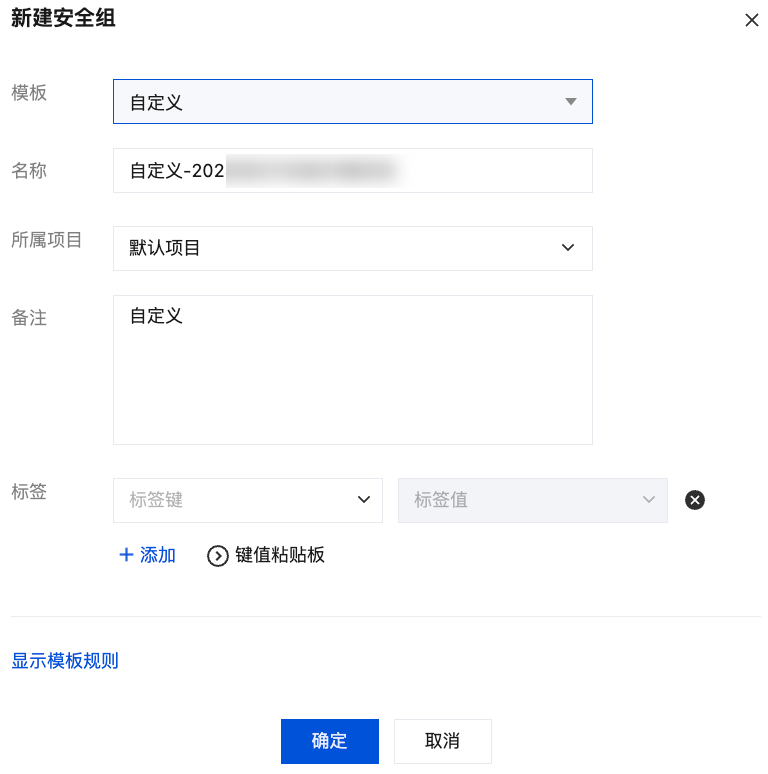
3. In the pop-up dialog window, configure the following items, and click OK
Template: Select a template based on the service to be deployed on the TencentDB instance in the security group, which simplifies the security group rule configuration, as shown in the table below.
Template
Note
Note
Open all ports
Opening all ports to both public and private networks by default poses certain security risks.
-
Open ports 22, 80, 443, and 3389 and the ICMP protocol
By default, open ports 22, 80, 443, 3389, and the ICMP protocol, and allow all traffic within the private network.
This template does not apply to cloud databases.
Custom
You can create a security group and then add custom rules. For more information, see Add a security group rule.
-
Name: Custom name of the security group.
Project: By default, select Default Project. You can specify another project for easier management later on.
Notes: A short description of the security group for easier management.


Step 2: Add Security Group Rules

1. On the Security Group page, click Modify Rule in the Operation column on the row of the security group for which to configure a rule.


2. On the security group rule page, click Inbound Rules > Add Rule.


3. In the pop-up dialog box, set the rule.
Type: Custom is selected by default. You can also choose another system rule template. MySQL(3306) is recommended.
Source or Destination: traffic origin (inbound rules) or target (outbound rules). You can use one of the following to define Source or Destination:
Specified Source/Destination
Note
A single IPv4 address or an IPv4 address range
A single IPv4 address or an IPv4 range is represented in CIDR notation, such as 203.0.113.0, 203.0.113.0/24, or 0.0.0.0/0, where 0.0.0.0/0 indicates all IPv4 addresses will be matched.
A single IPv6 address or an IPv6 address range
CIDR notation is used for IPv6 addresses, such as FF05::B5, FF05:B5::/60, ::/0, or 0::0/0, where ::/0 or 0::0/0 represents matching all IPv6 addresses.
To reference a security group ID, you can use the ID of the following security groups:
Security Group ID
Other Security Groups
The current security group represents the CVMs associated with the security group.
Other security groups refer to another security group ID within the same region and project.

Refer to the IP address objects or IP address group objects in the Parameter Template.
-
Protocol port: Enter the protocol type and port range, or you can reference the protocol port or protocol port group from the Parameter Template.
Note
To connect to TencentDB for MySQL, you need to allow access to the MySQL instance port. You can log in to the MySQL console and click on the instance ID to enter the details page and view the port.


TencentDB for MySQL uses private network port 3306 by default and supports customizing the port. If the default port is changed, the new port should be opened in the security group.
The TencentDB for MySQL public port is automatically assigned by the system and cannot be customized. After the public network access is enabled, it will be controlled by the ACL of the security group. When configuring the security policy, you need to open the private port 3306.
The security group rules displayed on the Security Group page in the TencentDB for MySQL console take effect for private and public (if enabled) network addresses of the TencentDB for MySQL instance.
Policy: Allow is selected by default.
Allow: traffic to this port is allowed.
Reject: Discard all data packets going to this port without any response.
Remarks: a short description of the security group rule.
4. Click Complete to finish adding the inbound security group rule.

Case Study

Scenario: You have created a TencentDB for MySQL instance and want to access it through a CVM instance. Solution: When adding a security group rule, select MySQL(3306) in the Type field to open the 3306 protocol port. You can also allow all IPs or specific IPs (IP ranges) based on your needs, and configure the IP sources that can access the TencentDB for MySQL instance through the CVM.
Inbound or Outbound
Local Disk Types
Source
Protocol port
Rule
Inbound direction
MySQL(3306)
All IPs: 0.0.0.0/0
Designated IP: Enter the specified IP or IP range
TCP:3306
Supported

Step 3. Configure a security group

A security group is an instance-level firewall provided by Tencent Cloud for controlling inbound traffic of TencentDB. You can associate a security group with an instance when purchasing it or later in the console.
Note
Currently, TencentDB for MySQL security group only supports configuration for VPC-based databases.
1. Log in to the TencentDB for MySQL console. In the instance list, click an instance ID to enter the instance management page.
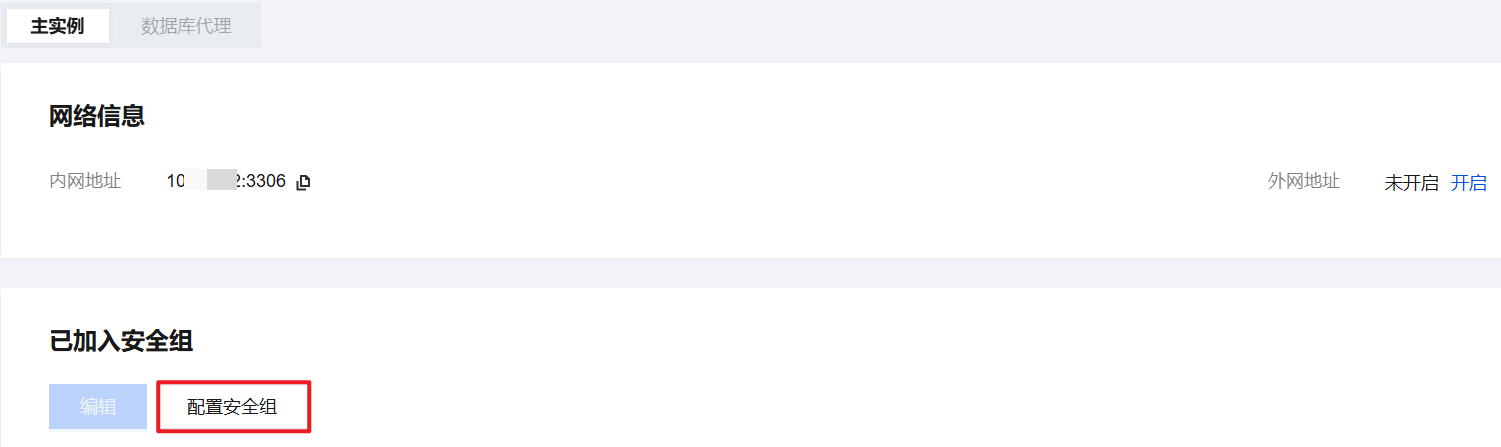
2. On the Security Group tab, click Configure Security Group.


3. In the pop-up dialog box, select the security group to be bound and click OK.

Import Security Group Rules

1. On the Security Group page, select the desired security group and click on the security group ID/name.
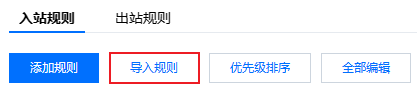
2. On the inbound rule or outbound rule tab, click Import Rule.


3. In the pop-up window, select the edited inbound/outbound rule template file and click Start Import.
Note
If the security group you wish to import rules into already has existing rules, it is recommended to export the current rules first; otherwise, importing new rules will overwrite the existing ones.

Clone Security Group

1. On the Security Groups page, in the Operation column, select More > Clone.
2. In the pop-up dialog, select the target region and target project, then click OK. If the new security group needs to be associated with a CVM, please manage the CVM within the security group again.

Deleting Security Group

1. On the Security Group page, select the security group you want to delete, and in the Action column, choose More > Delete.
2. In the pop-up dialog box, click OK. If the current security group is associated with a CVM, you must first unbind the security group before deleting it.