Initializing Cloud Disks (<2 TB)

Last updated: 2025-08-11 16:06:42

Scenario

This guide provides instructions for initializing cloud disks with a capacity of less than 2 TB. For more information on disk initialization scenarios, please refer to Introduction to Initialization Scenarios.

Preparations

The cloud disk has been attached to the cloud server.

Supports and Limits

Before performing any operations on the cloud disk, it is advisable to familiarize yourself with the Precautions for Using Cloud Disks to prevent damage to important data.
Formatting a data disk will erase all data. Make sure that the disk does not contain data, or important data has been backed up.
To avoid service exceptions, ensure before formatting that the CVM has stopped external services.

Instructions

Initializing Cloud Disk (Windows)
Initializing Cloud Disks (Linux)
Note
This document uses a CVM with Windows Server 2012 R2 installed. Note that the steps may vary according to the operating system version.
2. On the cloud server desktop, right-click on the
3d815ac1c196b47b2eea7c3a516c3d88.png (32×30)

in the lower left corner.
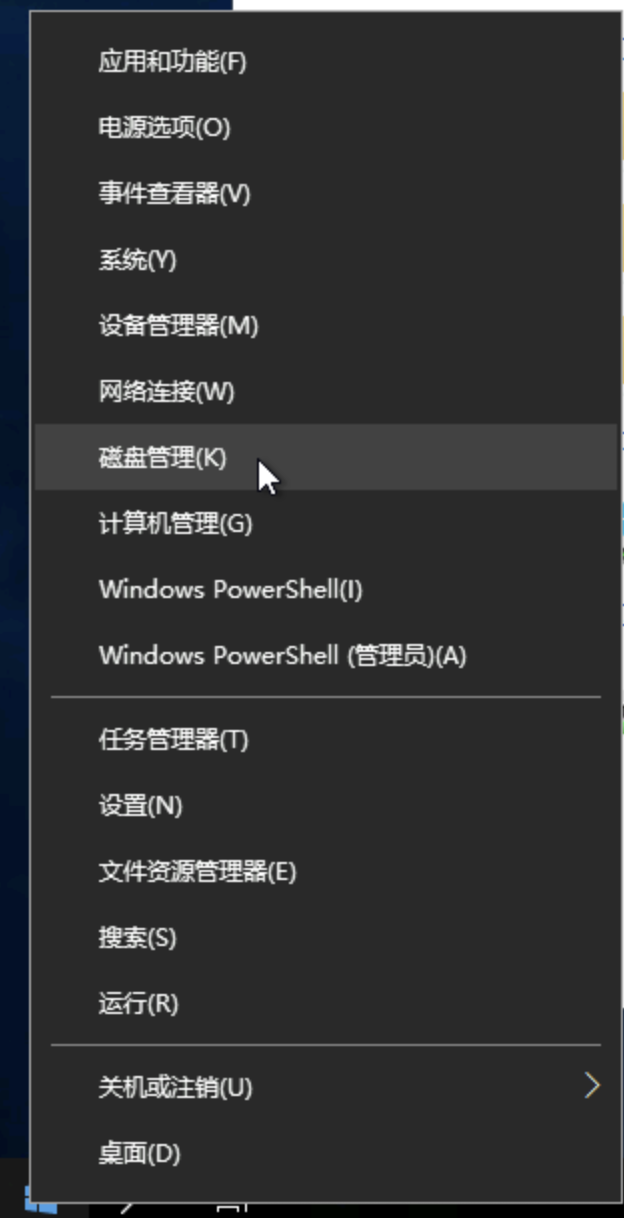
3. From the pop-up menu, select Disk Management to open the Disk Management window.

Note
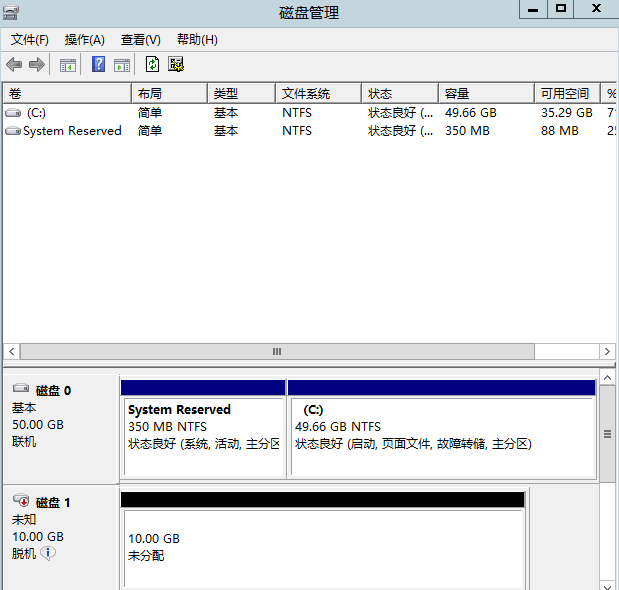
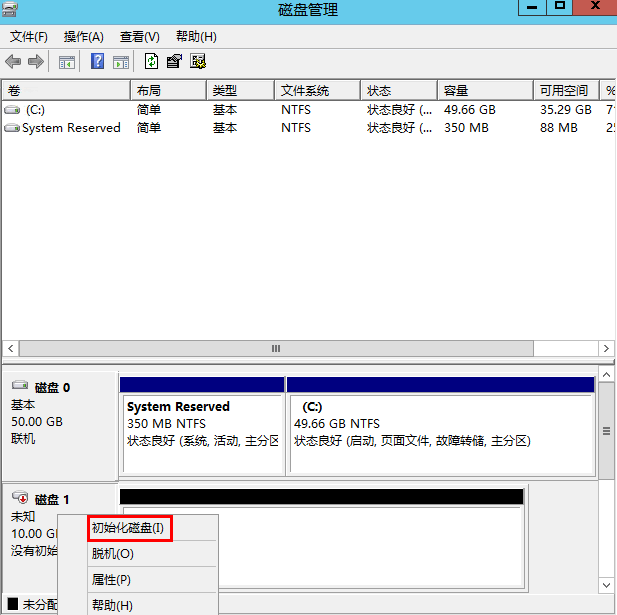
If the newly added disk is in an offline state (as shown above), you need to first execute Step 4 to bring it online before executing Step 5 for initialization. Otherwise, you can directly execute Step 5 for initialization.
4. 
In the right pane, a list of disks will appear.
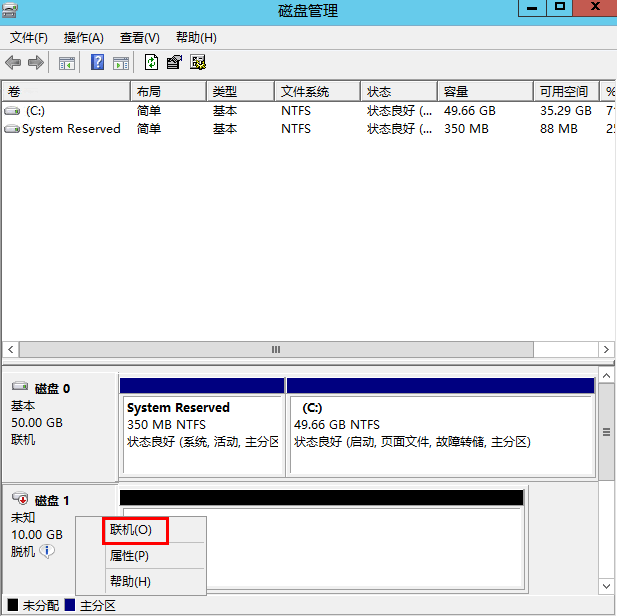
If the status of the disk is Offline, right-click on Disk 1 area and select Online from the menu list to bring it online. After going online, Disk changes from Offline status to Not Initialized.
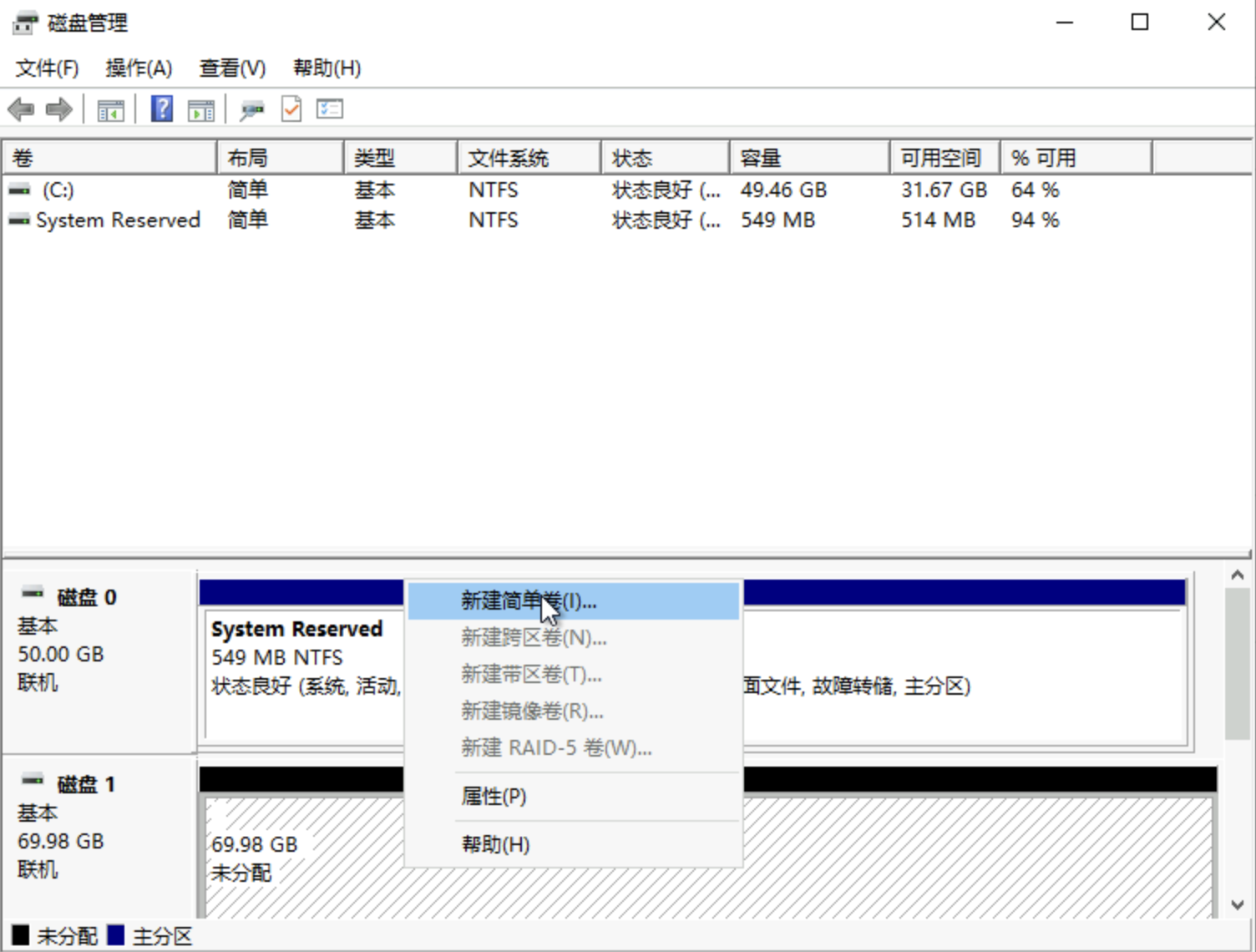
5. Right-click on the
Disk 1 area
and select New Volume... from the drop-down menu, as shown in the figure below:

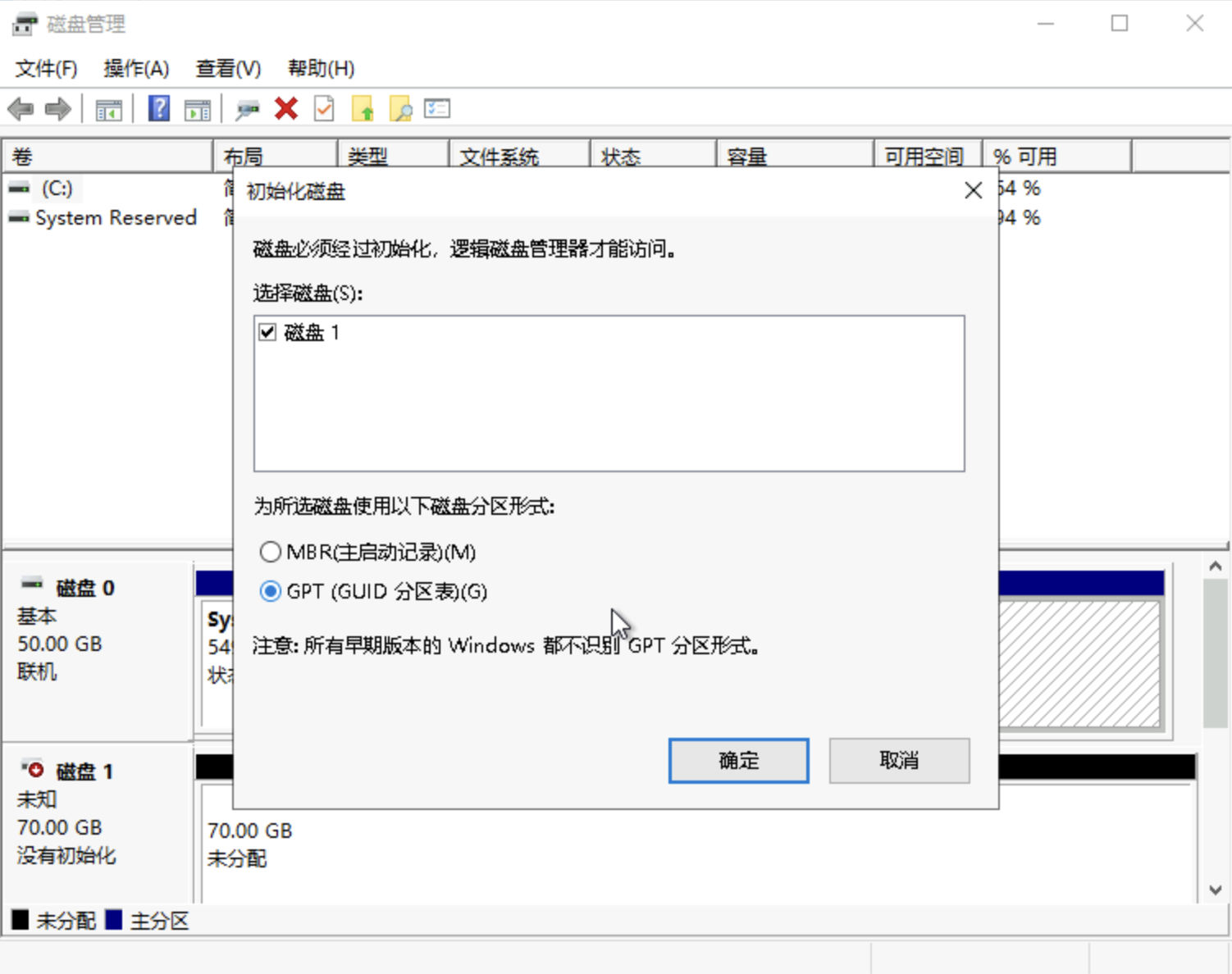
6. In the New Volume... dialog box, select the disk that needs to be initialized, the confirm dialog appears and click Confirm. As shown below:
Note
If a disk initializes after the disk is put into use, the original data on the disk will be erased.

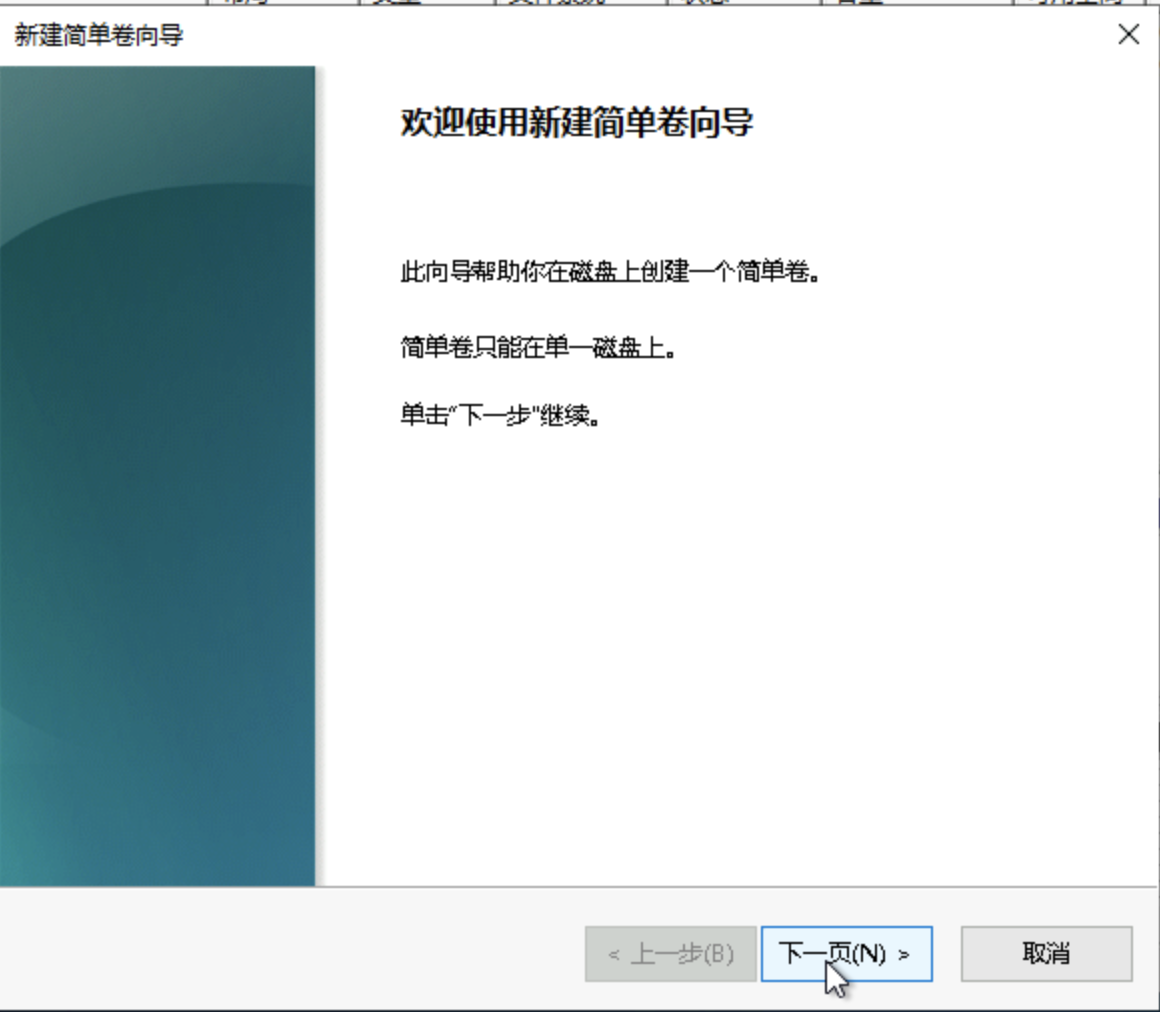
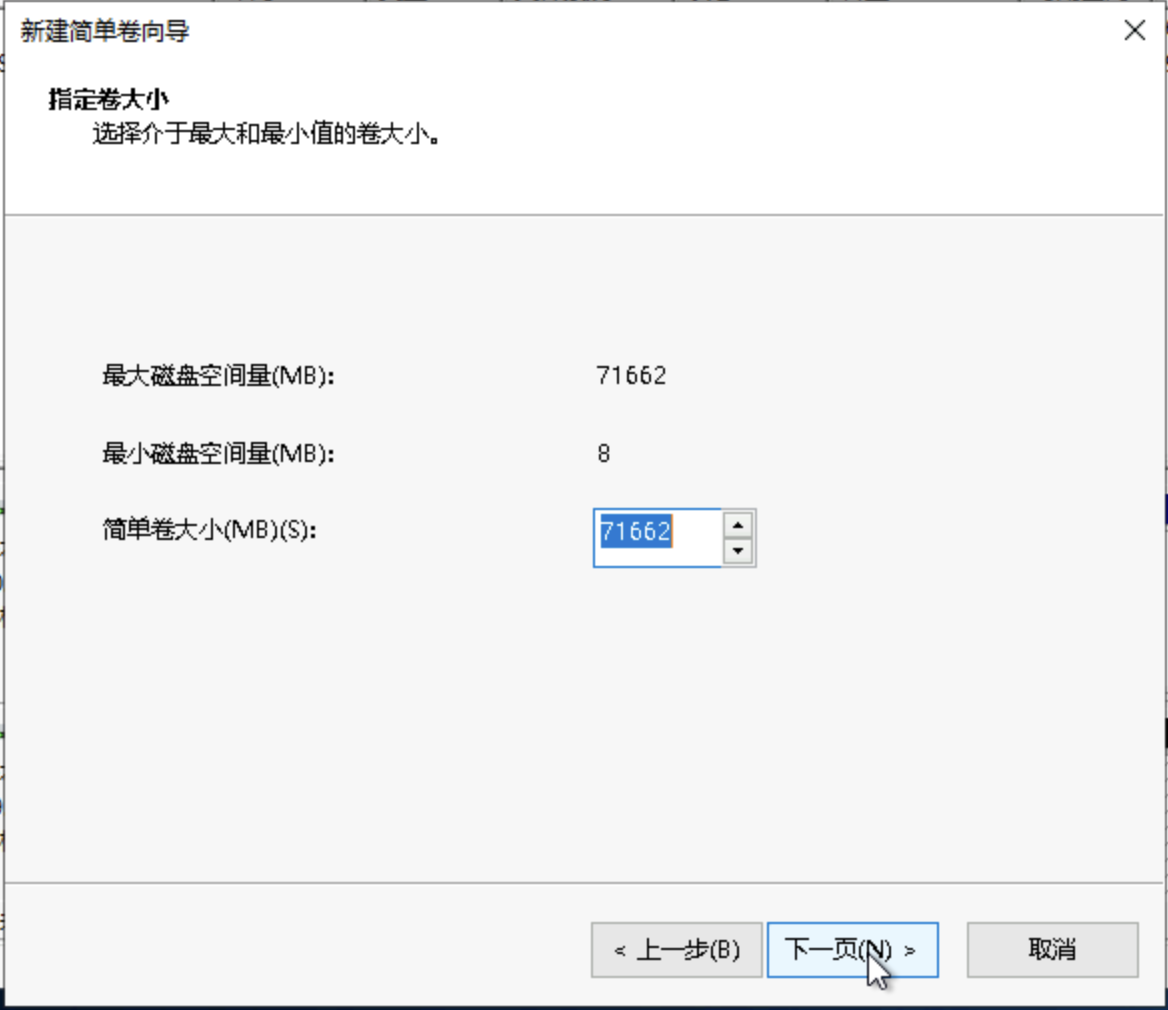
7. Specify the volume size according to your needs. By default, the maximum value is selected. Click Next.

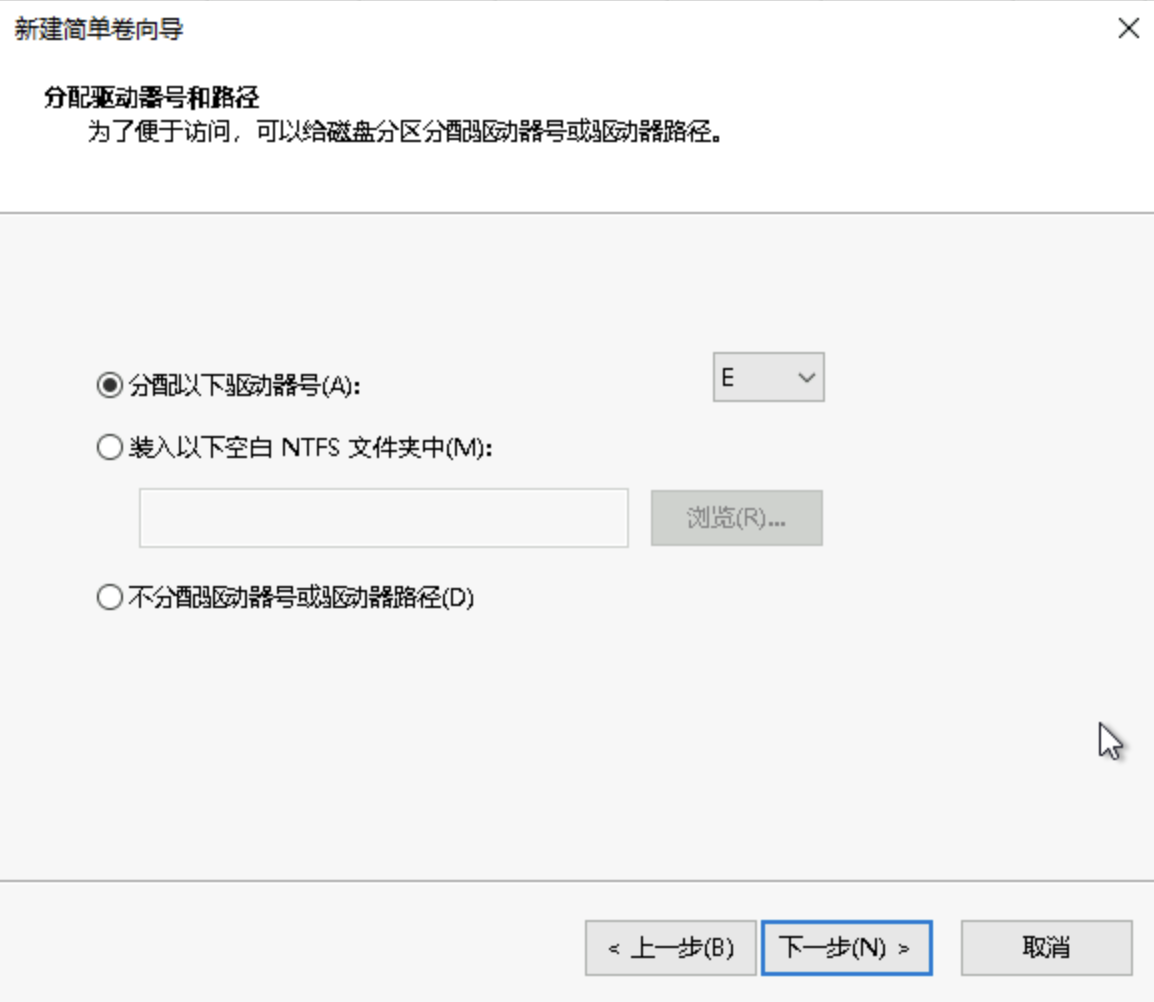
8. Assign a drive letter and click Next. As shown in the figure below:

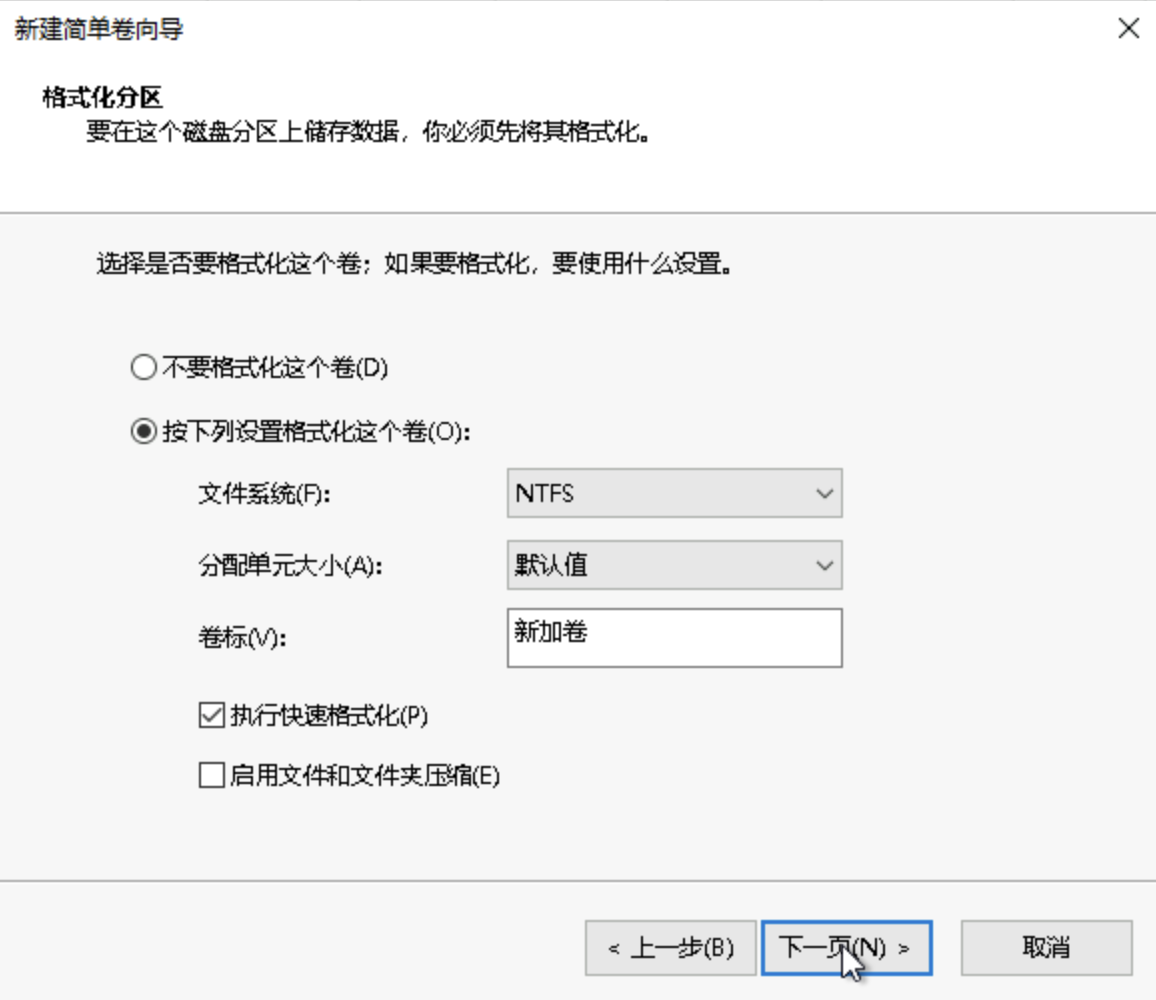
9. Select File System Setting, set the parameters as needed, take defalut for example and click Next.

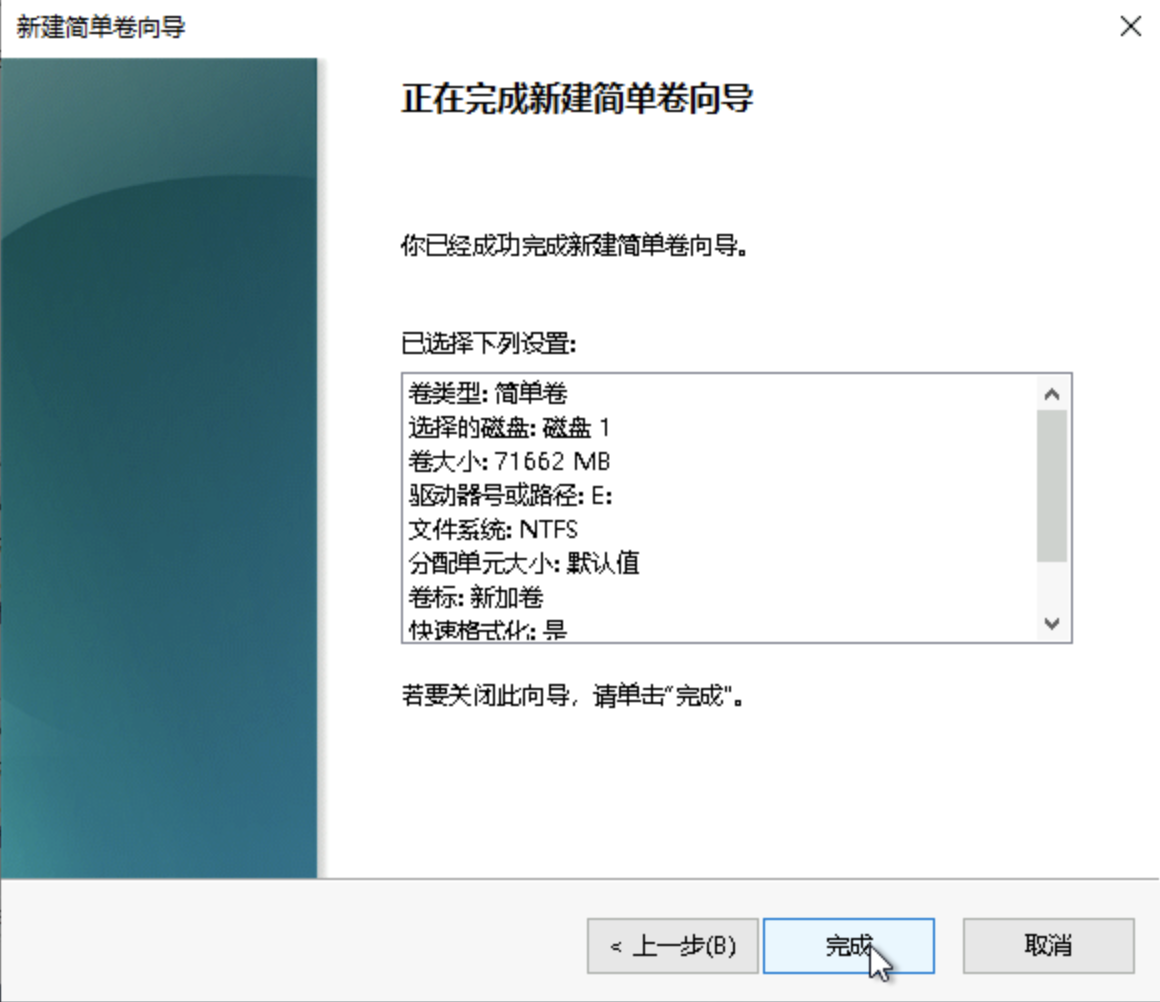
10. Check all information and click Create. Please wait a moment for the system to complete the initialization. When the volume status is Healthy, it indicates that the disk initialization was successful.

After successful initialization, you can view the new disk in the Computer interface.

Please select
the initialization method based on your actual usage scenario:
If the entire disk is presented as a single independent partition (i.e., there are no multiple logical disks, such as vdb1 and vdb2), we strongly recommend that you do not use partitions and directly build a file system on the raw device.
If the entire disk needs to be represented as multiple logical partitions (i.e., there are multiple logical drives), you must first perform partitioning operations, then create a file system on the partition.

Creating file systems on bare devices

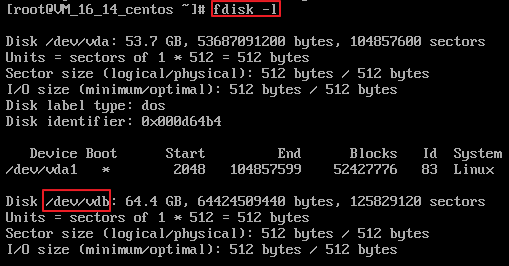
2. Run the following command as the root user to view the disk name.
fdisk -l
If information similar to what is shown below is returned, it indicates that the current cloud server has two disks. /dev/vda is the system disk, and /dev/vdb is the newly added data disk.

3. Execute the following command to directly create a file system format for the /dev/vdb bare device.
mkfs -t <file system format> /dev/vdb
Different file systems support different partition sizes. Choose the file system according to your actual needs. For instance, when setting the file system to EXT4:
mkfs -t ext4 /dev/vdb
Note
The formatting takes a while. Pay attention to the system's running status and do not exit.
4. Run the following command to create a new mount point.
mkdir <mount point>
Taking the newly created mount point /data as an example:
mkdir /data
5. Run the following command to mount the new partition to the newly created mount point.
mount /dev/vdb <mount point>
For instance, a newly created partition is mounted to the /data mount point:
mount /dev/vdb /data
6. Run the following command to view the mount result.
df -TH
Note
If you do not need to configure disk automount at startup, skip the following steps.
7. Confirm the mounting method and obtain the corresponding information. Based on business needs, you can use an elastic cloud disk's soft link, file system's UUID (universally unique identifier), or device name to automatically mount a disk. The descriptions and information acquisition methods are as follows:
Mount method
Pros and cons
Obtaining information
Use the soft link of the elastic cloud disk (recommended)
Advantages: Each elastic cloud disk has a fixed and unique soft link, which will not change with operations such as unmounting, mounting, formatting partitions, etc.
Limitations: Only elastic cloud disks support soft links. It is unable to detect the formatting operations of partitions.
Run the following command to view the soft link of the elastic cloud disk.
ls -l /dev/disk/by-id
Use the UUID of the file system
Automatic mounting configuration may fail due to changes in a file system's UUID.
For example, reformatting a file system will change its UUID.
Run the following command to view the UUID of the file system.
blkid /dev/vdb
Use device name
Auto-attaching configuration may fail due to changes in device name.
For example, if an elastic cloud disk on the CVM is unmounted and then remounted, the device name may change when the operating system recognizes the file system again.
Run the following command to view the device name.
fdisk -l
8. Execute the following command to backup the /etc/fstab file. The example below demonstrates backing up to the /home directory:
cp -r /etc/fstab /home
9. Run the following command to open the /etc/fstab file using the VI editor.
vi /etc/fstab
10. Press i to enter the editing mode.
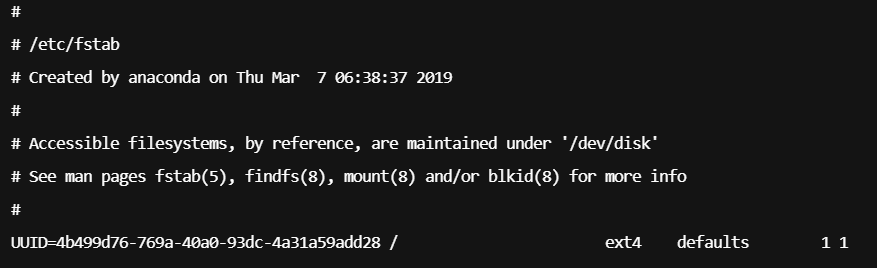
11. Move the cursor to the end of the file, press Enter, and append the following content.
<Device information> <Mount point> <File system format> <File system installation option> <File system dump frequency> <File system check sequence at launch>
(Recommended) Using the automatic mounting of the soft link of an elastic cloud disk as an example, combine with the previous examples to add:
/dev/disk/by-id/virtio-disk-drkhklpe /data ext4 defaults,nofail 0 0
Note
If you have multiple elastic cloud disks, you can differentiate them by comparing the disk-xxxxx with the cloud disk ID in the console.
Take automatic mounting using the UUID of the disk partition as an example. Add the following content:
UUID=d489ca1c-5057-4536-81cb-ceb2847f9954 /data ext4 defaults,nofail 0 0
Take automatic mounting using the device name as an example. Add the following content:
/dev/vdb /data ext4 defaults,nofail 0 0
12. Press Esc, input :wq, and press Enter to save the settings and exit the editor.
13. Run the following command to verify if the /etc/fstab file has been written successfully.
mount -a
If the command runs successfully, the file has been written. The newly created file system will automatically mount when the operating system starts up.

Creating a file system on a partition

Note
This operation will use the fdisk partitioning tool in the CentOS 7.5 operating system to set the data disk /dev/vdb as the primary partition. The partition format is set to MBR by default, the file system is set to EXT4 format, it is mounted under /data/newpart, and it is set to automatically mount at startup. The formatting operations may vary in different operating systems, and this document is for reference only.
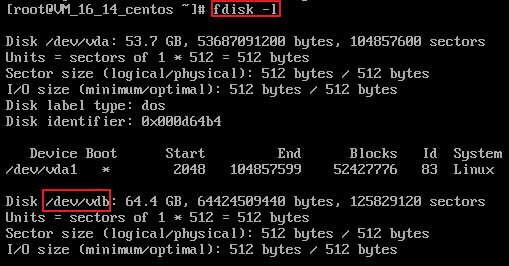
2. Run the following command as the root user to view the disk name.
fdisk -l
If information similar to what is shown below is returned, it indicates that the current cloud server has two disks. /dev/vda is the system disk, and /dev/vdb is the newly added data disk.

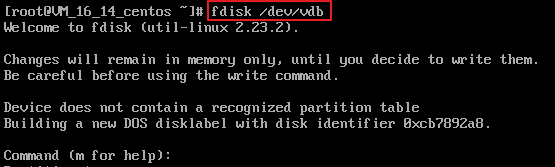
3. Run the following command to use the fdisk tool to partition the newly added data disk.
fdisk <add new data disk>
Taking the newly mounted data disk /dev/vdb as an example:
fdisk /dev/vdb
The echo information is displayed as follows:

4. Enter n and press Enter to start creating a new partition. The returned information is as follows:

This indicates that the disk has two types of partitions:
p denotes the primary partition.
e denotes an extended partition.
5. Taking the creation of a primary partition as an example, enter p and press Enter to start creating a primary partition.
The echo information is shown as follows:

Partition number refers to the primary partition number, which can be selected from 1 to 4.
6. As an example, enter the primary partition number 1 and press Enter.
The following information will be displayed:

First sector refers to the initial cylinder area, with a selectable range of 2048 - 125829119, defaulting to 2048.
7. Using the default initial cylinder number 2048 as an example, press Enter.
The echo information is displayed as follows:


Last sector refers to the end of the cylinder area, you can choose between 2048 - 125829119, with the default being 125829119.
8. Taking the default end cylinder number 125829119 as an example, press Enter. The returned information is as follows:

This indicates that the partitioning is complete, and a new partition has been created for the 60GB data disk.
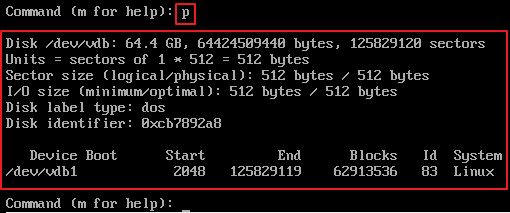
9. Enter p and press Enter to view the detailed information of the newly created partition.
If information similar to the following is returned:


it indicates the detailed information of the newly created partition /dev/vdb1.
Note
If the partition operation above is incorrect, enter q to exit the fdisk partition tool, and the previous partition results will not be retained.
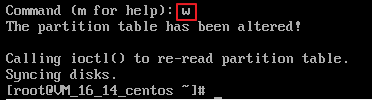
10. Enter w and press Enter to write the partition results to the partition table.
The following returned information indicates that the partition has been created.

11. Execute the following command to synchronize the new partition table changes to the operating system.
partprobe
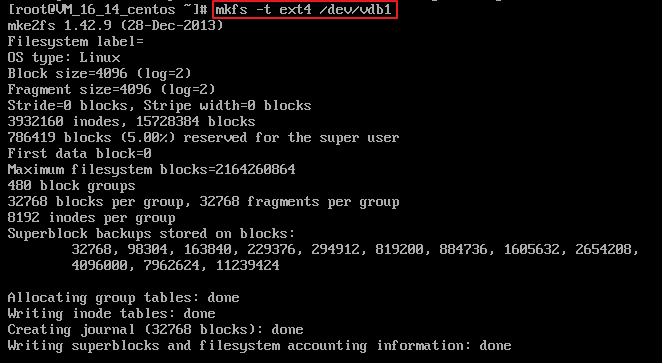
12. Execute the following command to set the file system of the newly created partition to the format required by the system.
mkfs -t <file system format> /dev/vdb1
Different file systems support different partition sizes. Choose a file system that suits your needs. For instance, when setting up the EXT4 file system:
mkfs -t ext4 /dev/vdb1
The echo message is displayed as follows:

Formatting requires some time. Please monitor the system's running status and do not exit.
13. Run the following command to create a new mount point.
mkdir <mount point>
Taking the newly created mount point /data/newpart as an example:
mkdir /data/newpart
14. Run the following command to mount the new partition to the newly created mount point.
mount /dev/vdb1 <mount point>
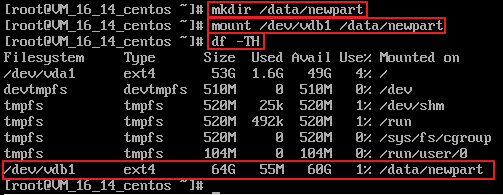
For instance, mounting a newly created partition to the mount point /data/newpart:
mount /dev/vdb1 /data/newpart
15. Run the following command to view the mount result.
df -TH
The following example of returned information:

indicates that the newly created partition /dev/vdb1 has been mounted to /data/newpart.
Note
If you do not need to configure disk automount at startup, skip the following steps.
16. Confirm the mounting method and obtain the corresponding information. Based on business needs, you can use an elastic cloud disk's soft link, file system's UUID (universally unique identifier), or device name to automatically mount a disk. The descriptions and information acquisition methods are as follows:
Mount method
Pros and cons
Obtaining information
Utilizing the soft link of an elastic cloud disk (recommended)
Advantages: Each elastic cloud disk has a fixed and unique soft link, which will not change with operations such as unmounting, mounting, formatting partitions, etc.
Limitations: Only elastic cloud disks support soft links. It is unable to detect the formatting operations of partitions.
Run the following command to view the soft link of the elastic cloud disk.
ls -l /dev/disk/by-id
Use the UUID of the file system
Automatic mounting configuration may fail due to changes in a file system's UUID.
For example, reformatting a file system will change its UUID.
Run the following command to view the UUID of the file system.
blkid /dev/vdb1
Use device name
Auto-attaching configuration may fail due to changes in device name.
For instance, if an elastic cloud disk on the cloud server is unmounted and then remounted, the device name may change when the operating system recognizes the device again.
Run the following command to view the device name.
fdisk -l
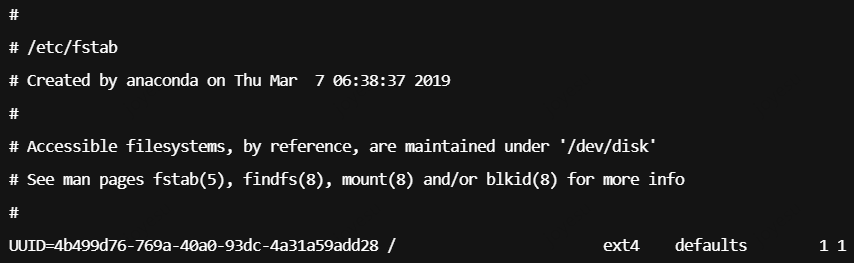
17. Execute the following command to backup the /etc/fstab file. The example below demonstrates how to backup to the /home directory:
cp -r /etc/fstab /home
18. Run the following command to open the /etc/fstab file using the VI editor.
vi /etc/fstab
19. Press i to enter the editing mode.
20. Move the cursor to the end of the file, press Enter, and append the following content.
<Device information> <Mount point> <File system format> <File system installation option> <File system dump frequency> <File system check sequence at launch>
(Recommended) Using the automatic mounting of the soft link of an elastic cloud disk as an example, combine with the previous examples to add:
/dev/disk/by-id/virtio-disk-drkhklpe /data/newpart ext4 defaults,nofail 0 2
Note
If you have multiple elastic cloud disks, you can differentiate them by comparing the disk-xxxxx with the cloud disk ID in the console.
Take automatic mounting using the UUID of the disk partition as an example. Add the following content:
UUID=d489ca1c-5057-4536-81cb-ceb2847f9954 /data/newpart ext4 defaults,nofail 0 2
Take automatic mounting using the device name as an example. Add the following content:
/dev/vdb1 /data/newpart ext4 defaults,nofail 0 2
21. Press Esc, input :wq, and press Enter to save the settings and exit the editor.
22. Run the following command to verify if the /etc/fstab file has been written successfully.
mount -a
If the command runs successfully, the file has been written. The newly created file system will automatically mount when the operating system starts up.

Related Actions